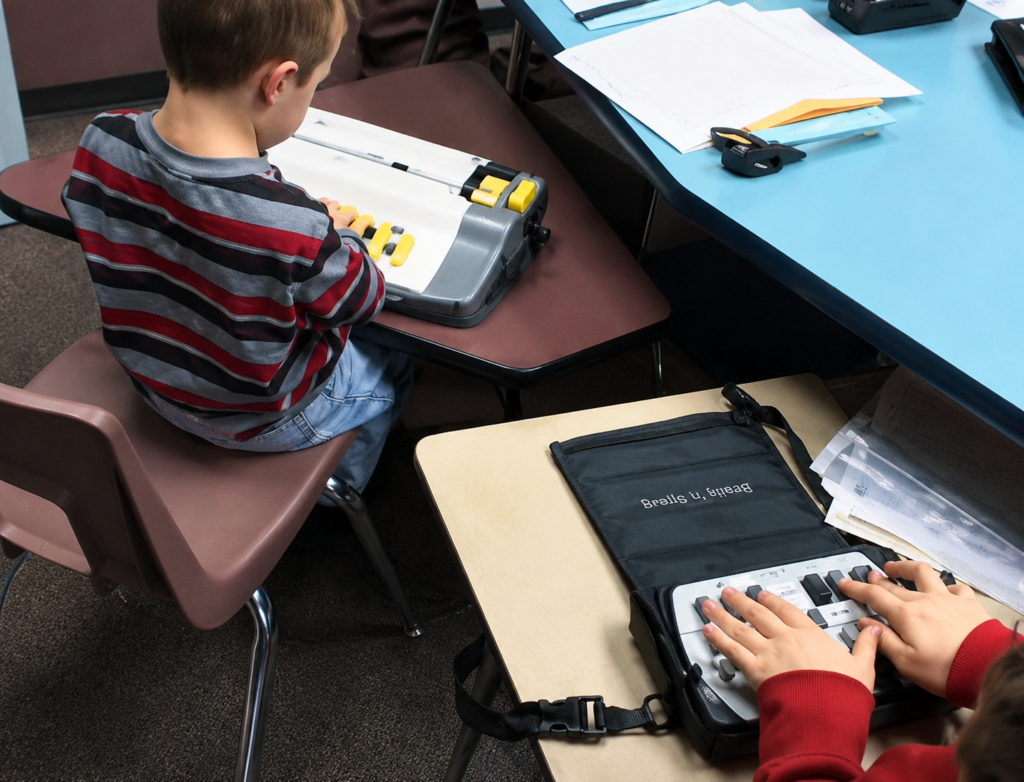
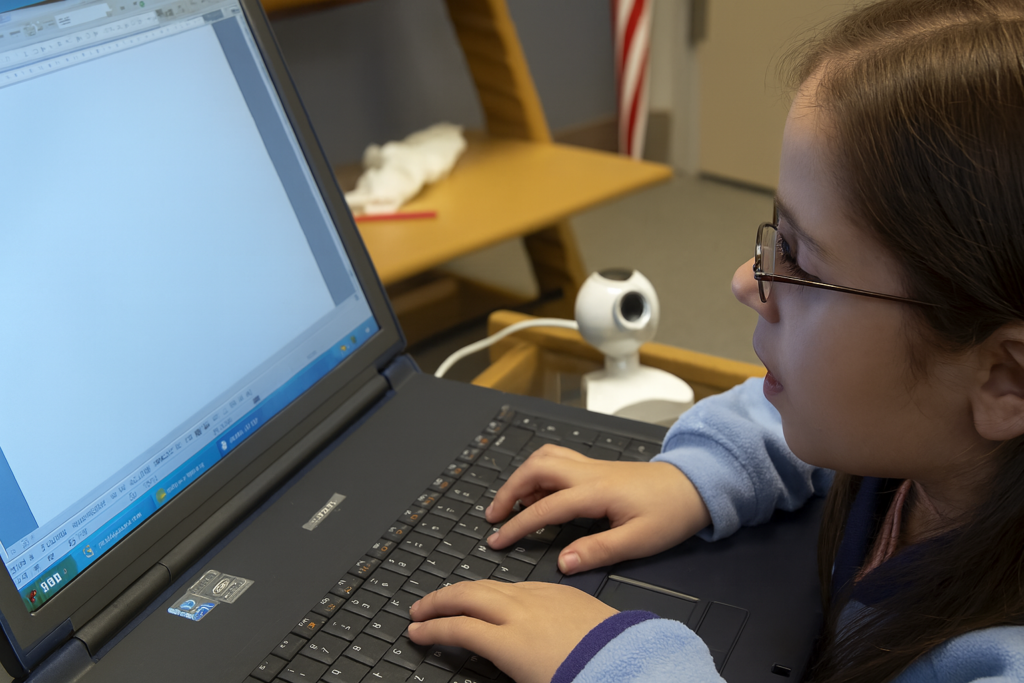
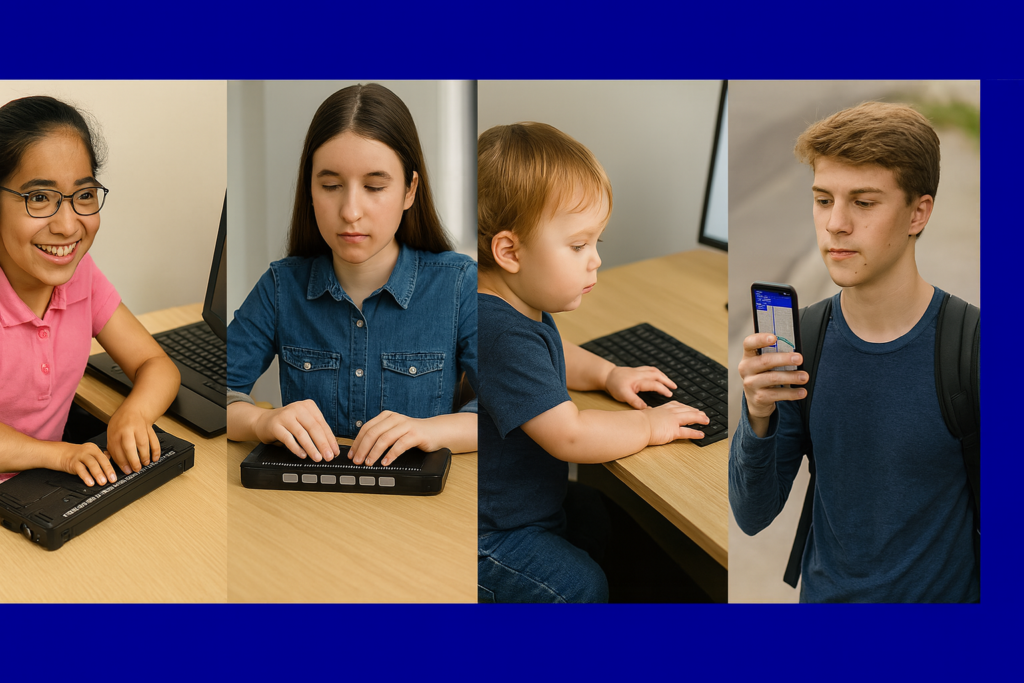
Early braille and technology instruction builds confidence, speed, and independence far earlier than most people realize. In this video, you’ll see Blind Kids Race Using Braille Technology as a blind 4-year-old and a 2nd grader race using braille writing tools while developing keyboarding, literacy, and technology skills through play, repetition, and structured instruction.
These students are not simply “learning devices.” They are learning how to:
Read and write independently
Build finger strength and tactile awareness
Increase speed and coordination
Develop early technology confidence
Prepare for future academic success
Young blind children can learn braille and technology skills at the same developmental stage sighted children learn print, handwriting, and keyboarding. When instruction begins early, students gain the ability to keep pace with peers academically while building true independence.
This type of instruction combines:
Braille literacy
Keyboarding
Listening skills
Finger positioning
Technology access
Confidence through repetition and success
Ready for Kindergarten to maintain pace with peers
The excitement and speed shown in this video demonstrate that blind children are fully capable of mastering complex skills when given access to the right tools and instruction early.
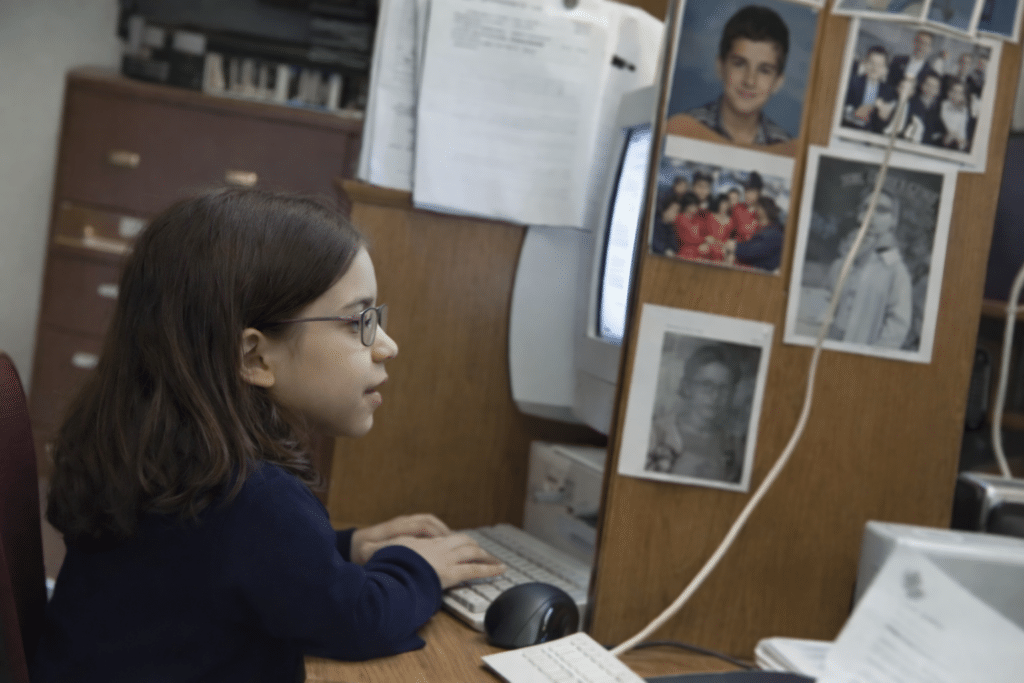
Blind Teen Learns Jaws in 3 Months-Yelena poses for a camera
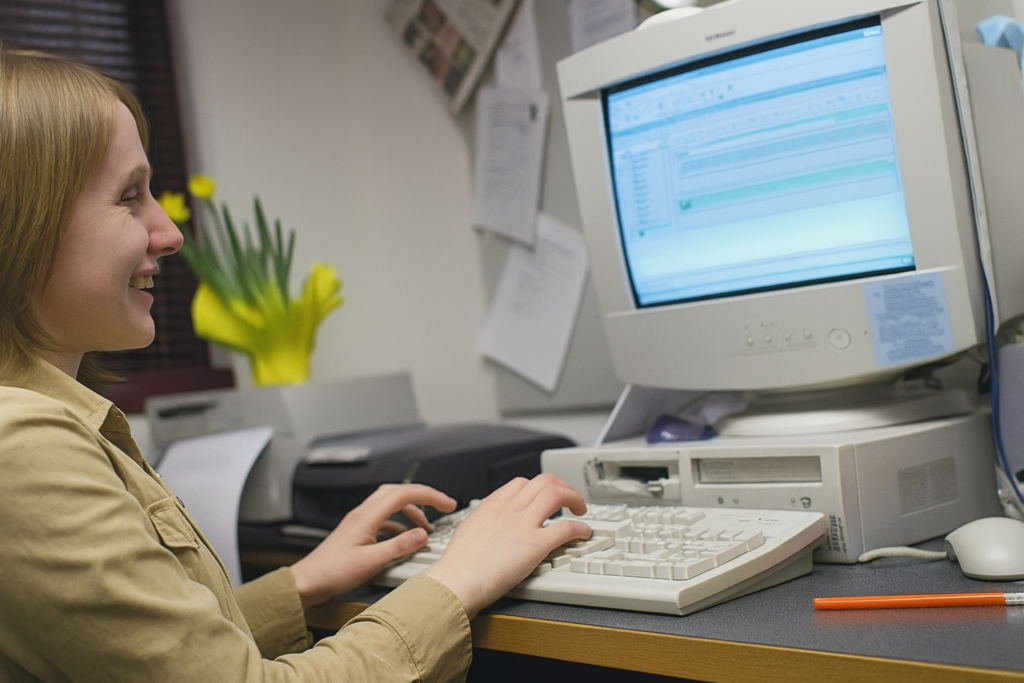
When students receive intensive, consistent instruction in access technology, independence changes quickly. This senior, who is was fully blind, demonstrates advanced JAWS screen reader skills. Within her first 3 months of focused instruction she learned English from her Russian Jaws and just continued to advance.
Watch her hands closely. Her fingers move across the keyboard faster than many sighted users while independently navigating email, documents, research, and computer tasks using speech feedback alone. This level of efficiency is not luck or “talent.” It comes from direct instruction, repetition, structured keyboarding, and access tech instruction while learning how to think through technology nonvisually.
Far too many blind and low vision students are never taught these skills early enough. Instead, they are often slowed down by inaccessible materials, over-reliance on visual methods, or limited technology instruction. True independence occurs when students learn the keyboard, screen reader commands, workflow, and problem-solving strategies necessary to keep pace with the real world.
JAWS is not simply a reading tool. It is access to:
Education
Employment
Communication
Research
Independence
The speed demonstrated in this video comes from mastering keyboard commands, touch typing, orientation to the computer environment, and daily use of technology in real academic tasks.
This is why early and intensive technology instruction matters.
Many students with low vision are not struggling because of ability. They are struggling because of access: and, in many cases, the way instruction is delivered reinforces that.
When educators rely on visual tools such as iPads, enlarged print, or limit instruction to opening Word for basic keyboarding, students are left without a true way to access their work or hope for their future. This unintentionally sends a powerful message: that they cannot function independently. Over time, this leads to discouragement, depression, and a growing belief that they have no way to navigate the world on their own.
Students then push themselves to use vision that is no longer efficient. They lean in, work inches from the task, and can only read small portions at a time. This is not access—it is strain and frustration.
When students are taught true access—using a computer, screen reader, and strong keyboarding skills, supported by instructors who use these tools daily—everything changes. They begin to work independently, keep pace with peers, and see a future that once felt out of reach.
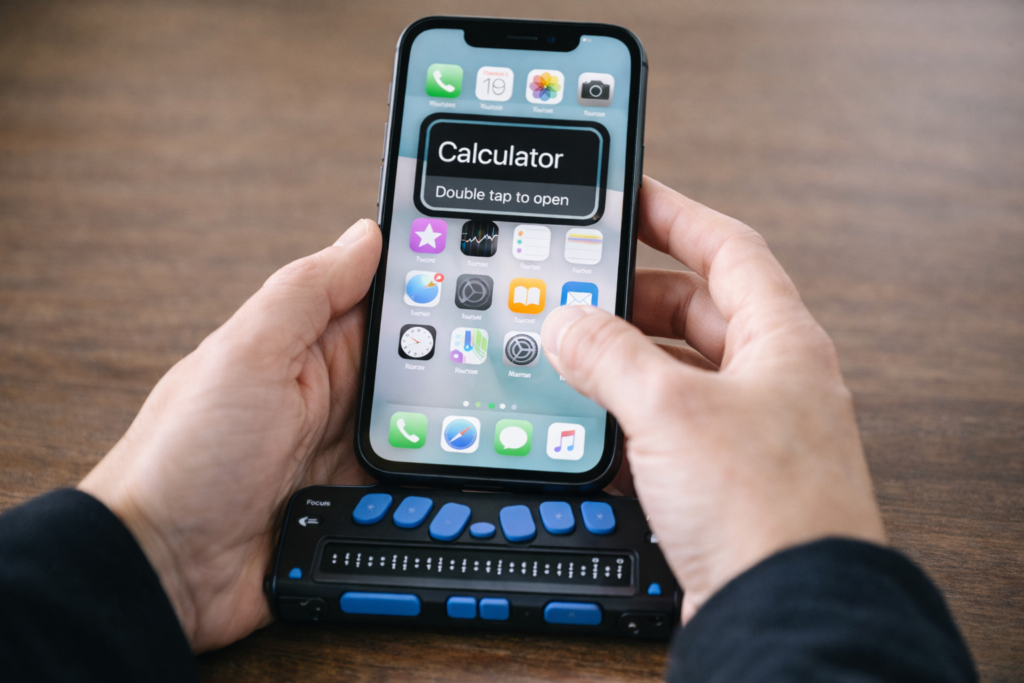
The iPhone is the most powerful accessibility tool available to blind and low‑vision students today. With the right skills, it becomes a map, a magnifier, a reader, a communication device, a travel tool, and a pathway to independence.
This guide gives students, parents, teachers, and O&M instructors everything needed to build real-world iPhone skills from basic Siri commands and VoiceOver gestures to advanced navigation and daily-living tools. Use it as a curriculum, a quick reference, or a step-by-step learning path.
A TechVision Core Resource
The iPhone gives blind and low-vision students real independence. With the right skills, it becomes a map, a reader, a magnifier, a travel tool, and a partner for daily life. This guide helps students, parents, and teachers build strong iPhone skills one clear step at a time.
Lessons- follow these steps
1. Getting Started
The guide begins with simple setup steps that build confidence fast.
Accessibility Shortcut–You can press home button at any time and just say: “Siri open Accessibility” or wherever you need to go for what you need to do
Where to find it: Settings → Accessibility → Accessibility Shortcut Students turn features on and off with a quick triple-click.
Key tasks:
Set VoiceOver, Zoom, or Magnifier
Set up Siri for hands-free support
Add emergency contacts
Customize Control Center
Organize the Home Screen
Core Access Features
VoiceOver
Zoom
Magnifier
Display and text adjustments
First Skills to Teach
Turn VoiceOver on or off
Learn basic gestures
Use Siri for fast tasks
Adjust speech rate
Open and close apps
2. VoiceOver Skills
Students grow from simple gestures to full digital literacy.
Beginner
Where to find it: Settings → Accessibility → VoiceOver
Explore the screen
Activate items
Use basic Rotor options
Start typing with VoiceOver
Intermediate
Edit text
Use the App Switcher
Navigate long pages
Move by headings or links
Use dictation
Advanced
Where to find it: Settings → Accessibility → VoiceOver → Activities / Braille / Rotor Actions
Customize the Rotor
Use Activity profiles
Use Braille Screen Input
Work in complex apps
3. Navigation & O&M with iPhone
Orientation Tools
Look Around-outside navigation
Compass
Landmarks
Spatial audio
Seeing AI
Clew-inside navigation Where to find them: Maps and Compass apps
Dropping Pins
Drop a pin with VoiceOver: Maps → Current Location → Rotor → Drop Pin
Drop a pin with Siri: “Drop a pin.”
Label and save locations
Add Favorites
Create walking routes
Real-World Travel Skills
Walking directions
Bus stop navigation
Checking surroundings
Soundscape-style apps
Safe campus routines
Safety Tools
Where to find them: Settings → Emergency SOS, Find My, Messages
Emergency SOS
Location sharing
Device tracking
Safe communication practices
4. Apps for Daily Living
Vision Support Apps
Where to find them: App Store
Seeing AI
Be My Eyes
Envision
Magnifier
Productivity Tools
Reminders
Calendar
Notes
Shortcuts
Timer and alarms
School & Work
Files
Email
Safari
Reading apps
Document scanning
5. Low Vision Tools & Strategies
Visual Settings
Where to find them: Settings → Accessibility → Display & Text Size
Contrast
Bold text
Reduce transparency
Color filters
Invert colors
Magnification Tools
Where to find them: Settings → Accessibility → Zoom Control Center → Magnifier
Zoom
Magnifier
Camera zoom
Flashlight for clarity
Reduce Fatigue
When to switch from Zoom to VoiceOver
When audio improves endurance
How stands and holders help
6. Parent Guide
Parents help skills grow through simple routines.
Focus areas:
What to teach at each age
How to practice safely
How to reduce frustration
When to add new apps
How to build daily habits
Where to find key tools: Settings → Screen Time, Settings → Emergency SOS
7. Teacher Guide
Teachers integrate iPhone skills into daily instruction.
Teach VoiceOver
Skill progression
Gesture modeling
Rotor instruction
Text-editing practice
Then Navigation
Classroom → hallway → campus
Pinning school locations
Safe movement routines
Teach Organization
Where to find it: Press and hold any app → Edit Home Screen
Folder creation
Notifications
Calendar and reminders
Assessment
Define mastery
Measure progress
Write goals and objectives
8. Learning Paths
Beginner Path
Activate Accessibility Shortcut
Learn basic gestures
Practice the Rotor
Use Siri for quick tasks
Drop a first pin
Intermediate Path
Edit text
Navigate long pages
Use Maps
Use Seeing AI
Organize the Home Screen
Advanced Path
Braille Screen Input
Custom Rotor
Advanced Maps skills
Shortcuts automation
Real-world travel practice
9. Lesson Index
This section lists all iPhone lessons. Each item includes:
A clear title
A short description
A consistent layout
This turns the page into a complete curriculum hub.
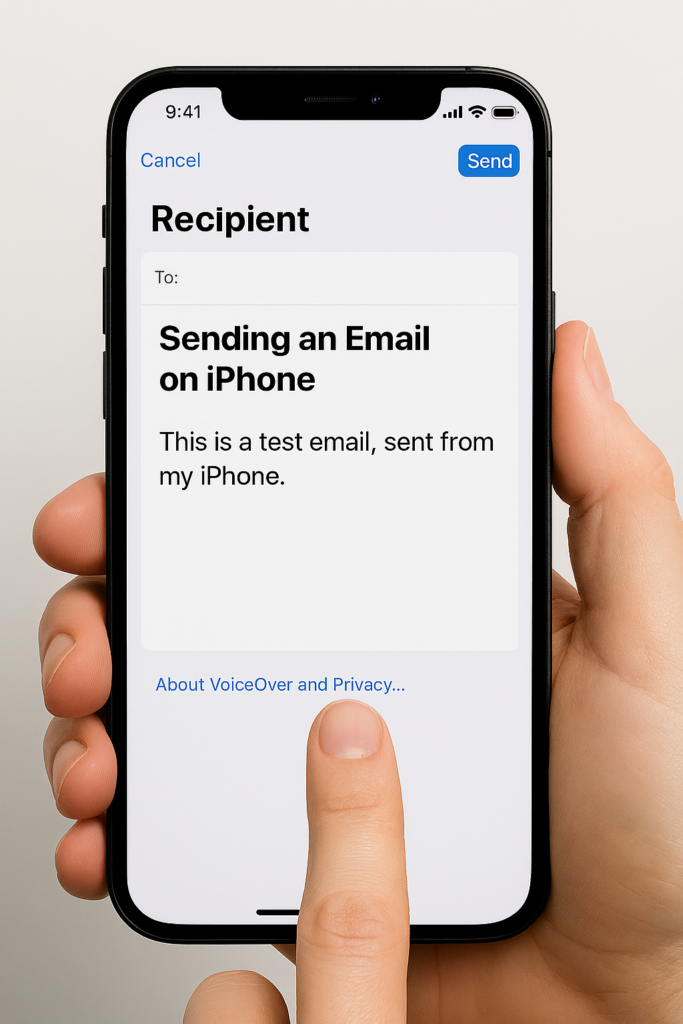
iPhone-Setting Up Email Using Siri & Voice Over-sending a text
Phase 1-Setup Email
Goal
Student independently adds an email account and verifies it works. This guide covers iPhone-Setting Up Email Using Siri & VoiceOver to simplify the process for users who need accessibility support.
Step 1: Open Settings with Siri
Press and hold the Side button. Or Say “Hey Siri” if set up
Say:
“Open Settings.”
VoiceOver will say “Settings.”
Double-tap if needed.
Step 2: Navigate to Mail
• Flick right until you hear “Mail” • Double-tap
Inside Mail:
• Flick right to “Accounts” • Double-tap
Step 3: Add Account
• Flick right to “Add Account” • Double-tap
Choose account type:
iCloud
Google
Outlook
Yahoo
Other
Flick to correct provider. Double-tap.
Step 4: Enter Email Information
You will land in a text field.
To type:
• Double-tap in field • Dictate email address OR • Type using keyboard
Move to next field:
• Flick right
Enter password carefully. VoiceOver will say “Secure text field.”
After entering:
• Flick right to “Next” • Double-tap
Step 5: Verify Mail is Turned On
After account connects:
Make sure “Mail” toggle is ON.
Flick to it. Double-tap if needed.
Then flick right to “Save.” Double-tap.
Email is now active.
Phase 2 – Open and Use Mail
Now the student can begin using Mail.
Activate Siri:
“Open Mail.”
Proceed with:
• Flick right to inbox • Double-tap to open messages • Reply and send
Important Teaching Notes
Teach these concepts early:
✔ Every text field requires a double-tap before typing ✔ Listen fully before moving ✔ Flick slowly and intentionally ✔ Passwords must be entered accurately
If login fails:
• Recheck password • Ensure Wi-Fi is connected • Use Siri to say “Turn Wi-Fi on” if needed
Skill Check
Student should be able to:
Open Settings with Siri
Add an email account
Open Mail
Read one message
Send one reply
You are building digital independence.
Phase 3
Setting Up and Using Email with Siri & VoiceOver
Goal:
Student can open Mail, read messages, and send a simple email independently.
Step 1: Open the Mail App
Activate Siri: Hold the Side button or say:
“Hey Siri, open Mail.”
VoiceOver will announce: “Mail.”
Double-tap if needed.
Step 2: Navigate Inbox
• Flick right to move through emails • VoiceOver reads sender and subject • Double-tap to open
Teach: Listen fully before moving.
Step 3: Read Email
• Flick right to move line by line • Use rotor to change reading level
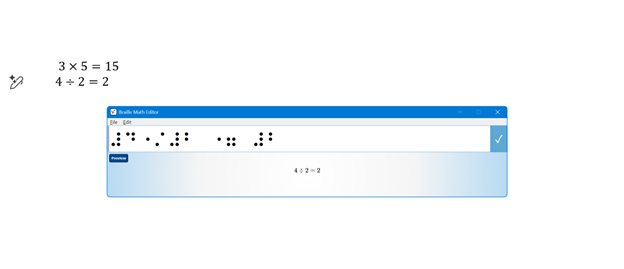
JAWS UEB MATHS/Nemeth Settings-Word and Braille Math Editor
If you’ve ever struggled to get JAWS to read math correctly on your computer, this walk-through will make your life much easier. In this video, I demonstrate how to set JAWS for either UEB Maths or Nemeth math using the JAWS UEB/Nemeth Settings, then show you how to create accessible math using Word’s Math Editor and the Braille Math Editor. Whether you’re a TVI (Teacher of the Blind), a student, or an AT (Access Technology) specialist, these steps will help you produce clear, accurate, and accessible math every time.
WORD MATH EDITOR Setup
1. Open the Math Editor
Alt + =
2. Open the Equation Tools tab
Alt + J, E
3. Open Math Options (Settings)
T, 1 (This opens the Math Options dialog.)
4. Set Alignment to Left Inside the Math Options dialog:
Alt + J → moves to Justification
L → Left alignment
Alt + D → Set as Default
Tab, Tab → to OK
Enter
When asked to save as default, choose Yes (This saves the settings to the Normal template.)
5. Check Conversion (if math looks wrong)
While inside a math zone:
Alt + =
Alt + J, E
C → Convert
Make sure it is set to Professional
WORD MATH EDITOR — Command Sequence (JAWS + Keyboard)
Open the Math Editor
Press Alt + = This inserts a new math zone and opens the Word Math Editor.
Move in and out of the math zone
Right Arrow → move into the math zone
Right Arrow again → move through elements
Left Arrow → move backward
Esc → exit the math zone and return to normal text
Insert common structures
Fraction → Ctrl + /
Exponent → Ctrl + Shift + =
Subscript → Ctrl + =
Square root → type \sqrt then press Space
Matrix → type \matrix then press Space
Parentheses → type ( then ) (Word auto‑sizes them)
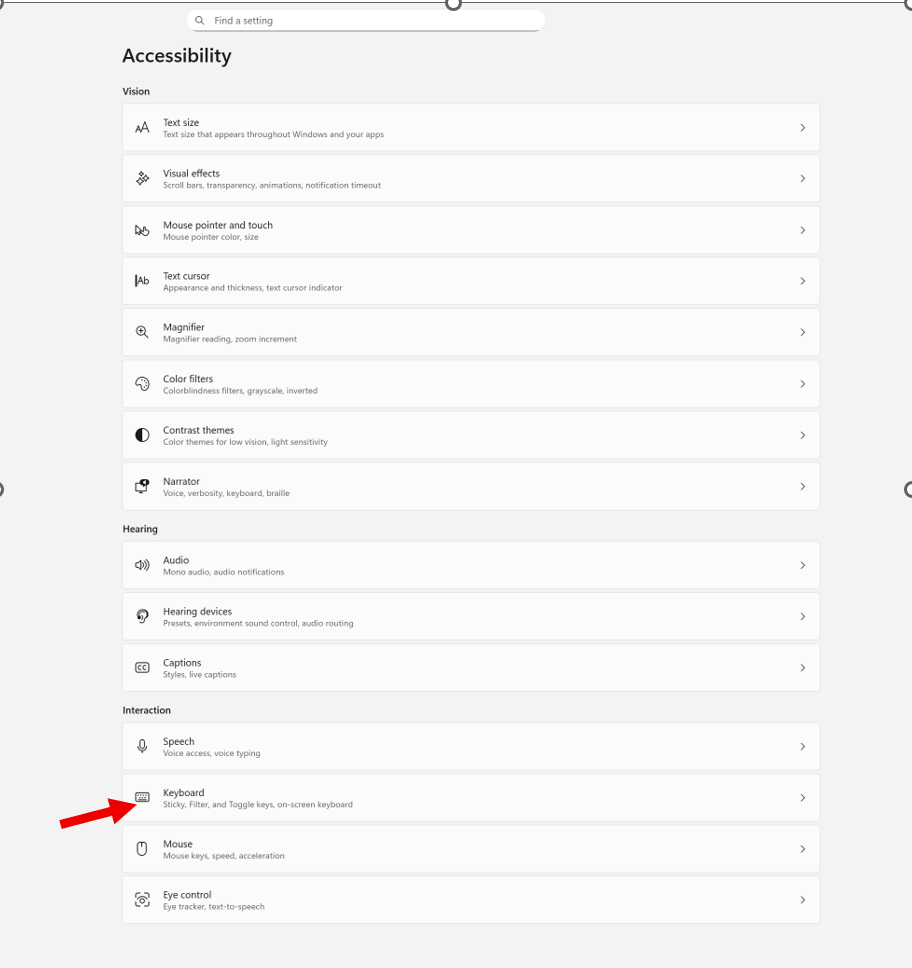
Windows + I to settings and find Accessibility on the far left column and open then open keyboard. If you want to stop annoying ding sounds on Windows, the following steps will help you do that.
If your computer keeps chiming, dinging, or beeping at the worst possible moments, or when you press a particular key, you can silence or customize every system sound in just a few steps.
How to check whether Filter Keys or Toggle Keys are turned on
How to turn them off if you don’t need them
How to adjust them properly if you do use them
How to prevent Windows from enabling them by mistake
How to silence or customize the sounds they make
Commands & Navigation Steps
Open Windows Accessibility Settings (Keyboard Section)
Windows + I → opens Settings
down arrow to Accessibility, press Enter, then tab down to Keyboard
or press windows (start menu) or using keyboard type Accessibility in the search box
Check all these Features
Turn Sticky Keys, Filter Keys, or Toggle Keys On/Off
Tab to the setting you want
Press Space bar to toggle it on or off
Hear What Toggle Keys Sounds Like
Turn on Toggle Keys → Windows plays a beep when pressing Caps Lock, Num Lock, or Scroll Lock
Turn it off again → sound stops immediately
Notification Preferences for Accessibility Keys
Windows will play a sound when:
Sticky Keys is turned on
Filter Keys is turned on
Toggle Keys is turned on
This helps you know when you’ve activated something by accident.
On‑Screen Keyboard (for mouse users or one‑handed typing)
Turn on On‑screen keyboard in the Keyboard settings
Click keys with your mouse if typing is difficult
Underline Access Keys
Turn on Underline access keys
This shows keyboard shortcuts even when you’re not holding Alt
Print Screen Behavior (Updated in Windows 11)
While you are here adjust Print Screen
Arrow to Print Screen and enter → opens the Snipping Tool options at the top of the screen
Screen reader users:
Tab through options
Go to the last one
Press Spacebar, then Down Arrow to choose screenshot type-then you have options
When you cannot do something: Take a Screenshot & Send It to your help person
Take screenshot- which literally is copy
Press Ctrl + V to paste into an email
Send to your tech instructor or support person
Whether you’re troubleshooting your own device or helping someone else, this quick fix will bring instant peace and quiet — and give you full control over your keyboard behavior.
Second-grade student typing 50 wpm, highlighted in our stories of independence
These stories highlight families who choose hope and push forward through adversity. Each student learns new skills and begins to believe in real possibility. They gain confidence as access technology opens learning in clear, practical steps. With strong instruction, they grow in independence and work beside sighted peers. They meet deadlines, follow routines, and finish assignments on equal timetables. Their progress shows that blindness never blocks success when training stays steady and purposeful.
Early instruction at age three builds strong kindergarten readiness and prevents the long catch-up students face when training begins later. During play, children gain essential blind skills while sighted peers gain visual skills. Remote instruction then brings teachers into workplaces, classrooms, and homes with ease. This support continues after school and on weekends to start or complete major projects.
Accessibility opens the world for blind and low-vision people. Access Tech Lessons can help users get the most out of these tools by offering step-by-step guides and support. It removes limits, builds confidence, and gives you real control of your daily life. With the right tools, navigation becomes possible, learning becomes smoother, and work becomes fully accessible.
This page brings together practical lessons that teach you how to use the technology that matters most. Each lesson stays simple, direct, and hands-on so you can learn with confidence. You will explore screen readers, braille displays, iPhone navigation, accessible math tools, and the skills needed to work, study, and travel independently.
As you move through each lesson, your skills will grow, and your world will open. Access becomes freedom. Freedom becomes opportunity. And opportunity builds a future filled with purpose and vision.
A remarkable transformation unfolded in 2000 when a blind teenage girl arrived from the Ukraine–Russia border region. Her journey would soon be defined by the inspiring story of how a Blind Teen Masters JAWS. She had lost her sight due to a brain tumor and survived medical hardship. In addition, she entered the United States without knowing a single word of English. She faced dozens of surgeries to remove the tumor. She was brave, brilliant, and determined — but she faced a world that she feared. Her first English words to me were: “I want to die cause blind can’t do anything!”
I was determined to change that idea.
A Different Way of Life
When she first sat down at the computer, the only screen reader available to her was English JAWS. To bridge the gap, I sought out someone who became friend in Russian to get Jaws scripts for Russian JAWS. This allowed her to switch seamlessly between Russian and English. This simple act opened a doorway. She could hear her native language, type in English, and move back and forth between the two as she learned. Within 3 months she was interpreting the language for her family. She could speak smoothly and understandably to her peers and teachers. The next crucial skill skill was connecting her to friends in Ukraine via email. THAT was the secret. The journey was possible because this blind teen truly mastered JAWS and pushed through the barriers.
And she learned fast. Within that 3 months, she told me: I do not want to die anymore because the technology has changed everything for me and shows me my future. I can do what I want and need.
Every day she practiced navigating the keyboard, reading with JAWS, writing, and communicating. She used the bilingual setup to teach herself English while mastering the technology that would give her independence. Her confidence grew with every keystroke.
Three months later, the young teen who once arrived frightened and silent was now speaking fluent English. She was using JAWS like she had been doing it for years. In the video below, she demonstrates her skills entirely in English: reading email, writing messages, attaching files, and navigating her computer with flawless precision. Her success is a striking example of what happens when a blind teen sets out to master JAWS. She is breaking new ground for herself and others.
Her journey is a powerful reminder that access changes everything. When students receive the right tools, the right training, and unwavering belief, they rise. They thrive. They discover who they were always meant to be.