Search results for: “typing”

  • Batya Singing from Her Braille Hebrew Bible at Her Orthodox Bat Mitzvah

    The Power of a Braille Hebrew Bible and Technology

    Batya Sperling-Milner, a blind 12-year-old, spent months meticulously preparing for her Orthodox Bat Mitzvah ceremony. Unlike her peers, she faced significant challenges, for her Bat Mitzvah singing from a Braille Hebrew Bible, particularly with learning the musical notes for her Torah portion. Traditionally, visually impaired individuals memorize the notes through recordings or verbal instructions. However, this method proved especially difficult and inefficient for Batya.

    A Computer Genius

    Last year, a computer genius who is related to Batya, disturbed by the absence of lack of braille musical notes, developed a prototype overnight. for her to sing at her Bat Mitzvah using her Braille Hebrew Bible After a few days of refinement, Batya was able to use these notes on her electronic braille reader. This innovation allowed her to read each note alongside the corresponding letter, dramatically improving her ability to learn. Without this tool, Batya believes mastering her portion would have been nearly impossible.

    Batya reading Hebrew Braille Bible from Torah at  her Bat Mitzvah

    Batya Singing from the Torah at Her Bat Mitzvah Using a Braille Hebrew Bible

    Batya’s mother also played a crucial role in ensuring Batya could perform her Bat Mitzvah like any sighted person using her Braille Hebrew Bible. Overcoming challenges, including the requirement to see and read from the Torah, she presented a 33-page paper and an extensive executive summary to the leaders of their Washington DC synagogue, proving Batya’s capability. This accomplishment gave Batya immense pride, knowing she fulfilled the congregation’s obligation. She has always been a top Braille Reader.

    Batya’s accomplishment culminated in her using the Braille Hebrew Bible during her Bat Mitzvah, where she sang and read from the Torah. This experience was deeply meaningful to her. The Braille Hebrew Bible provided her with the tools she needed to fulfill the congregation’s obligation. Ultimately, this milestone brought Batya immense pride, knowing she had successfully navigated her challenges. The combination of her determination, training, her mother’s support, and the Braille Hebrew Bible allowed Batya to fully participate in her Bat Mitzvah, a ceremony that marked a significant and empowering moment in her life.

    Start Young

    4 year old began Formal instruction at 3 years old., but he began services at 5 months old. Continue with Typing to gain speed and Braille to increase reading speed
  • Desmos graphing calculator with shaded Parabolas, screen reader, braille display and embosser

    Dr. Robinson demonstrates how to create and manipulate a parabola using the Desmos shaded parabolas using the graphing calculator. This process is specifically designed for blind and low vision students. She begins by typing an equation. Desmos automatically adds sliders, allowing the adjustment of the graph’s shape in real-time.

    As Dr. Robinson runs the equation, the parabola expands, resembling the curve of a ball in motion. She explains the importance of embossing the graph so students can physically feel its structure on the XY plane. This tactile approach helps students understand mathematical concepts more concretely.

    To enhance accessibility, Dr. Robinson uses the “Alt + T” command to activate the audio trace. This feature provides valuable auditory information about the graph. She also slows down the narration using “Control + Shift + Page Down,” ensuring clarity and comprehension.

    Next, Dr. Robinson shares the graph with her students using the “Insert + F5” command. She exports the graph as a Braille-ready image, making it accessible for students who rely on tactile feedback. After downloading the image, she opens it in a photo editor to enhance contrast. This step ensures that the lines are clearly defined for the student.

    Tiger Designer

    Dr. Robinson then pastes the edited image of Desmos shaded parabolas into Tiger Designer, a software used to prepare tactile graphics for printing(emboss). Using “Control + P,” she embosses the graph on her ViewPlus embosser, allowing students to feel the parabola and compare it with what their sighted peers see.

    This hands-on approach for STEM, ensures that blind students can fully participate in graphing activities. Dr. Robinson’s method integrates technology and tactile feedback, making math accessible and engaging. Through these steps, she empowers students to understand and interact with complex mathematical concepts. This demonstration showcases the effective use of Desmos and related tools to enhance learning for visually impaired students.

  • Google Drive screen reader navigation with keyboard commands

    Dr. Robinson explains how to navigate the new Google Drive update using a screen reader, focusing on commands that will be essential after the August 1st, 2024 update shortcuts. She begins by demonstrating basic navigation through Google Drive, emphasizing the importance of learning the updated keyboard shortcuts-use FireFox when you have Chrome and Edge Chromium issues with navigation. The point it, same commands but use a different browser when 1 or 2 decide not to work well. Then if you have done that and still issues exist, set up computer to work the best with screen readers.

    To start, Dr. Robinson guides users through accessing the settings menu with “Control + Shift + S,” where updates and new keyboard shortcuts can be found. She highlights the automatic update that will apply the new shortcuts starting August 1st. After closing the settings menu with “Escape,” she demonstrates navigating Google Drive using the “Alt + G” command, followed by “N” to access the navigation region.

    New Google Drive Update

    Dr. Robinson continues by explaining first-letter navigation which presently only works in Firefox but as updates occur Chrome and Edge should start to work again also. List View is where users can jump to items by pressing the first letter of the item’s name. She shows how this method, combined with the updated shortcuts, makes navigation faster and more efficient. For example, to create a new document, she uses “Alt + C” followed by “T,” which quickly opens a new Google Doc and other google items.

    She then discusses how to use the “Alt + A” command to open the context menu, allowing users to perform actions like downloading, sharing, or renaming files. The context menu provides additional options, accessible via hotkeys. Dr. Robinson points out the ease of using these commands once learned, making it simpler to manage files within Google Drive.

    To demonstrate the process, she creates a new presentation with “Alt + C” followed by “P.” After navigating back to her list view with “Alt + G” followed by “I,” she explains how to use the context menu for specific actions. Dr. Robinson concludes by encouraging users to familiarize themselves with these new commands, ensuring a smooth transition.

    Google Drive navigation is more intuitive and accessible for those using screen readers if you use the browser that works . Learn Google Slides navigation with complicated slides to improve navigation and echo also.

    Make Google Accessible

    Making Google Accessible with EDGE: Screen Readers Can’t Read This!

  • UEB Math with JAWS in Word: Using Unicode, LaTeX, and Braille for Easy to Advanced Math

    Dr. Robinson introduces the latest Vispero update for JAWS, focusing on reading UEB math. To get started, she demonstrates how to configure JAWS settings for optimal performance with UEB math. She begins by pressing “Insert + 6” to access the JAWS settings. Then use “Control + Shift + D” to set the default profile.

    Setup MathCat for UEB Math with Jaws

    Dr. Robinson guides users through setting up Braille mode via Default profile by typing it in the edit box. She types “Braille Mode” in the search box, and F6 to access different settings. She uses “F6” to navigate to the desired options, then “Alt + F” to select language profiles. To access MathCat option via alt D to details then tab to Nemeth and change to MathCat then OK.

    Dr. Robinson explains how to select the correct Braille code, such as UEB math with JAWS or Nemeth code. She walks through the process of applying these settings and closing the settings dialog.

    Once set up, Dr. Robinson demonstrates how to solve math problems using JAWS in Word. Dr Robinson explains the process of entering equations using “Alt + Equals” to open the math editor. She highlights how to type out equations, like “X squared plus 3 equals 11.” Then how to navigate through the math content using keyboard commands.

    She also explains complex math using UEB Math with Jaws, such as using square roots and other mathematical symbols, by using Unicode and LaTeX commands. Dr. Robinson shows the equation tools in Word by pressing “Alt + J” E to equation menu. Then explains how to convert equations between professional and linear formats using “Alt + JE + C.”

    Throughout the tutorial, Dr. Robinson ensures users understand the commands necessary for navigating and editing math content effectively. She also provides troubleshooting tips, such as using the Math Viewer with insert space + = . This gives more detailed navigation of hearing each symbol, particularly useful for more complex equations.

    Dr. Robinson concludes by encouraging users to explore more advanced math problems and settings. This ensures that they can confidently use JAWS for UEB math in various applications. If you experience computer issues in general, set it up to work the most efficiently with screen readers.

    Other Math Lessons:

    Transcribe Math Images

    Quadratic Math

    STEM with Embossing

    Perfect Digital Math

    JAWS and MathCat

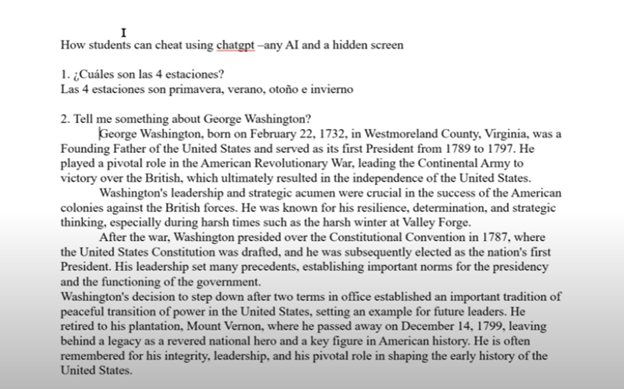
  • How to Prevent AI Cheating in Class and at Home

    Teachers can Slow or stop AI cheating both in the classroom and at home through strategic measures. In the classroom, lock down browsers effectively prevent students from accessing unauthorized websites or AI tools during exams. These browsers restrict students to a single screen, blocking external resources. Additionally, teachers should design assignments that require critical thinking and personalized responses. Such tasks are challenging for AI to complete accurately, as they demand unique, context-specific answers.

    chatgpt and curb classroom AI cheating

    To further Slow or Stop AI cheating in class and home, teachers should incorporate oral assessments and apps like Khan academy. These require students to verbally explain their answers or spell out terms, making it difficult to rely on AI-generated content-Video details here. Monitoring classroom activity is crucial as well. By actively observing students’ screens, teachers can spot hidden screens or content that doesn’t match a student’s usual work.

    At home, teachers can assign open-ended projects that require creativity and personal reflection. These assignments are less likely to be successfully completed by AI. Requiring students to submit drafts or process documentation ensures they engage with the material and don’t merely copy answers. Time-limited tests can reduce the likelihood of students using AI tools during online exams. By setting strict time limits and challenging questions, teachers can make quick AI lookups impractical.

    Teachers should also utilize plagiarism and AI detection tools to identify suspicious content to curb classroom AI cheating. Follow-up video calls or in-person meetings, where students explain their answers, can verify that they genuinely understand the material. Engaging parents is another key strategy. By encouraging parental involvement, teachers can help monitor the home environment and promote honest academic practices.

    Through these combined strategies, teachers can significantly reduce AI cheating, ensuring students learn and demonstrate true understanding.

    Teach the Need to WANT students to do the right thing

    Optimizing Windows 11 Efficiency for Screen Reader with Key Settings and Configurations

    WORD Efficient Text Navigation and Selection

    Basic WORD JAWS commands with Typing Trick

    Rebuild Microsoft Word Template when it is not working well

    Microsoft Word MLA format with Christopher Duffley

    WORD accessible food chain for class using talking software

    Commands to change mouse -access programs fast, basics in Word font & movement

    Excel line plot graph-copy to Word for Math

    Complete an excel graph and copy into Word document with screen reader

    Essential WORD keyboard commands for setting defaults

    Track changes in Word-How teachers make corrections in work

    Track Changes with Commands-inserting comments and editing work

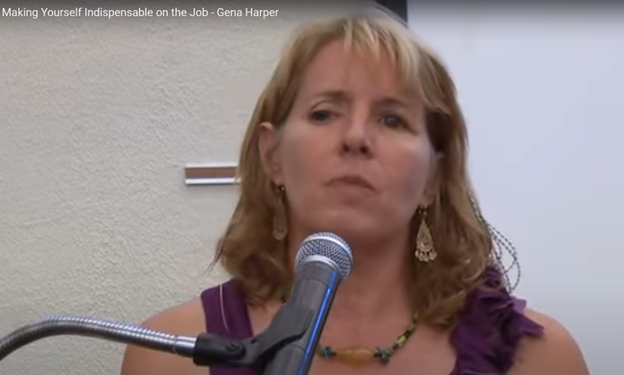
  • Employment Summit for Blind Professionals: Gena Harper on Becoming Indispensable at Work

    At the Employment Summit, Gena Harper delivered an insightful presentation on making oneself indispensable in the workplace. She emphasized the importance of adaptability in an ever-changing job market. Harper explained that employees must continuously develop new skills to remain valuable. She encouraged attendees to identify gaps in their current knowledge and seek training opportunities to fill them.

    Highlights-Be open and Honest about Who you are

    Harper also highlighted the power of proactive communication. By regularly updating supervisors on progress and challenges, employees demonstrate their commitment to the organization’s goals. This proactive approach builds trust and positions employees as reliable problem solvers. Even if you are physically limited, you can still do it.

    Another key point was the value of networking within the company. Harper advised forming strong connections with colleagues across departments. These relationships not only enhance teamwork but also increase visibility within the organization. When employees are well-connected, they are more likely to be considered for new opportunities.

    Gena at speaker talking about how to become indispensable at work as a blind person

    More Strategies for Becoming Indispensable at Work

    Harper stressed the importance of understanding the company’s vision and aligning personal goals with it. By showing that your work directly contributes to the organization’s success, you reinforce your indispensable role. She recommended that employees regularly review their contributions to ensure they align with the company’s objectives.

    In addition, Harper discussed the significance of a positive attitude. She noted that a can-do attitude and a willingness to take on new challenges make employees stand out. Positive employees often inspire their peers, creating a more productive work environment. Dive in and learn.

    In conclusion, Gena Harper provided valuable strategies for becoming indispensable at work. By focusing on continuous learning, proactive communication, strong networking, goal alignment, and maintaining a positive attitude, employees can secure their place as vital members of their organizations. These practices not only enhance individual careers but also contribute to the overall success of the company.

    Education is Crucial for Finding a Job

    More information on all things blind here

    and Power Training: and Video Lessons to become indispensable at Work

    Other Stories:

    Google Slides Shortcut Commands with screen reader by Campbell

    Blind Baseball Announcer Keith Bundy Lives his Dream

    Atlanta Teen para-climber heading to Switzerland Olympics- Raveena Alli

  • Flashcard Studying in Google Sheets with a Screen Reader: Eme’s Accessible Study Method

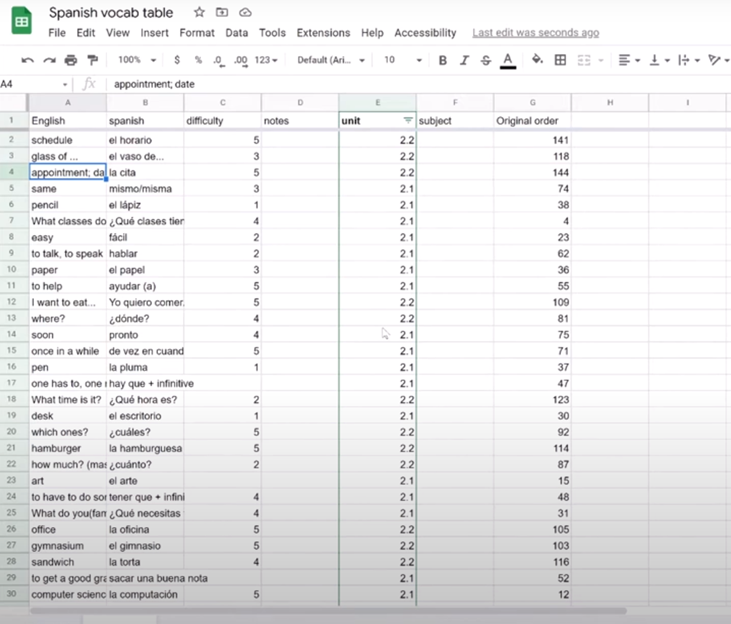
    Emē, a student of Dr. Denise Robinson demonstrates how she studies Spanish vocabulary using Google Sheets with a screen reader. She starts by copying vocabulary words into Google Sheets, though typing them in directly is also an option. After setting up the sheet, she explains the importance of naming it to avoid losing any work. She uses Google Sheets similarly to how a sighted student would use flashcards. This method is an excellent example of Flashcard studying in sheets. Column A contains the English words, while Column B holds the Spanish translations.

    Certainly! Here is the revised paragraph with “Emē”:


    Emē introduces a “difficulty” column in Column C, where she rates how challenging each word is to remember. She assigns a value between one and five, depending on how well she recalls each word. This rating system allows her to sort the words based on difficulty later, making her study sessions more effective. This technique enhances the efficiency of flashcard studying in sheets methods.

    To make the study process more efficient, Emē explains how to randomize the rows. This prevents her from memorizing the order of the words rather than learning the words themselves. She uses specific keyboard commands to select all rows and columns, then accesses the “randomize range” function through the search menu. Randomization is key for effective flashcard studying in sheets techniques.

    image of Flashcard studying in sheets with multiple rows and columns of information

    After randomizing, Emē sorts the words by difficulty, placing the hardest words at the top for focused study. She even hides the easiest words, rated as ones, to avoid wasting time on words she already knows well. If she needs to retrieve the hidden words, she can easily unhide them using the “unhide rows” function. This is another way flashcard studying can be efficiently carried out in sheets.

    Emē concludes by showing how she reviews and updates the difficulty ratings as she studies. This method allows her to keep track of her progress and focus on words that need the most attention. She highlights that this approach to flashcard studying in sheets with Google Sheets is both accessible and effective, making it a great tool for blind and visually impaired students.

    solving inequalities

    Create Histogram

    Excel Trend-line with Scatter Plot

    Other Excel Lessons that you can do in Sheets

    Learn more Great Study habits with Google and more Videos on our YouTube Channel:

  • Remapping Keyboard Keys with SharpKeys While Avoiding JAWS and NVDA Screen Reader Conflicts

    Dr. Robinson demonstrates how to remap a key on a keyboard using SharpKeys, which is especially useful for laptops that lack an Applications key. She explains that many screen readers require an Applications key, but not all laptops include one. By remapping an unused key, such as a backslash or the 2nd alt key, students can easily create an Applications key for their screen reader.

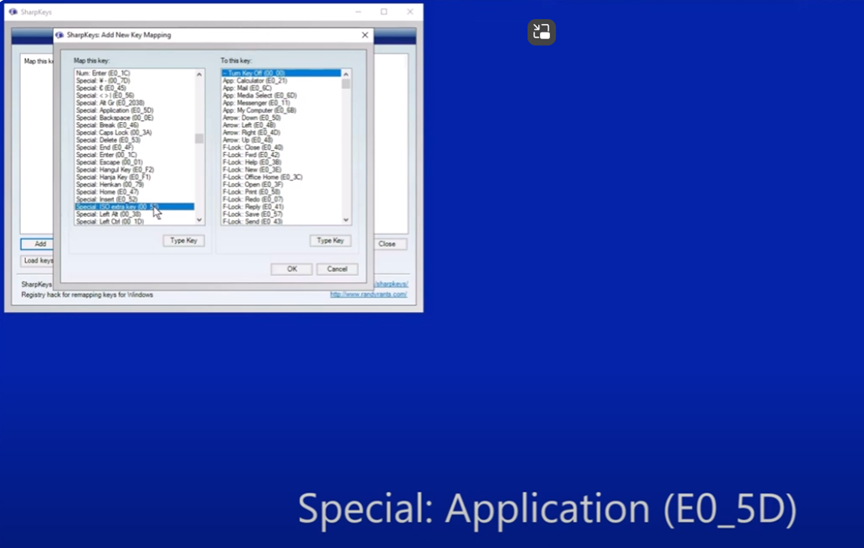
    Remap keys on keyboard with sharp keys and screen reader commands

    She begins by opening SharpKeys via the Start menu and typing “SharpKeys” into the search bar. Once opened, she navigates the menu with Tab and presses Alt + A to add a new key mapping. To identify the key to remap, she presses Alt + K and hits the backslash key. It’s a straightforward way to remap keys on keyboard devices.

    The software recognizes the backslash as ISO Extra Key 0_56, making it easy to remap. Dr. Robinson then scrolls through the list using Down Arrow to find Special: Application E0_5D. After selecting it with Spacebar, she confirms the key mapping by pressing Enter.

    image of sharpkeys and select on the left side pane what you want to change it to on right side pane

    To test the remapped key, she presses Windows + T to open the taskbar. She then uses the newly remapped key to access the Applications menu. Though the key is still labeled as backslash, it functions correctly as an Applications key. This technique to remap keys on keyboard setups helps users customize their experience.

    Dr. Robinson emphasizes that this method allows blind users to easily remap keys without assistance. The entire process is accessible, making it useful for students relying on screen readers. The remapped Applications key provides full functionality, offering standard Applications key options. Remapping keys on keyboard devices can significantly improve accessibility for all users.

    Dr. Robinson ensures that students can remap keys using SharpKeys independently, without needing assistance from a sighted person. She highlights that this process is accessible for blind users and fully supports screen readers.

    After confirming the remapping, Dr. Robinson explains how this tool provides flexibility for students using different laptops. By remapping a nonessential key, they can create a functional Applications key, essential for many screen reader commands.

    She encourages students to experiment with remapping other keys if needed. This flexibility allows users to personalize their keyboards to fit their preferences. More Screen Reader Lessons here

  • Math Work in Excel: Solving Inequalities with Keyboard Shortcuts

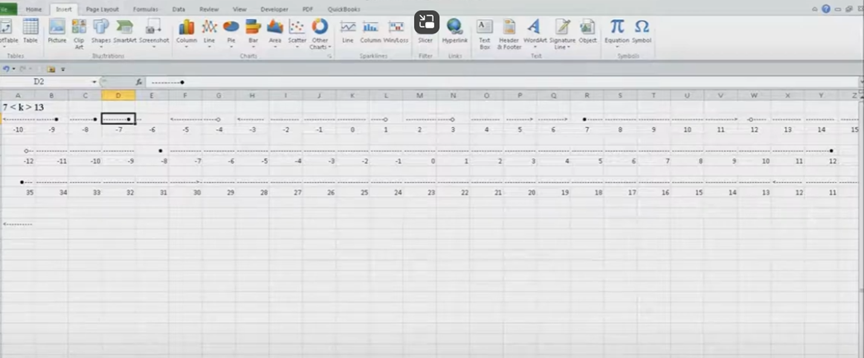
    Dr. Robinson introduces a lesson on using Microsoft Excel to solve math work, specifically focusing on inequalities and graphs. She begins by guiding students on how to put Excel in focus to tackle various math problems in Excel. This helps students to optimize their math work in Excel effectively. Next, she instructs them to create a template using a number line. To insert symbols like less than or greater than signs, students use the Alt + N and then U commands to insert bullets or symbols.

    For students with a numpad, Alt + 7 and Alt + 9 quickly insert a hollow or solid bullet, respectively. For those without a numpad, they can use the Insert + Symbols option. Students then align their number line by inserting a bullet in the middle, ensuring four dashes on each side for perfect centering when solving math work in Excel.

    Math Work in Excel and More

    image of excel to solve math problems with inequality graph lines

    To center content, students use the Applications key and press F. They adjust the horizontal and vertical alignment to ensure everything is perfectly centered. This is a useful step when handling math problems in Excel. After completing their problems, students select the content using Shift + Right Arrow and copy it using Ctrl + C. This entire process enhances their skills in doing math work in Excel.

    When pasting into Microsoft Word with Ctrl + V, students have various formatting options. By pressing the Control key and right arrow, they can select different formatting options for their pasted content. They can also Alt H to home and V to paste and right arrow through options. This flexibility allows blind students to format and customize their graphs just like their sighted peers when solving math problems in Excel. After the student pastes an image, they press the Applications key and up arrow to select Alt Text and type the description. Once they finish typing, they press Ctrl + Space and C to close the navigation pane and return to the document.

    Dr. Robinson concludes by showing examples of completed math problems in Excel and graphs, demonstrating how well-formatted the number lines and inequalities look. Blind students can confidently create hollow and solid bullets, as well as inequalities, just like other students, thanks to the accessible features in Excel. This process ensures they stay engaged in their learning, achieving the same results as their peers when doing math work in Excel. Make sure your display is working well.

    Excel Quadratic Trend-line with scatter plot graph including equation in Excel with Jaws talking software

    Curved line in Excel graph with screen reader

    Excel Scatter Plot with Trendline

    Solving inequalities

    Create Histogram

    Excel Trend-line with Scatter Plot

    Other Excel Lessons that you can do in Sheets

    Flashcard Study

    Other excel lessons with commands.

  • Track Changes with Commands-inserting comments and editing work

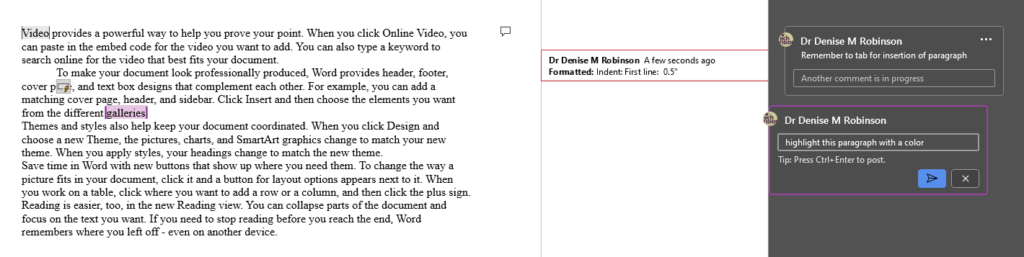
    Track Changes in Microsoft Word is an essential tool for collaborative editing and document management. It allows multiple users to make and review edits, providing a clear, organized record of all changes. This feature is invaluable for maintaining the integrity of the original document while incorporating feedback from various contributors. By visually displaying insertions, deletions, and comments, Track Changes enhances transparency and accountability in the editing process. It also simplifies the task of accepting or rejecting modifications, ensuring that the final document meets the desired standards. The typical use is for students to create work and teachers to edit with comments, and it is possible to easily track changes with commands. This is easily done with any screen reader.

    Track Changes with Commands in Microsoft Word is a powerful tool for collaborative editing and document management. Here are some key details on its importance and usage:

    Key Benefits

    1. Transparency: Track Changes provides a clear, organized record of all modifications made to a document.
    2. Accountability: By displaying who made each change, Track Changes holds contributors accountable for their edits.
    3. Efficiency: Track Changes streamlines the editing process by allowing users to accept or reject changes with a single click. This efficiency saves time and reduces the likelihood of errors3.
    4. Enhanced Communication: The ability to add comments and suggestions directly within the document fosters better communication among team members. This feature helps clarify the intent behind changes and facilitates constructive feedback4.
    Track Changes with Commands and comments
    Track Changes with Commands and comments

    How to Use Track Changes with keystrokes

    1. Turning On/Off: Press Ctrl + Shift + E to toggle Track Changes on or off. Alternatively, go to the Review tab and click on the Track Changes button1.
    2. Viewing Changes: Use the Display for Review menu to choose how edits and comments are displayed. Options include Simple Markup, All Markup, No Markup, and Original2.
    3. Ctrl Shift ‘ opens all tracks with JAWS screen reader
    4. Accepting/Rejecting Changes: Navigate to the Review tab with Alt R and use the Accept or Reject buttons to manage changes. You can also right-click on a change to accept or reject it3.
    5. Adding Comments: Press Ctrl + Alt + M to insert a new comment. Navigate through comments using Alt + R, then N for the next comment or P for the previous comment1.

    Other Lessons

    Optimizing Windows 11 Efficiency for Screen Reader with Key Settings and Configurations

    WORD Efficient Text Navigation and Selection

    Document formatting editing elements: Edit margins, tab, headers, footers & more

    Basic WORD JAWS commands with Typing Trick

    Rebuild Microsoft Word Template when it is not working well

    Microsoft Word MLA format with Christopher Duffley

    WORD accessible food chain for class using talking software

    Commands to change mouse -access programs fast, basics in Word font & movement

    Excel line plot graph-copy to Word for Math

    Complete an excel graph and copy into Word document with screen reader

    Essential WORD keyboard commands for setting defaults

    Track changes in Word-How teachers make corrections in work

    How Colleges Help Visually Impaired Students Succeed

    Get your 1:1 instruction on any skill today

    If you are Low Vision, this lesson may help you

    and if you have having issues with WORD–rebuild it