Search results for: “typing”

  • Teach Touch Typing in Just 5 Hours | Fast Keyboarding Method

    (Home Row to Full Speed)
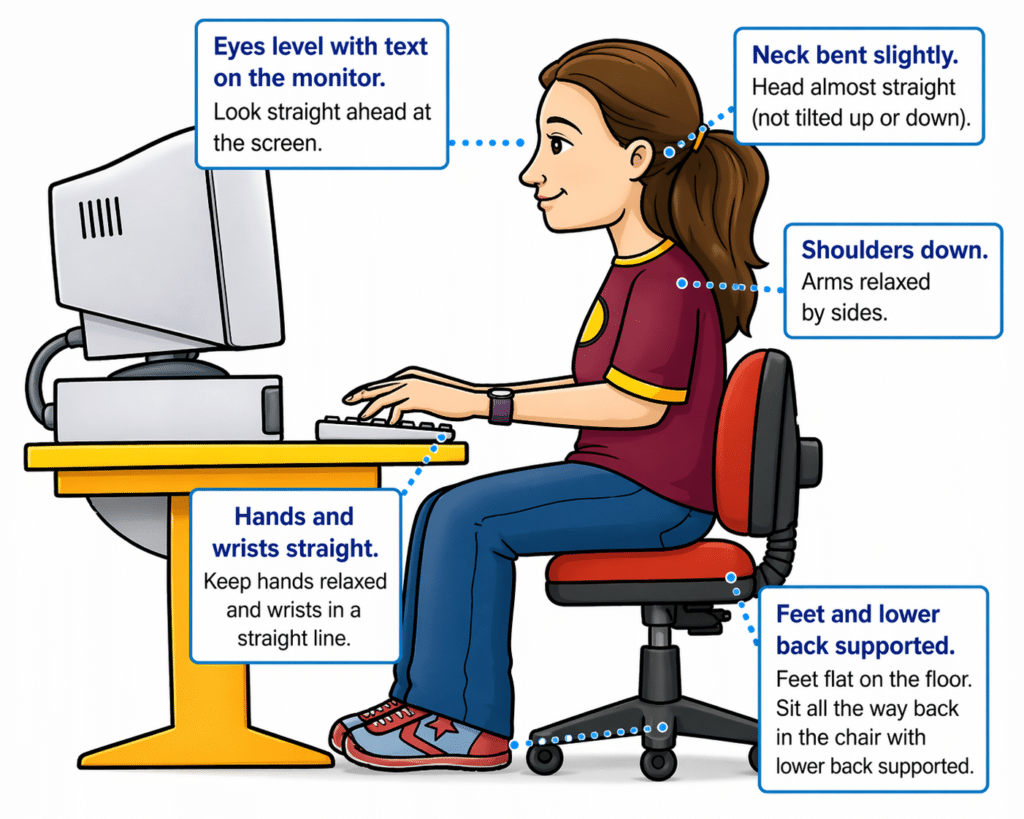
    Teach Touch Typing in Just 5 Hours-Proper Touch Typing position
    Teach Touch Typing in Just 5 Hours-Proper Touch Typing position

    Proper Placement of Fingers on Keyboard
    Proper Placement of fingers on Keyboard
    Proper Placement of fingers on Keyboard-Alt Text Below

    The way to sit and learn-this is critical for speed and accuracy:

    • Sit tall, back supported
    • Feet flat on the floor
    • Elbows at 90 degrees
    • Wrists straight and slightly raised
    • Hands hover over keys
    • Shoulders relaxed
    • Head up, eyes forward -do NOT look down–looking slows you down

    Teaching line to repeat (great for kids)

     “Sit tall, feet flat, wrists up, and let your fingers do the work.”

    Begin with the home row keys:

    Left hand: A S D F G
    Right hand: H J K L ; ‘

    Practice moving forward and backward across these keys until movement feels natural and consistent. Focus on correct finger placement and returning to the home row after each key.

    Once comfortable, begin typing the word series below.

    After completing the first three sets of words, introduce capitalization by using the Shift key with the opposite pinky of the letter being typed. This builds correct habits for capital letters.

    Next, introduce the period key, using the right ring finger (L finger down to period), and incorporate it into word and sentence practice below.

    STEP 1: Home Row Only (a s d f j k l 😉

    Focus: finger placement + rhythm

    3-letter words

    • sad
    • lad
    • ask
    • all
    • dad
    • fall
    • sass
    • add
    • flask (stretch word)

    STEP 2: Add “e” (very high-frequency letter)

    3-letter words

    • led
    • fed
    • red
    • bed
    • see
    • eel

    4-letter words

    • deal
    • lead
    • seed
    • feel
    • else

    STEP 3: Add “i” and “o”

    3-letter words

    • did
    • kid
    • lid
    • oil
    • old

    4-letter words

    • soil
    • sold
    • fold
    • told
    • idle

    5-letter words

    • solid
    • field
    • slide

    STEP 4: Add “t” and “n”

    3-letter words

    • tan
    • net
    • ten
    • tin

    4-letter words

    • sent
    • tent
    • lent
    • note
    • tone

    5-letter words

    • stone
    • notes
    • inset

    STEP 5: Add “r” and “h”

    3-letter words

    • her
    • hat
    • rat
    • hit

    4-letter words

    • rent
    • heat
    • rate
    • tire

    5-letter words

    • heart
    • other
    • there

    STEP 6: Add “m” and “u”

    3-letter words

    • hum
    • sum
    • mud
    • run

    4-letter words

    • drum
    • much
    • turn
    • hunt

    5-letter words

    • human
    • drum
    • rumor

    STEP 7: Add “c”, “g”, “p”

    3-letter words

    • cap
    • gap
    • cup
    • pig

    4-letter words

    • grip
    • clip
    • camp
    • page

    5-letter words

    • grape
    • magic
    • price

    STEP 8: Add remaining letters (b, v, w, x, y, z, q)

    3-letter words

    • web
    • box
    • wax
    • yes

    4-letter words

    • wave
    • very
    • next
    • zone

    5-letter words

    • zebra
    • woven
    • extra
    • value

    6-letter words

    • wizard
    • vortex
    • oxygen

    FINAL STEP

    Now bring it all together: Practice typing this daily and keep a log of speed and accuracy which is great for an IEP Goal

     The quick brown fox jumps over the lazy dog.

    You must build proper muscle memory—speed will follow naturally.

    • Start with muscle memory (home row)
    • Build using real words, not random letters
    • Add letters in logical frequency order
    • Increase word length gradually
    • Always reinforce accuracy first, then speed

     “Speed is a result of accuracy and repetition—not rushing.”

    Watch Vision: Learn Touch Typing Fast: in 5‑Days (1 Hour a Day)

    Proper Placement of Fingers on Keyboard

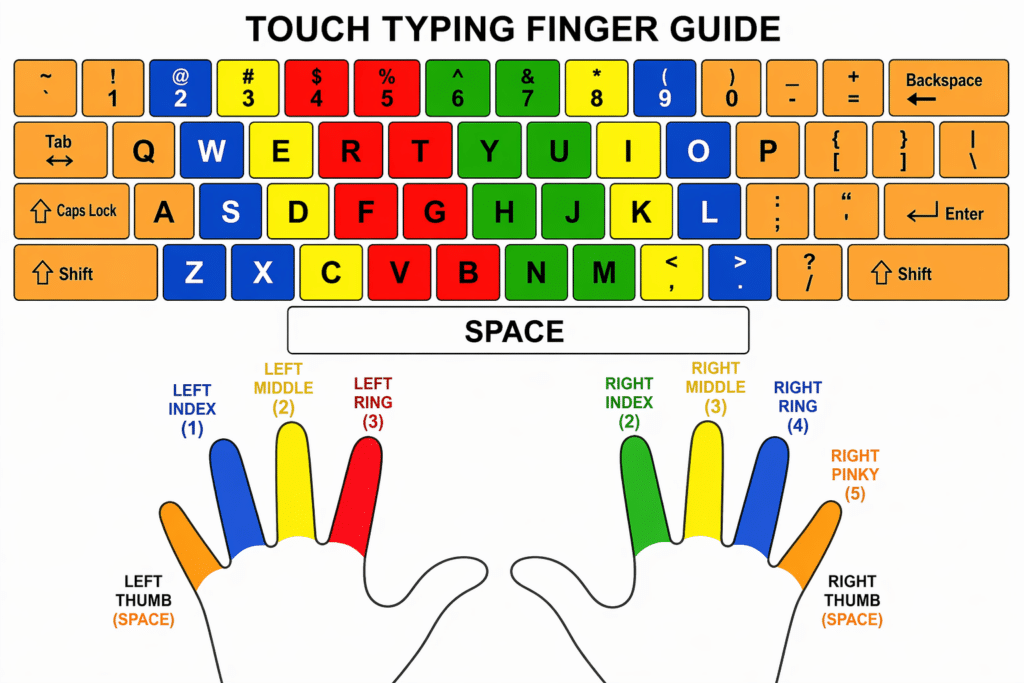
    Touch Typing Finger Guide

    This image presents a color-coded keyboard and hand diagram designed to teach proper finger placement for touch typing.

    Proper Placement of fingers on Keyboard
    Proper Placement of fingers on Keyboard-Alt Text Below

    ALT Text: At the top of the image is a full keyboard layout. Each key is color-coded to show which finger should be used to press it. The keyboard includes all standard keys such as letters, numbers, punctuation, Shift, Enter, Backspace, Tab, and Space.

    The keyboard is divided into sections by color:

    • Keys assigned to the left hand appear on the left side of the keyboard.
    • Keys assigned to the right hand appear on the right side of the keyboard.
    • Each finger is represented by a consistent color across both the keyboard and the hands shown below.

    Touch Typing Finger Guide

    This diagram shows a standard QWERTY keyboard with each key color‑coded to match the finger that should press it. Below the keyboard are two hands, each finger labeled with a number and color that corresponds to its assigned keys.

    Left Hand Responsibilities

    • Left Pinky (Finger 5): Controls the far‑left keys: Tab, Caps Lock, Shift, the number 1, and the letter keys Q, A, Z. Also handles punctuation on that side.
    • Left Ring Finger (Finger 3): Controls 2, W, S, X.
    • Left Middle Finger (Finger 2): Controls 3, E, D, C.
    • Left Index Finger (Finger 1): Controls two vertical columns:
      • Left column: 4, R, F, V
      • Right column: 5, T, G, B

    Right Hand Responsibilities

    • Right Index Finger (Finger 1): Controls two vertical columns:
      • Left column: 6, Y, H, N
      • Right column: 7, U, J, M
    • Right Middle Finger (Finger 2): Controls 8, I, K, comma.
    • Right Ring Finger (Finger 3): Controls 9, O, L, period.
    • Right Pinky (Finger 5): Controls the far‑right keys: 0, P, semicolon, apostrophe, slash, plus Enter, Backspace, Shift, and other right‑side punctuation.

    Thumbs

    • Both thumbs press the Spacebar, with the right thumb used most often.

    Overall Purpose

    The diagram teaches correct touch‑typing technique by showing which finger should press each key. Each finger controls a specific vertical zone so students can type quickly without looking at the keyboard.

    Key Concept

    Each finger is responsible for a specific group of keys. The fingers return to the home row after each keystroke. This method allows typing without looking at the keyboard. Trying to look at keyboard will slow you down. Muscle memory is the key.

    Purpose of the Diagram for teachers to teach skill

    This visual supports learning:

    • correct finger placement
    • muscle memory
    • efficient, accurate typing without visual reliance

    Simple Teaching Summary

    Each finger has a job.
    Start on the home row.
    Reach, press, and return.

    Videos to Watch of Students in Action with screen reader

    Low Vision Students or students with Progressive Vision Loss—Start Early. Build Independence.

    Just Begin Now!

    Teach Keyboarding Early

    Low Vision Teen masters JAWS

    Blind 4‑Year‑Old and 2nd Grader Race Using Braille Writing Devices

    Watch the Video of learning keyboarding in a week and speed within 2 months

    Braille Instruction Starts at Age 3 – Early Blind Education Success Story

    Blind Student Keyboarding FAST – 10th Grade Research & Writing Independence
    Blind Teen Masters JAWS in 3 Months

  • Teach Keyboarding Early: 2nd Grade Student Typing FAST on Laptop (3 Months)

    Teach Keyboarding Early

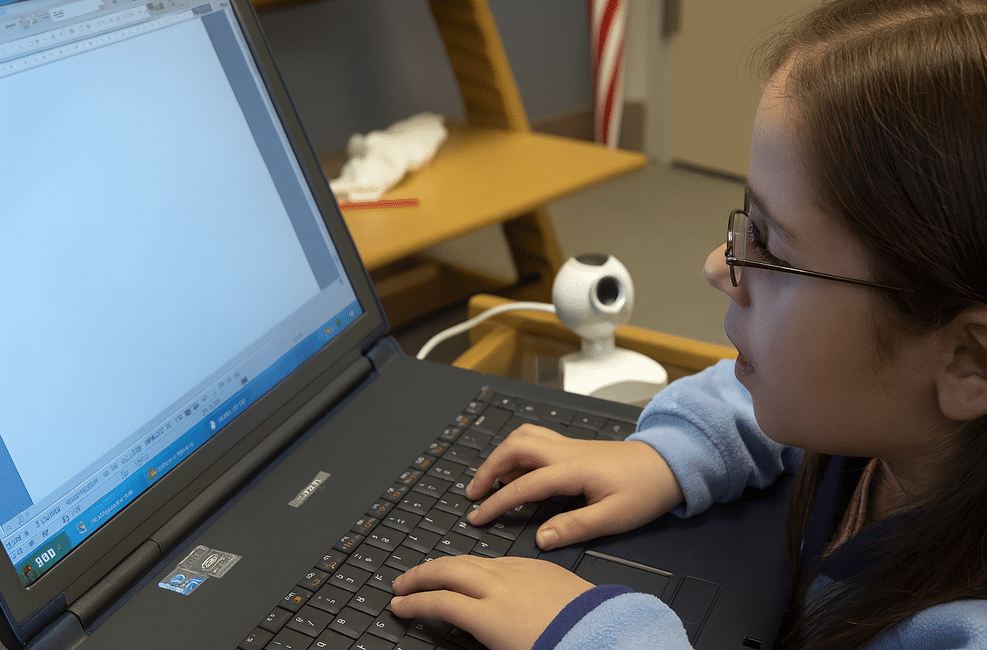
    Watch a 2nd grade student master touch typing in just 3–4 months. Her fingers move quickly and confidently across the keyboard, showing what is possible when students are taught the right skills early.

    This is why keyboarding must start young.

    Students who learn to type early:

    • Build speed and efficiency
    • Gain independence in school
    • Keep pace with their peers
    • Develop confidence in their abilities

    For blind and low vision students, keyboarding is not optional: it is the foundation for accessing all academic work using a computer, screen reader, and braille display…and giving them a future.

    When instruction begins early and is consistent, students quickly move from learning the keys to using the computer for real work across all subjects.

    The issue is not ability. The issue is access and instruction.

    Start early. Teach it right. Change the outcome.

    Other Fast Students:

    Teach Touch Typing in Just 5 Hours | Blind & Low Vision Keyboarding Method

    Teach Keyboarding Early

    Low Vision Teen masters JAWS

    Blind 4‑Year‑Old and 2nd Grader Race Using Braille Writing Devices

    Watch the Video of learning keyboarding in a week and speed within 2 months

    Braille Instruction Starts at Age 3 – Early Blind Education Success Story

    Blind Student Keyboarding FAST – 10th Grade Research & Writing Independence

    Teen Masters JAWS in 3 Months

    Blind 4‑Year‑Old and 2nd Grader Race Using Braille Writing Devices

  • Teach Touch Typing Early for Blind and Low Vision Students

    Strong touch typing skills create independence, speed, and confidence for blind and low vision students using screen readers, braille displays, or electronic braillers. Early instruction helps students build muscle memory, accuracy, and efficient keyboarding habits that support reading, writing, research, and future employment.

    Students should:

    • Learn correct finger placement
    • Keep wrists relaxed and posture aligned
    • Use all fingers consistently
    • Focus on accuracy before speed
    • Practice daily using structured lessons

    Websites such as TypingClub.com can support additional practice, but direct instruction and proper technique remain critical for long-term success.

    Mikaela’s Story

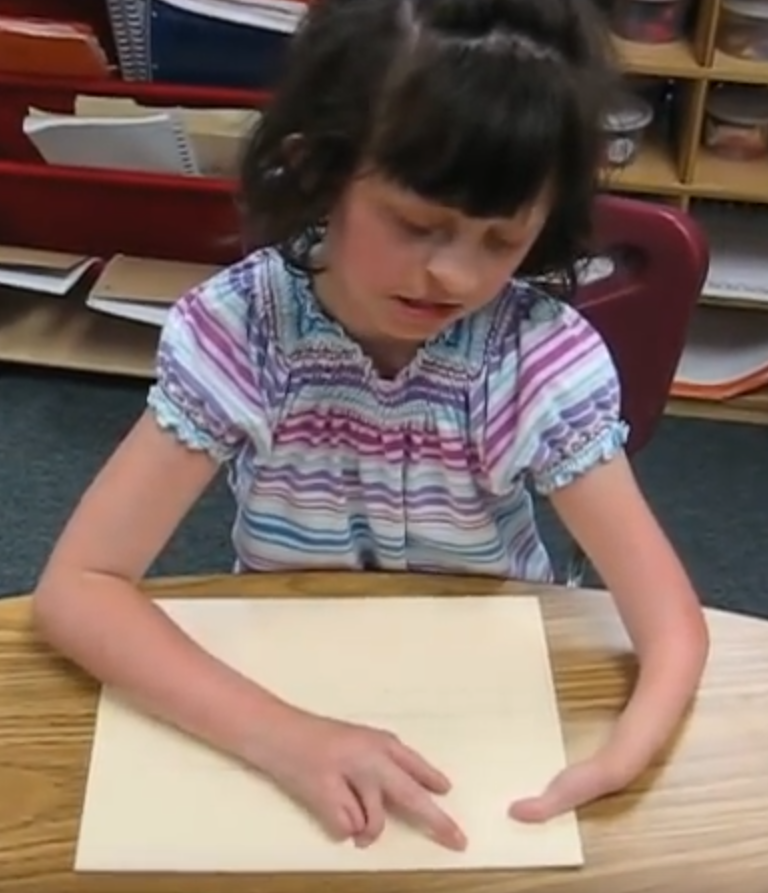
    Mikaela moved to my district in 2nd grade when I was Miss Mehlenbacher. My students always enjoyed racing to spell my last name the fastest, and Mikaela always won.

    We immediately began intensive technology instruction, including touch typing and keyboarding skills. The video above shows Mikaela typing on her laptop just five months later.

    Many of the photos and videos on this website were taken between 2000–2010, so image quality may appear blurry due to older camera technology.

    Perfect Touch Typing leads to Fast keyboarding
    Perfect Touch Typing leads to Fast keyboarding

    Why Touch Typing Matters

    Strong touch typing skills lead to:

    • Faster keyboarding
    • Efficient screen reader use
    • Improved writing speed
    • Greater academic independence
    • Better workplace readiness

    Additional Lessons and Videos

    Teach Touch Typing in Just 5 Hours | Blind & Low Vision Keyboarding Method

    Teach Keyboarding Early

    Low Vision Teen masters JAWS

    Blind 4‑Year‑Old and 2nd Grader Race Using Braille Writing Devices

    Watch the Video of learning keyboarding in a week and speed within 2 months

    Braille Instruction Starts at Age 3 – Early Blind Education Success Story

    Blind Student Keyboarding FAST – 10th Grade Research & Writing Independence

    Teen Masters JAWS in 3 Months

    Blind 4‑Year‑Old and 2nd Grader Race Using Braille Writing Devices

  • Kaleigh typing with special hands at 77 WPM with 3 fingers

    I (Dr. Robinson) began instruction with Kaleigh in the 3rd grade as she struggled to see large print at 2 inches. Here is a video of her first learning skills and as time passed, her typing with special hands was no problem as she quickly got up to 77 words per minute with her special hands.

    Practice and Patience: Regular practice is crucial. Start with basic exercises in how to use each hand and gradually increase complexity. Focus on accuracy before speed. Using these techniques and applying this knowledge to her actual work, within 3 years she went from learning to typing at 77 wpm using JAWS screen reader. The above is true for learning braille also.

    Typing with special hands
    Typing with special hands
    Special hands reading Braille
    Special hands reading Braille

    More lessons Here

    Other special Hands lessons

    3 fingers IS enough

    Fast Touch Typing

  • Typing with 3 fingers- Kaleigh learning to Type

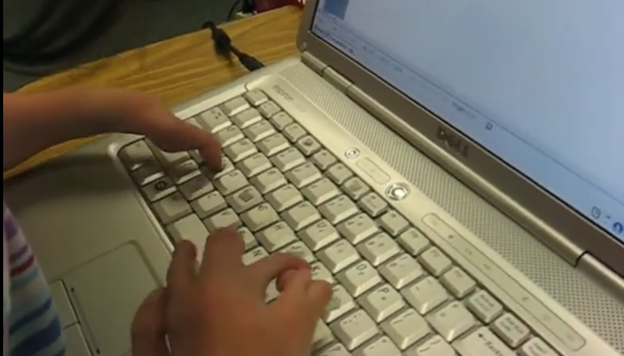
    Typing with 3 Fingers on her laptop is made easier with practice.

    A child with three fingers can type at over 77 words per minute by using adaptive strategies to access the same technology. Kaleigh is JUST learning the first steps in typing on a regular laptop.

    Typing with 3 Fingers

    Kaleigh typing with 3 fingers on a laptop

    First, they learn how to optimize their finger movements, reducing unnecessary motion. They focus on accuracy and gradually build speed through consistent practice. Children can learn to use the identical keyboard and computers as their peers. Using the center of the keyboard as positioning to the rest of the keyboard is part of the skill. The child practices finger coordination, mastering a rhythm that increases typing speed. Over time, these techniques combine to enable the child to exceed expectations and type as quickly as possible. More YouTube Channel Lessons

    Other Kaleigh Videos typing as she advances to typing over 77 words per minute

    Tay with Special Hands learning keyboarding and Math

  • Basic WORD JAWS commands with Typing Trick

    Dr. Robinson’s video covers basic JAWS screen reader commands for Office Word, no matter what version of WORD you use. First, she opens a new document using “Ctrl + N” and teaches key formatting skills, such as right-aligning text with “Ctrl + R” and inserting the date using old and new Office commands. She emphasizes the importance of listening to the software to ensure accuracy. Dr. Robinson guides through bold, underline, and italics commands before typing and spell-checking with keyboard shortcuts. These are all Basic WORD JAWS commands you need to know.

    More Commands to Learn

    Adjusting speech speed helps beginners better understand software. Learning commands ensures efficient and accurate work, especially Basic WORD JAWS commands.

    Gain Typing Speed in WORD

    To practice typing skills use a phrase like: “The quick brown fox jumps over the lazy dog.” Type it repeatedly in a Word document by starting slow to gain speed. Use the keyboard shortcuts taught in the video, such as “Ctrl + Left Arrow” and “Ctrl + Right Arrow” to move between words, and “End” to check if you’re at the end of the line. Regular practice, at least 10-15 minutes daily or more, helps build speed. Turn off autocorrect options to avoid automatic changes that may confuse the student and disrupt learning. Focus on accuracy before increasing typing speed. Mastering JAWS commands for WORD is essential for efficient practice.

    Other Lessons:

    Optimizing Windows 11 Efficiency for Screen Reader with Key Settings and Configurations

    WORD Efficient Text Navigation and Selection

    Basic WORD JAWS commands with Typing Trick

    Rebuild Microsoft Word Template when it is not working well

    Microsoft Word MLA format with Christopher Duffley

    WORD accessible food chain for class using talking software

    Commands to change mouse -access programs fast, basics in Word font & movement

    Excel line plot graph-copy to Word for Math

    Complete an excel graph and copy into Word document with screen reader

    Essential WORD keyboard commands for setting defaults

    Track changes in Word-How teachers make corrections in work

    Track Changes with Commands-inserting comments and editing work

    With Learned commands–then focus on getting a job.

  • Kaleigh typing 77 wpm with 3 fingers and JAWS

    Typing with 3 Fingers on her laptop is made easier with practice and now she is typing 77 word per minute. This impressive feat shows Kaleigh typing 77 wpm flawlessly.

    A young lady with three fingers can type at over 77 words per minute. She is using adaptive strategies to access the same technology as peers. Kaleigh typing 77 wpm highlights her exceptional skills. Kaleigh has been learning and using these special skills based on her fingers for years. She uses a regular laptop with JAWS screen reader to do all of her work.

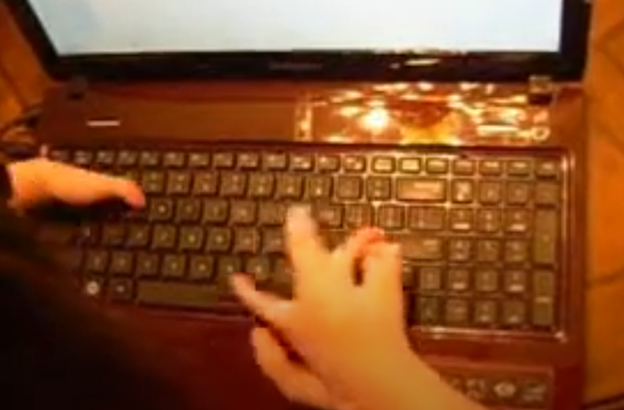
    image of Kaleigh typing 77 wpm on keyboard

    For individuals typing with one finger on one hand and two fingers on the other, specialized typing techniques can help improve speed and accuracy. Focus on positioning both hands in the center of the keyboard on homerow so the left single finger can move around that side of the keys. With the right 2 fingers, 1 is on the space bar at all times while other finger moves arund and presses keys. Moving together with a lot of practice, speed is gained. Start with slow, deliberate typing to reduce errors and gradually build up speed. Mastering typing speed similar to Kaleigh’s, started with such methods. Regular practice with phrases like “The quick brown fox jumps over the lazy dog” helps improve finger coordination. One such success story celebrating progress is Kaleigh typing 77 wpm.

    With determination and keyboard practice with lots of instruction, students can accomplish anything. Kaleigh typing 77 wpm is a testament to this. See her series of progress.

  • Fixing Jaws typing echo and cursor issues in google classroom by Taylin

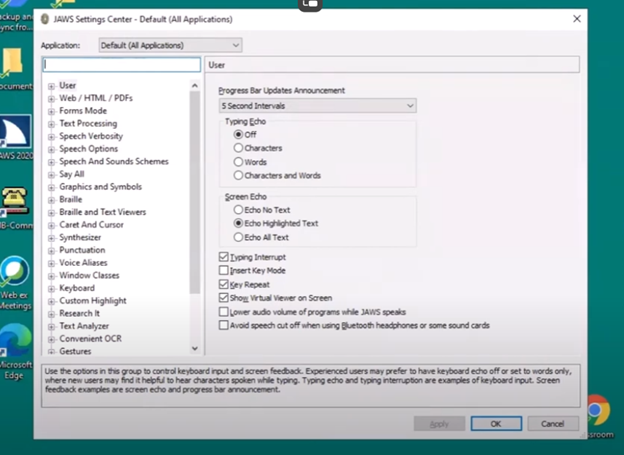
    Miss Taylin and Dr. Robinson addressed two common accessibility issues students face while navigating educational tools with JAWS. First, they resolved the issue of characters not being heard when typed, which prevents users from verifying their input. After adjusting the typing echo settings in JAWS, they enabled the device to read both characters and words aloud, providing better control and feedback during typing. Fixing Jaws typing echo significantly improved user experience. On the fly, you can also insert + 2 to change echo options.

    The second issue involved difficulties navigating through web links in the classroom browser, with JAWS sometimes reporting “no form fields” or “no lists available.” The problem arises when both the virtual and PC cursors are not enabled. Dr. Robinson explained that the virtual cursor is essential for browsing web pages, while the PC cursor helps manage navigation within a page. Miss Taylin accessed the links list and navigated classroom content efficiently by using “Insert + Z” to enable the virtual cursor. She ensured the PC cursor was active with the command “Insert + ;” which improved her browsing experience. Fixing Jaws typing and echo settings along with other settings changes, enhances productivity.

    Jaws settings and set default to permanently make changes to fix Jaws typing echo issues
    Jaws settings and set default to permanently make changes to typing echo

    Dr. Robinson emphasized the need to regularly check both cursor settings whenever JAWS encounters issues. This practice ensures smooth and uninterrupted navigation for users. Additionally, these steps empower students using screen readers to interact more effectively with digital learning platforms. These adjustments create an efficient workflow for students to complete assignments and navigate classroom tools seamlessly. Overall, addressing the issue of fixing Jaws typing echo and other settings ensure that students can fully participate in their learning environment with complete accessibility.

    See other lessons for navigation. For more on fixing Jaws typing echo, explore related resources.

  • Proper Touch Typing Methods on the Keyboard

    Proper touch typing methods and sitting positions are crucial for efficiency and preventing strain or injury.

    Here are some key points to consider:

    Proper touch typing methods and Techniques

    1. Home Row Position:
      • Place your fingers on the home row keys: A, S, D, F for the left hand and J, K, L, ; for the right hand.
      • Your thumbs should rest on the spacebar.
    2. Finger Placement:
      • Each finger is responsible for specific keys. For example, the left index finger covers F, G, R, T, V, and B, while the right index finger covers J, H, U, Y, N, and M.
    3. Typing Without Looking:
      • Practice typing without looking at the keyboard. This helps build muscle memory and increases typing speed and accuracy.
    4. Consistent Practice:
      • Regular practice is essential. Use typing software or online tools to improve your skills.

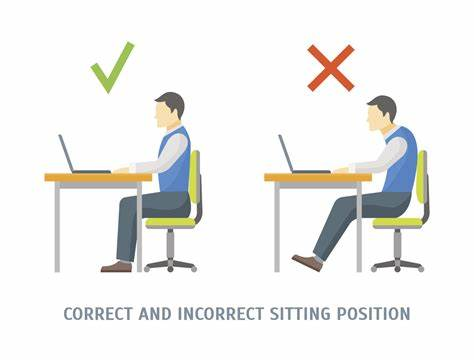
    Proper Sitting Position

    1. Chair and Desk Height:
      • Adjust your chair so that your feet are flat on the floor and your knees are at a 90-degree angle.
      • Your desk should be at a height where your elbows are also at a 90-degree angle when typing.
    2. Back Support:
      • Sit up straight with your back supported by the chair. Avoid slouching to prevent back strain.
    3. Monitor Position:
      • Place your monitor at eye level, about 20-30 inches away from your eyes. This helps reduce neck strain.
    4. Keyboard and Mouse Placement:
      • Keep your keyboard and mouse close enough to avoid reaching. Your wrists should be straight and not resting on the desk while typing.
    5. Breaks and Stretches:
      • Take regular breaks to stand, stretch, and move around. This helps prevent repetitive strain injuries (RSIs) and keeps you comfortable.
    correct (sitting straight up and feet flat on floor and incorrect sitting position with legs out and person hunched over keyboard

    By following these techniques and maintaining a proper sitting position, you can enhance your typing efficiency and reduce the risk of discomfort or injury.

    If you have any more questions or need further details, feel free to ask!

    Proper touch typing methods and Typing Tips

    Let us know what we can do for you with 1:1 instruction

  • Blind Student completes Research & Writing Homework

    Blind Student completes Research & Writing Homework
    Blind Student completes Research & Writing Homework

    Many people underestimate how quickly blind and low vision students can learn advanced technology skills when provided with direct, intensive instruction and real-time application within academic work. One inspiring example, of so many, is when a Blind Student completes Research & Writing successfully thanks to these supportive strategies.

    This student entered 10th grade with no keyboarding and computer efficiency skills. Within approximately 2.5 months of focused instruction, she was touch typing over 45 words per minute and independently completing research papers, writing assignments, email communication, and classroom work directly on the computer using a screen reader.

    The speed and confidence demonstrated in this video were developed through:

    • Structured touch typing instruction
    • Screen reader training
    • Keyboard command mastery
    • Real-time academic application
    • Daily repetition and problem solving

    Blind students do not fall behind because of blindness. They fall behind when they are not provided access and proper instruction early enough.

    Once students understand:

    • keyboarding
    • screen reader navigation
    • workflow
    • digital access strategies
    • with consistent instruction

    they can progress very quickly and begin functioning at the same pace as peers.

    Technology instruction is not an “extra.” It is literacy, independence, education, and future employment.