Search results for: “focus display”

  • Optimizing Windows 11 Efficiency for Screen Reader with Key Settings and Configurations

    Optimizing Windows 11 Efficiency for Screen Reader with Key Settings and Configurations takes an hour most often 2 or so to complete. Longer if you are new to screen reader and how Windows 11 works. It is different than other OS systems so give yourself grace as you learn all there is to know about this system. As you move through your keyboard and discover you would like a particular key somewhere, like the applications key, you can remap a key to create that yourself. AND, you MUST have Local Admin on School Computers.

    How to setup Computer for Optimizing Windows 11 Efficiency

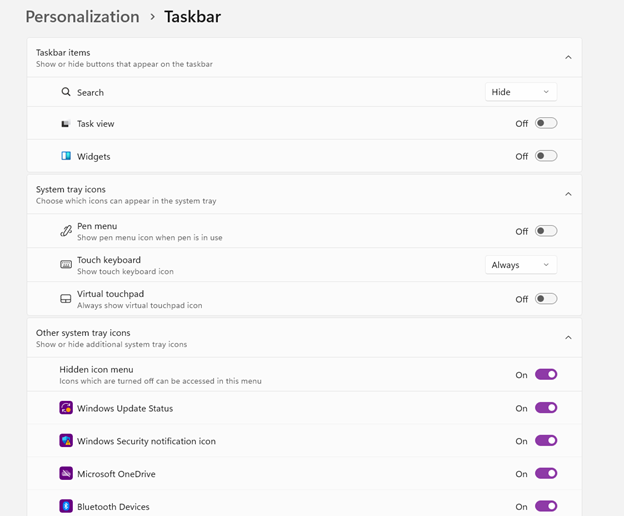
    • Change Taskbar Settings
    • Update Computer every day
    • Go to task manager and disable anything you do not need at start up
    • Go to Power Options and change from Sleep to Shut Down when you press Shut down button
      • take off sleep options in general unless you are advanced user
      • Keep in mind that your screen reader cannot reset or the RAM clear if you computer is in sleep mode or hibernate mode
    • Go to Addition Mouse setting and select the “snap to” mouse option and CTRL option
    • Turn off Touch pad- if you do not your palm will touch the mouse pad and auto activate items or move your cursor on your computer. This equals huge frustration to a screen reader user.
    • Windows T and clear that taskbar–this is million dollar real-estate to access programs fast
    • Setup WORD
    • Go to control panel and setup Sound card options
    • Windows and adjust other sound options using sndvol.exe
    • Setup Gmail and Drive and learn new commands
    • Setup Outlook
    Optimizing Windows 11 Efficiency with Taskbar setting
    Taskbar setting for Windows 11 setup

    Efficiency for Screen Readers and other Setup Skills

    Setup or adjust Screen readers and Braille Display for Optimizing Windows 11 Efficiency

    Proper Set up Windows 11 to work with screen readers and braille displays is crucial for visually impaired users. This configuration ensures smooth interaction with the system, giving users full access to information and applications such as Gmail for optimizing access..

    1. Accessibility and Independence

    Configuring Windows 11 for screen readers like JAWS, NVDA, or Narrator, and integrating braille displays, provides full independence. Without proper setup, tasks such as reading documents, browsing, or using software become challenging. A well-configured system ensures all functions are accessible.

    2. Productivity and Efficiency

    Screen readers and braille displays let users interact quickly with the system. Setting up Windows 11 for compatibility speeds up responses to commands. It also ensures smoother transitions between applications, making multitasking more efficient. Proper configuration prevents lag or software conflicts, which increases productivity in school and work settings.

    3. Customization for Personalized Needs

    Each user has different needs. Windows 11 allows users to customize screen reader settings (e.g., speech rate, verbosity, and key commands) and braille displays (e.g., output type and formatting). These adjustments create a personalized experience, improving comfort and reducing frustration.

    4. Enhanced Braille Support

    Windows 11 offers enhanced braille support when paired with leading screen readers. Proper setup lets users access seamless braille input and output for text and math. It also allows advanced navigation of documents. Correct braille display configuration ensures accurate reading and editing of both simple text and more complex content.

    5. Compatibility with Updates

    As Windows 11 updates, keeping screen readers and braille displays integrated is essential. A well-maintained setup ensures new features or security updates don’t disrupt accessibility tools. This is vital for maintaining ongoing access such as the new Google Commands for navigation.

    Key Setup Steps for Optimizing Windows 11 for Accessibility:

    • Ensure Compatibility: Install the latest versions of screen readers and braille display drivers compatible with Windows 11.
    • Enable and Configure Narrator: Windows 11 includes Narrator, which can be set up for basic tasks if needed.
    • Customize Keyboard Shortcuts: Set up shortcuts for easier navigation and quicker interaction.
    • Adjust Accessibility Settings: Go to “Accessibility” in the Settings app to adjust visual and audio cues like contrast and text size.
    • Test with Braille Displays: Pair and calibrate braille displays for reading and input in UEB or Nemeth, depending on preferences.

    With proper set up, Windows 11 for screen readers and braille displays furthers accessibility. This setup enhances independence, productivity, and ease of use in the digital world.

    If you have low vision challenges, this lesson is for you and setting up computer is essential with commands to change mouse

    Learn Proper Touch Typing skills with these great commands you are learning to optimize Windows 11 efficiency.

    Add PDF Lessons:

    Math and taking inaccessible to accessible in WORD

    Type directly on a PDF

    Transcribe Math Images from PDF

    Take Large PDFs and Print to PDF for a few pages

    Platform Knowledge for Access

    Schoology with Jaws

    Schoology Navigation

    Canvas platform-Keep in mind, a platform can to totally accessible but totally INACCESSIBLE work can be placed on it.

    Acellus Platform

    Zoology with RedShelf Platform

    Let us know how we can help you: Contact US: TechVisionTraining@yourtechvision.com
  • TechVision Access Instruction-Empowering Blind and Visually Impaired

    TechVision Access Instruction is the TechVision Difference. Dr. Robinson and her Tech Vision team provide one-on-one and school team remote instruction for visually impaired individuals in real time. They enhance technology skills for students, adults, and groups by teaching them to use assistive technologies like PC computers, screen readers (JAWS, NVDA, Narrator), and Braille displays. This approach ensures students complete their work alongside peers without needing extra time

    TechVision Access Instruction aims to transform education for the blind and visually impaired. They combine the right technology with effective instruction. They offer teaching internships to advanced students, providing hands-on job skills that enhance resumes for future employment or college applications. Their goal is to empower visually impaired individuals to achieve their full potential and navigate the world confidently.

    TechVision Access Instruction
    TechVision Website

    Our Mission and Purpose is enable blind and visually impaired students the ability to access and complete work as their sighted peers. This requires, screen readers, braille displays and other access technology.

    Technology that gives you VISION with Access Instruction

    The TechVision mission and purpose, led by Dr. Robinson and her highly skilled TechVision Specialists, are to change lives via instruction in access technology, enabling inclusion and educational equality.

    The TechVision Specialists are uniquely skilled in teaching blind and low vision students. They focus on direct instruction on all technology like computers(requires Local Admin Access), screen readers, Braille displays, and smartphones. This approach has revolutionized the educational experience for blind and low vision students and clientele. Their expertise and global reach have significantly impacted students. They empower students to access information and navigate the world on an equal footing with sighted peers.

    Additionally, TechVision collaborates with school districts and private entities to address the evolving needs of education. This collaboration promotes independence and inclusion in both classrooms and the job market. By equipping students with essential skills, TechVision creates an environment of true equality. As a result, opportunities become accessible to everyone, regardless of visual impairment.

    TechVision specializes in teaching all subjects, especially advanced mathematics, to blind and visually impaired students. This enables them to succeed academically. Many of these students pursue majors in Applied Mathematics at prestigious institutions, including Harvard University. They use innovative methods to ensure blind and low vision students perform at the same high level as their sighted peers.

    Integration

    Additionally, TechVision integrates tools like Artificial Intelligence (AI), word processors, screen readers, and Braille displays to support student success. These tools allow visually impaired students to produce work comparable to their classmates. Consequently, this promotes integration and equal opportunities in academic environments: Even to the point that you can Make an Electronic Signature -Then insert it into a Document.

    Big issues occur and you can learn to resolve them via Find and restore deleted files or lost files & folders

    We offer:

    1:1 or whole Team Instruction

    Access Training

    Get to know the Team Specialists

    Expertise in Math Instruction

    What you need to do to Find a JOB

    And if you want to try your hand: Mac with VoiceOver and Key Commands

    Let us know how we can help you: Contact US: TechVisionTraining@yourtechvision.com
  • UEB Math using Braille Math and Word Math Editors with Jaws and split-braille-for-buffer-mode

    UEB Math using Braille Math and Word Math Editors with Jaws and split-braille-for-buffer-mode

    In this tutorial, Dr. Denise M. Robinson shows how to use JAWS with Braille Math and Word Math Editors. This video on UEB Math with JAWS empowers blind and visually impaired students and professionals. It provides tools and techniques to excel in mathematics. Set up WORD properly first, then continue.

    UEB Math in Braille Math Editor

    First, the tutorial introduces essential software and hardware. This includes JAWS, a Focus Braille Display, or NVDA and the necessary math editors. Dr. Robinson guides viewers through the setup process. She ensures all components are correctly configured for optimal performance.

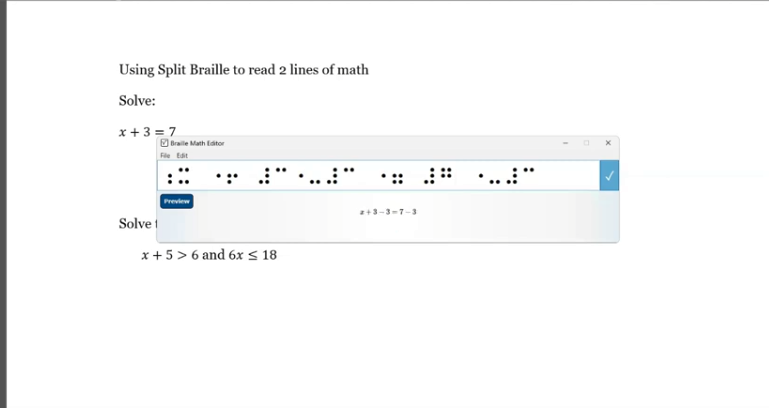
    image of math using braille math editor and split braille

    Next, the video explores the practical application of these tools. Viewers learn to input mathematical expressions using the Braille Math Editor. They navigate complex equations and use the split-braille-for-buffer mode to enhance workflow. Dr. Robinson offers clear, step-by-step instructions. This makes it easy for users to follow along and practice.

    By the end of this tutorial, UEB math in braille math editor viewers understand how to use JAWS and Braille Math Editors efficiently. They can create, edit, and review UEB math content. This video is an invaluable resource. It helps enhance digital math literacy and achieve greater independence in academic or professional pursuits.

    For additional UEB Math lessons, here is more on digital Math and advanced math using Matrices

    UEB math LaTex matrices in Word

    More lessons at: https://www.youtube.com/@DrDeniseMRobinsontech

    and UEB Math Lessons Galore

    Advanced Math with Matrices in WORD Math editor

    Perfect Digital Math

    Transcribe Math Images

    Quadratic Math

    STEM with Embossing

    JAWS and MathCat

    Unicode with UEB Math

    UEB Math with Jaws

    UEB LaTex math with Jaws

    Tactile Learning Tools when needed

    TechVision Mission and Purpose in helping YOU!

  • Matrices in WORD Math Editor-Braille Math editor with Jaws using LaTex, auditory and/or Braille

    Matrices in WORD Math Editor

    In this video, Dr. Denise M. Robinson demonstrates how to use the WORD Math Editor and Braille Math Editor with JAWS using LaTeX or Braille. This tutorial is designed for screen reader users, with or without braille displays, who want to improve their math skills.

    First, Dr. Robinson introduces the essential tools for using matrices in WORD, including JAWS, a Braille display (if desired), and the WORD Math Editor. She explains how to set up each tool to work together smoothly, which is crucial for creating and editing math content.

    Next, the video focuses on creating matrices. Dr. Robinson uses LaTeX to input mathematical expressions. She explains each step clearly, making it easy to follow along. Viewers will learn how to enter rows and columns in a matrix, helping them understand matrix structure.

    Then, Dr. Robinson demonstrates how to use auditory feedback, which allows users to hear the math content they are working on. This feature helps ensure accuracy and makes it easier to catch mistakes. Additionally, she shows how to switch between auditory and Braille feedback, providing flexibility for different learning styles.

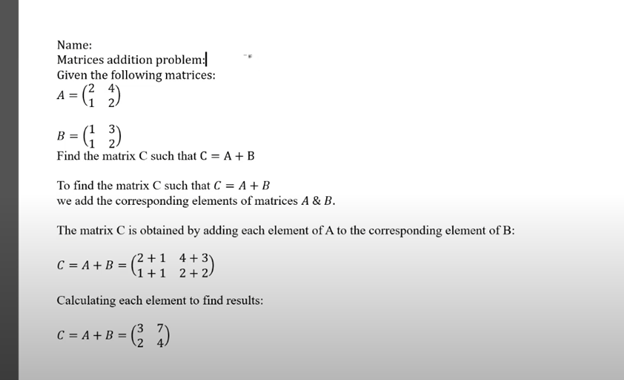
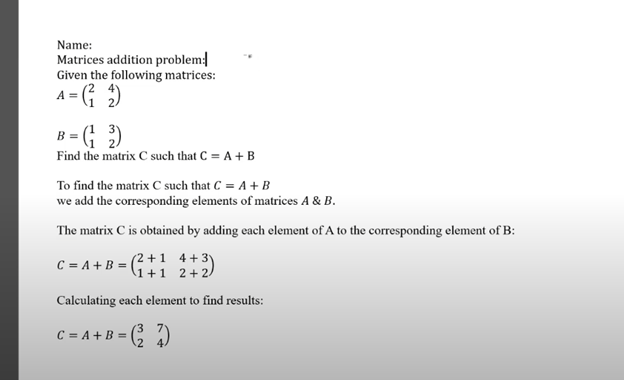
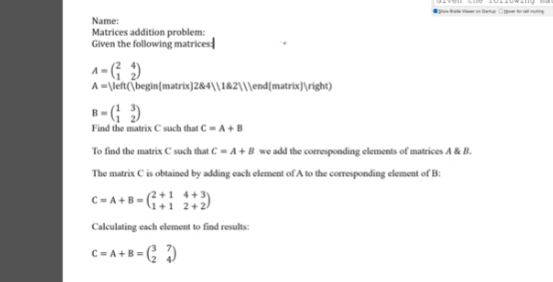
    matrices addition problem

    The video also covers using the Braille display with the math editors. Dr. Robinson explains how to navigate through the matrix using Braille and provides tips on reading and editing the content efficiently. This section is particularly helpful for users who rely on Braille for their work.

    Finally, the tutorial concludes with a review of the key points. Dr. Robinson summarizes the steps for creating and editing matrices. She encourages viewers to practice using the tools and techniques demonstrated in the video. By the end of the tutorial, users will feel more confident in their ability to work with math content.

    1:1 or School Team Remote lessons to get you to where you want to be!

    Other Math Lessons

    Transcribe Math Images

    Quadratic Math

    STEM with Embossing

    Perfect Digital Math

    JAWS and MathCat

    Unicode with UEB Math

    UEB Math with Jaws

    Braille Math in WORD Editor-Multi-line

    Split Braille for Buffer Mode

    or MathType with JAWS

    But make sure your computer is first setup to work the best with screen reader

    More Tech Lessons: @DrDenisemRobinsontech

  • Digital Math with UEB Math, NVDA completing Matrices in WORD Math Editor 365

    In this video, Dr. Denise M. Robinson demonstrates how to use the WORD Math Editor and Braille Math Editor with UEB and NVDA. The tutorial, focused on Digital Math with UEB, is specifically designed for screen reader users, with or without braille displays, who want to improve their math skills.

    Matrix work in Word-Digital Math with UEB Math

    First, Dr. Robinson introduces the essential tools needed for using matrices in WORD using UEB Math. These include NVDA though Jaws can be used, a Braille display (if desired), and the WORD Math Editor. She carefully explains how to set up each tool to work seamlessly together. This setup is crucial for creating and editing math content efficiently.

    Next, Dr. Robinson focuses on creating matrices using LaTeX. She walks viewers through each step, making it easy to follow along. The video shows how to enter rows and columns in a matrix, helping users understand the structure of matrices. Dr. Robinson’s clear explanations ensure that even complex steps are understandable.

    The video then demonstrates how to use auditory feedback with the math editors. Dr. Robinson shows how users can hear the math content they are working on. This feature helps in catching mistakes and ensuring accuracy. Additionally, she explains how to switch between auditory and Braille feedback. This flexibility is particularly useful for different learning styles and preferences.

    Dr. Robinson also covers how to navigate through the matrix using a Braille display if desired. She offers practical tips on reading and editing the content efficiently. This section is especially beneficial for those who rely on Braille for their work.

    Finally, the video concludes with a summary of the key points of working in WORD using UEB Math. Dr. Robinson encourages viewers to practice the tools and techniques demonstrated in the video. By the end, users will feel more confident in their ability to create and edit math content using JAWS and the WORD Math Editor

    Also try digital Math with UEB and NVDA

    or UEB Math using Braille Math Editor

    and Accessible UEB Braille Training for free

  • UEB Math with JAWS in Word: Using Unicode, LaTeX, and Braille for Easy to Advanced Math

    Dr. Robinson introduces the latest Vispero update for JAWS, focusing on reading UEB math. To get started, she demonstrates how to configure JAWS settings for optimal performance with UEB math. She begins by pressing “Insert + 6” to access the JAWS settings. Then use “Control + Shift + D” to set the default profile.

    Setup MathCat for UEB Math with Jaws

    Dr. Robinson guides users through setting up Braille mode via Default profile by typing it in the edit box. She types “Braille Mode” in the search box, and F6 to access different settings. She uses “F6” to navigate to the desired options, then “Alt + F” to select language profiles. To access MathCat option via alt D to details then tab to Nemeth and change to MathCat then OK.

    Dr. Robinson explains how to select the correct Braille code, such as UEB math with JAWS or Nemeth code. She walks through the process of applying these settings and closing the settings dialog.

    Once set up, Dr. Robinson demonstrates how to solve math problems using JAWS in Word. Dr Robinson explains the process of entering equations using “Alt + Equals” to open the math editor. She highlights how to type out equations, like “X squared plus 3 equals 11.” Then how to navigate through the math content using keyboard commands.

    She also explains complex math using UEB Math with Jaws, such as using square roots and other mathematical symbols, by using Unicode and LaTeX commands. Dr. Robinson shows the equation tools in Word by pressing “Alt + J” E to equation menu. Then explains how to convert equations between professional and linear formats using “Alt + JE + C.”

    Throughout the tutorial, Dr. Robinson ensures users understand the commands necessary for navigating and editing math content effectively. She also provides troubleshooting tips, such as using the Math Viewer with insert space + = . This gives more detailed navigation of hearing each symbol, particularly useful for more complex equations.

    Dr. Robinson concludes by encouraging users to explore more advanced math problems and settings. This ensures that they can confidently use JAWS for UEB math in various applications. If you experience computer issues in general, set it up to work the most efficiently with screen readers.

    Other Math Lessons:

    Transcribe Math Images

    Quadratic Math

    STEM with Embossing

    Perfect Digital Math

    JAWS and MathCat

  • Kim Shares How Computer Access Empowered Her to Keep Up with Her Peers in School

    Kim began as a young student with TechVision. Her mother sought help and discovered that we provide real-time instruction using everyday technology essential for future job success. TechVision worked with Kim several days a week, ensuring continuous learning and growth. She used a PC with access technology to access her school platform and all else, including a Computer Enabled access with screen readers and a braille display, to access her world and education. Over time, she transformed from a struggling blind student, reliant on constant para and teacher support, to an independent learner working on her own. This is her story, please listen.

    For Kim, moving from depending on others for her education to becoming independent changed everything. With TechVision’s hands-on, real-time learning, she learned to use screen readers and a braille display, which let her access schoolwork by herself. Instead of always needing help from a para or teacher, Kim could now complete her assignments on her own, just like her classmates. This gave her confidence and made her feel more in control of her education. Being able to work independently helped her stay on track with her peers and prepared her for future success. A Computer Enabled access to change her life.

    Another life changing story from Jordan. TechVision also enabled computer access for her.

    Learn those skills Now.

    Let us know how we can help you: Contact US: TechVisionTraining@yourtechvision.com
  • Completing Multi‑Level Math in Word Using the Braille Math Editor (BME)


    Dr. Robinson demonstrates how to complete multi-level math in WORD using Braille Math Editor with JAWS. She used an algebra problem as an example. She explains that this method applies to several types of math problems. First, she highlights how transcriptionists or students can prepare algebra equations using the Alt + Equals command to insert math symbols directly in Word. Once the equation is ready, the blind student can easily solve it using a Focus 40 Braille display.

    Navigating the Math Content

    Dr. Robinson shows how students can work within the Braille Math Editor. By pressing Insert + Space followed by Shift + Equals, the editor opens, and the math problem appears ready for solving. She mentions that students can choose between Nemeth code or Computer Braille, depending on their preference. Both modes allow for precise calculations and input, enabling them to complete multi-level math problems efficiently across multiple levels.

    complete multi-level math using BME in WORD image of math

    As the student works through the problem, they can use Braille commands like 4-5-6 Space to navigate to the end of the problem and add a dot 6 for separating steps with commas. This method keeps the equation organized, allowing the student to solve the problem in multiple lines, just as their sighted peers would. By checking the Braille display frequently, students ensure accuracy while solving multi-level math equations and maintaining neatness.

    Finalizing and Reviewing Work to complete multi-level math

    Once the math is complete, the student hits Enter to insert the solution into Microsoft Word. Dr. Robinson uses Ctrl + L to align the text to the left after confirming correct spacing and formatting. She resolves errors, such as unnecessary commas or misalignments, by reviewing each line. Editing line by line ensures the final product is both clean and accurate. The process concludes with a perfectly formatted, multi-level math solution, efficiently done using the Braille Math Editor, thus completing the task effectively.

    This setup provides blind students with the tools to complete complex multi-level math work just like their peers, ensuring accessibility and ease in academic settings. More math lessons here.

  • Teach Touch Typing Early for Blind and Low Vision Students

    Strong touch typing skills create independence, speed, and confidence for blind and low vision students using screen readers, braille displays, or electronic braillers. Early instruction helps students build muscle memory, accuracy, and efficient keyboarding habits that support reading, writing, research, and future employment.

    Students should:

    • Learn correct finger placement
    • Keep wrists relaxed and posture aligned
    • Use all fingers consistently
    • Focus on accuracy before speed
    • Practice daily using structured lessons

    Websites such as TypingClub.com can support additional practice, but direct instruction and proper technique remain critical for long-term success.

    Mikaela’s Story

    Mikaela moved to my district in 2nd grade when I was Miss Mehlenbacher. My students always enjoyed racing to spell my last name the fastest, and Mikaela always won.

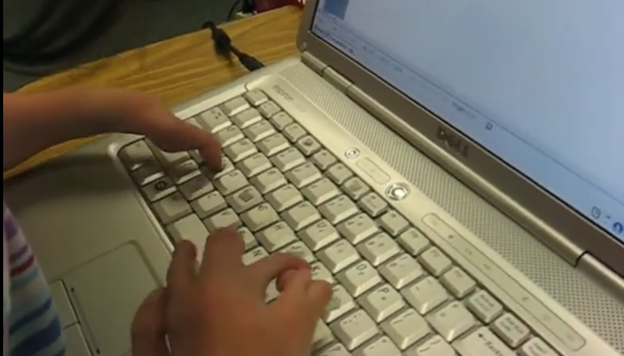
    We immediately began intensive technology instruction, including touch typing and keyboarding skills. The video above shows Mikaela typing on her laptop just five months later.

    Many of the photos and videos on this website were taken between 2000–2010, so image quality may appear blurry due to older camera technology.

    Perfect Touch Typing leads to Fast keyboarding
    Perfect Touch Typing leads to Fast keyboarding

    Why Touch Typing Matters

    Strong touch typing skills lead to:

    • Faster keyboarding
    • Efficient screen reader use
    • Improved writing speed
    • Greater academic independence
    • Better workplace readiness

    Additional Lessons and Videos

    Teach Touch Typing in Just 5 Hours | Blind & Low Vision Keyboarding Method

    Teach Keyboarding Early

    Low Vision Teen masters JAWS

    Blind 4‑Year‑Old and 2nd Grader Race Using Braille Writing Devices

    Watch the Video of learning keyboarding in a week and speed within 2 months

    Braille Instruction Starts at Age 3 – Early Blind Education Success Story

    Blind Student Keyboarding FAST – 10th Grade Research & Writing Independence

    Teen Masters JAWS in 3 Months

    Blind 4‑Year‑Old and 2nd Grader Race Using Braille Writing Devices

  • Typing with 3 fingers- Kaleigh learning to Type

    Typing with 3 Fingers on her laptop is made easier with practice.

    A child with three fingers can type at over 77 words per minute by using adaptive strategies to access the same technology. Kaleigh is JUST learning the first steps in typing on a regular laptop.

    Typing with 3 Fingers

    Kaleigh typing with 3 fingers on a laptop

    First, they learn how to optimize their finger movements, reducing unnecessary motion. They focus on accuracy and gradually build speed through consistent practice. Children can learn to use the identical keyboard and computers as their peers. Using the center of the keyboard as positioning to the rest of the keyboard is part of the skill. The child practices finger coordination, mastering a rhythm that increases typing speed. Over time, these techniques combine to enable the child to exceed expectations and type as quickly as possible. More YouTube Channel Lessons

    Other Kaleigh Videos typing as she advances to typing over 77 words per minute

    Tay with Special Hands learning keyboarding and Math