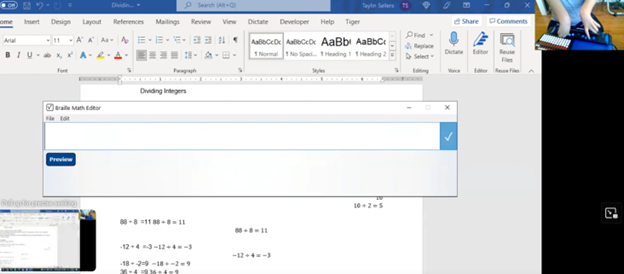
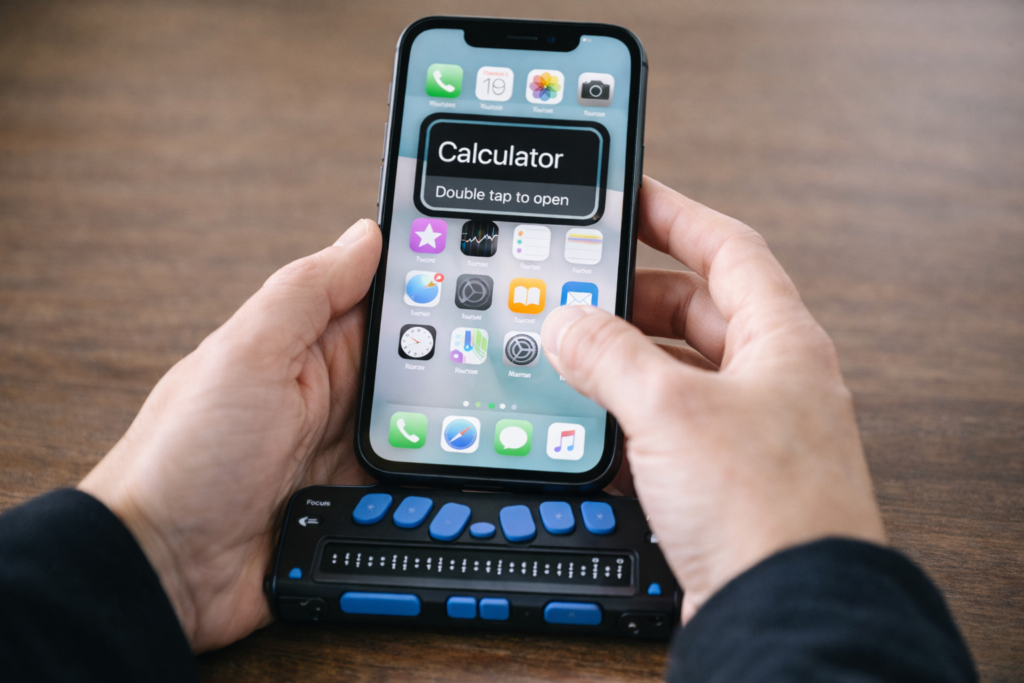
In this video, Dr. Denise Robinson guides Tay in proper Braille Math Editor Mode on her FOCUS Display. The session begins with Dr. Robinson reminding Tay how to change the computer’s mode to “contracted out/computer in.” This change ensures proper Braille math output, which simplifies the process and reduces errors.
Dr. Robinson then encourages Tay to use the Braille Math Editor with confidence, using her 2 knuckles on her right hand and 1 pointer finger on her left hand. She goes onto explain that the chosen mode automatically handles many aspects of math input. This approach allows Tay to focus more effectively on solving problems.
Next, Tay is guided through various math problems, including division and multiplication. Dr. Robinson carefully ensures that Tay understands how to input problems correctly into the Braille Math Editor. For division tasks, she provides clear instructions on entering Braille codes and following the correct sequences.
Furthermore, Dr. Robinson emphasizes the importance of memorizing math facts. She highlights how strong basic math skills can significantly improve accuracy and speed. Through consistent practice and repetition, Tay begins to reinforce these essential concepts.
As the session continues, Tay receives positive reinforcement, which helps her gain confidence. With each task, Tay requires fewer prompts, showing her growing independence in handling math problems.
Finally, Dr. Robinson concludes by praising Tay’s progress. She expresses confidence in Tay’s continued improvement and emphasizes that ongoing practice will help Tay master essential math skills. Dr. Robinson also reassures Tay that she will become more comfortable using the Braille Math Editor with time.
Overall, this session reflects Dr. Robinson’s commitment to fostering independence and competence in her students using proper Braille Math Editor Mode. She ensures they have the necessary tools and confidence to succeed academically. This methodical approach helps students like Tay build a strong foundation for future learning and problem-solving. To further learning, Embossing math using Braille Blaster or graphics using Tiger will always increase understanding of math in general.
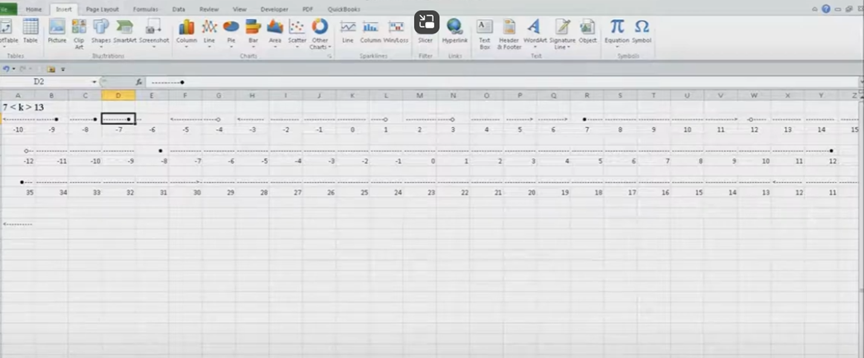
Dr. Robinson introduces a lesson on using Microsoft Excel to solve math work, specifically focusing on inequalities and graphs. She begins by guiding students on how to put Excel in focus to tackle various math problems in Excel. This helps students to optimize their math work in Excel effectively. Next, she instructs them to create a template using a number line. To insert symbols like less than or greater than signs, students use the Alt + N and then U commands to insert bullets or symbols.
For students with a numpad, Alt + 7 and Alt + 9 quickly insert a hollow or solid bullet, respectively. For those without a numpad, they can use the Insert + Symbols option. Students then align their number line by inserting a bullet in the middle, ensuring four dashes on each side for perfect centering when solving math work in Excel.
To center content, students use the Applications key and press F. They adjust the horizontal and vertical alignment to ensure everything is perfectly centered. This is a useful step when handling math problems in Excel. After completing their problems, students select the content using Shift + Right Arrow and copy it using Ctrl + C. This entire process enhances their skills in doing math work in Excel.
When pasting into Microsoft Word with Ctrl + V, students have various formatting options. By pressing the Control key and right arrow, they can select different formatting options for their pasted content. They can also Alt H to home and V to paste and right arrow through options. This flexibility allows blind students to format and customize their graphs just like their sighted peers when solving math problems in Excel. After the student pastes an image, they press the Applications key and up arrow to select Alt Text and type the description. Once they finish typing, they press Ctrl + Space and C to close the navigation pane and return to the document.
Dr. Robinson concludes by showing examples of completed math problems in Excel and graphs, demonstrating how well-formatted the number lines and inequalities look. Blind students can confidently create hollow and solid bullets, as well as inequalities, just like other students, thanks to the accessible features in Excel. This process ensures they stay engaged in their learning, achieving the same results as their peers when doing math work in Excel. Make sure your display is working well.
Dyslexia and screen readers: Focus in immersive reader in WORD
Dyslexia and Screen Readers–Many people think screen readers are only for blind students.
They are not.
Audio feedback can also change the life of any student with dyslexia.
When a student hears letters, words, sentences, spelling, punctuation, and mistakes read back in real time, the brain receives information through another pathway. The student is no longer trapped by what the eyes alone can process.
For blind students, screen readers paired with a braille display provide access. They connect what students hear to the words under their fingers, which strengthens reading, spelling, and writing.
For sighted students with dyslexia, audio feedback can provide clarity, confidence, independence, and a way to catch errors they may never see visually. It can also help them hear spelling patterns, punctuation, spacing, and sentence structure as they write.
This is not cheating.
It is access.
This is literacy through technology.
When students learn to use tools like screen readers, text-to-speech, speech-to-text, keyboard commands, and audio editing, they begin to read, write, revise, and complete work with far more independence.
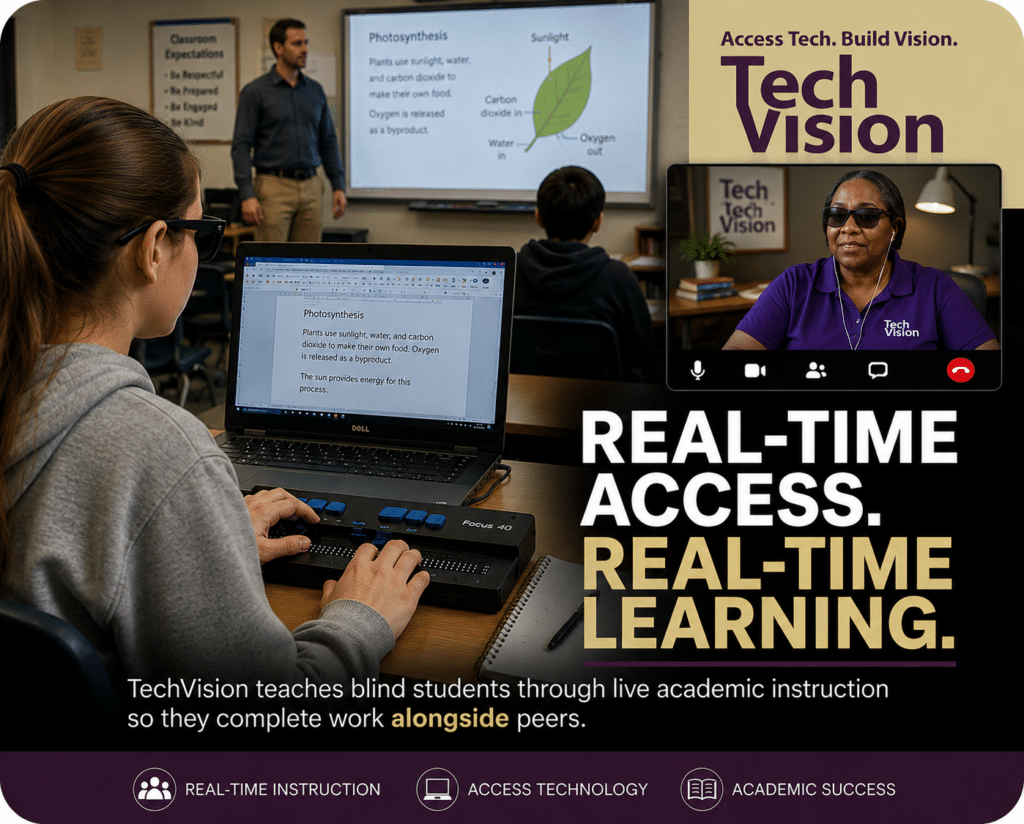
At TechVision, blind and low vision students learn how to access education in real time using the same technology and workflow skills required in school, college, work, and life so they can keep pace with their peers independently and confidently.
When instruction begins as early as 3 years of age, students often develop the foundational technology, braille, and academic access skills necessary to progress alongside peers from the very beginning rather than spending years trying to catch up later. Even students who begin later often make remarkable gains and can frequently close significant skill gaps within 1–2 years through intensive real-time instruction and consistent access to technology instruction.
Our students do not simply learn isolated technology commands. They learn how to actively use assistive technology while completing real academic work alongside their peers.
Through live instruction, students develop:
screen reader proficiency using JAWS, NVDA, Narrator, and VoiceOver
braille display fluency using Focus Braille Displays
accessible math and science skills using Word Math Editor, Braille Math Editor, LaTex and Nemeth Code
Canvas, Google Classroom and Office 365 accessibility and all platforms
tactile graphics and STEM access skills
keyboarding and digital workflow independence
file management and organization skills
independent problem solving using real classroom materials
and so much more
Working closely within schools and families, Access Technology Instruction occurs both during live classroom participation and through dedicated 1-on-1 instructional sessions focused on building independence, long-term success, and the ability to independently complete daily assignments and plan workload responsibilities throughout the school week.
Our team includes both blind and sighted instructors with extensive experience using the same technology students are expected to master. This real-world expertise allows instruction to move beyond theory into practical daily application.
Accessibility is not about completing work later. Access is Inclusion.
TechVision continues teaching blind and low vision students around the world through remote instruction designed to build confidence, independence, and meaningful academic access.
How to Read, Write, and Learn with Low Vision: How vision loss can appear
2.2 Billion People Live With Vision Impairment
Vision loss is one of the most common disabilities on earth, and it’s growing fast. If you work in healthcare, tech, education, or policy, these numbers matter for accessibility, product design, and funding.
Over 51.9 million adults in the U.S. report some level of vision difficulty. About 6–7 million Americans have significant vision loss or blindness. Globally, 2.2 billion people have vision impairment.
But those top-line numbers hide urgent trends. Here’s the breakdown with the latest 2024-2026 data, what’s driving it, and what to do about it.
Tools + Techniques That Build Real Independence
Students and adults with vision challenges do not learn one way. They require the right tools, combined with direct, targeted training.
Success happens when tools match the vision need and instruction builds efficiency
Tools + Training by Vision Need
1. Dyslexia (Processing and Decoding)
Dyslexia affects how the brain processes text. It often overlaps with vision-related challenges.
Tools
Text-to-speech: JAWS, NVDA
Speech-to-text (dictation)
Immersive Reader
Audiobooks: Bookshare, Learning Ally
Training Focus
Pair listening with reading
Build strong keyboarding for writing
Navigate digital text efficiently
Goal Improve comprehension while reducing reading fatigue
2. Blurred or Reduced Vision (Low Vision)
Tools
Magnification: ZoomText, Windows Magnifier
High contrast and color filters
Enlarged text and screen scaling
Screen readers: JAWS, NVDA
Training Focus
Use magnification efficiently without losing place
Strengthen visual tracking
Transition smoothly to audio when needed
Master keyboard navigation
Goal Maximize usable vision while increasing speed and accuracy
3. Central Vision Loss
(Stargardt, macular degeneration)
Tools
Screen reader (primary): JAWS, NVDA
Refreshable braille display
Audio + braille combination
OCR tools for printed content
Training Focus
Full keyboard control
Braille literacy (UEB and Nemeth)
Strong auditory processing
Goal Achieve full independence through non-visual access
Fix Digital Accessibility Before Title II Enforcement-No access to work
Schools and colleges face serious gaps in digital access. These gaps harm blind and deaf students the most, and they also affect every learner who needs clear, structured content. Title II now requires full WCAG 2.1 AA compliance. Schools must shift from crisis responses to real systems. The good news is that this work is fixable when they follow a clear plan.
1. Start With an Accessibility Audit: Blind and Deaf Students Face the Sharpest Access Gaps
Every school should begin with a full digital audit. This audit must involve experts who use screen readers and braille displays every day on the platforms used in education. Without these specialists, audits miss the barriers that blind students face. Any image-based video must include described content throughout. Schools can find strong examples and guidance at Described and Captioned Media Program (DCMP).
Schools should also check whether interactive elements, buttons, and menus work with keyboard-only navigation. Many blind students rely on keyboard access, and inaccessible controls often block them before the lesson even begins.
The audit should include websites, LMS content, Google Classroom, PDFs, worksheets, videos, vendor platforms, parent portals, and staff materials. Real blind access testers expose problems that automated tools never find. Audits reveal the true accessibility debt. Schools need this view before anything else.
Most deaf learners use ASL as their primary language. They often need an actual signer on digital content as well as written text. Captions alone rarely provide full access, because captions do not follow ASL structure. Find out full details from DCMP.org also.
Schools should start with embedded text on all visual content first. This step creates a basic access layer while teams prepare for ASL. Once content stabilizes, schools can add ASL signers during development.
Schools must include ASL interpretation on videos, lessons, and major digital materials. An ASL signer keeps the message clear, complete, and culturally accurate.
This work must also be audited by a deaf professional who signs. Without that review, digital content remains incomplete and inaccessible.
2. Fix PDFs and Scanned Worksheets First
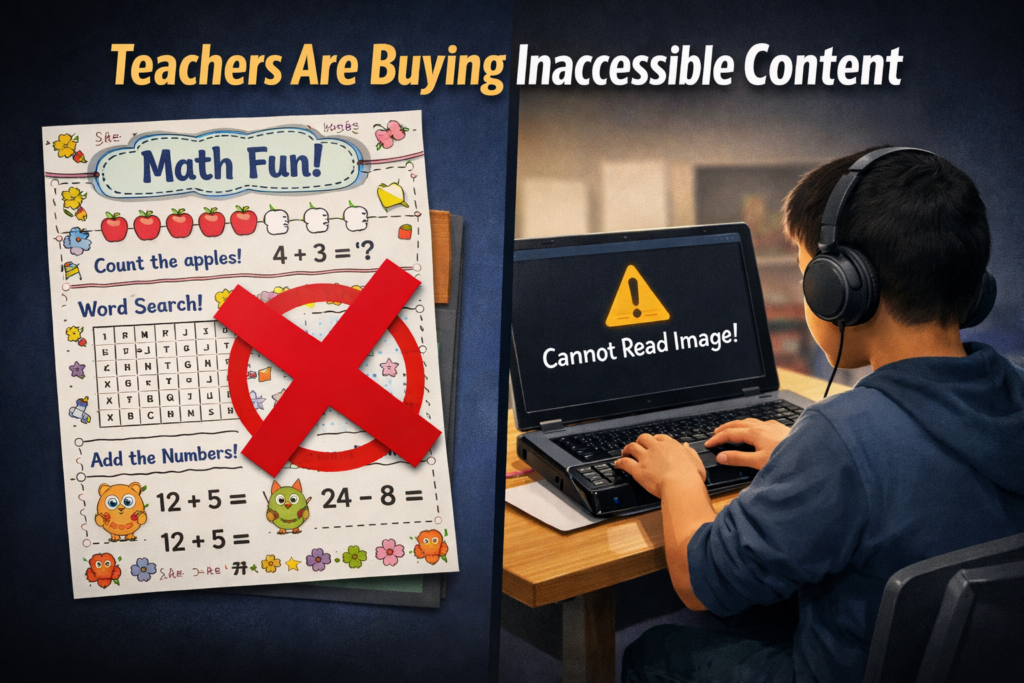
Most access failures start with inaccessible PDFs-which are actually images of work. Schools can convert scanned worksheets to readable text, add proper heading structure, insert alt text, tag tables, and ensure text reflows on mobile. These steps give blind students access at the same time as their peers. For easy full access, Just put everything into Microsoft WORD and if you can move a mouse cursor through the content, it will be accessible to a screen reader. make sure you add proper headings throughout.
3. Enforce Accessible Google Docs, Slides, and Assignments
Teachers create inaccessible content daily by pasting images of work into what was accessible if typed out properly in google. Schools should require headings, proper contrast, real alt text, logical reading order, described images, and accessible math. This one shift removes thousands of barriers. Currently Math is only fully accessible in Microsoft WORD using the Math editor. Google does not have all the appropriate tools in place to recreate what OFFICE 365 has already done.
Typically, only images of words appear in products from Google, which makes the content completely inaccessible to blind students. Embedded videos also stay inaccessible for deaf learners, because images never give enough detail or language to explain the lesson. Math remains inaccessible across Google products, and blind students cannot access equations without proper structure.
4. Make All Video Content Accessible
Videos must serve blind and deaf students. Schools should ensure accurate captions, audio descriptions, clear narration, and safe visual design. This protects access and reduces legal risk.
5. Replace Inaccessible Vendor Platforms
Many learning apps and platforms still fail WCAG standards. Schools must request VPATs, require WCAG 2.1 AA, demand remediation timelines, and remove non-compliant tools. Title II holds the school responsible, not the vendor. When schools stop buying inaccessible products, vendors will change their design or leave the market.
6. Train Staff in Real Accessibility Skills
Accessibility training must move beyond awareness. Staff need training in screen reader testing, accessible document workflows, caption skills, alt text guidelines, accessible math support, and LMS accessibility checks. Blind and deaf students rely on technology, not sight or hearing. Staff must understand these tools, so they must receive direct instruction from experts who use these tools daily. These specialists can walk staff through the fine details needed to make content fully accessible quickly and easily (relative to what content they already have).
7. Provide Blind and Deaf Students With Real-Time Access
Access cannot arrive days later. Schools should deliver materials at the same time as sighted peers, provide braille or screen-reader-ready files, use CART or interpreters, and ensure accessible assessments. This reduces OCR complaints and supports equal learning.
8. Build an Accessibility Governance Team
Districts need structure to stay compliant. This team sets policy, provides training, monitors compliance, reviews content, approves vendors, and reports progress. Governance turns accessibility from a reaction into a system.
9. Bring in Specialists When Needed
Most schools lack internal expertise. They can partner with certified blindness professionals, deaf education specialists, accessibility technologists, braille experts, and WCAG consultants. Title II allows districts to use outside experts when staff lack training.
10. Address a Damaging Message Still Circulating in Schools
Many professors and teachers still hear, “Check your materials, but don’t worry about them.” This message shows how long schools have ignored accessibility laws. Title II removes the option to delay. Schools must fix inaccessible content, not simply acknowledge it.
11. The Word “Accommodation” Must Go
The word “accommodation” was not removed from Title II, but the new DOJ rule shifts the focus toward accessibility from the start, especially for digital content.
Schools must stop relying on the word accommodation. The term assumes students start with barriers and then wait for fixes. Blind and deaf students lose time every day when access comes after instruction. They fall behind because the content was inaccessible from the start.
Title II requires full access at the moment instruction begins. Students must receive materials in the same format, at the same time, as their peers. This shift removes delay, reduces frustration, and ends the cycle of constant catch-up. True access begins when schools design content correctly, not when they repair barriers later.
12. Make Accessibility Part of School Culture
Accessibility becomes sustainable when it becomes normal. Schools can add accessibility checks to grading policies, include accessibility in evaluations, require captions, post accessible templates, and adopt accessible curriculum materials. Small habits prevent massive remediation later.
13. Remove and Archive All Inaccessible Content by April 23
Schools must remove inaccessible digital content by April 23. They must secure this content so only the original creator can access it. If old materials stay public, anyone can use them to file an accessibility complaint. This creates immediate legal risk for the educational institutions.
Most schools will find it easier to build fully accessible content from the start. Rebuilding old, image-based, untagged, or uncaptioned materials often takes far more time than creating new accessible versions. Schools protect themselves and their students when they remove inaccessible work, archive it safely, and rebuild content using WCAG 2.1 AA standards now so they can be fully uploaded on April 24, 2026.
Closing Note: Access Protects Everyone
Blind and deaf students face the hardest barriers, yet accessible design lifts all learners. Clear content improves structure, readability, quality, and learning across every classroom. Schools that begin this work now protect their students, their staff, and their programs.
Dates to Follow
What this means for schools and colleges
Larger districts and colleges (≥ 50,000 population)
Deadline: April 24, 2026
Standard: WCAG 2.1 AA
Scope: Websites, web content, mobile apps, PDFs, forms, LMS content, videos, social media, and anything accessed through a browser
Smaller districts and colleges (<50,000 population): April 26, 2027
The iPhone is the most powerful accessibility tool available to blind and low‑vision students today. With the right skills, it becomes a map, a magnifier, a reader, a communication device, a travel tool, and a pathway to independence.
This guide gives students, parents, teachers, and O&M instructors everything needed to build real-world iPhone skills from basic Siri commands and VoiceOver gestures to advanced navigation and daily-living tools. Use it as a curriculum, a quick reference, or a step-by-step learning path.
A TechVision Core Resource
The iPhone gives blind and low-vision students real independence. With the right skills, it becomes a map, a reader, a magnifier, a travel tool, and a partner for daily life. This guide helps students, parents, and teachers build strong iPhone skills one clear step at a time.
Lessons- follow these steps
1. Getting Started
The guide begins with simple setup steps that build confidence fast.
Accessibility Shortcut–You can press home button at any time and just say: “Siri open Accessibility” or wherever you need to go for what you need to do
Where to find it: Settings → Accessibility → Accessibility Shortcut Students turn features on and off with a quick triple-click.
Key tasks:
Set VoiceOver, Zoom, or Magnifier
Set up Siri for hands-free support
Add emergency contacts
Customize Control Center
Organize the Home Screen
Core Access Features
VoiceOver
Zoom
Magnifier
Display and text adjustments
First Skills to Teach
Turn VoiceOver on or off
Learn basic gestures
Use Siri for fast tasks
Adjust speech rate
Open and close apps
2. VoiceOver Skills
Students grow from simple gestures to full digital literacy.
Beginner
Where to find it: Settings → Accessibility → VoiceOver
Explore the screen
Activate items
Use basic Rotor options
Start typing with VoiceOver
Intermediate
Edit text
Use the App Switcher
Navigate long pages
Move by headings or links
Use dictation
Advanced
Where to find it: Settings → Accessibility → VoiceOver → Activities / Braille / Rotor Actions
Customize the Rotor
Use Activity profiles
Use Braille Screen Input
Work in complex apps
3. Navigation & O&M with iPhone
Orientation Tools
Look Around-outside navigation
Compass
Landmarks
Spatial audio
Seeing AI
Clew-inside navigation Where to find them: Maps and Compass apps
Dropping Pins
Drop a pin with VoiceOver: Maps → Current Location → Rotor → Drop Pin
Drop a pin with Siri: “Drop a pin.”
Label and save locations
Add Favorites
Create walking routes
Real-World Travel Skills
Walking directions
Bus stop navigation
Checking surroundings
Soundscape-style apps
Safe campus routines
Safety Tools
Where to find them: Settings → Emergency SOS, Find My, Messages
Emergency SOS
Location sharing
Device tracking
Safe communication practices
4. Apps for Daily Living
Vision Support Apps
Where to find them: App Store
Seeing AI
Be My Eyes
Envision
Magnifier
Productivity Tools
Reminders
Calendar
Notes
Shortcuts
Timer and alarms
School & Work
Files
Email
Safari
Reading apps
Document scanning
5. Low Vision Tools & Strategies
Visual Settings
Where to find them: Settings → Accessibility → Display & Text Size
Contrast
Bold text
Reduce transparency
Color filters
Invert colors
Magnification Tools
Where to find them: Settings → Accessibility → Zoom Control Center → Magnifier
Zoom
Magnifier
Camera zoom
Flashlight for clarity
Reduce Fatigue
When to switch from Zoom to VoiceOver
When audio improves endurance
How stands and holders help
6. Parent Guide
Parents help skills grow through simple routines.
Focus areas:
What to teach at each age
How to practice safely
How to reduce frustration
When to add new apps
How to build daily habits
Where to find key tools: Settings → Screen Time, Settings → Emergency SOS
7. Teacher Guide
Teachers integrate iPhone skills into daily instruction.
Teach VoiceOver
Skill progression
Gesture modeling
Rotor instruction
Text-editing practice
Then Navigation
Classroom → hallway → campus
Pinning school locations
Safe movement routines
Teach Organization
Where to find it: Press and hold any app → Edit Home Screen
Folder creation
Notifications
Calendar and reminders
Assessment
Define mastery
Measure progress
Write goals and objectives
8. Learning Paths
Beginner Path
Activate Accessibility Shortcut
Learn basic gestures
Practice the Rotor
Use Siri for quick tasks
Drop a first pin
Intermediate Path
Edit text
Navigate long pages
Use Maps
Use Seeing AI
Organize the Home Screen
Advanced Path
Braille Screen Input
Custom Rotor
Advanced Maps skills
Shortcuts automation
Real-world travel practice
9. Lesson Index
This section lists all iPhone lessons. Each item includes:
A clear title
A short description
A consistent layout
This turns the page into a complete curriculum hub.
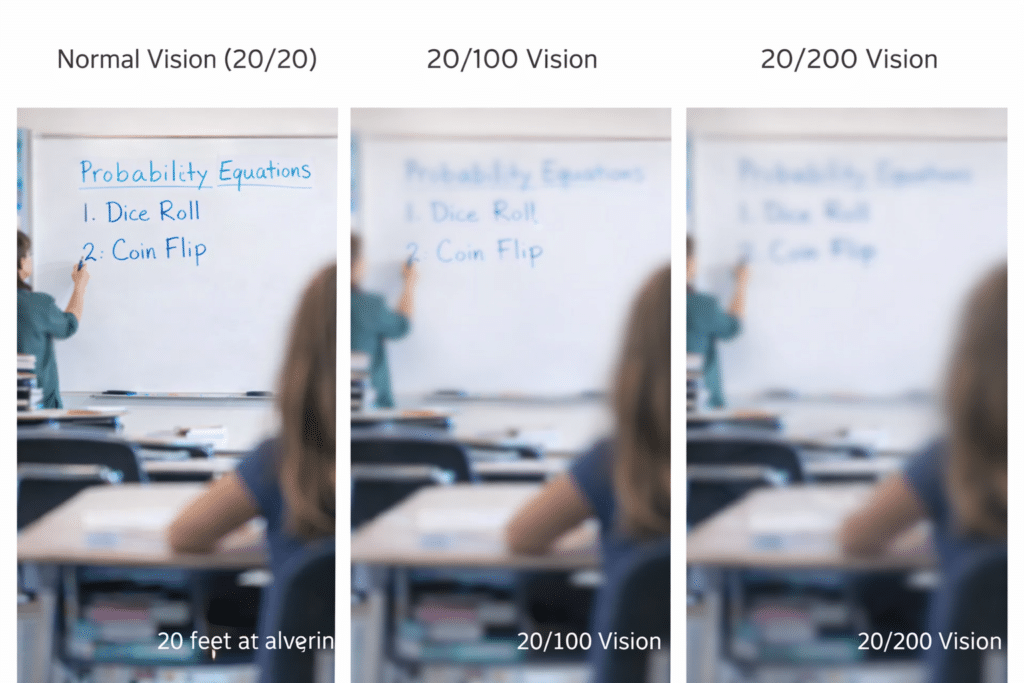
What does 20/100 vision look like: 3 comparisons: 20/20, 20/100 and 20/200
20/100 Vision: What It Really Means for People (Not legally blind, but close)
Many people hear “20/100” and think it is only “blurry.” But what does 20/100 vision look like for someone in everyday life? It is far more than that. For a student, 20/100 changes access to learning, classroom speed, and social interaction.
1. The board exists, but details disappear
A student with 20/100 sees the board, but letters fade quickly. Low contrast, faint markers, and glare make decoding slow.
2. Text requires extra effort
The eyes work harder to hold focus. Small print drains energy fast. Reading becomes a stamina task, not an intelligence test.
3. Faces and expressions lose clarity
At 20/100, subtle expressions vanish. Social cues move too fast. Misunderstandings follow because detail drops before meaning forms.
4. Mobility becomes cautious
Depth and detail shrink. Hallway movement requires more scanning. Crowded spaces increase stress and accidental bumps.
5. Fatigue arrives early
Eyes strain harder to stay clear. By mid-day, the visual system tires. Students feel the fatigue long before they report it.
6. Behavior changes are often misread
A student who looks away, slows down, or avoids reading is not lazy. They are adapting to a visual load others cannot see.
20/100 Is Not “Almost Fine”—It Is Reduced Access
This acuity does not reflect intelligence or motivation. It reflects how much effort a student must spend to access the same information as peers.
With stronger contrast, better lighting, correct seating, and the right tools, students with 20/100 can thrive.
How 20/100 Shifts Toward 20/200 During the Day
Visual clarity changes with fatigue. By afternoon, students often experience:
slower refocusing
reduced contrast sensitivity
more blur at distance
difficulty maintaining near clarity
This shift can push functional acuity close to 20/200, especially under stress, glare, or eye strain.
It works much like a Snellen chart: A student who reads 20/100 in the morning may miss one or two extra letters later, shifting the score. Missing those letters can lower acuity enough to look more like 20/160–20/200, even though the eye disease did not change—only the fatigue did.
Summary
20/100 vision affects more than reading. It changes learning, speed, confidence, and daily stamina. Early support, correct tools, and intentional teaching help students keep pace and protect their energy.
Keep in mind that life is competition so to keep up:
Life is a measure of access.
With the right tools, students with 20/100 vision:
can read using laptops and screen readers
People with 20/100 vision can work independently and may or may not need braille, braille displays, or tactile graphics, depending on whether their eye condition is stable or degenerative.
navigate confidently with cane and GPS
complete assignments alongside their peers using access technology
If instruction begins early and stays consistent, they thrive.
Understanding Vision in Children: What Visual Acuity Really Means
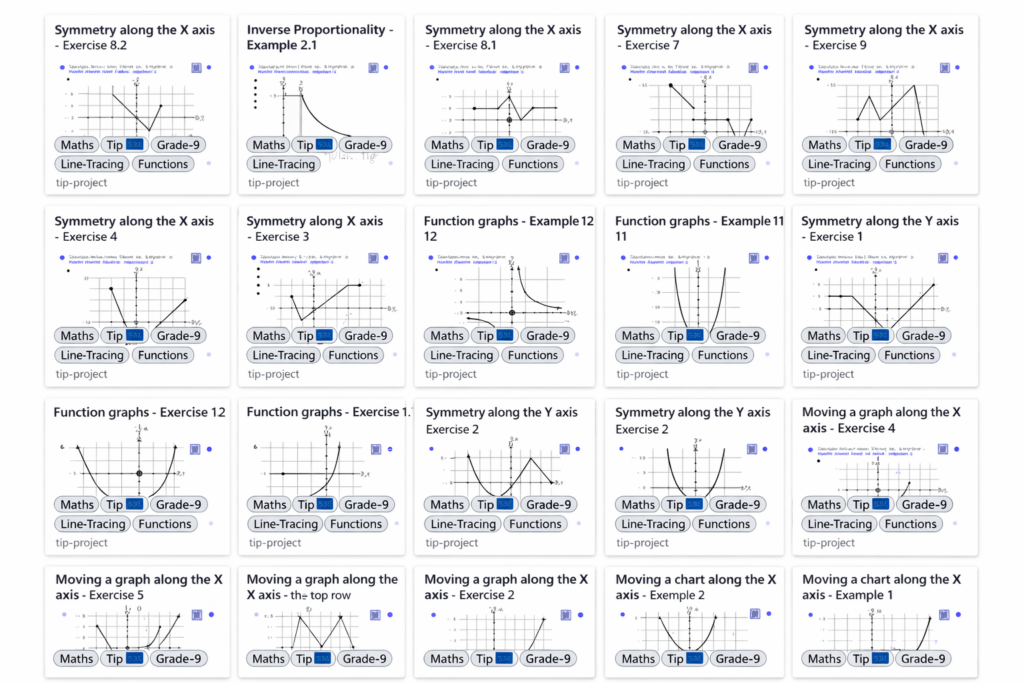
Finding high-quality tactile graphics for advanced math often feels overwhelming, especially when you support blind students who want deeper conceptual understanding. However, you can simplify the process with a clear list of reliable sources. To begin, you can explore this curated collection of teacher-vetted tactile math libraries. These sites cover algebra and pre-calculus through Calculus I–III. In addition, they include limits, derivatives, integrals, function behavior, curves, and coordinate systems. As a result, you gain ready-to-use tactiles that strengthen conceptual learning for all students. For example, many of these graphics support problem-solving, graph analysis, and multi-step reasoning. Though the focus leans toward higher-level math, these sites still offer tactile graphics for every math level. Finally, you can review them in order, moving from the most comprehensive to excellent, knowing each one provides strong and dependable options.
The information below is in order of the most comprehensive to excellent so all options are great for finding anything you need. On the European site, just remember to select English
STPT = Science, Technology, Physics, and Tactile It’s one of the major content categories inside the Tactile Inclusion Project (TIP) collection.
TIP created a huge set of tactile graphics across:
Math
Science
Physics
Technology
Geometry
Calculus
Data & graphs
Best source for calculus‑level tactile graphics. This project includes audio‑tactile and swell‑paper‑ready graphics for algebra → calculus, created by math teachers for blind students.
Calculus‑related tactiles available
Limits (approaching values, left/right limits)
Derivative concepts (slopes, tangent lines)
Curve behavior (increasing/decreasing, concavity)
Graphs of functions (polynomials, exponential, trig)
Area under curves (Riemann rectangles)
Integrals (definite/indefinite visualizations)
Coordinate planes, axes, quadrants
Piecewise functions
Parametric curves
Sequences & series visuals
Optimization diagrams
Why it’s ideal for blind students:
Graphics are simplified to core mathematical meaning
Includes audio explanations
Translatable into 29 languages
Free to download
2. ProBlind — Global Database of 1,250+ Tactile Math Graphics- make sure you choose your language preference:
Calculus‑level graphics include:
Function families
Derivative slope diagrams
Concavity & inflection points
Trig function curves
Exponential/logarithmic curves
Limits & asymptotes
Area under curves
3D surfaces (simplified for tactile use)
Calculus
Limits
Derivatives (slopes, tangent lines)
Integrals (area under curves)
Concavity & inflection points
Function families
Riemann sums
Asymptotes & behavior at infinity
Pre‑Calculus & Algebra
Trig functions
Exponential/logarithmic curves
Coordinate planes
Piecewise functions
Parametric curves
Geometry & STEM
Shapes
Graphs
Data displays
3D surfaces (simplified)
All graphics are:
Swell‑paper ready
Embosser friendly
Audio‑described
Designed specifically for blind learners
Where TIP Lives Now
Because the original TIP website has a broken SSL certificate, the safe, active home for all TIP graphics is:
The TGIL was established in 2007 by the American Printing House for the Blind (APH) to support transcribers by providing free, customizable tactile graphics templates for images that are commonly used in K-12 education. The goal of the TGIL was to help speed up textbook transcription by providing a good starting point for creating high-quality tactile graphics.
While supporting transcribers remains an important part of the TGIL’s mission, we have recently expanded the scope and purpose of the TGIL to provide graphics that have been “optimized for the Monarch.” These graphics support direct-to-student delivery of graphics for use in a digital format with the Monarch multi-line tactile display.
The metadata for each graphic in TGIL will indicate whether the graphic was created for embossing and/or whether it has been optimized to display on the Monarch. We also invite users to request graphics for use on the Monarch — or request remediation of an existing graphic — when an “optimized for Monarch” alternative is not yet available.
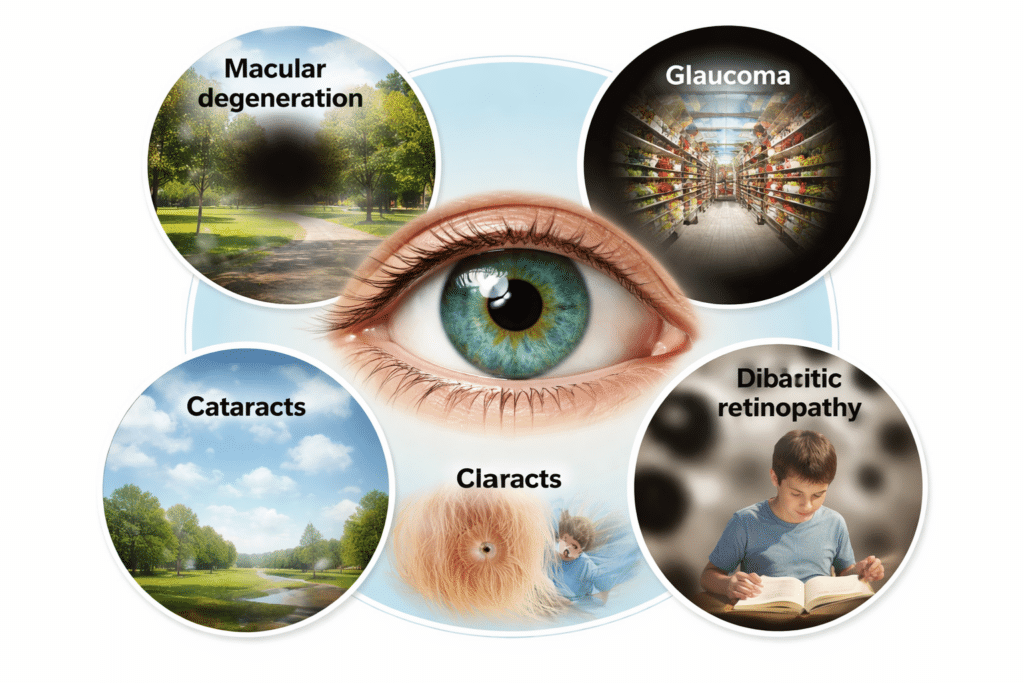
How Different Eye Conditions Affect the Way People See: A central blue-green human eye is surrounded by four circular images showing how different eye conditions affect vision: macular degeneration with a dark central blur, glaucoma with tunnel vision, cataracts with overall cloudiness, and diabetic retinopathy with floating dark spots.
Key Statistics on Blindness and Vision Loss
Overall Vision Loss
More than 12 million Americans live with blindness or significant vision impairment, and it’s important to understand how different eye conditions affect the way people see, as each one can have unique effects on vision.
Globally, 2.2 billion people have vision impairment or blindness.
Age-Related Increase
Vision loss rises sharply with age because the risk of major eye diseases grows over time.
After age 40, one in eight adults develops a vision-threatening eye condition.
After age 65, the rate of blindness and low vision increases four-fold.
Adults over 75 experience the highest rates of blindness in the population.
Nearly half of all blindness occurs in people over 70.
Leading Causes of Vision Loss as We Age
How Different Eye Conditions Affect the Way People See as These Conditions Become More Common with Age
Cataracts
Affects 24 million Americans over 40.
By age 80, more than half of adults develop cataracts.
Glaucoma
Over 3 million Americans have glaucoma.
Risk doubles every 10 years after age 40.
Age-Related Macular Degeneration (AMD)
Leading cause of blindness in older adults.
Affects 11 million Americans, expected to reach 22 million by 2050.
Diabetic Retinopathy
Affects one in three adults with diabetes.
Risk increases with both age and length of diabetes.
Why Eye Conditions Worsen With Age
Here are the major age-related changes:
The lens becomes cloudy, causing blurred or dim vision.
The retina loses cells, reducing clarity and contrast sensitivity.
The optic nerve can suffer pressure-related damage.
Blood vessels weaken, especially with diabetes and hypertension.
Impact on Daily Life
Older adults with low vision face three times the fall risk.
Vision loss increases depression risk by up to 25 percent.
Two-thirds of adults in assisted-living communities have untreated vision issues.
Hopeful Note
Most age-related eye diseases are treatable or manageable with early detection. Screen reader technology, braille displays, and accessible tools also help older adults stay independent.
Most people assume vision loss is like “blurry vision” — but every eye condition affects sight in a completely different way. Understanding these differences helps teachers, families, and coworkers support students and adults with confidence and empathy.
This guide breaks down the most common eye conditions and gives you a simple, accurate explanation of how the world looks through their eyes.
1. Cataracts
What it is: Clouding of the eye’s natural lens. You See:
Vision appears foggy, milky, or like looking through dirty glass
Colors look faded
Light glare is intense (especially headlights at night)
What helps: Even lighting; high contrast; reducing glare. sun glasses help stop glare of cataracts. Removal is important to regain full vision.
2. Macular Degeneration (AMD)
What it is: Damage to the macula, the part of the retina responsible for central vision. You See:
A dark or blurry spot in the center
Faces and print disappear
Side vision stays clear
What helps: Large print, audio access, magnification, and teaching scanning strategies. Teaching to focus on the outside of vision. Prism glasses the will help bring vision to the center again
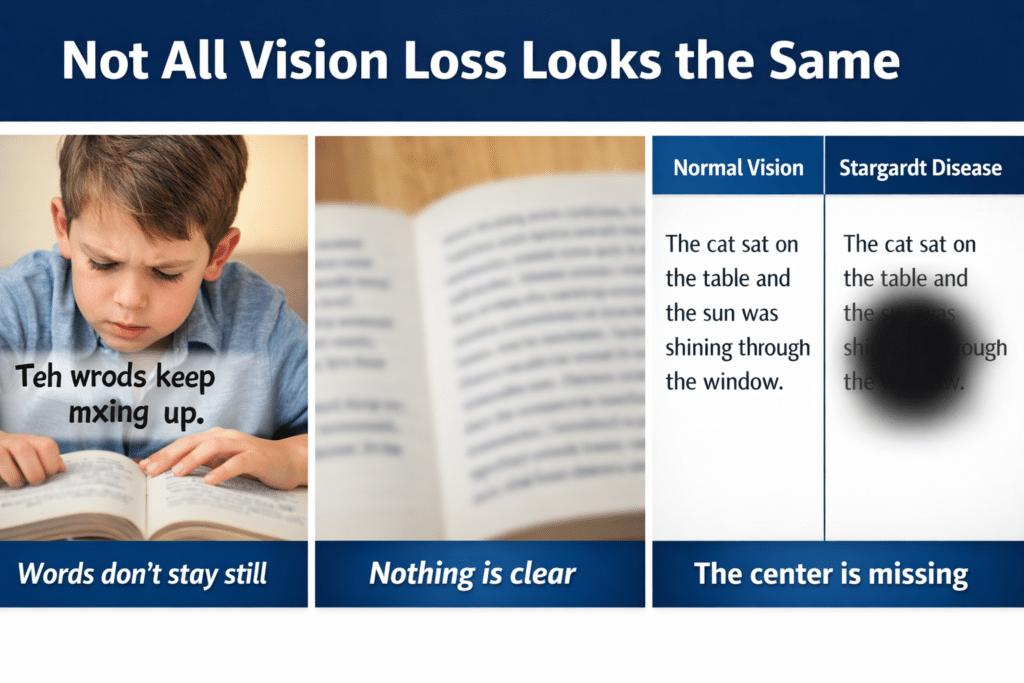
3. Stargardt Disease
What it is: A juvenile form of macular degeneration. You see:
Central blind spots
Difficulty recognizing faces
Trouble reading standard print
Good peripheral vision
What helps: High‑contrast materials, audio, and flexible access to digital text. Prism glasses
4. Glaucoma
What it is: Damage to the optic nerve, often from high eye pressure. You see:
Loss of peripheral (side) vision and central vision
“Tunnel vision” in later stages
Difficulty navigating crowded spaces
What helps: Clear pathways, orientation & mobility support, and strong lighting. Treatment is so essentially crucial to slow or stop progression of disease
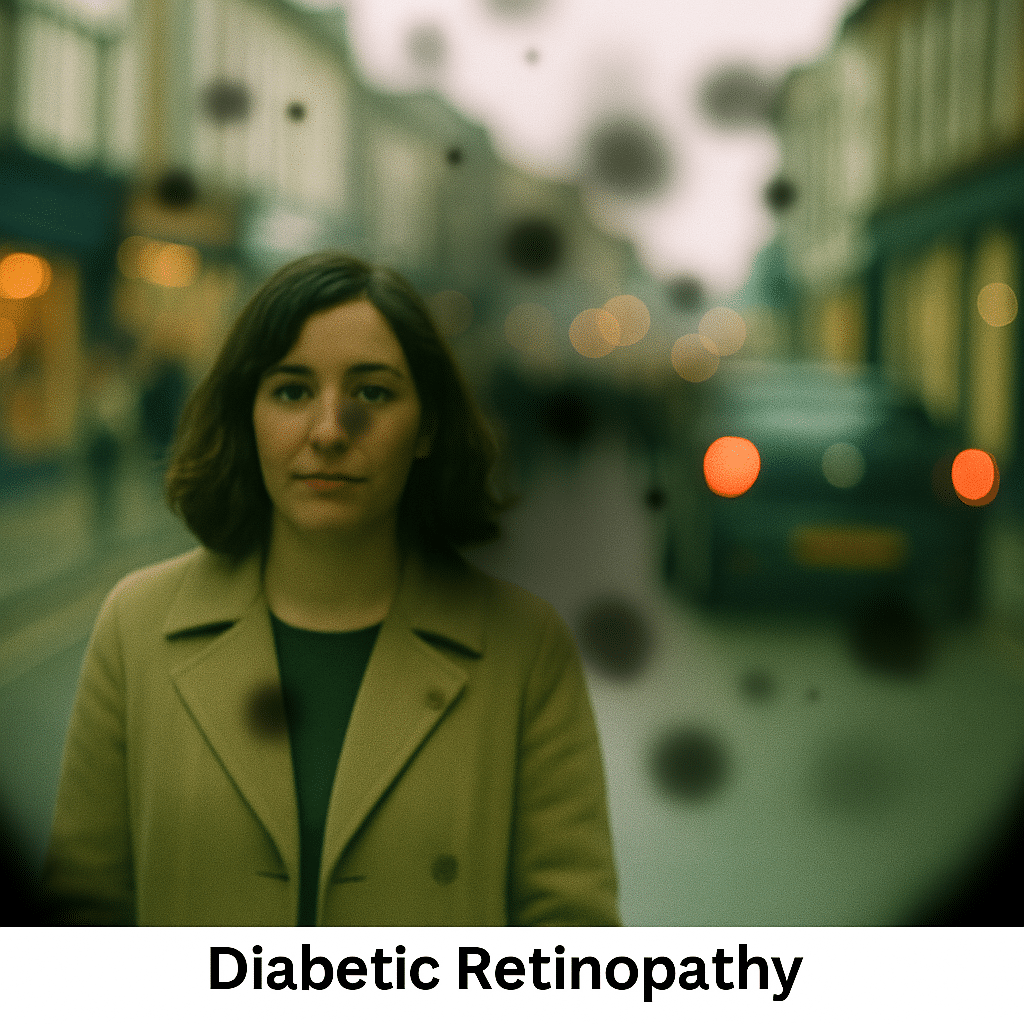
5. Diabetic Retinopathy
What it is: Damage to retinal blood vessels from diabetes. You see:
Floaters (dark spots that move) and grow larger
Patchy or fluctuating vision
Blurry or distorted areas
Vision may change day‑to‑day
What helps: Flexible accommodations, audio tools, and predictable layouts.
Keep blood sugar between 80–150 mg/dL, and maintain an A1C below 7.0. These levels help prevent the widespread damage diabetes can cause throughout the body. Diabetes damages the body’s small blood vessels first, so the eyes, kidneys, feet, and fingers often show problems early. When blood flow weakens, nerves and tissues become painful and begin to die.
6. Achromatopsia (Total Color Blindness)
What it is: A rare condition affecting cones in the retina. You see:
The world appears in shades of gray
Extreme light sensitivity
Reduced clarity
What helps: Low‑vision sunglasses, tinted filters, wearing a hat outside and dimmed environments.
7. Corneal Diseases
What it is: Damage or irregularity of the cornea. You see:
Vision appears distorted, wavy, blurred edges or double
Glare and halos around lights
Difficulty with fine detail
What helps: Contrast, reduced glare, and alternative access to print.
Why This Matters
Understanding how people see with different eye conditions reveals why global vision loss continues to rise. There are hundreds of known eye conditions, from common refractive issues to rare disorders that slowly damage sight. The World Health Organization notes at least fifteen major conditions that affect vision, with many others harming eye health silently. More than thirty-three million people are blind from preventable causes today. Over one billion people live with treatable or preventable vision loss but lack access to essential care.
There are hundreds of recognized eye conditions globally, ranging from common refractive errors to rare genetic disorders. The World Health Organization highlights at least 15 major conditions that impact vision, but many more affect eye health without causing vision loss.
Understanding Vision in Children: What Visual Acuity Really Means