
Google Maps, and VoiceOver Skills for the Blind

Drop a Pin with iPhone using Google Maps and Voice Over to share location with someone to come pick you up
Blind travelers build custom indoor and outdoor routes using Siri, Apple Maps, Google Maps, VoiceOver gestures, and the Compass app. These tools work together and create a reliable navigation system. Each step supports confidence and helps travelers move safely through any building or surrounding area.
Google Maps remains helpful outdoors. Apple Maps remains best for dropping labeled pins and using Siri for fast navigation.
Part 1 — Drop a Pin Using Siri and VoiceOver (Apple Maps)
Dropping labeled pins works best in Apple Maps, because Siri supports pin creation and VoiceOver announces label options clearly.
A. Drop a Pin at the Starting Location
- Say, “Hey Siri, open Apple Maps.”
- Wait until VoiceOver announces “Current Location.”
- Flick right until you hear “Drop Pin.”
- Perform a double-tap and hold to drop the pin.
- Flick right to “Add Label.”
- Double-tap.
- Dictate a label such as “Main Room.”
- Flick right to “Done.”
- Double-tap to save.
B. Drop a Pin at the Next Location
Repeat the process at any hallway, office, bathroom, or exit.
- Say, “Hey Siri, open Apple Maps.”
- Flick to “Drop Pin.”
- Double-tap and hold.
- Flick to “Add Label.”
- Double-tap.
- Dictate “Bathroom.”
- Flick to “Done.”
- Double-tap.
Part 2 — Navigate Between Custom Pins (Apple Maps + Google Maps)
Siri provides indoor headings and distance even when indoor maps do not exist.
Google Maps adds strong outdoor accuracy when needed.
A. Navigate to the Main Room (Apple Maps)
- Say, “Siri, walking directions to Main Room.”
- VoiceOver reads distance and direction.
B. Navigate to the Bathroom (Apple Maps)
- Say, “Siri, walking directions to Bathroom.”
- Follow hall cues and maintain alignment.
C. Use Google Maps When Outdoors
- Say: “Hey Siri, open Google Maps.”
- Use VoiceOver to choose Walking.
- Follow turn-by-turn directions with outdoor accuracy.
Google Maps excels outdoors. Apple Maps excels for labeled pins indoors.
Part 3 — Teach Compass Skills for Indoor Orientation
A. Open Compass
- Say, “Hey Siri, open Compass.”
- VoiceOver reads the heading.
B. Teach Basic Directions
- North equals 0 degrees.
- East equals 90 degrees.
- South equals 180 degrees.
- West equals 270 degrees.
C. Practice Turning
- Face forward.
- Listen to the heading.
- Turn left or right.
- Listen as VoiceOver updates the heading.
D. Connect Compass to Pins
- Say, “Siri, walking directions to Bathroom.”
- Listen for cues like “Head west.”
- Match the heading in Compass.
- Walk in that direction.
Part 4 — Build Route Memory Using O&M Skills
A. Notice Landmarks
Teach the traveler to notice:
- Floor textures
- Temperature changes
- Echo patterns
- Doorframes
- Rails
- Open spaces
B. Teach Step Counting
- Start at the first labeled pin.
- Count steps to the next point.
- Stop at each turn.
- Record distances.
C. Teach Repetition
- Practice with guidance.
- Practice with shadowing.
- Practice with verbal prompts.
D. Teach Reverse Routing
Walk the route backward using opposite turns.
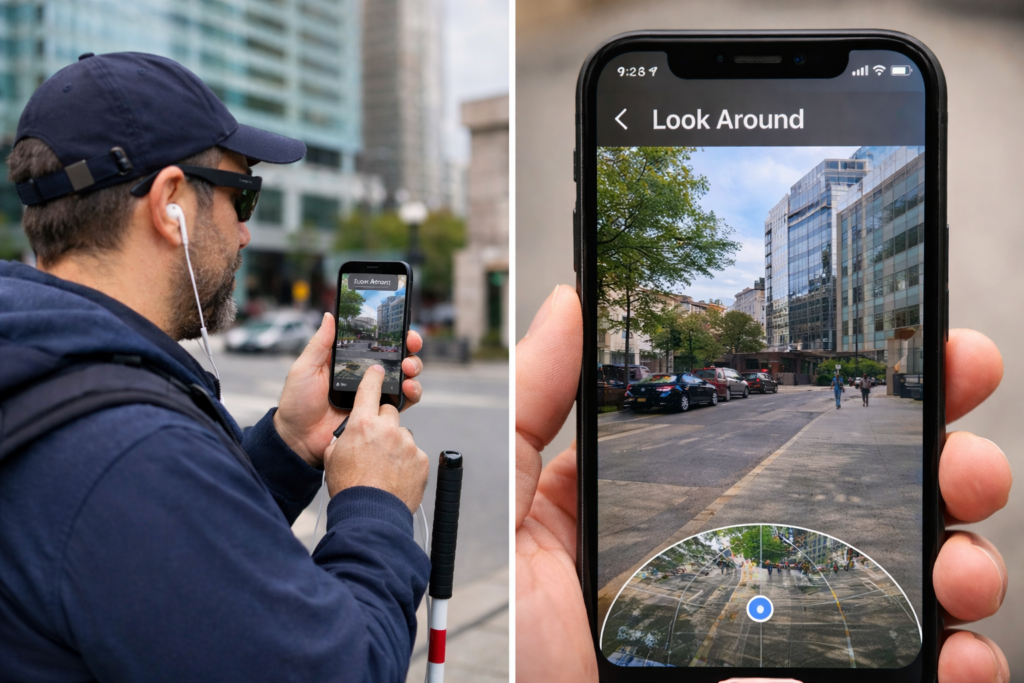
Using Look around app on iPhone to “see” what is around the traveler
Part 5 — Use Look Around with Apple Maps
Look Around helps travelers understand the outside of a building.
A. When Look Around Works
- On public streets
- At building entrances
- Around sidewalks and driveways
B. Open Look Around
- Say, “Hey Siri, open Apple Maps.”
- Search for the building.
- Flick until VoiceOver says “Look Around available.”
- Double-tap to open it.
C. What Look Around Teaches
- Street layout
- Sidewalk positions
- Entrance locations
D. What Look Around Cannot Do
- No hallways
- No interior rooms
- No indoor turn-by-turn directions
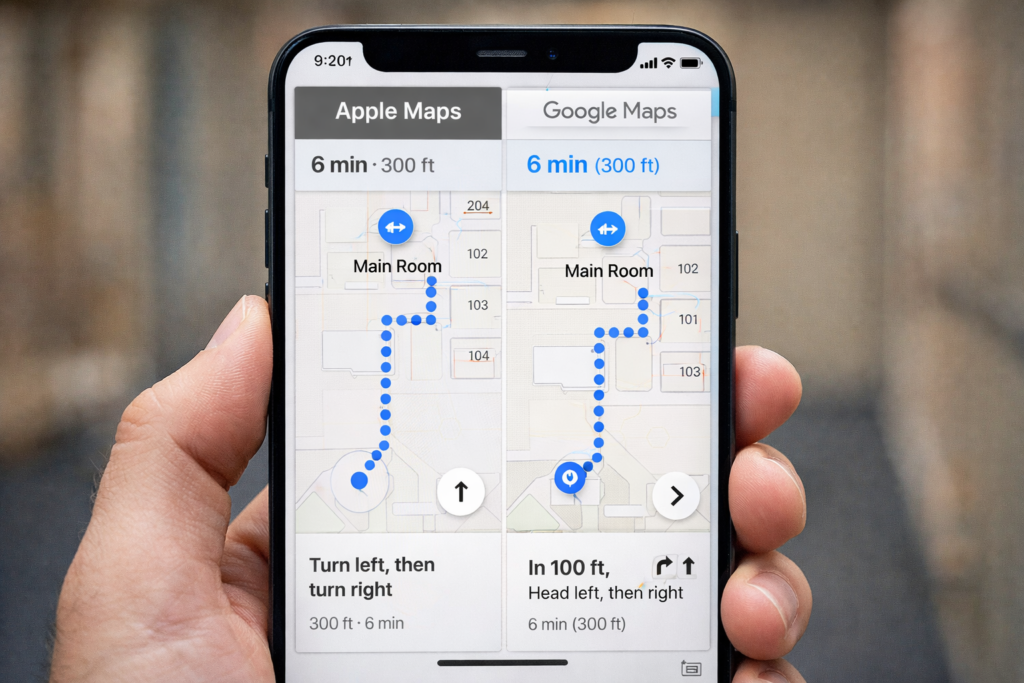
Create Custom Routes
Part 6 — A Complete Custom Route Routine
- Use Look Around outside to understand the area.
- Drop labeled pins at important indoor locations.
- Use Siri for walking directions to any saved pin.
- Use Compass to match the required heading.
- Use Google Maps for outdoor paths when needed.
- Build step counts and turns for each route.
- Use landmarks for confirmation.
- Practice until the traveler moves independently.
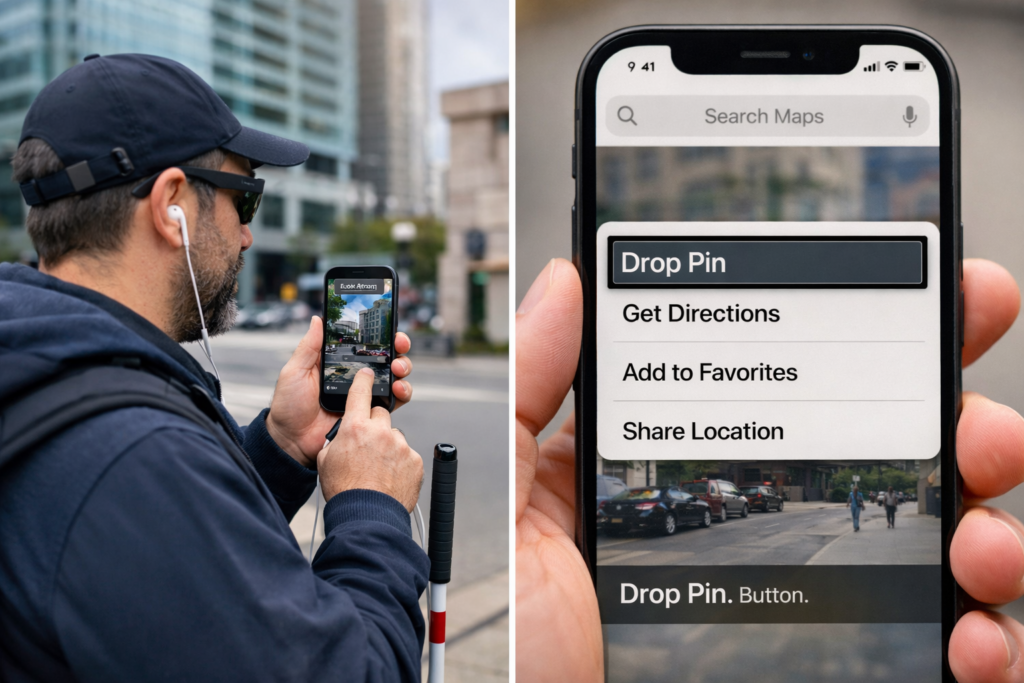
Share Location, Get Directions, Add to Favorites and more using Google Maps, Voice Over and Siri
Part 7 — Share Your Location Quickly for Pickup or Safety
Blind people often need to share their exact location so family, friends, or rides can find them. Siri and VoiceOver make this process fast and hands-free.
This skill works indoors and outdoors. It also works when someone feels unsafe, confused, or needs help immediately.
A. Share Your Location with Siri (Fastest Method)
- Say: “Hey Siri, share my location with Mom.”
(Replace “Mom” with any trusted contact.) - Siri sends your exact GPS location.
- VoiceOver confirms: “Sent your current location.”
This method works even when you cannot identify where you are.
B. Share Your Location in Messages (Manual Method)
- Say: “Hey Siri, open Messages.”
- Touch the center of the screen.
- Flick right until you hear the contact’s name.
- Double-tap to open the conversation.
- Flick right until you hear “Send My Current Location.”
- Double-tap to send it.
- VoiceOver confirms the message.
This method helps when someone prefers not to dictate aloud.
C. Share Your Location Permanently With a Trusted Contact
This helps a helper monitor travel when needed.
- Say: “Hey Siri, open Messages.”
- Open the trusted contact’s conversation.
- Flick to “Details” or “Info.”
- Double-tap.
- Flick to “Share My Location.”
- Double-tap.
- Flick to “Share Indefinitely.”
- Double-tap to activate.
The trusted person can now find your location anytime you share it.
D. When Lost
- Stop walking.
- Hold the phone in both hands.
- Face a quiet direction.
- Say: “Hey Siri, share my location with Mom,” or person.
- Wait for VoiceOver to confirm.
- Stay in place until person arrives.
E. Combine Location Sharing With Dropped Pins
You can do both:
- Drop a pin at the pickup point.
- Label it with VoiceOver.
- Share their location with Siri so the pickup person receives the exact spot.
- Use Compass to stay oriented until they arrive.
This gives the safest and most accurate pickup routine.
Other iPhone Lessons
- Complete iPhone Access Guide for Blind and Low Vision
- Drop Pins and Navigate with Maps: iPhone and VoiceOver Skills for the Blind
- iPhone: Set Up Face ID, Touch ID, and Passcode with VoiceOver
- iPhone-Setting Up Email Using Siri & VoiceOver
- Using VoiceOver to Learn What You Can Do in an App
- iPhone Setup: Turning On Siri and VoiceOver
- Aira Glasses Navigation: How Blind Travelers Navigate Safely and Independently
- Blind Users Retrace Indoor Routes with Clew
- Indoor Navigation for Blind Users: Using Seeing AI with iPhone
- Look Around APP: Outdoor iPhone Navigation for Blind People:
- Drop a Pin with iPhone- Google Maps and VoiceOver Navigation for the Blind