Search results for: “focus display”

  • Blind 4‑Year‑Old and 2nd Grader Race Using Braille Writing Devices

    Access Braille Writing and PC Devices: The year is 2000 and I am blessed with meeting 3 siblings in a family of 8. I first met the oldest daughter who was in 2nd grade grade and her sister who was in preschool. Their young brother, was just born. All 3 have a VERY rare condition called: Spondylometaphyseal dysplasia with cone rod dystrophy. This was an exciting journey with all 3. All 3 live very successful lives now.

    Early Education Leads to Access Braille Writing Devices

    Starting at 3 months old: First, always teach the parents right along with the child–Teamwork is key! One crucial step was ensuring he could eventually access Braille writing devices to aid in his learning journey. Teach fun games on a computer as they learn like Starfall games and Inclusive Multi-Sensory Learning Tools. If you sense a visual impairment and glasses need to be work, try: Kids Bright Eye glasses or Eye patches

    Pre-teaching a blind child from an early age involves fostering foundational skills that support sensory development, spatial awareness, and independence. Here’s how you can engage with a blind child from 3 months old to 3 years old and up to 3rd Grade, ensuring they develop crucial abilities at each stage:

    At 3 Months Old in general:

    At this stage, it’s all about sensory exploration and exposure. A blind infant learns through touch, sound, and smell. Parents and caregivers can begin pre-teaching through activities that engage the child’s remaining senses.

    • Tactile Exploration: Provide different textures for the baby to feel, such as soft cloth, textured toys, and various materials. This helps them develop an understanding of their environment through touch.
    • Auditory Stimulation: Introduce the baby to a variety of sounds, from gentle music to the sound of voices and everyday noises. Toys that make sounds or produce vibrations can also help the child associate movements with sounds.
    • Bonding with Language: Talk to the baby constantly, explaining what’s happening around them. Even at this age, exposing them to language and verbal interaction is key for cognitive development.

    At 1 Year Old:

    By the time the child is 1 year old, they are starting to gain more control over their movements and understand their surroundings through tactile and auditory feedback. The focus at this age is on expanding their sensory awareness and motor skills.

    • Mobility Encouragement: Support the child as they begin to crawl or walk. Encourage them to explore safe spaces, ensuring the environment is designed for them to navigate without harm.
    • Hands-on Learning: Let the child interact with everyday objects, describing what they are holding. This could include toys, household items, or safe objects they encounter daily.
    • Cane-have a cane around his/her toys so they get acquainted with the tool
    • Language Development: Continue talking to the child, narrating actions and surroundings. Introduce basic concepts like hot/cold, soft/hard, and big/small, as this builds vocabulary and concept understanding. Have them touch everything, giving purpose to what they interact with always.
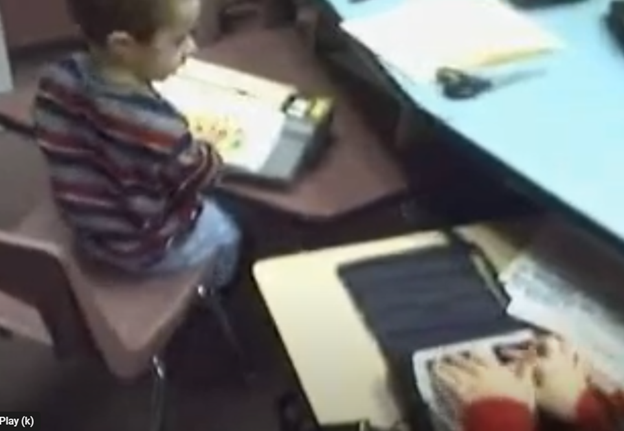
    A 4-year-old uses the Mountbatten, and a 2nd grader uses the Braille Lite with a Braille display to access Braille writing devices.
    A 4-year-old uses the Mountbatten, and a 2nd grader uses the Braille Lite with a Braille display to access Braille writing devices.

    At 3 Years Old Access Braille writing devices and start typing on computer:

    At 3 years old, the blind child is ready to begin more structured learning and independent exploration. Pre-teaching during this period focuses on more complex tasks, building independence, and preparing for future skills. Begin touch-typing on keyboard of computer and using other braille devices like the MouthBatten Brailler. This student learned all of the alphabet and several contractions.

    • Orientation and Mobility: Begin teaching basic orientation and mobility skills, using a cane for navigation. This will help the child build confidence in moving through space.
    • Fine Motor Skills: Encourage fine motor development through activities like threading beads, playing with textured blocks, or using simple tactile puzzles. This helps the child develop dexterity and hand-eye coordination.
    • Pre-Braille Exposure: Introduce early Braille awareness through tactile games or exposure to raised dots or objects. As they may not be ready to fully learn Braille, familiarization with textures and symbols helps lay the foundation for literacy. This includes touch typing on keyboard using braille on braille device like a Mouthbatten Brailler
    • Self-Care Skills: Teach simple self-care tasks like washing hands, dressing, and feeding themselves. These activities foster independence and help them gain confidence in daily living skills.

    By consistently engaging the child’s senses and nurturing their curiosity, they will develop essential skills for future success. With each stage of growth, pre-teaching ensures they build a strong foundation. This approach prepares the child to easily learn more complex skills later, such as reading Braille, using assistive technology and navigating the world independently.

    Continuing to teach a blind child in kindergarten through 2nd grade involves focusing on expanding their academic, social, and independence skills, while incorporating accessible tools and adaptive techniques. Here’s how you can approach teaching at each stage:

    Kindergarten (K)-Access writing PC computers:

    In kindergarten, the focus is on introducing basic academic concepts while fostering independence and confidence in social situations. This student was able to begin reading braille like his peers due to already knowing braille letters and symbols. He also know the keys on the computer to begin learning how to type out work to email to teacher. Teach how accessible Work is needed, including Math for now and later on.

    • Braille Literacy: Begin formal Braille instruction, introducing letters, numbers, and simple words. Use tactile books, raised alphabet cards, and manipulative’s to enhance literacy.
    • Orientation and Mobility: Continue reinforcing basic mobility skills such as using a cane and navigating familiar spaces like classrooms and playgrounds.
    • Interactive Learning: Incorporate multi-sensory learning activities, such as counting objects with tactile number lines and participating in songs or rhymes for phonics and vocabulary.
    • Technology Introduction: Introduce basic assistive technology, such as a Mountbatten Brailler or screen reader software, to support early writing and computer skills.

    First Grade (1st Grade):

    In first grade, the child should begin building on the foundations laid in kindergarten, focusing on more advanced academic and mobility skills.

    • Braille Proficiency: Increase fluency in Braille reading and writing. Introduce more complex words, sentences, and basic punctuation. Begin incorporating Braille reading into classroom activities.
    • Math Skills: Teach basic math concepts using tactile math tools like counting beads, tactile number lines, and raised math grids. Introduce early Nemeth Code for math symbols in Braille.
    • Social Integration: Encourage social interactions and group activities, teaching the child to collaborate with peers and practice conversational skills.
    • Assistive Technology Growth: Begin integrating more advanced technology, such as screen readers (e.g., JAWS or NVDA) and tactile graphics for learning new concepts.

    Second Grade (2nd Grade):

    By second grade, the goal is to strengthen the child’s academic abilities while fostering greater independence. His sisters immediately picked up keyboarding and were handing in all work within 2 months to teachers via email. They learned Braille reading

    • Advanced Braille: Continue advancing Braille reading and writing skills, incorporating full sentences and paragraphs. Increase reading speed and comprehension through practice. Teach how to braille or keyboard work on PC computer.
    • Math in Braille: Build on basic math skills, using tactile tools to teach addition, subtraction, and early multiplication. Enhance familiarity with the Nemeth Code for math. Teach how to output math on the computer using WORD
    • Independent Learning: Encourage more independent work by providing opportunities to complete assignments using accessible technology. Allow the child to practice retrieving and saving work on a computer or braille device.
    • Orientation and Mobility: Further develop mobility skills by teaching navigation in unfamiliar environments. Practicing independent travel in controlled settings, such as the school campus or nearby park is essential.
    • Assistive Technology Growth: Continue integrating more advanced technology, with screen readers (e.g., JAWS or NVDA) so they can advance om speed to keep up with outputting work with their peers.

    Throughout kindergarten through 2nd grade, regular collaboration with teachers, mobility instructors, and other specialists is essential. Tailor instruction to the child’s progress and ensure their curriculum is fully accessible to set them up for long-term success. This type of collaboration must continue throughout school to Access Braille writing devices and PC Computers.

    Teach Keyboarding Early

    Low Vision Teen masters JAWS

    Blind 4‑Year‑Old and 2nd Grader Race Using Braille Writing Devices
    Watch the Video of learning keyboarding in a week and speed within 2 months

    Braille Instruction Starts at Age 3 – Early Blind Education Success Story

    Blind Student Keyboarding FAST – 10th Grade Research & Writing Independence

    Teen Masters JAWS in 3 Months

    Blind 4‑Year‑Old and 2nd Grader Race Using Braille Writing Devices
  • Blind Students Need Local Admin Access for Screen Reader Success

    Computer Local Admin access is Crucial at all education levels. Dr. Robinson, an Assistive Technology and IT specialist, sets up, maintains, and controls all the computers used in TechVision programs while TechVision Team continues teaching students to manage their own technology. She emphasizes the importance of blind students having local admin access on their school computers so they can make necessary updates and changes to their laptops as needed.

    Firstly, she highlights that anti-virus software like Kaspersky or Sophos often interferes with screen readers. Instead, Dr. Robinson recommends using Malwarebytes with Microsoft Defender, as it provides strong protection without disrupting screen reader functionality. Having Computer Local Admin access ensures students can implement these software changes.

    Dr. Robinson also explains the need for screen readers such as JAWS. Schools often filter out essential websites and programs like Freedom Scientific, which students require for their studies. With local admin access, students can update their screen readers and related software, which is necessary to keep their devices running smoothly. These updates are crucial and happen every few months. Computer Local Admin access allows students to manage these updates efficiently.

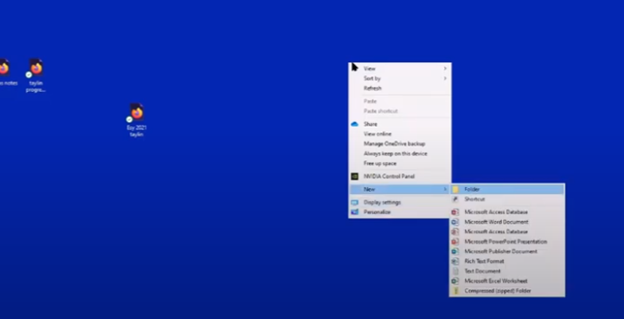
    In addition, students must manage their desktops efficiently. They need to pin important programs, such as JAWS, to the taskbar for quick access and adjust their settings without assistance. Pinning their school sites to the desktop make quick access to any site. Through the context menu, students can navigate and personalize their desktop to meet their needs.

    Computer Local Admin access to Applications key on desktop to access anything on the computer
    Computer Local Admin access to Applications Key on desktop to access anything on the computer

    The run dialog box is another essential tool with CTRL+R. Students need to clear temporary files, which can slow down screen readers. Since screen readers are memory-intensive, removing these files improves both the computer’s speed and network performance. Computer Local Admin access is required for these maintenance tasks.

    Dr. Robinson further emphasizes the importance of Office 365, especially for math tasks. Using the math editor, students can create and solve equations that read seamlessly on a braille display. This access is crucial for academic success, particularly in STEM subjects.

    Lastly, Dr. Robinson stresses the necessity of file explorer -Windows+E and Bluetooth settings. Without a mouse, blind students rely on file explorer to organize their files. Bluetooth access is also essential for reconnecting braille displays and other devices.

    In summary, Dr. Robinson believes local admin rights are essential for blind students to manage their technology independently, keep their devices updated, and fully engage in their education. This allows them full access for a lifetime. The TechVision Team ensures students learn essential skills to manage and update their devices independently, preparing them for a lifetime of technological adaptation. As technology evolves, these skills are crucial. Computer Local Admin access is vital for securing and maintaining employment so they know the updates needed, in an increasingly digital world.

    Next Steps in Learning:

    Optimizing Windows 11 for Screen Reader Efficiency with Key Settings and Configurations

    Setup and use Braille Display

    Start Math to go as far as you want to go:

    Transcribe Math Images

    Quadratic Math

    STEM with Embossing

    Perfect Digital Math

    JAWS and MathCat

    Unicode with UEB Math

    UEB Math with Jaws

    UEB LaTex math with Jaws

    Braille Math in WORD Editor-Multi-line

    Split Braille for Buffer Mode

    Braille Blaster

    complete multi line BME

    math student fights Stigma

  • Accessible Math for All Ages: Bridging the Gap for Blind Students

    Math for all ages, Math Team, Dr. Robinson, along with Professor Betsey, Campbell Rutherford (teacher intern), led the session. Nate Kile (Access Tech Specialist) was the moderator. Math Team emphasized the importance of ensuring blind students can access their technology independently and efficiently. Nate Kile assisted by handling participant questions during the presentation, allowing attendees to type inquiries in the Zoom chat box. Mr Kile would ask the Math Team from the virtual attendees.

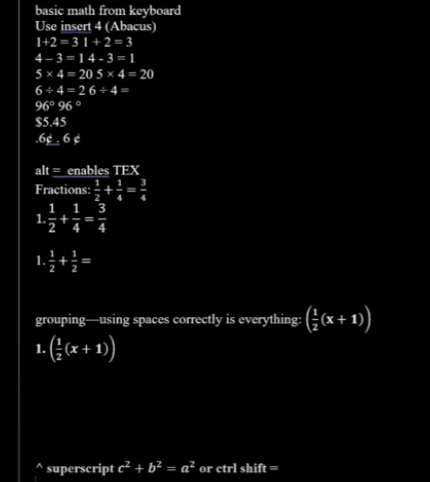
    Each presenter built on the others’ lessons. Dr. Robinson began with elementary math training skills and how JAWS and other assistive technologies play crucial roles in blind students’ education. Teaching math for all ages, she typed out typically math problems in elementary school to show audience how easily math is completed in WORD. Nate provided opportunities for participants to unmute themselves using Alt + A or Alt + M to ask questions.

    Math for all Ages: Dr Robinson

    The Math Team turned off their videos to optimize bandwidth. When teaching virtually, turning off video offers better bandwidth for a flow of uninterrupted instruction. Dr. Robinson started the discussion by running JAWS, a screen reader. She explained how to troubleshoot JAWS issues, recommending minimizing programs and restarting the software for optimal performance.

    The session highlighted key JAWS commands, such as Windows + D for quick access to the desktop. Dr. Robinson demonstrated how blind students could use Braille displays for math, including Nemeth code. She showed how blind students control their computers by personalizing settings like screen readers and Bluetooth. Customizing the setup is essential for supporting math learning at all ages.

    Math for all ages math formulas in word
    Math for all ages math formulas in Word

    Math for all Ages: Professor Betsey

    Professor Betsey demonstrated how to effectively use Braille displays, including advanced setups for students. She went into MathType and LaTex and how to use advanced Math techniques to accomplish all math levels. She emphasized the importance of maintaining accessibility and autonomy for students through personalized settings. As a college-level math professor, she explains that using a PC for math enables full inclusion of blind students. Prof. Betsey emphasizes that this technology allows blind students to participate equally in all aspects of their education. This approach supports the goal of providing math for all ages.

    Math for all Ages: Campbell

    Campbell Rutherford, a teacher intern, demonstrated how to integrate graphing and mathematical functions using accessible technology for blind students. Campbell began by demonstrating how to write a function in Word using LaTeX. She then transitioned to graphing that function in Desmos, an online graphing calculator. Using her braille display and screen reader, she input and analyzed the graph. Campbell explained how blind students can explore mathematical properties like intercepts and undefined points. After reviewing the graph, she took a screenshot and pasted it into a Word document. This tied together the written mathematical properties and the visual representation. Throughout, Campbell stressed the importance of accessible math for students of all ages.

    Throughout the session, the Math Team emphasized the importance of managing constant software updates. They explained how providing local admin rights empowers students to update their programs and devices independently. This in-turn prepares them for both academic success and future employment. The TechVision team’s approach ensures that students can fully access their education and maintain control of their technology. This ultimately sets them up for long-term success but especially the STEM field. More Math Lessons here:

    Math Lessons Galore

    Setup Computer and Screen Readers first

    Optimizing Windows 11 for Screen Reader Efficiency with Key Settings and Configurations

    MathCAT-set it up with NVDA or JAWS, UEB MATH or Nemeth with screen readers

    Hayes learns proper Word setup for Math with Math Editor and Jaws commands with brailliant display

    Setting up Braille Math editor in WORD to left justify and work in computer and contracted braille

    UEB or Nemeth Math Lessons Galore with JAWS or NVDA

    Digital UEB Math & Braille Math Editor in WORD with JAWS UEB Mode

    UEB Math using Braille Math and Word Math Editors with Jaws and split-braille-for-buffer-mode

    UEB Math with NVDA in WORD using unicode-LaTex or Braille -easy to advanced math

    Digital Math with UEB Math, NVDA completing Matrices in WORD Math Editor 365

    JAWS or UEB Math in WORD Math Editor-Unicode-LaTex Braille=learning easy to advanced math

    Quadratic Formulas with UEB Math or Nemeth and/or display with JAWS audio & MathCat

    Matrices in WORD Math Editor-Braille Math editor with Jaws using LaTex, auditory and/or Braille

    MathKicker. AI- Solutions to Math Issues

    Digital Quadratic Math with Jaws or NVDA in Mathkicker.ai – auditory and/or braille display

    Complete Advanced Math with LaTex to finish math fast using Mathkicker.AI, JAWS, NVDA and/or display

    Math & AI =Mathkicker.ai convert PDF math or any work into WORD docx.

    Perfect Digital Math at all levels using only audio or tactile Braille or both in Mathkicker.ai

    Math & AI is MathKicker.ai — convert to .docx from clipboard- make inaccessible accessible

    Mathkicker.ai-take an image of math and make it perfect Math in Word Math editor with screen reader

    Mathkicker.AI -change Math PDF to text in WORD Math editor in less than a minute with screen reader

    Graphing, Split Braille and More

    Transcribe Math into Word documents for blind students using Math editor, Jaws and a Braille Display

    Quadratic equation and how to fix math mistakes, braille math editor, Jaws in Word Math editor

    Braille Math in Word with editor, JAWS, braille display and ease for multi-line math problems

    Graphing Inequalities, functions and shading with Desmos and screen reader

    Create Geometry Shapes from Math Work in Desmos with screen reader

    Geometry in DESMOS graphing Calculator with screen reader

    Desmos graphing calculator with shaded Parabolas, screen reader, braille display and embosser

    Students with Math

    Prof Betsey with Mathtype

    Braille Math editor Contracted out, computer in mode with Tay–most efficient

    Jaws Braille Math editor in Word by Aubrey

    Braille Math Editor in Word with Jaws, Focus Braille Display by Campbell

    do video for website: Complete Advanced Math with LaTex to finish math fast using Mathkicker.AI, JAWS, NVDA and/or display

    Create Geometry Shapes from Math Work in Desmos with screen reader

    Quadratic equation and how to fix math mistakes, braille math editor, Jaws in Word Math editor

    Transcribe Math into Word documents for blind students using Math editor, Jaws and a Braille Display

    MathCAT-set it up with NVDA or JAWS, UEB MATH or Nemeth with screen readers

    Setting up Braille Math editor in WORD to left justify and work in computer and contracted braille

    Braille Math Editor in Word with Jaws, Focus Braille Display by Campbell

    Learn how to Get a JOB with your knowledge

  • Accessible Work at School: What Blind Students Need — by Eme

    Emery, a blind ninth-grader at Kalaheo, introduces herself and shares her love for math and technology. She uses a computer with a screen reader and Braille display to access her education. Eme navigates her world with a cane and texts friends using her phone. During the pandemic, her computer became essential for schoolwork. She explains how she uses various tools to access her education, including JAWS screen reader and Braille Display and other access technology. Eme highlights the importance of accessible assignments and demonstrates navigating an online platform despite its challenges. Accessible work at school is critical for her success.

    Emery uses tools like the JAWS screen reader and Braille display connected to her computer to navigate her studies. She emphasizes that accessible assignments are crucial because they allow her to engage with the same content as her peers. When assignments are not accessible, it creates significant barriers to her learning. It is evident that accessible work at school can make a big difference.

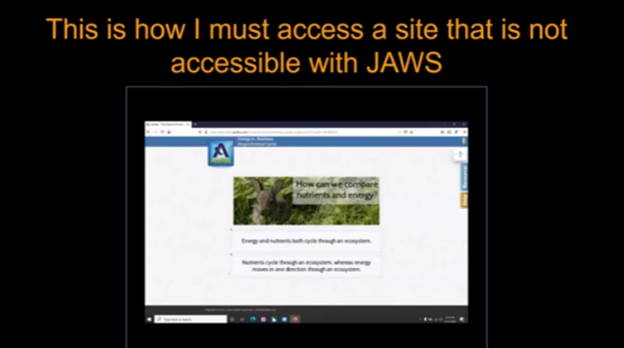
    Eme Making Work accessible on an inaccessible site
    Eme Making Work accessible on an inaccessible site

    By ensuring Teachers’ work is accessible, you empower students like Emery to succeed and participate fully in their education. Accessible materials foster a learning environment where all students can be included and thrive. Therefore, focusing on making work accessible at school helps all students.

    She thanks teachers for their commitment to making education accessible for everyone. Providing accessible work at school shows dedication to inclusion and highlights the importance of accessibility.

    Making Work Accessible:

    Complete Advanced Math with LaTex to finish math fast using Mathkicker.AI, JAWS, NVDA and/or display

    Math & AI =Mathkicker.ai convert PDF math or any work into WORD docx.

    Perfect Digital Math at all levels using only audio or tactile Braille or both in Mathkicker.ai

    Math & AI is MathKicker.ai — convert to .docx from clipboard- make inaccessible accessible

    Mathkicker.ai-take an image of math and make it perfect Math in Word Math editor with screen reader

    Mathkicker.AI -change Math PDF to text in WORD Math editor in less than a minute with screen reader

  • TechVision YouTube Channel Lessons

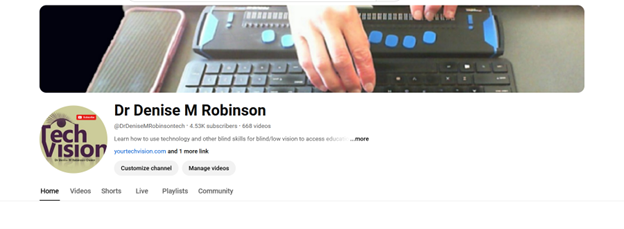
    Dr. Denise M. Robinson’s TechVision YouTube channel Lessons, @DrDeniseMRobinsontech, features a wide range of content. TechVision YouTube channel focuses on assistive technology, blind skills, accessibility and access to the World of information. The channel offers tutorials, guides, and resources for blind and low-vision individuals, educators, and parents. The channel covers topics like using screen readers, braille technology, and software such as JAWS and NVDA. Additionally, it provides practical tips for navigating various digital tools and environments. Dr. Robinson’s videos aim to empower viewers by providing them with the knowledge and skills needed to achieve independence in both educational and everyday tasks. Whether you’re learning skills or teaching them, this site supports your success effectively.

    TechVision YouTube Channel Lessons image of hands on braille display, keyboard and iphone next to keyboard
    TechVision YouTube Channel Lessons

    Access Blind and Low Vision education through hundreds of lesson videos covering all subjects and tools. Learn to use screen readers, braille displays, and other resources to enhance your education and life. Access Blind Low Vision Education @ TechVision YouTube Channel@DrDeniseMRobinsontech

  • Navigate Schoology with Jaws via Kim

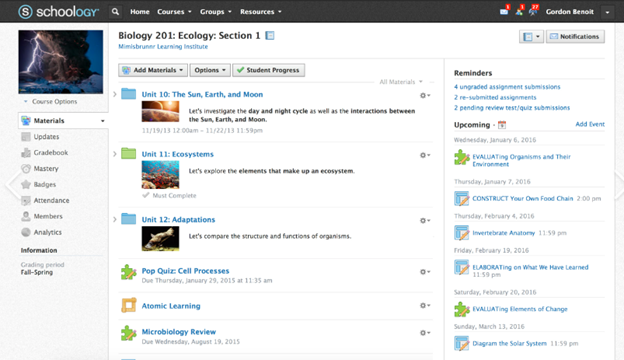
    To Navigate Schoology with Jaws is easy using these useful keyboard commands for navigation. When you’re using a screen reader like JAWS or NVDA it is very accessible. Kim demonstrates her skills, showing how to navigate schoology with efficiency. She shares with others how this training has allowed her to access her education.

    Schoology Navigation Skills Video-General Commands to help navigate Schoology

    1. Navigate to Courses:
      • Press Insert + F7 to bring up the links list.
      • Use the arrow keys to navigate to the desired course and press Enter.
    2. Access Course Materials:
      • Press H to navigate through headings until you reach the course materials section.
      • Use the arrow keys to select the material you want to access.
    3. Navigate to Assignments:
      • Press Insert + F6 to bring up the headings list.
      • Use the arrow keys to find and select the “Assignments” heading.
    4. Access Notifications:
      • Press Insert + F5 to bring up the form fields list.
      • Navigate to the notifications section and press Enter.
    5. Navigate to Discussions:
      • Press H to move through headings until you reach the “Discussions” section.
      • Use the arrow keys to select and enter a discussion.
    6. General Navigation:
      • Use Tab and Shift + Tab to move forward and backward through interactive elements.
      • Press G to navigate to graphics and L to navigate to lists.
    7. One Trick to remember is when a PDF viewer of work opens, the download in WORD link is at the very bottom. Use your links list or ctrl end and up arrow to find it.

    More Schoology Lessons to help Navigate Schoology with Jaws

    Navigate schoology with JAWS
    Navigate schoology with JAWS

    Let us know how we can help you: Contact US: TechVisionTraining@yourtechvision.com

  • Jordan on Learning Computers for the Blind

    Jordan talks about the important aspects of why blind students need to learn a computer. She discusses the benefits of computers for the blind also. She touches on necessary skills and how this will advance them in their dreams and goals in life.

    Jordan on learning Computer for the blind talks about its importance along with a screen reader and display. These are crucial for blind people for several reasons:

    1. Access to Information: Screen readers and braille displays provide blind children with access to digital information, enabling them to read, write, and navigate the internet independently. This access is essential for academic success and staying informed1.
    2. Literacy and Education: Braille literacy is fundamental for developing reading and writing skills. Using a braille display helps children practice and improve their braille proficiency, which is vital for their overall literacy and educational development2.

    Independence on Computers for the Blind

    1. Independence and Confidence: Mastering these technologies fosters independence, allowing children to complete tasks on their own without relying on others. This independence boosts their confidence and self-esteem3. Computers for the blind provide this type of access and more.
    2. Equal Opportunities: Proficiency in assistive technologies ensures that blind children have equal opportunities in education and future employment.  It levels the playing field, allowing them to compete with their sighted peers.
    3. Enhanced Communication: Screen readers and braille displays facilitate better communication by enabling children to use email, social media, and other digital platforms. This connectivity is crucial for social interaction and building relationships1.
    4. Adaptability to Technology: Early exposure to assistive technologies prepares children for future advancements. As technology evolves, being comfortable with these tools will help them adapt to new devices and software more easily3.

    By learning to use a computer screen reader and braille display, blind children gain essential skills that support their academic, social, and personal growth, paving the way for a more inclusive and empowered future.

    Let us know how we can help you: Contact US: TechVisionTraining@yourtechvision.com

  • JAWS Cursors: Enhancing Navigation and Control for Blind Users by Finn

    JAWS screen reader offers a variety of cursors that allow blind users to navigate and interact with different types of content more effectively. Each cursor has its specific role, enabling users to access information, move between elements, and interact with applications in various ways. Understanding how to use these cursors—such as the PC cursor, JAWS cursor, Virtual PC cursor, and more—can greatly enhance navigation, making it easier to explore screens, web pages, and documents. Mastering these tools provides more independence and control over the user experience, ensuring smoother and more efficient interactions with digital environments.

    JAWS screen reader provides several cursors to help blind users navigate and interact with content effectively. Each cursor serves a different purpose, and knowing how to use them can improve navigation. Here’s an overview of how to use the different JAWS cursors:

    All Those JAWS Cursors: Enhancing Navigation

    1. PC Cursor

    • Purpose: This is the default cursor and follows the system focus.
    • How to Use: Use the keyboard to navigate the screen as a sighted user would, moving between menus, forms, or buttons. This cursor interacts directly with the application.

    2. JAWS Cursor

    • Purpose: It simulates mouse movement and allows you to navigate the screen freely without being tied to the system focus.
    • How to Use: Use the number pad to move the JAWS cursor. The “5” key on the number pad reads the item under the cursor. Use this cursor to explore screen elements or access parts of the screen that may not be reachable with the PC cursor.

    3. Virtual PC Cursor

    • Purpose: Primarily used in web browsers and documents to read content as if it were in a virtual document.
    • How to Use: Navigate with standard keyboard commands, such as arrow keys, or use quick navigation keys (like “H” for heading or “F” for form fields). The Virtual PC Cursor treats the content as a text-based document, allowing easy access to web and document elements.

    4. Invisible Cursor

    • Purpose: Works similarly to the JAWS cursor but remains invisible. It’s useful when you don’t want to disturb the system focus.
    • How to Use: Move this cursor with the number pad keys without affecting other cursors, such as the PC cursor. This is often helpful for reading content while leaving the active focus elsewhere.

    5. Touch Cursor

    • Purpose: Designed for touch screens, it allows for navigating and interacting with touch gestures.
    • How to Use: Utilize touch gestures on a touch screen to control JAWS. This is ideal for tablets or laptops with touch screens, making the experience more interactive.

    6. Routing and Review Cursor

    • Purpose: Used for reviewing content on a braille display and routing the cursor to specific points.
    • How to Use: On a braille display, you can move the review cursor to read through text or route the PC cursor to a specific point by pressing routing buttons on the display.

    By mastering these cursors, a JAWS user can efficiently navigate various environments, whether it’s desktop applications, web pages, or documents, enhancing both productivity and accessibility. Using proper touch-typing methods on keyboard allows great freedom and ease.

    Let us know how we can help you: Contact US: TechVisionTraining@yourtechvision.com

  • MLA and APA Format Paper Writing — Tech Tip

    Formatting an APA format paper writing style using keyboard commands is an efficient way to create a properly structured document without relying on a mouse. By using shortcuts within programs like Microsoft Word, you can quickly adjust key elements such as margins, fonts, line spacing, and indentation. This guide outlines the essential steps, including setting up the title page, organizing headings, and formatting the references page. By mastering these keyboard commands, you can streamline the process of formatting your APA paper and ensure it meets academic standards.

    To format an APA paper using keyboard commands, you can use several standard shortcuts within word processors like Microsoft Word. Follow these tips to make APA format paper writing easier:

    1. Setup the Document in APA format paper writing style

    • Margins: The default margins in Word are typically 1 inch, but you can check by pressing Alt + P, then M, and selecting “Normal”.
    • Font and Size: Use Ctrl + D to open the Font dialog box. Set the font to Times New Roman and the size to 12. Both settings are essential in APA format paper writing.
    • Line Spacing: To set double spacing, press Ctrl + 2.
    • Indentation: For the first line of each paragraph, press Ctrl + T to create a hanging indent. To undo this and create a regular first-line indent, press Ctrl + Shift + T and then Tab to indent the first line.
    APA format of paper
    APA format of paper

    2. Title Page

    • Running Head: Press Alt + N to go to the “Insert” tab, then H for “Header”, and Ctrl + R to right-align the text. Type “Running head: YOUR TITLE” (in caps) on the first page. On other pages, just type the title without “Running head”.
    • Title: Press Ctrl + E to center the title. Capitalize each major word in the title.
    • Author and Institution: Press Ctrl + E again to center your name and institution. Press Enter between lines. Proper formatting of this section is crucial for APA format paper writing.

    3. Main Body

    • Heading Levels:
      • Level 1: Centered, bold. Use Ctrl + E to center and Ctrl + B to bold.
      • Level 2: Left-aligned, bold. Use Ctrl + L to left-align and Ctrl + B to bold.
      • Level 3: Left-aligned, bold, and italicized. Use Ctrl + L, Ctrl + B, and Ctrl + I.
      • Level 4: Indented, bold, ending with a period. Use Ctrl + T for hanging indent, Ctrl + B, and type your text.
      • Level 5: Indented, italicized, ending with a period. Use Ctrl + T, Ctrl + I, and type your text.

    4. References Page

    • Hanging Indent: Select the references text and press Ctrl + T to apply a hanging indent, following APA format paper conventions.
    • Title: Center the title “References” using Ctrl + E.

    5. Page Numbers

    • Insert page numbers by pressing Alt + N, then N, and selecting “Page Number”. Place the number in the top right by pressing Ctrl + R.

    This approach covers the essential formatting elements for an APA paper using keyboard shortcuts. Let me know if you need specific details on any step for better APA format paper writing! Find MLA Word Format here.

    Other Tech Tip Lessons

    How to Properly Format a Paper

    Teach how to set up computer

    Google dictation

    Apply latest update

    APA-MLA tech tip

    Select Noncontiguous folders

    Braille Display to do work in WORD

    Math for all ages

    Let us know how we can help you: Contact US: TechVisionTraining@yourtechvision.com

  • Apply Latest Computer Update-Tech Tip for the Day

    Regularly updating your computer is crucial for keeping it secure, efficient, and running smoothly. It’s important to apply the latest computer update to take advantage of these benefits. Software updates provide important improvements, such as enhanced security, better performance, and bug fixes. These updates also ensure that your computer stays compatible with the latest software and hardware, while offering new features to improve your user experience. Keeping your system up to date is a simple yet effective way to protect your device and ensure it operates at its best.

    Regularly updating your computer as new updates are released is essential for several reasons:

    Reasons to Apply Latest Computer Update

    Regularly updating your computer is crucial for several reasons, starting with security. Updates often fix vulnerabilities that hackers could exploit. By keeping your system updated, you protect it from viruses, malware, and cyberattacks.

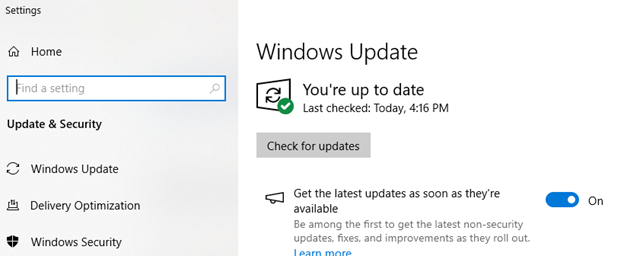
    Computer updates in Settings
    Computer updates in Settings

    Secondly, updates improve performance by making your computer faster and more efficient. They address bugs and glitches that can slow down your system.

    Next, applying the latest updates introduce new features or improve existing tools, enhancing both your user experience and productivity.

    As software evolves, updates also ensure compatibility with the latest programs, hardware, and devices.

    Finally, many updates focus on fixing bugs and stability issues, helping your computer run smoothly and preventing crashes.

    By consistently updating, you keep your computer secure, fast, and fully functional, avoiding many common problems.

    Other Tech Tips

    Schoology with Jaws

    Schoology navigation

    Teach how to set up computer

    Google dictation

    Apply latest update

    APA-MLA tech tip

    Here is how you fix WORD also