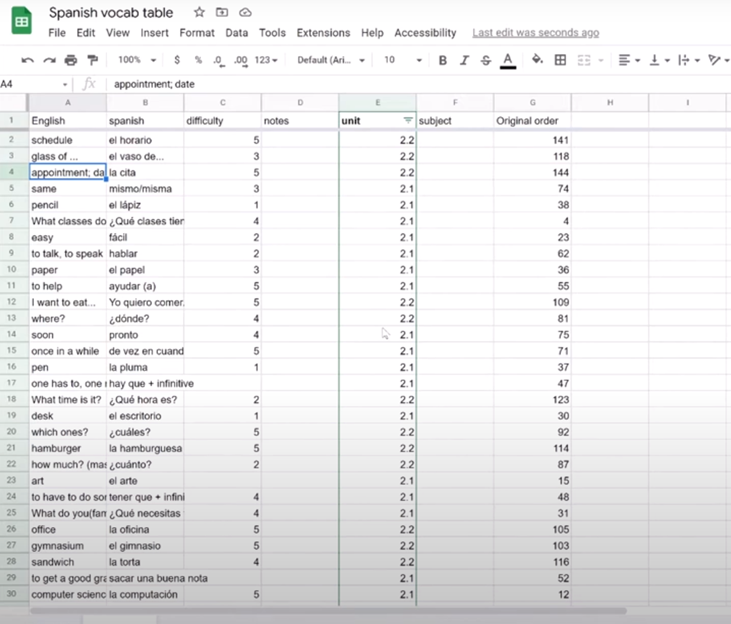
Emē, a student of Dr. Denise Robinson demonstrates how she studies Spanish vocabulary using Google Sheets with a screen reader. She starts by copying vocabulary words into Google Sheets, though typing them in directly is also an option. After setting up the sheet, she explains the importance of naming it to avoid losing any work. She uses Google Sheets similarly to how a sighted student would use flashcards. This method is an excellent example of Flashcard studying in sheets. Column A contains the English words, while Column B holds the Spanish translations.
Certainly! Here is the revised paragraph with “Emē”:
Emē introduces a “difficulty” column in Column C, where she rates how challenging each word is to remember. She assigns a value between one and five, depending on how well she recalls each word. This rating system allows her to sort the words based on difficulty later, making her study sessions more effective. This technique enhances the efficiency of flashcard studying in sheets methods.
To make the study process more efficient, Emē explains how to randomize the rows. This prevents her from memorizing the order of the words rather than learning the words themselves. She uses specific keyboard commands to select all rows and columns, then accesses the “randomize range” function through the search menu. Randomization is key for effective flashcard studying in sheets techniques.
After randomizing, Emē sorts the words by difficulty, placing the hardest words at the top for focused study. She even hides the easiest words, rated as ones, to avoid wasting time on words she already knows well. If she needs to retrieve the hidden words, she can easily unhide them using the “unhide rows” function. This is another way flashcard studying can be efficiently carried out in sheets.
Emē concludes by showing how she reviews and updates the difficulty ratings as she studies. This method allows her to keep track of her progress and focus on words that need the most attention. She highlights that this approach to flashcard studying in sheets with Google Sheets is both accessible and effective, making it a great tool for blind and visually impaired students.
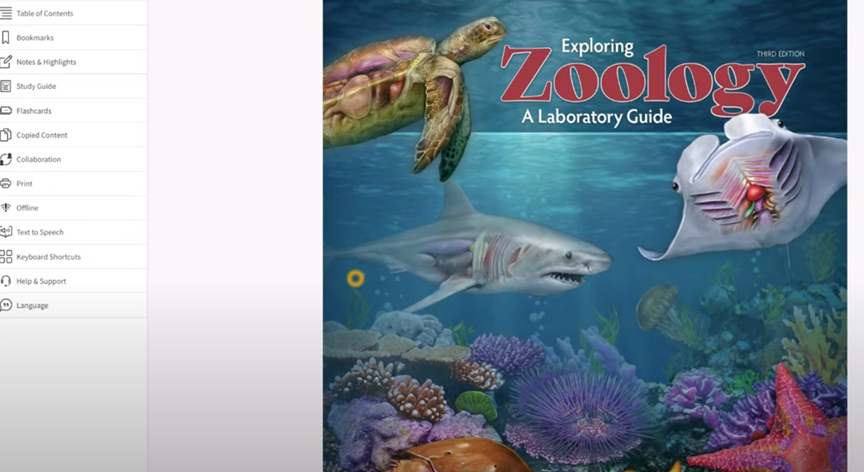
Dr. Robinson demonstrates RedShelf access with JAWS. Demonstrating how to efficiently navigate RedShelf Book: “Exploring Zoology: A Laboratory Guide, Third Edition” using the JAWS screen reader. She emphasizes the importance of pairing the book with tactile graphics for laboratory visuals, especially for unique creatures to make RedShelf access with JAWS more comprehensive.
Navigating RedShelf access with JAWS -“Exploring Zoology” Online Book
Dr. Robinson starts by instructing users to open the book, recommending the “Insert + F7” command to quickly access links and jump to a specific section when using RedShelf access with JAWS. To make navigation smoother, she suggests using “Control + Home” to return to the top of any page, ensuring quick access to the table of contents or other necessary sections. This approach helps avoid unnecessary content, allowing users to get straight to the relevant material.
For new users, she recommends first down-arrowing through the page to become familiar with its layout. However, for regular navigation, using bookmarks ensures that users can quickly return to where they left off can be used. To create a bookmark, users should navigate to the desired section, then use the RedShelf menu to save the location, enhancing their RedShelf access with JAWS experience.
While exploring chapters like “Chapter 1: Metric Weights and Measurements”, Dr. Robinson shows how users can navigate to exercises using “Control + Home” or tabbing through headings. She also recommends using “Insert + Down Arrow” to continuously read through a page. For more detailed or specific content, users can search for page numbers directly using the search box by pressing “Alt + Slash”.
Finally, Dr. Robinson demonstrates how to use JAWS’ Picture Smart feature to analyze and extract text from images in the book. This feature, triggered by “Insert + Space” followed by “P” and “C”, helps users work with graphical data when using RedShelf access with JAWS. More Video Lessons on these types of commands. More Lesson Commands here
This method provides fully accessible navigation complex laboratory materials, making “Exploring Zoology” easy to use for blind students. More Navigation commands here.
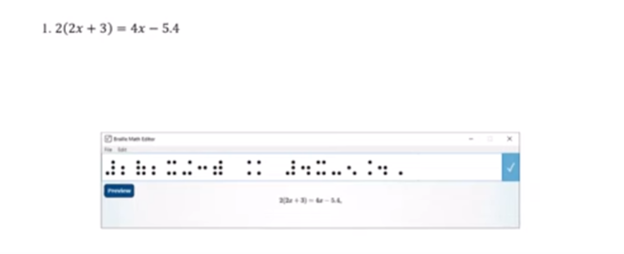
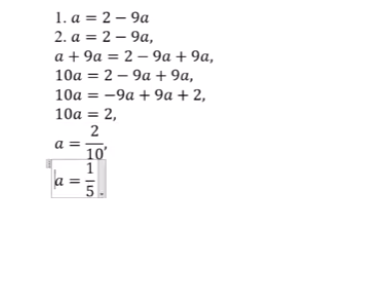
Dr. Robinson demonstrates how to complete multi-level math in WORD using Braille Math Editor with JAWS. She used an algebra problem as an example. She explains that this method applies to several types of math problems. First, she highlights how transcriptionists or students can prepare algebra equations using the Alt + Equals command to insert math symbols directly in Word. Once the equation is ready, the blind student can easily solve it using a Focus 40 Braille display.
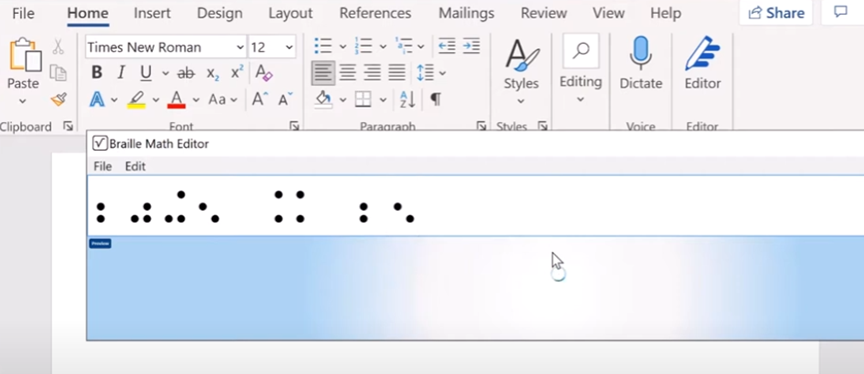
Dr. Robinson shows how students can work within the Braille Math Editor. By pressing Insert + Space followed by Shift + Equals, the editor opens, and the math problem appears ready for solving. She mentions that students can choose between Nemeth code or Computer Braille, depending on their preference. Both modes allow for precise calculations and input, enabling them to complete multi-level math problems efficiently across multiple levels.
As the student works through the problem, they can use Braille commands like 4-5-6 Space to navigate to the end of the problem and add a dot 6 for separating steps with commas. This method keeps the equation organized, allowing the student to solve the problem in multiple lines, just as their sighted peers would. By checking the Braille display frequently, students ensure accuracy while solving multi-level math equations and maintaining neatness.
Finalizing and Reviewing Work to complete multi-level math
Once the math is complete, the student hits Enter to insert the solution into Microsoft Word. Dr. Robinson uses Ctrl + L to align the text to the left after confirming correct spacing and formatting. She resolves errors, such as unnecessary commas or misalignments, by reviewing each line. Editing line by line ensures the final product is both clean and accurate. The process concludes with a perfectly formatted, multi-level math solution, efficiently done using the Braille Math Editor, thus completing the task effectively.
This setup provides blind students with the tools to complete complex multi-level math work just like their peers, ensuring accessibility and ease in academic settings. More math lessons here.
Dr. Robinson demonstrates how to remap a key on a keyboard using SharpKeys, which is especially useful for laptops that lack an Applications key. She explains that many screen readers require an Applications key, but not all laptops include one. By remapping an unused key, such as a backslash or the 2nd alt key, students can easily create an Applications key for their screen reader.
Remap keys on keyboard with sharp keys and screen reader commands
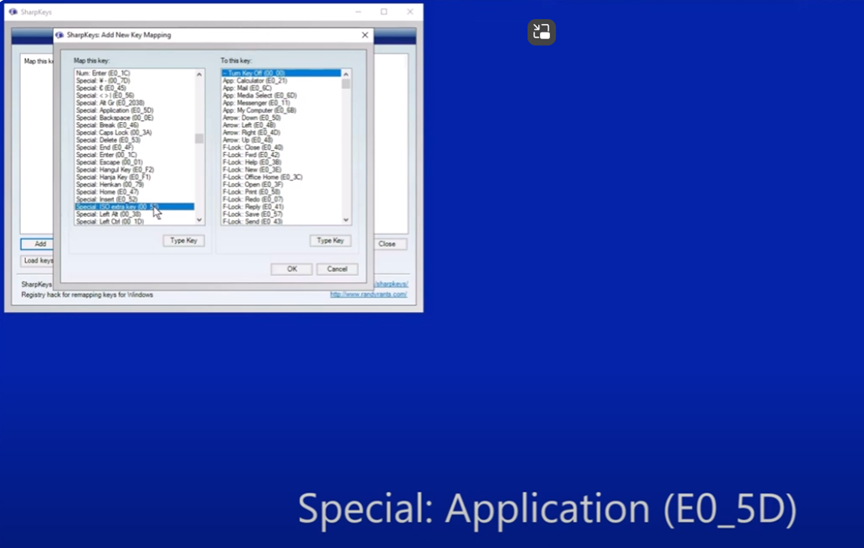
She begins by opening SharpKeys via the Start menu and typing “SharpKeys” into the search bar. Once opened, she navigates the menu with Tab and presses Alt + A to add a new key mapping. To identify the key to remap, she presses Alt + K and hits the backslash key. It’s a straightforward way to remap keys on keyboard devices.
The software recognizes the backslash as ISO Extra Key 0_56, making it easy to remap. Dr. Robinson then scrolls through the list using Down Arrow to find Special: Application E0_5D. After selecting it with Spacebar, she confirms the key mapping by pressing Enter.
To test the remapped key, she presses Windows + T to open the taskbar. She then uses the newly remapped key to access the Applications menu. Though the key is still labeled as backslash, it functions correctly as an Applications key. This technique to remap keys on keyboard setups helps users customize their experience.
Dr. Robinson emphasizes that this method allows blind users to easily remap keys without assistance. The entire process is accessible, making it useful for students relying on screen readers. The remapped Applications key provides full functionality, offering standard Applications key options. Remapping keys on keyboard devices can significantly improve accessibility for all users.
Dr. Robinson ensures that students can remap keys using SharpKeys independently, without needing assistance from a sighted person. She highlights that this process is accessible for blind users and fully supports screen readers.
After confirming the remapping, Dr. Robinson explains how this tool provides flexibility for students using different laptops. By remapping a nonessential key, they can create a functional Applications key, essential for many screen reader commands.
She encourages students to experiment with remapping other keys if needed. This flexibility allows users to personalize their keyboards to fit their preferences. More Screen Reader Lessons here
Dr. Robinson demonstrates how to use the Jaws Braille Math Editor for solving basic math problems. She begins by explaining the process of opening the editor using 3-7-4-6 space on the braille display. This command quickly opens the Jaws Braille Math Editor for users.
Once in the editor, she types “10 + 5 = 15” to show how math expressions are entered. The math editor automatically adds number signs before each number, ensuring the correct format. To hear the result, Dr. Robinson uses Insert + F1 for help and demonstrates how to navigate through the equation.
Next, she solves “20 + 5 = 25” and reminds students to carefully check for the number signs before each number. Dr. Robinson encourages the use of both hands when reading math, emphasizing the importance of tactile practice with the right hand and left hand.
Braille Math Editor Solution
She continues by solving additional problems, such as “30 + 6 = 36” and “40 + 7 = 47.” Each time, she reinforces the process of reading and checking the work with both hands. For every problem, Dr. Robinson ensures that students follow the correct commands to enter the math expression, then press Enter to insert the answer into Microsoft Word. The session effectively shows the benefits of using the Jaws Braille Math Editor.
Throughout the session, Dr. Robinson emphasizes the value of continuous practice and careful attention to the tactile input. She concludes the lesson with a final problem, “50 + 8 = 58,” guiding students through the steps of reading, checking, and inserting the equation. The Braille Math Editor, combined with the commands in JAWS, offers blind students a seamless way to solve and verify math problems independently.
Setting up Spanish Braille using JAWS-enabled Braille display involves a few key steps. First, configure the Braille profile in JAWS by pressing Insert + 6 to open the settings center. Navigate to the Braille mode settings and select Spanish (Spain International) as the default language. This ensures the Braille output is in Spanish Grade 1. You can quickly switch between languages using Ctrl + Shift + Windows + L or specific Braille display commands. Additionally, practice using symbols and contractions on the Braille display to become comfortable with the layout. This setup allows visually impaired users to work efficiently in Spanish, ensuring accurate Braille representation and seamless integration with their tasks.
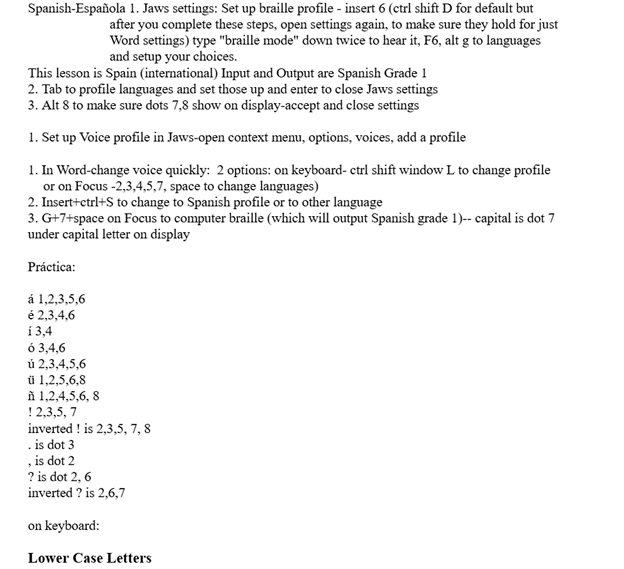
Spanish-Española 1. Jaws settings: Set up braille profile – insert 6 (ctrl shift D for default but after you complete these steps, open settings again, to make sure they hold for just Word settings) type “braille mode” down twice to hear it, F6, alt g to languages and setup your choices.
This lesson is Spain (international) Input and Output are Spanish Grade 1
2. Tab to profile languages and set those up and enter to close Jaws settings
3. Alt 8 to make sure dots 7,8 show on display-accept and close settings
1. Set up Voice profile in Jaws-open context menu, options, voices, add a profile
1. In Word-change voice quickly: 2 options: on keyboard- ctrl shift window L to change profile or on Focus -2,3,4,5,7, space to change languages)
2. Insert+ctrl+S to change to Spanish profile or to other language
3. G+7+space on Focus to computer braille (which will output Spanish grade 1)– capital is dot 7 under capital letter on display
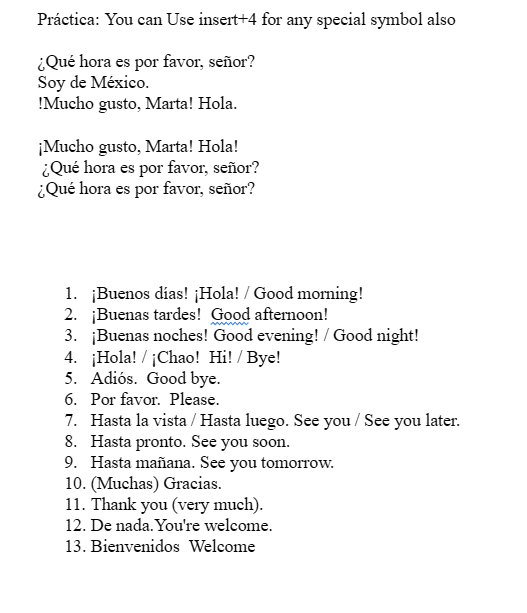
Práctica:
á 1,2,3,5,6
é 2,3,4,6
í 3,4
ó 3,4,6
ú 2,3,4,5,6
ü 1,2,5,6,8
ñ 1,2,4,5,6, 8
Punctuation for Spanish Braille using JAWS
! 2,3,5, 7
inverted ! is 2,3,5, 7, 8
and
. is dot 3
and
, is dot 2
? is dot 2, 6
inverted ? is 2,6,7
on keyboard:
Lower Case Letters
á (lower case a, acute accent) = Press Ctrl + ‘ (apostrophe), then the letter a é (lower case e, acute accent) = Press Ctrl + ‘ (apostrophe), then the letter e í (lower case i, acute accent) = Press Ctrl + ‘ (apostrophe), then the letter i ó (lower case o, acute accent) = Press Ctrl + ‘ (apostrophe), then the letter o ú (lower case u, acute accent) = Press Ctrl + ‘ (apostrophe), then the letter u ñ (lower case n, tilde accent) = Press Ctrl + Shift + ~ (tilde), then the letter n ü (lower case u, diaeresis accent) = Press Ctrl + Shift + : (colon), then the letter u
Upper Case Letters
Á (upper case A, acute accent) = Press Ctrl + ‘ (apostrophe), then Shift + a É (upper case E, acute accent) = Press Ctrl + ‘ (apostrophe), then Shift + e Í (upper case I, acute accent) = Press Ctrl + ‘ (apostrophe), then Shift + i Ó (upper case O, acute accent) = Press Ctrl + ‘ (apostrophe), then Shift + o Ú (upper case U, acute accent) = Press Ctrl + ‘ (apostrophe), then Shift + u Ñ (upper case N, tilde accent) = Press Ctrl + Shift + ~ (tilde), then Shift + n Ü (upper case U, diaeresis accent) = Press Ctrl + Shift + : (colon), then Shift + u
Dr. Robinson introduces a lesson on using Microsoft Excel to solve math work, specifically focusing on inequalities and graphs. She begins by guiding students on how to put Excel in focus to tackle various math problems in Excel. This helps students to optimize their math work in Excel effectively. Next, she instructs them to create a template using a number line. To insert symbols like less than or greater than signs, students use the Alt + N and then U commands to insert bullets or symbols.
For students with a numpad, Alt + 7 and Alt + 9 quickly insert a hollow or solid bullet, respectively. For those without a numpad, they can use the Insert + Symbols option. Students then align their number line by inserting a bullet in the middle, ensuring four dashes on each side for perfect centering when solving math work in Excel.
To center content, students use the Applications key and press F. They adjust the horizontal and vertical alignment to ensure everything is perfectly centered. This is a useful step when handling math problems in Excel. After completing their problems, students select the content using Shift + Right Arrow and copy it using Ctrl + C. This entire process enhances their skills in doing math work in Excel.
When pasting into Microsoft Word with Ctrl + V, students have various formatting options. By pressing the Control key and right arrow, they can select different formatting options for their pasted content. They can also Alt H to home and V to paste and right arrow through options. This flexibility allows blind students to format and customize their graphs just like their sighted peers when solving math problems in Excel. After the student pastes an image, they press the Applications key and up arrow to select Alt Text and type the description. Once they finish typing, they press Ctrl + Space and C to close the navigation pane and return to the document.
Dr. Robinson concludes by showing examples of completed math problems in Excel and graphs, demonstrating how well-formatted the number lines and inequalities look. Blind students can confidently create hollow and solid bullets, as well as inequalities, just like other students, thanks to the accessible features in Excel. This process ensures they stay engaged in their learning, achieving the same results as their peers when doing math work in Excel. Make sure your display is working well.
Dr. Robinson’s video covers basic JAWS screen reader commands for Office Word, no matter what version of WORD you use. First, she opens a new document using “Ctrl + N” and teaches key formatting skills, such as right-aligning text with “Ctrl + R” and inserting the date using old and new Office commands. She emphasizes the importance of listening to the software to ensure accuracy. Dr. Robinson guides through bold, underline, and italics commands before typing and spell-checking with keyboard shortcuts. These are all Basic WORD JAWS commands you need to know.
Adjusting speech speed helps beginners better understand software. Learning commands ensures efficient and accurate work, especially Basic WORD JAWS commands.
Gain Typing Speed in WORD
To practice typing skills use a phrase like: “The quick brown fox jumps over the lazy dog.” Type it repeatedly in a Word document by starting slow to gain speed. Use the keyboard shortcuts taught in the video, such as “Ctrl + Left Arrow” and “Ctrl + Right Arrow” to move between words, and “End” to check if you’re at the end of the line. Regular practice, at least 10-15 minutes daily or more, helps build speed. Turn off autocorrect options to avoid automatic changes that may confuse the student and disrupt learning. Focus on accuracy before increasing typing speed. Mastering JAWS commands for WORD is essential for efficient practice.
Typing with 3 Fingers on her laptop is made easier with practice and now she is typing 77 word per minute. This impressive feat shows Kaleigh typing 77 wpm flawlessly.
A young lady with three fingers can type at over 77 words per minute. She is using adaptive strategies to access the same technology as peers. Kaleigh typing 77 wpm highlights her exceptional skills. Kaleigh has been learning and using these special skills based on her fingers for years. She uses a regular laptop with JAWS screen reader to do all of her work.
For individuals typing with one finger on one hand and two fingers on the other, specialized typing techniques can help improve speed and accuracy. Focus on positioning both hands in the center of the keyboard on homerow so the left single finger can move around that side of the keys. With the right 2 fingers, 1 is on the space bar at all times while other finger moves arund and presses keys. Moving together with a lot of practice, speed is gained. Start with slow, deliberate typing to reduce errors and gradually build up speed. Mastering typing speed similar to Kaleigh’s, started with such methods. Regular practice with phrases like “The quick brown fox jumps over the lazy dog” helps improve finger coordination. One such success story celebrating progress is Kaleigh typing 77 wpm.
With determination and keyboard practice with lots of instruction, students can accomplish anything. Kaleigh typing 77 wpm is a testament to this. See her series of progress.
Playing basketball as a blind individual involves using adaptive techniques and modified equipment. For example, Playing Basketball without sight typically has a bell inside so players can track it by sound. Teams communicate frequently, using verbal cues to help navigate the court. Players rely on spatial awareness, memorizing the court’s dimensions, and practicing positioning with the help of sighted guides or teammates. Basketball in the dark, involves dribbling, passing, and shooting all adjusted for touch and sound, rather than sight, allowing blind players to fully engage in the game.
Humberto is with his Spanish interpreter (and both are learning English) while basketball coach directs him and where to shoot the ball. Playing Basketball without sight can be challenging, but Blind students can do any activity with the right access tools in place.