Search results for: “low vision”

  • Cleaning the Focus Braille Display and Running Diagnostics

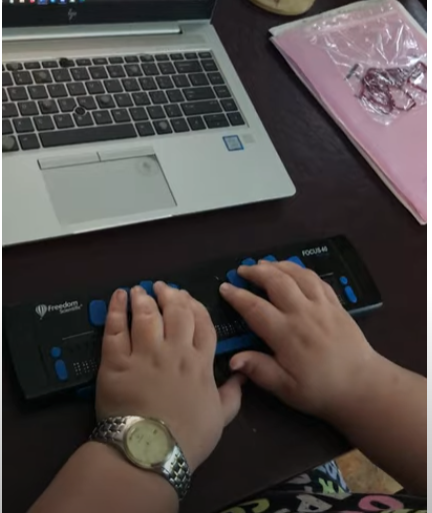
    Before you begin, remember when you are using your devices to maintain upright posture to protect your spine and neck. So, regularly cleaning the Focus 40 Braille Display and running diagnostics is crucial for maintaining its performance and longevity. Dust, dirt, and oils from your hands can accumulate on the Braille cells, potentially causing malfunctions or reducing the tactile quality of the display. By keeping the Braille cells clean, you ensure that the device remains responsive and accurate. Running diagnostics helps identify any issues early, allowing for timely repairs and preventing more significant problems down the line. This proactive maintenance not only extends the life of your device but also ensures a reliable and efficient user experience12.

    Here are the steps to clean the Focus 40 Braille Display and run diagnostics:

    Cleaning the Focus 40 Braille Display

    1. Turn Off the Device: Ensure the Focus 40 Braille Display is turned off and unplugged.
    2. Prepare Cleaning Materials: Use a soft, lint-free cloth dampened with water or isopropyl alcohol. Avoid using harsh chemicals.
    3. Clean the Braille Cells: Hold the device upside down or at a downward angle. Gently wipe the raised Braille dots with the dampened cloth, ensuring all dots are cleaned. Use as much of the cloth’s surface area as necessary to avoid spreading dirt1.
    4. Dry the Device: Allow the device to air dry completely before turning it back on.
    5. Try it out and if you need training on reading as fast as you can on the display, let us know.

    Running Diagnostics

    1. Turn On the Device: Power on the Focus 40 Braille Display.
    2. Enter Diagnostic Mode: Press and hold the Menu button while turning on the device. Continue holding the button until the device enters diagnostic mode.
    3. Run Tests: Use the navigation keys to select and run various diagnostic tests, such as checking the Braille cells, buttons, and connectivity.
    4. Review Results: Follow the on-screen instructions provided by the diagnostic mode to review the results and identify any issues2.
    Cleaning the Focus 40 Braille Display and running diagnostics
    Cleaning the Focus 40 Braille Display and running diagnostics

    Regular cleaning and diagnostics help maintain the performance and longevity of your Focus 40 Braille Display, ensuring it remains responsive and reliable.

    Here is a video to demonstrate braille reading speed

  • WORD Accessible Food Chain for Class Using Talking Software

    The current page provides instructions on creating a food chain for a class using talking software. It includes steps for saving a document in a specific format and navigating through menus using keyboard shortcuts. Additionally, it references the video below to help you each step of the way.

    F12 and save as 97-2023 so after you F12 you will have file and tab once and down arrow or up arrow to 97-2023 doc and enter, then the commands will work for you.

    • Alt + N then M and right arrow to Food Chain and enter
    • Listen to recording to add information as you need

    WORD accessible food chain and why we use them

    A food chain is a sequence that shows how energy and nutrients flow from one organism to another within an ecosystem. Here’s a simple breakdown:

    1. Producers: These are usually plants or algae that create their own food through photosynthesis. They form the base of the food chain.
    2. Primary Consumers: Herbivores that eat the producers. Examples include rabbits and deer.
    3. Secondary Consumers: Carnivores that eat the herbivores. For instance, a fox that eats rabbits.
    4. Tertiary Consumers: These are predators that eat secondary consumers. An example would be an eagle that eats foxes.
    5. Decomposers: Organisms like bacteria and fungi that break down dead plants and animals, returning nutrients to the soil.

    Each step in the food chain is called a trophic level. Energy is transferred from one level to the next, but with each transfer, some energy is lost as heat, making the chain less efficient as it goes up12.

    Food chains often interconnect to form a food web, which provides a more comprehensive picture of how energy flows through an ecosystem2.

    WORD accessible food chain
    WORD accessible food chain

    Other WORD Lessons

    Optimizing Windows 11 Efficiency for Screen Reader with Key Settings and Configurations

    WORD Efficient Text Navigation and Selection

    Basic WORD JAWS commands with Typing Trick

    Rebuild Microsoft Word Template when it is not working well

    Microsoft Word MLA format with Christopher Duffley

    WORD accessible food chain for class using talking software

    Commands to change mouse -access programs fast, basics in Word font & movement

    Excel line plot graph-copy to Word for Math

    Complete an excel graph and copy into Word document with screen reader

    Essential WORD keyboard commands for setting defaults

    Track changes in Word-How teachers make corrections in work

    Track Changes with Commands-inserting comments and editing work

    Other accessible IXL options for more learning

    Team Specialists and Access Trainers to deliver the instruction you need

  • Mission and Purpose

    Mission and Purpose of TechVision using braille display, keyboard and iPhone for who we are and what we do
    Picture of braille display, keyboard and iPhone for who we are and what we do

    Our Mission

    TechVision’s mission and purpose is to empower blind and visually impaired students through personalized, real‑time instruction in assistive technology, braille, STEM, and essential academic skills. Led by Dr. Denise M. Robinson, our specialists teach the tools and strategies students need to access information, build independence, and compete equally with their sighted peers.

    What We Do

    TechVision provides 1:1 remote instruction for learners of all ages. Our team teaches:

    What others use only through access methods such as but not limited to:

    AI‑supported learning strategies
    This direct, individualized approach transforms how blind and low‑vision students learn, work, and navigate the world, staying true to our mission and purpose.

    Screen readers

    Braille displays

    Computers and mobile devices

    Word processing and productivity tools

    All academic classes and especially: Math, STEM, Nemeth, and all literacy

    Why Our Work Matters

    TechVision also trains school personnel — including transcribers, Teachers of the Blind, Teachers and support staff — to ensure students receive consistent, accessible materials. We partner with districts, families, and private organizations to create inclusive environments where blind and visually impaired individuals can thrive, fulfilling our mission and purpose.

    Designed Instruction for Every Learner

    We teach learners of all ages. Every student receives customized instruction based on their goals, strengths, and needs. Whether developing early childhood skills, mastering advanced mathematics, learning to use a braille display, preparing for college and employment, or adapting to vision loss later in life, our instruction meets each learner exactly where they are. Many of our students go on to pursue STEM fields, including Applied Mathematics at top universities.

    Free Learning on YouTube Channel and YourTechvision.com

    The TechVision YouTube channel, created by Dr. Denise M. Robinson and her Team, offers hundreds of free, accessible video lessons. These lessons focus on empowering individuals who are blind or visually impaired through technology education. The channel covers a wide range of topics, making it useful for students, educators, and parents.

    Each video provides hands-on, step-by-step tutorials for using assistive technology. Viewers can learn to use screen readers, magnification tools, and braille displays. The lessons also include detailed instructions on using programs like Microsoft Office and Google applications. This practical approach helps users apply technology to real-world tasks.

    Contact Us

    We are here to help you succeed.

    Let us know how we can help you: Contact US: TechVisionTraining@yourtechvision.com

  • Make an Electronic Signature — Then Insert It into a Document

    You can quickly create an electronic signature using keyboard commands on various platforms. In Microsoft Word or Adobe Acrobat, type, draw, or insert a signature image. Keyboard shortcuts simplify the process, making it easy to add signatures to digital documents. This guide provides step-by-step instructions on typing, drawing, or inserting a signature using shortcuts. You can apply this method across all versions of Word for creating electronic signatures efficiently and effectively.

    To create an electronic signature using keyboard commands, follow these steps:

    Make Electronic Signatures in WORD and Adobe

    1. In Microsoft Word:
    • Open a blank document. Press Alt + N, then P to insert a picture if you’re using a scanned image of your signature.
      • This means, hand write out a signature and scan it into computer and save as your signature. Then insert that into your documents and use any where to make an electronic signature process smoother
      • Use a mouse to crop out JUST the signature, application key when you are on the image and save as picture and name it the word signature after your name
    • For typed signatures, press Ctrl + Shift + K to enter text in a signature-like font (if available), then press Ctrl + B to bold the text if needed.
    • To save the signature, press Alt + F, then A to save as a PDF or document.
    Practice making an electronic signature using the name 'Jane Doe
    Practice making an electronic signature using the name ‘Jane Doe
    1. In Adobe Acrobat:
    • Open a PDF and press F6 to navigate the newest Adobe or Alt + T for the tools menu. Navigate with F6 or the arrow keys to “Fill & Sign” and press Enter. Follow prompts to either type, draw, or insert an image of your signature.

    Any issues in WORD, then just rebuild it

    Other access Lessons on YOUTUBE

  • Excel Histogram with Keyboard Commands

    Creating a histogram in Excel using keyboard commands makes data analysis quick and efficient. First, select your data with Shift + Arrow Keys. Then, insert the chart using Alt + N, followed by H to choose a histogram. This process allows you to visualize data distributions without a mouse, making it both accessible and streamlined. By using these simple commands, you can create effective histograms in just a few steps.

    To create a graph in Excel using keyboard commands:

    1. Select Data: Highlight the data using Shift + Arrow Keys.
    2. Insert Chart: Press Alt + N to open the Insert tab.
    3. Open Histogram Option: Press H to select the Histogram option from the Charts menu.
    4. Choose Histogram: Use Arrow Keys to navigate and press Enter to insert the histogram.

    Now you have a histogram using just the keyboard.

    Excel Histogram with keyboard commands
    Excel Histogram with keyboard commands

    When you finish, you can move data into DESMOS and emboss the graph

    Solving inequalities

    Create Histogram

    Excel Trendline with Scatter Plot

    Other Excel Lessons that you can do in Sheets

    Flashcard Study in Sheets

    Increase your Technology knowledge via more lessons

  • Commands to Change Mouse Settings, Access Programs Fast, and Use Basic Word Font & Movement

    Using keyboard commands to quickly access and adjust mouse settings allows for efficient changes to mouse size and behavior, such as “Snap To” functions. These options are accessible through the Mouse Properties window in Windows, which you can open by pressing Windows + R and typing main.cpl. Once inside, you can navigate tabs and options using Ctrl + Tab and arrow keys, adjusting the mouse size or enabling the “Snap To” feature. This provides an easier and faster way to customize your mouse for improved accessibility and functionality.

    To quickly change mouse settings in Windows, use keyboard commands to access Mouse Properties: Another way

    1. Open Mouse Properties: Press Windows and type Mouse then press Enter.
    2. Tab to additional mouse options and enter
    3. Ctrl + Tab to Pointers and Change Mouse Size: arrow to inverted large or extra large based on need
    4. Navigate to the Pointer Options using Ctrl + Tab, then press Tab to “Snap To” or ALT + U to check box
    5. Then press Alt + S to check “Show location of pointer when I press the CTRL key.”
    6. Apply Changes: Press Alt + A to apply the settings and enter to close the window.
    Commands to change mouse
    Commands to change mouse

    These steps streamline navigation without relying on the mouse.

    Lessons on How to SEE your computer better as well as other Tech Lessons

  • Blind Student Masters Excel Graphs and PowerPoint Integration

    A blind student has demonstrated remarkable skills by completing complex Excel graphs and seamlessly integrating them into PowerPoint presentations. This achievement in Excel Graphs and PowerPoint Integration highlights the potential of assistive technologies and the importance of accessibility in education. He got an A on this project.

    A blind student successfully completes sophisticated Excel graphs, showcasing their proficiency with assistive technology. They seamlessly insert these graphs into PowerPoint, showcasing their ability to integrate complex data into presentations. This demonstrates their proficiency with both Excel and PowerPoint, highlighting their technical skills.
    This process involves several steps:

    1. Creating the Graph in Excel:
      • Data Entry: The student inputs data into Excel using keyboard commands and screen reader software like JAWS.
      • Graph Creation: Using commands such as Alt + N + S to insert a scatter plot and Alt + J + F to add a trendline, the student creates a detailed graph.
      • Customization: The graph is customized by adding titles, labels, and trendlines, ensuring all elements are accessible and correctly formatted.
    2. Inserting the Graph into PowerPoint:
      • Copying the Graph: The student uses Ctrl + C to copy the graph from Excel.
      • Insert Graph: He has used the insert menu to insert graphs on the slides
      • Pasting into PowerPoint: Using Ctrl + V, the graph is pasted into a PowerPoint slide, where it can be further edited and formatted.
      • Creating Sound
    Excel Graphs and PowerPoint Integration
    Excel Graphs and PowerPoint Integration

    This achievement highlights the importance of accessible technology and the potential for visually impaired individuals to perform complex tasks independently.

    If you require Access Training, let us know. More videos on Excel Lessons and Scatter Plots

  • Excel Scatter Plot Graphs and Trendline

    Scatter plot graphs in excel have essential commands for graphs and Trendlines. Learn commands onlint and below.

    EXCEL

    Here is the complete list of steps with all relevant Excel commands for a Scatter Plot Graph.

    1. Insert a Scatter Graph:
    • Select the data in columns A and B (X and Y values).
    • Insert a Scatter Graph from the Insert tab: ALT + N, D (for scatter).
    1. Add a Graph Trendline in Excel:
    • After inserting the graph, press ALT + J to navigate to the Chart Tools Layout tab.
    • Go to the Trendline option by pressing Down Arrow to Linear Trendline and press Enter.
    Scatter plot graph in excel are essential commands for graphs
    Scatter plot graph in excel
    1. Change Series Label (Series 1):
    • Press Right Arrow to move to Series 1 in the chart.
    • Press the Applications key (also known as the context menu key) to open the menu.
    1. Select Data:
    • From the context menu, Up Arrow to Select Data.
    • Press Enter to open the Select Data Source dialog.
    1. Edit Data:
    • Press ALT + E to open the edit data option.
    • Use Tab to navigate and edit data as needed.
    1. Copy and Paste Graph:
    • Copy the graph using CTRL + C.
    • Paste the graph into another document using CTRL + V in the desired location.

    These commands streamline the process of creating and customizing a graph in Excel.

  • Excel Line Plot Graph – Copy to Word for Math

    To create a line plot graph in Excel with keyboard commands, first select your data using Shift + Arrow keys. Next, press ALT + N, L to insert a line chart. After the chart appears, press CTRL + 1 to format it. Use ALT + J, T to add a chart title and ALT + J, A, I to add axis titles. This process efficiently creates a line plot graph while using only keyboard commands for input and formatting.

    Here is a list of all the commands used in the lesson on how to create a graph and other charts:

    1. Copy and Paste Data: This is fundamental in creating Excel line plot graphs.
    • Select columns A and B.
    • CTRL + C: Copy data.
    • CTRL + V: Paste data into Excel.
    1. Insert an Excel Scatter Plot Graph: Often used before converting to a line plot graph.
    • ALT + N, D: Insert Scatter Plot (Insert tab and Scatter option).
    1. Add Titles to the Graph: Important for any graph to be understood.
    2. ALT + J, T: Adds a chart title. Type the title and press Enter.
    3. ALT + J, A, I: Adds axis titles. Type the title for the X-axis or Y-axis and press Enter.

    Chart Tools for Excel line plot graph

    • ALT + J: Open Chart Tools Layout tab.
    • T: Add a chart title.
    • Choose Above Chart (Arrow keys, Enter).
    • ALT + J, A, I: Add Axis Titles, essential for creating your graph.
    • Right Arrow: Select primary horizontal (for X-axis title).
    • W: Write the title (Enter title).
    • Repeat ALT + J, A, I for vertical axis title (Y-axis).
    • Down Arrow: Rotate title, then Enter and type title.
    1. Remove Legend from Excel Line Plot graph to simplify the presentation.
    • ALT + J, A, L: Remove the Legend.
    • None: Select “None” to remove the legend.
    1. Copy and Paste Graph to include in your documents.
    • CTRL + C: Copy the graph.
    • CTRL + V: Paste the graph into Word Document

    These commands make it easier to format any graph data and other chart types. More Excel Work and more math lessons of all sorts with keyboard commands

    Excel Line plot graph
    Excel Line plot graph
  • Curved Line in Excel Graph with Screen Reader

    To create a curved (smoothed) line graph in Excel using keyboard commands, start by selecting your data with Shift + Arrow keys. Then, press ALT + N, L to insert a line chart. Once the chart is selected, press CTRL + 1 to open the Format Data Series pane. Use Tab to navigate and enable the “Smoothed Line” option. You can add chart titles using ALT + J, T and axis titles with ALT + J, A, I. This sequence creates and formats a smoothed line graph efficiently.

    Here are all the keyboard commands to create a curved line graph (smoothed line chart) in Excel:

    1. Select Data:
    • Use Arrow keys to navigate and Shift + Arrow keys to select your data range or arrow into data and ctrl A to select all data.
    1. Insert a Line Chart:
    • ALT + N, L: Opens the Insert tab and selects the Line Chart option.
    • Down Arrow to select “2D Line with Markers.”
    • Enter to insert the line chart.
    1. Smooth the Line for curved line graph:
    • Select the chart with Arrow keys or Tab to highlight it.
    • CTRL + 1: Opens the Format Data Series pane.
    • Use Tab to navigate to the “Smoothed Line” checkbox, then Spacebar to enable it.
    1. Add Chart Titles to curved line graph:
    • ALT + J, T: Adds a chart title. Type the title and press Enter.
    • ALT + J, A, I: Adds axis titles. Type the title for the X-axis or Y-axis and press Enter.

    These commands will guide you through creating and formatting a smoothed line graph in Excel. Learn about more Creation of Graphs here.

    Curved excel line graph
    Curved excel line graph

    YouTube Channel: and let us know how we can help you: Contact: TechVisionTraining@yourtechvision.com