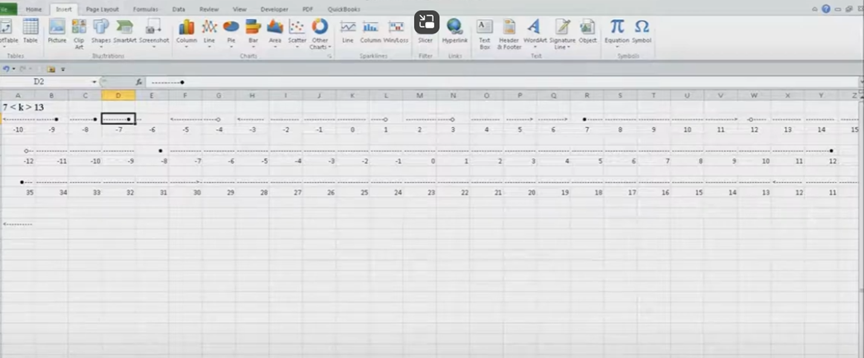
Dr. Robinson introduces a lesson on using Microsoft Excel to solve math work, specifically focusing on inequalities and graphs. She begins by guiding students on how to put Excel in focus to tackle various math problems in Excel. This helps students to optimize their math work in Excel effectively. Next, she instructs them to create a template using a number line. To insert symbols like less than or greater than signs, students use the Alt + N and then U commands to insert bullets or symbols.
For students with a numpad, Alt + 7 and Alt + 9 quickly insert a hollow or solid bullet, respectively. For those without a numpad, they can use the Insert + Symbols option. Students then align their number line by inserting a bullet in the middle, ensuring four dashes on each side for perfect centering when solving math work in Excel.
To center content, students use the Applications key and press F. They adjust the horizontal and vertical alignment to ensure everything is perfectly centered. This is a useful step when handling math problems in Excel. After completing their problems, students select the content using Shift + Right Arrow and copy it using Ctrl + C. This entire process enhances their skills in doing math work in Excel.
When pasting into Microsoft Word with Ctrl + V, students have various formatting options. By pressing the Control key and right arrow, they can select different formatting options for their pasted content. They can also Alt H to home and V to paste and right arrow through options. This flexibility allows blind students to format and customize their graphs just like their sighted peers when solving math problems in Excel. After the student pastes an image, they press the Applications key and up arrow to select Alt Text and type the description. Once they finish typing, they press Ctrl + Space and C to close the navigation pane and return to the document.
Dr. Robinson concludes by showing examples of completed math problems in Excel and graphs, demonstrating how well-formatted the number lines and inequalities look. Blind students can confidently create hollow and solid bullets, as well as inequalities, just like other students, thanks to the accessible features in Excel. This process ensures they stay engaged in their learning, achieving the same results as their peers when doing math work in Excel. Make sure your display is working well.
Dr. Robinson’s video covers basic JAWS screen reader commands for Office Word, no matter what version of WORD you use. First, she opens a new document using “Ctrl + N” and teaches key formatting skills, such as right-aligning text with “Ctrl + R” and inserting the date using old and new Office commands. She emphasizes the importance of listening to the software to ensure accuracy. Dr. Robinson guides through bold, underline, and italics commands before typing and spell-checking with keyboard shortcuts. These are all Basic WORD JAWS commands you need to know.
Adjusting speech speed helps beginners better understand software. Learning commands ensures efficient and accurate work, especially Basic WORD JAWS commands.
Gain Typing Speed in WORD
To practice typing skills use a phrase like: “The quick brown fox jumps over the lazy dog.” Type it repeatedly in a Word document by starting slow to gain speed. Use the keyboard shortcuts taught in the video, such as “Ctrl + Left Arrow” and “Ctrl + Right Arrow” to move between words, and “End” to check if you’re at the end of the line. Regular practice, at least 10-15 minutes daily or more, helps build speed. Turn off autocorrect options to avoid automatic changes that may confuse the student and disrupt learning. Focus on accuracy before increasing typing speed. Mastering JAWS commands for WORD is essential for efficient practice.
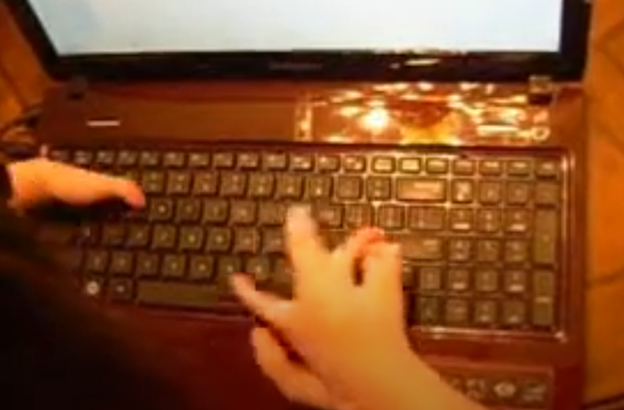
Typing with 3 Fingers on her laptop is made easier with practice and now she is typing 77 word per minute. This impressive feat shows Kaleigh typing 77 wpm flawlessly.
A young lady with three fingers can type at over 77 words per minute. She is using adaptive strategies to access the same technology as peers. Kaleigh typing 77 wpm highlights her exceptional skills. Kaleigh has been learning and using these special skills based on her fingers for years. She uses a regular laptop with JAWS screen reader to do all of her work.
For individuals typing with one finger on one hand and two fingers on the other, specialized typing techniques can help improve speed and accuracy. Focus on positioning both hands in the center of the keyboard on homerow so the left single finger can move around that side of the keys. With the right 2 fingers, 1 is on the space bar at all times while other finger moves arund and presses keys. Moving together with a lot of practice, speed is gained. Start with slow, deliberate typing to reduce errors and gradually build up speed. Mastering typing speed similar to Kaleigh’s, started with such methods. Regular practice with phrases like “The quick brown fox jumps over the lazy dog” helps improve finger coordination. One such success story celebrating progress is Kaleigh typing 77 wpm.
With determination and keyboard practice with lots of instruction, students can accomplish anything. Kaleigh typing 77 wpm is a testament to this. See her series of progress.
Playing basketball as a blind individual involves using adaptive techniques and modified equipment. For example, Playing Basketball without sight typically has a bell inside so players can track it by sound. Teams communicate frequently, using verbal cues to help navigate the court. Players rely on spatial awareness, memorizing the court’s dimensions, and practicing positioning with the help of sighted guides or teammates. Basketball in the dark, involves dribbling, passing, and shooting all adjusted for touch and sound, rather than sight, allowing blind players to fully engage in the game.
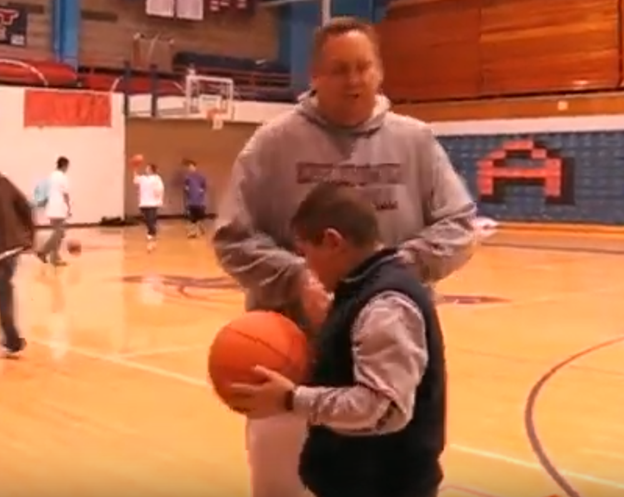
Humberto is with his Spanish interpreter (and both are learning English) while basketball coach directs him and where to shoot the ball. Playing Basketball without sight can be challenging, but Blind students can do any activity with the right access tools in place.
Computer Local Admin access is Crucial at all education levels. Dr. Robinson, an Assistive Technology and IT specialist, sets up, maintains, and controls all the computers used in TechVision programs while TechVision Team continues teaching students to manage their own technology. She emphasizes the importance of blind students having local admin access on their school computers so they can make necessary updates and changes to their laptops as needed.
Firstly, she highlights that anti-virus software like Kaspersky or Sophos often interferes with screen readers. Instead, Dr. Robinson recommends using Malwarebytes with Microsoft Defender, as it provides strong protection without disrupting screen reader functionality. Having Computer Local Admin access ensures students can implement these software changes.
Dr. Robinson also explains the need for screen readers such as JAWS. Schools often filter out essential websites and programs like Freedom Scientific, which students require for their studies. With local admin access, students can update their screen readers and related software, which is necessary to keep their devices running smoothly. These updates are crucial and happen every few months. Computer Local Admin access allows students to manage these updates efficiently.
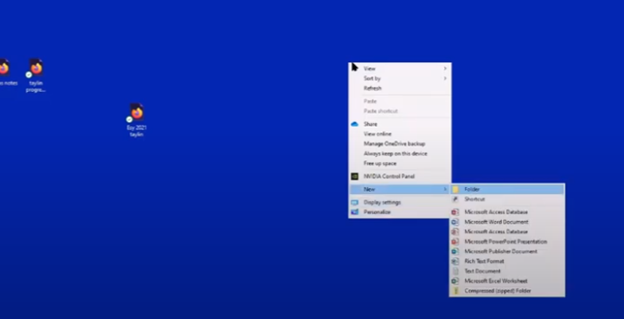
In addition, students must manage their desktops efficiently. They need to pin important programs, such as JAWS, to the taskbar for quick access and adjust their settings without assistance. Pinning their school sites to the desktop make quick access to any site. Through the context menu, students can navigate and personalize their desktop to meet their needs.
Computer Local Admin access to Applications Key on desktop to access anything on the computer
The run dialog box is another essential tool with CTRL+R. Students need to clear temporary files, which can slow down screen readers. Since screen readers are memory-intensive, removing these files improves both the computer’s speed and network performance. Computer Local Admin access is required for these maintenance tasks.
Dr. Robinson further emphasizes the importance of Office 365, especially for math tasks. Using the math editor, students can create and solve equations that read seamlessly on a braille display. This access is crucial for academic success, particularly in STEM subjects.
Lastly, Dr. Robinson stresses the necessity of file explorer -Windows+E and Bluetooth settings. Without a mouse, blind students rely on file explorer to organize their files. Bluetooth access is also essential for reconnecting braille displays and other devices.
In summary, Dr. Robinson believes local admin rights are essential for blind students to manage their technology independently, keep their devices updated, and fully engage in their education. This allows them full access for a lifetime. The TechVision Team ensures students learn essential skills to manage and update their devices independently, preparing them for a lifetime of technological adaptation. As technology evolves, these skills are crucial. Computer Local Admin access is vital for securing and maintaining employment so they know the updates needed, in an increasingly digital world.
JEFFERSON COUNTY, Tenn. As school resumed, a Jefferson County student waited weeks for an important textbook to arrive from out of state. This doesn’t seem like a big deal, except it’s a calculus book for Math for blind students and it’s written in Braille. Campbell Rutherford is a home school student in Jefferson County.
She started homeschooling with a teacher for the visually impaired because math for blind students was no longer available in the local school district. Campbell was born blind and has been reading braille since she was 3 years old. “I rely completely on braille and screen readers to access the printed word,” she said. Campbell, accustomed to reading Braille, competes in state Braille reading competitions yearly and has even reached nationals. So naturally, she’d like to be able to read her textbooks in Braille.
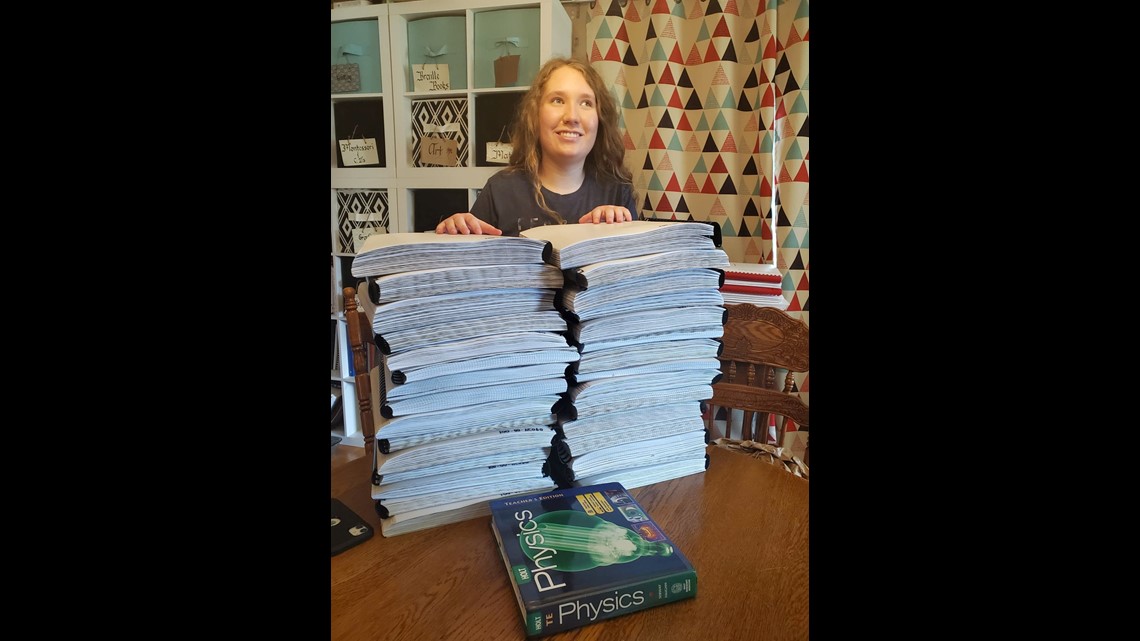
Because each page has to be embossed with the Braille indentations, Campbell’s textbooks are huge. Here’s her AP physics book. All these binders are one book for Math for blind students, containing everything in the print book next to it, just in Braille.
Credit: Liza Rutherford: Campbell Rutherford stands with her AP Physics book in Braille of 25 volumes of 11 x11.5 size, next to the book in print of 2 inches thick.
“I used to have to borrow a truck to go get her books,” said her mom, Liza Rutherford. Braille books are larger because the text must be big enough for readers to feel with their fingertips. A standard physics book may have four graphs on one page, but in Braille, each graph requires its own page. The National Braille Press reported about 12 percent of blind school-age students can read Braille, limiting access to advanced textbooks.
NO AP Math Books
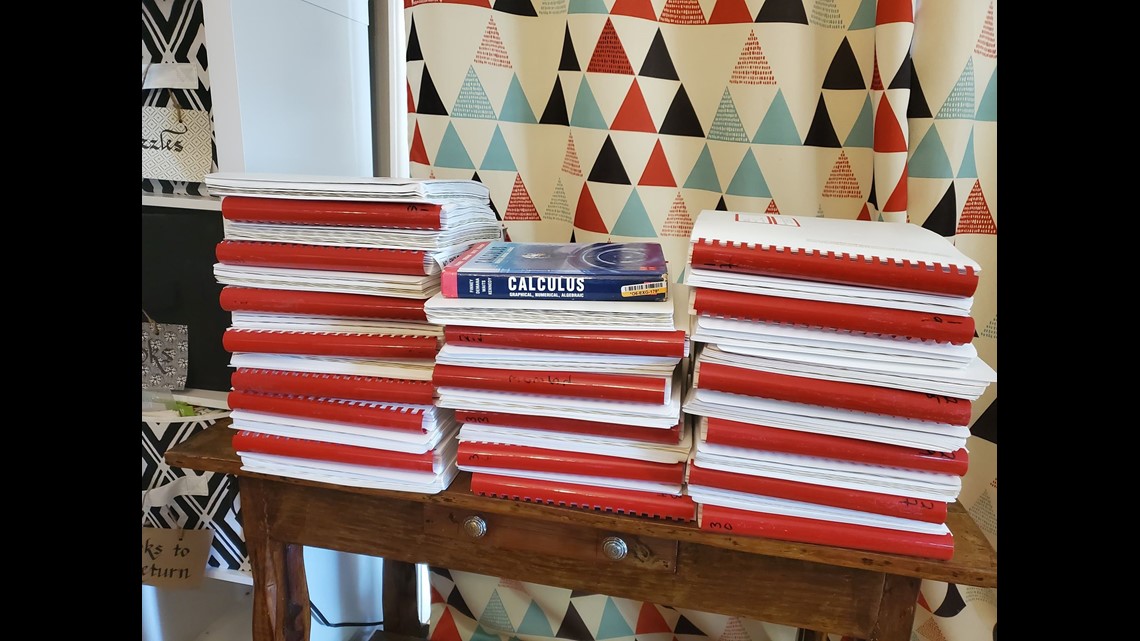
There were no Braille AP calculus books in the state of Tennessee. The Rutherford’s worked with the Tennessee School for the Blind to find this 20-year-old edition from Maryland. Campbell said schools often discourage visually impaired students from taking challenging courses. “I have friends that, when they’re struggling with Math, they’ve been told, ‘it’s okay that blind people aren’t good at math typically,’” said Campbell.
Credit: Liza Rutherford-Campbell Rutherford’s calculus book in Braille of 32 volumes of 11 x11.5 size, by to the book in print of 2 inches thick..
Campbell plans to major in math in college and go into epidemiology. She said it’s those low expectations that hinder her and others the most, not her lack of vision. “We even had an administrator at one point come to me and say, ‘does Campbell really need a high school diploma for her adult life?’” said her mom Liza Rutherford. “That’s probably the one that’s infuriated me the most over the years,” said Campbell.
Lack of Advanced Placement (AP) Math for blind students Books
The National Federation for the Blind reported only 31.6 percent of blind individuals hold a high school diploma or GED. The Rutherford’s believe a shortage of teachers for the visually impaired adds to this problem.
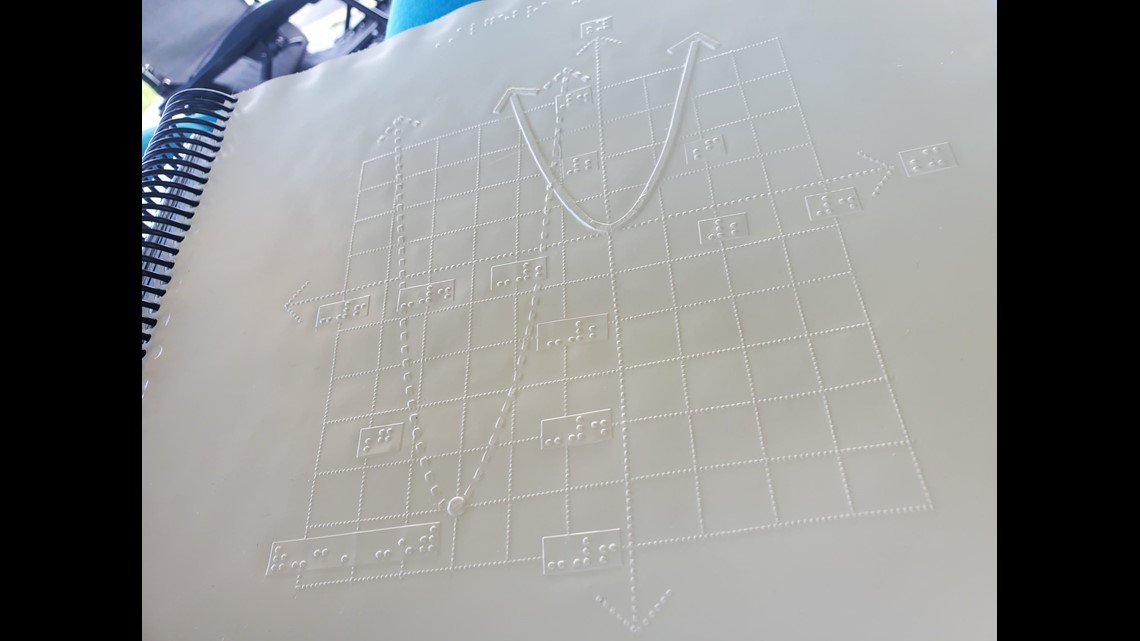
Credit: Liza Rutherford: A mathematical graph transcribed in Braille.
They are hopeful that as technology spreads, more blind students will have the educational access they need. “There are other ways of doing things besides the sighted way or the able way,” said Campbell. Campbell connected with a blind math professor from Connecticut who assists her with any course-related questions. She took AP physics and AP calculus with a proctor who will describe the graphs and record her multiple-choice answers.
Math for all ages, Math Team, Dr. Robinson, along with Professor Betsey, Campbell Rutherford (teacher intern), led the session. Nate Kile (Access Tech Specialist) was the moderator. Math Team emphasized the importance of ensuring blind students can access their technology independently and efficiently. Nate Kile assisted by handling participant questions during the presentation, allowing attendees to type inquiries in the Zoom chat box. Mr Kile would ask the Math Team from the virtual attendees.
Each presenter built on the others’ lessons. Dr. Robinson began with elementary math training skills and how JAWS and other assistive technologies play crucial roles in blind students’ education. Teaching math for all ages, she typed out typically math problems in elementary school to show audience how easily math is completed in WORD. Nate provided opportunities for participants to unmute themselves using Alt + A or Alt + M to ask questions.
Math for all Ages: Dr Robinson
The Math Team turned off their videos to optimize bandwidth. When teaching virtually, turning off video offers better bandwidth for a flow of uninterrupted instruction. Dr. Robinson started the discussion by running JAWS, a screen reader. She explained how to troubleshoot JAWS issues, recommending minimizing programs and restarting the software for optimal performance.
The session highlighted key JAWS commands, such as Windows + D for quick access to the desktop. Dr. Robinson demonstrated how blind students could use Braille displays for math, including Nemeth code. She showed how blind students control their computers by personalizing settings like screen readers and Bluetooth. Customizing the setup is essential for supporting math learning at all ages.
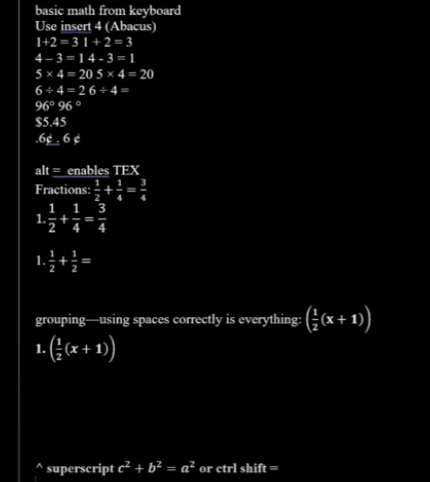
Math for all ages math formulas in Word
Math for all Ages: Professor Betsey
Professor Betsey demonstrated how to effectively use Braille displays, including advanced setups for students. She went into MathType and LaTex and how to use advanced Math techniques to accomplish all math levels. She emphasized the importance of maintaining accessibility and autonomy for students through personalized settings. As a college-level math professor, she explains that using a PC for math enables full inclusion of blind students. Prof. Betsey emphasizes that this technology allows blind students to participate equally in all aspects of their education. This approach supports the goal of providing math for all ages.
Math for all Ages: Campbell
Campbell Rutherford, a teacher intern, demonstrated how to integrate graphing and mathematical functions using accessible technology for blind students. Campbell began by demonstrating how to write a function in Word using LaTeX. She then transitioned to graphing that function in Desmos, an online graphing calculator. Using her braille display and screen reader, she input and analyzed the graph. Campbell explained how blind students can explore mathematical properties like intercepts and undefined points. After reviewing the graph, she took a screenshot and pasted it into a Word document. This tied together the written mathematical properties and the visual representation. Throughout, Campbell stressed the importance of accessible math for students of all ages.
Throughout the session, the Math Team emphasized the importance of managing constant software updates. They explained how providing local admin rights empowers students to update their programs and devices independently. This in-turn prepares them for both academic success and future employment. The TechVision team’s approach ensures that students can fully access their education and maintain control of their technology. This ultimately sets them up for long-term success but especially the STEM field. More Math Lessons here:
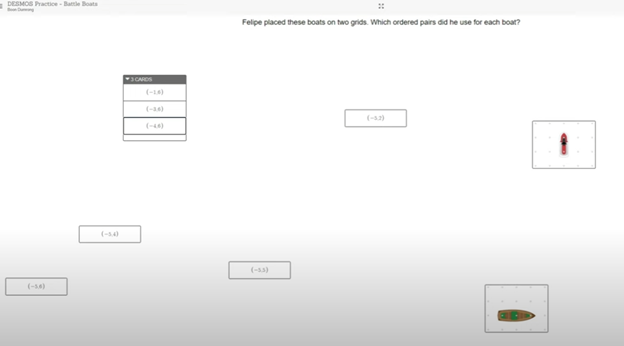
Dr. Robinson starts by instructing how to navigate the Desmos Drag and Drop “Battle Boats” game using screen reader commands for drag and drop functionality. First, she recommends pressing Control + Home to quickly reach the top of the page. From there, users can down arrow or press H to navigate by headings.
To interact with the draggable items, Dr. Robinson suggests using Tab to move through the screen and locate the coordinates of boats on the grid. Once the desired boat is located, such as the coordinate (-5,6), she instructs to press Enter to mark the boat, then continue tabbing or use Insert + F7 to open the links list for faster navigation. It’s essential to master these steps to effectively use the drag and drop feature in Desmos.
How to Drag and Drop
Once the desired item is located, she explains how to drag and drop it using the J command to move the selected item and M to mark the item. If you need to reposition the boat, pressing U allows you to undo the action and try again. She demonstrates marking the item with M, and then finding the next item by using Insert + F7 to select from the links list again.
Desmos Drag and Drop Boats with Jaws
While navigating in Desmos Drag and Drop, Dr. Robinson advises caution with the Tab key since it can sometimes move you to the next screen unexpectedly. If this happens, Shift + Tab can bring the focus back to the correct item.
After successfully placing boats in vertical alignment, Dr. Robinson emphasizes how useful Insert + F7 is for navigating and avoiding focus issues. This sequence helps students practice spatial awareness while completing coordinate-based tasks in Desmos Drag and Drop activities. It also enhances their ability to use screen reader tools effectively throughout the process.
To use MathType and LaTeX with screen readers like JAWS or NVDA, you can easily create and render math formulas directly in Word or Google Docs. Here’s how to get started with MathType in both platforms and some important points for using LaTeX commands.
MathType in Word:
Download MathType: First, download and install MathType as an add-on for Word. This will allow you to use LaTeX commands within your Word documents.
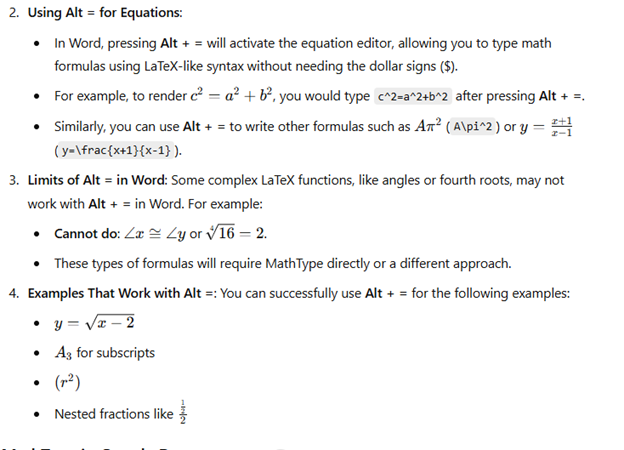
Using Alt = for Equations:
In Word, pressing Alt + = will activate the equation editor, allowing you to type math formulas using LaTeX-like syntax without needing the dollar signs ($).
For example, to render c2=a2+b2c^2 = a^2 + b^2c2=a2+b2, you would type c^2=a^2+b^2 after pressing Alt + =.
Similarly, you can use Alt + = to write other formulas such as Aπ2A\pi^2Aπ2 (A\pi^2) or y=x+1x−1y = \frac{x+1}{x-1}y=x−1x+1 (y=\frac{x+1}{x-1}).
Limits of Alt = in Word: Some complex LaTeX functions, like angles or fourth roots, may not work with Alt + = in Word. For example:
Cannot do: ∠x≅∠y\angle x \cong \angle y∠x≅∠y or 164=2\sqrt[4]{16} = 2416=2.
These types of formulas will require MathType directly or a different approach.
Examples That Work with Alt =: You can successfully use Alt + = for the following examples:
y=x−2y = \sqrt{x-2}y=x−2
A3A_3A3 for subscripts
(r2)(r^2)(r2)
Nested fractions like 122\frac{\frac{1}{2}}{2}221
Visual Rendering after you press enter in WORD for MathType with screen readers-LaTex
Latex is typed out and this is the visual rendering of the LaTex from Mathtype
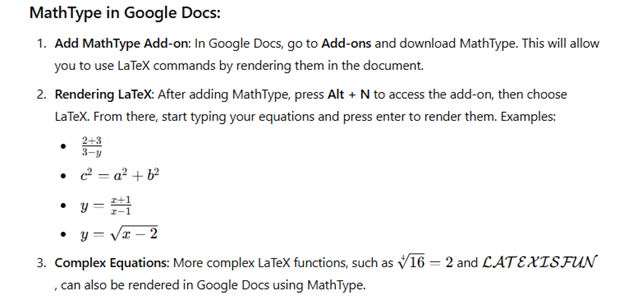
MathType in Google Docs-though can give challenges based on technology:
Add MathType Add-on: In Google Docs, go to Add-ons and download MathType. This will allow you to use LaTeX commands by rendering them in the document.
Rendering LaTeX: After adding MathType, press Alt + N to access the add-on, then choose LaTeX. From there, start typing your equations and press enter to render them. Examples:
2+33−y\frac{2+3}{3-y}3−y2+3
c2=a2+b2c^2 = a^2 + b^2c2=a2+b2
y=x+1x−1y = \frac{x+1}{x-1}y=x−1x+1
y=x−2y = \sqrt{x-2}y=x−2
Complex Equations: More complex LaTeX functions, such as 164=2\sqrt[4]{16} = 2416=2 and LATEXISFUN\mathcal{LATEX IS FUN}LATEXISFUN, can also be rendered in Google Docs using MathType.
Visual rendering of math after translation of LaTex in Docs using mathtype addon
By using Alt + = in Word and MathType in Google Docs (but be aware there may be issues in Docs), you can seamlessly render a variety of math formulas and equations with ease. Screen readers like JAWS and NVDA will effectively read these equations, enhancing accessibility for blind and visually impaired students.
MathType(LaTex) Alt = in WORD will render formulas to Math see below
Navigating IXL with a screen reader like JAWS allows blind students to access educational content easily. Using specific keyboard commands enables quick access to various elements on the page. For example, pressing H moves between headings, helping students locate sections in lessons or practice activities. When working on subtraction exercises in Focus 40 IXL, pressing B navigates to buttons like “Submit” or “Check Answer,” allowing students to interact with controls smoothly.
Another helpful command is Insert + F7, which opens a list of links on the page. This makes moving between sections, such as practice questions and feedback, more efficient. Students can also use F to quickly jump to answer boxes or search fields. To read questions or instructions, pressing Insert + Up Arrow reads the current line, while Ctrl + Down Arrow skips ahead to the next section when working on Focus 40 IXL subtraction.
JAWS Navigation Commands
By using these commands, students navigate IXL independently, completing exercises and reviewing answers efficiently. The screen reader provides real-time feedback, guiding students as they interact with IXL’s educational content related to subtraction problems. This empowers students to fully engage in their learning experience.
Essential IXL keyboard commands for navigating with JAWS:
Navigate headings: Press H to jump between headings, allowing you to quickly move through sections of the page during subtraction practice.
Navigate links: Use Insert + F7 to bring up a list of all links, and then use the arrow keys to select the desired one.
Move to next button: Press B to navigate through buttons on the screen, such as “Submit” or “Check Answer” while working on subtraction in Focus 40 IXL.
Move to form fields: Use F to jump between input fields, such as answer boxes or search fields.
Navigate by list: Press L to move through lists of questions or answer choices, ensuring efficient navigation during subtraction lessons.
Read the current line: Press Insert + Up Arrow to read the current line, useful for verifying questions or feedback.
Repeat the last spoken phrase: Use Insert + 5 on the numpad to repeat the last spoken message.
Skip to the next section: Press Ctrl + Down Arrow to quickly skip paragraphs and reach the next section of text, which can be especially useful in Focus 40 IXL subtraction lessons.
Focus Display Commands
Navigating IXL subtraction math using the Focus 40 Braille Display and JAWS enhances accessibility for blind students. By combining keyboard commands and tactile feedback, students can efficiently work through subtraction problems. Solving subtraction on a display is also easier than just audio feedback. Pressing H on the keyboard or using the Router Keys on the Focus 40 allows them to jump between headings, locating sections like instructions or problem sets quickly.
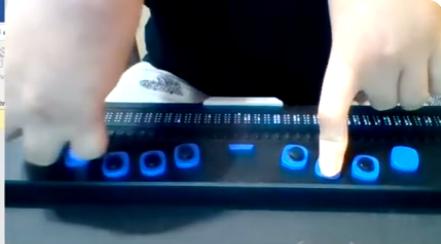
Taylin using Focus 40 Display with 1 finger on left hand and 2 knuckles on right hand
For Focus 40 IXL subtraction problems, students can use E for edit or the Cursor Routing Buttons to jump directly to the answer input fields. As they enter their responses, the Braille display provides real-time feedback, ensuring accuracy. Pressing Insert + Up Arrow or using the Braille Display’s Line Reading feature reads the current subtraction problem, helping students verify their work. To check answers or move to the next problem, they can press B to navigate to buttons like “Submit,” or use the Panning Buttons to scroll through the page.
Focus 40 Braille Display with JAWS
The Focus 40 Braille Display, paired with JAWS, offers students the tactile and auditory support they need to complete all math problems independently in IXL. This combination enhances their confidence and accuracy in solving subtraction problems.