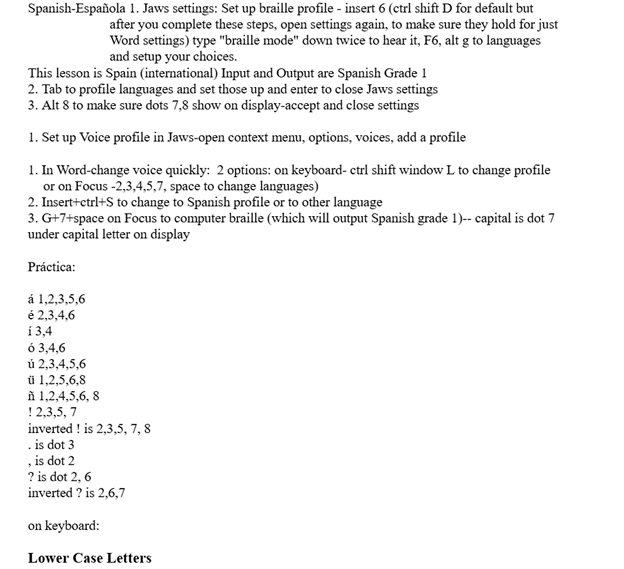
Dr. Robinson demonstrates how to set up a Spanish language profile in JAWS for a perfect JAWS Spanish language setup. This focuses on accessibility for Spanish-speaking students or students learning a 2nd language. She begins by explaining the differences in braille capitalization across regions. In European countries, dot six is used for capitals, while the U.S. and other areas use dots four and six. The braille display must output the text correctly in Word to ensure accurate reading.
Dr. Robinson guides users through the JAWS settings and starts with inserting a language profile. She uses specific keyboard commands, such as “Insert 6,” to access the JAWS settings center. She emphasizes the importance of setting the default language to Spanish (Spain International). This ensures that the braille output is in Spanish Grade 1. After adjusting the settings, she double-checks everything in Word to confirm that the changes have held.
Next, Dr. Robinson explains how to switch between languages. She advises setting up multiple language profiles. This allows quick toggling between them using commands like “Ctrl+Shift+Windows+L” or specific braille display commands. She ensures that the students can easily switch between English and Spanish, making their work seamless and efficient. See all JAWS Spanish language Setups and other lessons here.
Throughout the setup, Dr. Robinson highlights the importance of using commands to add necessary braille dots for accurate translation. Adding dot eight ensures the correct representation of certain letters and punctuation marks. She demonstrates how to practice symbols and contractions on the braille display, ensuring students are comfortable with the layout.
Dr. Robinson mentions that a practice sheet with all the necessary symbols and contractions are available on website. The website, yourtechvision.com, offers this resource to help students reinforce their learning. This resource helps students reinforce their learning and practice braille accurately. With this setup, students can work efficiently in Word using JAWS. They will perform tasks just like their peers with the help of a Focus 40 braille display. Then progress to using this in Google Classroom
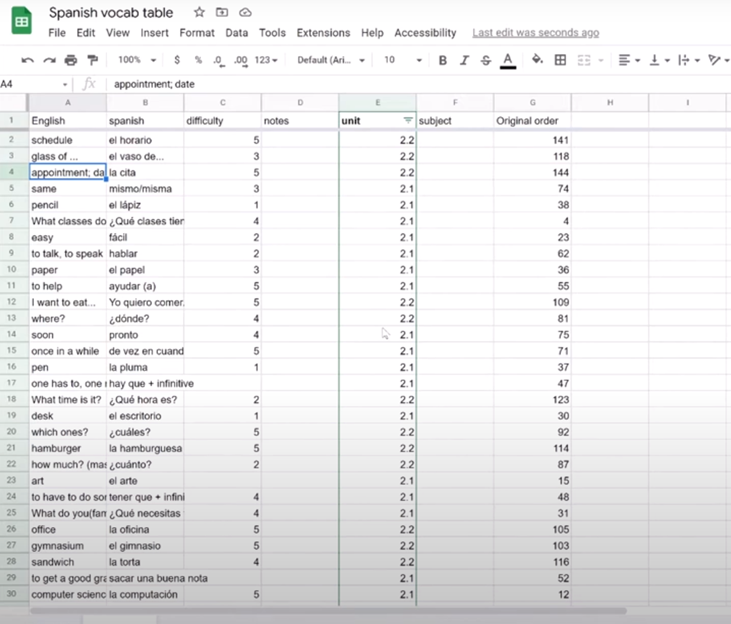
Emē, a student of Dr. Denise Robinson demonstrates how she studies Spanish vocabulary using Google Sheets with a screen reader. She starts by copying vocabulary words into Google Sheets, though typing them in directly is also an option. After setting up the sheet, she explains the importance of naming it to avoid losing any work. She uses Google Sheets similarly to how a sighted student would use flashcards. This method is an excellent example of Flashcard studying in sheets. Column A contains the English words, while Column B holds the Spanish translations.
Certainly! Here is the revised paragraph with “Emē”:
Emē introduces a “difficulty” column in Column C, where she rates how challenging each word is to remember. She assigns a value between one and five, depending on how well she recalls each word. This rating system allows her to sort the words based on difficulty later, making her study sessions more effective. This technique enhances the efficiency of flashcard studying in sheets methods.
To make the study process more efficient, Emē explains how to randomize the rows. This prevents her from memorizing the order of the words rather than learning the words themselves. She uses specific keyboard commands to select all rows and columns, then accesses the “randomize range” function through the search menu. Randomization is key for effective flashcard studying in sheets techniques.
After randomizing, Emē sorts the words by difficulty, placing the hardest words at the top for focused study. She even hides the easiest words, rated as ones, to avoid wasting time on words she already knows well. If she needs to retrieve the hidden words, she can easily unhide them using the “unhide rows” function. This is another way flashcard studying can be efficiently carried out in sheets.
Emē concludes by showing how she reviews and updates the difficulty ratings as she studies. This method allows her to keep track of her progress and focus on words that need the most attention. She highlights that this approach to flashcard studying in sheets with Google Sheets is both accessible and effective, making it a great tool for blind and visually impaired students.
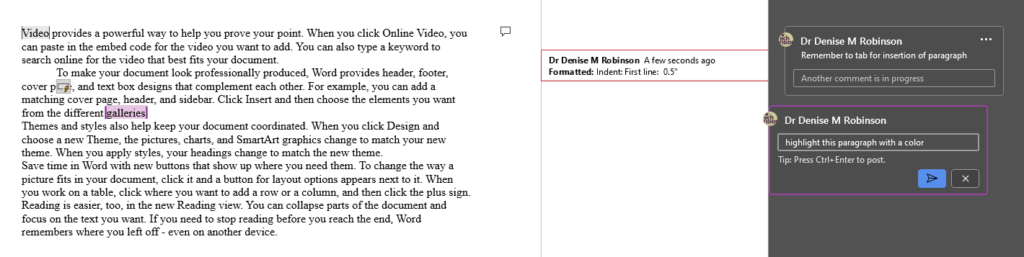
Track Changes in Microsoft Word is an essential tool for collaborative editing and document management. It allows multiple users to make and review edits, providing a clear, organized record of all changes. This feature is invaluable for maintaining the integrity of the original document while incorporating feedback from various contributors. By visually displaying insertions, deletions, and comments, Track Changes enhances transparency and accountability in the editing process. It also simplifies the task of accepting or rejecting modifications, ensuring that the final document meets the desired standards. The typical use is for students to create work and teachers to edit with comments, and it is possible to easily track changes with commands. This is easily done with any screen reader.
Track Changes with Commands in Microsoft Word is a powerful tool for collaborative editing and document management. Here are some key details on its importance and usage:
Key Benefits
Transparency: Track Changes provides a clear, organized record of all modifications made to a document.
Accountability: By displaying who made each change, Track Changes holds contributors accountable for their edits.
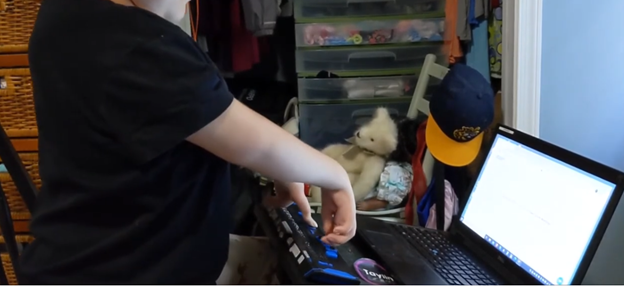
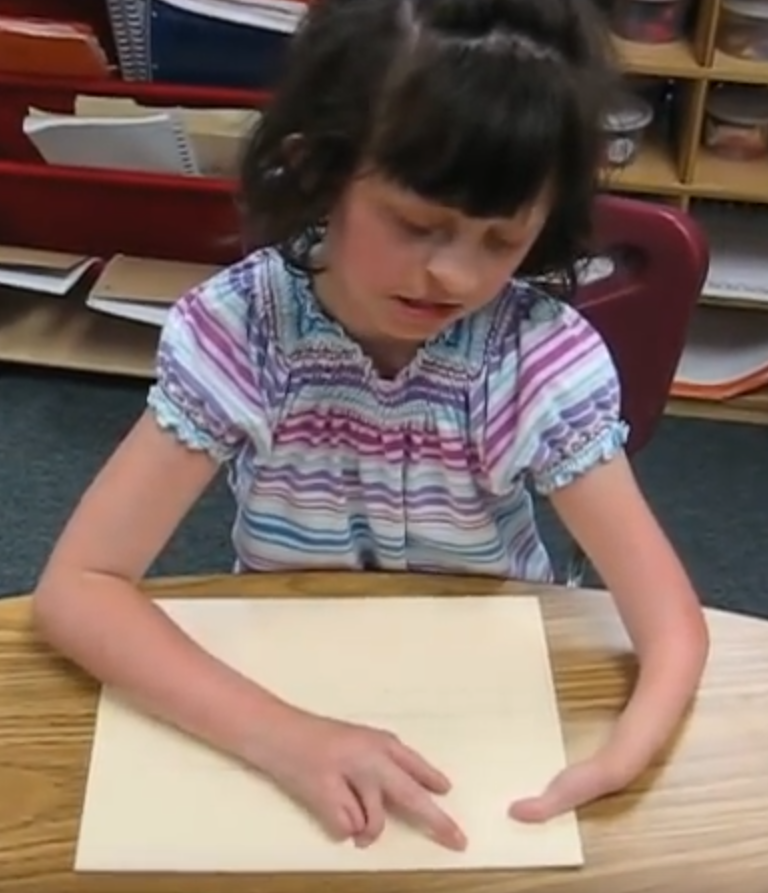
Kaleigh was born with very special hands. So, whether you have 10 fingers or 2 or 3, there is always an easy way to use a braille display to control your computer.
I (Dr. Robinson) began instruction with Kaleigh in the 3rd grade as she struggled to see large print at 2 inches. Here is a video of her first learning skills and as time passed, her typing with special hands was no problem as she quickly got up to 77 words per minute with her special hands.
Practice and Patience: Regular practice is crucial. Start with basic exercises in how to use each hand and gradually increase complexity. Focus on accuracy before speed. Using these techniques and applying this knowledge to her actual work, within 3 years she went from learning to typing at 77 wpm using JAWS screen reader. The above is true for learning braille also.
Typing with special handsSpecial hands reading Braille
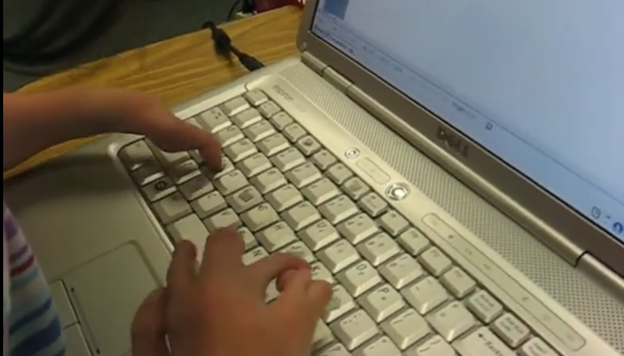
Typing with 3 Fingers on her laptop is made easier with practice.
A child with three fingers can type at over 77 words per minute by using adaptive strategies to access the same technology. Kaleigh is JUST learning the first steps in typing on a regular laptop.
Typing with 3 Fingers
First, they learn how to optimize their finger movements, reducing unnecessary motion. They focus on accuracy and gradually build speed through consistent practice. Children can learn to use the identical keyboard and computers as their peers. Using the center of the keyboard as positioning to the rest of the keyboard is part of the skill. The child practices finger coordination, mastering a rhythm that increases typing speed. Over time, these techniques combine to enable the child to exceed expectations and type as quickly as possible. More YouTube Channel Lessons
Other Kaleigh Videos typing as she advances to typing over 77 words per minute
Dr. Robinson’s video covers basic JAWS screen reader commands for Office Word, no matter what version of WORD you use. First, she opens a new document using “Ctrl + N” and teaches key formatting skills, such as right-aligning text with “Ctrl + R” and inserting the date using old and new Office commands. She emphasizes the importance of listening to the software to ensure accuracy. Dr. Robinson guides through bold, underline, and italics commands before typing and spell-checking with keyboard shortcuts. These are all Basic WORD JAWS commands you need to know.
Adjusting speech speed helps beginners better understand software. Learning commands ensures efficient and accurate work, especially Basic WORD JAWS commands.
Gain Typing Speed in WORD
To practice typing skills use a phrase like: “The quick brown fox jumps over the lazy dog.” Type it repeatedly in a Word document by starting slow to gain speed. Use the keyboard shortcuts taught in the video, such as “Ctrl + Left Arrow” and “Ctrl + Right Arrow” to move between words, and “End” to check if you’re at the end of the line. Regular practice, at least 10-15 minutes daily or more, helps build speed. Turn off autocorrect options to avoid automatic changes that may confuse the student and disrupt learning. Focus on accuracy before increasing typing speed. Mastering JAWS commands for WORD is essential for efficient practice.
Access Braille Writing and PC Devices: The year is 2000 and I am blessed with meeting 3 siblings in a family of 8. I first met the oldest daughter who was in 2nd grade grade and her sister who was in preschool. Their young brother, was just born. All 3 have a VERY rare condition called: Spondylometaphyseal dysplasia with cone rod dystrophy. This was an exciting journey with all 3. All 3 live very successful lives now.
Early Education Leads to Access Braille Writing Devices
Starting at 3 months old: First, always teach the parents right along with the child–Teamwork is key! One crucial step was ensuring he could eventually access Braille writing devices to aid in his learning journey. Teach fun games on a computer as they learn like Starfall games and Inclusive Multi-Sensory Learning Tools. If you sense a visual impairment and glasses need to be work, try: Kids Bright Eye glasses or Eye patches
Pre-teaching a blind child from an early age involves fostering foundational skills that support sensory development, spatial awareness, and independence. Here’s how you can engage with a blind child from 3 months old to 3 years old and up to 3rd Grade, ensuring they develop crucial abilities at each stage:
At 3 Months Old in general:
At this stage, it’s all about sensory exploration and exposure. A blind infant learns through touch, sound, and smell. Parents and caregivers can begin pre-teaching through activities that engage the child’s remaining senses.
Tactile Exploration: Provide different textures for the baby to feel, such as soft cloth, textured toys, and various materials. This helps them develop an understanding of their environment through touch.
Auditory Stimulation: Introduce the baby to a variety of sounds, from gentle music to the sound of voices and everyday noises. Toys that make sounds or produce vibrations can also help the child associate movements with sounds.
Bonding with Language: Talk to the baby constantly, explaining what’s happening around them. Even at this age, exposing them to language and verbal interaction is key for cognitive development.
At 1 Year Old:
By the time the child is 1 year old, they are starting to gain more control over their movements and understand their surroundings through tactile and auditory feedback. The focus at this age is on expanding their sensory awareness and motor skills.
Mobility Encouragement: Support the child as they begin to crawl or walk. Encourage them to explore safe spaces, ensuring the environment is designed for them to navigate without harm.
Hands-on Learning: Let the child interact with everyday objects, describing what they are holding. This could include toys, household items, or safe objects they encounter daily.
Cane-have a cane around his/her toys so they get acquainted with the tool
Language Development: Continue talking to the child, narrating actions and surroundings. Introduce basic concepts like hot/cold, soft/hard, and big/small, as this builds vocabulary and concept understanding. Have them touch everything, giving purpose to what they interact with always.
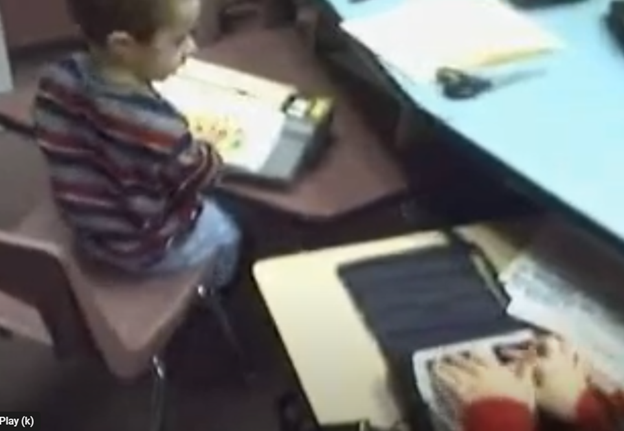
A 4-year-old uses the Mountbatten, and a 2nd grader uses the Braille Lite with a Braille display to access Braille writing devices.
At 3 Years Old Access Braille writing devices and start typing on computer:
At 3 years old, the blind child is ready to begin more structured learning and independent exploration. Pre-teaching during this period focuses on more complex tasks, building independence, and preparing for future skills. Begin touch-typing on keyboard of computer and using other braille devices like the MouthBatten Brailler. This student learned all of the alphabet and several contractions.
Orientation and Mobility: Begin teaching basic orientation and mobility skills, using a cane for navigation. This will help the child build confidence in moving through space.
Fine Motor Skills: Encourage fine motor development through activities like threading beads, playing with textured blocks, or using simple tactile puzzles. This helps the child develop dexterity and hand-eye coordination.
Pre-Braille Exposure: Introduce early Braille awareness through tactile games or exposure to raised dots or objects. As they may not be ready to fully learn Braille, familiarization with textures and symbols helps lay the foundation for literacy. This includes touch typing on keyboard using braille on braille device like a Mouthbatten Brailler
Self-Care Skills: Teach simple self-care tasks like washing hands, dressing, and feeding themselves. These activities foster independence and help them gain confidence in daily living skills.
By consistently engaging the child’s senses and nurturing their curiosity, they will develop essential skills for future success. With each stage of growth, pre-teaching ensures they build a strong foundation. This approach prepares the child to easily learn more complex skills later, such as reading Braille, using assistive technology and navigating the world independently.
Continuing to teach a blind child in kindergarten through 2nd grade involves focusing on expanding their academic, social, and independence skills, while incorporating accessible tools and adaptive techniques. Here’s how you can approach teaching at each stage:
Kindergarten (K)-Access writing PC computers:
In kindergarten, the focus is on introducing basic academic concepts while fostering independence and confidence in social situations. This student was able to begin reading braille like his peers due to already knowing braille letters and symbols. He also know the keys on the computer to begin learning how to type out work to email to teacher. Teach how accessible Work is needed, including Math for now and later on.
Braille Literacy: Begin formal Braille instruction, introducing letters, numbers, and simple words. Use tactile books, raised alphabet cards, and manipulative’s to enhance literacy.
Orientation and Mobility: Continue reinforcing basic mobility skills such as using a cane and navigating familiar spaces like classrooms and playgrounds.
Interactive Learning: Incorporate multi-sensory learning activities, such as counting objects with tactile number lines and participating in songs or rhymes for phonics and vocabulary.
Technology Introduction: Introduce basic assistive technology, such as a Mountbatten Brailler or screen reader software, to support early writing and computer skills.
First Grade (1st Grade):
In first grade, the child should begin building on the foundations laid in kindergarten, focusing on more advanced academic and mobility skills.
Braille Proficiency: Increase fluency in Braille reading and writing. Introduce more complex words, sentences, and basic punctuation. Begin incorporating Braille reading into classroom activities.
Math Skills: Teach basic math concepts using tactile math tools like counting beads, tactile number lines, and raised math grids. Introduce early Nemeth Code for math symbols in Braille.
Social Integration: Encourage social interactions and group activities, teaching the child to collaborate with peers and practice conversational skills.
Assistive Technology Growth: Begin integrating more advanced technology, such as screen readers (e.g., JAWS or NVDA) and tactile graphics for learning new concepts.
Second Grade (2nd Grade):
By second grade, the goal is to strengthen the child’s academic abilities while fostering greater independence. His sisters immediately picked up keyboarding and were handing in all work within 2 months to teachers via email. They learned Braille reading
Advanced Braille: Continue advancing Braille reading and writing skills, incorporating full sentences and paragraphs. Increase reading speed and comprehension through practice. Teach how to braille or keyboard work on PC computer.
Math in Braille: Build on basic math skills, using tactile tools to teach addition, subtraction, and early multiplication. Enhance familiarity with the Nemeth Code for math. Teach how to output math on the computer using WORD
Independent Learning: Encourage more independent work by providing opportunities to complete assignments using accessible technology. Allow the child to practice retrieving and saving work on a computer or braille device.
Orientation and Mobility: Further develop mobility skills by teaching navigation in unfamiliar environments. Practicing independent travel in controlled settings, such as the school campus or nearby park is essential.
Assistive Technology Growth: Continue integrating more advanced technology, with screen readers (e.g., JAWS or NVDA) so they can advance om speed to keep up with outputting work with their peers.
Throughout kindergarten through 2nd grade, regular collaboration with teachers, mobility instructors, and other specialists is essential. Tailor instruction to the child’s progress and ensure their curriculum is fully accessible to set them up for long-term success. This type of collaboration must continue throughout school to Access Braille writing devices and PC Computers.
Computer Local Admin access is Crucial at all education levels. Dr. Robinson, an Assistive Technology and IT specialist, sets up, maintains, and controls all the computers used in TechVision programs while TechVision Team continues teaching students to manage their own technology. She emphasizes the importance of blind students having local admin access on their school computers so they can make necessary updates and changes to their laptops as needed.
Firstly, she highlights that anti-virus software like Kaspersky or Sophos often interferes with screen readers. Instead, Dr. Robinson recommends using Malwarebytes with Microsoft Defender, as it provides strong protection without disrupting screen reader functionality. Having Computer Local Admin access ensures students can implement these software changes.
Dr. Robinson also explains the need for screen readers such as JAWS. Schools often filter out essential websites and programs like Freedom Scientific, which students require for their studies. With local admin access, students can update their screen readers and related software, which is necessary to keep their devices running smoothly. These updates are crucial and happen every few months. Computer Local Admin access allows students to manage these updates efficiently.
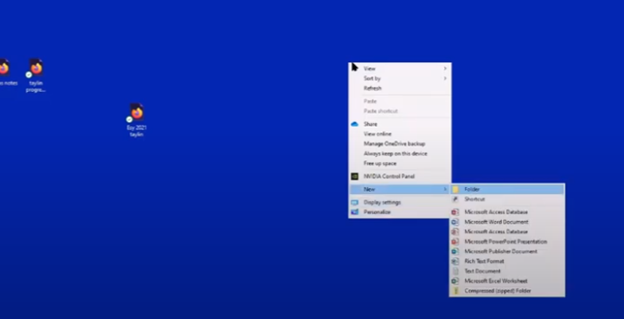
In addition, students must manage their desktops efficiently. They need to pin important programs, such as JAWS, to the taskbar for quick access and adjust their settings without assistance. Pinning their school sites to the desktop make quick access to any site. Through the context menu, students can navigate and personalize their desktop to meet their needs.
Computer Local Admin access to Applications Key on desktop to access anything on the computer
The run dialog box is another essential tool with CTRL+R. Students need to clear temporary files, which can slow down screen readers. Since screen readers are memory-intensive, removing these files improves both the computer’s speed and network performance. Computer Local Admin access is required for these maintenance tasks.
Dr. Robinson further emphasizes the importance of Office 365, especially for math tasks. Using the math editor, students can create and solve equations that read seamlessly on a braille display. This access is crucial for academic success, particularly in STEM subjects.
Lastly, Dr. Robinson stresses the necessity of file explorer -Windows+E and Bluetooth settings. Without a mouse, blind students rely on file explorer to organize their files. Bluetooth access is also essential for reconnecting braille displays and other devices.
In summary, Dr. Robinson believes local admin rights are essential for blind students to manage their technology independently, keep their devices updated, and fully engage in their education. This allows them full access for a lifetime. The TechVision Team ensures students learn essential skills to manage and update their devices independently, preparing them for a lifetime of technological adaptation. As technology evolves, these skills are crucial. Computer Local Admin access is vital for securing and maintaining employment so they know the updates needed, in an increasingly digital world.
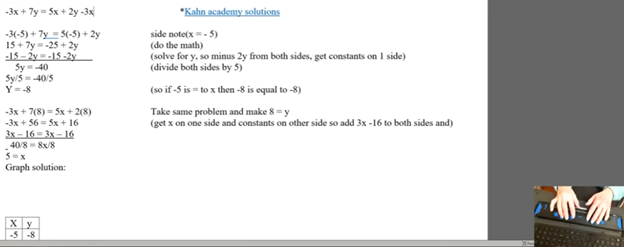
Using a Focus 40 Braille Display and JAWS, students can efficiently complete algebra assignments in Word, ensuring both speed and accuracy. They can navigate through documents, input mathematical symbols for their Algebra work, and graph equations using Desmos. The Braille Display provides tactile feedback while JAWS offers audio guidance, allowing students to efficiently edit, correct mistakes, and organize data into tables. With these tools, they can seamlessly complete algebraic tasks and submit their work via email, ensuring full participation in math activities.
To complete algebra problems in Word using a Focus 40 Braille Display and JAWS, students should follow these steps for effective Algebra with Focus Display:
FOCUS and JAWS Display Commands
Using the Focus 40 Braille Display, Dr. Robinson demonstrates how to efficiently braille out algebra problems in Word.
Set the Braille Display to Input Mode: Begin by pressing G.7 + Space to switch through the display modes. Set it to Input Mode for algebra.
Navigate the Document: Use 1 + Space to move to the top of the document. To navigate the document, students press the left-side buttons for backward movement. They then use the right-pan buttons to move forward, ensuring smooth progress while working on Algebra with the Focus Display.
Enter Algebraic Symbols: Students can easily type algebraic symbols, like Delta (Δ), by using the keyboard. After typing, copy the symbol using Shift + C to avoid repeating it manually later.
Work with Mathematical Formulas: To type formulas like “Rise over Run” (Δy/Δx), use the keyboard to input characters. Make sure to add spaces around operations for clarity, especially when sharing with sighted peers. For example, input the formula as “Δy = 2” and “Δx = 3” with a the Focus Display and JAWS.
Navigate Through Graphing: To access graph, students can use the rocker bars or 1 + Space for upward navigation and 4 + Space for downward movement.
Input Values into Desmos: After entering algebraic equations, students can switch to Desmos by pressing Shift + 4 + 5 (Alt + Tab equivalent). They can then input values and trace graphs using the Alt + T command for audio tracing.
Copy and Paste Graphs: Once the graph is complete in Desmos, use Alt + Print Screen to capture the graph. Paste it into Word with Shift + V for documentation.
Submit the Assignment: When the algebra problem is finished, the student can email the document by navigating to File using Alt + F and attaching it in Outlook. Then open Outlook, use F9 to quickly send the email once Outlook is open.
These steps help students efficiently solve algebra problems in Word while using their Braille Display for input. Additionally, students can smoothly navigate Desmos for graphing, enhancing their algebra skills with the Focus 40 Display
Enable Students to Efficiently complete Algebra with Focus Display
Using Tables for Data: If the algebra assignment involves creating tables, students can use Alt + N to insert a table. On the Braille Display, press 6 + 8 + Space to activate the Alt command and navigate to the Table option. Once a table is created, pressing Tab will move between cells, and 4 + 5 + Space adds more rows as needed, making tables part of their Algebra workflow using a Focus Display.
Auto-fitting Tables: To ensure tables fit content properly, use Alt + J + L to access the layout options. Select AutoFit Contents to adjust the table size automatically. This helps in organizing the data neatly for submission in Algebra with Focus Display assignments.
Editing and Correcting Mistakes: If a student makes an error, they can use 3 + Space on the Braille Display to move by character and correct the mistake. Use Shift + 6 + 7 + Space to select the incorrect portion and retype it. The Braille Display’s tactile feedback helps ensure precision when editing formulas.
Reviewing the Work: To review algebra problems, students can move back through the document using 1 + 4 + Space to navigate line by line. Press Insert + Up Arrow to have JAWS read back the current line, ensuring that everything is correct before submission.
Final Submission Process: Once the assignment is complete, the student can go to Alt + F to access the File menu. Choose Share. From there, they can attach the document directly in an email. Using F9 forces Outlook to send the email quickly. Make sure their work is submitted on time, thereby completing their Algebra with Focus Display workflow.
More Lessons for Math
By following this step-by-step guide, students can efficiently complete algebra problems using the Focus 40 Braille Display, JAWS, and Word. The tactile feedback from the display, combined with JAWS’ audio guidance, enhances both speed and accuracy. This combination helps students solve math problems, graph equations, and organize data effectively. When using the Focus Display, students experience seamless transitions between tasks, ensuring smooth navigation throughout their algebra assignments.