Search results for: “math”

  • Focus Display Navigation options

    Dr. Robinson demonstrates how to navigate with the Focus 40 Braille Display, highlighting various commands and features for efficient use. She introduces the Focus 40 Braille Display, explains the importance of navigation commands, and demonstrates various navigation techniques. Additionally, she covers Focus Display Navigation Options to help users maximize their efficiency.

    Focus Display Navigation Options Video Highlights

    • Introduction to navigation
      • Dr. Robinson introduces the Focus 40 Braille Display.
      • Explains the importance of navigation commands.
      • Prepares to demonstrate various navigation techniques.
    • Basic navigation commands
      • Shows how to move to the top and bottom of the display.
      • Uses specific key combinations for navigation:
        • Move to Bottom: Press dots 4-5-6 + Space.
        • Move to Top: Press dots 1-2-3 + Space.
      • Emphasizes the logic behind the commands.
    • Line and word navigation
      • Demonstrates moving one line at a time.
      • Uses key combinations for precise movement:
        • Move Down One Line: Press dot 4 + Space.
        • Move Up One Line: Press dot 1 + Space.
      • Explains how to navigate by words:
        • Move Forward One Word: Press dot 5 + Space.
        • Move Back One Word: Press dot 2 + Space.

    Other Display Navigation
    Focus braille display navigation options using router key
    Focus Braille Display navigation options using router keys
    • Router keys and mode buttons
      • Highlights the use of router keys for quick cursor movement.
      • Introduces mode buttons for different navigation options:
        • Router Keys: Press the router key above the desired character.
        • Mode Buttons: Located on the left and right sides.
      • Shows how to navigate by paragraphs and sentences:
        • Move Forward One Paragraph: Press the right rocker switch down.
        • Move Back One Paragraph: Press the right rocker switch up.
        • Move Forward One Sentence: Press the left rocker switch down.
        • Move Back One Sentence: Press the left rocker switch up.
    • Panning and rocker switches
      • Explains the function of panning buttons:
        • Move Forward One Display Width: Press the right panning button.
        • Move Back One Display Width: Press the left panning button.
      • Demonstrates the use of rocker switches for line navigation:
        • Move Up One Line: Press the right rocker switch up.
        • Move Down One Line: Press the right rocker switch down.
      • Highlights the benefits for sighted individuals working with Braille learners.

    Benefits of Focus Display

    The Focus 40 Braille Display offers numerous benefits. Firstly, it enhances Braille literacy through intuitive navigation commands. Additionally, its versatile features support efficient reading and writing. Moreover, students can easily move through text, improving their skills. The Focus Display can be used exclusively to control the computer–that means, you DO NOT need to use the keyboard if you cannot or do not want to. This makes for VERY efficient math calculations. The device’s compatibility with various screen readers ensures accessibility. Furthermore, its portability allows seamless use in different environments. Overall, the Focus 40 empowers users, boosting their independence and confidence in learning.

    Options for going between the display to take notes and the computer give many more options also
  • Switch Focus Braille Display Modes Quickly

    Dr. Robinson explains the three toggles to Switch Focus Braille Modes quickly on your Braille display. One toggle puts you into Braille mode for all Braille tasks. Another toggle switches to computer braille which inputs direct Nemeth code for math. The third toggle is for computer in and contracted out for either Nemeth or UEB math.

    Access Jaws settings to set up Focus Braille Mode Options

    First, press Insert + 6 to check your settings. Type “braille m” and down arrow to “Braille mode.” You can access options one by one with arrow keys or press F6 to jump to structured then Alt+T to jump to output. Press down arrow to UEB Grade 2 then tab to input and c to computer braille first to uncheck the box that says “Show current word in computer Braille”. Shift tab back up to input and choose UEB for both input and output. You can have other options also but this is what used here.

    Tab through back to For structured Braille mode, check “Active cursor follows Braille cursor” and “Braille cursor follows active cursor.” These settings help beginners, especially when working with sighted personnel learning Braille to following along visually for instructor. Always have a certified Braille instructor (TVI) to teach reading and writing Braille correctly.

    Always press Alt + A to apply settings before exiting. However, if you do not like the extra information at the start of your display, shift tab back to search in settings and type status and enter. Down arrow to status and F6 and down to right (to place status on the right of display) and down to none and apply that and close. When you first turn on your Braille display, the status characters may be confusing to young learners. Additional Braille Display Lessons here.

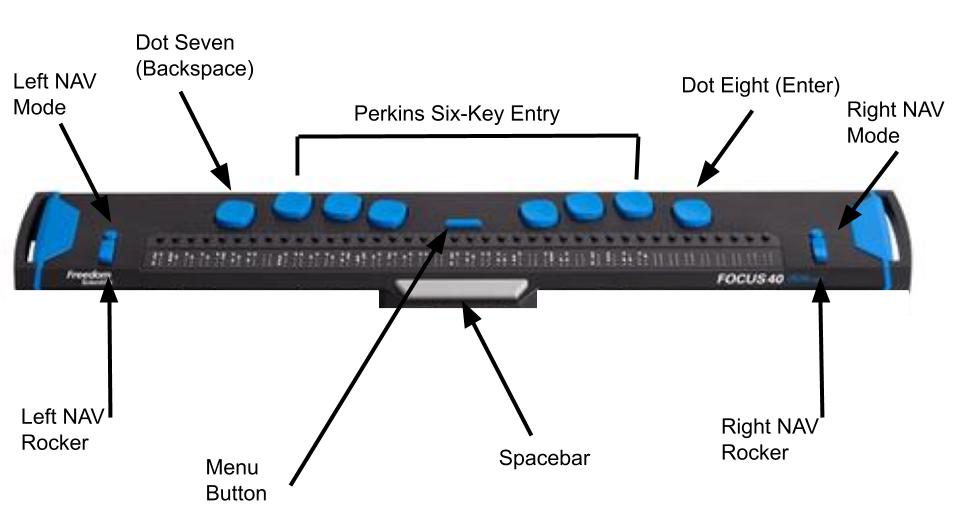
    Focus Braille Display Image with Button options

    switch Focus display modes quickly on display
    Switch Focus Braille display modes quickly on display

    For advanced users, status dots help in tables and other navigation. Beginners should start with “none.” Press Alt + A to apply changes, then enter to close. The Braille display functions like a Braille writer. Keys 1 2 3 are on the left, and keys 4 5 6 are on the right with space in between the left and right side. The left pinky key is backspace, which changes to dot 7, and the right pinky is enter or dot 8 in combination with other keys.

    More Videos Lessons

  • Team Specialists

    TechVision Team Specialists have provided remote instruction worldwide since 2007. Additionally, under the leadership of Dr. Denise M. Robinson, they empower students through comprehensive education for the blind. Furthermore, with expertise in screen readers, braille displays, braille, Nemeth code, and assistive technologies, the team delivers individualized instructional support for every learner.

    A defining strength of the TechVision Team specialists is that over 90% of our instructors are blind themselves. They use the same technology they teach. This brings unmatched authenticity, lived experience, and practical mastery to every lesson. Alongside a small number of sighted specialists, this blended team works together with purpose and unity. They model independence, confidence, and real‑world problem‑solving for every student they serve.

    Their commitment to equal access in education guides every aspect of their work. Additionally, they provide real‑time, one‑on‑one instruction and collaborative school‑team training to support full educational access. Furthermore, every TechVision Team Specialist shares a mission of removing barriers and creating pathways to independence.

    A Diverse Group of Team Specialists
    A Diverse Group of Team Specialists

    Our Mission & Impact

    TechVision Team Specialists create global impact through a mission‑driven approach to education for the blind. I Additionally, they provide personalized, one‑on‑one remote instruction for learners of all ages.

    Our specialists hold advanced degrees and certifications in Orientation & Mobility (O&M), Teaching Students with Visual Impairments (TVI), Assistive and Access Technology, and Special Education. Each instructor uses specialized blind and low vision technology daily at an expert level, allowing them to deliver direct instruction across all subject areas including math, science, English, and history aligned to each learner’s individual needs. Instruction supports individuals of all ages from early childhood through adulthood and emphasizes real-world application, independence, and full access to the general education curriculum.

    This real-time, individualized instruction empowers students and clients to compete equally in school, work, and daily life. TechVision specialists: both blind and sighted, are central to this mission, ensuring every learner has the tools, skills, and access they need to succeed.

    TechVision Director, Assistant Director and Director of Business

    Dr. Denise M. Robinson

    Director & Founder
    Ph.D., TVI, Access Technology, IT, Braille, Nemeth, AI, CVI

    Dr. Denise M. Robinson is dedicated to empowering students to reach their full potential. Additionally, she leads a team of expert instructors who share her commitment to excellence and inclusion. Together, they provide comprehensive blind skills instruction across all areas of education.

    Furthermore, with deep expertise in instructional technology, Dr. Denise ensures that students of all ages receive essential, on‑demand educational skills. As a result, her leadership continues to guide the transformative work of the TechVision team.

    In addition, as a passionate program developer and nationally recognized speaker, she creates innovative instructional models that merge technology with blind skills. Through this work, she equips learners with the tools they need to pursue education, careers, and independence.

    Dedication

    TechVision’s dedication stems from a deep belief in the transformative power of education and the right of every individual to be fully included in the world. By merging technology with blind skills, the team works to eliminate barriers and ensure equal access and opportunity for all students.

    Outside of her professional work, Dr. Denise enjoys spending time outdoors—working with tractors and equipment, hiking daily, gardening, and meeting new people. She finds joy in the diversity of the world and the meaningful connections it brings.

    Beth Sellers

     Assistant Director of Educational Programming, MA
    Teaching AT, Braille, Nemeth & Additional Skills

    Beth Sellers is a graduate of James Madison University and Eastern Mennonite University, where she earned her master’s degree in education. With more than 20 years of experience in special education and community-based disability services, Beth brings extensive expertise in assistive technology and blind skills instruction.

    At TechVision, she teaches braille and access technology and provides consulting services to school divisions in assistive technology. Beth is a former president of the Virginia Chapter of the National Organization of Parents of Blind Children and volunteers with the AMCSI Conference Planning Team and her local SPCA.

    In her spare time, Beth and her children enjoy time on the lake, caring for their two dogs and many rescue cats, and exploring new activities—including cross-country skiing with Ski for Light.

    James Robinson

    Director of Business Services, BS

    James Robinson brings extensive administrative experience to TechVision, having previously served as an administrator in care facilities. As TechVision expanded to meet the growing demand for high‑quality remote instruction, he transitioned his leadership and operational expertise into the role of Director of Business Services.

    In this capacity, James oversees all business operations, including accounting, billing, financial coordination, and organizational systems. His strong background in management and service administration ensures that TechVision functions efficiently and that both the instructional team and clients receive consistent, reliable support. His work is essential to sustaining TechVision’s growth and mission‑driven impact.

    Let us know how we can help you: Contact US: TechVisionTraining@yourtechvision.com

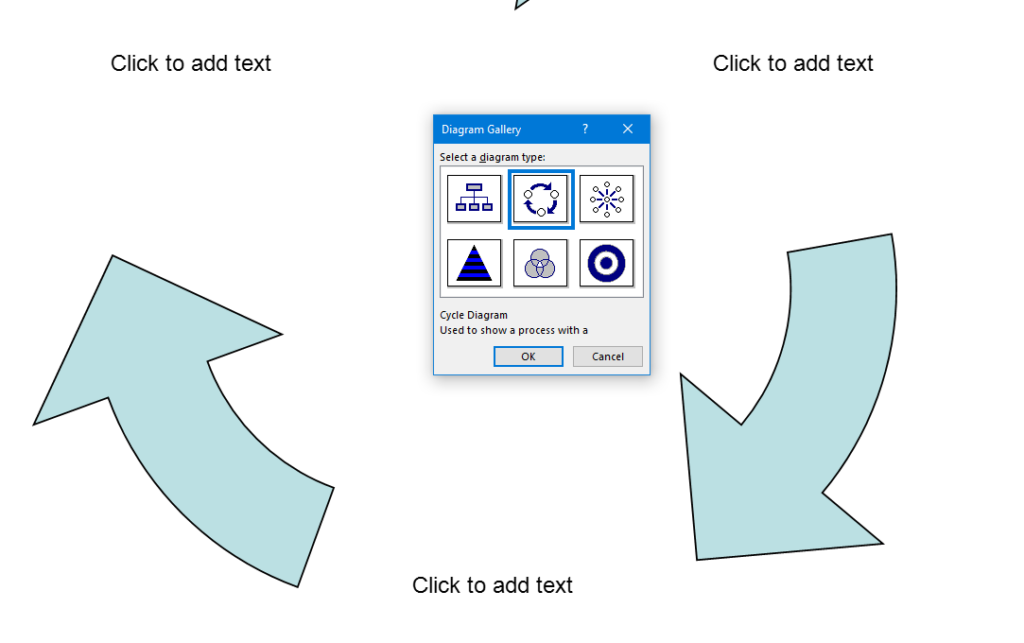
  • WORD Accessible Food Chain for Class Using Talking Software

    The current page provides instructions on creating a food chain for a class using talking software. It includes steps for saving a document in a specific format and navigating through menus using keyboard shortcuts. Additionally, it references the video below to help you each step of the way.

    F12 and save as 97-2023 so after you F12 you will have file and tab once and down arrow or up arrow to 97-2023 doc and enter, then the commands will work for you.

    • Alt + N then M and right arrow to Food Chain and enter
    • Listen to recording to add information as you need

    WORD accessible food chain and why we use them

    A food chain is a sequence that shows how energy and nutrients flow from one organism to another within an ecosystem. Here’s a simple breakdown:

    1. Producers: These are usually plants or algae that create their own food through photosynthesis. They form the base of the food chain.
    2. Primary Consumers: Herbivores that eat the producers. Examples include rabbits and deer.
    3. Secondary Consumers: Carnivores that eat the herbivores. For instance, a fox that eats rabbits.
    4. Tertiary Consumers: These are predators that eat secondary consumers. An example would be an eagle that eats foxes.
    5. Decomposers: Organisms like bacteria and fungi that break down dead plants and animals, returning nutrients to the soil.

    Each step in the food chain is called a trophic level. Energy is transferred from one level to the next, but with each transfer, some energy is lost as heat, making the chain less efficient as it goes up12.

    Food chains often interconnect to form a food web, which provides a more comprehensive picture of how energy flows through an ecosystem2.

    WORD accessible food chain
    WORD accessible food chain

    Other WORD Lessons

    Optimizing Windows 11 Efficiency for Screen Reader with Key Settings and Configurations

    WORD Efficient Text Navigation and Selection

    Basic WORD JAWS commands with Typing Trick

    Rebuild Microsoft Word Template when it is not working well

    Microsoft Word MLA format with Christopher Duffley

    WORD accessible food chain for class using talking software

    Commands to change mouse -access programs fast, basics in Word font & movement

    Excel line plot graph-copy to Word for Math

    Complete an excel graph and copy into Word document with screen reader

    Essential WORD keyboard commands for setting defaults

    Track changes in Word-How teachers make corrections in work

    Track Changes with Commands-inserting comments and editing work

    Other accessible IXL options for more learning

    Team Specialists and Access Trainers to deliver the instruction you need

  • Mission and Purpose

    Mission and Purpose of TechVision using braille display, keyboard and iPhone for who we are and what we do
    Picture of braille display, keyboard and iPhone for who we are and what we do

    Our Mission

    TechVision’s mission and purpose is to empower blind and visually impaired students through personalized, real‑time instruction in assistive technology, braille, STEM, and essential academic skills. Led by Dr. Denise M. Robinson, our specialists teach the tools and strategies students need to access information, build independence, and compete equally with their sighted peers.

    What We Do

    TechVision provides 1:1 remote instruction for learners of all ages. Our team teaches and offers:

    What others use only through access methods such as but not limited to:

    • AI‑supported learning strategies:
      This direct, individualized approach transforms how blind and low‑vision students learn, work, access and navigate the world, staying true to our mission and purpose.
    • Screen readers
    • Braille displays
    • Computers and mobile devices
    • Word processing and productivity tools such as embossing
    • All academic classes and especially: Math, STEM, Nemeth, and all literacy
    • We provide rapid transcription services with quick digital turnaround, often within one hour when needed, and teach students how to independently emboss their own work.
    • We team with a certified Orientation & Mobility (O&M) specialist -Kevin Hollinger of Blindnesspro.com who travels on-site to deliver intensive instruction in safe, independent travel. Training includes school navigation, community routes, and real-world mobility skills to support full independence.

    Why Our Work Matters

    TechVision also trains school personnel: including transcribers, Teachers of the Blind, Teachers and support staff, to ensure students receive consistent, accessible materials. We partner with districts, families, and private organizations to create inclusive environments where blind and visually impaired individuals can thrive, fulfilling our mission and purpose.

    Mission and Purpose Designed for Every Learner

    We teach learners of all ages. Every student receives customized instruction based on their goals, strengths, and needs. Whether developing early childhood skills, mastering advanced mathematics, learning to use a braille display, preparing for college and employment, or adapting to vision loss later in life, our instruction meets each learner exactly where they are. Many of our students go on to pursue STEM fields, including Applied Mathematics at top universities.

    Free Learning on YouTube Channel and YourTechvision.com

    The TechVision YouTube channel, created by Dr. Denise M. Robinson and her Team, offers hundreds of free, accessible video lessons. These lessons focus on empowering individuals who are blind or visually impaired through technology education. The channel covers a wide range of topics, making it useful for students, educators, and parents.

    Each video provides hands-on, step-by-step tutorials for using assistive technology. Viewers can learn to use screen readers, magnification tools, and braille displays. The lessons also include detailed instructions on using programs like Microsoft Office and Google applications. This practical approach helps users apply technology to real-world tasks.

    See What Is Possible with 21st Century Assistive Technology Instruction

    These short clips show how quickly students build independence and speed through advanced assistive technology training delivered by instructors who use these tools daily in real-world application.

    Contact Us

    We are here to help you succeed.

    Let us know how we can help you: Contact US: TechVisionTraining@yourtechvision.com

  • Excel Histogram with Keyboard Commands

    Creating a histogram in Excel using keyboard commands makes data analysis quick and efficient. First, select your data with Shift + Arrow Keys. Then, insert the chart using Alt + N, followed by H to choose a histogram. This process allows you to visualize data distributions without a mouse, making it both accessible and streamlined. By using these simple commands, you can create effective histograms in just a few steps.

    To create a graph in Excel using keyboard commands:

    1. Select Data: Highlight the data using Shift + Arrow Keys.
    2. Insert Chart: Press Alt + N to open the Insert tab.
    3. Open Histogram Option: Press H to select the Histogram option from the Charts menu.
    4. Choose Histogram: Use Arrow Keys to navigate and press Enter to insert the histogram.

    Now you have a histogram using just the keyboard.

    Excel Histogram with keyboard commands
    Excel Histogram with keyboard commands

    When you finish, you can move data into DESMOS and emboss the graph

    Solving inequalities

    Create Histogram

    Excel Trendline with Scatter Plot

    Other Excel Lessons that you can do in Sheets

    Flashcard Study in Sheets

    Increase your Technology knowledge via more lessons

  • Excel Quadratic Trendline with Scatter Plot Graph Including Equation Using JAWS

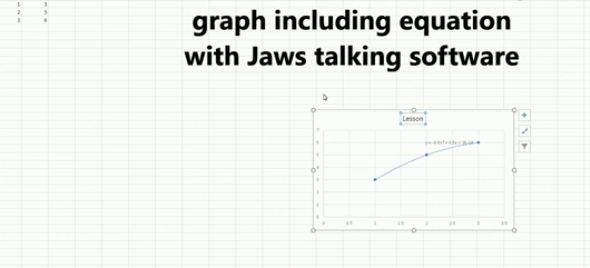
    A quadratic trendline with a scatter plot shows the relationship between two sets of data that form a curved pattern. Instead of a straight line, it fits a U-shaped or upside-down U-shaped curve, helping to see trends when data increases or decreases at different rates. Using an Excel Quadratic Trendline with scatter plot makes it useful for predicting changes that don’t happen in a straight line, like acceleration or deceleration. The equation on the graph helps explain this relationship and can be used for future predictions.

    Using keyboard commands in Excel, combined with JAWS screen reader, makes it possible to create a quadratic trendline on a scatter plot while also displaying the equation. This process is essential for visually impaired users who need accessible methods to perform complex data analysis. By using commands like Alt + N + S to insert the scatter plot and Alt + J + F to add the quadratic trendline and display the equation, you can efficiently work with Excel’s graphing tools while maintaining full accessibility with JAWS.

    Excel Quadratic Trendline with scatter plot Keyboard commands

    Excel Quadratic Trendline with scatter plot
    Excel Quadratic Trendline with scatter plot

    Here are the keyboard commands to add a quadratic trendline with a scatter plot and display the equation in Excel using JAWS:

    1. Create Scatter Plot:
    • Select data with Shift + Arrow Keys.
    • Press Alt + N, then S to insert a scatter plot.
    1. Add Quadratic Trendline:
    • Select the graph with Arrow Keys.
    • Press Alt + J + F, then A for chart options.
    • Press T to add a trendline, then press Q for polynomial (quadratic).
    1. Show Equation:
    • Press Alt + J + F, then T to show the trendline equation on the chart.

    These steps work seamlessly with JAWS for accessible chart creation. Learn more Excel graphing

    Solving inequalities

    Create Histogram

    Excel Trendline with Scatter Plot

    Other Excel Lessons that you can do in Sheets

    Flashcard Study

    Other Tech Lessons for more skills

  • Blind Student Masters Excel Graphs and PowerPoint Integration

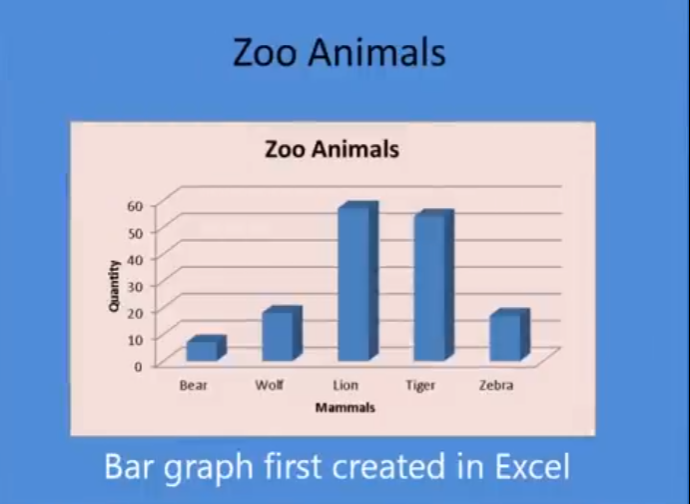
    A blind student has demonstrated remarkable skills by completing complex Excel graphs and seamlessly integrating them into PowerPoint presentations. This achievement in Excel Graphs and PowerPoint Integration highlights the potential of assistive technologies and the importance of accessibility in education. He got an A on this project.

    A blind student successfully completes sophisticated Excel graphs, showcasing their proficiency with assistive technology. They seamlessly insert these graphs into PowerPoint, showcasing their ability to integrate complex data into presentations. This demonstrates their proficiency with both Excel and PowerPoint, highlighting their technical skills.
    This process involves several steps:

    1. Creating the Graph in Excel:
      • Data Entry: The student inputs data into Excel using keyboard commands and screen reader software like JAWS.
      • Graph Creation: Using commands such as Alt + N + S to insert a scatter plot and Alt + J + F to add a trendline, the student creates a detailed graph.
      • Customization: The graph is customized by adding titles, labels, and trendlines, ensuring all elements are accessible and correctly formatted.
    2. Inserting the Graph into PowerPoint:
      • Copying the Graph: The student uses Ctrl + C to copy the graph from Excel.
      • Insert Graph: He has used the insert menu to insert graphs on the slides
      • Pasting into PowerPoint: Using Ctrl + V, the graph is pasted into a PowerPoint slide, where it can be further edited and formatted.
      • Creating Sound
    Excel Graphs and PowerPoint Integration
    Excel Graphs and PowerPoint Integration

    This achievement highlights the importance of accessible technology and the potential for visually impaired individuals to perform complex tasks independently.

    If you require Access Training, let us know. More videos on Excel Lessons and Scatter Plots

  • Complete an Excel Graph and Copy into Word Document with Screen Reader

    Kaleigh, one of my (Dr Robinson) students since 2007, learned to Complete an excel graph in this lesson. She began with in-person lessons before transitioning to remote instruction. My husband and I moved 3,000 miles away to care for his parents, and we continued lessons via Skype, later advancing to Zoom. Over time, Kaleigh progressed from basic lessons to more sophisticated ones, covering her educational needs from third grade through graduation. By the time she finished, she was fully prepared for college and capable of completing all the work necessary to succeed in her future academic endeavors.

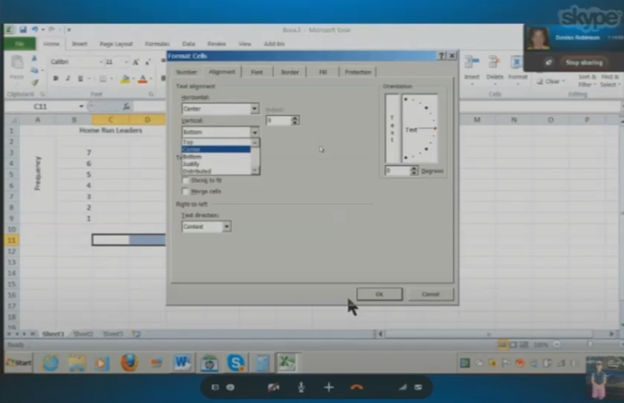
    In this lesson, I teach her to navigate Excel using keyboard commands. She starts by creating a new document with CTRL + N and merges cells using ALT + H, M to set up graph labels. She inputs data from her Braille Display, with Excel’s talking software aiding her understanding. As she works on the histogram, she ensure she selects the correct cells and counts for the X and Y axes. She then adds and formats axis titles using ALT + J, A, I, adjusting the text orientation as needed.

    Encouragement is Key

    I consistently encourage her to check her data, ensuring she relies on assistive technology for accuracy. For formatting, she uses CTRL + C and CTRL + V to copy and paste sections, speeding up the process. We also cover coloring the graph, where I allow her to choose colors freely. I advise her to use consistent formats for simplicity. She shades sections of the histogram based on her data, using keyboard commands to control her workflow efficiently. This reinforces her independence and accuracy throughout the lesson.

    Complete an excel graph
    Complete an excel graph Settings Option

    After finishing the graph, she reviews her work using CTRL + Home to ensure all elements are correct. Satisfied, she copies the graph into Word and prepares to email it. This exercise demonstrates her effective use of keyboard shortcuts and assistive technology. Her growing independence in mastering Excel for academic tasks shows through her efficient and accurate work. The lesson highlights how the student combines guidance and technology to complete a detailed graph with confidence.

    More Excel Lessons and more math lessons in general from YouTube

  • Training For The Blind & Vision Impaired

    Real-Time Access Through Technology

    Remote Instruction Through Access Technology — Complete Real Work in Real Time for all ages. Our program specializes in providing Training For The Blind to ensure that every individual can succeed and work independently.

    Remote Instruction with access Technology
    Training For The Blind & Vision Impaired-Remote Instruction via access Technology

    Empowering Blind & Visually Impaired Students Through Technology and Direct Instruction-Access Technology that Gives you Vision

    Offering Personalized 1:1 remote instruction in technology, Braille, Nemeth, and essential blind skills — for students of all ages, anywhere in the world, enhances their educational access. These services ensure all can access educational opportunities effectively.

    Founded in 2007 by Dr. Denise M. Robinson, a global leader in remote instruction for blind and low-vision education, TechVision brings together a nationally recognized team of blind education specialists, access technology experts, transcribers, and certified braille instructors. The team delivers expert training in access technology, braille, braille math code, screen readers, and comprehensive academic accessibility. Through real-time, individualized instruction, TechVision equips blind learners of all ages to participate equally, work independently, and succeed across educational and professional environments.

    What We Do: Educational Access

    We Provide:

    • Support for families, schools, transition programs, and vocational rehabilitation with the goal of improving access to education.
    • 1:1 specialized instruction in technology, Braille, Nemeth, and all academic access through use of a computer.
    • Training for school teams — Teachers of the Blind & Visually Impaired, transcribers, paras, and School staff
    • Technology setup & independence training using screen readers, braille displays, and computers

    The TechVision Difference

    TechVision, LLC transforms lives through personalized, real‑time remote instruction.
    Our team equips blind and visually impaired students and clients with the technology skills they need to compete equally with their sighted peers — in school, work, and life. We collaborate with families, districts, and agencies worldwide to ensure every learner has educational access and independence.

    Why Educational Access Matters

     With cutting‑edge tools — computers, screen readers, braille displays, and smartphones — our students learn to access information, navigate their world, and build independence. TechVision empowers learners to step into education and employment with the same opportunities as their sighted peers.

    Who We Serve

    • College students needing support for educational access
    • Young adults
    • Adults returning to work
    • Anyone needing access to their world

    Real 1:1 TechVision Instruction

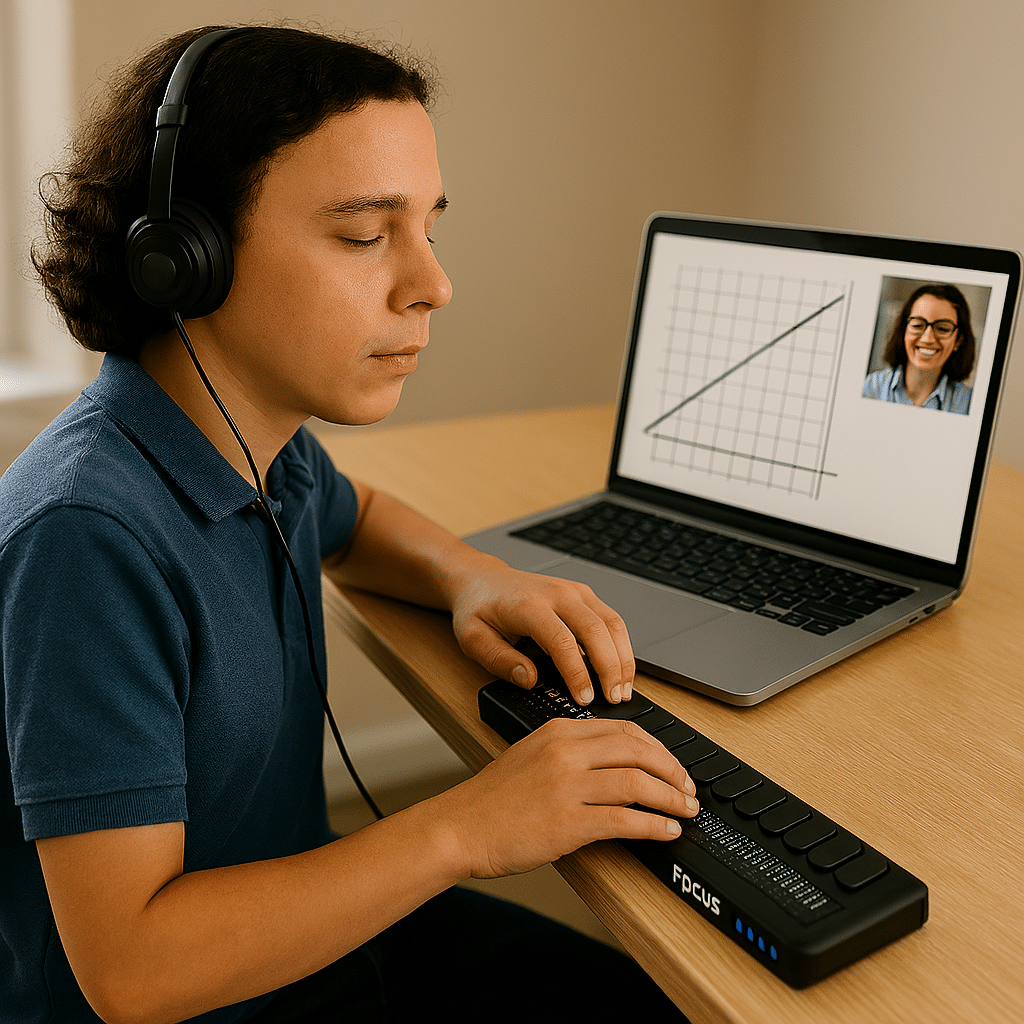
    Students learning to create graphs, write documents, code, and navigate technology independently. Doing Everything their peers are doing.

    Contact us

    Contact US: TechVisionTraining@yourtechvision.com

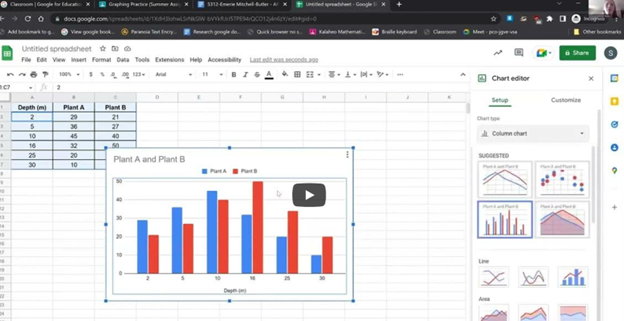
    you can see student in top right corner of screen using TechVision 1:1 remote instruction while she is working on creating graphs in sheets
    Empowering Blind & Visually Impaired Students Through Technology and Direct Instruction: she is working on creating graphs in sheets

    Tips & Tricks on learning Word and Braille Math Editor with UEB math, FOCUS Braille display and screen reader