Search results for: “math”

  • How to Set up Windows 11 Computer to work the best and most efficiently with screen readers- 1 of 2

    How to set up a Windows 11 computer for optimal screen reader performance is crucial for blind and low vision users. First, ensure that your computer meets the necessary system requirements. A powerful processor and sufficient RAM are essential for smooth operation. Additionally, installing the latest updates for Windows 11 is important. These updates include crucial security patches and performance improvements. If you find you need to remap a key to say, acquire an applications key on your keyboard, you can do that yourself.

    Next, customize the display settings to enhance visibility. Adjusting the screen resolution and scaling ensures that text and icons are easier to read. Moreover, enabling high contrast mode can make the interface more accessible. This setting increases the contrast between background and text, making it easier to distinguish elements on the screen.
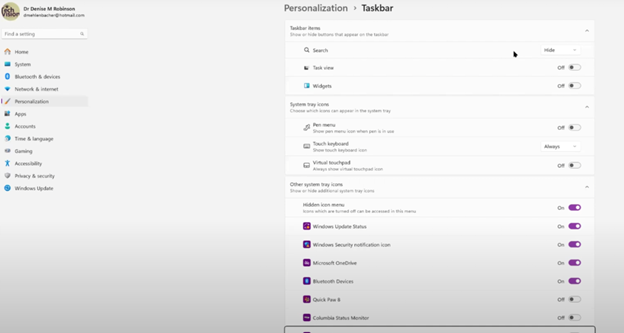
    changing taskbar in settings

    In addition, configuring keyboard shortcuts can significantly improve efficiency. Windows 11 offers a variety of shortcuts for navigating the system. Customizing these shortcuts allows for quicker access to frequently used features. Furthermore, consider enabling the on-screen keyboard for easier input.

    How to setup Windows 11 for screen readers such as JAWS, NVDA, and Narrator are essential tools for blind users. Ensure that your chosen screen reader is installed and updated. It’s also important to adjust the screen reader settings to match your preferences. For instance, modifying the speech rate and verbosity can make navigation more comfortable. See second video on proper setup of windows11 settings.

    Enhance Experience with AI

    Moreover, installing and configuring additional assistive software can enhance your experience. Programs like MathKicker.AI and MathCat in WORD improve accessibility for mathematical content. These tools integrate seamlessly with screen readers, providing a more inclusive environment.

    Lastly, securing your computer is vital. Enable strong passwords and two-factor authentication to protect your data. Regularly updating your antivirus software will also safeguard your system from potential threats.

    Thus, setting up a Windows 11 computer for screen reader users involves careful configuration. By following these steps, users can achieve the best performance and efficiency. This ensures a more accessible and productive computing experience.
  • STEM: Desmos with JAWS and Embossing

    Desmos, JAWS, and Embossing: Enhancing STEM Learning for Visually Impaired Students

    Access graphing and digital tools with screen readers for Science, Technology, Engineering, and Mathematics. These tools provide graphing access, enabling students with blindness or low vision to excel in STEM fields. For instance, they can utilize graphing capabilities on the computer by employing DESMOS graphing calculator and other Desmos solutions, just as peers. Moreover, Blind students can access STEM. They can emboss graphs, feeling content in real time. By using screen readers like JAWS or NVDA, braille displays and embossers, they can emboss out a graph to “see” what it feels like to finish STEM work quickly and efficiently.

    Access to STEM begins with a PC equipped with screen readers like JAWS and refreshable braille displays. With these tools, you can explore integrated accessibility features and learn to configure JAWS and Fusion on the Desmos Accessibility page. Additionally, audio features, provided by Desmos, give spoken graph summaries, audible readings of points, coordinates, and more. Therefore, Desmos with JAWS and Embossing Techniques enables blind students to access STEM anytime.

    Furthermore, TechVision site offers more STEM options, expanding information for other lessons on Desmos, graphing and math in full details including AI programs to enable students to complete math to the most advanced levels using Mathkicker.AI to compete with sighted peers at any level.

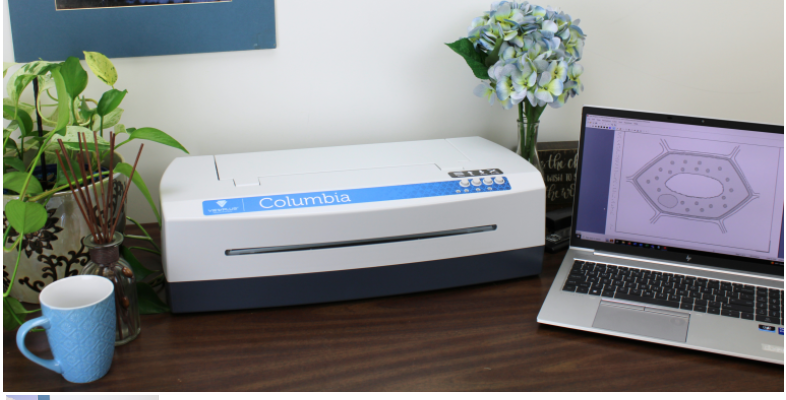
    embosser connected to a laptop for embossing for Desmos and Jaws
Desmos graphing screen readers jaws STEM

    More Lessons:

    Creating Geometry Tables

    Desmos 3D graphing

    for Geometry in Desmos

    for STEM and Embossing in Desmos

    Desmos and inserting graphs into Math Work in WORD

    Creating shaded Parabolas in Desmos

    Games with Desmos with Drag and Drop

    Create and Emboss Graphs

    Practice math with IXL.com

  • AI to describe images, pictures, or what you want with Jaws keyboard commands by Lucas

    Lucas, a blind individual, demonstrates JAWS Commands using AI Descriptions and how to effectively use ChatGPT with DALL-E to generate and describe images. Starting with ChatGPT, Lucas opens the platform, which places him directly in the edit box. To navigate out, he presses the “up arrow” key. He then maximizes the screen with “Windows + up arrow,” enhancing readability for JAWS.

    Next, Lucas demonstrates how to locate the DALL-E AI Description image generator by accessing the links list using Jaws Commands with “Caps Lock + F7.” He navigates to the search box using the “E” key and types “DALL-E” in all capitals, with the period included. After pressing “Enter,” he tabs through the search results until he finds the relevant link, then presses “Enter” again to open it.

    AI to make the InaccessibleAccessible

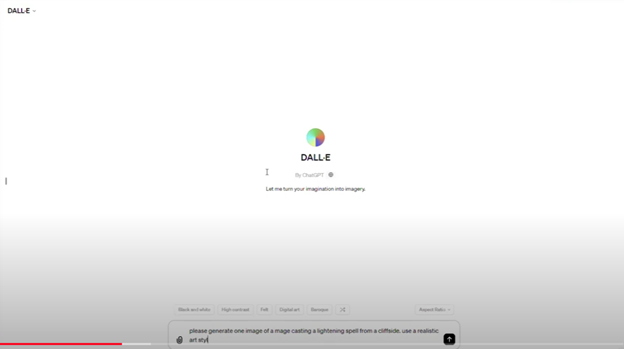
    Once inside the image generator, Lucas describes the process of inputting a prompt. He emphasizes the importance of being specific, including details about the setting, characters, and art style. For instance, he generates an image of a wizard casting a spell on a cliff-side in a realistic art style. By pressing “Enter,” the image generation process begins, typically producing two images by default. He demonstrates how to make the inaccessible-accessible.

    To download an image, Lucas uses “Shift + B” to find the “Show Image” button, followed by pressing “Enter” and then down arrow to the “Download Image” button. He encounters a warning about the dialog not being focused, while the download proceeds. Remember to Email your beautiful creations to someone also.

    Dall-E platform image

    For image descriptions, Lucas follows a similar process to find the “Image Description Assistant” link. After inputting his request and attaching the image file, he waits for the description to generate. To review the description, Lucas uses “Shift + G” to jump to the top of the graphic, then down arrows to read it. This methodical approach allows Lucas to create detailed images and receive comprehensive descriptions efficiently.

    AI has transformed how screen reader users access their world, MathKicker.AI is a powerful MATH app that allows top level Math work. Do not let Low Vision issues or legal blindness stop you from accelerating in school.

    Continue to learn how to make images such as Math into Text.

    Be My Eyes for Computer: Describe Images, Graphs, and Screens Instantly

  • Desmos 3D graphing calculator with screen reader commands

    Dr. Robinson introduces the Desmos 3D Graphing tool, an essential resource for educators working with blind and low vision students. This tool allows users to create and manipulate 3D objects, enhancing the learning experience for students who require tactile or visual aids. As a teacher of the blind, Dr. Robinson emphasizes the importance of providing accessible 3D objects that students can manipulate as they learn. She demonstrates how to use Desmos 3D Graphing, starting with a simple circle and transforming it into a 3D cylinder.

    Throughout the demonstration, Dr. Robinson highlights the seamless integration of Desmos 3D Graphing with braille displays, ensuring the content is accessible to students with visual impairments. She manipulates the cylinder’s size and shape using various commands, showing how easy it is to adjust these parameters in real-time. This hands-on approach allows students to understand the relationship between mathematical equations and their 3D representations. A 3D printer can create image or acquire an actual can of soup to compare to a circle/cylinder for further student understanding.

    Image of Cylinder created with Desmos 3-D Graphing

    image of a 3D cylinder using Desmos

    Dr. Robinson further explores Desmos 3D Graphing by adjusting a parabola into different shapes, including a “blob” that can be physically modeled using clay. This tactile method helps blind students grasp the concept of changing variables and their impact on the graph’s shape. The ability to adjust and visualize these graphs is particularly beneficial for students preparing for tests or needing to solidify their understanding of complex mathematical concepts. For real time learning, either 3-D emboss or 2-D emboss graphs. For ease, hand molding clay is cheap and easy for any object

    In addition to demonstrating the tool’s functionality, Dr. Robinson encourages users to explore more on the Desmos website, including the blog and available shortcuts. The continuous improvements in Desmos 3D Graphing make it a powerful tool for blind and low vision students. By integrating this tool into their learning process, educators can significantly enhance the accessibility and engagement of math lessons. Desmos 3D Graphing provides an invaluable resource for making advanced math concepts accessible to all students. Regardless of their visual abilities, you can access Desmos Lessons.

    More Desmos Lessons:

    Desmos 3D graphing

    for Geometry in Desmos

    for STEM and Embossing in Desmos

    Desmos and inserting graphs into Math Work in WORD

    Creating shaded Parabolas in Desmos

    Games with Desmos with Drag and Drop

  • Desmos graphing calculator with shaded Parabolas, screen reader, braille display and embosser

    Dr. Robinson demonstrates how to create and manipulate a parabola using the Desmos shaded parabolas using the graphing calculator. This process is specifically designed for blind and low vision students. She begins by typing an equation. Desmos automatically adds sliders, allowing the adjustment of the graph’s shape in real-time.

    As Dr. Robinson runs the equation, the parabola expands, resembling the curve of a ball in motion. She explains the importance of embossing the graph so students can physically feel its structure on the XY plane. This tactile approach helps students understand mathematical concepts more concretely.

    To enhance accessibility, Dr. Robinson uses the “Alt + T” command to activate the audio trace. This feature provides valuable auditory information about the graph. She also slows down the narration using “Control + Shift + Page Down,” ensuring clarity and comprehension.

    Next, Dr. Robinson shares the graph with her students using the “Insert + F5” command. She exports the graph as a Braille-ready image, making it accessible for students who rely on tactile feedback. After downloading the image, she opens it in a photo editor to enhance contrast. This step ensures that the lines are clearly defined for the student.

    Tiger Designer

    Dr. Robinson then pastes the edited image of Desmos shaded parabolas into Tiger Designer, a software used to prepare tactile graphics for printing(emboss). Using “Control + P,” she embosses the graph on her ViewPlus embosser, allowing students to feel the parabola and compare it with what their sighted peers see.

    This hands-on approach for STEM, ensures that blind students can fully participate in graphing activities. Dr. Robinson’s method integrates technology and tactile feedback, making math accessible and engaging. Through these steps, she empowers students to understand and interact with complex mathematical concepts. This demonstration showcases the effective use of Desmos and related tools to enhance learning for visually impaired students.

  • Take large PDF files and Print to PDF to save just a few pages vs the whole file

    Dr. Robinson explains in video how to reduce a large PDF to just a few pages, so anyone can “copy” just a few pages out as needed or convert a whole inaccessible PDF to something accessible with a screen reader. She begins with a blurry PDF of “A Tale of Two Cities,” demonstrating how it turns blue when clicked, or a screen reader saying “empty document”. To make the PDF more manageable, she uses the “Control + P” command, which is the universal print command across browsers. She selects “Microsoft Print to PDF” from the printer options and then uses “Alt + G” to navigate quickly to the page selection. After selecting only two pages to save, she names the file and saves it to her downloads folder using “Alt + D” followed by “Alt + S.”

    Next, Dr. Robinson uses MathKicker.AI, an AI program typically for math conversions but also converts anything to convert the PDF to a DOCX file. She opens Math Kicker, navigates to the convert to PDF button by pressing “B,” and waits for it to convert. Once the conversion is complete, she accesses the converted file using “Control + J” in a browser or “Windows + E” to open the file explorer. In file explorer and selects the newly saved PDF from her downloads folder.

    Print Options to reduce a PDF

    blurry PDF with print options open

    After verifying that the correct pages were saved, she adjusts the viewing size to 200% using “Alt + V” and then “Z” to make the text more readable in WORD. The text appears flawless, making it easy for screen readers to process and read aloud.

    Dr. Robinson emphasizes that this method is particularly useful for low vision or blind students, allowing them to access only the necessary pages of a large PDF and allowing them to use a screen reader to read content. This approach also benefits fully sighted users who may struggle with poor-quality images. By converting and saving specific pages, users can create clear, readable text from even the blurriest PDFs. There are AI programs on the WEB that will do this also.

    More PDF Lessons:

    Math and taking inaccessible to accessible in WORD

    Type directly on a PDF

    Transcribe Math Images from PDF

  • Drag n Drop with Jaws, in Macmillan Learning online

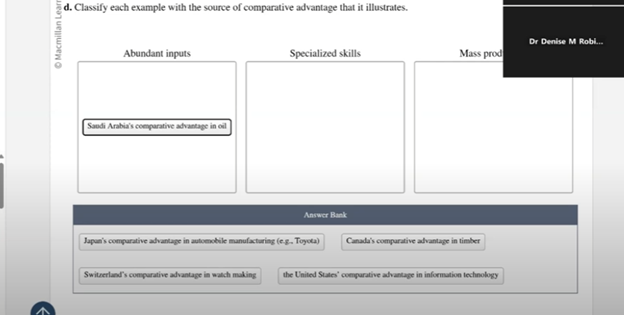
    Raveena demonstrates how to navigate and complete a drag-and-drop exercise on the Macmillan Learning website using JAWS Drag n Drop screen reader commands. She begins by turning off the virtual cursor with “Insert + Z” and then tabs to the answer bank. To lift an answer, she presses “Space,” then uses “Shift + Tab” to move the item to the correct bin and presses “Space” again to drop it.

    She describes the process while placing items into three bins: Abundant Inputs, Mass Production, and Specialized Skills. As she navigates through the answer bank, she explains each action, ensuring clarity for users following along. For instance, when encountering the answer “Japan’s comparative advantage in automobile manufacturing,” Raveena picks up the item with “Space,” shift tabs to the correct bin, and drops it with “Space” again.

    Double Check Work after JAWS Drag n Drop

    drag n drop bins to place items

    Raveena emphasizes the importance of verifying answers. After placing an item, she recommends tabbing back to the answer bank to ensure no items are left. She also notes that when an item is correctly placed, JAWS will confirm it by saying “item dropped in.” If the item is incorrectly placed, it will say “placed in item,” prompting users to recheck their work.

    To submit the answers, Raveena turns the virtual cursor back on with “Insert + Z” and uses the “Control + F” command to search for the “Submit Answer” button. She enters “submit” and presses “Enter” to locate the button quickly. After submitting, JAWS provides feedback, indicating whether the answers were correct.

    Raveena concludes by highlighting the effectiveness of using these commands for JAWS drag n drop tasks. She encourages users to practice these steps to enhance their efficiency and accuracy when completing similar exercises. This method ensures that visually impaired users can fully engage with interactive online content, making learning accessible and manageable. JAWS Drag n Drop is just one component of learning advanced keyboard commands in College. Make sure you computer is working well to keep your screen reader happy.

    As a side note, getting a hobby like rock climbing, makes one well rounded as Raveena also demonstrates by scaling a wall at the Olympics.

    Find more with Desmos:

    Desmos 3D graphing

    for Geometry in Desmos

    for STEM and Embossing in Desmos

    Desmos and inserting graphs into Math Work in WORD

    Creating shaded Parabolas in Desmos

    Lessons with Desmos with Drag and Drop

  • Kim Shares How Computer Access Empowered Her to Keep Up with Her Peers in School

    Kim began as a young student with TechVision. Her mother sought help and discovered that we provide real-time instruction using everyday technology essential for future job success. TechVision worked with Kim several days a week, ensuring continuous learning and growth. She used a PC with access technology to access her school platform and all else, including a Computer Enabled access with screen readers and a braille display, to access her world and education. Over time, she transformed from a struggling blind student, reliant on constant para and teacher support, to an independent learner working on her own. This is her story, please listen.

    For Kim, moving from depending on others for her education to becoming independent changed everything. With TechVision’s hands-on, real-time learning, she learned to use screen readers and a braille display, which let her access schoolwork by herself. Instead of always needing help from a para or teacher, Kim could now complete her assignments on her own, just like her classmates. This gave her confidence and made her feel more in control of her education. Being able to work independently helped her stay on track with her peers and prepared her for future success. A Computer Enabled access to change her life.

    Another life changing story from Jordan. TechVision also enabled computer access for her.

    Learn those skills Now.

    Let us know how we can help you: Contact US: TechVisionTraining@yourtechvision.com

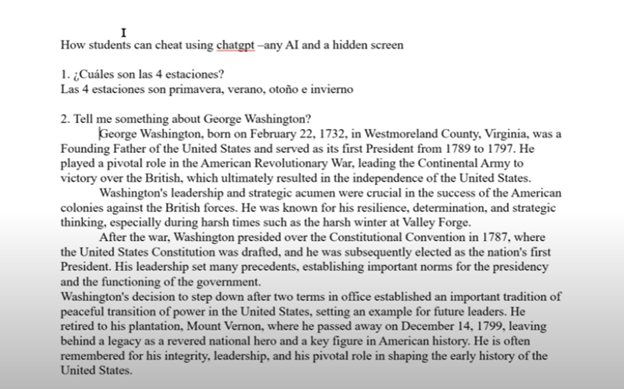
  • How to Prevent AI Cheating in Class and at Home

    Teachers can Slow or stop AI cheating both in the classroom and at home through strategic measures. In the classroom, lock down browsers effectively prevent students from accessing unauthorized websites or AI tools during exams. These browsers restrict students to a single screen, blocking external resources. Additionally, teachers should design assignments that require critical thinking and personalized responses. Such tasks are challenging for AI to complete accurately, as they demand unique, context-specific answers.

    chatgpt and curb classroom AI cheating

    To further Slow or Stop AI cheating in class and home, teachers should incorporate oral assessments and apps like Khan academy. These require students to verbally explain their answers or spell out terms, making it difficult to rely on AI-generated content-Video details here. Monitoring classroom activity is crucial as well. By actively observing students’ screens, teachers can spot hidden screens or content that doesn’t match a student’s usual work.

    At home, teachers can assign open-ended projects that require creativity and personal reflection. These assignments are less likely to be successfully completed by AI. Requiring students to submit drafts or process documentation ensures they engage with the material and don’t merely copy answers. Time-limited tests can reduce the likelihood of students using AI tools during online exams. By setting strict time limits and challenging questions, teachers can make quick AI lookups impractical.

    Teachers should also utilize plagiarism and AI detection tools to identify suspicious content to curb classroom AI cheating. Follow-up video calls or in-person meetings, where students explain their answers, can verify that they genuinely understand the material. Engaging parents is another key strategy. By encouraging parental involvement, teachers can help monitor the home environment and promote honest academic practices.

    Through these combined strategies, teachers can significantly reduce AI cheating, ensuring students learn and demonstrate true understanding.

    Teach the Need to WANT students to do the right thing

    Optimizing Windows 11 Efficiency for Screen Reader with Key Settings and Configurations

    WORD Efficient Text Navigation and Selection

    Basic WORD JAWS commands with Typing Trick

    Rebuild Microsoft Word Template when it is not working well

    Microsoft Word MLA format with Christopher Duffley

    WORD accessible food chain for class using talking software

    Commands to change mouse -access programs fast, basics in Word font & movement

    Excel line plot graph-copy to Word for Math

    Complete an excel graph and copy into Word document with screen reader

    Essential WORD keyboard commands for setting defaults

    Track changes in Word-How teachers make corrections in work

    Track Changes with Commands-inserting comments and editing work

  • Accessible Venn Diagrams with a Screen Reader: How Blind Students Navigate and Understand Overlapping Sets

    Accessible Venn Diagrams with a Screen Reader: How Blind Students Navigate and Understand Overlapping Sets

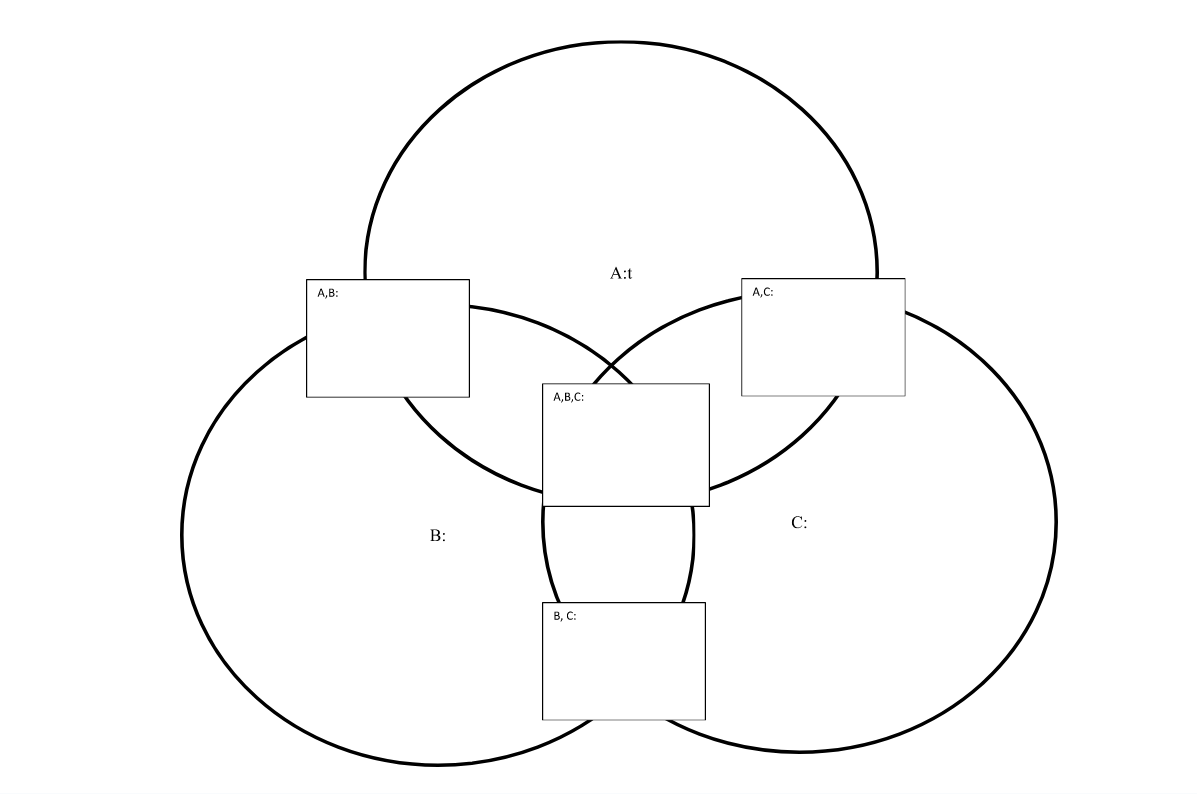
    Using Venn diagrams with screen readers involves strategic design and specific keyboard commands to ensure accessibility. Each set in the diagram must have clear, descriptive labels to guide screen reader users effectively. These labels help users understand the content without needing visual cues. Alt text plays a crucial role by summarizing the Venn diagram’s purpose, the sets involved, and their intersections. This concise description enables screen reader users to grasp the diagram’s structure and intent.

    Keyboard navigation is essential for screen reader users to interact with Venn diagrams. The Tab key allows users to move through interactive elements like text boxes or linked descriptions associated with the diagram. Arrow keys are useful for navigating within tables or text boxes that describe the diagram’s content. This functionality ensures that users can access all relevant information without relying on visual input.

    Screen Reader Venn Diagram Commands

    Screen reader software, like JAWS or NVDA, includes commands that facilitate navigation. In JAWS, the Ctrl+H command lets users jump between headings, making it easier to navigate through complex content. NVDA users can use the Ctrl+Alt+Arrow keys to move between headings or landmarks within a webpage or document. These commands are vital for quickly accessing different parts of the content related to the Venn diagram.

    Incorporating structured content enhances the usability of Venn diagrams for screen reader users. Headings, bullet points, and numbered lists help break down complex information into manageable sections. This structure allows users to follow the logical flow of information without confusion. So, Screen reader users can also navigate through tables that complement the Venn diagram. Tables list elements within each set and describe intersections, making the relationships between sets clear. JAWS users can move horizontally between cells using Ctrl+Alt+Right/Left Arrow keys, and vertically with Ctrl+Alt+Up/Down Arrow keys.

    image of a 3 ringed screen reader Venn Diagram to add information from a download link

    Careful Planning

    Creating accessible Venn diagrams for screen reader users requires careful planning. By using descriptive text, alt text, structured content, and keyboard commands, educators and content creators can ensure that all users, including those who rely on screen readers, can effectively interact with and understand Venn diagrams. These strategies are essential for making complex visual information accessible to everyone. More Video Lessons here

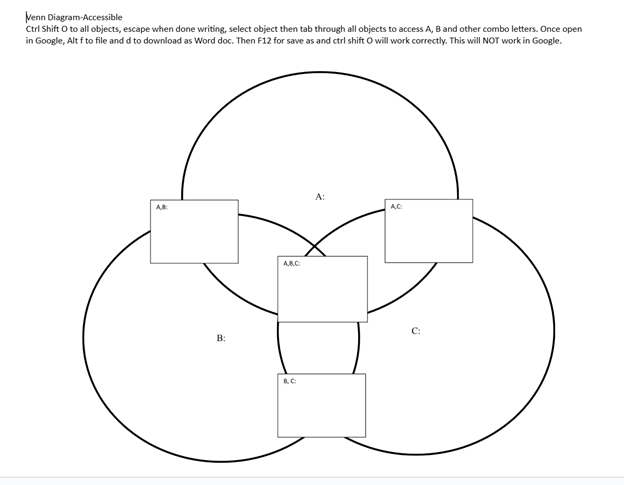
    Create your Venn Diagram via WORD and shapes, applications key to move to back or forward then use these commands to access: Venn Diagram-Accessible

    Ctrl Shift O to all objects, escape when done writing, select object then tab through all objects to access A, B and other combo letters. Once open in Google, Alt f to file and d to download as Word doc. Then F12 for save as and Ctrl Shift O will work correctly. This will NOT work in Google.

    When done, have student emboss off a copy to feel what it is like and if you are having computer issues, tweak it to work better with screen reader.

    Another lesson that occurs in school: Family Tree with Smart Art and screen reader

    Math Lessons

    Transcribe Math Images

    Quadratic Math

    STEM with Embossing

    Perfect Digital Math

    JAWS and MathCat

    Unicode with UEB Math

    UEB Math with Jaws

    UEB LaTex math with Jaws

    Braille Math in WORD Editor-Multi-line

    Split Braille for Buffer Mode

    Braille Blaster

    Desmos Lessons:

    Desmos 3D graphing

    for Geometry in Desmos

    for STEM and Embossing in Desmos

    Desmos and inserting graphs into Math Work in WORD

    Creating shaded Parabolas in Desmos

    Games with Desmos with Drag and Drop

    Drag n Drop in Macmillan Learning

    Creating Geometry Table