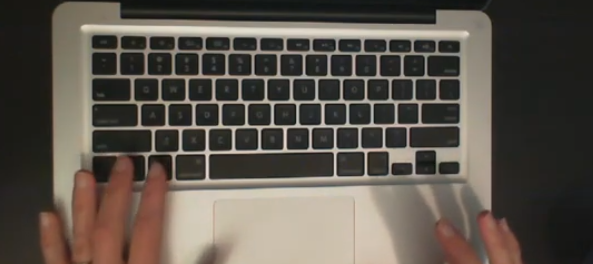
Navigating a Mac with VoiceOver is essential for blind and low vision users. By using keyboard commands, you can efficiently manage tasks without relying on a mouse. VoiceOver provides auditory feedback, guiding users through menus, applications, and files. Key commands like Command + F5 to toggle VoiceOver, or Control + Option + D to access the Dock, streamline the process. This guide introduces basic navigation techniques, helping you quickly move between applications, windows, and other essential areas of your Mac with Voice Over.
Finger gestures on a Mac track-pad allow for smooth navigation and interaction. With VoiceOver enabled, the following gestures are common on track pad on Mac with VoiceOver and Key Commands :
One-Finger Swipe: Swipe left or right to move between items.
Double-Tap: Activate or select an item.
Three-Finger Swipe: Move the content, such as scrolling up or down.
Two-Finger Rotate: Adjust the rotor to different navigation options.
Three-Finger Tap: Brings up additional VoiceOver information about the item.
Mac with Voice Over and VO keys
Finger tap or swipe gestures on the Mac trackpad with VoiceOver and Key Commands provide an intuitive way to control navigation using VoiceOver. Here are some common gestures:
Single Tap: Select an item under the cursor.
Double Tap: Activate the selected item (like clicking a mouse).
Swipe Left or Right with One Finger: Move to the next or previous item.
Two-Finger Swipe Up/Down: Scroll through a document or webpage.
Three-Finger Swipe Left/Right: Navigate between open applications or spaces.
These gestures make interacting with your Mac faster and more efficient when using VoiceOver.
Google offers several tools to make inaccessible images of work accessible through translation and text extraction. Google Translate includes an image translation feature, where users can upload an image and the tool will detect and translate the text within it into another language. Additionally, Google Drive and Google Docs use Optical Character Recognition (OCR) to convert images, like scanned PDFs, into editable text. This makes visual content, such as images with embedded text, accessible for screen readers, helping blind or low vision users engage with the content more easily. Using Google Docs as plain text can further streamline this process.
Here’s how to save a Google Doc as plain text using keyboard commands:
Open your document.
Press Alt + Shift + F to open the “File” menu. (Many times you can just use Alt+F)
Press Down Arrow to navigate to Download.
Press Right Arrow to expand the options, then press Down Arrow to select Plain Text (.txt).
Press Enter to download the document as a plain text file.
Open the .txt file, select with CTRL + A, Copy it with CTRL+C and paste into WORD with CTRL+ V
These steps will extract text then download the document with no formatting, leaving only the raw text. Then transfer it into WORD for easy reading
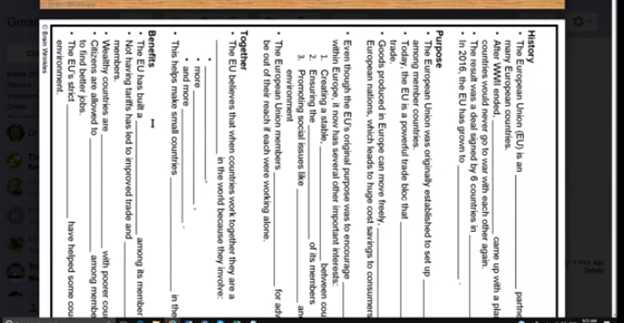
Google Doc as Plain Text Using Keyboard due to doc being side ways image
Many people wonder what does legally blind look like? In fact, visual acuity below 20/200 qualifies as legally blind. To actually fit the definition, the person must not be able to attain 20/200 vision even with prescription eye wear. People with legal blindness can function effectively in daily life using appropriate glasses or contact lenses.
Educational Definition for Services
Under the new criteria, if a person’s visual acuity is measured with one of the newer charts, and they cannot read any of the letters on the 20/100 line, they will qualify as legally blind, based on a visual acuity of 20/200 or less. Based on acuity Work will need to be adapted.
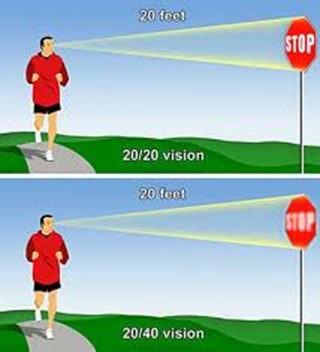
This vision means that a person sees at 20 feet what someone with normal vision sees at 70 feet. It is a form of visual impairment classified as mild low vision. Here’s a breakdown of what this means and its implications: Based on diagnosis, this acuity can get worse throughout the day.
1. Definition of 20/70 Vision
In a standard eye exam, the results are written as a fraction, with 20/20 being considered normal vision.
The first number (20) refers to the distance (in feet) from which a person views an object.
The second number (70) indicates the distance at which a person with normal vision can see the same object with clarity.
Thus, someone with 20/70 vision must be closer to an object (20 feet away) to see it as clearly as a person with 20/20 vision can from 70 feet.
2. Implications of 20/70 Vision
Legally Not Blind: This level of vision does not qualify as legal blindness, which is defined as 20/200 or worse with corrective lenses.
Difficulty with Certain Tasks: Individuals with 20/70 vision may struggle with tasks requiring clear distance vision, such as reading road signs, recognizing faces from a distance, or seeing objects clearly in low-light conditions.
Daily Life Adjustments: Depending on the person’s environment, they may need glasses or contact lenses to enhance their vision for specific tasks. However, vision aids may not fully restore perfect clarity.
3. Corrective Measures
Eyeglasses or Contact Lenses: Many individuals with 20/70 vision wear corrective lenses to improve visual acuity.
Low Vision Aids: Some people might benefit from magnifying devices, large-print materials, or enhanced lighting to assist with reading or other close-up tasks.
Adaptive Technology: Screen magnifiers, larger fonts on digital devices, and software that enhances visual contrast can also help improve accessibility for people with 20/70 vision.
4. Potential Causes
Refractive Errors: Conditions like myopia (nearsightedness), hyperopia (farsightedness), or astigmatism can result in 20/70 vision if not corrected.
Eye Diseases: Conditions like cataracts, macular degeneration, glaucoma, or diabetic retinopathy may cause a person’s vision to deteriorate to 20/70.
Age-Related Changes: Vision often declines naturally with age, and some individuals may experience 20/70 vision due to presbyopia or other age-related conditions.
5. Treatment and Management
Regular eye exams are essential to monitor vision changes.
Wearing prescribed corrective lenses and using adaptive aids can help individuals maintain independence and improve their quality of life.
Early detection of underlying conditions (e.g., glaucoma or cataracts) through eye exams can prevent further vision loss.
In summary, 20/70 vision reflects a moderate visual impairment. While it can pose challenges for certain activities, corrective measures and assistive technologies can significantly enhance visual functioning and quality of life.
all acuity levels compared
20/100 vision means that a person sees at 20 feet what someone with normal vision can see clearly at 100 feet. This level of visual acuity is considered moderate low vision. Here’s a detailed explanation of what 20/100 vision means and its implications:
1. Definition of 20/100 Vision
Visual Acuity Measurement: Vision is typically measured using a Snellen eye chart, and the result is expressed as a fraction. The first number (20) represents the distance at which the person is standing from the chart. The second number (100) indicates the distance at which a person with normal vision (20/20) can see the same object clearly.
Therefore, a person with 20/100 vision must be much closer to an object (20 feet away) to see it clearly, while someone with normal vision can see it clearly from 100 feet away.
2. Implications of 20/100 Vision
People with 20/100 vision are considered legally visually impaired. However, this does not meet the definition of legal blindness, which is 20/200 or worse. Even with corrective lenses, they fall under the low vision category. This means normal vision remains unattainable.
When it comes to daily tasks, they often struggle with seeing distant objects clearly. For instance, they may have trouble reading signs from far away. Recognizing faces across a room or on the street is also challenging. Watching TV or presentations requires sitting close. Driving presents challenges, as they may not clearly see signs or signals from a safe distance.
Close-up tasks can be easier for those with 20/100 vision. Reading or using a computer may not be as difficult. However, many still require magnification or adaptive tools to assist with these activities.
Driving: In many regions, individuals with 20/100 vision may not meet the vision requirements for driving. Driving may be possible with special accommodations or vision aids, but restrictions usually apply.
Work and Education: Individuals with 20/100 vision may need accommodations in the workplace or classroom, such as enlarged print materials, magnifiers, or assistive software. Special seating or devices may also be necessary to ensure they can participate fully.
Mobility: While 20/100 vision allows for some independent movement, it can still make navigating unfamiliar environments more challenging. Some individuals may benefit from mobility aids like a cane or guide dog in certain situations. Based on diagnosis, 20/100 can change to 20/200 or worse during any day at school or work based on eye fatigue.
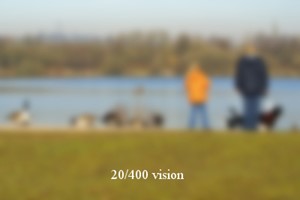
Different levels of Vision Loss to easily compare:
20/20 visual acuity to see people clearly in distance20/200 seeing blurry people in the distance20/400 acuity seeing people extremely blurry in distance
What legally blind looks like and is:
20/200 vision is a severe level of visual impairment and is often classified as legal blindness in many regions. It means that a person with this level of vision can see at 20 feet what a person with normal vision can see clearly at 200 feet. Here’s an overview of 20/200 vision and its implications: Technology has changed everything toward independence, including AI apps that will transcribe the inaccessible to accessible for you what you cannot see
1. Definition of 20/200 Vision
In an eye exam, vision is expressed as a fraction. The first number (20) refers to the distance (in feet) from which the person views an object. The second number (200) indicates the distance at which a person with normal vision can see the same object clearly.
Therefore, someone with 20/200 vision must be much closer to an object (20 feet away) to see it with clarity, while a person with normal vision can see it clearly from 200 feet away.
2. Legal Blindness
Legally Blind: A person with 20/200 vision is considered legally blind. Legal blindness is defined as having a visual acuity of 20/200 or worse in the better eye with the best possible corrective lenses.
Low Vision Category: While legally blind, individuals with 20/200 vision may still have some functional sight. They fall under the category of low vision, meaning that although their vision is severely impaired, they can still benefit from visual aids.
3. Impact on Daily Life
Challenges with Distance Vision: Individuals with 20/200 vision have significant difficulty seeing objects, signs, or faces at a distance. Recognizing faces across a room, reading road signs while driving, or watching TV from a typical distance can be very challenging or impossible.
Mobility and Orientation: Moving through unfamiliar environments may require assistance or adaptations. People with 20/200 vision often need to use mobility aids, such as a white cane or guide dog, to navigate safely.
Reading and Close-Up Work: Although close-up vision may be better, people with 20/200 vision often require magnifiers or other visual aids for reading or detailed work.
4. Corrective Measures
Eyeglasses or Contact Lenses: In some cases, corrective lenses may slightly improve vision. However, they often cannot bring a person’s vision to normal (20/20) levels when the vision loss is significant.
Low Vision Aids: Various devices can assist people with 20/200 vision in their daily lives, including:
Magnifiers: Handheld or electronic magnifiers for reading and detailed work.
Screen Readers: Digital devices or computers with screen readers that convert text to speech.
CCTV Systems: Closed-circuit television systems that enlarge printed text or images onto a screen.
Large-Print Materials: Books and materials with large text can make reading easier.
5. Driving Restrictions
Not Eligible for Driving: In most countries and regions, individuals with 20/200 vision are not permitted to drive. Driving requires a higher level of visual acuity to safely recognize signs, signals, and hazards.
6. Assistive Technology and Adaptations
Adaptive Technologies: Screen readers, screen magnifiers, and voice commands on computers and smartphones help individuals with 20/200 vision engage with digital content.
Environmental Modifications: Enhanced lighting, contrast modifications, and large-text displays make daily tasks like reading, working, and navigating spaces easier.
Orientation and Mobility Training: People with 20/200 vision need O&M (orientation and mobility) training to help them navigate safely and independently using mobility aids or techniques.
20/800 vision is a severe visual impairment often classified as profound low vision or near-total blindness. This means a person with 20/800 vision can see at 20 feet what someone with normal vision sees at 800 feet. Consequently, this level of impairment presents significant challenges for daily functioning. Even with corrective lenses, the limitations remain.
1. Definition of 20/800 Vision
A person with 20/800 vision must be 20 feet away to see something that a person with normal vision can see clearly from 800 feet. This substantial loss of visual acuity severely limits the ability to see details at any distance.
2. Legal Blindness and Classification
Individuals with 20/800 vision fall under the category of profound low vision. Although some residual vision may remain, it is limited. People with 20/800 vision are legally blind. Legal blindness is defined as having a visual acuity of 20/200 or worse in the better eye, even with corrective lenses.
3. Impact on Daily Life
People with 20/800 vision face significant visual challenges in everyday tasks. They may struggle with activities such as reading, recognizing faces, or navigating unfamiliar environments. Even simple tasks like watching TV or identifying objects across a room are often inaccessible. As a result, they must rely on non-visual cues such as tactile or auditory information. This helps them navigate their surroundings and accomplish tasks.
4. Corrective Measures
Although corrective lenses offer limited improvement for individuals with 20/800 vision, magnifiers or other visual aids may enhance any remaining vision for specific tasks. However, many people with this level of impairment depend on advanced assistive technologies. Screen readers, braille displays, and text magnifiers help them access information. Voice-controlled devices enable hands-free interaction with technology. Additionally, orientation and mobility aids, such as white canes or guide dogs, help individuals move safely.
5. Causes of 20/800 Vision
Congenital conditions, like Retinitis Pigmentosa or Optic Nerve Hypoplasia, often lead to severe vision loss. Progressive eye diseases such as Glaucoma, Macular Degeneration, or Diabetic Retinopathy can also cause vision to deteriorate to 20/800. Additionally, trauma or injury to the eye may result in permanent vision impairment.
6. Mobility and Independence
People with 20/800 vision rely on white canes, guide dogs, or assistance to travel safely. Orientation and mobility training teaches them how to use these aids effectively. This training also helps them develop strategies for moving confidently through public spaces. Some individuals also use adaptive techniques like echolocation to supplement their remaining vision.
7. Driving Restrictions
Due to the severity of the impairment, individuals with 20/800 vision are not permitted to drive.
8. Support and Resources
Low vision rehabilitation programs provide essential training in daily living skills, technology use, and mobility techniques. These programs enable individuals with 20/800 vision to maximize their remaining vision. Various organizations offer services such as guide dog training, braille literacy, and mobility aid instruction. Vision loss support groups also offer emotional and practical support for those facing similar challenges.
Result
20/800 vision represents profound visual impairment, often resulting in near-total blindness. People with this condition face substantial challenges in daily life. However, they can rely on assistive technology, mobility aids, and rehabilitation services to maintain independence. While corrective lenses may offer limited improvement, adaptive tools and strategies help individuals with 20/800 vision engage in work, education, and social activities successfully.
Now, you can get an idea of what a visual impairment actually looks like. Educational Services starting at youngest age possible but no later than age 3 years old is crucial.
Understanding Vision in Children: What Visual Acuity Really Means
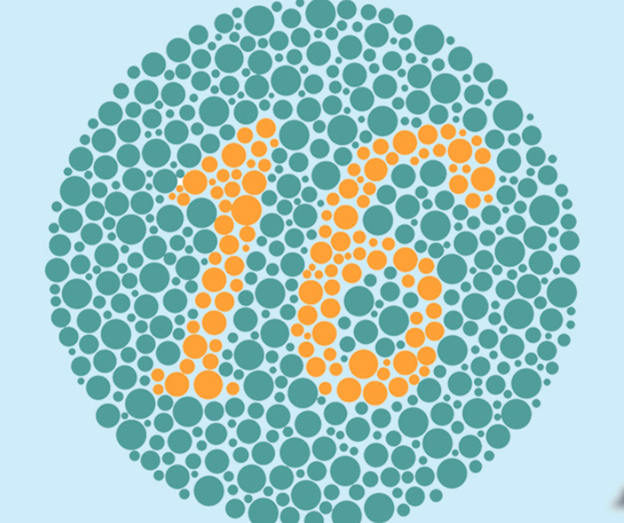
Color blindness occurs when individuals cannot distinguish certain colors due to defects in the eye’s color-detecting cones. Are you color blind? Red-green color blindness is the most common form. About 8% of men and 0.5% of women worldwide experience some type of color blindness. Blue-yellow color blindness and total color blindness are rarer forms. Though it primarily affects men, women can also develop this condition, but at a much lower rate.
Are you Color Blind? Can you see this number below clearly?
Are you color blind
The website Color Vision Testing provides comprehensive information about color vision deficiencies, commonly known as colorblindness. Here are some key features of the site:
Educational Content: It explains what colorblindness is, the different types, and the underlying causes.
Resources for Educators and Parents: The site offers guidance for teachers, school nurses, and parents on how to support children with color vision deficiencies.
Online Color Vision Tests: Users can take free online tests to check for colorblindness and determine the type and severity of their deficiency.
Research and Articles: The site includes articles on color vision research and new pediatric color vision tests.
Products for Screening: It offers color vision tests for purchase, suitable for schools, aviation, hospitals, and employment agencies.
You can perform all these tasks using current PDF versions, even with inaccessible scanned images. First, demonstrate how to write text directly on scanned PDFs, then save the edited file. Next, show students how to type directly on PDF and email the completed PDF to their teacher for submission. Perfect touch typing is always preferred for ease.
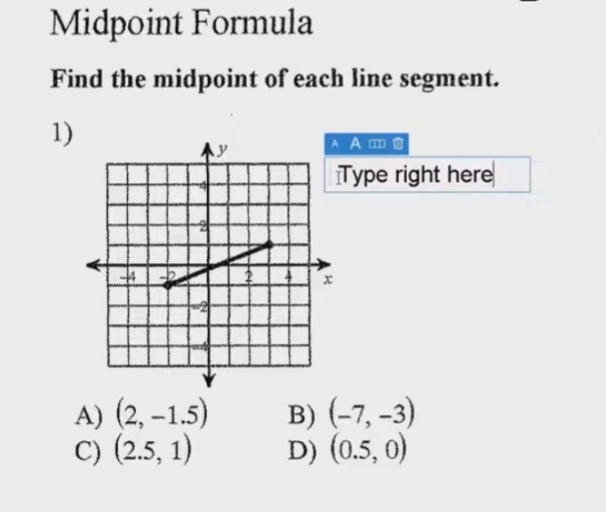
For low vision users, all math content with voice output offers additional support. Combine this tool with text manipulation in PDFs to make materials more accessible. This approach ensures students can interact with complex materials efficiently, despite any visual challenges.
Here are some useful keyboard commands for working with PDFs in Adobe Acrobat, focusing on enlarging the screen and typing on the document:
Type directly on PDF commands
Enlarge Screen (Zoom In/Out)
Zoom In:
Press Ctrl + + (Plus sign) on Windows.
Press Cmd + + (Plus sign) on Mac.
Zoom Out:
Press Ctrl + - (Minus sign) on Windows.
Press Cmd + - (Minus sign) on Mac.
Fit to Screen:
Press Ctrl + 0 (Zero) on Windows.
Press Cmd + 0 (Zero) on Mac.
Typing on a PDF
Type Directly on PDF
Add Text:
Select the Text Box Tool by pressing Ctrl + Shift + T on Windows.
On Mac, you might need to manually select the tool from the toolbar.
Type in a Form Field:
Navigate to the form field using the Tab key.
Press Enter to start typing.
Add a Comment:
Press Ctrl + 6 to open the comment tool on Windows.
Kids Bright eye glasses will help your child “WANT” to wear them.
Kids bright eye glasses
Find the perfect adorable pair of glasses for your little one… Or even cute patches to have 1 eye patched.
At Kids Bright Eyes, the focus is on nurturing children’s vision health through a range of engaging services. They emphasize the importance of early eye exams and offer tailored solutions to address common vision issues in children. The site highlights their commitment to using advanced technology for accurate diagnoses and personalized care. Parents can access valuable resources and tips for maintaining their child’s eye health and learn about various vision problems and treatments. Additionally, Kids Bright Eyes provides educational content to help parents understand how to recognize early signs of vision issues and the steps to take for effective intervention. Overall, Kids Bright Eyes combines expert knowledge with a compassionate approach to support and enhance children’s visual development.
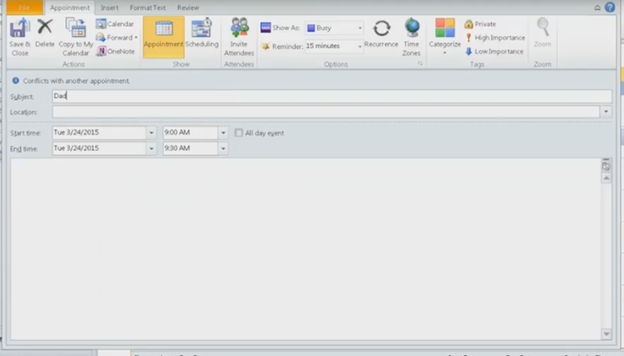
To set up an alarm in Outlook with JAWS, press Ctrl + 2 to switch to Calendar view. Next, press Ctrl + N to create a new appointment. JAWS announces each field as you navigate through the form. Enter the subject, then press Tab to move to the location field. Continue pressing Tab to set the start and end times. To adjust the date, use Alt + Down Arrow to access the date picker.
Press Alt + H to open the appointment tab, then A to set the reminder. Use arrow keys to select the desired reminder time, then press Enter to confirm. Finally, press Ctrl + S to save the appointment. At the scheduled time, JAWS will announce your reminder.
If you discover your computer is not working well, check your Setups on windows and if you are low vision, here are setup options also for better viewing.
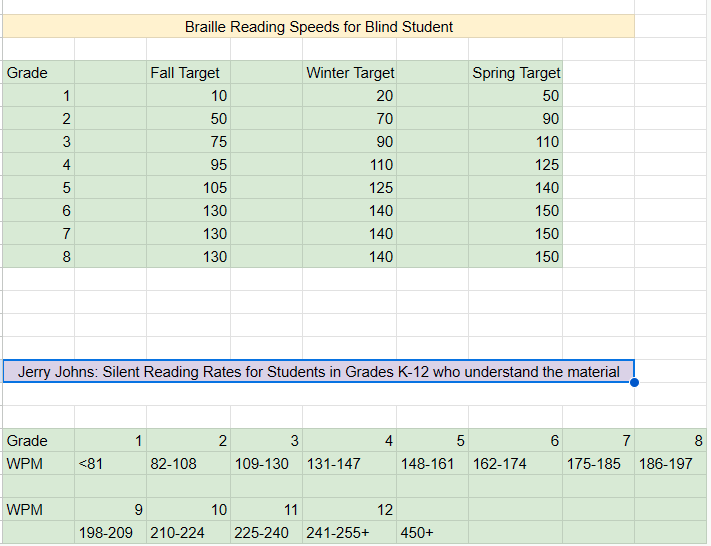
So many people ask, “How fast should my child be reading?” When discussing Braille Reading Speed Standards, it’s essential to remember that blind children are just as intelligent as sighted children so standard reading speed should be used for all children. Braille Reading Fast.
The TechVision Team use these same standards for all blind and low vision students. To name just a couple, Batya reads both Hebrew and English Braille and Dani excels to the top of her class also. If you set high standards then children will meet those standards. We have taken on beginner students and told them how fast they would be reading braille in a couple months, even in middle and high school. Just remember the older you start the longer it will take for them to gain speed. At the end of the 2 months, as their fingers would fly across the page reading braille, as they were timed with a fast speed, We would ask, “So did you really think you would be able to read that fast?” They would reply, “Of course, because you told me I would be able to.”
So, tell them, they can, and they will. Our Mission and Purpose is to have students (especially with similar intelligence) at the highest levels they can be with hard work and instruction to get them there as their peers.
Get to the Highest Levels
Tricks to use Time them every week (sometime everyday), so they see their progress Have them reread the same material to get flow and fluency Have them braille the material first using contractions, then read what they wrote
Visual braille reading speed chart as above accessible version
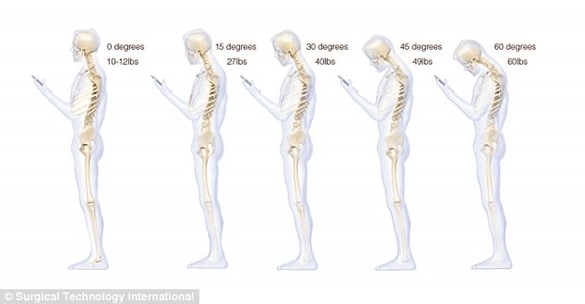
Leaning over while working over a computer or Phone can negatively impact your back. Leaning over devices causes compressed inter-vertebral discs, strained muscles, and altered spinal alignment. This posture can lead to chronic back pain, tension headaches, and long-term musculoskeletal issues. To prevent back and neck pain, maintain good posture, take regular breaks, and ensure your workspace is ergonomically designed.
Prevent Back and Neck Pain from Leaning over- image of skeleton with curved back
Low vision children are particularly vulnerable to neck and back problems, but anyone who leans over their work will eventually pay a high cost. Research shows that slumping over a phone adds significant pressure on the cervical spine. Bending the head to a 60-degree angle can add 60 pounds of pressure, equivalent to more than four stone. Proper posture can also lead to great touch typing skills.
To mitigate these effects, it’s important to maintain good posture, take regular breaks to move around, and ensure your workspace is ergonomically designed to support your spine health.
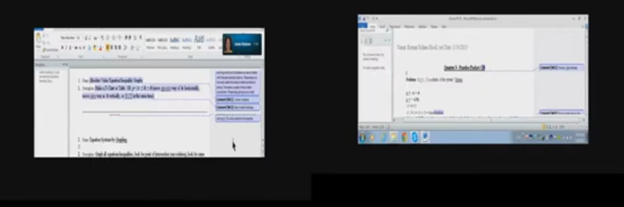
Track changes in Word for a 9th grade. This student was only using a brailler to braille out all work….a very slow process to get it transcribed, then to the teacher, then back to the student. Now, in 2 months the student has moved to completing all work on a computer, emailing to teacher, teacher corrects and sends back.