Search results for: “low vision”

  • Aira Glasses Navigation: How Blind Travelers Navigate Safely and Independently

    AIRA Navigation using Google Glasses

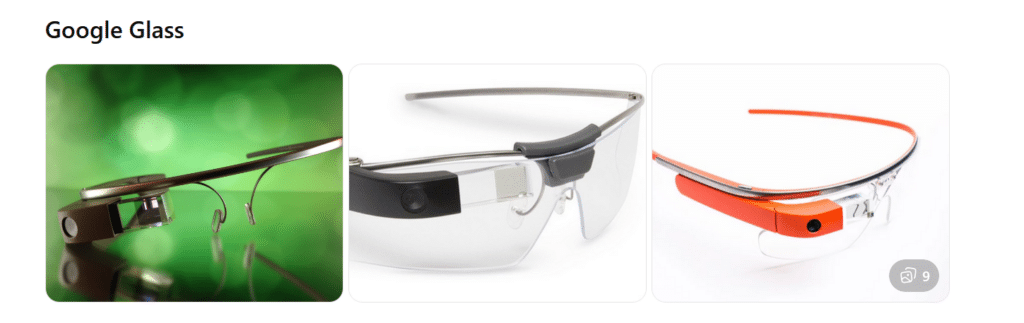
    Google Glass Options

    What they are:
    Lightweight smart glasses with a small display above the right eye. Originally released for consumers, now mostly used in enterprise and medical settings.

    Key features:

    • Small prism display
    • Voice-activated commands (“OK Google…”)
    • Camera (varies by model)
    • Touch pad on the right side
    • Designed for hands-free information access

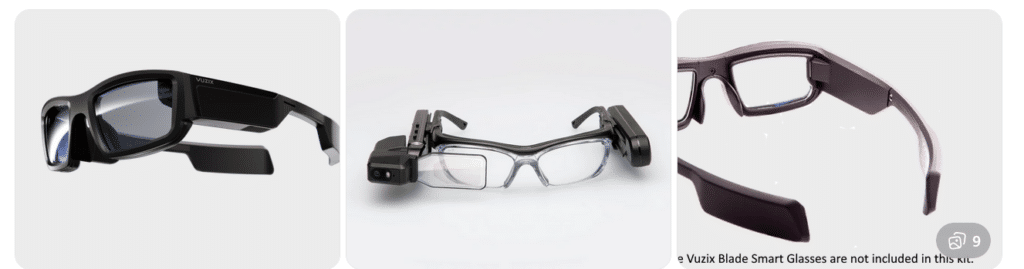
    Vuzix Smart Glasses (Blade / M400 / Shield Series)

    What they are:
    A family of AR smart glasses built for industrial, medical, and field environments. Models vary in shape and display size.

    Key features:

    • Larger, brighter AR displays
    • Camera options up to 4K
    • Rugged designs for work environments
    • Voice, touch, and head-tracking controls
    • Works with Android-based apps

    Aira and Smart Glasses for Blind Navigation: Modern Tools for Safe, Independent Travel

    Whether you’ve been blind for years or you’re just beginning to lose vision, today’s tools offer more options than ever for navigating the world with confidence. Smart glasses and services like Aira give you access to real‑time visual information—indoors, outdoors, at work, on campus, or in everyday life. For some, it’s an exciting next step in expanding independence. For others, it’s a gentle bridge toward accepting support without feeling like they’re giving up who they are. Wherever you are on that journey, these tools can help you move safely, work more efficiently, and stay connected to the world around you.

    If you want, I can also craft a shorter version for a carousel cover slide or a more emotional version that speaks directly to the reader.

    Helping a Young Adult Losing Vision: When They’re Not Ready for the Cane… Yet

    Losing vision as a young adult is complicated. It’s not just about mobility—it’s about identity, pride, and the fear of being seen as “blind” before they’re ready to claim that word for themselves.

    Many young adults tell us:

    • “I don’t want people staring at me.”
    • “I’m not blind enough for a cane.”
    • “I can still get by if I try harder.”
    • “I don’t want to look different.”

    These feelings are real. They deserve respect, not pressure.

    But they also deserve safety, dignity, and access to the world.

    That’s where Aira can become a bridge—not a replacement for cane skills, not a long‑term solution, but a gentle first step toward accepting support.


    Why Aira Works for Someone Who Isn’t Ready for the Cane

    Aira gives visual information without announcing disability to the world.

    For a young adult who is still grieving vision loss, this matters.

    Aira lets them:

    • Move through a college campus without guessing at signs
    • Navigate stores, offices, or new environments without pretending
    • Read menus, labels, and screens without asking friends
    • Travel safely in unfamiliar places
    • Do their job or schoolwork without feeling exposed

    It’s discreet. Very private. It’s on their terms.

    And most importantly—it gives them a taste of what independence with support feels like.

    That experience often becomes the turning point.


    The Emotional Shift: From “I Don’t Want to Look Blind” to “I Deserve to Move Safely”

    When a young adult uses Aira, something powerful happens:

    They realize they don’t have to choose between:

    • Looking blind
      and
    • Being unsafe

    Aira shows them that support doesn’t take away independence—it protects it.

    Once they feel the relief of not guessing, not hiding, not pretending…
    they often become more open to the cane.

    Not because someone forced them.
    But because they finally understand:

    Independence isn’t about doing everything alone.
    It’s about having the right tools at the right time.


    Real Examples: A Young Adult Losing Vision Who Wants a Career in Film, Photography, or Other Visual Fields

    Let’s say this young adult has 20/200–20/400 vision or worse and dreams of photography, cinematography, or other highly visual careers that require sharp editing and image capture.

    They’re talented. They are creative. They’re determined.

    But they’re also scared of being seen as “blind.”

    Aira can help them:

    • Frame shots
    • Check lighting
    • Review images
    • Navigate sets
    • Identify equipment
    • Move safely in unfamiliar locations

    They get to keep their identity as a creator and keep their dignity.
    They get to keep their dreams alive.

    And slowly, gently, they begin to understand:

    Blindness doesn’t take away creativity.
    It just changes the tools.


    How We Bring Them Along—Without Shame, Pressure, or Fear

    Here’s the message we give young adults:

    “You don’t have to be ready for the cane today.
    But you do deserve to move safely today.
    Aira can help you do that while you figure out the rest.”

    We meet them where they are and honor their feelings.
    We give them a tool that supports them privately.
    And we let confidence do the rest.

    Because once they feel what safe, supported independence is like…
    the cane stops looking like a symbol of blindness
    and starts looking like a symbol of freedom.


    Real Example for all users with Airport Navigation and Traveling Using Aira

    Airports can be some of the most challenging environments for blind and low‑vision travelers—constant construction, changing layouts, crowded terminals, and signage that’s almost entirely visual. Aira gives travelers real‑time visual support from the moment they step out of the rideshare to the moment they reach their gate. And when paired with Aira’s own smart glasses—designed to look just like the everyday eyewear everyone else is wearing—travelers get discreet, hands‑free access to visual information without standing out or feeling different.

    In fact, the only way anyone would know a traveler is blind is if they’re using a cane. You can even call an Aira Agent while the plane is still on the runway so you’re fully set up to step off the aircraft and head confidently to your next gate with live guidance. Agents can help locate check‑in counters, identify the correct security line, read flight boards, navigate terminals, find restrooms or restaurants, and guide travelers through gate changes or last‑minute updates. Whether you’re a seasoned blind traveler or someone newly adjusting to vision loss, Aira adds a layer of confidence and clarity that makes airport travel smoother, safer, and far less stressful.

    Other iPhone Lessons

  • How to Get a Job Today: Must-Have Technology Skills for Success

    How to get a Job-Woman at PC with display
    How to get a Job-Woman at PC with display and iPhone

    Most jobs today use the same tools: a PC, a smartphone, and Windows workplace software. If students want a job later, they must learn these tools early. If anyone wants a job, you must master those tools with excellence. Character, consistency, loyalty, and trust — combined with strong tech skills — help people gain and keep lasting employment.

    Blind and low-vision students need the same skills. They also need a screen reader, braille display, and tactile learning to access the world on equal terms.

    This is why instruction cannot start late.
    It must start educationally at age three-as a baby from the womb just teaching parents how to help child.

    Early learning builds kindergarten readiness. It keeps blind students even with their peers. Strong IEPs then protect continued teaching in tech, tactiles, and braille each year so they can keep pace with their peers.

    When schools teach the right tools early, blind students enter the future ready to work, ready to compete, and ready to thrive.


    Global Employment — All People

    According to the International Labour Organization (ILO) and global labor data:

    Employment Rate Worldwide

    • About 58% of people aged 15–64 are employed globally.
      (This includes full-time, part-time, formal and informal work.)
    • Another ~26% are outside the labor force (students, homemakers, retired)
    • ~6–10% are officially unemployed (actively seeking work)

    Key takeaway: Most people around the world have some form of work.


    People use a mixture of technology on the job depending on industry, income level, and region.

    Most tech adoption statistics come from large surveys, including:

    • International Telecommunication Union (ITU)
    • Statista digital economy surveys
    • World Bank ICT data
    • Global Workplace Analytics

    These show broad patterns across sectors.


    Computer Access at Work (Global Estimate)

    • About 70–75% of office workers worldwide use a computer at work.
      This includes laptops, desktops, and workstation terminals.

    This varies by region:

    • High-income countries: ~85–90% computer use at work
    • Middle-income countries: ~60–75%
    • Low-income countries: ~30–50%

    Smartphone Use at Work

    Smartphones are extremely common globally, even where desktop PC penetration is lower.

    Global estimates show:

    • 85–90% of working adults use a smartphone at least daily for communication, email, scheduling, messaging, and business apps.
    • In many service, retail, field, and informal jobs, the smartphone is the primary computing tool.

    PC vs. Mac vs. Other at Work (Global Split)

    There is no exact global “one number,” but multiple tech market share sources give a snapshot of the device ecosystem used professionally:

    PC / Windows

    Windows dominates business environments because:

    • Longstanding enterprise support
    • Broad software compatibility
    • Legacy systems in large organizations

    Mac (macOS)

    • Estimated 15–20% of workplace computers.
    • Higher share in:
      • creative industries (design, media, publishing)
      • education and research institutions
      • startups and technology firms
      • some small business environments

    Other (Linux, Chrome OS, Thin Clients)

    • 5–10% combined share. These are more common in:
      • tech-savvy organizations
      • cloud-centric workplaces
      • specialized development environments

    Technology People Use on the Job

    Here is how technology breaks down by task:

    Office / Knowledge Work

    • PC (Windows + Office)
    • Laptops, desktops
    • Email, Office suites, cloud apps
    • Collaboration tools (Slack, Teams, Zoom)
    • Data entry, spreadsheets

    Creative / Design / Media

    • Mac systems are popular
    • Adobe Creative Suite
    • Video and audio editing tools

    IT / Development

    • Split between Mac, PC, and Linux
    • Code editors (VS Code, Vim)
    • Cloud and DevOps tools

    Data / Analysis

    • PCs for spreadsheets and databases
    • Macs for visualization and coding

    Mobile-First Roles

    • Smartphones for:
      • communication (call, message)
      • scheduling
      • mobile apps (CRM, logistics)
    • Especially in:
      • retail
      • transportation
      • field service

    Global Smartphone vs Computer at Work

    Here’s a broad estimate:

    Technology TypeApprox. Global Usage at Work
    Smartphones~85–90%
    Desktop/Laptop Computers~70–75%
    Windows PCs~75–80% of computer share
    Macs~15–20%
    Other OS (Linux, Chrome OS)~5–10%

    Note: These percentages overlap — most people use both smartphones and computers.


    WHY TECH ADOPTION LOOKS THIS WAY

    Smartphones have high adoption because:

    • They are affordable
    • Widely available
    • Used for email, messaging, forms
    • Often required by employers for mobile work

    PC (Windows) dominates because:

    • Enterprise software is built for it
    • IT infrastructure around Windows is mature
    • It’s cost-effective at scale

    Mac is strong in:

    • Creative industries
    • Technology startups
    • Higher education
    • Design and media fields

    SUMMARY — GLOBAL View

    Employment: ~58% of adults globally are employed
    Smartphone use: ~85–90% use at work
    Computer use (general): ~70–75% use a PC/laptop
    Windows share: ~75–80%
    Mac share: ~15–20%
    Other OS: ~5–10%

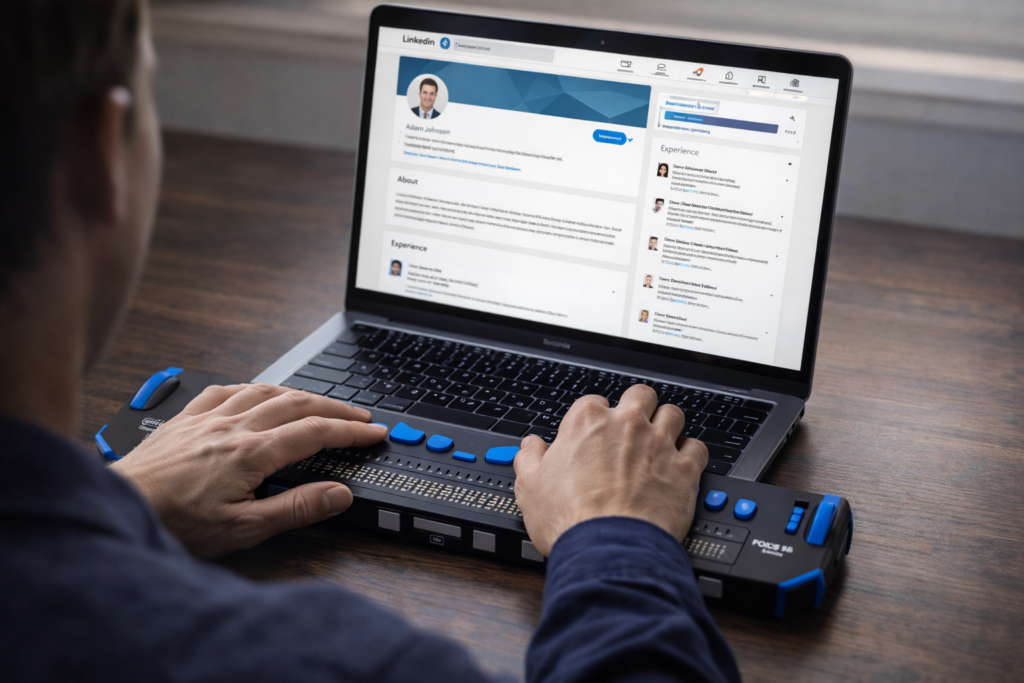
    Go Professional: LinkedIn with Jaws

  • Blind Users Retrace Indoor Routes with Clew

    Audience: Blind or low‑vision students (middle school through adult)
    Skills: Indoor navigation, spatial awareness, cane + tech integration
    Tools Needed: iPhone with Clew installed, long cane, safe indoor route

    Blind Users Retrace Indoor Routes with Clew
    Blind Users Retrace Indoor Routes with Clew

    Lesson: Learning to Use Clew for Indoor Route Retracing

    Lesson Overview

    Clew is a free iPhone app that helps you retrace a route indoors.
    You walk a path once, and Clew guides you back along that same path using sound, vibration, and spoken cues.

    Clew does not use maps, GPS, Wi‑Fi, or beacons.
    It works in any building because it relies on the path you walked.

    Your cane provides safety and obstacle detection.
    Clew provides directional alignment.

    Together, they support confident indoor travel.


    Learning Objectives

    By the end of this lesson, the student will be able to:

    • Download and open the Clew app
    • Allow necessary permissions
    • Hold the phone correctly for AR tracking
    • Record a route independently
    • Retrace the route using Clew’s cues
    • Use cane skills throughout the process
    • Explain what Clew can and cannot do

    Step 1 — Download the Clew App

    1. Open the App Store
    2. Tap Search
    3. Type “Clew”
    4. Select the app named Clew
    5. Tap Get
    6. Open the app once it installs

    Note: Clew is iPhone‑only.


    Step 2 — Allow Camera Access

    When Clew opens for the first time, it will ask for permission to use the camera.

    Tell the student:

    “Clew uses the camera to track your movement. It does not record video — it only uses the camera to understand the path you walk.”

    Tap Allow.


    Step 3 — Phone Positioning

    Before recording a route, teach the student to hold the phone:

    • upright
    • at chest height
    • camera facing forward
    • steady, not swinging

    This is essential for Clew’s AR tracking.

    Cue:
    “Cane leads. Phone observes.”


    Step 4 — Record a Route

    Choose a simple, safe route such as:

    • hallway → classroom
    • classroom → office
    • seat → door

    Have the student:

    1. Open Clew
    2. Tap Record Route
    3. Walk the path using solid cane skills
    4. Stop recording at the destination

    Reinforce:

    • “Your cane tells you what’s on the ground.”
    • “Clew is only tracking the path — it does not detect obstacles.”

    Step 5 — Retrace the Route

    Now guide the student through returning to the starting point.

    1. Tap Return to Start
    2. Follow Clew’s cues:
      • Haptic taps for turns
      • Audio beeps for alignment
      • Voice prompts for direction

    Encourage the student to:

    • Pause if unsure
    • Re‑center the phone
    • Sweep with the cane
    • Continue when aligned

    Step 6 — Troubleshooting Practice

    Teach the student what to do if:

    Clew says “You’re off route”

    • Stop
    • Re‑center the phone
    • Sweep with the cane
    • Slowly adjust direction

    The phone tilts

    • Bring it back to upright
    • Keep it steady

    The student drifts

    • Use the cane to find the wall or landmark
    • Realign with Clew’s cues

    Step 7 — Reflection and Understanding

    Ask the student:

    • “What did Clew help you do?”
    • “What did your cane tell you that Clew didn’t?”
    • “When would Clew be useful in your school or home?”

    This builds independence and decision‑making.


    What Clew CAN Do

    • Retrace a route you walked
    • Guide you back with sound, vibration, and voice
    • Work in any building
    • Handle multiple turns
    • Support spatial memory
    • Help you return to a seat, office, or classroom

    What Clew CANNOT Do

    • It cannot guide you to a new destination
    • It cannot save routes after the app closes
    • It cannot detect obstacles
    • It cannot replace cane skills
    • It does not use maps

    Student‑friendly explanation:
    “Clew doesn’t know the building. It only knows the path you walked.”


    Assessment Checklist

    The student can:

    • Download and open Clew
    • Hold the phone correctly
    • Record a route independently
    • Retrace the route safely
    • Interpret Clew’s cues
    • Use cane skills throughout
    • Explain Clew’s limitations
    • Identify real‑life situations where Clew is helpful

    Teacher Notes

    • Clew is a reverse‑route tool, not a navigation system
    • Works beautifully for returning to a known point
    • Reinforces spatial memory
    • Builds confidence in unfamiliar buildings
    • Must always be paired with cane skills

    Other iPhone Lessons

  • Indoor Navigation for Blind Users: Using Seeing AI with iPhone

    Indoor Navigation for the Blind with Seeing AI
    Indoor Navigation for the Blind with Seeing AI

    At this time, there is no fully reliable indoor navigation app that works in all buildings without special equipment such as QR codes, Bluetooth beacons, or professional indoor mapping. GPS does not function accurately indoors, and current mobile apps cannot provide turn‑by‑turn indoor directions. Indoor Navigation for Blind Users remains a significant technical challenge due to these limitations.

    However, Seeing AI is the closest tool we have for indoor orientation that you can use immediately. It can describe rooms, identify doors, read signs, and recognize objects. When combined with strong cane skills, Seeing AI gives blind travelers meaningful visual feedback that supports safe and confident movement inside any home, school, or building. AND most importantly, can use anywhere and immediately.

    Lesson: Indoor Navigation for Blind Users Using Seeing AI (iPhone)

    Skills: Indoor navigation, route following, spatial awareness, tech + cane integration
    Tools: iPhone with Seeing AI, long cane, school hallway or building


    Lesson: Indoor Orientation Using Seeing AI

    What it CAN do, what it CANNOT do, and how blind travelers can use it safely and effectively.

    Strong cane travel skills are the foundation of safe and independent mobility. Great cane training will always take you where you need to go. Seeing AI can add helpful information about the environment, but it is the cane that provides the reliable, real‑time feedback a blind traveler depends on.


    Skills: Indoor orientation, environmental awareness, object identification, sign reading, cane + tech integration
    Tools: iPhone with Seeing AI, long cane, any indoor environment


    Lesson Overview

    Seeing AI is not an indoor navigation app.
    It does not map buildings, create routes, or give turn‑by‑turn directions.

    But it is the most powerful indoor visual feedback tool available today for blind travelers — and when paired with strong cane skills, it becomes a reliable way to:

    • identify rooms
    • confirm locations
    • understand layout
    • detect doors and openings
    • recognize objects
    • read signs
    • build mental maps

    This lesson teaches students how to use Seeing AI as an indoor orientation partner, not a navigation system.


    Learning Objectives

    By the end of this lesson, the student will be able to:

    • Use Seeing AI to identify doors, signs, and room numbers
    • Use the World and Scene channels to understand layout
    • Use Short Text to read labels, signs, and posted information
    • Use object recognition to identify furniture and landmarks
    • Combine cane skills + Seeing AI feedback to move safely
    • Understand the limits of Seeing AI indoors
    • Use Seeing AI as a supplement, not a replacement, for O&M skills

    What Seeing AI CAN Do Indoors

    Describe what the camera sees

    • furniture
    • doors
    • hallways
    • people
    • objects
    • appliances
    • stairs
    • obstacles

    Read signs and room numbers

    • classroom numbers
    • office signs
    • restroom labels
    • posted instructions
    • bulletin boards

    Identify objects and landmarks

    • tables
    • chairs
    • vending machines
    • water fountains
    • cabinets
    • shelves

    Help build a mental map

    By scanning left, right, and ahead, the student can understand:

    • where openings are
    • where walls are
    • where intersections are
    • where furniture is located

    Confirm they’ve reached the correct room

    Short Text + Scene = “Yes, this is Room 214.”

    Support safe indoor travel when paired with cane skills

    Seeing AI gives visual information.
    The cane gives tactile information.
    Together, they create a complete picture.


    What Seeing AI CANNOT Do Indoors

    It cannot navigate

    turn‑by‑turn directions or indoor routes.
    Nor give hallway guidance.

    It cannot map a building

    No saved indoor locations, or indoor POIs.
    No floor detection.

    It cannot guide you back to a room

    Markers and audio beacons are GPS‑based and only work outdoors.

    It cannot detect exact indoor positions

    GPS accuracy indoors is too poor.

    It cannot replace cane skills

    It supplements orientation — it does not provide mobility.


    “Seeing AI helps you understand what’s around you indoors. It can describe rooms, read signs, and identify objects. It cannot guide you like a GPS, but it gives visual information that supports your cane skills.”


    Explore the World Channel

    Explore

    • hold the phone at chest level
    • slowly scan left to right
    • listen to descriptions

    Listen for:

    • “What openings do you hear?”
    • “What objects are in front of you?”
    • “What does it say about the hallway?”

    Identify Doors and Openings

    Use the camera to:

    • find doorways
    • detect open vs closed doors
    • identify intersections
    • confirm hallway direction

    Think about:

    • “Where is the door located?”
    • “Is it open or closed?”
    • “What does your cane confirm?”

    Read Room Numbers and Signs

    Switch to Short Text.

    Now

    • locate room numbers which should have braille
    • read office signs
    • read restroom labels
    • read posted instructions

    This builds literacy + orientation.


    Object Identification

    Use the Describe to identify:

    • tables
    • chairs
    • cabinets
    • appliances
    • vending machines
    • water fountains
    • anything

    Think about

    • “What object did it identify?”
    • “How does that help you understand the space?”

    Build a Mental Map

    Walk a hallway or room.

    • scan ahead
    • scan left
    • scan right
    • use cane to confirm
    • describe the layout

    Then combine:

    • visual feedback
    • tactile feedback
    • spatial reasoning

    Reflection

    • “What did Seeing AI help you understand?”
    • “What did your cane tell you that Seeing AI didn’t?”
    • “How did the two work together?”
    • “What can Seeing AI NOT do indoors?”

    This reinforces realistic expectations.


    If you are teaching this here is an Assessment Checklist

    Student demonstrates mastery when they can:

    • Identify doors and openings using Seeing AI
    • Read room numbers and signs
    • Identify objects and landmarks
    • Build a mental map of a hallway or room
    • Use Seeing AI + cane skills together
    • Explain what Seeing AI cannot do indoors

    Teacher Notes

    • Seeing AI is the best indoor orientation tool available today
    • It is NOT indoor navigation
    • It gives visual information, not directions
    • It works in any building
    • It supports independence when paired with cane skills

    Other iPhone Lessons

  • Teens Feeling Overwhelmed: The Truth About the Weight They Carry Alone

    Theme: The Weight They Carry

    Blind Teens See a World That Rarely Sees Them Back-They scroll social media with braille display and
    Blind Teens See a World That Rarely Sees Them Back-They scroll social media with braille display and

    The Silent Exhaustion Teens Carry Into the Classroom

    The bell rang at 7:05 AM, but most of the class did not look up. At the front of the room, Ms. Sage watched them, really watched them and saw something most adults miss. In moments like this, it becomes clear why so many people are talking about Today’s Teens Feeling Overwhelmed. Twenty‑seven juniors sat in rows; faces washed in the cold glow of their screens. Their thumbs moved faster than their eyes. Notifications popped like fireworks. Someone laughed at a meme. Someone posted a photo… then deleted only minutes later because of fear someone judging the image.

    Ms. Sage stood with sadness and concern.

    The Hidden Weight Social Media Places on Today’s Teens

    She had taught for thirty‑two years, but this generation was different. Not worse, just heavier. According to the latest national data, 57% of teen girls and 29% of teen boys now report persistent sadness or hopelessness, the highest levels ever recorded. And teens who spend more than three hours a day on social media which is nearly all of them, are twice as likely to experience symptoms of anxiety and depression.

    She saw those numbers every day in their faces: tired, anxious, overwhelmed, disconnected, and fragile.

    “Phones away,” she said gently. “All the way away.”

    A few groaned. One boy rolled his eyes. But they obeyed.

    On her desk sat a plain cardboard box. Nothing special. But today, it mattered.

    “I want you to write down one thing,” she said, handing out slips of paper. “Not your name. Not a joke. Just the truth.

    Then she turned to Suzy and John, her blind students. “You two can text me using SendAnonymousSMS,” she said. “I’ll copy your message onto a paper slip and drop it in the box with the others.” “That way no one will know who it’s from.”

    She looked back at the room. “Everyone Write down the thought that runs through your mind — your heart — whenever you scroll your accounts. The one you never say out loud.”

    The room stilled. Eyes wide.

    When Comparison Becomes a Daily Battle for Teens

    A cheerleader in the back, Lila, known for her perfect Instagram feed, stared at her blank paper under crushing pressure to “look” perfect. Her hands trembled. Just last week, she had confessed to the counselor that she spent over eight hours a day comparing herself to girls she did not even know, staying up late and scrolling into the early morning hours. And she was not alone. National surveys show that 46 percent of teens say social media makes them feel worse about their bodies and their families, and one in three teen girls say they feel “ugly” because of what they see online.

    Every day, they scroll past smiling faces, perfect vacations, flawless skin, and filtered happiness and somewhere deep inside, they start believing everyone else is living a better life. They compare those highlight reels to their own quiet struggles and convince themselves they’re the only ones who feel sad, lonely, or left out.

    Lila finally wrote something down and continued to move her pencil across the paper.

    The Loneliness Behind the Laughs

    Next to her, Jordan, the class clown tapped his pencil. He had 12,000 followers on TikTok. People loved him. But last month, he told a friend he felt “fake.” Research shows that teens who curate a “perfect” online persona are three times more likely to report loneliness, even when surrounded by people.

    Jordan knew that feeling too well. He had one friend he could joke around with, someone he could confide in on the surface, but no one he trusted deeply. His parents had split two years ago, and his mom now worked two jobs just to keep the lights on. Most nights, he ate dinner alone while his sister stayed in her room, scrolling and picking at her food. They did homework alone. They fell asleep alone. The silence in the house made the loneliness louder, and the more he scrolled through everyone else’s “happy” lives, the more he believed he was the only one who felt this empty even though he saw the same despondent look on his sister’s face. So, he posted constantly, leaning into his class‑clown persona, trying to joke the loneliness away.

    Blind Teens See a World That Rarely Sees Them Back

    In the front of the room, Suzy and John knew what it felt like to be outsiders. Being blind set them apart before they even opened their mouths, and the feeling only sharpened when they scrolled through social media. With apps that read pictures aloud, the isolation deepened because no matter how many posts they explored, they rarely found people who were like them, lived like them, succeeded like them. They searched for blind mentors who could show them what was possible, yet they found few and sometimes none. Each empty search pressed the loneliness deeper. Students rarely talked with them because their blindness created a barrier built from difference and fear. Still, they kept scrolling, because that’s what teens did, even when it hurt.

    Most of the class was not made up of kids like Lila, Jordan, or the school’s sports heroes. It was kids like Joe and Sue, the ones who sat in the back or middle rows, who blended in, who were never chosen first for anything. They weren’t popular, not even close, and they felt it every day. Students like Joe and Sue were the ones pushed aside in hallways, called hurtful names, talked over in group projects, laughed at for clothes their families could afford or hobbies no one else understood. They watched the popular kids climb the social ladder while they stayed invisible on the bottom rung, and the invisibility hurt almost as much as the teasing and social media scrolling. Being unseen didn’t protect them; it only made the loneliness sharper.

    Brilliance and Secrets

    Then, there were the two brilliant minds in the room: Jessica and James. The kind of students who competed at everything, from test scores to running for class president to who could finish the assignment first. They seemed happier than most, partly because they checked their social media feeds far less often than everyone else. They still used it — they were teens, after all — but they’d learned that too much scrolling made them feel worse, so they kept their distance when they could.

    Even so, that choice, along with their drive, set them apart in a different way. They were the outliers, the only two who cared more about academics and future goals than trends or popularity. And because of that, some kids picked on them, calling them “perfectionists” or “teacher’s pets,” never understanding that Jessica and James weren’t trying to outshine anyone — they were just trying to build a future shaped by the dreams their parents had poured into them. That came with its own kind of pressure. When they fell short of what their parents expected, it hit their hearts harder than anything they could ever read online.

    The Emotional Pressure Today’s Teens Feel but Rarely Share

    Across the room, Tyler, the star running back with the big smile, the one everyone assumed had it all together leaned back in his chair, spinning his pen between his fingers. On the field, he was unstoppable. In the hallways, he walked with the kind of confidence people mistook for certainty. But inside, he was unraveling. Athletes are often seen as the “strong ones,” yet studies show they experience depression at the same rates as their peers; they just do not talk about it. Tyler lived that statistic.

    He had teammates he joked with, guys he could talk football with, but no one he trusted with the truth. He had one friend he could confide in superficially, but no one who knew him deeply; no one who understood the pressure he carried. His parents had split last year, and his dad moved two states away. His mom worked double shifts at the hospital, leaving before sunrise and coming home long after he’d gone to bed. Most nights, the house was dark and quiet, and Tyler ate dinner alone at the counter, scrolling through highlight reels of other athletes who seemed stronger, faster, happier.

    Online, he saw boys his age posting scholarship offers, perfect bodies, perfect lives. He compared their victories to his private fears and convinced himself he was falling behind. Research shows that nearly 1 in 3 teen boys feel pressure to appear “strong” online, and many hide their stress behind humor, sports, or silence. Tyler was no different. The louder the crowd cheered on Friday nights, the more alone he felt walking off the field.

    He tapped his pencil harder. Then, slowly, he picked up his paper and began to write.

    The Truth Teens Admit Only When They Feel Safe

    One by one, they walked up and dropped their slips inside.

    Ms. Sage waited until the last student sat down. Then she opened the box.

    She pulled the first slip…and read.

    “I feel invisible unless someone likes my posts.”

    Another.

    “I delete every picture of myself. I hate how I look.”

    Another.

    “I check my phone 200 times a day because I’m scared I’ll miss something and people will forget me.”

    Another.

    “I pretend I’m confident online. I’m not.”

    Another.

    “I don’t know who I am without my phone and my likes.”

    She paused. The room was silent. No one moved.

    Then she read the one that made her throat tighten.

    “I don’t want to be here anymore… Everyone else looks happy, and I feel lost, hurting, and completely alone.”

    The Centers for Disease Control and Prevention (CDC) reports that 22% of teens have seriously considered suicide, and the rates are rising fastest among those who spend the most time online. Ms. Sage knew that statistic. But hearing it in her classroom, in a child’s handwriting was different.

    She folded the paper gently and stifled her tears.

    Breaking the Lies Teens Believe About Themselves

    “This,” she said, resting her hand on the box, “is what you’re carrying; this heavy, invisible weight.”

    Her voice softened.

    “And you need to know something. You are not the only one.
    Everyone who scrolls feels this pressure in some way, even adults.
    Loneliness is quietly shaping all of us, more than we admit.”

    She looked up, steady and kind.

    “You’re not strange for feeling overwhelmed.
    You
    are not weak for feeling the ache.
    You’re human.
    And you’re not carrying this alone.”

    Seeing Through the Lies of Social Media

    What you see online is not real life. What you feel is real, but it is not the end of your story.” Talk with each other about truth and make a friend, knowing that what is online, is a persona, something false pretending to be real. Your “likes” should come from right here in this room or at home.

    Many students wiped their eyes.

    Lila reached over and squeezed another cheerleader’s hand as she began to weep uncontrollably.

    For the first time all year, they weren’t scrolling. They were listening. They were human again and looking around at each other.

    Ms. Sage closed the box slowly, her hands resting on the cardboard as if it were something alive. Then she looked up.

    “We’re not leaving this here,” she said quietly. “Come with me.”

    The students exchanged confused glances, but no one argued. She picked up the box, hugged it to her chest, and led them out of the classroom, down the hallway, and through the back doors of the school.

    The winter air hit them first; sharp, clean, honest.

    Behind the building, near the maintenance shed, the old janitor, Mr. Alden, stood beside a metal burn barrel. Flames licked the rim, crackling softly. He nodded at Ms. Sage. They had arranged this.

    “This,” she said, holding the box tightly to her chest, “is where we let go of what we were never meant to carry alone.”

    The students formed a loose circle around the barrel. No one spoke. The only sound was the fire breathing.

    Letting Go of What Teens Were Never Meant to Carry Alone

    Ms. Sage opened the box. The folded slips of paper, their secrets, their fears, their midnight thoughts, rustled in the wind.

    “Every one of you wrote something real,” she said. “Something heavy. Something you’ve been holding in the dark. Today, we burn the lies that told you were alone and not seen.

    She lifted the box and tipped it gently. One by one, the papers slid into the flames. They curled, blackened, and disappeared.

    A hush fell over the group. Some students stepped closer. Others wiped their eyes. Jordan and several boys shoved their hands into their pockets, blinking hard as they fought the ache. Lila and the cheerleader teammate mirrored each other without meaning to, arms wrapped tightly around their own bodies, heads bowed as tears were blinked back and slipping free. They stood in a protective posture girls slip into when they don’t want anyone to see them break, watching the fire as if it were rewriting their stories.

    Suzy pressed her head into her cane as rocked back and forth trying to comfort her pain. John stood next to her like a statue, gripping his cane so tightly his knuckles turned white, as he fought back tears.

    Burning Lies

    Because as the papers burned, they weren’t just burning confessions, they were burning the lies they had believed about themselves.
    The lie that they weren’t enough.
    Continued lie that everyone else was happier.
    The lie that they were alone.
    The lie that their worth depended on likes, followers, or filters.

    Tyler stepped forward. He reached out and waved the ashes and said “goodbye”, a quiet, aching release. Then another hand lifted beside him with “goodbye”. And another. And another. Soon the whole group stood around the barrel, their hands rising over the heat, each wave a soft, brave goodbye to the weight they had carried… and a trembling welcome to the freedom they were finally claiming.

    No one rushed or joked or hid.

    When the last ember died, Ms. Sage spoke again, her voice steady.

    “You don’t walk alone,” she said. “And the lies you waved goodbye to… they’re gone. You don’t have to carry them anymore.”

    Returning to the Classroom with a New Strength and Solidarity

    They stood there a moment longer, breathing in the cold air, feeling lighter than they had in years.

    Then, slowly, they walked back inside; not as strangers scattered across rows, but as a group bound by the truth that they were more alike than different.

    They were not alone.

    Learning to Use Social Media Without Losing Yourself

    Quitting social media isn’t really an option in this day and age; it’s about learning how to use it differently, in ways that lift you instead of draining you. You can follow people who inspire you, mute the accounts that make you compare yourself or feel worse about who you are, set smaller time limits (even a simple timer on your phone helps), and remind yourself that real connection happens in real conversations.

    And when you look up from your screen, you’ll start to notice the people around you, classmates who hurt too, who could use a friend, who might become real friends if you gave them a chance. Speak to someone at school, or give someone a call after school, invite them over for pizza and a movie, make popcorn, hang out, or get a couple of people together just to laugh and talk. You don’t need perfection to feel better, just a healthier rhythm, a middle ground where your screen doesn’t get to decide your worth or your friendships.

    Faith Reflection: The God Who Sees the Overwhelmed and Brokenhearted

    When life feels heavy and everyone else online looks happier, God sees what you’re carrying — the real you, not the filtered version. In Scripture, Hagar calls Him “El Roi — the God who sees me.” He sees your hurt, your questions, your loneliness, and He doesn’t look away.

    Psalm 34:18 says,
    “The Lord is close to the brokenhearted.”
    Not just the strong. Not just the confident.
    The brokenhearted.

    The thoughts you wrote down — the lies you’ve believed — don’t define you. God’s truth does.

    You are loved.
    And chosen.
    You are enough.
    And you are not alone.

    Even on the days you feel invisible, God whispers:
    “I see you. I’m with you. I’m not letting go.

    Video: Teens Feel Overwhelmed and Carry Heavy Stress Alone as Social Media Adds Pressure

    The Invisible Backpack: Noticing the Emotional Weight You Carry

    The Weight We Carry: Understanding Emotional Rucking

    Biblical Meaning of Luggage: Discovering Spiritual Lessons from Our Life’s Journey

  • Look Around APP: Outdoor iPhone Navigation for Blind People: 7 & 8

    Outdoor Navigation for Blind Travelers Using iPhone App

    Using Siri • VoiceOver • Apple Maps • Compass • O&M Skills: 7 & 8 of 9 Lessons

    Complete Indoor & Outdoor iPhone Navigation for Blind People Look around with iphone
    Complete Indoor & Outdoor iPhone Navigation for Blind People- Look around with iPhone

    Look Around APP for outdoor iPhone Navigation for Blind People is now easier than ever. Blind travelers can navigate confidently inside and outside buildings when they combine iPhone tools with strong O&M skills. Siri gives quick commands, VoiceOver announces headings and distance, and Apple Maps provides direction cues that still work indoors. The Compass keeps travelers aligned in hallways, while Look Around describes the outside layout before they enter any building. Using these tools together allows blind people to build complete routes, drop reliable indoor pins, and understand their environment with far greater independence.

    LESSON 7— Complete Navigation Routine

    Purpose: Combine all skills into one independent travel system.

    Students follow this workflow:

    1. Use Look Around outside the building.
    2. Drop pins at key indoor locations.
    3. Ask Siri for directions between pins.
    4. Align with Compass headings.
    5. Walk straight using heading + hall cues.
    6. Count steps between rooms.
    7. Identify landmarks.
    8. Reverse the route to return.
    9. Practice until fully independent.

    LESSON 8 — Teach “Look Around” (Outdoor Orientation Only)

    Purpose: Understand the outside perimeter before entering the building.

    A. Open Look Around

    1. “Hey Siri, open Apple Maps.”
    2. Search for the school or building.
    3. Flick to “Look Around.”
    4. Double-tap.

    B. Teach What Look Around Describes

    • Streets
    • Bus loops
    • Entrances
    • Surrounding roads
    • Parking lots

    C. Teach What Look Around Cannot Do Indoors

    It cannot:

    • Show hallways
    • Show interior rooms
    • Give indoor turn-by-turn routes

    Use Seeing AI or clues inside instead.

    Go to other Lessons

  • Indoor Navigation for Blind People with Seeing AI App 9

    Indoor Navigation for Blind Travelers Using iPhone Apps

    Using Siri • VoiceOver • Apple Maps • Compass • O&M Skills: 9 of 9 Lessons

    Indoor Navigation for Blind People with the Seeing AI App-Using seeing AI to identify what is in lobby
    Indoor Navigation for Blind People with the Seeing AI App-Using seeing AI to identify what is in lobby

    LESSON 9 — Use Seeing AI for Indoor Orientation and Room Identification

    Once inside, Seeing AI becomes the key tool for identifying interior features—room signs, doors, and visual clues—while Lesson 8 combines all navigation skills into a complete routine. Students use Look Around outside, drop pins inside, follow Siri’s directions, align with Compass, walk straight, count steps, identify landmarks, and use Seeing AI to confirm locations. Indoor Navigation for Blind People with the Seeing AI App is made possible as together, these tools empower blind travelers to navigate independently with confidence.

    Purpose: Help blind travelers identify hallways, doors, signs, objects, and surroundings inside buildings where Apple Maps cannot provide indoor guidance.**

    Seeing AI gives fast, accurate orientation information through-download app in app Store:

    • Scene description
    • Door detection
    • Short Text reading
    • Object identification
    • Direction of sounds (“in front of you,” “to your left,” etc.)

    It becomes the traveler’s “eyes” inside the building. Fantastic for Home also.


    A. Open Seeing AI Quickly

    The user says:
    “Hey Siri, open Seeing AI.”

    VoiceOver opens the app instantly.


    B. Use Scene Mode for Fast Orientation

    Scene mode gives an overview of the space.

    Steps:

    1. User holds the phone at chest level.
    2. User points the camera forward.
    3. VoiceOver speaks what Seeing AI detects.

    Examples of descriptions:

    • “A hallway with doors on each side.”
    • “A desk and chairs in front of you.”
    • “A person standing near the door.”
    • “A staircase ahead.”

    Scene mode helps the user confirm:

    • They are in the correct hallway
    • The hallway has doors leading to nearby rooms
    • They are close to the bathroom or office area
    • They are approaching an intersection

    Vision teachers can integrate this during O&M lessons to reinforce environmental understanding.


    C. Use Door Detection (in Scene or Preview)

    Door Detection helps blind travelers find rooms and entrances.

    Steps:

    1. User opens Scene or Door Detection.
    2. User sweeps the camera left to right.
    3. VoiceOver announces:
      • “Door ahead.”
      • “Door three feet to your right.”
      • “Door with sign: Room 112.”

    This replaces visual scanning and gives very precise orientation inside schools or offices.


    D. Use Short Text to Read Room Signs and Labels

    Blind travelers use Short Text to read anything instantly.

    Steps:

    1. User flicks to “Short Text.”
    2. User holds the phone up while walking past doorframes.
    3. Seeing AI reads text automatically without taking a photo.

    Examples:

    • “Main Office.”
    • “Restroom.”
    • “Room 203.”
    • “Science Lab.”

    This helps confirm the correct room and supports independent route practice.


    E. Use Object Recognition to Confirm Landmarks

    Object mode helps locate:

    • Trash cans
    • Desks
    • Water fountains
    • Elevators
    • Stairs
    • Classroom equipment

    Steps:

    1. User flicks to “Objects.”
    2. User scans the room slowly.
    3. VoiceOver announces detected objects with direction cues.

    This helps the traveler understand interior layout.


    F. Use Person Detection for Safety and Social Navigation

    Seeing AI identifies:

    • People
    • Their location
    • Their distance
    • Their movement

    This helps the user:

    • Sense if someone is near the bathroom
    • Detect crowds or busy hallways
    • Avoid walking into people
    • Know when someone is approaching

    G. Combine Seeing AI with Dropped Pins and Compass

    This is the strongest indoor navigation system for blind travelers.

    Flow Example:

    1. Siri → “Walking directions to Bathroom.”
    2. User aligns with Compass → Heading West.
    3. User walks along hallway.
    4. Seeing AI Short Text → Reads door signs to confirm progress.
    5. Seeing AI Scene → Confirms hallway shape and intersections.
    6. Seeing AI Door Detection → Confirms bathroom door location.
    7. User drops a new pin at the bathroom.

    This creates a full multisensory navigation loop.


    H. Where Seeing AI Helps Most

    Seeing AI is extremely helpful in:

    • Home
    • Schools
    • Offices
    • Hospitals
    • Hotels
    • University buildings
    • Community centers
    • Dorms
    • Airports (inside terminals)

    Whenever GPS fails inside buildings, Seeing AI fills the gap.


    I. When Seeing AI Should Be Used Instead of Apple Maps

    Inside buildings:

    • Apple Maps gives heading + distance only
    • Seeing AI gives visual environmental detail

    Use Seeing AI to:

    • Confirm correct hallway
    • Locate doors or signs
    • Detect intersections
    • Understand room layout
    • Identify objects
    • Get general scene context

    Together:
    Pins = direction
    Compass = orientation
    Seeing AI = environment detail

    This creates full indoor independence.

    Go to other iPhone Lessons


  • Teach the Compass and Route Memory for Indoor Orientation 5 & 6

    Indoor Navigation for Blind Travelers Using iPhone Apps

    Using Siri • VoiceOver • Apple Maps • Compass • O&M Skills: 5 & 6 of 9 Lessons

    Indoor negation using saved pins and labels
    Indoor negation using saved pins and labels when using the compass and route memory

    Teaching indoor orientation requires blending technology with classic O&M strategies, and Lessons 5 and 6 bring those pieces together. Students first learn to use the iPhone Compass to understand headings, turns, and directional changes inside a building—skills that strengthen spatial awareness and support non-visual navigation. Once they can align their body to a heading and follow Siri’s cues, they begin building route memory through landmarks, step counting, repetition, and reverse travel. Together, these lessons give blind travelers the tools to form accurate mental maps and move confidently between indoor locations using both technology and traditional mobility techniques.

    LESSON 5 — Teach the Compass for Indoor Orientation

    Purpose: Build strong directional understanding inside buildings.

    A. Open Compass

    “Hey Siri, open Compass.”

    B. Teach the Four Primary Headings

    • North = 0°
    • East = 90°
    • South = 180°
    • West = 270°

    C. Teach Heading Changes

    1. Student faces forward.
    2. VoiceOver announces the heading.
    3. Student turns left 45–90 degrees.
    4. VoiceOver announces a new heading.
    5. Student repeats turning right.

    This builds geometric and spatial understanding.

    D. Connect Compass to Siri Directions

    1. “Hey Siri, walking directions to Bathroom.”
    2. Siri gives “Head west.”
    3. Student turns until Compass reads 270°.
    4. Student walks straight.

    LESSON 6 — Teach Route Memory (O&M Techniques)

    Purpose: Build reliable indoor travel routes using non-visual cues.

    A. Teach Landmarks

    Have student identify:

    • Floor textures
    • Temperature changes
    • Echo differences
    • Door frames
    • Railings
    • Corners

    B. Teach Step Counting

    1. Start at Main Room.
    2. Walk toward Bathroom.
    3. Count steps together.
    4. Record each turn and distance.

    Example route:

    • 42 steps to first corner
    • Turn left
    • 18 steps to Bathroom door

    C. Teach Repetition

    • First: travel with guide
    • Second: guide shadows
    • Third: verbal support only

    D. Teach Reverse Routing

    Student returns:

    • Reads headings backward
    • Reverses all turns
    • Uses same step counts

    Go to all iPhone Lessons

  • Accessibility Barriers in Standardized Testing for Blind Students

    Access  Barriers in Testing for Blind Students- Difference between blind (1 item at a time) and sighted learners (see all in 1 look)
    Access Barriers in Testing for Blind Students- Difference between blind (1 item at a time) and sighted learners (see all in 1 look)

    All Test-Taking Challenges and Access Barriers for Blind and Low-Vision Students in Standardized and Classroom Testing

    I. Barriers in Refer‑Back Test Questions for Screen Reader Users

    Purpose of This Report

    Blind and visually impaired test takers who rely on screen readers such as JAWS or NVDA, with or without a braille display, face significant barriers when assessments require rapid reference to earlier paragraphs or statements. These formats are inherently visual and not accessible in their current design.


    1. Description of the Test Format

    Many standardized test items require students to:

    • Read a question
    • Refer back to a paragraph, statement, or numbered section
    • Return to the question and select the correct answer

    Sighted test takers can visually scan and relocate information instantly. Screen reader users cannot.


    2. Why This Format Is Not Accessible to Screen Reader Users

    2.1 Loss of Visual Proximity

    Screen readers present content linearly, not spatially. Sighted students see the question and referenced paragraph in the same visual field; blind students do not.

    2.2 Excessive Navigation Required

    To “refer back,” a blind student must navigate backward through multiple elements, locate the correct paragraph, reread it, then navigate forward again to find the question. This process is slow, cognitively demanding, and fundamentally different from the visual experience the test assumes.

    2.3 Increased Cognitive Load

    Screen reader users must retain the paragraph in memory, relocate the question, and answer while juggling both sets of information. This creates a dual cognitive burden sighted students never encounter.

    2.4 Timing Disadvantage

    Linear navigation takes significantly longer than visual scanning. This is a structural access barrier, not a skill issue.


    3. Why a Sighted Reader Restores Equal Access

    A trained sighted reader allows the blind test taker to:

    • Hear the question and referenced paragraph immediately
    • Avoid unnecessary navigation delays
    • Demonstrate knowledge rather than screen reader navigation skills

    This restores equal access, not an advantage.


    4. Recommended Solutions

    4.1 Immediate Access Support

    Provide a human reader for all refer‑back items so blind test takers can access referenced material at the same speed as sighted peers.

    4.2 Long‑Term Accessible Test Design

    To make future tests independently accessible:

    • Place referenced paragraphs directly above the question
    • Provide a “Repeat Paragraph” button or link
    • Use collapsible sections operable with a single keystroke
    • Label paragraphs with headings or landmarks
    • Avoid long‑distance navigation requirements

    These practices align with WCAG 2.2 and accessible assessment standards.


    II. Barriers Created by Inadequate Image Descriptions for Blind Test Takers

    Purpose of This Section

    Image‑based test items—charts, diagrams, maps, graphs, illustrations, and labeled pictures—are inaccessible when alt text is incomplete. Blind students require accurate descriptions and, when appropriate, tactile materials to access visual information equitably.


    1. Description of the Test Format

    Many test questions require students to:

    • View an image
    • Interpret visual details
    • Answer questions based on those details

    Sighted students can scan images instantly. Blind students rely entirely on alt text and screen reader output.


    2. Why Inadequate Alt Text Makes the Test Inaccessible

    2.1 Alt Text Lacks Critical Details

    Alt text often reflects limited understanding of what blind users need. Vague descriptions such as “a chart” or “a diagram of a cell” do not provide the information required to answer test questions.

    2.2 Screen Readers Cannot Interpret Images

    A screen reader only reads the alt text provided. If the alt text is incomplete:

    • The student receives no meaningful information
    • The student cannot analyze the image
    • The student cannot answer the question

    2.3 Visual Information Is Spatial

    Images rely on position, direction, size, patterns, color coding, and labeled locations—details that require a complete verbal description or tactile representation.


    3. Impact on Blind Test Takers

    3.1 Severe Information Loss

    Incomplete or vague alt text omits key data, relationships, labels, and overall structure. When test questions rely on images, the assessment no longer measures the student’s knowledge—it measures the limitations of the format.
    A trained sighted human describer who works directly with the blind student can provide the detailed visual information necessary for equal access and valid assessment.

    3.2 Increased Cognitive Load

    Blind test takers must infer missing details, hold incomplete information in memory, and attempt to answer without full access. This creates an inequitable cognitive burden.

    3.3 Timing Disadvantage

    Blind students rely on detailed descriptions, trial‑and‑error navigation, and tactile graphics, resulting in significant time loss.


    4. Why a Sighted Human Describer Is Essential for Equal Access

    A trained describer can:

    • Verbally explain the image in full detail
    • Identify labels, relationships, and spatial layout
    • Provide tactile graphics when appropriate
    • Answer clarifying questions about structure (not content)

    This ensures blind test takers understand the image at the same conceptual level as sighted peers.


    5. Recommended Solutions

    5.1 Immediate Access Support

    Provide a trained sighted describer who can deliver complete visual information and support understanding of image‑based content.

    5.2 Long‑Term Accessible Test Design

    To make image‑based items independently accessible:

    • Provide complete, descriptive alt text
    • Include long descriptions for complex graphics
    • Offer tactile graphics
    • Use clear, structured metadata
    • Follow WCAG 2.2 and accessible assessment guidelines

    Final Summary

    Refer‑back questions and image‑based test items create significant access barriers for blind students who rely on screen readers or braille displays. These barriers stem from visual assumptions built into test design—assumptions that do not translate to linear, audio‑based navigation or incomplete alt text. Equal access requires redesigning assessments to remove visual dependencies and, when necessary, providing trained human support such as readers or describers. When tests are built with accessibility in mind, they measure what students know—not how well they can navigate inaccessible formats.

    This applies to all types of testing, so teachers must stay aware and provide full support for the blind or low-vision student in their classroom.

    Refer to: How Do Blind Students Learn?