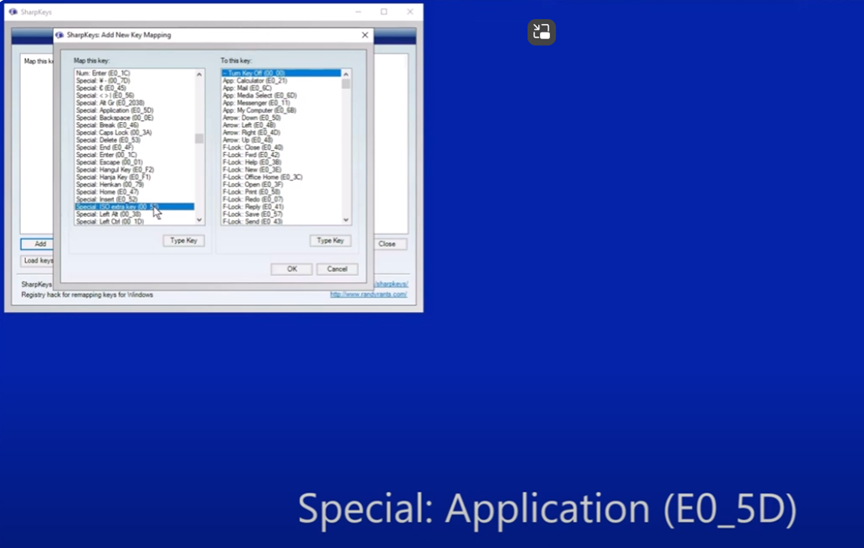
Optimizing Windows 11 Efficiency for Screen Reader with Key Settings and Configurations takes an hour most often 2 or so to complete. Longer if you are new to screen reader and how Windows 11 works. It is different than other OS systems so give yourself grace as you learn all there is to know about this system. As you move through your keyboard and discover you would like a particular key somewhere, like the applications key, you can remap a key to create that yourself. AND, you MUST have Local Admin on School Computers.
How to setup Computer for Optimizing Windows 11 Efficiency
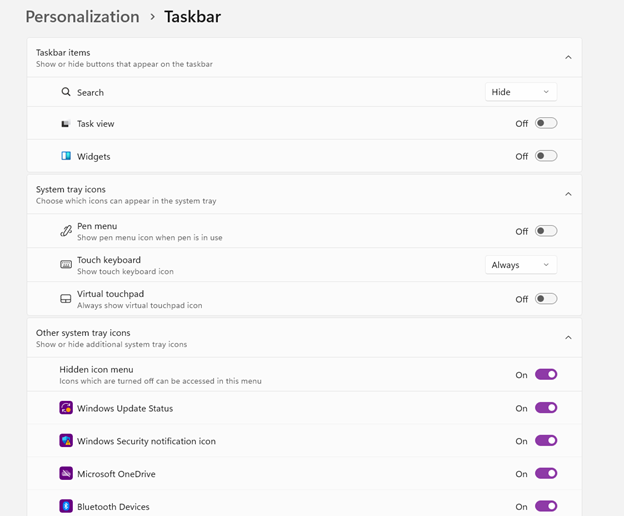
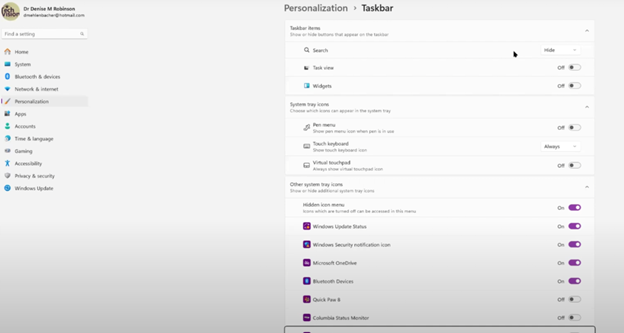
Change Taskbar Settings
Update Computer every day
Go to task manager and disable anything you do not need at start up
Go to Power Options and change from Sleep to Shut Down when you press Shut down button
take off sleep options in general unless you are advanced user
Keep in mind that your screen reader cannot reset or the RAM clear if you computer is in sleep mode or hibernate mode
Turn off Touch pad- if you do not your palm will touch the mouse pad and auto activate items or move your cursor on your computer. This equals huge frustration to a screen reader user.
Windows T and clear that taskbar–this is million dollar real-estate to access programs fast
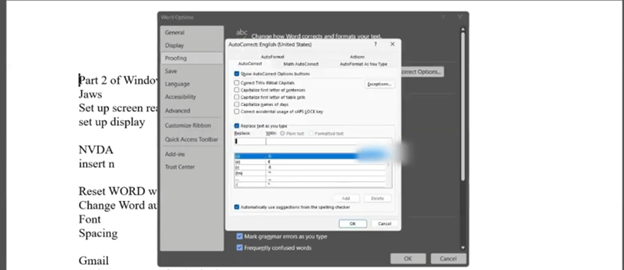
Setup WORD
Go to control panel and setup Sound card options
Windows and adjust other sound options using sndvol.exe
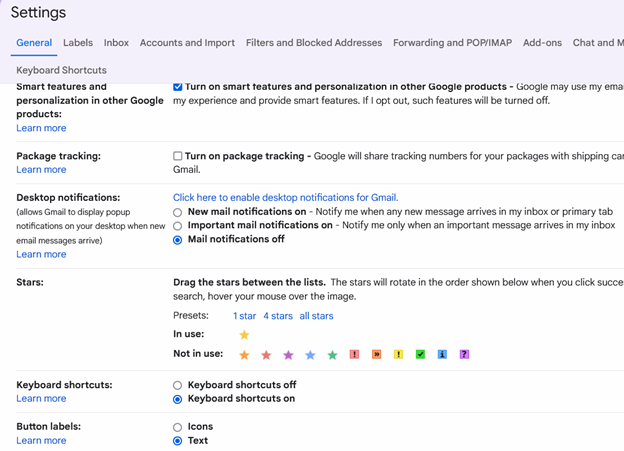
Setup Gmail and Drive and learn new commands
Setup Outlook
Taskbar setting for Windows 11 setup
Efficiency for Screen Readers and other Setup Skills
Proper Set up Windows 11 to work with screen readers and braille displays is crucial for visually impaired users. This configuration ensures smooth interaction with the system, giving users full access to information and applications such as Gmail for optimizing access..
1. Accessibility and Independence
Configuring Windows 11 for screen readers like JAWS, NVDA, or Narrator, and integrating braille displays, provides full independence. Without proper setup, tasks such as reading documents, browsing, or using software become challenging. A well-configured system ensures all functions are accessible.
2. Productivity and Efficiency
Screen readers and braille displays let users interact quickly with the system. Setting up Windows 11 for compatibility speeds up responses to commands. It also ensures smoother transitions between applications, making multitasking more efficient. Proper configuration prevents lag or software conflicts, which increases productivity in school and work settings.
3. Customization for Personalized Needs
Each user has different needs. Windows 11 allows users to customize screen reader settings (e.g., speech rate, verbosity, and key commands) and braille displays (e.g., output type and formatting). These adjustments create a personalized experience, improving comfort and reducing frustration.
4. Enhanced Braille Support
Windows 11 offers enhanced braille support when paired with leading screen readers. Proper setup lets users access seamless braille input and output for text and math. It also allows advanced navigation of documents. Correct braille display configuration ensures accurate reading and editing of both simple text and more complex content.
5. Compatibility with Updates
As Windows 11 updates, keeping screen readers and braille displays integrated is essential. A well-maintained setup ensures new features or security updates don’t disrupt accessibility tools. This is vital for maintaining ongoing access such as the new Google Commands for navigation.
Key Setup Steps for Optimizing Windows 11 for Accessibility:
Ensure Compatibility: Install the latest versions of screen readers and braille display drivers compatible with Windows 11.
Enable and Configure Narrator: Windows 11 includes Narrator, which can be set up for basic tasks if needed.
Customize Keyboard Shortcuts: Set up shortcuts for easier navigation and quicker interaction.
Adjust Accessibility Settings: Go to “Accessibility” in the Settings app to adjust visual and audio cues like contrast and text size.
Test with Braille Displays: Pair and calibrate braille displays for reading and input in UEB or Nemeth, depending on preferences.
With proper set up, Windows 11 for screen readers and braille displays furthers accessibility. This setup enhances independence, productivity, and ease of use in the digital world.
Dr. Robinson starts by showing how to set up JAWS with windows 11. She explains how to find and use the JAWS context menu by pinning it to the taskbar. To access it, use Windows + T and the right arrow key. She also advises switching JAWS to laptop mode, even if you’re on a desktop, to use both desktop and laptop commands. This makes JAWS more flexible.
Next, Dr. Robinson talks about setting up voice profiles. She recommends creating different profiles for different tasks, like using a slower speed for reading and a faster speed for navigating. This helps make the screen reader more effective.
The video also explains how to set up a Braille display. Dr. Robinson guides you on choosing and configuring the right Braille display. She also mentions the early adopter program, where you can enable MathCAT for advanced math work, ensuring it works well with JAWS in Microsoft Word.
Adjusting Microsoft Word and Email Settings
Dr. Robinson then moves on to Microsoft Word settings. She explains how to adjust autocorrect features to prevent automatic changes that might confuse the screen reader, especially in math. By disabling certain autocorrect options, you can make sure the screen reader reads everything accurately.
Finally, Dr. Robinson shows how to set up Gmail with keyboard shortcuts and integrate it with Outlook. She gives clear steps on enabling IMAP and adjusting security settings. This setup allows you to manage your email smoothly using screen readers.
How to set up a Windows 11 computer for optimal screen reader performance is crucial for blind and low vision users. First, ensure that your computer meets the necessary system requirements. A powerful processor and sufficient RAM are essential for smooth operation. Additionally, installing the latest updates for Windows 11 is important. These updates include crucial security patches and performance improvements. If you find you need to remap a key to say, acquire an applications key on your keyboard, you can do that yourself.
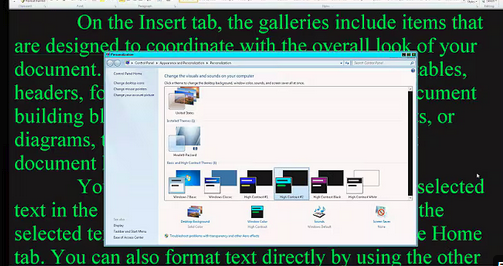
Next, customize the display settings to enhance visibility. Adjusting the screen resolution and scaling ensures that text and icons are easier to read. Moreover, enabling high contrast mode can make the interface more accessible. This setting increases the contrast between background and text, making it easier to distinguish elements on the screen.
In addition, configuring keyboard shortcuts can significantly improve efficiency. Windows 11 offers a variety of shortcuts for navigating the system. Customizing these shortcuts allows for quicker access to frequently used features. Furthermore, consider enabling the on-screen keyboard for easier input.
How to setup Windows 11 for screen readers such as JAWS, NVDA, and Narrator are essential tools for blind users. Ensure that your chosen screen reader is installed and updated. It’s also important to adjust the screen reader settings to match your preferences. For instance, modifying the speech rate and verbosity can make navigation more comfortable. See second video on proper setup of windows11 settings.
Enhance Experience with AI
Moreover, installing and configuring additional assistive software can enhance your experience. Programs like MathKicker.AI and MathCat in WORD improve accessibility for mathematical content. These tools integrate seamlessly with screen readers, providing a more inclusive environment.
Lastly, securing your computer is vital. Enable strong passwords and two-factor authentication to protect your data. Regularly updating your antivirus software will also safeguard your system from potential threats.
Thus, setting up a Windows 11 computer for screen reader users involves careful configuration. By following these steps, users can achieve the best performance and efficiency. This ensures a more accessible and productive computing experience.
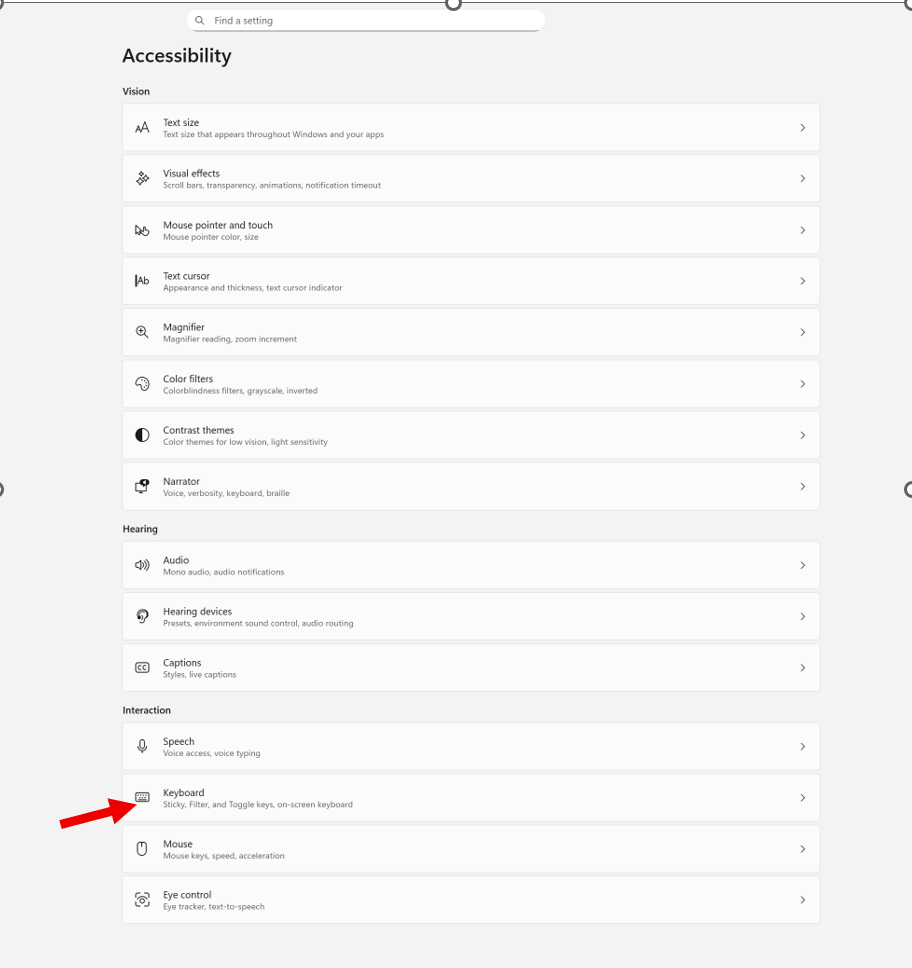
Windows + I to settings and find Accessibility on the far left column and open then open keyboard. If you want to stop annoying ding sounds on Windows, the following steps will help you do that.
If your computer keeps chiming, dinging, or beeping at the worst possible moments, or when you press a particular key, you can silence or customize every system sound in just a few steps.
How to check whether Filter Keys or Toggle Keys are turned on
How to turn them off if you don’t need them
How to adjust them properly if you do use them
How to prevent Windows from enabling them by mistake
How to silence or customize the sounds they make
Commands & Navigation Steps
Open Windows Accessibility Settings (Keyboard Section)
Windows + I → opens Settings
down arrow to Accessibility, press Enter, then tab down to Keyboard
or press windows (start menu) or using keyboard type Accessibility in the search box
Check all these Features
Turn Sticky Keys, Filter Keys, or Toggle Keys On/Off
Tab to the setting you want
Press Space bar to toggle it on or off
Hear What Toggle Keys Sounds Like
Turn on Toggle Keys → Windows plays a beep when pressing Caps Lock, Num Lock, or Scroll Lock
Turn it off again → sound stops immediately
Notification Preferences for Accessibility Keys
Windows will play a sound when:
Sticky Keys is turned on
Filter Keys is turned on
Toggle Keys is turned on
This helps you know when you’ve activated something by accident.
On‑Screen Keyboard (for mouse users or one‑handed typing)
Turn on On‑screen keyboard in the Keyboard settings
Click keys with your mouse if typing is difficult
Underline Access Keys
Turn on Underline access keys
This shows keyboard shortcuts even when you’re not holding Alt
Print Screen Behavior (Updated in Windows 11)
While you are here adjust Print Screen
Arrow to Print Screen and enter → opens the Snipping Tool options at the top of the screen
Screen reader users:
Tab through options
Go to the last one
Press Spacebar, then Down Arrow to choose screenshot type-then you have options
When you cannot do something: Take a Screenshot & Send It to your help person
Take screenshot- which literally is copy
Press Ctrl + V to paste into an email
Send to your tech instructor or support person
Whether you’re troubleshooting your own device or helping someone else, this quick fix will bring instant peace and quiet — and give you full control over your keyboard behavior.
Best Computer PC Specs buying Guide for 2025 and beyond: RAM, CPU, SSD, graphics card, gaming and more explained
If you’re planning to buy a computer now, pause before diving into the best PC specs. Keep in mind that dealers often clear out older models during holiday sales. To make sure you know exactly what you’re getting, skip down to the section on ‘Older and Newer Naming’ of laptops.
Specs You Need and PC Details Explained
Memory (RAM): 64 GB DDR5 (4800–5600 MHz, dual channel, expandable to 128 GB on some models). Continue for more detailed advice, for Best Computer Specs Guide.
Storage (SSD): 2 TB PCIe Gen 4 NVMe SSD (blazing fast read/write speeds, optional dual SSDs up to 4–8 TB total)
Display: 14‑inch UHD (3840 × 2160) Mini‑LED, 120 Hz refresh rate, HDR support or 14- 16‑inch OLED, 240 Hz for gaming/creative workloads
Reduce Eye Strain with a High Resolution Curved Screen
Ultra HD / 4K: 3840 × 2160 pixels
8K UHD: 7680 × 4320 pixels
Highest Resolutions Available (2025)
8K UHD (7680 × 4320):
Currently the highest mainstream resolution for TVs and monitors.
It is Extremely sharp, but requires powerful GPUs and large screens to notice the difference.
Best Curved Monitors (2025)
Brand
Best Model
Size / Resolution
Use Case
Key Strengths
Samsung
Odyssey OLED G9
49″ Dual QHD (5120×1440)
Gaming / Immersion
240 Hz refresh, deep 1000R curve, HDR OLED
Dell / Alienware
Alienware AW3425DW
34″ QD‑OLED (3440×1440)
Gaming / Esports
Fast response, vivid colors, G‑Sync Ultimate
Dell UltraSharp
U4025QW
40″ 5K2K (5120×2160)
Productivity / Multitasking
Huge workspace, USB‑C hub, color accuracy
LG
UltraGear 45GR75DC
45″ WQHD (3440×1440)
Gaming / Creative
OLED panel, 240 Hz, immersive ultrawide
HP
E45c G5
45″ Dual QHD (5120×1440)
Productivity / Office
Replaces dual monitors, ergonomic design
Gigabyte
G27FC
27″ Full HD (1920×1080)
Budget Gaming / Entry Level
Affordable, decent curve, FreeSync support
Quick Recommendations
For Gaming Immersion: Samsung Odyssey OLED G9 or Alienware AW3425DW.
For Productivity/Work: Dell UltraSharp U4025QW or HP E45c G5.
For Budget Buyers: Gigabyte G27FC.
For Hybrid Use (Gaming + Creative): LG UltraGear 45GR75DC.
Other items you need for laptop and more USBs for a desktop
Ports & Connectivity:
2 × Thunderbolt 4 / USB‑C
3 × USB‑A 3.2
HDMI 2.1
Ethernet RJ‑45
Wi‑Fi 7 + Bluetooth 5.4
Keyboard: QWERTY keyboard, with Applications/Menu key
Around 4 pounds ≈ 1.81 kilograms.
How to Find Your Computer Specs (Windows 11, December 2025)
1: Using System Settings
Press Windows key + E to open File Explorer.
Press Shift + Tab to move focus to the Navigation Pane.
Arrow down to This PC (usually near the bottom).
Right‑click on This PC and choose Properties (or press Enter).
A window will open showing basic system information, including:
Device name
Processor (CPU)
Installed RAM
System type (32‑bit or 64‑bit)
Windows edition and version
2: Using Settings → About
Press Windows key + I to open Settings.
Navigate to System.
Scroll down and select About.
Under Device specifications, you’ll see:
Processor (CPU)
Installed RAM
Device ID
Product ID
System type
Under Windows specifications, you’ll see:
Edition (e.g., Windows 11 Pro)
Version and build number
3: Advanced Specs (Optional)
For deeper details like graphics card, storage, and drivers:
Press Windows key + R, type dxdiag, and press Enter.
This opens the DirectX Diagnostic Tool, showing CPU, RAM, GPU, and driver versions.
Summary
Basic specs (CPU, RAM, Windows version) → System → About or This PC → Properties.
Detailed specs (graphics card, drivers) → dxdiag.
These steps work with keyboard navigation and are accessible for screen reader users.
Find information in MSINFO32
MSINFO32 is the command that opens the System Information utility in Windows.
It provides a comprehensive overview of your computer’s hardware, software, and system components.
Unlike the simple “About” page, MSINFO32 gives deep technical details useful for troubleshooting, upgrades, or support.
How to Open MSINFO32
Press Windows key + R to open the Run dialog.
Type msinfo32 and press Enter.
The System Information window will appear.
What You’ll See in MSINFO32
System Summary (default view):
OS name and version
System manufacturer and model
Processor type and speed
Installed RAM
BIOS version/date
Boot mode (UEFI or Legacy)
Hardware Resources:
IRQs, DMA, I/O ports, memory addresses
Useful for diagnosing hardware conflicts
Components:
Display (graphics card details)
Storage (drives, controllers)
Network (adapters, protocols)
Input devices
Software Environment:
Loaded drivers
Running tasks
Services
Environment variables
Why It’s Useful
Troubleshooting: Quickly check BIOS version, drivers, and hardware conflicts.
Upgrades: Confirm RAM slots, CPU type, and expansion options.
Support: Export system info to share with IT or tech support.
Memory Details
These values describe how your computer uses RAM (physical memory) and virtual memory:
Installed Physical Memory (RAM): 64.0 GB The total amount of RAM physically installed in your system.
Total Physical Memory: 63.8 GB The usable portion of your installed RAM. A small amount is reserved for system hardware.
Available Physical Memory: 56.2 GB The amount of RAM currently free and available for use by applications and the system.
Total Virtual Memory: 67.8 GB This includes physical RAM plus page file space. Virtual memory allows your system to use disk space as extra memory when RAM is full.
Available Virtual Memory: 58.9 GB The portion of virtual memory that’s currently unused and available.
Page File Space: 4.00 GB The size of the page file (a reserved portion of your hard drive used as virtual memory).
Go to Programs and features and make sure you have all your security and power to run programs so do a find command for “run” and look for your .nets.
What .NET Does for a Computer—let’s just say it IS REALLY IMPORTANT
Runs Applications:it is software framework/platform .NET provides the Common Language Runtime (CLR), which acts like a virtual machine. It takes code written in languages like C#, F#, or VB.NET and makes sure it runs correctly on your computer.
Manages Resources: The CLR handles memory management, security, thread management, and error handling. This means programs don’t have to reinvent these functions — they rely on .NET to do it safely.
Provides Libraries: The Framework Class Library (FCL) is a huge collection of pre‑built code for everyday tasks:
Reading/writing files
Connecting to databases
Networking and internet communication
User interface controls
Math, cryptography, and more
Supports Multiple Languages: Developers can write programs in C#, F#, VB.NET, and others. .NET makes them interoperable, so code written in one language can work with another.
Cross‑Platform Evolution:
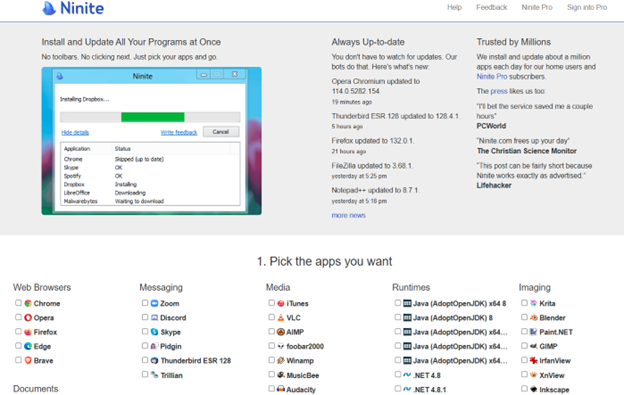
Go get those important computer items at: Ninite.com
Beat Graphics card for computers using screen readers or other access technologies: NVIDIA
GRAPHICs card RUN that screen reader–get a good one GAMING computers will get you the specs you need for a screen reader or just regular use
NVIDIA RTX cards dominate the high‑end market with unmatched ray tracing, AI features (DLSS, CUDA, Omniverse), and raw compute power.–the BEST for screen readers and older students–middle school up
AMD Radeon RX cards offer better value for money, strong rasterization performance, and more efficient power use, especially at 1440p and 4K gaming.
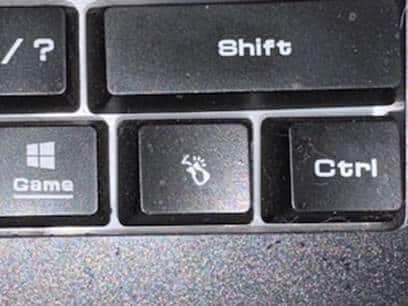
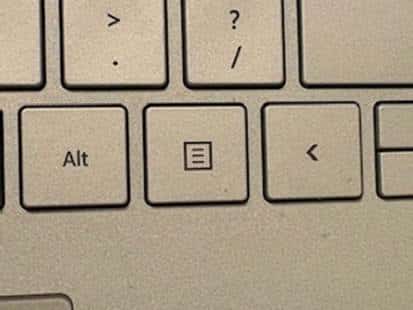
The applications key– is KEY of importance-the funny looking horseshoe on a gaming computer or square with lines in it on general computers–it is a right click of a mouse or 1 press of a key.
Basic specifications for a laptop: gaming computer will have the speed and video card needed for performance
Processor (CPU): some use the words i5, i7, i9 but the new words are Ultra 5,7 or 9 on machines–i9 is compared to ultra 9 and so on like this
Intel Naming Shift
Older naming convention (up to 13th Gen): so if you have this then know it is an older model and during holidays, this is what companies are selling cheaply to get rid of–so just be aware–
Intel Core i3, i5, i7, i9
Example: Intel Core i7‑12700H
New naming convention (14th Gen and newer):
Intel Core Ultra 5, Ultra 7, Ultra 9
Example: Intel Core Ultra 9 185H
The “Ultra” branding emphasizes AI acceleration and new architecture (Meteor Lake, Lunar Lake).
How They Compare
Core i5 → Core Ultra 5
Core i7 → Core Ultra 7
Core i9 → Core Ultra 9
Intel Core Ultra 9 285HX (24 cores, up to 5.5 GHz turbo) or AMD Ryzen 9 7945HX (16 cores, up to 5.4 GHz turbo)
Memory (RAM): 64 GB DDR5 (4800–5600 MHz, dual channel, expandable to 128 GB on some models)
Storage (SSD): 1 TB PCIe Gen 4 NVMe SSD (with option for dual SSDs up to 4 TB total)
Display: 17.3‑inch UHD (3840 × 2160) Mini‑LED, 120 Hz refresh rate, HDR support or 16‑inch OLED, 240 Hz for gaming/creative work
Favorite computers for running software such as JAWS, NVDA and other blind ware–You must have HIGH RAM and speed
Top Favorite: ASUS
ASUS Laptop Weights–based on student–
ZenBook Series (ultralight)
New ZenBook A14: as low as 2.18 lbs (0.99 kg)
VivoBook Series (mid‑range everyday use series)
ROG Gaming Series (heavy duty)
Zephyrus G14: ~3.53 lbs (1.6 kg)
Strix G15: ~5.07 lbs (2.3 kg)
Pic of ASUS-ROG-heavier with numpad
Surface Pro-top Favorite
Microsoft Surface Pro Weights–lightest and most powerful of laptops
Surface Pro 3–7: ~1.7 lbs (0.77 kg)
Surface Pro 8–10: ~1.94–1.96 lbs (0.88–0.89 kg)
Surface Pro 11 (latest): ~1.96 lbs (0.89 kg)
Surface Pro X (ARM model): ~1.7 lbs (0.77 kg)
comparing true laptop form factors, ASUS ultrabooks and Surface Laptop models are closer in weight, while Surface Pro remains the lightest option in the 2‑in‑1 category.
Different versions and do not suggest this collapsible one for students, that flips up–just too easy to flip down
Get Surface Pro with a true laptop lid that opens easily
HP computers
Be careful as most do not come with applications key any more–yes you can use Insert F10 but … takes 2 keys to implement a keystroked of right click
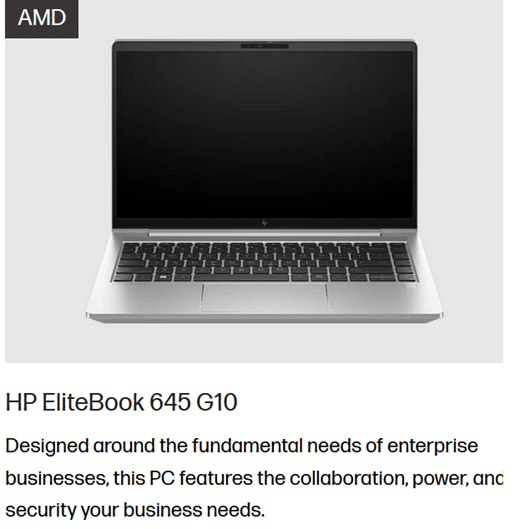
HP EliteBook 645 G10 includes a dedicated Applications/Menu key on its keyboard layout.
Build your computer: EliteBook 645 G10 is a lightweight, secure, and efficient business laptop with AMD Ryzen 7000 series power
Processor Options:
AMD Ryzen 5 7530U: 6 cores / 12 threads, up to 4.5 GHz-elementary and middle school
AMD Ryzen 7 7730U: 8 cores / 16 threads, up to 4.5 GHz-high school
These are efficient 7nm chips with solid multitasking and productivity performance.
Graphics:
Integrated AMD Radeon RX Vega 6 GPU
Suitable for office work, media playback, and light graphics tasks
Not designed for gaming or heavy 3D rendering.–but that is fine as that is not why you buy it
Memory:
Configurable up to 64 GB DDR4 RAM
Dual SO-DIMM slots, user-upgradable.
Storage:
PCIe SSD options, typically up to 1 TB
HP HP EliteBook 870 G11 (17‑inch) -4.1 lbs–keep in mind you want a laptop carry case for laptops
High‑Performance PC Laptop Models
HP ZBook Fury 16 G11 – workstation powerhouse for engineering, CAD, and 3D rendering
MSI Raider 18 HX AI – top‑tier gaming laptop with desktop‑class GPU
ASUS ROG Strix G18 / Zephyrus G16 – high‑end gaming and creator laptops
Do NOT overdo bump dots on keyboard to find position for touch typing-then student start counting dots to get to keys–create muscle memory which means you want to have them repeat typing skills–explanation below dot placements.
Place bump dots on keys: 5 and 0 on num row above qwerty keys-backspace is already large
Place dots on F4, F12–if all the keys run together then either F8 or F9. My F keys are broken up in panels from F1 to F4 and F5 to F8 and F9 to F12 so I do not need any bump dots–a gaming keyboard is divided up for speed of access so no bump dots needed
Many computers share the arrow keys with home, end pg up and pg down–only put a bump dot on up arrow to quickly move hand to the right while left hand holds down the FN key and right hand to do the pg up and so forth
Remember, the keyboard already has built in bump dots on f and j so do not place any more bump dots on keys
Dell is not my top choice of a computer but is a fine machine with specs you can get with:
Processors: Intel Core Ultra 7/9 or AMD Ryzen 9 HX — powerful x86 chips for heavy workloads.
Serviceability: Easier to upgrade storage, RAM, and wireless adapters
Memory: Configurable up to 64–128 GB DDR5 RAM, far beyond Surface’s 16–32 GB.
Storage: Options up to 2–8 TB PCIe NVMe SSDs.
Graphics: Dedicated NVIDIA RTX GPUs (e.g., RTX 5090 or workstation Ada cards).
Displays: Larger 16–18″ screens, often 2.5K or 4K OLED, high refresh rates.
Weight: Heavier (≈4 lbs / 1.8 kg), but more versatile for gaming, AI, or workstation tasks.
What I Use on a Daily Basis-I work very long hours
So I do have a Ultra HD / 4K: 3840 × 2160 pixels and it has changed my life with no more headaches from long hours at my screen and always have night light on-if you do not know about this feature, press your windows key and type night and night light will generate–decrease the brightness to more muted colors and it takes out more blue light which reduces eye strain. But the 4k does that by itself, then the night light takes away brightness–I am very light sensitive so light in general causes my eyes pain which gives headaches (I no longer have that issue with the 4k.). I use my screen reader often–hence the needed power in general.
My PC Computer Specs Explained
CLX computers are made by CLX Gaming, which is a division of Cybertron International Inc., a long‑standing U.S. system integrator based in Wichita, Kansas and an incredible company to work with for any product they sell.
About CLX
Founded: January 29, 2016, as a brand under Cybertron International.
Focus: Custom gaming PCs, workstations, and desktops tailored for gamers, content creators, and professionals.
Specialty:
Fully customizable builds (CPU, GPU, RAM, cooling, case design).
Award‑winning custom paint and chassis designs.
Product families named after Egyptian mythology (Ra, Set, Scarab, Horus, Osiris, Anubis).
Support: Free lifetime technical support, up to 3 years parts warranty, and lifetime labor coverage.
Why CLX Stands Out and why I picked it–I could build exactly what I wanted and needed and their service support is exceptional in the industry as if or when you call, you get a person who knows anything you ask.
Customization: You can configure nearly every component, from Intel/AMD CPUs to NVIDIA/AMD GPUs.
Performance: Builds range from mid‑tier gaming rigs to extreme workstations with 64–128 GB RAM and multi‑GPU setups.
Design: Known for bold, artistic case designs and RGB lighting.
Reliability: As part of Cybertron International (established in 1997), CLX benefits from decades of PC integration experience.
Takeaway
CLX computers are custom‑built in the USA by CLX Gaming (Cybertron International), offering high‑performance, highly customizable systems for gamers and professionals who want both power and personalization.
The CLX is the Best machine I have every owned and then I go portable with my Surface Pro which is also exceptional for power and portability
In today’s digital age, technology has transformed how we approach learning, especially in subjects like accessible math. More importantly, this transforms how all screen reader users can access math like their peers. MathKicker.AI math program provides access to AP classes and advanced math for high school and college students. This accessible tool caters to diverse learning needs, offering compatibility with various screen readers. This video features Advanced Math with LaTex and shows how it can enhance your mathematical skills, making complex equations easier to tackle.
Matrices
Dr. Robinson explains the basics of navigating MathKicker.AI. Matrices can easily create a Matrix with Alt = and type it in LaTex. This quickly provides accurate math and F9 will allow you to see and enter LaTex. You can also learn the LaTex from just typing the math into Mathkicker. The session showcases the ease of solving matrix equations, demonstrating how to find the matrix C resulting from matrices A and B.
Throughout the demonstration, Dr. Robinson shares tips for efficient navigation, including using the home key and arrow keys to read through equations. She highlights the functionality of the F9 key for processing inputs and emphasizes the need to verify details when working with complex equations.
As she works through a specific problem, Dr. Robinson illustrates how to structure equations and maintain clarity while performing calculations. Remember to double-check your work and she encourages people to utilize the program’s features for swift problem-solving.
By the end of the session, Dr. Robinson summarizes the output clearly, showcasing the successful application of Math Kicker. She encourages students to explore this tool for enhancing their math skills, particularly in higher education and advanced high school courses.
This tutorial not only highlights the software’s capabilities but also empowers screen reader users and all students to embrace technology in their learning to keep up with their peers.
Mathkicker editor with Jaws or NVDA and display for math access for advanced math
Other Math Lessons from Basic Math to Advance Skills
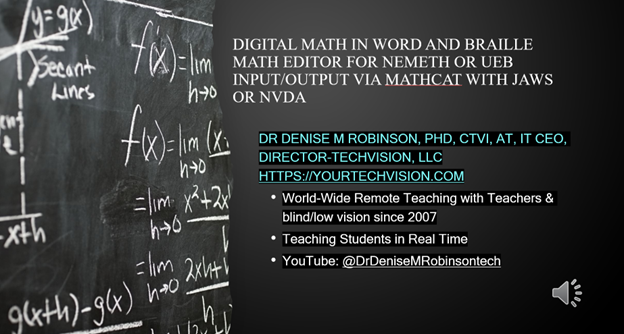
Digital Math in WORD and Braille Math Editor for Nemeth or UEB Input/Output via MathCat with JAWS or NVDA. This lesson empowers you to learn skills for teaching yourself and others Nemeth or UEB math. By incorporating Math AI, you can transform inaccessible math images into usable formats in just seconds, significantly speeding up the learning process compared to transcribing character by character. While the video covers some essential skills, the following links provide comprehensive lesson details from the Digital Math in WORD Video.
MathCat with JAWS or NVDA
Learning how to teach or learn Nemeth math using assistive technology can seem challenging, but with the right tools and approach, it becomes manageable and effective. Whether you’re a parent helping your child, an educator supporting students, or an independent learner, using a Focus 40 Braille Display and JAWS screen reader provides an accessible way to master Nemeth code. In this guide, I will walk you through setting up your technology and using the Braille Math Editor to confidently teach and learn math concepts from basic arithmetic to advanced algebra. Let’s simplify the process and enhance your skills.
Setup your computer to work the best with Screen readers and Digital Math in WORD
Before beginning the challenge of learning Nemeth or UEB with screen readers, make sure you Optimize your Windows 11 computer for Efficiency with Screen Readers with Key Settings and Configurations. Optimizing Windows 11 Efficiency for Screen Reader with Key Settings and Configurations takes an hour most often 2 or so to complete. Longer if you are new to screen reader and how Windows 11 works. It is different than other OS systems so give yourself grace as you learn all there is to know about this system. As you move through your keyboard and discover you would like a particular key somewhere, like the applications key, you can remap a key to create that yourself. AND, you MUST have Local Admin on School Computers.
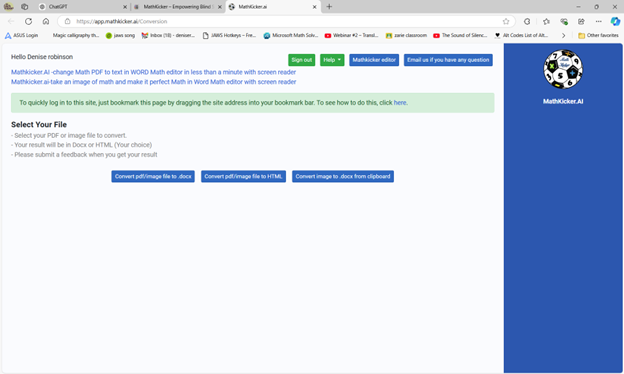
Mathkicker.AI
Mathkicker for digital math access with Jaws or NVDA-Login Page
In this lesson, you’ll learn how to teach and practice Unified English Braille (UEB) math using a Focus or Brailliant Braille display with JAWS. Start by setting up the correct Braille settings in JAWS, ensuring your Braille display and cursor follow each other for accurate feedback. Adjust your language profiles and choose UEB Grade 2 for output and input. Navigate through basic arithmetic and algebra problems using JAWS’ Braille Math Editor, making corrections easily. This step-by-step method will help both new and experienced teachers guide students in learning UEB math effectively.
First, set up JAWS properly by accessing the JAWS Settings Center Insert + 6 followed by (Ctrl+Shift+D) to set default. Type out and Navigate to “Braille mode” and ensure your display is set to “Structured” mode. Enable the settings that allow the active cursor to follow the Braille display and vice versa. This ensures that wherever your student is on the screen, you can follow along on your display. Turn on the Braille Viewer also to see the braille at the top of your monitor if you have sight.
Next, Alt + F to Language profiles then Alt + D to details and open and confirm UEB Grade 2 and Unicode by default. You can continue to Tab or Alt + M for math and select the UEB Math option in JAWS settings. Enter to close then Alt A to apply and enter to close. You are ready to go.
Practice using the Braille Math Editor
For practicing, you’ll use JAWS Braille Math Editor to create and edit math expressions as 1 option. Other options are WORD Math editor and LaTex as another as you become more advanced. Start with basic arithmetic, typing out equations such as “1+2=3,” and use the Braille display to feel the corresponding Braille output. This method works for both teaching and self-learning. As you advance to algebra, geometry, Trigonometry and calculus, use the WORD Math editor or Braille Math Editor to navigate complex equations. The editor allows easy error correction, reinforcing concepts as students work through problems.
Teach Math with Jaws and braille display-Basic to advanced math formulas
This method also helps auditory learners who can listen to JAWS while simultaneously feeling the Braille on the display. Practicing consistently with both the Braille Math Editor and JAWS will solidify UEB math skills and improve teaching efficacy.
Dr. Denise M. Robinson, PhD, CTVI, AT, and CEO of TechVision, LLC, leads worldwide remote teaching for blind and low vision students. Her YouTube channel, @DrDeniseMRobinsontech and this website, showcases making digital math accessible with MathCat with JAWS, or NVDA. This video provides 8 different ways to complete digital math with several options using the Braille Math Editor in WORD for UEB or Nemeth math, highlighting the advantages of Nemeth or UEB via MathCat. Links with full video lessons from this video follow. She also demonstrates reading math on a Braille display and creating or making complex formulas accessible. AI tools like MathKicker.AI enhance efficiency. The series includes geometry and graphing with Desmos. Dr. Robinson emphasizes that digital access is crucial for competitive education and inclusion with peers. Learn how to teach or Learn UEB Math Code.
Nemeth or UEB via MathCat: 8 videos on Math Access in WORD and Braille Math Editor with JAWS or NVDA
Life IS a competition and Digital access is key with Instruction
Life is a competition, and digital access is essential. It levels the playing field, enabling equal opportunities for everyone. Digital tools enhance skills and productivity. They open doors to education and employment. Having a qualified access technology instructor is crucial for teaching students Nemeth and UEB math codes to access everything their peers do. Embracing technology is vital for success and inclusion in today’s world. MathKicker. AI for Matrices with NVDA or JAWS-Speed in completing Work
More options for JUST auditory learners or braille learners and taking totally inaccessible images of WORD and making them accessible using Mathkicker.AI.
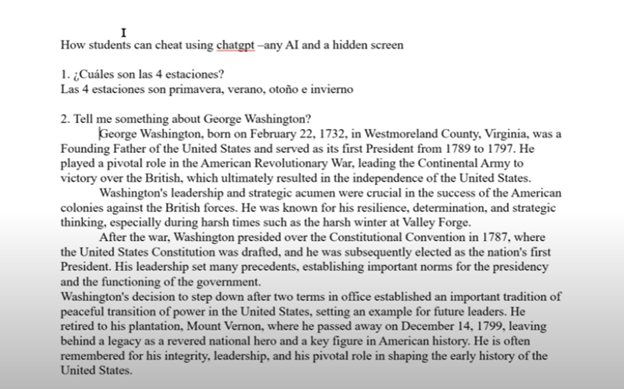
Teachers can Slow or stop AI cheating both in the classroom and at home through strategic measures. In the classroom, lock down browsers effectively prevent students from accessing unauthorized websites or AI tools during exams. These browsers restrict students to a single screen, blocking external resources. Additionally, teachers should design assignments that require critical thinking and personalized responses. Such tasks are challenging for AI to complete accurately, as they demand unique, context-specific answers.
To further Slow or Stop AI cheating in class and home, teachers should incorporate oral assessments and apps like Khan academy. These require students to verbally explain their answers or spell out terms, making it difficult to rely on AI-generated content-Video details here. Monitoring classroom activity is crucial as well. By actively observing students’ screens, teachers can spot hidden screens or content that doesn’t match a student’s usual work.
At home, teachers can assign open-ended projects that require creativity and personal reflection. These assignments are less likely to be successfully completed by AI. Requiring students to submit drafts or process documentation ensures they engage with the material and don’t merely copy answers. Time-limited tests can reduce the likelihood of students using AI tools during online exams. By setting strict time limits and challenging questions, teachers can make quick AI lookups impractical.
Teachers should also utilize plagiarism and AI detection tools to identify suspicious content to curb classroom AI cheating. Follow-up video calls or in-person meetings, where students explain their answers, can verify that they genuinely understand the material. Engaging parents is another key strategy. By encouraging parental involvement, teachers can help monitor the home environment and promote honest academic practices.
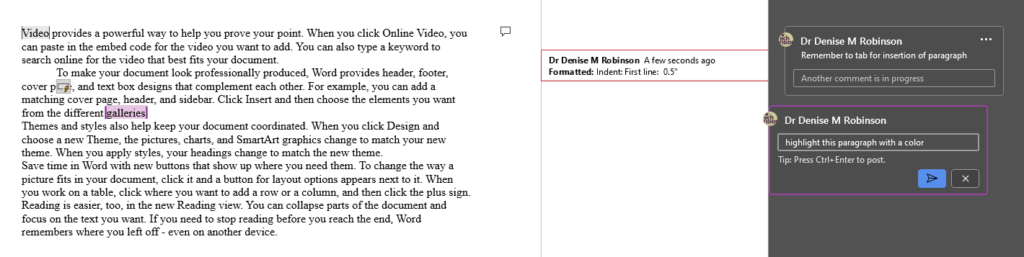
Track Changes in Microsoft Word is an essential tool for collaborative editing and document management. It allows multiple users to make and review edits, providing a clear, organized record of all changes. This feature is invaluable for maintaining the integrity of the original document while incorporating feedback from various contributors. By visually displaying insertions, deletions, and comments, Track Changes enhances transparency and accountability in the editing process. It also simplifies the task of accepting or rejecting modifications, ensuring that the final document meets the desired standards. The typical use is for students to create work and teachers to edit with comments, and it is possible to easily track changes with commands. This is easily done with any screen reader.
Track Changes with Commands in Microsoft Word is a powerful tool for collaborative editing and document management. Here are some key details on its importance and usage:
Key Benefits
Transparency: Track Changes provides a clear, organized record of all modifications made to a document.
Accountability: By displaying who made each change, Track Changes holds contributors accountable for their edits.
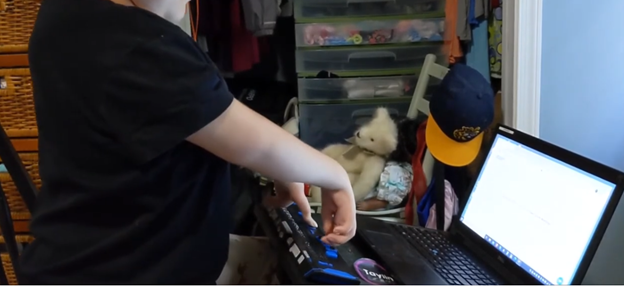
Kaleigh was born with very special hands. So, whether you have 10 fingers or 2 or 3, there is always an easy way to use a braille display to control your computer.
Dr. Robinson’s video covers basic JAWS screen reader commands for Office Word, no matter what version of WORD you use. First, she opens a new document using “Ctrl + N” and teaches key formatting skills, such as right-aligning text with “Ctrl + R” and inserting the date using old and new Office commands. She emphasizes the importance of listening to the software to ensure accuracy. Dr. Robinson guides through bold, underline, and italics commands before typing and spell-checking with keyboard shortcuts. These are all Basic WORD JAWS commands you need to know.
Adjusting speech speed helps beginners better understand software. Learning commands ensures efficient and accurate work, especially Basic WORD JAWS commands.
Gain Typing Speed in WORD
To practice typing skills use a phrase like: “The quick brown fox jumps over the lazy dog.” Type it repeatedly in a Word document by starting slow to gain speed. Use the keyboard shortcuts taught in the video, such as “Ctrl + Left Arrow” and “Ctrl + Right Arrow” to move between words, and “End” to check if you’re at the end of the line. Regular practice, at least 10-15 minutes daily or more, helps build speed. Turn off autocorrect options to avoid automatic changes that may confuse the student and disrupt learning. Focus on accuracy before increasing typing speed. Mastering JAWS commands for WORD is essential for efficient practice.
Computer Local Admin access is Crucial at all education levels. Dr. Robinson, an Assistive Technology and IT specialist, sets up, maintains, and controls all the computers used in TechVision programs while TechVision Team continues teaching students to manage their own technology. She emphasizes the importance of blind students having local admin access on their school computers so they can make necessary updates and changes to their laptops as needed.
Firstly, she highlights that anti-virus software like Kaspersky or Sophos often interferes with screen readers. Instead, Dr. Robinson recommends using Malwarebytes with Microsoft Defender, as it provides strong protection without disrupting screen reader functionality. Having Computer Local Admin access ensures students can implement these software changes.
Dr. Robinson also explains the need for screen readers such as JAWS. Schools often filter out essential websites and programs like Freedom Scientific, which students require for their studies. With local admin access, students can update their screen readers and related software, which is necessary to keep their devices running smoothly. These updates are crucial and happen every few months. Computer Local Admin access allows students to manage these updates efficiently.
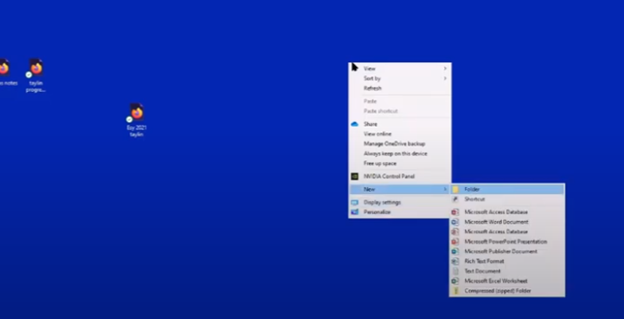
In addition, students must manage their desktops efficiently. They need to pin important programs, such as JAWS, to the taskbar for quick access and adjust their settings without assistance. Pinning their school sites to the desktop make quick access to any site. Through the context menu, students can navigate and personalize their desktop to meet their needs.
Computer Local Admin access to Applications Key on desktop to access anything on the computer
The run dialog box is another essential tool with CTRL+R. Students need to clear temporary files, which can slow down screen readers. Since screen readers are memory-intensive, removing these files improves both the computer’s speed and network performance. Computer Local Admin access is required for these maintenance tasks.
Dr. Robinson further emphasizes the importance of Office 365, especially for math tasks. Using the math editor, students can create and solve equations that read seamlessly on a braille display. This access is crucial for academic success, particularly in STEM subjects.
Lastly, Dr. Robinson stresses the necessity of file explorer -Windows+E and Bluetooth settings. Without a mouse, blind students rely on file explorer to organize their files. Bluetooth access is also essential for reconnecting braille displays and other devices.
In summary, Dr. Robinson believes local admin rights are essential for blind students to manage their technology independently, keep their devices updated, and fully engage in their education. This allows them full access for a lifetime. The TechVision Team ensures students learn essential skills to manage and update their devices independently, preparing them for a lifetime of technological adaptation. As technology evolves, these skills are crucial. Computer Local Admin access is vital for securing and maintaining employment so they know the updates needed, in an increasingly digital world.
Math for all ages, Math Team, Dr. Robinson, along with Professor Betsey, Campbell Rutherford (teacher intern), led the session. Nate Kile (Access Tech Specialist) was the moderator. Math Team emphasized the importance of ensuring blind students can access their technology independently and efficiently. Nate Kile assisted by handling participant questions during the presentation, allowing attendees to type inquiries in the Zoom chat box. Mr Kile would ask the Math Team from the virtual attendees.
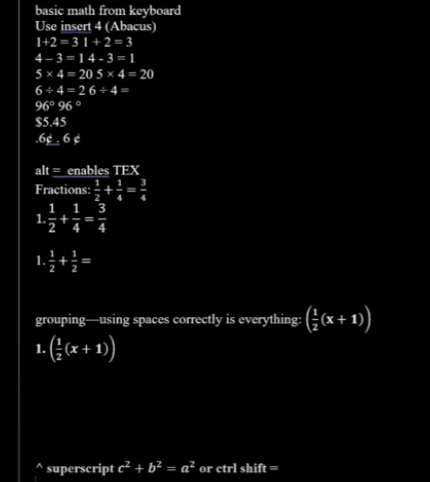
Each presenter built on the others’ lessons. Dr. Robinson began with elementary math training skills and how JAWS and other assistive technologies play crucial roles in blind students’ education. Teaching math for all ages, she typed out typically math problems in elementary school to show audience how easily math is completed in WORD. Nate provided opportunities for participants to unmute themselves using Alt + A or Alt + M to ask questions.
Math for all Ages: Dr Robinson
The Math Team turned off their videos to optimize bandwidth. When teaching virtually, turning off video offers better bandwidth for a flow of uninterrupted instruction. Dr. Robinson started the discussion by running JAWS, a screen reader. She explained how to troubleshoot JAWS issues, recommending minimizing programs and restarting the software for optimal performance.
The session highlighted key JAWS commands, such as Windows + D for quick access to the desktop. Dr. Robinson demonstrated how blind students could use Braille displays for math, including Nemeth code. She showed how blind students control their computers by personalizing settings like screen readers and Bluetooth. Customizing the setup is essential for supporting math learning at all ages.
Math for all ages math formulas in Word
Math for all Ages: Professor Betsey
Professor Betsey demonstrated how to effectively use Braille displays, including advanced setups for students. She went into MathType and LaTex and how to use advanced Math techniques to accomplish all math levels. She emphasized the importance of maintaining accessibility and autonomy for students through personalized settings. As a college-level math professor, she explains that using a PC for math enables full inclusion of blind students. Prof. Betsey emphasizes that this technology allows blind students to participate equally in all aspects of their education. This approach supports the goal of providing math for all ages.
Math for all Ages: Campbell
Campbell Rutherford, a teacher intern, demonstrated how to integrate graphing and mathematical functions using accessible technology for blind students. Campbell began by demonstrating how to write a function in Word using LaTeX. She then transitioned to graphing that function in Desmos, an online graphing calculator. Using her braille display and screen reader, she input and analyzed the graph. Campbell explained how blind students can explore mathematical properties like intercepts and undefined points. After reviewing the graph, she took a screenshot and pasted it into a Word document. This tied together the written mathematical properties and the visual representation. Throughout, Campbell stressed the importance of accessible math for students of all ages.
Throughout the session, the Math Team emphasized the importance of managing constant software updates. They explained how providing local admin rights empowers students to update their programs and devices independently. This in-turn prepares them for both academic success and future employment. The TechVision team’s approach ensures that students can fully access their education and maintain control of their technology. This ultimately sets them up for long-term success but especially the STEM field. More Math Lessons here:
You want to Rebuild Microsoft Word Template when you close WORD and it starts to ask: There are changes to the Normal Template, “Do you want to save the normal template?” You always want to say “NO” because if you do not it will start opening with the last work you did in it. If you want WORD to STOP asking that question or fix your goof, here is how to rebuild that Normal Template
Commands to rebuild Word template when it gets messed up and constantly asks if you want to save it.Other Lessons to fix Tech
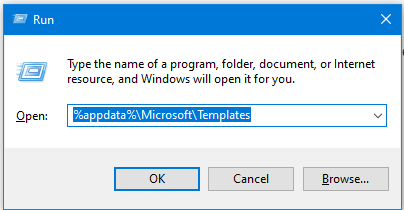
Rebuild Microsoft Word Template with RUN
Open the Run Dialog Box:
Press Windows + R.
Type %appdata%\Microsoft\Templates and press Enter.
Delete the Normal Template:
In the opened folder, find normal.dotm (or the equivalent for your Office version).
Select it and press Delete.
Reopen Word:
This action will rebuild the normal template automatically.
Reconfigure Your Settings:
Fonts:
Press Ctrl + D to open the Font dialog box.
Set your desired font (e.g., Times New Roman, 12 pt).
Press Alt + D to set as default for all documents.
Paragraph Spacing:
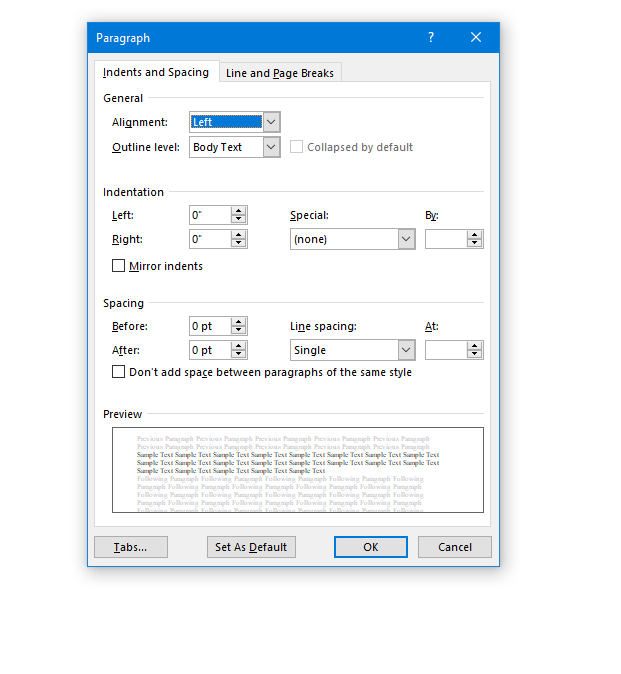
Press Alt + O, then P to open the Paragraph dialog box.
Adjust spacing settings (e.g., single spacing).
Press Alt + D to set as default for all documents.
This process ensures your Word template is reset and configured to your preferences. Here are some more fixes you can do
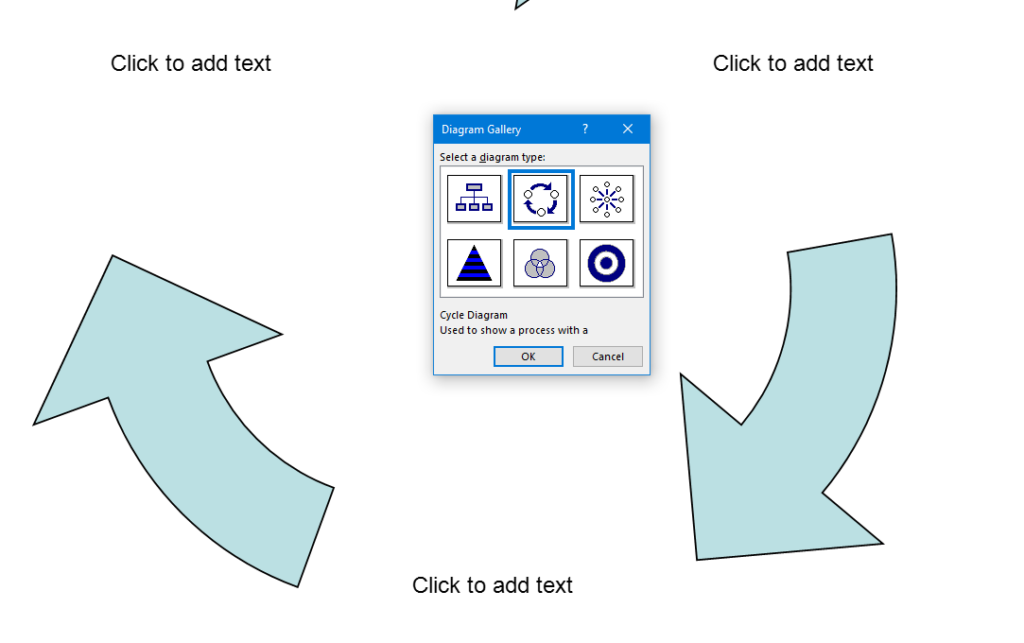
The current page provides instructions on creating a food chain for a class using talking software. It includes steps for saving a document in a specific format and navigating through menus using keyboard shortcuts. Additionally, it references the video below to help you each step of the way.
F12 and save as 97-2023 so after you F12 you will have file and tab once and down arrow or up arrow to 97-2023 doc and enter, then the commands will work for you.
Alt + N then M and right arrow to Food Chain and enter
Listen to recording to add information as you need
WORD accessible food chain and why we use them
A food chain is a sequence that shows how energy and nutrients flow from one organism to another within an ecosystem. Here’s a simple breakdown:
Producers: These are usually plants or algae that create their own food through photosynthesis. They form the base of the food chain.
Primary Consumers: Herbivores that eat the producers. Examples include rabbits and deer.
Secondary Consumers: Carnivores that eat the herbivores. For instance, a fox that eats rabbits.
Tertiary Consumers: These are predators that eat secondary consumers. An example would be an eagle that eats foxes.
Decomposers: Organisms like bacteria and fungi that break down dead plants and animals, returning nutrients to the soil.
Essential WORD keyboard commands to help teachers who teach blind with talking software or sighted who just want to move faster. These are some of the most essential commands everyone should know, especially those mastering the essential commands for WORD keyboard users.
Here’s a summary of essential WORD keyboard commands for video users.
Keyboard shortcuts for all WORD versions.
Open Word: Press Windows + 5 to start Word from the taskbar.
Zoom In: Use Alt + V + Z to zoom to 200%.
Change Defaults:
Open Paragraph Spacing: Press Alt + O + P.
Set Spacing to Single: Press Alt + P and change to single spacing.
Set Default for All Documents: Press Alt + D followed by Alt + A and then Enter.
Customize Document further
Change Font:
Select All Text: Press Ctrl + A.
Open Font Dialog: Press Ctrl + D.
Change Font to Times New Roman: Type “Times New Roman” and set size to 12.
Set Default for All Documents: Press Alt + D followed by Alt + A and then Enter.
Create Columns:
Open Page Layout: Press Alt + P.
Select Columns: Press J for columns.
Set Number of Columns: Press Alt + O + C and choose the number of columns.
Change Page Color:
Open Page Layout: Press Alt + P.
Open Colors: Press PC.
Select Color: Use arrow keys to choose a color and press Enter.
Add Border:
Open Borders: Press Alt + O + B.
These commands will help you efficiently navigate and customize documents. See other Setup options
Essential WORD keyboard commands for windows page setup for defaults
Track changes in Word for a 9th grade. This student was only using a brailler to braille out all work….a very slow process to get it transcribed, then to the teacher, then back to the student. Now, in 2 months the student has moved to completing all work on a computer, emailing to teacher, teacher corrects and sends back.
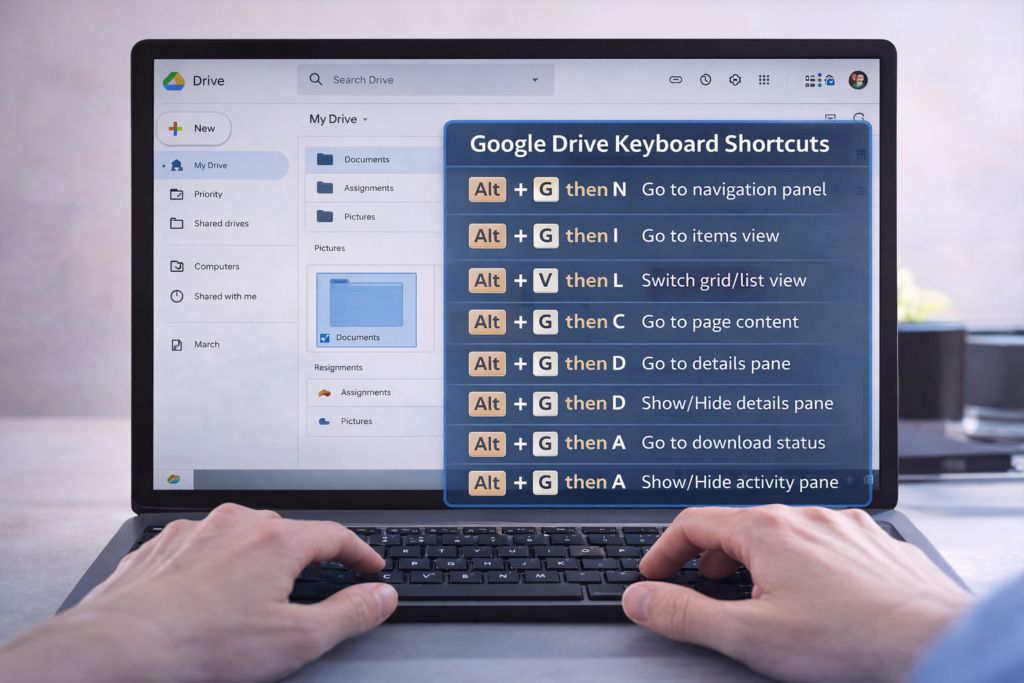
Google Drive Keyboard shortcuts become much easier — and faster — when you know the right screen reader keyboard commands. In this TechVision tutorial, I walk you through how JAWS and NVDA users can move through folders, open files, switch views, and manage Drive content without ever touching a mouse.
These skills build confidence, speed, and independence for blind and low‑vision users, students learning digital literacy, and anyone who prefers keyboard‑based navigation. You’ll learn how to open menus, jump between items, select files, search your Drive, and access settings with predictable, repeatable commands.
Whether you’re organizing schoolwork, managing shared folders, or teaching students how to work in the cloud, these shortcuts make Google Drive more accessible and efficient for everyone.
TechVision: Empowering real‑life tech skills with clarity, accessibility, and confidence.
Is your computer running slow, freezing, or taking forever to start up? Speed Up a Slow Computer with a few simple maintenance steps can make a huge difference. This is especially true for beginners and blind/low‑vision users who rely on consistent performance with JAWS or NVDA.
In this TechVision tutorial, I walk you through practical, real‑life steps to speed up your PC and keep it running smoothly:
✔ Update your .NET Framework Having the latest .NET installed in your Control Panel helps programs run correctly. It also reduces system errors.
✔ Manage your startup programs Too many apps launching at boot can slow everything down. Turning off unnecessary startup items gives you a faster, cleaner start.
Keep Windows and Office updated
Regular updates improve performance, stability, and security — and prevent many common slow‑computer issues.
✔ Declutter your system Uninstall programs you don’t use and delete temporary files to free up space. This also reduces background load.
✔ Run a full antivirus scan Malware can dramatically slow down your system. A full scan helps identify and remove hidden threats.
✔ Perform regular maintenance Disk Cleanup, defrag (for HDDs), or optimize for SSD and clearing temp files all help your computer run more efficiently.
These steps are simple, effective, and perfect for anyone building independence and confidence with their technology.
TechVision: Empowering real‑life tech skills with clarity, accessibility, and confidence.Video with steps here
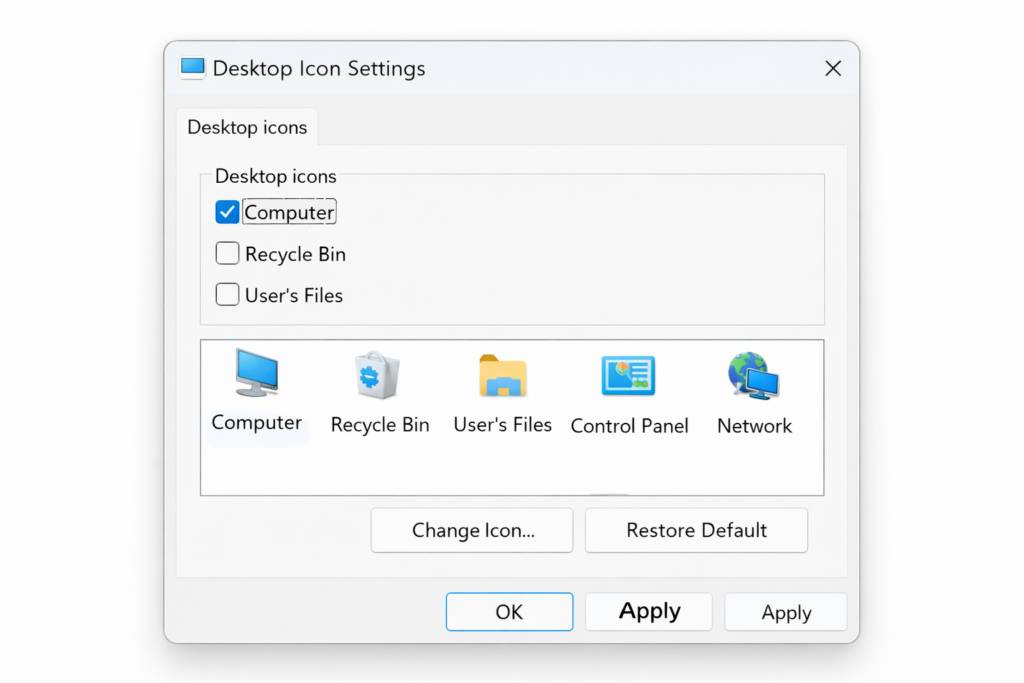
Struggling to find your drives or open File Explorer quickly? Adding the This PC icon to your desktop is one of the fastest ways to navigate Windows — especially for beginners, blind/low‑vision users, and anyone building confidence with their computer.
In this quick TechVision tutorial, I show you how to turn on desktop icons, place This PC right where you need it, and get instant access to your drives, folders, and storage. A simple change that makes a big difference in independence and efficiency.
Whether you’re teaching students, supporting a family member, or learning for yourself, this step gives you a clean, predictable starting point every time you sit down at the computer.
TechVision: Building real‑life tech skills with clarity, confidence, and accessibility at the center.
This session shows how users can start auto-read on the Focus Braille display with JAWS, adjust reading speed, and activate a full-read mode with ER + Space, even though many believed this feature did not exist. This video demonstrates the feature in action and explains how it works along with other useful commands. These commands allow you to fully control your computer exclusively using the Focus 40 or 80 Braille display-See video below
Use the modifier keys to simulate key combinations (keystrokes) that include CTRL, ALT, WINDOWS Key, SHIFT, or the JAWS Key (INSERT). To use these modifiers for the Focus Braille Display when typing a keystroke, do the following:
Hold down DOT 8 CHORD and then press the corresponding modifier keys in the keystroke. Modifier keystrokes are listed in the following table.
After you create the modifier portion of the keystroke, release the keys and press the remaining part of the keystroke. For example, to perform the keystroke CTRL+SHIFT+V, you press DOTS 3-7-8 CHORD, release the keys, and then press V (DOTS 1-2-3-6).
Focus Display combo Commands
Modifier Keys
Key Name
Keystroke
Function Keys (F1 through F12) For more information, see the Function Keys description.
DOT 1
INSERT
DOT 2 8 space
CTRL
DOT 3 8 space
WINDOWS Key
DOT 4 8 space
JAWS Key
DOT 5 8 space
ALT
DOT 6 8 space
SHIFT
DOT 7 8 space
APPLICATION Key
RIGHT SHIFT+DOT 2 CHORD
TAB
DOTS 4-5 CHORD
SHIFT+TAB
B CHORD
HOME
K CHORD
END
DOTS 4-6 CHORD
Select Prior Line
DOTS 1-7 CHORD
Select Next Line
DOTS 4-7 CHORD
Select to End of Line
DOTS 4-6-7 CHORD or 4,7, space
ESC
RIGHT SHIFT+DOT 1 or Z CHORD
DELETE
FOR CHORD
Select word
5,7, space
Selection Commands
Description
Braille Sign
Braille Dot Patterns
Select Next Character
LEFT SHIFT+DOT 6
LEFT SHIFT+DOT 6
Select Prior Character
LEFT SHIFT+DOT 3
LEFT SHIFT+DOT 3
Select Next Line
LEFT SHIFT+DOT 4
LEFT SHIFT+DOT 4
Select Prior Line
LEFT SHIFT+DOT 1
LEFT SHIFT+DOT 1
Select to End of Line
LEFT SHIFT+DOT 5
LEFT SHIFT+DOT 5
Select from Start of Line
LEFT SHIFT+DOT 2
LEFT SHIFT+DOT 2
Select from Top
LEFT SHIFT+L
LEFT SHIFT+DOTS 1-2-3
Select to Bottom
LEFT SHIFT+DOTS 4-5-6
LEFT SHIFT+DOTS 4-5-6
Select Next Screen
LEFT SHIFT+DOTS 4-6
LEFT SHIFT+DOTS 4-6
Select Prior Screen
LEFT SHIFT+K
LEFT SHIFT+DOTS 1-3
Select All
LEFT SHIFT+FOR Sign
LEFT SHIFT+DOTS 1-2-3-4-5-6
Select a Frame
RIGHT SHIFT+9
RIGHT SHIFT+DOTS 3-5
Select a Heading
RIGHT SHIFT+6
RIGHT SHIFT+DOTS 2-3-5
Select a Link
RIGHT SHIFT+7
RIGHT SHIFT+DOTS 2-3-5-6
Windows Commands
Description
Braille Sign
DOTS Pattern
ALT+TAB
LEFT SHIFT+DOTS 4-5
LEFT SHIFT+DOTS 4-5
Paste from Clipboard
LEFT SHIFT+V
LEFT SHIFT+DOTS 1-2-3-6
Copy to Clipboard
LEFT SHIFT+C
LEFT SHIFT+DOTS 1-4
Cut to Clipboard
LEFT SHIFT+X
LEFT SHIFT+DOTS 1-3-4-6
Undo
LEFT SHIFT+Z
LEFT SHIFT+DOTS 1-3-5-6
Delete
LEFT SHIFT+D
LEFT SHIFT+DOTS 1-4-5
Table of Multi-Control Functions
Function
Command
Toggle Auto Advance Mode or auto read
LEFT SELECT+RIGHT SELECT to start and stop down arrow – er+space is read all – if you want to auto read and hear words then down arrow and speed up as you want
Decrease Auto Advance Speed
LEFT SELECT
Increase Auto Advance Speed
RIGHT SELECT
Left Mouse Click
PANNING BUTTON+CURSOR ROUTING BUTTON or PANNING ROCKER UP+CURSOR ROUTING BUTTON or PANNING ROCKER DOWN+CURSOR ROUTING BUTTON
Control+Left Mouse Click
ROUTING BUTTON CHORD
Page Down
LEFT or RIGHT SELECT+ROCKER DOWN
Page Up
LEFT or RIGHT SELECT+ROCKER UP
Top of File
LEFT PANNING BUTTON+SELECT BUTTON or SELECT BUTTON+PANNING ROCKER UP
Bottom of File
RIGHT PANNING BUTTON+SELECT BUTTON or SELECT BUTTON+PANNING ROCKER DOWN
End
PANNING BUTTON+ROCKER BAR DOWN
Home
PANNING BUTTON+ROCKER BAR UP
Next Line
ROCKER BAR DOWN
Prior Line
ROCKER BAR UP
Pan Left
LEFT PANNING BUTTON or LEFT PANNING ROCKER UP
Pan Right
RIGHT PANNING BUTTON or RIGHT PANNING ROCKER UP
Select Text
RIGHT SELECT BUTTON+CURSOR ROUTING BUTTON
Select Block
SELECT BUTTON+CURSOR ROUTING BUTTON at beginning of block; repeat at end of block
Examples to show you how it all goes together:
restart jaws 2,8,space space, 1,8,space d
Windows search box with– right shift, 4
alt tab is 6,8, space then 4,5 space—or right shift 4 5
F6, space/1-8 f
Ctrl tab – 3 8 space the tab with 4,5 space
alt f4 – 1 6 8 space then d
read all, space/1-2-4-5-6, ER cord
say title of window – right shift/dots 1-2
Say time– right shift/dots1-2-3
read all — er chord
refresh screen -right shift z
in drive get contractions off and cursor off
Then –insert z cursor off-2,8,space then z
Or do slash for search—contractions off with g,7,space then dots 3,4
hush up jaws—3,8, space
HOME- K CHORD
END-DOTS 4-6 CHORD
PAGE UP-LEFT SHIFT+ROCKER BAR UP or RIGHT SHIFT+ROCKER BAR UP or DOTS 2-3-7 CHORD
PAGE DOWN-LEFT SHIFT+ROCKER BAR DOWN or RIGHT SHIFT+ROCKER BAR DOWN or DOTS 5-6-7 CHORD
DELETE–FOR CHORD as in 1,2,3,4,5,6 and space –the word chord is the language I grew up with, they made it space a couple decades ago as new people did not get term “chord”
Commands to get you going on Understanding more skills
esc is right shift dot 1
alt right shift dot 2 is
right click right shift dot 3
Windows search box with right shift+4
right shift dot 5 is window list
left shift 1 – select line
left shift 3 – select character
dot 6 8 space then d to URL
3 8 space that opens new tab
dot 3 8 space the tab with 4,5 space
alt tab is 6,8, space then 4,5 space
PC cursor is p space
taskbar is 4,8,6 then t
alt f4 – right shift dot then 1 6 8 space then d for do
F6, space/1-8 then f
read all, space/1-2-4-5-6, ER cord
Went over, say title of window using the Focus, right shift/dots 1-2
Space 4 8 to desktop
Say time with the Focus, right shift/dots1-2-3
say time with right shift 1 2 3
right shift z refresh screen
er chord is read all
8 4 space then t to taskbar
8 4 space then d to desktop
title with space/8-5 followed by T, but the shift/1-2 is just so much nicer.
To configure the Focus Braille Display SD card and Scratchpad, allowing you to copy files to and from the Micro SD card, make sure the unit is powered off and the supplied USB cable is connected to your PC. Next, press and hold the Left Panning button while simultaneously inserting the USB cable. The display powers on and the PC recognizes the Focus as a removable USB drive.
Note: If you use a screen reader such as JAWS over USB, it is recommended that you turn on speech or use a Bluetooth connection as braille will currently not work over USB when the Focus is being used as a storage device. You will also not be able to use the Scratchpad while in this mode.
Create .brf or .brl files in Braille Blaster or Duxbury or other braille translation APPs
Create .txt files in WORD, WordPad or another Braille editor
To transfer BRF and TXT files to the Micro SD card:
On the PC, open the folder containing the files you want to copy, select the files you want, and then press CTRL+C. This is key step when managing the Focus Braille Display SD card and Scratchpad option.
Windows E to file explorer and navigate to and open the USB drive to display the contents of the Micro SD card in navigation pane.
Open FSI, Focus5, Scratchpad, and then open the folder where you want to place the files and press CTRL+V. Files you want to edit should be placed into the Notes folder. Files placed into the Books folder cannot be modified.
To transfer TXT files created in Scratchpad:
Navigate to and open the USB drive to display the contents of the Micro SD card. Under This PC and navigation pane typically
Open FSI, Focus5, Scratchpad, Notes, and then select the TXT files you want to copy and press CTRL+C.
Navigate to the folder on your PC where you want to place the files and press CTRL+V. You can now use Notepad or another text editor to access these files.
Once you have finished transferring files, press the APPLICATIONS key on your computer while focused on the USB drive, and choose Eject. Power the Focus off and back on and you will once again be able to use the Scratchpad as well as receive braille output from your screen reader over USB.
Press right shift + x to close current file if u make changes it will prompt you to save or discard so you can use cursor router button or dot 8 to navigate thru options
If you want to temporarily leave the scratchpad in the background and resume connection to computer do menu +B (space + dot 1,2)
Get out of file by pressing menu and it pops to file menu and rocker down to file, open, etc. and enter on choice
Rocker down to open or what you want
Select folder-I save most books in books so I open that with enter
Rocker down to file you want to open
To edit and type in the Scratchpad of a Focus Braille Display (like the Focus 40 Blue), you’ll be using its onboard notepad feature. This is a standalone function that lets you jot down notes directly on the device without needing a connected screen reader. Here’s how to navigate and use it:
Accessing and Using the Scratchpad
Enter Scratchpad Mode
Press Menu button (in center of dots 1 and 4) and rocker down until you reach Scratchpad or N+Menu for new file and enter for options-fastest but sometimes does not work so go Menu option rocker down
Press a cursor router button above the word “Scratchpad” to select it or enter to open.
Brailling and Editing
Use Braille input keys to type your content.
Use cursor router buttons to move the cursor to specific characters.
Use DOTS 7 + character to delete backward.
Use DOTS 8 to insert a new line or confirm actions.
Save Your Work
After brailling what you want just right shift + X and enter and it will prompt you to save.
Exit Scratchpad
Right Shift + X
Connect to computer will be B space to switch back and forth between your Notes folder with file to type in info and your computer. See video
Tips for Efficient Use
You can transfer Scratchpad files to a PC via USB or SD card in reader on your PC.
Scratchpad supports BRF and TXT formats, ensuring that the Focus Braille Display and SD card work harmoniously.
Tips & Limitations
Only plain text (.TXT) files are editable in NOTES folder
Files transferred from PC must be in UTF-8 or ASCII format which is .txt as it takes all format out
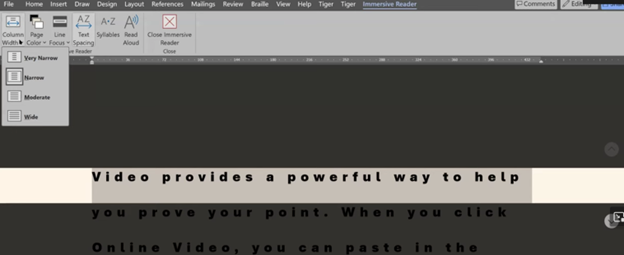
Low-vision users enhance visibility and accessibility using tech tricks for screen scaling, mouse visibility, and reading tools. Immersive Reader in Microsoft Word, accessible from the View tab, adjusts text spacing, column width, and background color. UsersThese Low Vision Computer Tricks improve readability by customizing these settings to suit their visual needs efficiently. In Microsoft Edge, Immersive Reader activates on supported pages to simplify reading and navigation. These tools combine to provide low-vision users with a personalized, accessible digital experience.
Dr. Robinson teaches strategies to enhance accessibility using low-visionLow toolsVision Computer Tricks in Microsoft Word, Edge, and system settings. First, she demonstrates how to adjust display settings for optimized visibility using the Windows key. By typing “display,” users can access scaling options, which enlarge screen content for better readability. Additionally, increasing mouse pointer size and inverting its color improves navigation while reducing eye strain.
Next, in Microsoft Word, Dr. Robinson highlights Immersive Reader, available in the View tab, to enhance readability and adjust text settings. For instance, users can change font styles and sizes with Ctrl+A and Ctrl+Shift+> or Ctrl+Shift+< for better clarity. These Low Vision Computer Tricks include changing font styles and sizes with Ctrl+A and Ctrl+Shift+> or Ctrl+Shift+< for better clarity. Furthermore, the Line Focus feature reduces clutter by focusing on one or a few lines, aiding users with dyslexia. Moreover, Read Aloud, activated with Alt+Ctrl+Space, provides text-to-speech support with adjustable speed and voice options.
In Edge, pressing F9 activates Immersive Reader, which simplifies web pages by removing clutter for a cleaner reading experience. Users can also customize text preferences or enable Read Aloud for auditory assistance. These Low Vision Computer Tricks also include customizing text preferences or enabling Read Aloud for auditory assistance. Notably, Dr. Robinson recommends Edge for its built-in accessibility commands, though Chrome and Firefox offer similar tools.
Immersive reader for low vision
Finally, she emphasizes using Night Light mode to reduce blue light exposure and protect long-term eye health. These tools, combined with her strategies, empower low-vision users to navigate technology effectively.
Speed up your computer and fix slow-loading programs with a few adjustments and updates. Ensure all necessary .NET runtimes for programs are installed in the control panel. This allows programs to run smoothly.Regularly update your computer system to improve performance. Maintain a clean computer system, optimize performance, and disable unnecessary startup applications to keep your computer running efficiently.
Fix a Slow computer To Do List:
Users to update their .NET runtime to version 8 (and version 9 by end of 2024) using ninite.com.
Users to clean out their temp folder by running %temp% in Windows Run and deleting the contents to help speed up the computer.
Users to disable unnecessary startup apps in Task Manager to improve computer startup speed.
Details:
Downloading and Installing Runtimes for better Performance
Download and install these runtimes using the .NET Microsoft download and the Ninite.com website. Make sure to download the correct versions, specifically 64-bit and 86-bit. Use a screen reader to navigate the download process if needed. Check if the runtimes are correctly installed in programs and features. Update to version 9 by the end of December 2024.
Ninite.com will help speed up and fix a slow computer
Improving Computer Speed and Fix slow Computer Network
Improving computer speedand network connection involves cleaning the computer by removing temporary files and emptying the recycle bin. Regularly check for updates to keep the system running efficiently. Navigate to the temp folder and delete unnecessary files, handling files in use appropriately. Use windows key and type in updates to go to check for updates and do them several times a week. Keep your software updated also and the speed of your computer increases with every fix and adjustment. Here are other Tech Tricks to improve you computer and new commands for Google
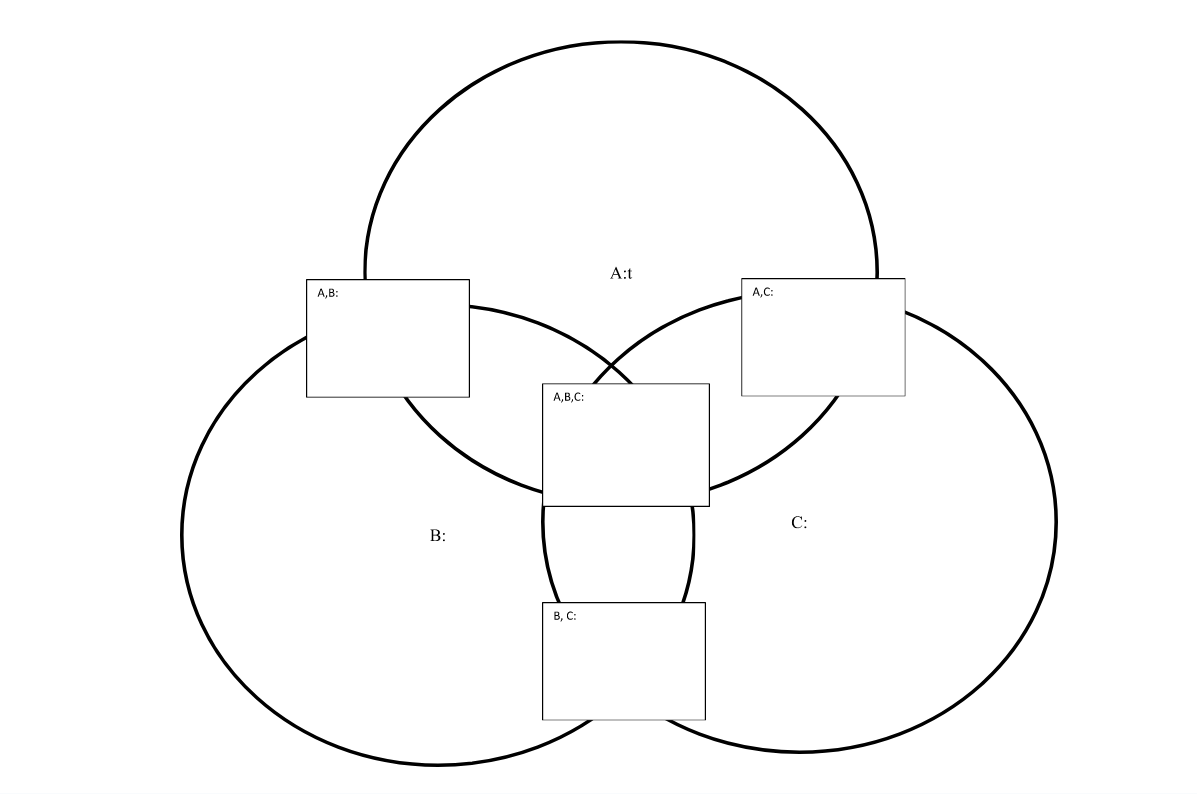
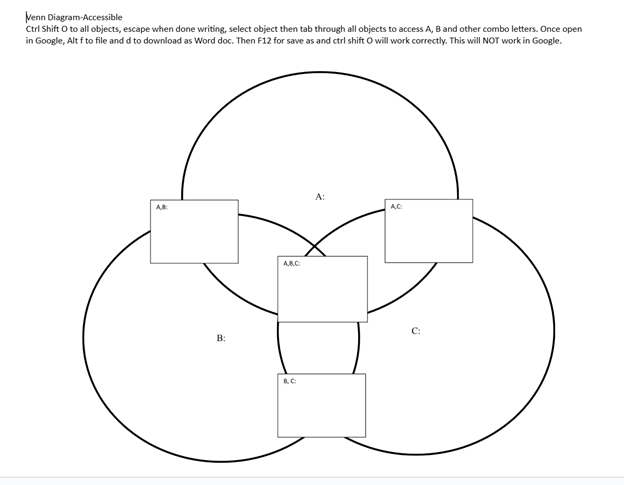
Embossing graphics for Blind Students: Dr. Robinson offers this video for families and transcribers needing to adapt images for blind students to “see.” This video offers a straightforward approach to creating accessible Venn diagrams using the technique to emboss graphics with Tiger.
Dr. Robinson begins by explaining how to handle a Venn Diagram or any graphic. She demonstrates using a Venn diagram with two large, intertwined circles, where all parts are shaded. Such images blur when transferred into Tiger Designer, a common tool for producing tactile graphics. She recommends redrawing the diagram for clarity, ease, and speed. This approach is more effective than fixing the shaded areas when you emboss graphics with Tiger.
How to Emboss the Tiger Graphic
To show blur issues, she creates a new diagram, by opening Tiger Designer and pressing Control + N to start a new document. After ensuring the default settings are correct, pasting an image using Control + V will result in a blurry output due to the shading. In this case, Dr. Robinson suggests redrawing the Venn diagram. Ctrl + N for new again and Alt+O or click on Tools. Select a line width of 2.5 or 3, as thicker lines are easier for students to feel when you emboss graphics with Tiger.
Dr. Robinson then demonstrates how to draw two circles from the tool’s menu, representing the basic structure of the Venn diagram. She emphasizes the importance of labeling the sections and typing in uncontracted Braille works fine. She notes that while parents may not be familiar with contractions, students are accustomed to reading uncontracted Braille. It’s crucial to use these steps to emboss graphics with Tiger accurately.
Finally, Dr. Robinson shows how to emboss the Tiger graphic with Ctrl + P to emboss. Ensure the correct printer model and settings are applied. The final result will be a clear and accessible tactile diagram that the student can easily interpret.
Learning Spanish Braille involves understanding the unique characteristics of the Braille system used for the Spanish language. Then build on the foundational skills of Braille reading and writing. Here’s how to approach it:
1. Understand the Braille Alphabet in Spanish
Spanish Braille follows the same 6-dot system as English Braille.
Extra characters are included to represent letters with accents and special characters used in Spanish.
Key additions include:
Ñ: Represented by a unique Braille symbol.
Accented vowels: Á, É, Í, Ó, Ú have distinct Braille symbols.
Punctuation: Spanish uses inverted question marks (¿) and exclamation marks (¡), and these have their own symbols in Spanish Braille.
2. Start with the Basics
– Begin by learning the standard Braille alphabet for unaccented letters, numbers, and common punctuation marks.
– Practice reading and writing these basic symbols to build fluency.
3. Familiarize Yourself with the Extra Characters
– Learn the Braille symbols for accented vowels (á, é, í, ó, ú) and ñ.
– Read and practice with materials specifically written in Spanish Braille to develop fluency.
– You can find books, articles, or educational materials written in Spanish Braille to improve your reading skills online.
5. Engage with Digital Tools
– Tools like Braille displays and screen readers can be set to Spanish to help reinforce learning. See below list of all Spanish symbols
– Software like JAWS or NVDA can be configured to support Braille output in Spanish. This allows for real-time practice with written content.
6. Practice Writing Spanish Braille
– Use a Braille writer to practice writing in Spanish Braille. Focus on mastering punctuation and special characters.
– The fastest and easiest to edit option will be to practice typing or brailling on a display. The FOCUS 40 Braille Display or Brailliant Braille Display to write out Spanish words and sentences.
7. Learn through Immersive Activities
– Reinforce learning, engage in practical activities like labeling objects in Spanish Braille. Work with bilingual Braille texts (Spanish and English).
8. Find a Teacher or Tutor
– If possible, work with an instructor who is fluent in Spanish Braille and the language. They can guide you through the nuances of the language and provide feedback on your progress.
– Organizations specializing in Braille education, like TechVision, can help offer resources or tutors for Spanish Braille.
8. Go to a Spanish Speaking Country
-Totally immerse yourself within a culture that will speak the language you want to learn well.
Spanish-Española Symbols
Spanish-Española 1. Jaws settings: Set up braille profile – insert 6 (ctrl shift D) for default. After completing the steps, open settings again to ensure they apply only to Word settings. Next, type “braille mode” twice, press F6, and use Alt+G to access languages and set your preferences. For those requiring a Spanish Braille display or keyboard, ensure your device is compatible with your software settings. More Video lessons can help.
This lesson is Spain (international) Input and Output are Spanish Grade 1
2. Tab to profile languages and set those up and enter to close Jaws settings
3. Alt 8 to make sure dots 7,8 show on display-accept and close settings
1. Set up Voice profile in Jaws-open context menu, options, voices, add a profile
1. In Word-change voice quickly: 2 options: on keyboard- ctrl shift window L to change profile or on Focus -2,3,4,5,7, space to change languages)
2. Insert+ctrl+S to change to Spanish profile or to other language
3. G+7+space on Focus to computer braille (which will output Spanish grade 1)– capital is dot 7 under capital letter on display
For Braille with Braille Display on Computer
Práctica:
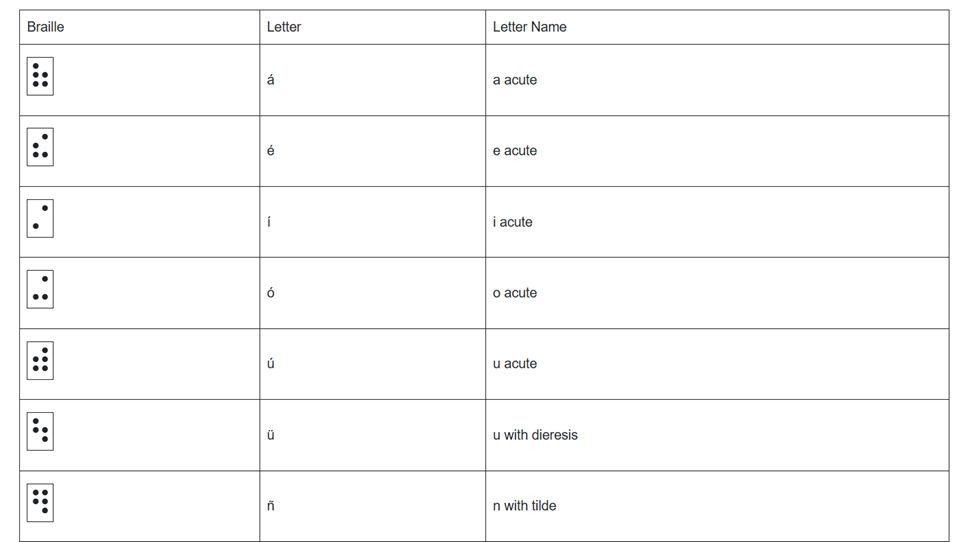
á 1,2,3,5,6
é 2,3,4,6
í 3,4
ó 3,4,6
ú 2,3,4,5,6
ü 1,2,5,6,8
ñ 1,2,4,5,6, 8
Punctuation for Spanish Braille using Braille Display
! 2,3,5, 7 is exclamation mark
inverted ! is 2,3,5, 7, 8 is upside down exclamation mark
Period is . is dot 3
Comma is , is dot 2 for comma
question mark is ? is dot 2, 6
upside down question mark or inverted ? is 2,6,7
Spanish Braille for Keyboard and JAWS
Lower Case Letters
á (lower case a, acute accent) = Press Ctrl + ‘ (apostrophe), then the letter a é (lower case e, acute accent) = Press Ctrl + ‘ (apostrophe), then the letter e í (lower case i, acute accent) = Press Ctrl + ‘ (apostrophe), then the letter i ó (lower case o, acute accent) = Press Ctrl + ‘ (apostrophe), then the letter o ú (lower case u, acute accent) = Press Ctrl + ‘ (apostrophe), then the letter u ñ (lower case n, tilde accent) = Press Ctrl + Shift + ~ (tilde), then the letter n ü (lower case u, diaeresis accent) = Press Ctrl + Shift + : (colon), then the letter u
Upper Case Letters
Á (upper case A, acute accent) = Press Ctrl + ‘ (apostrophe), then Shift + a É (upper case E, acute accent) = Press Ctrl + ‘ (apostrophe), then Shift + e Í (upper case I, acute accent) = Press Ctrl + ‘ (apostrophe), then Shift + i Ó (upper case O, acute accent) = Press Ctrl + ‘ (apostrophe), then Shift + o Ú (upper case U, acute accent) = Press Ctrl + ‘ (apostrophe), then Shift + u Ñ (upper case N, tilde accent) = Press Ctrl + Shift + ~ (tilde), then Shift + n Ü (upper case U, diaeresis accent) = Press Ctrl + Shift + : (colon), then Shift + u
Hasta la vista / Hasta luego. See you / See you later.
Hasta pronto. See you soon.
Hasta mañana. See you tomorrow.
(Muchas) Gracias.
Thank you (very much).
De nada. You’re welcome.
Bienvenidos Welcome
Lo siento I’m sorry
Con permiso / Perdón / Disculpe Excuse me / Pardon me
¡Vamos! Let’s go!
¿Cómo está usted? How are you? (formal)
¿Cómo estás? How are you? (informal)
Insert+4 for eacute in
¿Qué tal? How’s it going?
Bien / Muy bien Good / Very good
Insert+4 for acute in Más below
Mal / Muy mal / Más o menos Bad / Very bad / OK
Sí / No Yes / No
¿Cómo?
¿Cómo se llama usted? What is your name? (formal)
¿Cómo te llamas? What is your name? (informal)
Me llamo… / Mi nombre es… My name is…
Mucho gusto. / Encantado. Nice to meet you.
Immersion in Language
Here is the sequence of learning in order to learn any language well:
The time it takes to learn a new language, like Spanish, while living in a country where it is the only language spoken, depends on several factors. However, here are general timelines and considerations:
1. Immersion Benefits
Living in a Spanish-speaking country accelerates learning because you’re constantly exposed to the language in real-life situations like:
Listening: Conversations, TV, radio, and announcements.
Speaking: Daily interactions with locals, from shopping to asking for directions.
Reading and Writing: Street signs, menus, newspapers, and more.
2. Language Learning Proficiency Levels
The Common European Framework of Reference for Languages (CEFR) breaks language learning into six levels:
A1 (Beginner): Basic phrases and conversations (3–6 months).
A2 (Elementary): Can understand simple texts and conversations (6–12 months).
B1 (Intermediate): Hold conversations on familiar topics and function in everyday life (12–18 months).
B2 (Upper Intermediate): Fluent in most situations, including work and travel (18 months–2 years).
C1 (Advanced): Understand complex topics and engage in nuanced conversation (2–3 years).
C2 (Proficient): Full mastery of the language, similar to a native speaker (3+ years).
Factors that will Determine Speed
3. Factors That Affect Learning Speed
Motivation and Attitude: Strong motivation and a positive mindset can accelerate your progress.
Practice Consistency: Daily practice, speaking, listening, and reading in Spanish speeds up learning.
Prior Language Experience: If you’re already familiar with Romance languages (e.g., Italian or French), learning Spanish might be faster due to similarities in vocabulary and grammar.
Formal Education: Taking classes, whether in person or online, and using language apps like Duolingo or Babbel can help structure your learning and improve your skills more quickly.
Social Interaction: Making friends who are native speakers or joining local groups can enhance your conversational abilities.
4. Realistic Expectations
– For basic conversational fluency (A2-B1), expect about 6 months to 1 year of immersion if you’re dedicated and practicing regularly.
– To reach an advanced level (C1), you might need 2 to 3 years of living and interacting in the language full-time.
5. Cultural Immersion
Your understanding of Spanish will deepen faster if you immerse yourself in the local culture, customs, and idiomatic expressions. Engaging in local activities, reading newspapers, and watching TV shows will all help you learn the language more organically.
Summary:
On average, 6 months to 1 year of immersion in a Spanish-speaking country should allow you to gain conversational fluency, with full mastery taking about 2–3 years, depending on your dedication and resources.
Adult Learning Speed
Sequence of learning for an adult
For adults, learning a new language like Spanish while living in a country where it’s the only language spoken can still be highly effective, but several factors can influence the timeline. Here’s what an adult learner can expect:
1. General Time frames for Adult Learners
Conversational fluency (A2-B1 level): Typically achievable in 6 months to 1 year of immersion.
Advanced proficiency (B2-C1 level): May take 1.5 to 2.5 years of consistent use and practice.
Full fluency (C2 level): Can take 3 years or more, depending on factors like exposure, practice, and language complexity.
2. Factors Affecting Adult Learning Speed
Cognitive Flexibility: Adults tend to be more methodical learners than children, but they can sometimes struggle with retaining new vocabulary and adapting to different grammar structures.
Prior Experience: If the adult already speaks a Romance language (like Italian or French), they will likely learn Spanish more quickly because of the structural similarities.
Learning Environment: The more opportunities for immersion—such as interacting with native speakers, engaging in cultural activities, and using Spanish in daily tasks—the faster the progress.
Language Learning Methods: Adults often benefit from a combination of formal learning (e.g., classes, tutors) and informal learning (e.g., conversations, media consumption).
Motivation and Consistency: Adults with clear goals and regular practice (even just 30 minutes a day) tend to progress faster. Maintaining consistent practice is key to long-term retention.
Challenges for Adult Learners
3. Challenges for Adult Learners
Accent and Pronunciation: Adults might find it harder to develop a native-like accent, though this doesn’t prevent them from becoming highly fluent.
Work and Life Responsibilities: Adults often juggle work and personal responsibilities, which can limit the time available for focused language learning.
Grammar: Grasping grammatical structures, verb conjugations, and nuances may take longer for adults compared to younger learners, who tend to absorb new patterns more intuitively.
4. Accelerating Adult Learning
Use Daily Immersion: Engage in conversations, read signs, watch TV shows, and use apps like Duolingo or Babbel to reinforce lessons in real-life situations.
Structured Learning: Enroll in Spanish classes or hire a tutor to build a strong foundation in vocabulary and grammar.
Use Technology: Utilize language-learning apps, podcasts, or online lessons. Watching Spanish media with subtitles can help you pick up common phrases and pronunciation.
– Join Social Circles: Engage with locals, participate in group activities, and use Spanish in daily interactions. This practical experience will help reinforce what you’ve learned.
– Set Realistic Goals: Adults benefit from having clear, incremental goals (e.g., mastering a certain level of vocabulary or holding a 10-minute conversation) to track progress and stay motivated.
Adult Experience
5. Common Experiences for Adults
After 3-6 months, most adults can hold basic conversations, ask for directions, and manage daily interactions in Spanish.
By 1 year, many can discuss familiar topics, navigate most social situations, and understand much of what they hear or read.
Within 2 years, a dedicated adult learner can likely achieve strong conversational fluency and understand complex topics, though nuances and slang may still be challenging.
Summary
For an adult, achieving conversational fluency in Spanish typically takes 6 months to 1 year with immersion and regular practice. Advanced proficiency may take 1.5 to 2.5 years, while full fluency could require 3 years or more, depending on the learner’s background, motivation, and exposure to the language.
Dr. Robinson and her Team at TechVision have made a significant global impact via their Team Mission and Purpose. TechVision specializes in 1:1 remote instruction in education for the blind and visually impaired, serving individuals of all ages. We also train School Teams: transcribers, Teachers of the Blind and other School Personal and work with parents. Their expertise is delivered through personalized, real-time 1:1 remote instruction. This approach empowers students and clients to compete equally with their sighted peers in both education and work.
In this video, Dr. Denise M. Robinson demonstrates how to use the WORD Math Editor and Braille Math Editor with JAWS using LaTeX or Braille. This tutorial is designed for screen reader users, with or without braille displays, who want to improve their math skills.
First, Dr. Robinson introduces the essential tools for using matrices in WORD, including JAWS, a Braille display (if desired), and the WORD Math Editor. She explains how to set up each tool to work together smoothly, which is crucial for creating and editing math content.
Next, the video focuses on creating matrices. Dr. Robinson uses LaTeX to input mathematical expressions. She explains each step clearly, making it easy to follow along. Viewers will learn how to enter rows and columns in a matrix, helping them understand matrix structure.
Then, Dr. Robinson demonstrates how to use auditory feedback, which allows users to hear the math content they are working on. This feature helps ensure accuracy and makes it easier to catch mistakes. Additionally, she shows how to switch between auditory and Braille feedback, providing flexibility for different learning styles.
The video also covers using the Braille display with the math editors. Dr. Robinson explains how to navigate through the matrix using Braille and provides tips on reading and editing the content efficiently. This section is particularly helpful for users who rely on Braille for their work.
Finally, the tutorial concludes with a review of the key points. Dr. Robinson summarizes the steps for creating and editing matrices. She encourages viewers to practice using the tools and techniques demonstrated in the video. By the end of the tutorial, users will feel more confident in their ability to work with math content.
To optimize your Gmail experience with JAWS, it’s important to first set up keyboard shortcuts in Gmail’s settings. This initial step ensures that you can navigate and perform actions quickly using JAWS. If you notice your computer is not working well, then we highly suggest optimizing it for Windows with screen readers. Here is a parent setting it up with a trainer if you would like more direction.
Start by opening Gmail in your web browser. Once inside, press the letter “G” followed by “S” to go directly to the settings. Next, use the “Tab” key to navigate through the settings menu until you reach the “See all settings” option. Press “Enter” to access the full settings menu.
In the settings menu, continue pressing “Tab” until you reach the “Keyboard shortcuts” section. Here, you’ll find an option to turn on keyboard shortcuts. Press the spacebar to enable this feature. Enabling keyboard shortcuts is crucial as it allows you to execute commands more efficiently, which is particularly beneficial when using JAWS.
After turning on keyboard shortcuts, press “Tab” to navigate to the “Save Changes” button and press “Enter.” This action ensures that your settings are saved, and keyboard shortcuts are now active in Gmail.
With keyboard shortcuts enabled, you can now easily compose, send, and manage emails using JAWS. For example, press “C” to open the compose window, where you can start drafting an email. Use the “Tab” key to move between the “To,” “Subject,” and “Body” fields, and use JAWS commands to review your text as you type.
Finally, once your email is ready, press “Tab” to reach the “Send” button and press “Enter.” JAWS will confirm that your email has been sent. With keyboard shortcuts active, you can also quickly navigate through your inbox, search for emails, and perform other tasks, making your Gmail experience much more efficient.
In conclusion for most crucial item, is setting up keyboard shortcuts in Gmail which is the first essential step to using JAWS effectively. This setup ensures that you can send emails quickly and navigate Gmail seamlessly, enhancing productivity for blind and low vision users. For addition information see TechVision YouTube channel. While you advance your tech, include your Braille reading speed skills.
Lucas, a blind individual, demonstrates JAWS Commands using AI Descriptions and how to effectively use ChatGPT with DALL-E to generate and describe images. Starting with ChatGPT, Lucas opens the platform, which places him directly in the edit box. To navigate out, he presses the “up arrow” key. He then maximizes the screen with “Windows + up arrow,” enhancing readability for JAWS.
Next, Lucas demonstrates how to locate the DALL-E AI Description image generator by accessing the links list using Jaws Commands with “Caps Lock + F7.” He navigates to the search box using the “E” key and types “DALL-E” in all capitals, with the period included. After pressing “Enter,” he tabs through the search results until he finds the relevant link, then presses “Enter” again to open it.
Once inside the image generator, Lucas describes the process of inputting a prompt. He emphasizes the importance of being specific, including details about the setting, characters, and art style. For instance, he generates an image of a wizard casting a spell on a cliff-side in a realistic art style. By pressing “Enter,” the image generation process begins, typically producing two images by default. He demonstrates how to make the inaccessible-accessible.
To download an image, Lucas uses “Shift + B” to find the “Show Image” button, followed by pressing “Enter” and then down arrow to the “Download Image” button. He encounters a warning about the dialog not being focused, while the download proceeds. Remember to Email your beautiful creations to someone also.
For image descriptions, Lucas follows a similar process to find the “Image Description Assistant” link. After inputting his request and attaching the image file, he waits for the description to generate. To review the description, Lucas uses “Shift + G” to jump to the top of the graphic, then down arrows to read it. This methodical approach allows Lucas to create detailed images and receive comprehensive descriptions efficiently.
AI has transformed how screen reader users access their world, MathKicker.AI is a powerful MATH app that allows top level Math work. Do not let Low Vision issues or legal blindness stop you from accelerating in school.
Dr. Robinson guides transcribers through the process of math image conversion for accessibility, specifically focusing on converting math images into accessible Word documents using MathKicker.AI. She begins by highlighting that transcribers will easily recognize an image when it turns blue upon clicking it when opened in PDFs. These images, often blurry due to repeated copying by teachers, require careful description for students who cannot feel the number lines. Dr. Robinson emphasizes the importance of adjusting the level of detail based on the student’s age and familiarity with number lines during the math image conversion access process.
To begin the process to learn how to convert math images into accessible Word documents for students with accessibility needs, Dr. Robinson gives step-by-step video instruction using “Windows + Shift + S” to capture the image and then select “Convert Image to Doc” using the clipboard in Mathkicker.AI. This method is particularly useful for large documents. Once converted, the image opens in Word, where it is important to enable editing with F6. She advises saving the document with a simple name, like “Line Work,” and placing it in the downloads folder from Mathkicker.AI.
Dr. Robinson demonstrates how to work side-by-side with the original image and the converted document. By adjusting the zoom to 200%, transcribers can compare the math accurately. She notes that sometimes images may contain extra elements, like a punched hole, which the software might misinterpret. These should be corrected during math image conversion for access.
Accuracy for Math image conversion access
For further accuracy, Dr. Robinson recommends using alternative text (alt text) for the graphic line. This helps students and sighted individuals, such as teachers or parents, understand the content. She explains that leaving the graphic in the document with added alt text is beneficial. A user can add the braille Math editor into use in WORD also for more options or even using EXCEL.
Moving to more complex math for math image conversion access, she instructs on using the Desmos graphing calculator. Students can use “Alt + Print Screen” to capture and paste graphs into the Word document. Describing shaded areas or specific graph features is crucial for clarity. Finally, Dr. Robinson shows how Math Kicker efficiently converts math into text, creating clean, accessible documents. This method, combining math image conversion access and alt text descriptions, significantly speeds up the transcription process while ensuring students receive accurate, accessible math content. Dr. Robinson concludes by encouraging transcribers to reach out with any further questions. At times, you need to adjust Margins, etc.
Dr. Robinson explains how to navigate the new Google Drive update using a screen reader, focusing on commands that will be essential after the August 1st, 2024 update shortcuts. She begins by demonstrating basic navigation through Google Drive, emphasizing the importance of learning the updated keyboard shortcuts-use FireFox when you have Chrome and Edge Chromium issues with navigation. The point it, same commands but use a different browser when 1 or 2 decide not to work well. Then if you have done that and still issues exist, set up computer to work the best with screen readers.
To start, Dr. Robinson guides users through accessing the settings menu with “Control + Shift + S,” where updates and new keyboard shortcuts can be found. She highlights the automatic update that will apply the new shortcuts starting August 1st. After closing the settings menu with “Escape,” she demonstrates navigating Google Drive using the “Alt + G” command, followed by “N” to access the navigation region.
New Google Drive Update
Dr. Robinson continues by explaining first-letter navigation which presently only works in Firefox but as updates occur Chrome and Edge should start to work again also. List View is where users can jump to items by pressing the first letter of the item’s name. She shows how this method, combined with the updated shortcuts, makes navigation faster and more efficient. For example, to create a new document, she uses “Alt + C” followed by “T,” which quickly opens a new Google Doc and other google items.
She then discusses how to use the “Alt + A” command to open the context menu, allowing users to perform actions like downloading, sharing, or renaming files. The context menu provides additional options, accessible via hotkeys. Dr. Robinson points out the ease of using these commands once learned, making it simpler to manage files within Google Drive.
To demonstrate the process, she creates a new presentation with “Alt + C” followed by “P.” After navigating back to her list view with “Alt + G” followed by “I,” she explains how to use the context menu for specific actions. Dr. Robinson concludes by encouraging users to familiarize themselves with these new commands, ensuring a smooth transition.
Google Drive navigation is more intuitive and accessible for those using screen readers if you use the browser that works . Learn Google Slides navigation with complicated slides to improve navigation and echo also.
Dr. Robinson guides users through setting up Braille mode via Default profile by typing it in the edit box. She types “Braille Mode” in the search box, and F6 to access different settings. She uses “F6” to navigate to the desired options, then “Alt + F” to select language profiles. To access MathCat option via alt D to details then tab to Nemeth and change to MathCat then OK.
Dr. Robinson explains how to select the correct Braille code, such as UEB math with JAWS or Nemeth code. She walks through the process of applying these settings and closing the settings dialog.
Once set up, Dr. Robinson demonstrates how to solve math problems using JAWS in Word. Dr Robinson explains the process of entering equations using “Alt + Equals” to open the math editor. She highlights how to type out equations, like “X squared plus 3 equals 11.” Then how to navigate through the math content using keyboard commands.
She also explains complex math using UEB Math with Jaws, such as using square roots and other mathematical symbols, by using Unicode and LaTeX commands. Dr. Robinson shows the equation tools in Word by pressing “Alt + J” E to equation menu. Then explains how to convert equations between professional and linear formats using “Alt + JE + C.”
Throughout the tutorial, Dr. Robinson ensures users understand the commands necessary for navigating and editing math content effectively. She also provides troubleshooting tips, such as using the Math Viewer with insert space + = . This gives more detailed navigation of hearing each symbol, particularly useful for more complex equations.
Dr. Robinson concludes by encouraging users to explore more advanced math problems and settings. This ensures that they can confidently use JAWS for UEB math in various applications. If you experience computer issues in general, set it up to work the most efficiently with screen readers.
Dr. Robinson demonstrates how transcribers can efficiently convert math images into text using accessible Word documents and MathKicker.AI. She begins by showing how to identify an image containing a math problem. Note, that it turns blue when clicked and often appears blurry for a hint of inaccessible. To convert the image, she uses the “Windows + Shift + S” command to capture the image, then pastes it into MathKicker using “Alt + V.” After converting the image, she opens the document in Word.
Dr. Robinson advises transcribers to compare the original image with the converted text to ensure accuracy. She recommends using “F12” to save the document and “Alt + D” to choose the save location. For side-by-side comparison, she suggests using “Alt + Space” and “R” to restore and resize the windows.
For Transcribers to convert math images into text
To describe number lines or graphs, transcribers should write out the details, such as the range and direction of the line. Dr. Robinson also shows how to add alt text to images by right-clicking and selecting “View Alt Text.” This feature is particularly useful for visually impaired students who rely on screen readers.
For inequalities and other math problems, Dr. Robinson explains how to use Desmos, a graphing calculator tool. She demonstrates how to type equations into Desmos and capture the graph using “Alt + Print Screen.” The captured graph can then be pasted into the Word document, and additional descriptions should be provided for clarity.
Finally, Dr. Robinson emphasizes the importance of proofreading and adjusting the text to ensure it accurately represents the math content. She encourages transcribers to use MathKicker for quick and accurate transcriptions, highlighting its ability to create accessible math documents efficiently.
Using Venn diagrams with screen readers involves strategic design and specific keyboard commands to ensure accessibility. Each set in the diagram must have clear, descriptive labels to guide screen reader users effectively. These labels help users understand the content without needing visual cues. Alt text plays a crucial role by summarizing the Venn diagram’s purpose, the sets involved, and their intersections. This concise description enables screen reader users to grasp the diagram’s structure and intent.
Keyboard navigation is essential for screen reader users to interact with Venn diagrams. The Tab key allows users to move through interactive elements like text boxes or linked descriptions associated with the diagram. Arrow keys are useful for navigating within tables or text boxes that describe the diagram’s content. This functionality ensures that users can access all relevant information without relying on visual input.
Screen reader software, like JAWS or NVDA, includes commands that facilitate navigation. In JAWS, the Ctrl+H command lets users jump between headings, making it easier to navigate through complex content. NVDA users can use the Ctrl+Alt+Arrow keys to move between headings or landmarks within a webpage or document. These commands are vital for quickly accessing different parts of the content related to the Venn diagram.
Incorporating structured content enhances the usability of Venn diagrams for screen reader users. Headings, bullet points, and numbered lists help break down complex information into manageable sections. This structure allows users to follow the logical flow of information without confusion. So, Screen reader users can also navigate through tables that complement the Venn diagram. Tables list elements within each set and describe intersections, making the relationships between sets clear. JAWS users can move horizontally between cells using Ctrl+Alt+Right/Left Arrow keys, and vertically with Ctrl+Alt+Up/Down Arrow keys.
Careful Planning
Creating accessible Venn diagrams for screen reader users requires careful planning. By using descriptive text, alt text, structured content, and keyboard commands, educators and content creators can ensure that all users, including those who rely on screen readers, can effectively interact with and understand Venn diagrams. These strategies are essential for making complex visual information accessible to everyone. More Video Lessons here
Create your Venn Diagram via WORD and shapes, applications key to move to back or forward then use these commands to access: Venn Diagram-Accessible
Ctrl Shift O to all objects, escape when done writing, select object then tab through all objects to access A, B and other combo letters. Once open in Google, Alt f to file and d to download as Word doc. Then F12 for save as and Ctrl Shift O will work correctly. This will NOT work in Google.
When done, have student emboss off a copy to feel what it is like and if you are having computer issues, tweak it to work better with screen reader.
Dr. Robinson demonstrates how to remap a key on a keyboard using SharpKeys, which is especially useful for laptops that lack an Applications key. She explains that many screen readers require an Applications key, but not all laptops include one. By remapping an unused key, such as a backslash or the 2nd alt key, students can easily create an Applications key for their screen reader.
Remap keys on keyboard with sharp keys and screen reader commands
She begins by opening SharpKeys via the Start menu and typing “SharpKeys” into the search bar. Once opened, she navigates the menu with Tab and presses Alt + A to add a new key mapping. To identify the key to remap, she presses Alt + K and hits the backslash key. It’s a straightforward way to remap keys on keyboard devices.
The software recognizes the backslash as ISO Extra Key 0_56, making it easy to remap. Dr. Robinson then scrolls through the list using Down Arrow to find Special: Application E0_5D. After selecting it with Spacebar, she confirms the key mapping by pressing Enter.
To test the remapped key, she presses Windows + T to open the taskbar. She then uses the newly remapped key to access the Applications menu. Though the key is still labeled as backslash, it functions correctly as an Applications key. This technique to remap keys on keyboard setups helps users customize their experience.
Dr. Robinson emphasizes that this method allows blind users to easily remap keys without assistance. The entire process is accessible, making it useful for students relying on screen readers. The remapped Applications key provides full functionality, offering standard Applications key options. Remapping keys on keyboard devices can significantly improve accessibility for all users.
Dr. Robinson ensures that students can remap keys using SharpKeys independently, without needing assistance from a sighted person. She highlights that this process is accessible for blind users and fully supports screen readers.
After confirming the remapping, Dr. Robinson explains how this tool provides flexibility for students using different laptops. By remapping a nonessential key, they can create a functional Applications key, essential for many screen reader commands.
She encourages students to experiment with remapping other keys if needed. This flexibility allows users to personalize their keyboards to fit their preferences. More Screen Reader Lessons here
When sighted parents’ setup computer for their young child, they learn the commands and how to follow through with lessons after the TechVision Team completes working with their child.
Shared Learning Experience: Learning together can be a bonding experience, making the process enjoyable and less isolating for the child. It also demonstrates to the child that their parents are invested in their education and success.
Here are some general essential keyboard commands to set up and navigate the JAWS screen reader:
Starting and Basic Navigation
Start JAWS:
Press Ctrl + Alt + J or if pinned to taskbar Windows 3 on this computer
Activate PC Cursor:
Press Numpad +.
Activate JAWS Cursor:
Press Numpad -.
Silence Current Speech Output:
Press Ctrl.
Help Sighted Parents Setup Navigating Web Pages
List Links:
Press Insert + F7.
List Headings:
Press Insert + F6.
List Form Fields:
Press Insert + F5.
Next Heading:
Press H.
Next Link:
Press Tab.
Previous Link:
Press Shift + Tab.
Reading Text
Read Next Line:
Press Down Arrow.
Read Previous Line:
Press Up Arrow.
Read Current Line:
Press Insert + Up Arrow.
Read Next Word:
Press Insert + Right Arrow.
Read Previous Word:
Press Insert + Left Arrow.
Forms and Tables
Enter Forms Mode:
Press Enter.
Exit Forms Mode:
Press Numpad +.
Navigate Table Cells:
Press Ctrl + Alt + Arrow Keys.
Sighted Parents Setup computer successfully and if your child is Visually Impaired use this setup to SEE computer better
The population of individuals with low vision exceeds that of those who are blind. It is expanding quickly as the population ages and experiences vision decline. A variety of lessons teach you how to download large cursors, enhance contrast, and enlarge text in Word. These skills also help you read with more ease. You’ll also learn how to magnify text and graphics on the Internet using different methods. Additionally, instructions on setting up low vision devices for students in classrooms who need to see the board are provided. These lessons are designed to improve your ability to see everything on your computer. The fact that these videos predate screen capture technology is irrelevant, as the skills are applicable to all versions of Windows.
Skills to Enlarge Text as you need on any computer
SEE your computer better, for users with low vision, using keyboard commands in Microsoft Word can significantly enhance visibility and ease of use. Here are some useful shortcuts:
Zoom In/Out:
Zoom In: Press Alt + W, then Q, and use the Tab key to navigate to the zoom value you want.
Zoom Out: Use the same steps as above but adjust the zoom value accordingly.
Adjust Font Size:
Increase Font Size: Press Ctrl + ].
Decrease Font Size: Press Ctrl + [.
Magnifier:
Turn on Magnifier: Press Windows + + (Plus sign).
Zoom In: Press Windows + + (Plus sign).
Zoom Out: Press Windows + - (Minus sign).
Exit Magnifier: Press Windows + Esc.
Change Font:
Open Font Dialog Box: Press Ctrl + D to open the Font dialog box where you can adjust font size, style, and other attributes.
High Contrast Mode:
Toggle High Contrast Mode: Press Left Alt + Left Shift + Print Screen.
Other Low Vision Skills to increase “Seeing” Ability
You can perform all these tasks using current PDF versions, even with inaccessible scanned images. First, demonstrate how to write text directly on scanned PDFs, then save the edited file. Next, show students how to type directly on PDF and email the completed PDF to their teacher for submission. Perfect touch typing is always preferred for ease.
For low vision users, all math content with voice output offers additional support. Combine this tool with text manipulation in PDFs to make materials more accessible. This approach ensures students can interact with complex materials efficiently, despite any visual challenges.
Here are some useful keyboard commands for working with PDFs in Adobe Acrobat, focusing on enlarging the screen and typing on the document:
Type directly on PDF commands
Enlarge Screen (Zoom In/Out)
Zoom In:
Press Ctrl + + (Plus sign) on Windows.
Press Cmd + + (Plus sign) on Mac.
Zoom Out:
Press Ctrl + - (Minus sign) on Windows.
Press Cmd + - (Minus sign) on Mac.
Fit to Screen:
Press Ctrl + 0 (Zero) on Windows.
Press Cmd + 0 (Zero) on Mac.
Typing on a PDF
Type Directly on PDF
Add Text:
Select the Text Box Tool by pressing Ctrl + Shift + T on Windows.
On Mac, you might need to manually select the tool from the toolbar.
Type in a Form Field:
Navigate to the form field using the Tab key.
Press Enter to start typing.
Add a Comment:
Press Ctrl + 6 to open the comment tool on Windows.
To set up an alarm in Outlook with JAWS, press Ctrl + 2 to switch to Calendar view. Next, press Ctrl + N to create a new appointment. JAWS announces each field as you navigate through the form. Enter the subject, then press Tab to move to the location field. Continue pressing Tab to set the start and end times. To adjust the date, use Alt + Down Arrow to access the date picker.
Press Alt + H to open the appointment tab, then A to set the reminder. Use arrow keys to select the desired reminder time, then press Enter to confirm. Finally, press Ctrl + S to save the appointment. At the scheduled time, JAWS will announce your reminder.
If you discover your computer is not working well, check your Setups on windows and if you are low vision, here are setup options also for better viewing.
Find the mouse cursor using a large cursor, using CTRL key and other tricks
Another insightful lesson from TechVision in finding mouse cursor fast. In this video they demonstrate how to easily locate the mouse pointer when it’s too small or lost on the screen. These steps will enhance visibility and ensure the mouse is always within visual reach.
To begin, press the Start key. On Windows 10 or later, simply start typing “mouse,” then select the result by pressing Enter to open the mouse settings. If settings opens first then tab to additional mouse settings.
Once inside, use Ctrl + Tab to navigate to the properties section. From here, the user is presented with various pointer schemes. They can choose “Magnified” for an enlarged pointer, or opt for “Extra Large” or “Inverted,” depending on preference. For users with high contrast settings, an inverted large white pointer is particularly effective. In this instance, they recommend selecting the “Magnified System Scheme.”
Now for the key trick: Ctrl + Tab to pointer options. At the bottom is an option labeled “Show location of pointer so the CTRL key is pressed you see it surrounded in circles. Or to enable this, use Alt + S or manually tab down to it. Once selected, press Alt + A to apply the changes, and then close the settings window.
With this feature enabled, pressing the Ctrl key will cause a large white ring to appear around the mouse pointer, allowing users to quickly find it, even if it’s far off on the screen.
This technique is particularly beneficial for individuals with low vision but can be useful for anyone who occasionally loses track of the mouse pointer. This simple yet effective tip ensures that the mouse pointer is always visible and easy to locate. Watch the full video for all those little tricks to make it easier to see your computer. In addition to seeing your computer better in general and other mouse access options.
Search HathiTrust’s Digital Library who is part of a partnership of academic & research institutions, offering a collection of millions of titles digitized from libraries around the world.
HathiTrust is a digital library that preserves and provides access to over 18 million digitized books and documents. It empowers scholarly research by offering transparency and fostering curiosity through vast collections, including rare and special items. Users can explore materials digitized from libraries worldwide, access technical reports, government documents, and unique collections, and participate in HathiTrust’s mission to safeguard knowledge. The platform emphasizes accessibility and innovation, supporting academic research and discovery. Gutenberg and BARD are also other sites that offer free books
Using your newest WORD version, Create a family tree in Microsoft Word using (1997-2023) keyboard commands is straightforward and efficient. Most importantly, it is accessible. After you open WORD, press F12 for save as and name it then tab to save as an arrow to 1997-2023 and enter. Then press Alt + N to open the Insert tab, then press M to select SmartArt. In the SmartArt dialog box, (typically the first item, so listen) or use the arrow keys to navigate to the “Hierarchy” category and select a suitable layout for your Family Tree with Smart Art, such as “Organizational Chart.” Press Enter to insert the SmartArt graphic into your document.
This is the method of creating a Family Tree with Smart Art and screen reader. You can then use the Tab key to move between different elements of the chart and Enter to add new family members. To edit text within the SmartArt, simply press F2 to enter text editing mode. This method allows you to create a detailed and visually appealing family tree using just your keyboard and screen reader.
When you are looking to do sophisticated work such as Family trees, etc., always do as save as to 97-2023 as that Version was fully accessible and still is IF you remember the commands. Here is a few below Family Tree:
Family Tree with Smart Art and screen reader
Family Tree with Smart Art
Here are the keyboard commands for accessing the Insert menu in Microsoft Word (1997-2023):
So many people ask, “How fast should my child be reading?” When discussing Braille Reading Speed Standards, it’s essential to remember that blind children are just as intelligent as sighted children so standard reading speed should be used for all children. Braille Reading Fast.
The TechVision Team use these same standards for all blind and low vision students. To name just a couple, Batya reads both Hebrew and English Braille and Dani excels to the top of her class also. If you set high standards then children will meet those standards. We have taken on beginner students and told them how fast they would be reading braille in a couple months, even in middle and high school. Just remember the older you start the longer it will take for them to gain speed. At the end of the 2 months, as their fingers would fly across the page reading braille, as they were timed with a fast speed, We would ask, “So did you really think you would be able to read that fast?” They would reply, “Of course, because you told me I would be able to.”
So, tell them, they can, and they will. Our Mission and Purpose is to have students (especially with similar intelligence) at the highest levels they can be with hard work and instruction to get them there as their peers.
Get to the Highest Levels
Tricks to use Time them every week (sometime everyday), so they see their progress Have them reread the same material to get flow and fluency Have them braille the material first using contractions, then read what they wrote
Visual braille reading speed chart as above accessible version
Free eBooks | Project Gutenberg and self-publishing site has a mobile website, where you can download many classic books free of charge. If you love reading, you should definitely explore the Free eBooks available on Project Gutenberg.
Free eBooks | Project Gutenberg
No fee or registration! Everything from Project Gutenberg is gratis, libre, and completely without cost to readers. If you find Project Gutenberg useful, please consider a small donation to help Project Gutenberg digitize more books, maintain its online presence, and improve Project Gutenberg programs and offerings. Other ways to help include digitizing, proofreading and formatting, or reporting errors.
Project Gutenberg</strong>, a platform offering >free eBooks. You can download or read online thousands of digitized books, focusing on older works with expired U.S. copyrights. The site emphasizes that no special apps are needed, and all eBooks are completely free. Additionally, Project Gutenberg encourages donations and volunteer contributions to help digitize and proofread more books. BARD is similar but more options are always better when it comes to reading.
Where to find other eBooks. You can also explore Free eBooks at Project Gutenberg for a variety of options. Many classic Free eBooks from Project Gutenberg are available for download. Don’t miss out on your Free eBooks.