Search results for: “setup”

  • UEB Math using Braille Math and Word Math Editors with Jaws and split-braille-for-buffer-mode

    UEB Math using Braille Math and Word Math Editors with Jaws and split-braille-for-buffer-mode

    In this tutorial, Dr. Denise M. Robinson shows how to use JAWS with Braille Math and Word Math Editors. This video on UEB Math with JAWS empowers blind and visually impaired students and professionals. It provides tools and techniques to excel in mathematics. Set up WORD properly first, then continue.

    UEB Math in Braille Math Editor

    First, the tutorial introduces essential software and hardware. This includes JAWS, a Focus Braille Display, or NVDA and the necessary math editors. Dr. Robinson guides viewers through the setup process. She ensures all components are correctly configured for optimal performance.
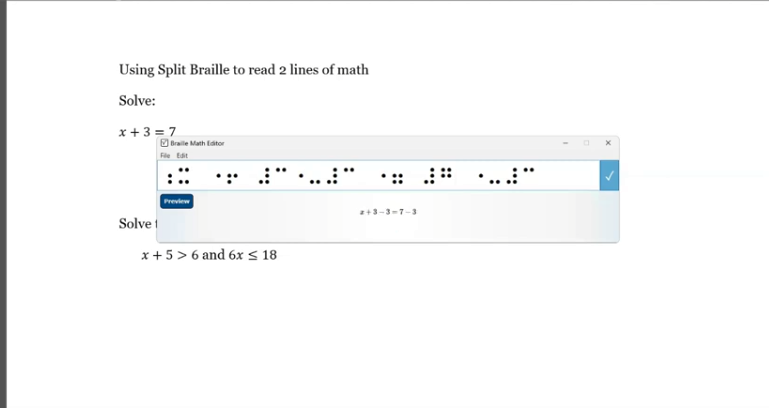
    image of math using braille math editor and split braille

    Next, the video explores the practical application of these tools. Viewers learn to input mathematical expressions using the Braille Math Editor. They navigate complex equations and use the split-braille-for-buffer mode to enhance workflow. Dr. Robinson offers clear, step-by-step instructions. This makes it easy for users to follow along and practice.

    By the end of this tutorial, UEB math in braille math editor viewers understand how to use JAWS and Braille Math Editors efficiently. They can create, edit, and review UEB math content. This video is an invaluable resource. It helps enhance digital math literacy and achieve greater independence in academic or professional pursuits.

    For additional UEB Math lessons, here is more on digital Math and advanced math using Matrices
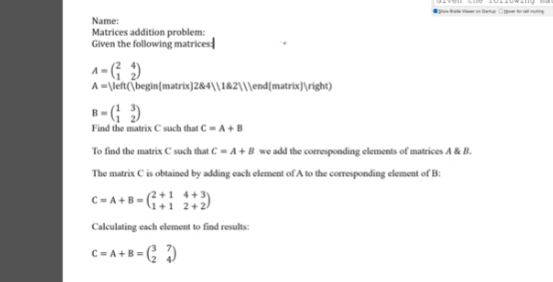
    UEB math LaTex matrices in Word

    More lessons at: https://www.youtube.com/@DrDeniseMRobinsontech

    and UEB Math Lessons Galore

    Advanced Math with Matrices in WORD Math editor

    Perfect Digital Math

    Transcribe Math Images

    Quadratic Math

    STEM with Embossing

    JAWS and MathCat

    Unicode with UEB Math

    UEB Math with Jaws

    UEB LaTex math with Jaws

    Tactile Learning Tools when needed

    TechVision Mission and Purpose in helping YOU!
  • Split Braille for Buffer Mode in Word for Math

    Split Braille


    Split Braille™ Feature in JAWS 2024

    UEB Math using Braille Math and Word Math Editors with Jaws and split-braille-for-buffer-mode

    The new Split Braille™ for Buffer Mode in WORD for math is a feature in JAWS 2024. It offers powerful functionality for Braille display users. So, it allows viewing content from different locations on the same Braille line and a longer display is more advantageous to use. Complete Proper Word setup First, then continue.

    Now let’s Enable Split Braille View-To enable a Split Braille view, press ALT+INSERT+V (or ALT+CAPS LOCK+V in Laptop layout) to open the Select Braille View dialog box. Focus Braille display users can press LEFT SHIFT+DOTS 1-2-7. In the dialog box, select your desired view and click OK. The active view remains for the current JAWS session and resets upon restarting JAWS.

    Using Split Braille for Buffer Mode View in WORD for Math

    By default, your current location appears in the left region, and the active view results appear in the right region. So, to swap these regions, reopen the Select Braille View dialog box and select the Swap split button mode. You can also change braille modes with a simple command

    Navigating and Selecting Text

    In most views, you can navigate and select text independently in the split region. Use the Right NAV rocker to pan and the Right Rocker bar to move by line. To select text for copying and pasting, press SHIFT button with a Cursor Router at the start and end of the selection. Dots 7 and 8 indicate the selection, which is automatically copied to the clipboard. 

    Commands for HumanWare Displays

    For the Brailliant BI 40 series and Mantis Q40 displays:

    • Open Select Braille View dialog: Fourth Thumb Key+C1+C2+C3+C6 (or ALT+CAPS LOCK+V on Mantis Q40).
    • Toggle Buffered Text mode: C1+C2+C3 (not on Mantis Q40).
    • Pan split view region: Third and Fourth Thumb Keys.
    • Navigate by line: C6+Third and Fourth Thumb Keys (not on Mantis Q40).
    • Select text: First Thumb Key + Cursor Router.

    For newer HumanWare displays:

    • Open Select Braille View dialog: K1 + pan Easy Access Bar right.
    • Swap regions: K1 + pan Easy Access Bar left.
    • Pan split view region: K4 + pan Easy Access Bar right/left.
    • Navigate by line: K4 + pan Easy Access Bar up/down.

    Available Views

    • No Split View Mode: Uses the full display length for the current line (default).
    • Buffered Text: Captures text at your current location and displays it in the right half. 

    More lessons at: @DrDenisemrobinsontech

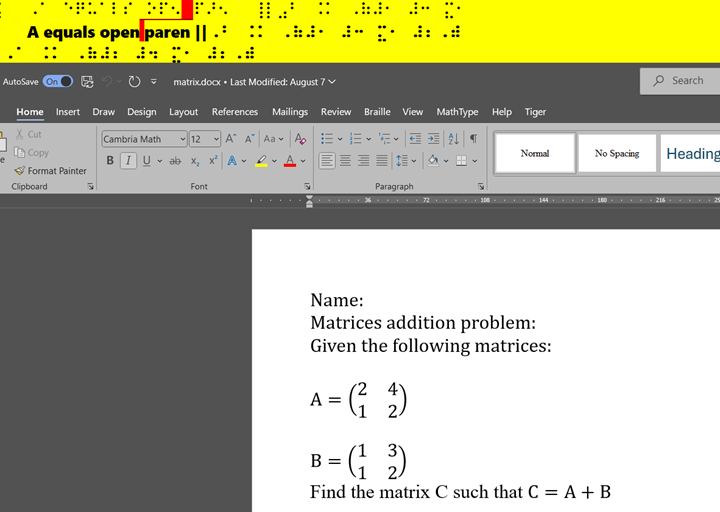
    Focus Display Split Braille for Buffer Mode in Word for Math

    View of split braille above Word Doc showing the first matrix on the left and second matrix on the right of display

    Tactile Math Learning as needed

    Other Math Lessons:

    Transcribe Math Images

    Quadratic Math

    STEM with Embossing

    Perfect Digital Math

    JAWS and MathCat

    Unicode with UEB Math

    UEB Math with Jaws

    UEB LaTex math with Jaws

    Braille Math in WORD Editor-Multi-line

    Advanced math with Matrices in WORD Math Editor

    Watch If You Love Fast Braille Reading or desire to get there!

  • Matrices in WORD Math Editor-Braille Math editor with Jaws using LaTex, auditory and/or Braille

    Matrices in WORD Math Editor

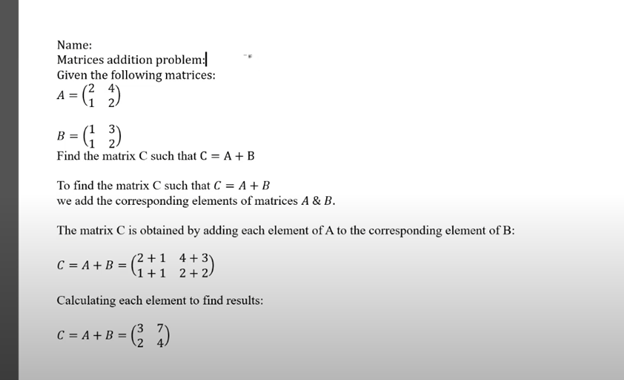
    In this video, Dr. Denise M. Robinson demonstrates how to use the WORD Math Editor and Braille Math Editor with JAWS using LaTeX or Braille. This tutorial is designed for screen reader users, with or without braille displays, who want to improve their math skills.

    First, Dr. Robinson introduces the essential tools for using matrices in WORD, including JAWS, a Braille display (if desired), and the WORD Math Editor. She explains how to set up each tool to work together smoothly, which is crucial for creating and editing math content.

    Next, the video focuses on creating matrices. Dr. Robinson uses LaTeX to input mathematical expressions. She explains each step clearly, making it easy to follow along. Viewers will learn how to enter rows and columns in a matrix, helping them understand matrix structure.

    Then, Dr. Robinson demonstrates how to use auditory feedback, which allows users to hear the math content they are working on. This feature helps ensure accuracy and makes it easier to catch mistakes. Additionally, she shows how to switch between auditory and Braille feedback, providing flexibility for different learning styles.

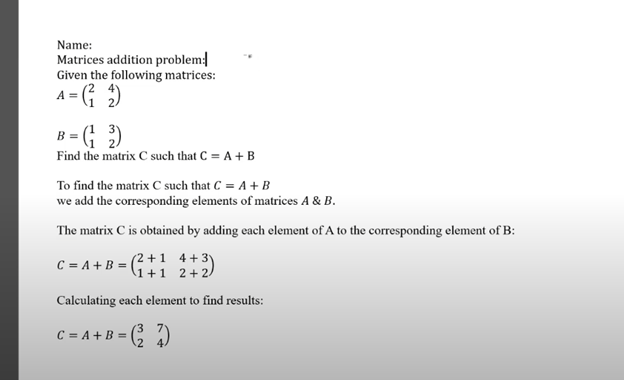
    matrices addition problem

    The video also covers using the Braille display with the math editors. Dr. Robinson explains how to navigate through the matrix using Braille and provides tips on reading and editing the content efficiently. This section is particularly helpful for users who rely on Braille for their work.

    Finally, the tutorial concludes with a review of the key points. Dr. Robinson summarizes the steps for creating and editing matrices. She encourages viewers to practice using the tools and techniques demonstrated in the video. By the end of the tutorial, users will feel more confident in their ability to work with math content.

    1:1 or School Team Remote lessons to get you to where you want to be!

    Other Math Lessons

    Transcribe Math Images

    Quadratic Math

    STEM with Embossing

    Perfect Digital Math

    JAWS and MathCat

    Unicode with UEB Math

    UEB Math with Jaws

    Braille Math in WORD Editor-Multi-line

    Split Braille for Buffer Mode

    or MathType with JAWS

    But make sure your computer is first setup to work the best with screen reader

    More Tech Lessons: @DrDenisemRobinsontech

  • Digital Math with UEB Math, NVDA completing Matrices in WORD Math Editor 365

    In this video, Dr. Denise M. Robinson demonstrates how to use the WORD Math Editor and Braille Math Editor with UEB and NVDA. The tutorial, focused on Digital Math with UEB, is specifically designed for screen reader users, with or without braille displays, who want to improve their math skills.

    Matrix work in Word-Digital Math with UEB Math

    First, Dr. Robinson introduces the essential tools needed for using matrices in WORD using UEB Math. These include NVDA though Jaws can be used, a Braille display (if desired), and the WORD Math Editor. She carefully explains how to set up each tool to work seamlessly together. This setup is crucial for creating and editing math content efficiently.

    Next, Dr. Robinson focuses on creating matrices using LaTeX. She walks viewers through each step, making it easy to follow along. The video shows how to enter rows and columns in a matrix, helping users understand the structure of matrices. Dr. Robinson’s clear explanations ensure that even complex steps are understandable.

    The video then demonstrates how to use auditory feedback with the math editors. Dr. Robinson shows how users can hear the math content they are working on. This feature helps in catching mistakes and ensuring accuracy. Additionally, she explains how to switch between auditory and Braille feedback. This flexibility is particularly useful for different learning styles and preferences.

    Dr. Robinson also covers how to navigate through the matrix using a Braille display if desired. She offers practical tips on reading and editing the content efficiently. This section is especially beneficial for those who rely on Braille for their work.

    Finally, the video concludes with a summary of the key points of working in WORD using UEB Math. Dr. Robinson encourages viewers to practice the tools and techniques demonstrated in the video. By the end, users will feel more confident in their ability to create and edit math content using JAWS and the WORD Math Editor

    Also try digital Math with UEB and NVDA

    or UEB Math using Braille Math Editor

    and Accessible UEB Braille Training for free

  • How to Set up Windows 11 Computer to work the best and most efficiently with screen readers- 1 of 2

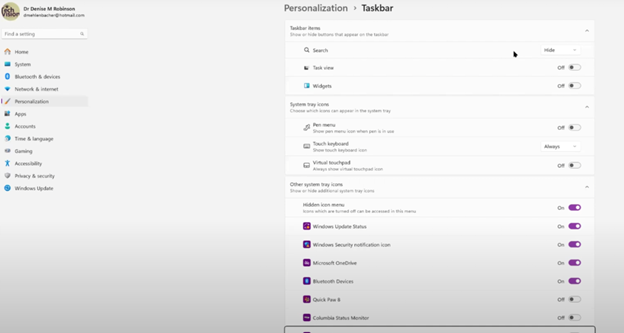
    How to set up a Windows 11 computer for optimal screen reader performance is crucial for blind and low vision users. First, ensure that your computer meets the necessary system requirements. A powerful processor and sufficient RAM are essential for smooth operation. Additionally, installing the latest updates for Windows 11 is important. These updates include crucial security patches and performance improvements. If you find you need to remap a key to say, acquire an applications key on your keyboard, you can do that yourself.

    Next, customize the display settings to enhance visibility. Adjusting the screen resolution and scaling ensures that text and icons are easier to read. Moreover, enabling high contrast mode can make the interface more accessible. This setting increases the contrast between background and text, making it easier to distinguish elements on the screen.

    changing taskbar in settings

    In addition, configuring keyboard shortcuts can significantly improve efficiency. Windows 11 offers a variety of shortcuts for navigating the system. Customizing these shortcuts allows for quicker access to frequently used features. Furthermore, consider enabling the on-screen keyboard for easier input.

    How to setup Windows 11 for screen readers such as JAWS, NVDA, and Narrator are essential tools for blind users. Ensure that your chosen screen reader is installed and updated. It’s also important to adjust the screen reader settings to match your preferences. For instance, modifying the speech rate and verbosity can make navigation more comfortable. See second video on proper setup of windows11 settings.

    Enhance Experience with AI

    Moreover, installing and configuring additional assistive software can enhance your experience. Programs like MathKicker.AI and MathCat in WORD improve accessibility for mathematical content. These tools integrate seamlessly with screen readers, providing a more inclusive environment.

    Lastly, securing your computer is vital. Enable strong passwords and two-factor authentication to protect your data. Regularly updating your antivirus software will also safeguard your system from potential threats.

    Thus, setting up a Windows 11 computer for screen reader users involves careful configuration. By following these steps, users can achieve the best performance and efficiency. This ensures a more accessible and productive computing experience.

  • Mastering Digital UEB Math & Braille Math Editor in WORD with JAWS UEB Mode

    Creating and editing math content using the Digital UEB Math & Braille Math Editor in Word with JAWS UEB Mode is a powerful tool for blind and low vision users. First, ensure that JAWS is properly installed and set to UEB (Unified English Braille) mode. This setup is crucial for accurate Braille input and output when working with mathematical content. Proper Set up of WORD is also essential.

    Next, open Microsoft Word and access the Math Editor. This built-in tool allows users to create complex equations and math symbols directly within a Word document. Additionally, the integration with JAWS in UEB mode ensures that the content is accessible through Braille displays or auditory feedback.

    UEB math in Word looking just as a sighted person would type it out

    Moreover, MathCat, a key component in this setup, enhances compatibility between Word’s Math Editor and JAWS. It allows users to seamlessly transition between editing in UEB and accessing the content through JAWS. This integration provides a smooth experience, whether reading equations line by line or navigating through complex math expressions.

    Mastering Digital UEB Math Transition

    Transitioning to digital math tools like this one offers significant advantages. Blind and low vision users can now work on math assignments in real-time, alongside their sighted peers. Furthermore, the ability to edit and review mathematical content directly in Word makes this tool invaluable in educational and professional settings. With the necessary instruction, anyone can complete math in WORD.

    For those new to this tool, this website & our YouTube video tutorials are available. These videos provide step-by-step guidance on setting up and using the Digital UEB Math & Braille Math Editor. They demonstrate how to navigate through Word with JAWS in UEB mode, making the learning process straightforward.

    In conclusion, the Digital UEB Math & Braille Math Editor in Word with JAWS UEB Mode is a game-changing tool. It empowers users to create, edit, and access math content efficiently, ensuring full participation in math-intensive activities.

    More Math Lessons:

    More Digital Math with UEB with Jaws

    Digital Math with UEB and NVDA

    UEB Math and Braille and Word Math editor

    Advanced Math with Matrices

    Accessible UEB Training

  • Standard Gmail, sending emails fast and all else with Jaws -screen reader and keyboard commands

    To optimize your Gmail experience with JAWS, it’s important to first set up keyboard shortcuts in Gmail’s settings. This initial step ensures that you can navigate and perform actions quickly using JAWS. If you notice your computer is not working well, then we highly suggest optimizing it for Windows with screen readers. Here is a parent setting it up with a trainer if you would like more direction.

    Start by opening Gmail in your web browser. Once inside, press the letter “G” followed by “S” to go directly to the settings. Next, use the “Tab” key to navigate through the settings menu until you reach the “See all settings” option. Press “Enter” to access the full settings menu.

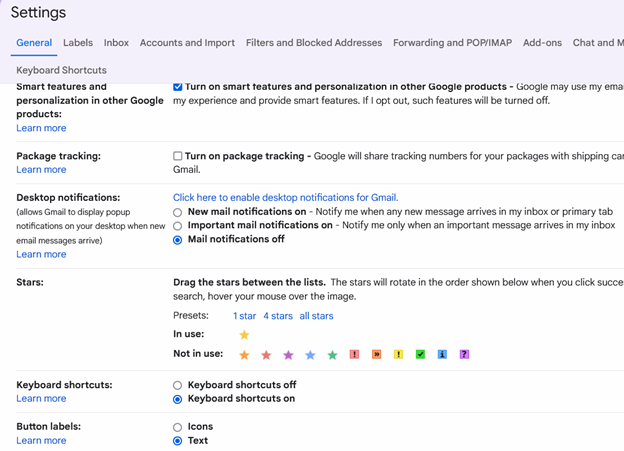
    In the settings menu, continue pressing “Tab” until you reach the “Keyboard shortcuts” section. Here, you’ll find an option to turn on keyboard shortcuts. Press the spacebar to enable this feature. Enabling keyboard shortcuts is crucial as it allows you to execute commands more efficiently, which is particularly beneficial when using JAWS.

     settings in gmail showing keyboard shortcuts on

    After turning on keyboard shortcuts, press “Tab” to navigate to the “Save Changes” button and press “Enter.” This action ensures that your settings are saved, and keyboard shortcuts are now active in Gmail.

    With keyboard shortcuts enabled, you can now easily compose, send, and manage emails using JAWS. For example, press “C” to open the compose window, where you can start drafting an email. Use the “Tab” key to move between the “To,” “Subject,” and “Body” fields, and use JAWS commands to review your text as you type.

    Finally, once your email is ready, press “Tab” to reach the “Send” button and press “Enter.” JAWS will confirm that your email has been sent. With keyboard shortcuts active, you can also quickly navigate through your inbox, search for emails, and perform other tasks, making your Gmail experience much more efficient.

    In conclusion for most crucial item, is setting up keyboard shortcuts in Gmail which is the first essential step to using JAWS effectively. This setup ensures that you can send emails quickly and navigate Gmail seamlessly, enhancing productivity for blind and low vision users. For addition information see TechVision YouTube channel. While you advance your tech, include your Braille reading speed skills.

  • Quadratic Formulas with UEB Math or Nemeth and/or display with JAWS audio & MathCat

    Dr. Robinson provides a detailed guide on completing a quadratic formula in Microsoft Word using UEB math and JAWS screen reader. She breaks down each step, ensuring users can follow along and understand how to effectively utilize the powerful math editor in Word with JAWS.

    Dr. Robinson begins the tutorial by explaining how to setup JAWS, for UEB math. She guides users through configuring JAWS settings to ensure correct output in the math editor. For additional help with settings, users can refer to a previous video.

    After the setup, Dr. Robinson demonstrates how to open the math editor in Word using “Alt + Equals.” This command opens the editor, allowing users to start inputting equations. She explains that users will enter the quadratic formula character by character, ensuring they follow along slowly.

    To illustrate, Dr. Robinson uses the example A = 1, B = -8, and C = 7. She guides users in entering this formula into the editor, stressing the importance of accuracy and correct use of parentheses. Parentheses are crucial for ensuring the editor interprets the formula correctly, especially with complex expressions.

    Navigate Equation Editor in WORD

    Next, she shows how to navigate Word’s ribbon using “Alt + J” to access the equation tools. Once there, users can select the quadratic formula from the options. Dr. Robinson encourages users to explore other built-in equations in Word, as they can simplify creating complex mathematical expressions.

    While inputting the quadratic formula, Dr. Robinson demonstrates how to use “Alt + J + C” to convert the formula from linear to professional format. This conversion makes the equation visually appealing and easy to read, which is important when sharing or printing the document.

    Throughout the tutorial, Dr. Robinson emphasizes showing every step of the equation-solving process. She explains how to break down the quadratic formula into components using the math editor, making each step clear and easy to follow. This approach helps users understand the logic behind solving quadratic equations and reinforces the importance of accuracy.

    Troubleshoot common Issues

    Finally, Dr. Robinson offers tips on troubleshooting common issues for UEB math and JAWS, like automatic capitalization in Word. She shows how to adjust autocorrect settings to prevent unwanted changes in mathematical expressions, ensuring equations remain correct and properly formatted.

    By the end of the tutorial, users understand how to complete a quadratic formula in Word using UEB math and JAWS. Dr. Robinson’s clear instructions and focus on accuracy make this an essential resource for improving skills in assistive technology for math tasks. Users can continue learning in creating graphs in excel.

    Other Math Lessons:

    Transcribe Math Images

    Quadratic Math

    STEM with Embossing

    Perfect Digital Math

  • UEB Math with JAWS in Word: Using Unicode, LaTeX, and Braille for Easy to Advanced Math

    Dr. Robinson introduces the latest Vispero update for JAWS, focusing on reading UEB math. To get started, she demonstrates how to configure JAWS settings for optimal performance with UEB math. She begins by pressing “Insert + 6” to access the JAWS settings. Then use “Control + Shift + D” to set the default profile.

    Setup MathCat for UEB Math with Jaws

    Dr. Robinson guides users through setting up Braille mode via Default profile by typing it in the edit box. She types “Braille Mode” in the search box, and F6 to access different settings. She uses “F6” to navigate to the desired options, then “Alt + F” to select language profiles. To access MathCat option via alt D to details then tab to Nemeth and change to MathCat then OK.

    Dr. Robinson explains how to select the correct Braille code, such as UEB math with JAWS or Nemeth code. She walks through the process of applying these settings and closing the settings dialog.

    Once set up, Dr. Robinson demonstrates how to solve math problems using JAWS in Word. Dr Robinson explains the process of entering equations using “Alt + Equals” to open the math editor. She highlights how to type out equations, like “X squared plus 3 equals 11.” Then how to navigate through the math content using keyboard commands.

    She also explains complex math using UEB Math with Jaws, such as using square roots and other mathematical symbols, by using Unicode and LaTeX commands. Dr. Robinson shows the equation tools in Word by pressing “Alt + J” E to equation menu. Then explains how to convert equations between professional and linear formats using “Alt + JE + C.”

    Throughout the tutorial, Dr. Robinson ensures users understand the commands necessary for navigating and editing math content effectively. She also provides troubleshooting tips, such as using the Math Viewer with insert space + = . This gives more detailed navigation of hearing each symbol, particularly useful for more complex equations.

    Dr. Robinson concludes by encouraging users to explore more advanced math problems and settings. This ensures that they can confidently use JAWS for UEB math in various applications. If you experience computer issues in general, set it up to work the most efficiently with screen readers.

    Other Math Lessons:

    Transcribe Math Images

    Quadratic Math

    STEM with Embossing

    Perfect Digital Math

    JAWS and MathCat

  • Braille Math in Word with JAWS: Using a Braille Display to Easily Navigate Multi‑Line Math Problems

    Dr. Robinson demonstrates how to solve multi-line algebra problems using the Braille Math Editor (BME) in JAWS with a braille display. She explains that this method is effective for any multi-line mathematics problem, where isolating variables like x is essential. To start, Dr. Robinson reviews the equation by moving through the text using the up arrow key. She listens to the equation read aloud by JAWS and then enters the Braille Math Editor in Word. This setup is key for mastering Braille Math in Word.

    Specific Braille Commands to solve Multi-Line Algebra Problems

    Dr. Robinson uses specific braille commands to navigate and edit the math content. She mentions that the transcriber typically uses Alt + Equals to ensure the math is perfectly formatted for the student. She also highlights the importance of using a braille display in Word to solve Braille Math problems. It allows users to follow the dots more easily compared to relying solely on auditory cues from JAWS, enhancing the experience of doing Algebra in Braille Math in Word.

    BME in word with print in WORD and braille in virtual BME viewer as student brailles out math

    Input commas to separate lines

    As she progresses, Dr. Robinson inputs commas between steps to maintain clarity in the solution process. This practice enables her to review the steps effectively on the braille display. She demonstrates how to correct mistakes quickly using the arrow or router keys. Dr. Robinson explains the importance of using fraction marks and how specific commands help navigate fractions within BME in Word. Such details are part of mastering Braille Math in Word.

    Toward the end, Dr. Robinson checks her work by moving up and down the lines in the document. She quickly identifies a mistake, corrects it, and emphasizes how easy it is to make corrections with this setup. Dr. Robinson advises students considering a math career to invest in a braille display with at least 40 cells. For the best experience, she recommends choosing a display with 80 cells, especially when working on Braille Math in Word.

    In conclusion, Dr. Robinson effectively shows how to use the Braille Math Editor and JAWS to solve multi-line algebra problems. This method provides a clear and accessible way for blind students to engage in complex math tasks. It ensures both accuracy and efficiency in their work, showing the importance of mastering Braille Math in Word. Here is another student completing Math in the Braille Math Editor, then to advanced math in WORD to UEB Math.

    Other Math Lessons:

    Transcribe Math Images

    Quadratic Math

    STEM with Embossing

    Perfect Digital Math

    JAWS and MathCat

    Unicode with UEB Math

    UEB Math with Jaws

    UEB LaTex math with Jaws

    Desmos Lessons:

    Desmos 3D graphing

    for Geometry in Desmos

    for STEM and Embossing in Desmos

    Desmos and inserting graphs into Math Work in WORD

    Creating shaded Parabolas in Desmos

    Games with Desmos with Drag and Drop

    Drag n Drop in Macmillan Learning

    Creating Geometry Table

    More Video Lessons