Search results for: “low vision”

  • STEM: Desmos with JAWS and Embossing

    Desmos, JAWS, and Embossing: Enhancing STEM Learning for Visually Impaired Students

    Access graphing and digital tools with screen readers for Science, Technology, Engineering, and Mathematics. These tools provide graphing access, enabling students with blindness or low vision to excel in STEM fields. For instance, they can utilize graphing capabilities on the computer by employing DESMOS graphing calculator and other Desmos solutions, just as peers. Moreover, Blind students can access STEM. They can emboss graphs, feeling content in real time. By using screen readers like JAWS or NVDA, braille displays and embossers, they can emboss out a graph to “see” what it feels like to finish STEM work quickly and efficiently.

    Access to STEM begins with a PC equipped with screen readers like JAWS and refreshable braille displays. With these tools, you can explore integrated accessibility features and learn to configure JAWS and Fusion on the Desmos Accessibility page. Additionally, audio features, provided by Desmos, give spoken graph summaries, audible readings of points, coordinates, and more. Therefore, Desmos with JAWS and Embossing Techniques enables blind students to access STEM anytime.

    Furthermore, TechVision site offers more STEM options, expanding information for other lessons on Desmos, graphing and math in full details including AI programs to enable students to complete math to the most advanced levels using Mathkicker.AI to compete with sighted peers at any level.
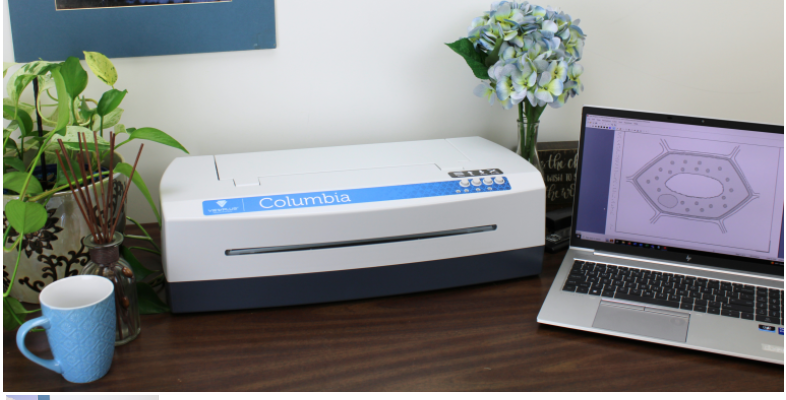
    embosser connected to a laptop for embossing for Desmos and Jaws
Desmos graphing screen readers jaws STEM

    More Lessons:

    Creating Geometry Tables

    Desmos 3D graphing

    for Geometry in Desmos

    for STEM and Embossing in Desmos

    Desmos and inserting graphs into Math Work in WORD

    Creating shaded Parabolas in Desmos
    Games with Desmos with Drag and Drop

    Create and Emboss Graphs

    Practice math with IXL.com

  • Standard Gmail, sending emails fast and all else with Jaws -screen reader and keyboard commands

    To optimize your Gmail experience with JAWS, it’s important to first set up keyboard shortcuts in Gmail’s settings. This initial step ensures that you can navigate and perform actions quickly using JAWS. If you notice your computer is not working well, then we highly suggest optimizing it for Windows with screen readers. Here is a parent setting it up with a trainer if you would like more direction.

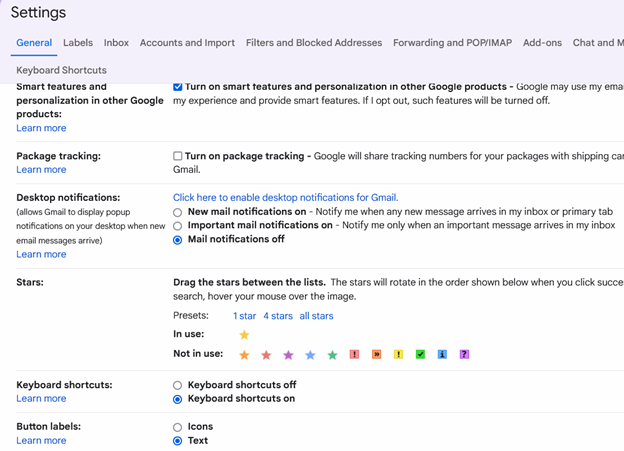
    Start by opening Gmail in your web browser. Once inside, press the letter “G” followed by “S” to go directly to the settings. Next, use the “Tab” key to navigate through the settings menu until you reach the “See all settings” option. Press “Enter” to access the full settings menu.

    In the settings menu, continue pressing “Tab” until you reach the “Keyboard shortcuts” section. Here, you’ll find an option to turn on keyboard shortcuts. Press the spacebar to enable this feature. Enabling keyboard shortcuts is crucial as it allows you to execute commands more efficiently, which is particularly beneficial when using JAWS.

     settings in gmail showing keyboard shortcuts on

    After turning on keyboard shortcuts, press “Tab” to navigate to the “Save Changes” button and press “Enter.” This action ensures that your settings are saved, and keyboard shortcuts are now active in Gmail.

    With keyboard shortcuts enabled, you can now easily compose, send, and manage emails using JAWS. For example, press “C” to open the compose window, where you can start drafting an email. Use the “Tab” key to move between the “To,” “Subject,” and “Body” fields, and use JAWS commands to review your text as you type.

    Finally, once your email is ready, press “Tab” to reach the “Send” button and press “Enter.” JAWS will confirm that your email has been sent. With keyboard shortcuts active, you can also quickly navigate through your inbox, search for emails, and perform other tasks, making your Gmail experience much more efficient.

    In conclusion for most crucial item, is setting up keyboard shortcuts in Gmail which is the first essential step to using JAWS effectively. This setup ensures that you can send emails quickly and navigate Gmail seamlessly, enhancing productivity for blind and low vision users. For addition information see TechVision YouTube channel. While you advance your tech, include your Braille reading speed skills.

  • AI to describe images, pictures, or what you want with Jaws keyboard commands by Lucas

    Lucas, a blind individual, demonstrates JAWS Commands using AI Descriptions and how to effectively use ChatGPT with DALL-E to generate and describe images. Starting with ChatGPT, Lucas opens the platform, which places him directly in the edit box. To navigate out, he presses the “up arrow” key. He then maximizes the screen with “Windows + up arrow,” enhancing readability for JAWS.

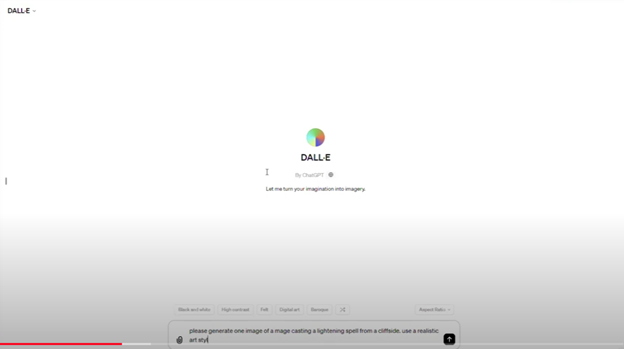
    Next, Lucas demonstrates how to locate the DALL-E AI Description image generator by accessing the links list using Jaws Commands with “Caps Lock + F7.” He navigates to the search box using the “E” key and types “DALL-E” in all capitals, with the period included. After pressing “Enter,” he tabs through the search results until he finds the relevant link, then presses “Enter” again to open it.

    AI to make the InaccessibleAccessible

    Once inside the image generator, Lucas describes the process of inputting a prompt. He emphasizes the importance of being specific, including details about the setting, characters, and art style. For instance, he generates an image of a wizard casting a spell on a cliff-side in a realistic art style. By pressing “Enter,” the image generation process begins, typically producing two images by default. He demonstrates how to make the inaccessible-accessible.

    To download an image, Lucas uses “Shift + B” to find the “Show Image” button, followed by pressing “Enter” and then down arrow to the “Download Image” button. He encounters a warning about the dialog not being focused, while the download proceeds. Remember to Email your beautiful creations to someone also.

    Dall-E platform image

    For image descriptions, Lucas follows a similar process to find the “Image Description Assistant” link. After inputting his request and attaching the image file, he waits for the description to generate. To review the description, Lucas uses “Shift + G” to jump to the top of the graphic, then down arrows to read it. This methodical approach allows Lucas to create detailed images and receive comprehensive descriptions efficiently.

    AI has transformed how screen reader users access their world, MathKicker.AI is a powerful MATH app that allows top level Math work. Do not let Low Vision issues or legal blindness stop you from accelerating in school.

    Continue to learn how to make images such as Math into Text.

    Be My Eyes for Computer: Describe Images, Graphs, and Screens Instantly

  • Desmos 3D graphing calculator with screen reader commands

    Dr. Robinson introduces the Desmos 3D Graphing tool, an essential resource for educators working with blind and low vision students. This tool allows users to create and manipulate 3D objects, enhancing the learning experience for students who require tactile or visual aids. As a teacher of the blind, Dr. Robinson emphasizes the importance of providing accessible 3D objects that students can manipulate as they learn. She demonstrates how to use Desmos 3D Graphing, starting with a simple circle and transforming it into a 3D cylinder.

    Throughout the demonstration, Dr. Robinson highlights the seamless integration of Desmos 3D Graphing with braille displays, ensuring the content is accessible to students with visual impairments. She manipulates the cylinder’s size and shape using various commands, showing how easy it is to adjust these parameters in real-time. This hands-on approach allows students to understand the relationship between mathematical equations and their 3D representations. A 3D printer can create image or acquire an actual can of soup to compare to a circle/cylinder for further student understanding.

    Image of Cylinder created with Desmos 3-D Graphing

    image of a 3D cylinder using Desmos

    Dr. Robinson further explores Desmos 3D Graphing by adjusting a parabola into different shapes, including a “blob” that can be physically modeled using clay. This tactile method helps blind students grasp the concept of changing variables and their impact on the graph’s shape. The ability to adjust and visualize these graphs is particularly beneficial for students preparing for tests or needing to solidify their understanding of complex mathematical concepts. For real time learning, either 3-D emboss or 2-D emboss graphs. For ease, hand molding clay is cheap and easy for any object

    In addition to demonstrating the tool’s functionality, Dr. Robinson encourages users to explore more on the Desmos website, including the blog and available shortcuts. The continuous improvements in Desmos 3D Graphing make it a powerful tool for blind and low vision students. By integrating this tool into their learning process, educators can significantly enhance the accessibility and engagement of math lessons. Desmos 3D Graphing provides an invaluable resource for making advanced math concepts accessible to all students. Regardless of their visual abilities, you can access Desmos Lessons.

    More Desmos Lessons:

    Desmos 3D graphing

    for Geometry in Desmos

    for STEM and Embossing in Desmos

    Desmos and inserting graphs into Math Work in WORD

    Creating shaded Parabolas in Desmos
    Games with Desmos with Drag and Drop

  • Desmos graphing calculator with shaded Parabolas, screen reader, braille display and embosser

    Dr. Robinson demonstrates how to create and manipulate a parabola using the Desmos shaded parabolas using the graphing calculator. This process is specifically designed for blind and low vision students. She begins by typing an equation. Desmos automatically adds sliders, allowing the adjustment of the graph’s shape in real-time.

    As Dr. Robinson runs the equation, the parabola expands, resembling the curve of a ball in motion. She explains the importance of embossing the graph so students can physically feel its structure on the XY plane. This tactile approach helps students understand mathematical concepts more concretely.

    To enhance accessibility, Dr. Robinson uses the “Alt + T” command to activate the audio trace. This feature provides valuable auditory information about the graph. She also slows down the narration using “Control + Shift + Page Down,” ensuring clarity and comprehension.

    Next, Dr. Robinson shares the graph with her students using the “Insert + F5” command. She exports the graph as a Braille-ready image, making it accessible for students who rely on tactile feedback. After downloading the image, she opens it in a photo editor to enhance contrast. This step ensures that the lines are clearly defined for the student.

    Tiger Designer

    Dr. Robinson then pastes the edited image of Desmos shaded parabolas into Tiger Designer, a software used to prepare tactile graphics for printing(emboss). Using “Control + P,” she embosses the graph on her ViewPlus embosser, allowing students to feel the parabola and compare it with what their sighted peers see.

    This hands-on approach for STEM, ensures that blind students can fully participate in graphing activities. Dr. Robinson’s method integrates technology and tactile feedback, making math accessible and engaging. Through these steps, she empowers students to understand and interact with complex mathematical concepts. This demonstration showcases the effective use of Desmos and related tools to enhance learning for visually impaired students.

  • Take large PDF files and Print to PDF to save just a few pages vs the whole file

    Dr. Robinson explains in video how to reduce a large PDF to just a few pages, so anyone can “copy” just a few pages out as needed or convert a whole inaccessible PDF to something accessible with a screen reader. She begins with a blurry PDF of “A Tale of Two Cities,” demonstrating how it turns blue when clicked, or a screen reader saying “empty document”. To make the PDF more manageable, she uses the “Control + P” command, which is the universal print command across browsers. She selects “Microsoft Print to PDF” from the printer options and then uses “Alt + G” to navigate quickly to the page selection. After selecting only two pages to save, she names the file and saves it to her downloads folder using “Alt + D” followed by “Alt + S.”

    Next, Dr. Robinson uses MathKicker.AI, an AI program typically for math conversions but also converts anything to convert the PDF to a DOCX file. She opens Math Kicker, navigates to the convert to PDF button by pressing “B,” and waits for it to convert. Once the conversion is complete, she accesses the converted file using “Control + J” in a browser or “Windows + E” to open the file explorer. In file explorer and selects the newly saved PDF from her downloads folder.

    Print Options to reduce a PDF

    blurry PDF with print options open

    After verifying that the correct pages were saved, she adjusts the viewing size to 200% using “Alt + V” and then “Z” to make the text more readable in WORD. The text appears flawless, making it easy for screen readers to process and read aloud.

    Dr. Robinson emphasizes that this method is particularly useful for low vision or blind students, allowing them to access only the necessary pages of a large PDF and allowing them to use a screen reader to read content. This approach also benefits fully sighted users who may struggle with poor-quality images. By converting and saving specific pages, users can create clear, readable text from even the blurriest PDFs. There are AI programs on the WEB that will do this also.

    More PDF Lessons:

    Math and taking inaccessible to accessible in WORD

    Type directly on a PDF

    Transcribe Math Images from PDF

  • Track Changes with Commands-inserting comments and editing work

    Track Changes in Microsoft Word is an essential tool for collaborative editing and document management. It allows multiple users to make and review edits, providing a clear, organized record of all changes. This feature is invaluable for maintaining the integrity of the original document while incorporating feedback from various contributors. By visually displaying insertions, deletions, and comments, Track Changes enhances transparency and accountability in the editing process. It also simplifies the task of accepting or rejecting modifications, ensuring that the final document meets the desired standards. The typical use is for students to create work and teachers to edit with comments, and it is possible to easily track changes with commands. This is easily done with any screen reader.

    Track Changes with Commands in Microsoft Word is a powerful tool for collaborative editing and document management. Here are some key details on its importance and usage:

    Key Benefits

    1. Transparency: Track Changes provides a clear, organized record of all modifications made to a document.
    2. Accountability: By displaying who made each change, Track Changes holds contributors accountable for their edits.
    3. Efficiency: Track Changes streamlines the editing process by allowing users to accept or reject changes with a single click. This efficiency saves time and reduces the likelihood of errors3.
    4. Enhanced Communication: The ability to add comments and suggestions directly within the document fosters better communication among team members. This feature helps clarify the intent behind changes and facilitates constructive feedback4.
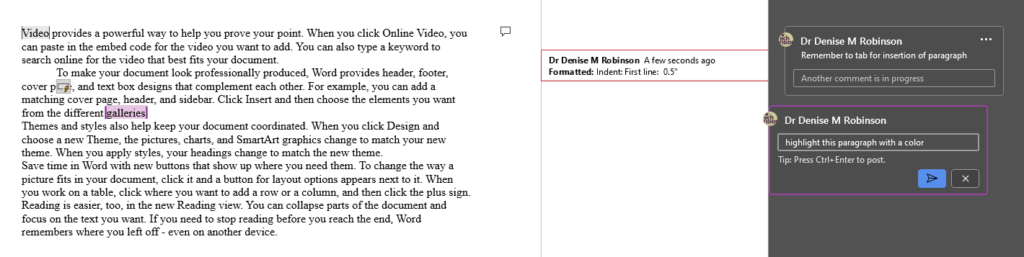
    Track Changes with Commands and comments
    Track Changes with Commands and comments

    How to Use Track Changes with keystrokes

    1. Turning On/Off: Press Ctrl + Shift + E to toggle Track Changes on or off. Alternatively, go to the Review tab and click on the Track Changes button1.
    2. Viewing Changes: Use the Display for Review menu to choose how edits and comments are displayed. Options include Simple Markup, All Markup, No Markup, and Original2.
    3. Ctrl Shift ‘ opens all tracks with JAWS screen reader
    4. Accepting/Rejecting Changes: Navigate to the Review tab with Alt R and use the Accept or Reject buttons to manage changes. You can also right-click on a change to accept or reject it3.
    5. Adding Comments: Press Ctrl + Alt + M to insert a new comment. Navigate through comments using Alt + R, then N for the next comment or P for the previous comment1.

    Other Lessons

    Optimizing Windows 11 Efficiency for Screen Reader with Key Settings and Configurations

    WORD Efficient Text Navigation and Selection

    Document formatting editing elements: Edit margins, tab, headers, footers & more

    Basic WORD JAWS commands with Typing Trick

    Rebuild Microsoft Word Template when it is not working well

    Microsoft Word MLA format with Christopher Duffley

    WORD accessible food chain for class using talking software

    Commands to change mouse -access programs fast, basics in Word font & movement

    Excel line plot graph-copy to Word for Math

    Complete an excel graph and copy into Word document with screen reader

    Essential WORD keyboard commands for setting defaults

    Track changes in Word-How teachers make corrections in work

    How Colleges Help Visually Impaired Students Succeed

    Get your 1:1 instruction on any skill today

    If you are Low Vision, this lesson may help you

    and if you have having issues with WORD–rebuild it

  • Difference Between Inaccessible and Accessible Website Content

    The difference between inaccessible and accessible website content when using screen readers is significant. It affects how efficiently users can navigate the web. On inaccessible websites, screen readers struggle to interpret poorly structured content. This makes it difficult for users to understand the layout or find essential information. For example, missing alt text on images or unlabeled buttons can leave blind or low vision users guessing about the content. In contrast, accessible websites provide clear navigation with properly labeled elements, such as headings, links, and buttons. This allows users to move through pages with ease. Additionally, accessible sites use ARIA (Accessible Rich Internet Applications) roles to improve interactions between the website and the screen reader. By following accessibility guidelines, developers make content more usable for everyone, including screen reader users, creating a more inclusive digital environment.

    Here is a list of commonly used JAWS keyboard commands for navigating websites:

    Basic Navigation:

    • Move to next element: Tab
    • Move to previous element: Shift + Tab
    • Go to the next region: R
    • Go to the next heading: H
    • Go to the next link: L
    • Go to the next form field: F
    • Go to the next button: B
    • Go to the next check box: X
    • Move to the next graphic: G
    • Go to the next list: I
    • Go to the next table: T
    • Go to the next landmark: D
    Accessible question that can be used with keyboard commands
    Difference between inaccessible and accessible website content is in the ease of keyboard commands

    Quick Heading Navigation:

    • Next heading at level 1: 1
    • Next heading at level 2: 2
    • Next heading at level 3: 3
      (Continue for headings 4–6)
    • Next link: L
    • Previous link: Shift + L
    • List of all links: Insert + F7
    • Activate a link: Enter

    Forms and Form Controls:

    • Move to next form field: F
    • Next combo box: C
    • Next edit field: E
    • Next button: B
    • Next radio button: A
    • Next check box: X
    • List of all form controls: Insert + F5

    Tables:

    • Move to the next table: T
    • Next cell in a row: Ctrl + Alt + Right Arrow
    • Previous cell in a row: Ctrl + Alt + Left Arrow
    • Next cell in a column: Ctrl + Alt + Down Arrow
    • Previous cell in a column: Ctrl + Alt + Up Arrow
    • Table reading mode (on/off): Insert + Spacebar, then T

    Miscellaneous:

    • Refresh page: Insert + Esc
    • List of headings: Insert + F6
    • List of frames: Insert + F9
    • List of form fields: Insert + F5
    • Move to the next non-link text element: N
    • Move to the previous non-link text element: Shift + N
    • Move to the next visited link: V

    These commands allow the difference between inaccessible and accessible website content and allow efficient navigation and interaction with web content using JAWS. With properly coding a website, the inaccessible becomes accessible for all users.

  • Starfall Learning Games for Kids and the Accessible Option

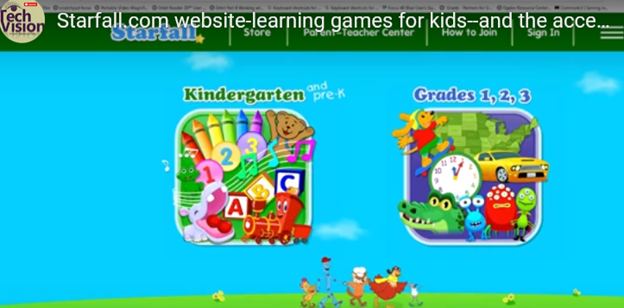
    Starfall.com is a wonderful website for kids. It provides free and subscription-based learning games and resources for young children. It focuses on early literacy, math, and foundational skills. Initially created to teach reading through phonics, Starfall has since expanded to include interactive content in math, social studies, and more. Go to: https://www.starfall.com/h/accessibility.php which is on the first page so your child can access the site also.

    Key Features of Starfall.com Website for kids:

    1. Phonics and Reading: The website offers various phonics-based reading games and activities, helping children build vocabulary and comprehension skills.
    2. Math: Starfall includes interactive games and exercises that teach basic math concepts such as counting, addition, subtraction, and geometry.
    3. Language Arts: Activities to help kids understand grammar, sentence building, and other language concepts.
    4. Science and Social Studies: Limited resources are available for early science and social studies learning.
    starfall.com website for kids
    Starfall.com website for kids

    Accessibility and Screen Reader Compatibility for young children:

    While Starfall.com website for kids aim to be accessible (most of it is) BUT, you must use: https://www.starfall.com/h/accessibility.php for accessible play for interactive games and animations, which are a major component of Starfall’s appeal.

    1. VoiceOver (iOS): Some parts of Starfall are accessible when using VoiceOver on iOS devices. However, many interactive elements may not be read or described in full by the screen reader, making navigation difficult.
    2. JAWS and NVDA (Windows): Starfall’s web-based activities have mixed results with JAWS and NVDA. Some of the educational content is accessible, but much of the visual and interactive games may not be fully usable. The site does not appear to have been fully optimized for these tools.
    3. Keyboard Navigation: For users who rely on keyboard navigation, Starfall might be challenging since many games require dragging and dropping or clicking on specific items that are visually represented.
    4. Text Descriptions and Audio Narration: Starfall includes a lot of audio instructions and narrated text, which can be helpful for users with low vision or reading difficulties, but this is often tied to specific animations or games that may not be fully accessible to blind children.

    More Video Lessons Here

  • IXL.com: Accessible Learning Tool for All Subjects

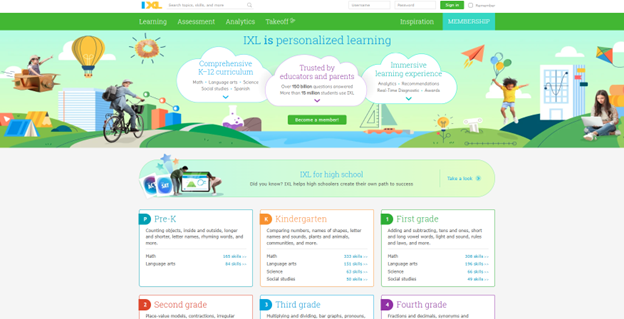
    IXL.com offers accessible learning experiences for students with disabilities, including those who are blind or visually impaired. As an accessible learning tool, IXL.com ensures the platform is compatible with screen readers, enabling students to navigate lessons, answer questions, and receive feedback through auditory cues. IXL’s user interface allows customization of text size, color contrast, and keyboard navigation, enhancing usability for individuals with low vision. Additionally, the platform’s alignment with educational standards ensures that all learners, regardless of ability, can engage with comprehensive curriculum content, fostering inclusion and independence in the learning process.

    Here are some useful JAWS keyboard shortcuts that can help you navigate IXL.com an accessible learning tool.

    General Navigation

    • Go Back a PageALT + LEFT ARROW or BACKSPACE
    • Go Forward a PageALT + RIGHT ARROW
    • Next LinkTAB
    • Previous LinkSHIFT + TAB
    • Open LinkENTER
    • List LinksINSERT + F7
    • List HeadingsINSERT + F6
    • List FramesINSERT + F9
    IXL.com accessible learning tool
    IXL.com accessible learning tool

    Forms and Fields

    • Enter Forms ModeENTER
    • Exit Forms ModeNUM PAD PLUS
    • Next Form FieldF
    • Previous Form FieldSHIFT + F
    • List Form FieldsINSERT + F5
    • Next Edit BoxE
    • Previous Edit BoxSHIFT + E
    • List Edit BoxesCTRL + INSERT + E

    Tables

    • Next TableT
    • Previous TableSHIFT + T
    • List Keystrokes for Table NavigationINSERT + SPACEBAR, followed by T, then QUESTION MARK

    Reading and Navigation

    • Read Current LineINSERT + UP ARROW
    • Read Next LineDOWN ARROW
    • Read Previous LineUP ARROW
    • Read Current WordINSERT + NUM PAD 5
    • Read Next WordINSERT + RIGHT ARROW
    • Read Previous WordINSERT + LEFT ARROW

    These shortcuts should help you navigate IXL.com more efficiently with JAWS. More Videos with Commands and Access Training