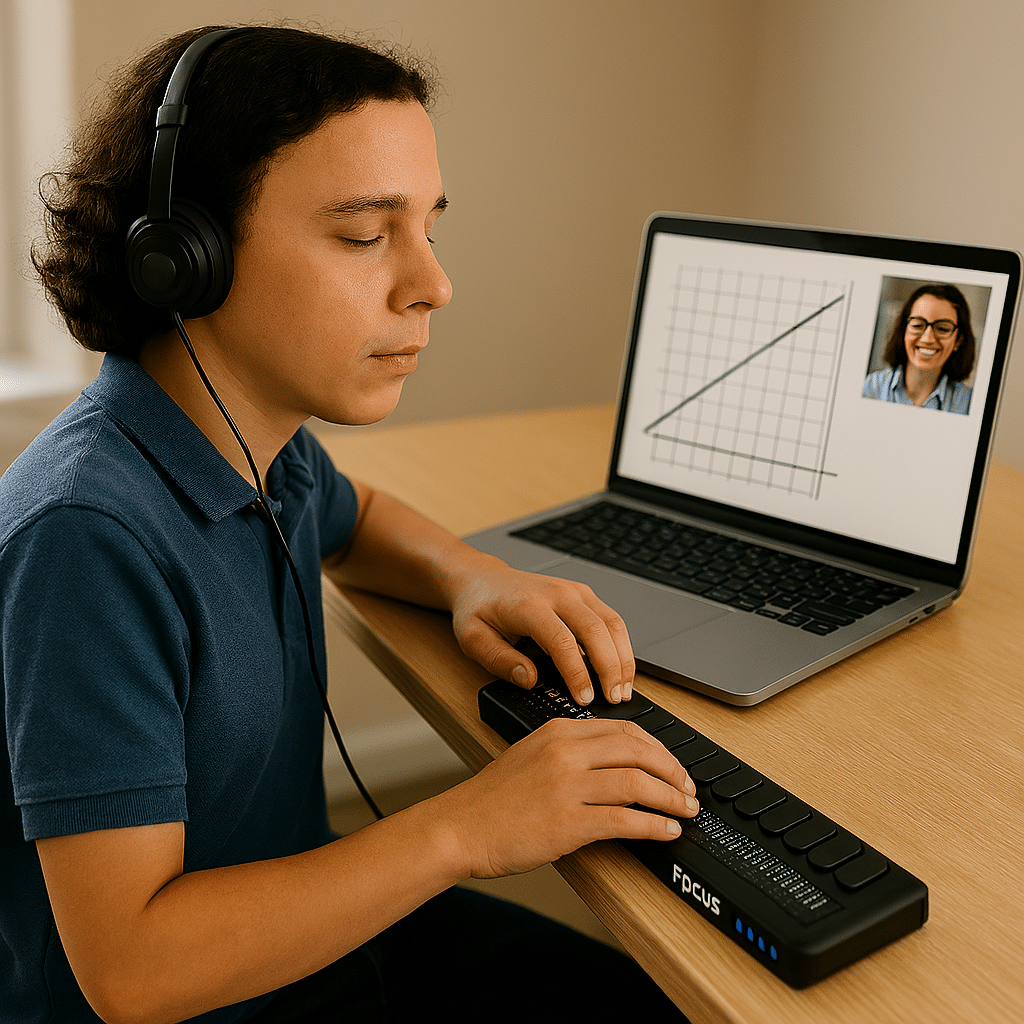
Becoming a Perfect Touch-Typing expert, especially for someone who is young and relies on a screen reader or needs an electric brailler to learn touch typing on braille keys, involves consistent practice and proper technique. Start by familiarizing yourself with the keyboard layout, focusing on the home row keys where your fingers should rest. Maintain good posture, with your feet flat on the floor and your wrists slightly elevated. Use all ten fingers and avoid looking at the keyboard (which is easy for her), relying on muscle memory instead. Practice regularly with typing exercises and tests available on websites like Typingclub.com. Aim for accuracy first, then gradually increase your speed. Over time, these habits will help you type quickly and efficiently, especially with the assistance of a screen reader.
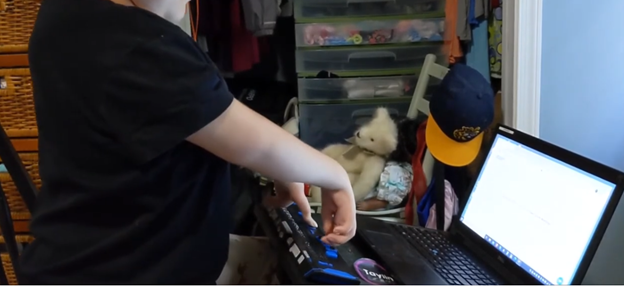
Mikaela moved to my (Dr. Robinson’s) district when she was in 2nd grade. At that time, I was Miss Mehlenbacher, and all my students had fun with who could spell my name the fastest. Mikaela always won. We immediately began with all thing’s technology instruction, and this is her typing on her laptop just 5 months later. I apologize for many of the blurry pictures on this site, but most of them are from the year 2000-2010 and computer cameras were not that great back then.
Kaleigh was born with very special hands. So, whether you have 10 fingers or 2 or 3, there is always an easy way to use a braille display to control your computer.
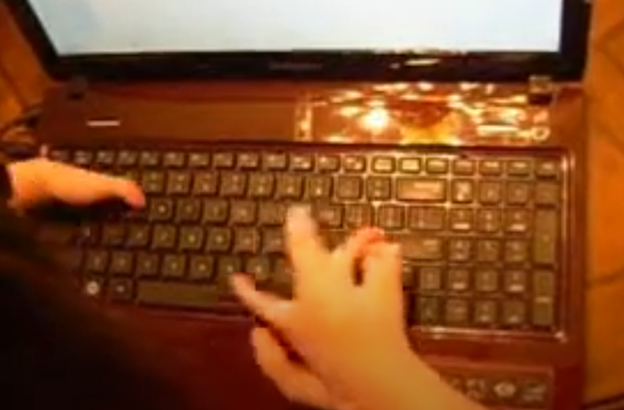
Typing with 3 Fingers on her laptop is made easier with practice and now she is typing 77 word per minute. This impressive feat shows Kaleigh typing 77 wpm flawlessly.
A young lady with three fingers can type at over 77 words per minute. She is using adaptive strategies to access the same technology as peers. Kaleigh typing 77 wpm highlights her exceptional skills. Kaleigh has been learning and using these special skills based on her fingers for years. She uses a regular laptop with JAWS screen reader to do all of her work.
For individuals typing with one finger on one hand and two fingers on the other, specialized typing techniques can help improve speed and accuracy. Focus on positioning both hands in the center of the keyboard on homerow so the left single finger can move around that side of the keys. With the right 2 fingers, 1 is on the space bar at all times while other finger moves arund and presses keys. Moving together with a lot of practice, speed is gained. Start with slow, deliberate typing to reduce errors and gradually build up speed. Mastering typing speed similar to Kaleigh’s, started with such methods. Regular practice with phrases like “The quick brown fox jumps over the lazy dog” helps improve finger coordination. One such success story celebrating progress is Kaleigh typing 77 wpm.
With determination and keyboard practice with lots of instruction, students can accomplish anything. Kaleigh typing 77 wpm is a testament to this. See her series of progress.
Access Braille Writing and PC Devices: The year is 2000 and I am blessed with meeting 3 siblings in a family of 8. I first met the oldest daughter who was in 2nd grade grade and her sister who was in preschool. Their young brother, was just born. All 3 have a VERY rare condition called: Spondylometaphyseal dysplasia with cone rod dystrophy. This was an exciting journey with all 3. All 3 live very successful lives now.
Early Education Leads to Access Braille Writing Devices
Starting at 3 months old: First, always teach the parents right along with the child–Teamwork is key! One crucial step was ensuring he could eventually access Braille writing devices to aid in his learning journey. Teach fun games on a computer as they learn like Starfall games and Inclusive Multi-Sensory Learning Tools. If you sense a visual impairment and glasses need to be work, try: Kids Bright Eye glasses or Eye patches
Pre-teaching a blind child from an early age involves fostering foundational skills that support sensory development, spatial awareness, and independence. Here’s how you can engage with a blind child from 3 months old to 3 years old and up to 3rd Grade, ensuring they develop crucial abilities at each stage:
At 3 Months Old in general:
At this stage, it’s all about sensory exploration and exposure. A blind infant learns through touch, sound, and smell. Parents and caregivers can begin pre-teaching through activities that engage the child’s remaining senses.
Tactile Exploration: Provide different textures for the baby to feel, such as soft cloth, textured toys, and various materials. This helps them develop an understanding of their environment through touch.
Auditory Stimulation: Introduce the baby to a variety of sounds, from gentle music to the sound of voices and everyday noises. Toys that make sounds or produce vibrations can also help the child associate movements with sounds.
Bonding with Language: Talk to the baby constantly, explaining what’s happening around them. Even at this age, exposing them to language and verbal interaction is key for cognitive development.
At 1 Year Old:
By the time the child is 1 year old, they are starting to gain more control over their movements and understand their surroundings through tactile and auditory feedback. The focus at this age is on expanding their sensory awareness and motor skills.
Mobility Encouragement: Support the child as they begin to crawl or walk. Encourage them to explore safe spaces, ensuring the environment is designed for them to navigate without harm.
Hands-on Learning: Let the child interact with everyday objects, describing what they are holding. This could include toys, household items, or safe objects they encounter daily.
Cane-have a cane around his/her toys so they get acquainted with the tool
Language Development: Continue talking to the child, narrating actions and surroundings. Introduce basic concepts like hot/cold, soft/hard, and big/small, as this builds vocabulary and concept understanding. Have them touch everything, giving purpose to what they interact with always.
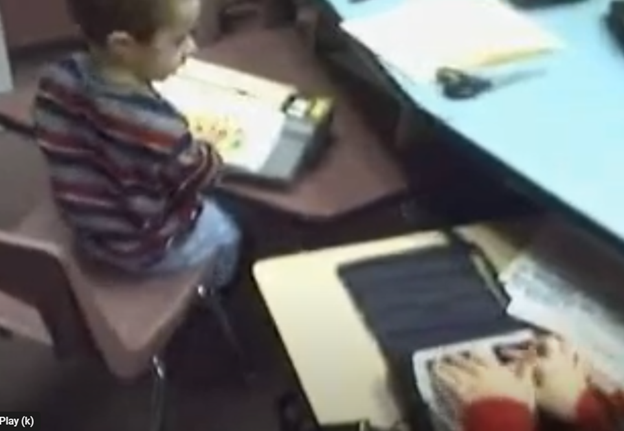
A 4-year-old uses the Mountbatten, and a 2nd grader uses the Braille Lite with a Braille display to access Braille writing devices.
At 3 Years Old Access Braille writing devices and start typing on computer:
At 3 years old, the blind child is ready to begin more structured learning and independent exploration. Pre-teaching during this period focuses on more complex tasks, building independence, and preparing for future skills. Begin touch-typing on keyboard of computer and using other braille devices like the MouthBatten Brailler. This student learned all of the alphabet and several contractions.
Orientation and Mobility: Begin teaching basic orientation and mobility skills, using a cane for navigation. This will help the child build confidence in moving through space.
Fine Motor Skills: Encourage fine motor development through activities like threading beads, playing with textured blocks, or using simple tactile puzzles. This helps the child develop dexterity and hand-eye coordination.
Pre-Braille Exposure: Introduce early Braille awareness through tactile games or exposure to raised dots or objects. As they may not be ready to fully learn Braille, familiarization with textures and symbols helps lay the foundation for literacy. This includes touch typing on keyboard using braille on braille device like a Mouthbatten Brailler
Self-Care Skills: Teach simple self-care tasks like washing hands, dressing, and feeding themselves. These activities foster independence and help them gain confidence in daily living skills.
By consistently engaging the child’s senses and nurturing their curiosity, they will develop essential skills for future success. With each stage of growth, pre-teaching ensures they build a strong foundation. This approach prepares the child to easily learn more complex skills later, such as reading Braille, using assistive technology and navigating the world independently.
Continuing to teach a blind child in kindergarten through 2nd grade involves focusing on expanding their academic, social, and independence skills, while incorporating accessible tools and adaptive techniques. Here’s how you can approach teaching at each stage:
Kindergarten (K)-Access writing PC computers:
In kindergarten, the focus is on introducing basic academic concepts while fostering independence and confidence in social situations. This student was able to begin reading braille like his peers due to already knowing braille letters and symbols. He also know the keys on the computer to begin learning how to type out work to email to teacher. Teach how accessible Work is needed, including Math for now and later on.
Braille Literacy: Begin formal Braille instruction, introducing letters, numbers, and simple words. Use tactile books, raised alphabet cards, and manipulative’s to enhance literacy.
Orientation and Mobility: Continue reinforcing basic mobility skills such as using a cane and navigating familiar spaces like classrooms and playgrounds.
Interactive Learning: Incorporate multi-sensory learning activities, such as counting objects with tactile number lines and participating in songs or rhymes for phonics and vocabulary.
Technology Introduction: Introduce basic assistive technology, such as a Mountbatten Brailler or screen reader software, to support early writing and computer skills.
First Grade (1st Grade):
In first grade, the child should begin building on the foundations laid in kindergarten, focusing on more advanced academic and mobility skills.
Braille Proficiency: Increase fluency in Braille reading and writing. Introduce more complex words, sentences, and basic punctuation. Begin incorporating Braille reading into classroom activities.
Math Skills: Teach basic math concepts using tactile math tools like counting beads, tactile number lines, and raised math grids. Introduce early Nemeth Code for math symbols in Braille.
Social Integration: Encourage social interactions and group activities, teaching the child to collaborate with peers and practice conversational skills.
Assistive Technology Growth: Begin integrating more advanced technology, such as screen readers (e.g., JAWS or NVDA) and tactile graphics for learning new concepts.
Second Grade (2nd Grade):
By second grade, the goal is to strengthen the child’s academic abilities while fostering greater independence. His sisters immediately picked up keyboarding and were handing in all work within 2 months to teachers via email. They learned Braille reading
Advanced Braille: Continue advancing Braille reading and writing skills, incorporating full sentences and paragraphs. Increase reading speed and comprehension through practice. Teach how to braille or keyboard work on PC computer.
Math in Braille: Build on basic math skills, using tactile tools to teach addition, subtraction, and early multiplication. Enhance familiarity with the Nemeth Code for math. Teach how to output math on the computer using WORD
Independent Learning: Encourage more independent work by providing opportunities to complete assignments using accessible technology. Allow the child to practice retrieving and saving work on a computer or braille device.
Orientation and Mobility: Further develop mobility skills by teaching navigation in unfamiliar environments. Practicing independent travel in controlled settings, such as the school campus or nearby park is essential.
Assistive Technology Growth: Continue integrating more advanced technology, with screen readers (e.g., JAWS or NVDA) so they can advance in speed to keep up with outputting work with their peers.
Throughout kindergarten through 2nd grade, regular collaboration with teachers, mobility instructors, and other specialists is essential. Tailor instruction to the child’s progress and ensure their curriculum is fully accessible to set them up for long-term success. This type of collaboration must continue throughout school to Access Braille writing devices and PC Computers. YouTube Lessons:
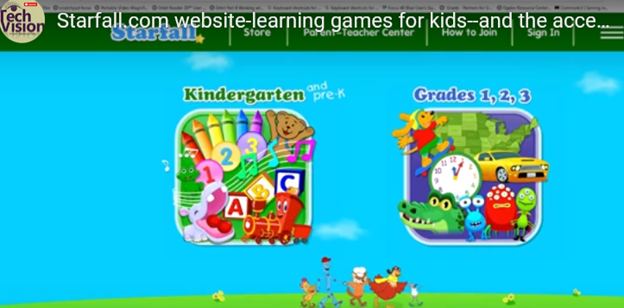
Starfall.com is a wonderful website for kids. It provides free and subscription-based learning games and resources for young children. It focuses on early literacy, math, and foundational skills. Initially created to teach reading through phonics, Starfall has since expanded to include interactive content in math, social studies, and more. Go to: https://www.starfall.com/h/accessibility.php which is on the first page so your child can access the site also.
Key Features of Starfall.com Website for kids:
Phonics and Reading: The website offers various phonics-based reading games and activities, helping children build vocabulary and comprehension skills.
Math: Starfall includes interactive games and exercises that teach basic math concepts such as counting, addition, subtraction, and geometry.
Language Arts: Activities to help kids understand grammar, sentence building, and other language concepts.
Science and Social Studies: Limited resources are available for early science and social studies learning.
While Starfall.com website for kids aim to be accessible (most of it is) BUT, you must use: https://www.starfall.com/h/accessibility.php for accessible play for interactive games and animations, which are a major component of Starfall’s appeal.
VoiceOver (iOS): Some parts of Starfall are accessible when using VoiceOver on iOS devices. However, many interactive elements may not be read or described in full by the screen reader, making navigation difficult.
JAWS and NVDA (Windows): Starfall’s web-based activities have mixed results with JAWS and NVDA. Some of the educational content is accessible, but much of the visual and interactive games may not be fully usable. The site does not appear to have been fully optimized for these tools.
Keyboard Navigation: For users who rely on keyboard navigation, Starfall might be challenging since many games require dragging and dropping or clicking on specific items that are visually represented.
Text Descriptions and Audio Narration: Starfall includes a lot of audio instructions and narrated text, which can be helpful for users with low vision or reading difficulties, but this is often tied to specific animations or games that may not be fully accessible to blind children.
When sighted parents’ setup computer for their young child, they learn the commands and how to follow through with lessons after the TechVision Team completes working with their child.
Shared Learning Experience: Learning together can be a bonding experience, making the process enjoyable and less isolating for the child. It also demonstrates to the child that their parents are invested in their education and success.
Here are some general essential keyboard commands to set up and navigate the JAWS screen reader:
Starting and Basic Navigation
Start JAWS:
Press Ctrl + Alt + J or if pinned to taskbar Windows 3 on this computer
Activate PC Cursor:
Press Numpad +.
Activate JAWS Cursor:
Press Numpad -.
Silence Current Speech Output:
Press Ctrl.
Help Sighted Parents Setup Navigating Web Pages
List Links:
Press Insert + F7.
List Headings:
Press Insert + F6.
List Form Fields:
Press Insert + F5.
Next Heading:
Press H.
Next Link:
Press Tab.
Previous Link:
Press Shift + Tab.
Reading Text
Read Next Line:
Press Down Arrow.
Read Previous Line:
Press Up Arrow.
Read Current Line:
Press Insert + Up Arrow.
Read Next Word:
Press Insert + Right Arrow.
Read Previous Word:
Press Insert + Left Arrow.
Forms and Tables
Enter Forms Mode:
Press Enter.
Exit Forms Mode:
Press Numpad +.
Navigate Table Cells:
Press Ctrl + Alt + Arrow Keys.
Sighted Parents Setup computer successfully and if your child is Visually Impaired use this setup to SEE computer better
Dr. Robinson explains the three toggles to Switch Focus Braille Modes quickly on your Braille display. One toggle puts you into Braille mode for all Braille tasks. Another toggle switches to computer braille which inputs direct Nemeth code for math. The third toggle is for computer in and contracted out for either Nemeth or UEB math.
Access Jaws settings to set up Focus Braille Mode Options
First, press Insert + 6 to check your settings. Type “braille m” and down arrow to “Braille mode.” You can access options one by one with arrow keys or press F6 to jump to structured then Alt+T to jump to output. Press down arrow to UEB Grade 2 then tab to input and c to computer braille first to uncheck the box that says “Show current word in computer Braille”. Shift tab back up to input and choose UEB for both input and output. You can have other options also but this is what used here.
Tab through back to For structured Braille mode, check “Active cursor follows Braille cursor” and “Braille cursor follows active cursor.” These settings help beginners, especially when working with sighted personnel learning Braille to following along visually for instructor. Always have a certified Braille instructor (TVI) to teach reading and writing Braille correctly.
Always press Alt + A to apply settings before exiting. However, if you do not like the extra information at the start of your display, shift tab back to search in settings and type status and enter. Down arrow to status and F6 and down to right (to place status on the right of display) and down to none and apply that and close. When you first turn on your Braille display, the status characters may be confusing to young learners. Additional Braille Display Lessons here.
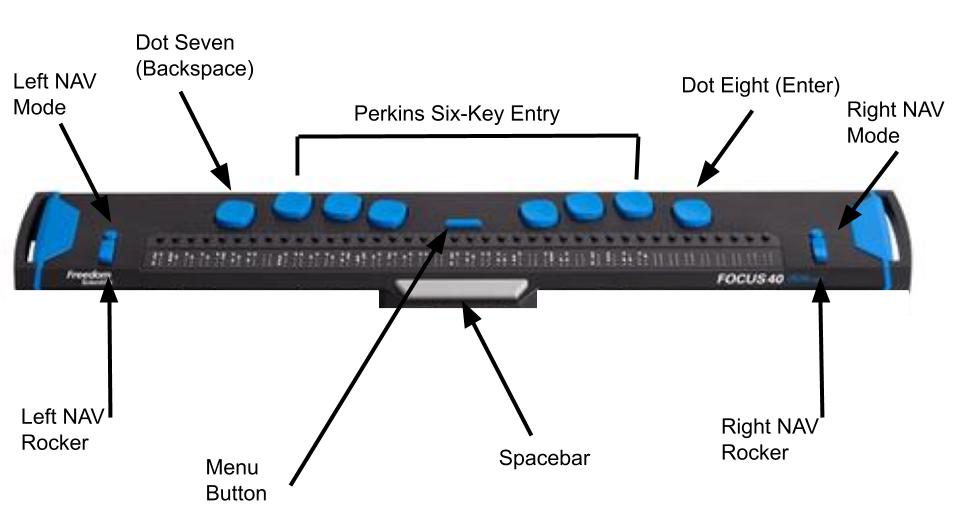
Focus Braille Display Image with Button options
Switch Focus Braille display modes quickly on display
For advanced users, status dots help in tables and other navigation. Beginners should start with “none.” Press Alt + A to apply changes, then enter to close. The Braille display functions like a Braille writer. Keys 1 2 3 are on the left, and keys 4 5 6 are on the right with space in between the left and right side. The left pinky key is backspace, which changes to dot 7, and the right pinky is enter or dot 8 in combination with other keys.
Remote Instruction via access Technology-Finish Real Work in Real Time
Empowering Blind & Visually Impaired Students Through Technology and Direct Instruction-Access Technology that Gives you Vision
Offering Personalized 1:1 remote instruction in technology, Braille, Nemeth, and essential blind skills — for students of all ages, anywhere in the world, enhances their educational access. These services ensure all can access educational opportunities effectively.
Founded in 2007 by Dr. Denise M. Robinson, a global leader in remote instruction for blind and low-vision education, TechVision brings together a nationally recognized team of blind education specialists, access technology experts, transcribers, and certified braille instructors. The team delivers expert training in access technology, braille, braille math code, screen readers, and comprehensive academic accessibility. Through real-time, individualized instruction, TechVision equips blind learners of all ages to participate equally, work independently, and succeed across educational and professional environments.
What We Do: Educational Access
We Provide:
Support for families, schools, transition programs, and vocational rehabilitation with the goal of improving access to education.
1:1 specialized instruction in technology, Braille, Nemeth, and all academic access through use of a computer.
Training for school teams — Teachers of the Blind & Visually Impaired, transcribers, paras, and School staff
Technology setup & independence training using screen readers, braille displays, and computers
The TechVision Difference
TechVision, LLC transforms lives through personalized, real‑time remote instruction. Our team equips blind and visually impaired students and clients with the technology skills they need to compete equally with their sighted peers — in school, work, and life. We collaborate with families, districts, and agencies worldwide to ensure every learner has educational access and independence.
Why Educational Access Matters
With cutting‑edge tools — computers, screen readers, braille displays, and smartphones — our students learn to access information, navigate their world, and build independence. TechVision empowers learners to step into education and employment with the same opportunities as their sighted peers.
Who We Serve
College students needing support for educational access
Young adults
Adults returning to work
Anyone needing access to their world
Real 1:1 TechVision Instruction
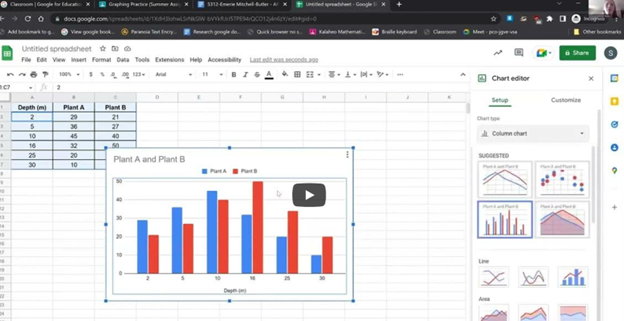
Students learning to create graphs, write documents, code, and navigate technology independently. Doing Everything their peers are doing.
Many people wonder what does legally blind look like? In fact, visual acuity below 20/200 qualifies as legally blind. To actually fit the definition, the person must not be able to attain 20/200 vision even with prescription eye wear. People with legal blindness can function effectively in daily life using appropriate glasses or contact lenses.
Educational Definition for Services
Under the new criteria, if a person’s visual acuity is measured with one of the newer charts, and they cannot read any of the letters on the 20/100 line, they will qualify as legally blind, based on a visual acuity of 20/200 or less. Based on acuity Work will need to be adapted.
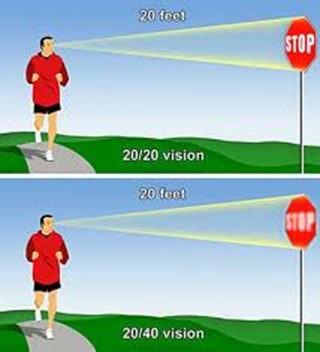
This vision means that a person sees at 20 feet what someone with normal vision sees at 70 feet. It is a form of visual impairment classified as mild low vision. Here’s a breakdown of what this means and its implications: Based on diagnosis, this acuity can get worse throughout the day.
1. Definition of 20/70 Vision
In a standard eye exam, the results are written as a fraction, with 20/20 being considered normal vision.
The first number (20) refers to the distance (in feet) from which a person views an object.
The second number (70) indicates the distance at which a person with normal vision can see the same object with clarity.
Thus, someone with 20/70 vision must be closer to an object (20 feet away) to see it as clearly as a person with 20/20 vision can from 70 feet.
2. Implications of 20/70 Vision
Legally Not Blind: This level of vision does not qualify as legal blindness, which is defined as 20/200 or worse with corrective lenses.
Difficulty with Certain Tasks: Individuals with 20/70 vision may struggle with tasks requiring clear distance vision, such as reading road signs, recognizing faces from a distance, or seeing objects clearly in low-light conditions.
Daily Life Adjustments: Depending on the person’s environment, they may need glasses or contact lenses to enhance their vision for specific tasks. However, vision aids may not fully restore perfect clarity.
3. Corrective Measures
Eyeglasses or Contact Lenses: Many individuals with 20/70 vision wear corrective lenses to improve visual acuity.
Low Vision Aids: Some people might benefit from magnifying devices, large-print materials, or enhanced lighting to assist with reading or other close-up tasks.
Adaptive Technology: Screen magnifiers, larger fonts on digital devices, and software that enhances visual contrast can also help improve accessibility for people with 20/70 vision.
4. Potential Causes
Refractive Errors: Conditions like myopia (nearsightedness), hyperopia (farsightedness), or astigmatism can result in 20/70 vision if not corrected.
Eye Diseases: Conditions like cataracts, macular degeneration, glaucoma, or diabetic retinopathy may cause a person’s vision to deteriorate to 20/70.
Age-Related Changes: Vision often declines naturally with age, and some individuals may experience 20/70 vision due to presbyopia or other age-related conditions.
5. Treatment and Management
Regular eye exams are essential to monitor vision changes.
Wearing prescribed corrective lenses and using adaptive aids can help individuals maintain independence and improve their quality of life.
Early detection of underlying conditions (e.g., glaucoma or cataracts) through eye exams can prevent further vision loss.
In summary, 20/70 vision reflects a moderate visual impairment. While it can pose challenges for certain activities, corrective measures and assistive technologies can significantly enhance visual functioning and quality of life.
all acuity levels compared
20/100 vision means that a person sees at 20 feet what someone with normal vision can see clearly at 100 feet. This level of visual acuity is considered moderate low vision. Here’s a detailed explanation of what 20/100 vision means and its implications:
1. Definition of 20/100 Vision
Visual Acuity Measurement: Vision is typically measured using a Snellen eye chart, and the result is expressed as a fraction. The first number (20) represents the distance at which the person is standing from the chart. The second number (100) indicates the distance at which a person with normal vision (20/20) can see the same object clearly.
Therefore, a person with 20/100 vision must be much closer to an object (20 feet away) to see it clearly, while someone with normal vision can see it clearly from 100 feet away.
2. Implications of 20/100 Vision
People with 20/100 vision are considered legally visually impaired. However, this does not meet the definition of legal blindness, which is 20/200 or worse. Even with corrective lenses, they fall under the low vision category. This means normal vision remains unattainable.
When it comes to daily tasks, they often struggle with seeing distant objects clearly. For instance, they may have trouble reading signs from far away. Recognizing faces across a room or on the street is also challenging. Watching TV or presentations requires sitting close. Driving presents challenges, as they may not clearly see signs or signals from a safe distance.
Close-up tasks can be easier for those with 20/100 vision. Reading or using a computer may not be as difficult. However, many still require magnification or adaptive tools to assist with these activities.
Driving: In many regions, individuals with 20/100 vision may not meet the vision requirements for driving. Driving may be possible with special accommodations or vision aids, but restrictions usually apply.
Work and Education: Individuals with 20/100 vision may need accommodations in the workplace or classroom, such as enlarged print materials, magnifiers, or assistive software. Special seating or devices may also be necessary to ensure they can participate fully.
Mobility: While 20/100 vision allows for some independent movement, it can still make navigating unfamiliar environments more challenging. Some individuals may benefit from mobility aids like a cane or guide dog in certain situations. Based on diagnosis, 20/100 can change to 20/200 or worse during any day at school or work based on eye fatigue.
Different levels of Vision Loss to easily compare:
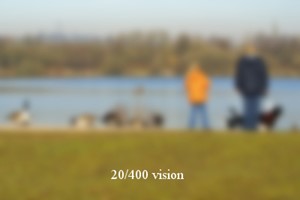
20/20 visual acuity to see people clearly in distance20/200 seeing blurry people in the distance20/400 acuity seeing people extremely blurry in distance
What legally blind looks like and is:
20/200 vision is a severe level of visual impairment and is often classified as legal blindness in many regions. It means that a person with this level of vision can see at 20 feet what a person with normal vision can see clearly at 200 feet. Here’s an overview of 20/200 vision and its implications: Technology has changed everything toward independence, including AI apps that will transcribe the inaccessible to accessible for you what you cannot see
1. Definition of 20/200 Vision
In an eye exam, vision is expressed as a fraction. The first number (20) refers to the distance (in feet) from which the person views an object. The second number (200) indicates the distance at which a person with normal vision can see the same object clearly.
Therefore, someone with 20/200 vision must be much closer to an object (20 feet away) to see it with clarity, while a person with normal vision can see it clearly from 200 feet away.
2. Legal Blindness
Legally Blind: A person with 20/200 vision is considered legally blind. Legal blindness is defined as having a visual acuity of 20/200 or worse in the better eye with the best possible corrective lenses.
Low Vision Category: While legally blind, individuals with 20/200 vision may still have some functional sight. They fall under the category of low vision, meaning that although their vision is severely impaired, they can still benefit from visual aids.
3. Impact on Daily Life
Challenges with Distance Vision: Individuals with 20/200 vision have significant difficulty seeing objects, signs, or faces at a distance. Recognizing faces across a room, reading road signs while driving, or watching TV from a typical distance can be very challenging or impossible.
Mobility and Orientation: Moving through unfamiliar environments may require assistance or adaptations. People with 20/200 vision often need to use mobility aids, such as a white cane or guide dog, to navigate safely.
Reading and Close-Up Work: Although close-up vision may be better, people with 20/200 vision often require magnifiers or other visual aids for reading or detailed work.
4. Corrective Measures
Eyeglasses or Contact Lenses: In some cases, corrective lenses may slightly improve vision. However, they often cannot bring a person’s vision to normal (20/20) levels when the vision loss is significant.
Low Vision Aids: Various devices can assist people with 20/200 vision in their daily lives, including:
Magnifiers: Handheld or electronic magnifiers for reading and detailed work.
Screen Readers: Digital devices or computers with screen readers that convert text to speech.
CCTV Systems: Closed-circuit television systems that enlarge printed text or images onto a screen.
Large-Print Materials: Books and materials with large text can make reading easier.
5. Driving Restrictions
Not Eligible for Driving: In most countries and regions, individuals with 20/200 vision are not permitted to drive. Driving requires a higher level of visual acuity to safely recognize signs, signals, and hazards.
6. Assistive Technology and Adaptations
Adaptive Technologies: Screen readers, screen magnifiers, and voice commands on computers and smartphones help individuals with 20/200 vision engage with digital content.
Environmental Modifications: Enhanced lighting, contrast modifications, and large-text displays make daily tasks like reading, working, and navigating spaces easier.
Orientation and Mobility Training: People with 20/200 vision need O&M (orientation and mobility) training to help them navigate safely and independently using mobility aids or techniques.
20/800 vision is a severe visual impairment often classified as profound low vision or near-total blindness. This means a person with 20/800 vision can see at 20 feet what someone with normal vision sees at 800 feet. Consequently, this level of impairment presents significant challenges for daily functioning. Even with corrective lenses, the limitations remain.
1. Definition of 20/800 Vision
A person with 20/800 vision must be 20 feet away to see something that a person with normal vision can see clearly from 800 feet. This substantial loss of visual acuity severely limits the ability to see details at any distance.
2. Legal Blindness and Classification
Individuals with 20/800 vision fall under the category of profound low vision. Although some residual vision may remain, it is limited. People with 20/800 vision are legally blind. Legal blindness is defined as having a visual acuity of 20/200 or worse in the better eye, even with corrective lenses.
3. Impact on Daily Life
People with 20/800 vision face significant visual challenges in everyday tasks. They may struggle with activities such as reading, recognizing faces, or navigating unfamiliar environments. Even simple tasks like watching TV or identifying objects across a room are often inaccessible. As a result, they must rely on non-visual cues such as tactile or auditory information. This helps them navigate their surroundings and accomplish tasks.
4. Corrective Measures
Although corrective lenses offer limited improvement for individuals with 20/800 vision, magnifiers or other visual aids may enhance any remaining vision for specific tasks. However, many people with this level of impairment depend on advanced assistive technologies. Screen readers, braille displays, and text magnifiers help them access information. Voice-controlled devices enable hands-free interaction with technology. Additionally, orientation and mobility aids, such as white canes or guide dogs, help individuals move safely.
5. Causes of 20/800 Vision
Congenital conditions, like Retinitis Pigmentosa or Optic Nerve Hypoplasia, often lead to severe vision loss. Progressive eye diseases such as Glaucoma, Macular Degeneration, or Diabetic Retinopathy can also cause vision to deteriorate to 20/800. Additionally, trauma or injury to the eye may result in permanent vision impairment.
6. Mobility and Independence
People with 20/800 vision rely on white canes, guide dogs, or assistance to travel safely. Orientation and mobility training teaches them how to use these aids effectively. This training also helps them develop strategies for moving confidently through public spaces. Some individuals also use adaptive techniques like echolocation to supplement their remaining vision.
7. Driving Restrictions
Due to the severity of the impairment, individuals with 20/800 vision are not permitted to drive.
8. Support and Resources
Low vision rehabilitation programs provide essential training in daily living skills, technology use, and mobility techniques. These programs enable individuals with 20/800 vision to maximize their remaining vision. Various organizations offer services such as guide dog training, braille literacy, and mobility aid instruction. Vision loss support groups also offer emotional and practical support for those facing similar challenges.
Result
20/800 vision represents profound visual impairment, often resulting in near-total blindness. People with this condition face substantial challenges in daily life. However, they can rely on assistive technology, mobility aids, and rehabilitation services to maintain independence. While corrective lenses may offer limited improvement, adaptive tools and strategies help individuals with 20/800 vision engage in work, education, and social activities successfully.
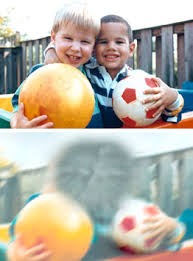
Now, you can get an idea of what a visual impairment actually looks like. Educational Services starting at youngest age possible but no later than age 3 years old is crucial.
Understanding Vision in Children: What Visual Acuity Really Means
Age-related macular degeneration, often called AMD or ARMD, is the leading cause of vision loss and blindness among Americans who are age 65 and older. Because people in this group are an increasingly larger percentage of the general population, vision loss from macular degeneration is a growing problem. Conditions like Macular Degeneration and Stargardts often affect a significant number of individuals. (http://www.allaboutvision.com/conditions/amd.htm)
Stargardts is very similar to Macular Degeneration but occurs in younger ages…
While macular degeneration generally is associated with aging eyes, an inherited form known as Stargardt’s disease can affect children and young adults.
Stargardt’s disease — also called fundus flavimaculatus or Stargardt’s macular dystrophy (SMD) — affects approximately one in 10,000 people and is characterized by central vision loss early in life. (Some researchers believe a distinction should be made between Stargardt’s disease and fundus flavimaculatus, because they say each describes a different variant of the eye disease.) http://www.allaboutvision.com/conditions/stargardts.htm
Macular Degeneration images—the black spot in the middle of visual field can be small and grow larger
Vision of macular degeneration and Stargardts -center of vision is blurred
Vision of Stargardt Disease and Age-Related Macular Degeneration (AMD) share some similarities but also have distinct differences:
Similarities of Macular Degeneration and Stargardts:
Understanding these differences and similarities can help in managing and treating these conditions effectively. When trying to access technology, there are skills to learn to improve what you see. One key is learning Perfect Touch Typing skills so you can rely on touch versus sight.
Currently, there is no cure for either Stargardt Disease or Age-Related Macular Degeneration (AMD). However, there are treatments available that can help manage the symptoms and slow the progression of these conditions:
Is there a Cure?
Stargardt Disease:
No Cure: There is no cure, but research is ongoing.
Management: Patients are advised to protect their eyes from UV light and avoid vitamin A supplements, which can worsen the condition.
Age-Related Macular Degeneration (AMD):
Dry AMD: No cure, but lifestyle changes like a healthy diet, quitting smoking, and taking specific vitamins (AREDS2 formula) can slow progression.
Wet AMD: Treatments include anti-VEGF injections, laser therapy, and photodynamic therapy, which can help slow vision loss and, in some cases, improve vision.
Research is ongoing for both conditions, with hopes for more effective treatments and potential cures in the future.