Dr. Denise M. Robinson, PhD, CTVI, AT, and CEO of TechVision, LLC, leads worldwide remote teaching for blind and low vision students. Her YouTube channel, @DrDeniseMRobinsontech and this website, showcases making digital math accessible with MathCat with JAWS, or NVDA. This video provides 8 different ways to complete digital math with several options using the Braille Math Editor in WORD for UEB or Nemeth math, highlighting the advantages of Nemeth or UEB via MathCat. Links with full video lessons from this video follow. She also demonstrates reading math on a Braille display and creating or making complex formulas accessible. AI tools like MathKicker.AI enhance efficiency. The series includes geometry and graphing with Desmos. Dr. Robinson emphasizes that digital access is crucial for competitive education and inclusion with peers. Learn how to teach or Learn UEB Math Code.
Nemeth or UEB via MathCat: 8 videos on Math Access in WORD and Braille Math Editor with JAWS or NVDA
Life IS a competition and Digital access is key with Instruction
Life is a competition, and digital access is essential. It levels the playing field, enabling equal opportunities for everyone. Digital tools enhance skills and productivity. They open doors to education and employment. Having a qualified access technology instructor is crucial for teaching students Nemeth and UEB math codes to access everything their peers do. Embracing technology is vital for success and inclusion in today’s world. MathKicker. AI for Matrices with NVDA or JAWS-Speed in completing Work
Dr. Robinson emphasizes practical and efficient math strategies for visually impaired students using assistive technology. Moreover, she demonstrates accessible solutions that empower students to engage independently in math tasks. Some of the best tricks to learning math for visually impaired students include understanding how to use technology effectively. For example, she teaches the Word Math Editor, activated with Alt+Equals, which enables students to access and edit equations effectively. Furthermore, this tool allows students to calculate expressions, such as a circle’s area, using keyboard shortcuts for greater efficiency. In addition, she introduces the Braille Math Editor, which enhances accessibility and provides tactile support for understanding complex math concepts. Continue with Advanced Math with LaTex using Mathkicker.AI-Matrices also.
Dr. Robinson configures Braille displays and the Braille Math Editor to improve accessibility and clarity for students. Students solve problems efficiently by using built-in features like scientific calculators and shortcuts such as Ctrl+C and Ctrl+V.
Dr. Robinson demonstrates advanced techniques, including LaTeX for math notation and proper vinculum coverage in equations. She converts equations between professional and linear formats to ensure accuracy in math tasks. Knowing tricks to learning math, such as using LaTeX, can greatly benefit students. Add Tactile Math Tools for even better understanding.
She teaches code structures and tools to help students work independently with their peers during lessons. By optimizing settings and using shortcuts, students gain confidence and efficiency in solving complex math problems.
Dr. Robinson ensures students participate fully in math classes and achieve academic success. Her methods, which include easy ways to learn math, integrate the latest assistive technologies to empower visually impaired students in STEM fields.
In today’s digital age, technology has transformed how we approach learning, especially in subjects like accessible math. More importantly, this transforms how all screen reader users can access math like their peers. MathKicker.AI math program provides access to AP classes and advanced math for high school and college students. This accessible tool caters to diverse learning needs, offering compatibility with various screen readers. This video features Advanced Math with LaTex and shows how it can enhance your mathematical skills, making complex equations easier to tackle.
Matrices
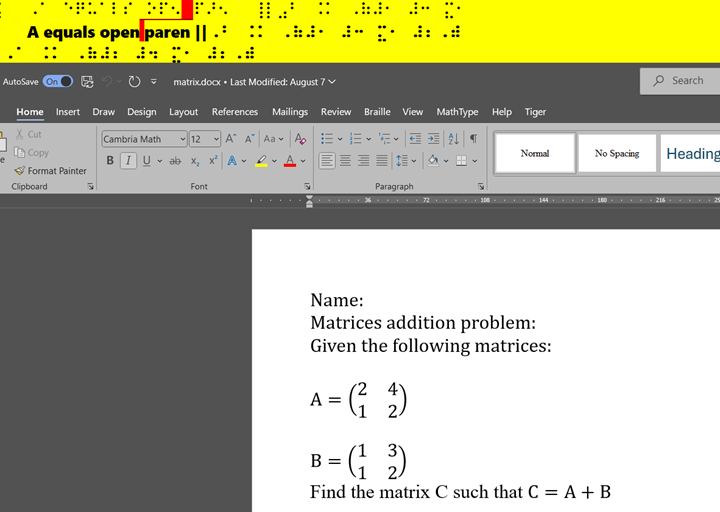
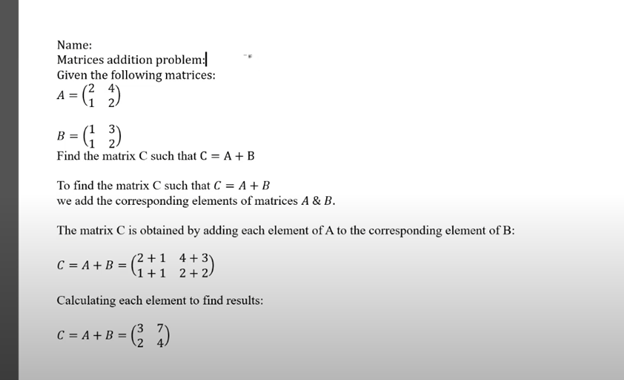
Dr. Robinson explains the basics of navigating MathKicker.AI. Matrices can easily create a Matrix with Alt = and type it in LaTex. This quickly provides accurate math and F9 will allow you to see and enter LaTex. You can also learn the LaTex from just typing the math into Mathkicker. The session showcases the ease of solving matrix equations, demonstrating how to find the matrix C resulting from matrices A and B.
Throughout the demonstration, Dr. Robinson shares tips for efficient navigation, including using the home key and arrow keys to read through equations. She highlights the functionality of the F9 key for processing inputs and emphasizes the need to verify details when working with complex equations.
As she works through a specific problem, Dr. Robinson illustrates how to structure equations and maintain clarity while performing calculations. Remember to double-check your work and she encourages people to utilize the program’s features for swift problem-solving.
By the end of the session, Dr. Robinson summarizes the output clearly, showcasing the successful application of Math Kicker. She encourages students to explore this tool for enhancing their math skills, particularly in higher education and advanced high school courses.
This tutorial not only highlights the software’s capabilities but also empowers screen reader users and all students to embrace technology in their learning to keep up with their peers.
Mathkicker editor with Jaws or NVDA and display for math access for advanced math
Other Math Lessons from Basic Math to Advance Skills
To enter college, you need a foundation in Algebra and Geometry. For STEM fields, add Calculus and Trigonometry. Trigonometry studies the relationships between angles and sides of triangles. With tools like Trigonometry with Math Editor, Braille Math Editor and screen readers, you can easily explore these relationships. It uses sine, cosine, and tangent functions to relate angles to side lengths. These functions are essential in physics, engineering, and astronomy. They help solve problems involving distances and angles. For example, trigonometry determines the height of a building or the distance across a river without direct measurement.
Trigonometry provides tools to model and solve problems involving angles and distances. It is fundamental to mathematics and its applications.
Going to College
If you go into STEM field IN college, you need advanced classes in but not limited to college algebra, trigonometry and calculus. When you are a screen reader and Braille user, these skills will allow you the options and opportunities to complete work as sighted peers.
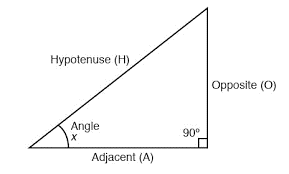
Let’s talk about: Trigonometry which is a branch of mathematics that studies the relationships between the angles and sides of triangles
Right triangle for Trigonometry with math editor
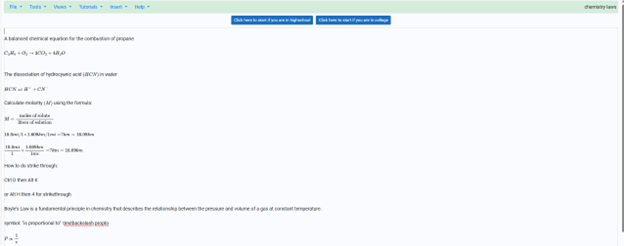
You can copy this content and paste into WORD OFFICE 365. Make sure you select Math 1 at a time and alt = to turn into true math. Then you can Ctrl = to change to professional or keep the LaTex then enter and braille it in again using Nemeth or UEB Math or practice LaTex.
Problem 1: Finding the Length of a Side
Given: A right triangle with one angle of 30° and the hypotenuse of 10 units. Find: The length of the side opposite the 30° angle.
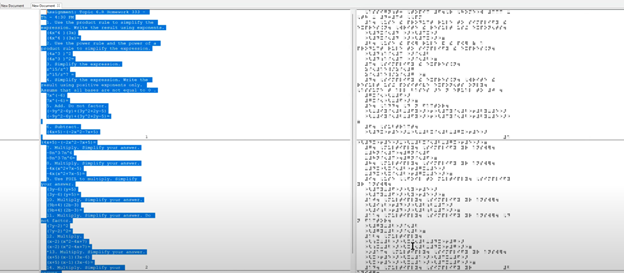
The new Split Braille™ for Buffer Mode in WORD for math is a feature in JAWS 2024. It offers powerful functionality for Braille display users. So, it allows viewing content from different locations on the same Braille line and a longer display is more advantageous to use. Complete Proper Word setup First, then continue.
Now let’s Enable Split Braille View-To enable a Split Braille view, press ALT+INSERT+V (or ALT+CAPS LOCK+V in Laptop layout) to open the Select Braille View dialog box. Focus Braille display users can press LEFT SHIFT+DOTS 1-2-7. In the dialog box, select your desired view and click OK. The active view remains for the current JAWS session and resets upon restarting JAWS.
Using Split Braille for Buffer Mode View in WORD for Math
By default, your current location appears in the left region, and the active view results appear in the right region. So, to swap these regions, reopen the Select Braille View dialog box and select the Swap split button mode. You can also change braille modes with a simple command
Navigating and Selecting Text
In most views, you can navigate and select text independently in the split region. Use the Right NAV rocker to pan and the Right Rocker bar to move by line. To select text for copying and pasting, press SHIFT button with a Cursor Router at the start and end of the selection. Dots 7 and 8 indicate the selection, which is automatically copied to the clipboard.
Commands for HumanWare Displays
For the Brailliant BI 40 series and Mantis Q40 displays:
Open Select Braille View dialog: Fourth Thumb Key+C1+C2+C3+C6 (or ALT+CAPS LOCK+V on Mantis Q40).
Toggle Buffered Text mode: C1+C2+C3 (not on Mantis Q40).
Pan split view region: Third and Fourth Thumb Keys.
Navigate by line: C6+Third and Fourth Thumb Keys (not on Mantis Q40).
Select text: First Thumb Key + Cursor Router.
For newer HumanWare displays:
Open Select Braille View dialog: K1 + pan Easy Access Bar right.
Swap regions: K1 + pan Easy Access Bar left.
Pan split view region: K4 + pan Easy Access Bar right/left.
Navigate by line: K4 + pan Easy Access Bar up/down.
Available Views
No Split View Mode: Uses the full display length for the current line (default).
Buffered Text: Captures text at your current location and displays it in the right half.
In this video, Dr. Denise M. Robinson demonstrates how to use the WORD Math Editor and Braille Math Editor with JAWS using LaTeX or Braille. This tutorial is designed for screen reader users, with or without braille displays, who want to improve their math skills.
First, Dr. Robinson introduces the essential tools for using matrices in WORD, including JAWS, a Braille display (if desired), and the WORD Math Editor. She explains how to set up each tool to work together smoothly, which is crucial for creating and editing math content.
Next, the video focuses on creating matrices. Dr. Robinson uses LaTeX to input mathematical expressions. She explains each step clearly, making it easy to follow along. Viewers will learn how to enter rows and columns in a matrix, helping them understand matrix structure.
Then, Dr. Robinson demonstrates how to use auditory feedback, which allows users to hear the math content they are working on. This feature helps ensure accuracy and makes it easier to catch mistakes. Additionally, she shows how to switch between auditory and Braille feedback, providing flexibility for different learning styles.
The video also covers using the Braille display with the math editors. Dr. Robinson explains how to navigate through the matrix using Braille and provides tips on reading and editing the content efficiently. This section is particularly helpful for users who rely on Braille for their work.
Finally, the tutorial concludes with a review of the key points. Dr. Robinson summarizes the steps for creating and editing matrices. She encourages viewers to practice using the tools and techniques demonstrated in the video. By the end of the tutorial, users will feel more confident in their ability to work with math content.
To emboss math with braille blaster content from Microsoft Word, start by creating equations in the Math Editor. This tool helps you write complex mathematical expressions clearly. Once you finish, save the document in a .DOCX format, which is compatible with Braille Blaster and other embossing software.
Next, open Braille Blaster and import your Word document. The software automatically converts your math content into Nemeth code, the Braille standard for mathematics. This conversion ensures visually impaired readers can understand the material. Moreover, Braille Blaster allows quick switching between Unified English Braille (UEB) and Nemeth codes, offering flexibility based on the user’s needs.
After conversion, to emboss math with Braille Blaster, send the document directly to a Braille embosser. This machine prints the digital Braille content as physical Braille that can be read by touch. Transitioning from digital to physical Braille is quick and efficient with this process.
Furthermore, this workflow supports various mathematical formats, making it versatile for different educational levels. For instance, whether you’re working on basic arithmetic or advanced calculus, the combination of Word and Braille Blaster handles it smoothly. This versatility is crucial in educational environments where diverse math content is necessary.
Advanced Features
Educators can also take advantage of Braille Blaster’s advanced features, such as the ability to preview the Braille output before embossing. This step allows for checking accuracy and making any necessary adjustments. It’s particularly useful when dealing with intricate math equations that require precise formatting. If you would like to combine this with a graph, Desmos is your key with Tiger software.
Moreover, the ability to seamlessly switch between UEB and Nemeth within the same document saves time and ensures consistency across educational materials. This dual-mode capability is essential for creating comprehensive resources that cater to different learning needs.
Using Word’s Math Editor, Braille Blaster, and a Braille embosser not only streamlines the creation of accessible math materials but also enhances the educational experience for visually impaired students. This efficient process ensures that high-quality Braille math content is readily available, supporting inclusive education and empowering students to succeed in their studies. By implementing this workflow, educators can deliver timely, accurate, and accessible learning materials that meet the diverse needs of all students. Here are options if you would like to use NVDA for Math. And to take any math 1 step further in creating graphics, Tiger and graphic embosser will take you there.
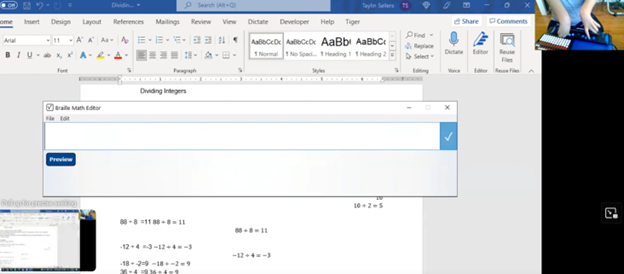
In this video, Dr. Denise Robinson guides Tay in proper Braille Math Editor Mode on her FOCUS Display. The session begins with Dr. Robinson reminding Tay how to change the computer’s mode to “contracted out/computer in.” This change ensures proper Braille math output, which simplifies the process and reduces errors.
Dr. Robinson then encourages Tay to use the Braille Math Editor with confidence, using her 2 knuckles on her right hand and 1 pointer finger on her left hand. She goes onto explain that the chosen mode automatically handles many aspects of math input. This approach allows Tay to focus more effectively on solving problems.
Next, Tay is guided through various math problems, including division and multiplication. Dr. Robinson carefully ensures that Tay understands how to input problems correctly into the Braille Math Editor. For division tasks, she provides clear instructions on entering Braille codes and following the correct sequences.
Furthermore, Dr. Robinson emphasizes the importance of memorizing math facts. She highlights how strong basic math skills can significantly improve accuracy and speed. Through consistent practice and repetition, Tay begins to reinforce these essential concepts.
As the session continues, Tay receives positive reinforcement, which helps her gain confidence. With each task, Tay requires fewer prompts, showing her growing independence in handling math problems.
Finally, Dr. Robinson concludes by praising Tay’s progress. She expresses confidence in Tay’s continued improvement and emphasizes that ongoing practice will help Tay master essential math skills. Dr. Robinson also reassures Tay that she will become more comfortable using the Braille Math Editor with time.
Overall, this session reflects Dr. Robinson’s commitment to fostering independence and competence in her students using proper Braille Math Editor Mode. She ensures they have the necessary tools and confidence to succeed academically. This methodical approach helps students like Tay build a strong foundation for future learning and problem-solving. To further learning, Embossing math using Braille Blaster or graphics using Tiger will always increase understanding of math in general.
Dr. Robinson demonstrates how to use MathKicker.AI to complete various types of math with NVDA and UEB math. She begins by accessing a math problem in HTML format through a browser. Using outdated software, including NVDA on Windows 10, she shows how even older technology can effectively handle advanced math tasks.
First, Dr. Robinson opens a math problem in Firefox, which currently translates math perfectly. She presses “Control + P” to print the page as a PDF, saving it to her downloads folder. Next, she switches to Chrome using “Windows + 3” and opens Math Kicker.AI, a tool designed for converting math problems. She uses the “Alt + C” command to start the conversion process.
She navigates through MathKicker’s options using the applications key and selects UEB math code with NVDA commands. After selecting the PDF file, she waits for two chimes, indicating the conversion is complete. To begin solving the problem, she turns off the virtual cursor, moves to the problem area, and uses the “F2” key to break down the equation into individual components.
She demonstrates how to solve the problem step by step, using commands like “Alt + B” to apply operations to both sides of the equation. She also uses “Control + R” to replace specific elements in the equation, simplifying the problem as she goes. After completing the math problem, she presses “F9” to review the LaTeX code, reinforcing her understanding of the math.
Dr. Robinson explains how these steps ensure that even visually impaired students can solve advanced math problems with outdated technology. She emphasizes that Math Kicker.AI, combined with NVDA, allows for accurate UEB math transcription, making it accessible to a global audience. She concludes by encouraging viewers to use these methods to handle any type of math problem effectively. More NVDA and UEB Math videos here.
Dr. Robinson demonstrates how transcribers can efficiently convert math images into text using accessible Word documents and MathKicker.AI. She begins by showing how to identify an image containing a math problem. Note, that it turns blue when clicked and often appears blurry for a hint of inaccessible. To convert the image, she uses the “Windows + Shift + S” command to capture the image, then pastes it into MathKicker using “Alt + V.” After converting the image, she opens the document in Word.
Dr. Robinson advises transcribers to compare the original image with the converted text to ensure accuracy. She recommends using “F12” to save the document and “Alt + D” to choose the save location. For side-by-side comparison, she suggests using “Alt + Space” and “R” to restore and resize the windows.
For Transcribers to convert math images into text
To describe number lines or graphs, transcribers should write out the details, such as the range and direction of the line. Dr. Robinson also shows how to add alt text to images by right-clicking and selecting “View Alt Text.” This feature is particularly useful for visually impaired students who rely on screen readers.
For inequalities and other math problems, Dr. Robinson explains how to use Desmos, a graphing calculator tool. She demonstrates how to type equations into Desmos and capture the graph using “Alt + Print Screen.” The captured graph can then be pasted into the Word document, and additional descriptions should be provided for clarity.
Finally, Dr. Robinson emphasizes the importance of proofreading and adjusting the text to ensure it accurately represents the math content. She encourages transcribers to use MathKicker for quick and accurate transcriptions, highlighting its ability to create accessible math documents efficiently.