Search results for: “ueb math”

  • How to Read, Write, and Learn with Low Vision (Tools + Techniques)

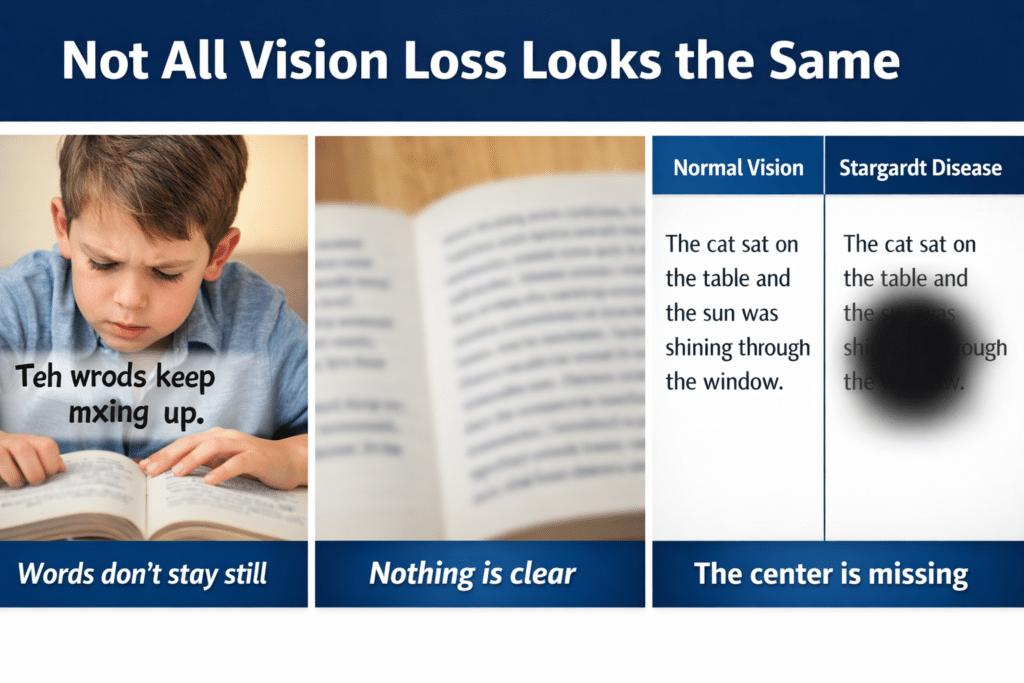
    How to Read, Write, and Learn with Low Vision: How vision loss can appear
    How to Read, Write, and Learn with Low Vision: How vision loss can appear

    2.2 Billion People Live With Vision Impairment

    Vision loss is one of the most common disabilities on earth, and it’s growing fast. If you work in healthcare, tech, education, or policy, these numbers matter for accessibility, product design, and funding.

    Over 51.9 million adults in the U.S. report some level of vision difficulty. About 6–7 million Americans have significant vision loss or blindness. Globally, 2.2 billion people have vision impairment.

    But those top-line numbers hide urgent trends. Here’s the breakdown with the latest 2024-2026 data, what’s driving it, and what to do about it.

    Tools + Techniques That Build Real Independence

    Students and adults with vision challenges do not learn one way.
    They require the right tools, combined with direct, targeted training.

    Success happens when tools match the vision need and instruction builds efficiency

    Tools + Training by Vision Need

    1. Dyslexia (Processing and Decoding)

    Dyslexia affects how the brain processes text. It often overlaps with vision-related challenges.

    Tools

    • Text-to-speech: JAWS, NVDA
    • Speech-to-text (dictation)
    • Immersive Reader
    • Audiobooks: Bookshare, Learning Ally

    Training Focus

    • Pair listening with reading
    • Build strong keyboarding for writing
    • Navigate digital text efficiently

    Goal
    Improve comprehension while reducing reading fatigue

    2. Blurred or Reduced Vision (Low Vision)

    Tools

    • Magnification: ZoomText, Windows Magnifier
    • High contrast and color filters
    • Enlarged text and screen scaling
    • Screen readers: JAWS, NVDA

    Training Focus

    • Use magnification efficiently without losing place
    • Strengthen visual tracking
    • Transition smoothly to audio when needed
    • Master keyboard navigation

    Goal
    Maximize usable vision while increasing speed and accuracy

    3. Central Vision Loss

    (Stargardt, macular degeneration)

    Tools

    • Screen reader (primary): JAWS, NVDA
    • Refreshable braille display
    • Audio + braille combination
    • OCR tools for printed content

    Training Focus

    • Full keyboard control
    • Braille literacy (UEB and Nemeth)
    • Strong auditory processing

    Goal
    Achieve full independence through non-visual access

    4. General Eye Conditio

    (Astigmatism, myopia, hyperopia, cataracts, glaucoma, diabetic retinopathy)

    Tools

    • Glasses or contacts
    • Lighting adjustments (often overlooked but critical)
    • Contrast and display adjustments
    • Screen scaling and font control
    • Optional magnification
    • Screen reader support when fatigue increases

    Training Focus

    • Keyboarding and screen reader commands
    • Proper screen positioning and posture
    • Lighting control to reduce glare
    • Efficient reading strategies
    • Knowing when to switch to audio

    Goal
    Reduce fatigue and maintain consistent access throughout the day

    Cross-Over Tools for ALL Learners

    • Microsoft Word for accessible writing and math
    • Screen reader + keyboard command mastery
    • Accessible PDFs and web navigation
    • AI tools for transcription, especially math and images
    • Speech dictation to tell your computer and phone what to do

    Critical Insight

    Most individuals do not fit into one category.
    They often experience a combination of needs:

    • Low vision with fatigue
    • Dyslexia with vision challenges
    • Progressive vision changes over time

    This reality requires flexible and layered instruction.

    Everyday Access Tools

    Screen Readers (Text-to-Speech)

    • JAWS (Windows, advanced, workplace standard)
    • NVDA (Windows, free)
    • VoiceOver (built into Apple devices)
    • TalkBack
    • Narrator

    Magnification and Visual Support

    • ZoomText
    • Built-in magnifiers (Windows and macOS)
    • Seeing AI
    • Be My Eyes
    • Aira
    • Computers have built in enlargement options

    Braille and Tactile Tools

    • Refreshable braille displays (Focus, Brailliant)-go electronic for speed and efficiency
    • Perkins Brailler when young

    Navigation and Daily Living-too many to name

    • OrCam MyEye
    • WeWALK Smart Cane
    • BlindSquare

    Critical Truth

    Tools alone do not create independence.
    Training builds independence.

    Instruction must:

    • Connect directly to real school, work, or life tasks
    • Build speed and efficiency
    • Focus on completing meaningful work

    Bottom Line

    • Dyslexia → audio with structured reading
    • Low vision → magnification with efficiency
    • Central vision loss → audio and braille access
    • General eye conditions → reduce strain and optimize access

    With the right tools and strong training, students and adults can access, complete, and submit work alongside their peers.
  • Creating Geometry Tables in Desmos from WORK

    Creating Geometry tables in Desmos provides a structured way to input and explore data, especially for users who rely on screen readers or keyboard navigation. Desmos is designed to be accessible, allowing blind and visually impaired users to create tables and input values using simple keyboard commands. By using the table function, users can input x- and y-values and navigate through cells seamlessly. This accessibility enables full participation in mathematical exploration and data visualization, making Desmos a valuable tool for both students and professionals. Through keyboard shortcuts and screen reader compatibility, creating and managing tables in Desmos becomes an intuitive and efficient process: even creating 2 or more shapes.

    To create a table in Desmos, follow these steps, especially if you’re using a screen reader or keyboard navigation:

    Creating Geometry Tables in Desmos Using Keyboard:

    1. Open Desmos Graphing Calculator:
    • Go to the Desmos website and open the graphing calculator interface.
    1. Activate the Add Expression Button:
    • If you’re using a screen reader, navigate to the “Add Expression” field by pressing Tab until you hear the option.
    1. Enter the Table Command:
    • Type table() and hit Enter. This will create an empty table. The screen reader will announce that a table has been created, and it will move you into the table input fields.
    1. Fill in Table Values:
    • To fill in the values for your table, use the arrow keys to navigate between cells.
    • Input the x-values in the left column and the y-values in the right column.
    • After typing each value, press Enter to move to the next cell. The screen reader will confirm each input.

    Navigation Commands (for Screen Readers):

    • Move to the Next Cell: Press the Right Arrow or Down Arrow to move between cells.
    • Move Back: Press the Left Arrow or Up Arrow to go back to previous cells.
    • Delete an Entry: Use Backspace to delete the contents of a cell.
    • Add More Rows: Navigate to the last row and press Enter. This will automatically add a new row for more data points.

    Keyboard Shortcuts in Desmos:

    • Navigate between expressions/tables: Use the Up and Down Arrow keys.
    • Create a new table: Type table() in the expression line.

    Results

    By typing table() into the Desmos expression field, users can create tables and populate them with x- and y-values. Or just create a Table from menu. Screen readers will provide auditory feedback, helping users navigate through the cells and input values. Desmos’ intuitive keyboard commands make this process efficient for users relying on screen readers or those who prefer keyboard navigation.

    More Desmos Lessons and Lessons on All Subjects with screen readers:

    Desmos 3D graphing

    for Geometry in Desmos

    for STEM and Embossing in Desmos

    Desmos and inserting graphs into Math Work in WORD

    Creating shaded Parabolas in Desmos

    Games with Desmos with Drag and Drop

    Drag n Drop in Macmillan Learning

    UEB LaTex math with Jaws

    Math student fights to acquire AP STEM Books

  • Optimizing Windows 11 Efficiency for Screen Reader with Key Settings and Configurations

    Optimizing Windows 11 Efficiency for Screen Reader with Key Settings and Configurations takes an hour most often 2 or so to complete. Longer if you are new to screen reader and how Windows 11 works. It is different than other OS systems so give yourself grace as you learn all there is to know about this system. As you move through your keyboard and discover you would like a particular key somewhere, like the applications key, you can remap a key to create that yourself. AND, you MUST have Local Admin on School Computers.

    How to setup Computer for Optimizing Windows 11 Efficiency

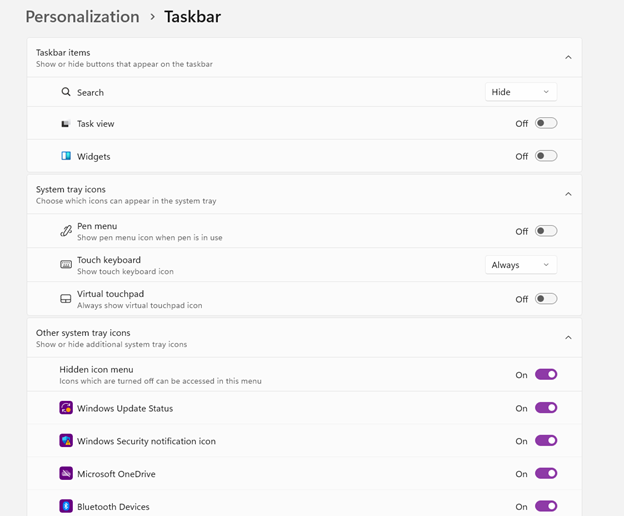
    • Change Taskbar Settings
    • Update Computer every day
    • Go to task manager and disable anything you do not need at start up
    • Go to Power Options and change from Sleep to Shut Down when you press Shut down button
      • take off sleep options in general unless you are advanced user
      • Keep in mind that your screen reader cannot reset or the RAM clear if you computer is in sleep mode or hibernate mode
    • Go to Addition Mouse setting and select the “snap to” mouse option and CTRL option
    • Turn off Touch pad- if you do not your palm will touch the mouse pad and auto activate items or move your cursor on your computer. This equals huge frustration to a screen reader user.
    • Windows T and clear that taskbar–this is million dollar real-estate to access programs fast
    • Setup WORD
    • Go to control panel and setup Sound card options
    • Windows and adjust other sound options using sndvol.exe
    • Setup Gmail and Drive and learn new commands
    • Setup Outlook
    Optimizing Windows 11 Efficiency with Taskbar setting
    Taskbar setting for Windows 11 setup

    Efficiency for Screen Readers and other Setup Skills

    Setup or adjust Screen readers and Braille Display for Optimizing Windows 11 Efficiency

    Proper Set up Windows 11 to work with screen readers and braille displays is crucial for visually impaired users. This configuration ensures smooth interaction with the system, giving users full access to information and applications such as Gmail for optimizing access..

    1. Accessibility and Independence

    Configuring Windows 11 for screen readers like JAWS, NVDA, or Narrator, and integrating braille displays, provides full independence. Without proper setup, tasks such as reading documents, browsing, or using software become challenging. A well-configured system ensures all functions are accessible.

    2. Productivity and Efficiency

    Screen readers and braille displays let users interact quickly with the system. Setting up Windows 11 for compatibility speeds up responses to commands. It also ensures smoother transitions between applications, making multitasking more efficient. Proper configuration prevents lag or software conflicts, which increases productivity in school and work settings.

    3. Customization for Personalized Needs

    Each user has different needs. Windows 11 allows users to customize screen reader settings (e.g., speech rate, verbosity, and key commands) and braille displays (e.g., output type and formatting). These adjustments create a personalized experience, improving comfort and reducing frustration.

    4. Enhanced Braille Support

    Windows 11 offers enhanced braille support when paired with leading screen readers. Proper setup lets users access seamless braille input and output for text and math. It also allows advanced navigation of documents. Correct braille display configuration ensures accurate reading and editing of both simple text and more complex content.

    5. Compatibility with Updates

    As Windows 11 updates, keeping screen readers and braille displays integrated is essential. A well-maintained setup ensures new features or security updates don’t disrupt accessibility tools. This is vital for maintaining ongoing access such as the new Google Commands for navigation.

    Key Setup Steps for Optimizing Windows 11 for Accessibility:

    • Ensure Compatibility: Install the latest versions of screen readers and braille display drivers compatible with Windows 11.
    • Enable and Configure Narrator: Windows 11 includes Narrator, which can be set up for basic tasks if needed.
    • Customize Keyboard Shortcuts: Set up shortcuts for easier navigation and quicker interaction.
    • Adjust Accessibility Settings: Go to “Accessibility” in the Settings app to adjust visual and audio cues like contrast and text size.
    • Test with Braille Displays: Pair and calibrate braille displays for reading and input in UEB or Nemeth, depending on preferences.

    With proper set up, Windows 11 for screen readers and braille displays furthers accessibility. This setup enhances independence, productivity, and ease of use in the digital world.

    If you have low vision challenges, this lesson is for you and setting up computer is essential with commands to change mouse

    Learn Proper Touch Typing skills with these great commands you are learning to optimize Windows 11 efficiency.

    Add PDF Lessons:

    Math and taking inaccessible to accessible in WORD

    Type directly on a PDF

    Transcribe Math Images from PDF

    Take Large PDFs and Print to PDF for a few pages

    Platform Knowledge for Access

    Schoology with Jaws

    Schoology Navigation

    Canvas platform-Keep in mind, a platform can to totally accessible but totally INACCESSIBLE work can be placed on it.

    Acellus Platform

    Zoology with RedShelf Platform

    Let us know how we can help you: Contact US: TechVisionTraining@yourtechvision.com

  • TechVision Access Instruction-Empowering Blind and Visually Impaired

    TechVision Access Instruction is the TechVision Difference. Dr. Robinson and her Tech Vision team provide one-on-one and school team remote instruction for visually impaired individuals in real time. They enhance technology skills for students, adults, and groups by teaching them to use assistive technologies like PC computers, screen readers (JAWS, NVDA, Narrator), and Braille displays. This approach ensures students complete their work alongside peers without needing extra time

    TechVision Access Instruction aims to transform education for the blind and visually impaired. They combine the right technology with effective instruction. They offer teaching internships to advanced students, providing hands-on job skills that enhance resumes for future employment or college applications. Their goal is to empower visually impaired individuals to achieve their full potential and navigate the world confidently.

    TechVision Access Instruction
    TechVision Website

    Our Mission and Purpose is enable blind and visually impaired students the ability to access and complete work as their sighted peers. This requires, screen readers, braille displays and other access technology.

    Technology that gives you VISION with Access Instruction

    The TechVision mission and purpose, led by Dr. Robinson and her highly skilled TechVision Specialists, are to change lives via instruction in access technology, enabling inclusion and educational equality.

    The TechVision Specialists are uniquely skilled in teaching blind and low vision students. They focus on direct instruction on all technology like computers(requires Local Admin Access), screen readers, Braille displays, and smartphones. This approach has revolutionized the educational experience for blind and low vision students and clientele. Their expertise and global reach have significantly impacted students. They empower students to access information and navigate the world on an equal footing with sighted peers.

    Additionally, TechVision collaborates with school districts and private entities to address the evolving needs of education. This collaboration promotes independence and inclusion in both classrooms and the job market. By equipping students with essential skills, TechVision creates an environment of true equality. As a result, opportunities become accessible to everyone, regardless of visual impairment.

    TechVision specializes in teaching all subjects, especially advanced mathematics, to blind and visually impaired students. This enables them to succeed academically. Many of these students pursue majors in Applied Mathematics at prestigious institutions, including Harvard University. They use innovative methods to ensure blind and low vision students perform at the same high level as their sighted peers.

    Integration

    Additionally, TechVision integrates tools like Artificial Intelligence (AI), word processors, screen readers, and Braille displays to support student success. These tools allow visually impaired students to produce work comparable to their classmates. Consequently, this promotes integration and equal opportunities in academic environments: Even to the point that you can Make an Electronic Signature -Then insert it into a Document.

    Big issues occur and you can learn to resolve them via Find and restore deleted files or lost files & folders

    We offer:

    1:1 or whole Team Instruction

    Access Training

    Get to know the Team Specialists

    Expertise in Math Instruction

    What you need to do to Find a JOB

    And if you want to try your hand: Mac with VoiceOver and Key Commands

    Let us know how we can help you: Contact US: TechVisionTraining@yourtechvision.com

  • Inclusive Multi-Sensory Learning Tools

    Sensational Books offers Inclusive Multi-Sensory Learning Tools. These tools provide a multi-sensory approach to early learning, focusing on tactile and visual experiences. Their products include books and tools designed for both sighted and visually impaired children. For example, “Sadie Can Count” is a children’s book with large print, Braille text, and fully embossed pictures. This book helps beginning readers, including those with visual impairments, to enjoy reading with their friends and family.

    Inclusive Multi-Sensory Learning- from sensational books
    Inclusive Multi-Sensory Learning- from Sensational Books

    Another notable product is the Sensational BlackBoard, which allows users to create raised-line drawings. This tool is lightweight, portable, and uses standard copy paper and a ballpoint pen. It’s designed to help users feel their drawings as they create them, making it an excellent resource for both new and experienced artists.

    Sensational Books also offers workshops and tactile artwork, promoting sensory integration and early literacy. Their products are suitable for diverse populations, including Montessori students and children with autism. The website provides a comprehensive overview of their offerings, including detailed product descriptions and testimonials from users. Some users need other types of tactile tools also.

    One example is Sensational BlackBoard which offers a fun, fast, easy and inexpensive way to get tactile access to images. Draw your own raised line pictures or you can have photo copy images of text book or research materials quickly traced. More on this site for Inclusive Multi-Sensory Learning Tools. Make sure you incorporate audio reading as a skill to add to braille reading.

    More information and lessons at: TechVision YouTube

  • Perfect Brailler for children with little fingers: Mountbatten

    Perfect Brailler for little children: Children often struggle to press the keys on a regular brailler due to their small fingers. That’s why I recommend the Mountbatten brailler.

    I’ve introduced students as young as 3 years old to the Mountbatten brailler. They can braille with perfect finger positioning using this device.

    Mountbatten- Perfect Brailler for Kids
    Mountbatten- Perfect Brailler for Kids

    We want to be careful when letting young children use the regular brailler so they don’t start poor brailling habits, such as using 2 fingers to press one key. This is not only time consuming, but also very slow because it takes so much effort to press the keys. The Mountbatten brailler, however allows for good habits to form while fingers are growing and getting stronger. Starting out correctly, our children will then be successful braillers with an ability to increase their output as they get older, creating a joy in reading what they wrote. This will lead to learning perfect touch typing on a keyboard and using a braille display on a computer. Then onto learning math on the brailler to moving it to the computer

    Perfect Brailler for Kids: Versatile and User-Friendly

    The video on the Math Window® system provides an in-depth look at how this tool benefits blind and visually impaired students. Here are some key details:

    1. Magnetic Tiles: The system uses magnetic tiles that feature both Braille and print. This dual-format approach allows students to read and interact with math problems tactilely.
    2. Portability: The Math Window® board is designed to be portable. It fits easily on a student’s desk and comes with a carrying tote, making it convenient for use in different settings.
    3. Versatility: The system is available in various versions, including basic math, algebra, and geometry. This versatility ensures that it can be used across different levels of math education.
    4. Braille Standards: Math Window® supports both Nemeth and UEB Braille standards. This compatibility ensures that it can be used by students who are familiar with either Braille system.
    5. Hands-On Learning: The tactile nature of the Math Window® system allows students to engage with math problems in a hands-on manner. This method helps in building a deeper understanding of mathematical concepts.
    6. Adaptability: Instructors can easily personalize lessons using the Math Window® system. They can arrange and modify the magnetic tiles to suit each student’s learning pace and needs.
    7. Confidence Building: By allowing students to “see” the structure of math equations through touch, the system helps build their confidence. It encourages them to explore STEM subjects more independently.
    8. Collaborative Environment: The system fosters a collaborative learning environment. Students can work individually or in groups, making it suitable for both classroom and home use.

    The Math Window® system makes an Ideal Brailler for Children with more Math lessons here

    Add keyboarding skills in also as students learn to braille and tactile math tools as learning is all encompassing

    Contact Team Specialists to help you set up a program