Search results for: “low vision”

  • Find and Restore Deleted Files or Lost Files & Folders

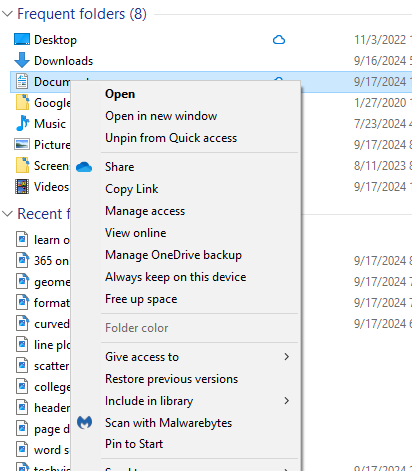
    To find and restore deleted or lost files, open File Explorer. Right-click the folder and select “Restore previous versions.” Choose a version and click “Restore” to recover your files. This method helps you retrieve important data efficiently. So that panic you were or are feeling can go away now as you move through these steps. Take 5 deep breaths first to calm yourself. We have ALL done it!

    Steps to find and restore deleted files or folders

    1. Open File Explorer:
      • Press Windows + E to open File Explorer.
    2. Navigate to the Folder:
      • Go to the folder that contained the deleted or lost file.
    3. Right-Click the Folder:
      • Right-click on the folder and select Restore previous versions from the context menu.
    4. Select a Previous Version:
      • In the “Previous Versions” tab, you’ll see a list of available versions. Select the version you want to restore.
    5. Restore the File or Folder:
      • Click the Restore button to recover the file or folder to its original location. Alternatively, you can click Restore To and choose a different location to save the restored version.
    restore deleted or lost files
    restore deleted or lost files

    Other lessons on how to find things on your computer

    If you need to restore your whole system–this fixes all issues
    More secret Weapon lessons:

  • Efficiently Converting Braille Files to HTML and Word

    To efficiently convert Braille files to text or HTML, you can change extensions as shown in the video or open the Braille file in software like Duxbury Braille Translator or Braille Blaster. Export the file as plain text. Use a text editor to manually add HTML tags or employ a conversion tool for HTML formatting. This method ensures the content is accessible in both text and web formats, making it easier to efficiently convert Braille files to HTML and Word.

    Guidance on converting Braille files into HTML or text files from this video:

    Efficiently converting Braille files to HTML and Word requires specific software and keyboard commands. Below is the method I used in the Video

    1. Extract Files:
      • Applications Key: Press Applications Key, then Down Arrow to select “Extract”.
    2. Rename Files:
      • Rename: Press Applications Key, then Up Arrow to “Rename”, and Enter.
      • Change Extension: Use Right Arrow to navigate, Backspace to delete .txt, and type .html, then Enter.
    3. Open Files in Notepad:
      • Open File: Press Enter on the file to open it in Notepad.
    4. Save As HTML:
      • Save As: Press Alt + F, then Down Arrow to “Save As”, and Enter.
      • Change File Type: Press Tab to navigate to the file type dropdown, select “All Files”, and Enter.
      • Rename Extension: Press Shift + Tab to navigate back, use Right Arrow to move to the extension, Backspace to delete .txt, type .html, and Enter.
    5. Copy and Paste Text:
      • Select All: Press Ctrl + A.
      • Copy: Press Ctrl + C.
      • Paste in Word: Open Word, then press Ctrl + V.
    6. Show File Extensions:
      • Open File Explorer: Press Alt + D.
      • Open Organize Menu: Press Tab to navigate to the “Organize” button, and Enter.
      • Folder Options: Press Down Arrow to “Folder and search options”, and Enter.
      • View Tab: Press Ctrl + Tab to switch to the “View” tab.
      • Show Extensions: Press Tab to navigate to “Hide extensions for known file types”, press Spacebar to uncheck, and Enter.

    These commands should help you efficiently manage and convert your files.

    Here is another way to convert files

    1. Extract the Braille File:
      Use software like Duxbury (DBT) or Braille Blaster Translator to open BRF or BRL files. This software can convert Braille files into readable text.
    2. Export to Text Format:
      After extraction, use the “Export” function in DBT or other Braille translation software to save the file as a plain text (.txt) file.
    3. Convert to HTML:
      Use a text editor to open the .txt file. You can manually add HTML tags to structure it as an HTML file or use a basic converter tool to help automate the process.

    Other Ways to Fix your computer

    Let us know how we can help you: Contact US: TechVisionTraining@yourtechvision.com

  • Essential Word Keyboard Commands for Setting Defaults

    Essential WORD keyboard commands to help teachers who teach blind with talking software or sighted who just want to move faster. These are some of the most essential commands everyone should know, especially those mastering the essential commands for WORD keyboard users.

    Here’s a summary of essential WORD keyboard commands for video users.


     Keyboard shortcuts for all WORD versions.

    1. Open Word: Press Windows + 5 to start Word from the taskbar.
    2. Zoom In: Use Alt + V + Z to zoom to 200%.
    3. Change Defaults:
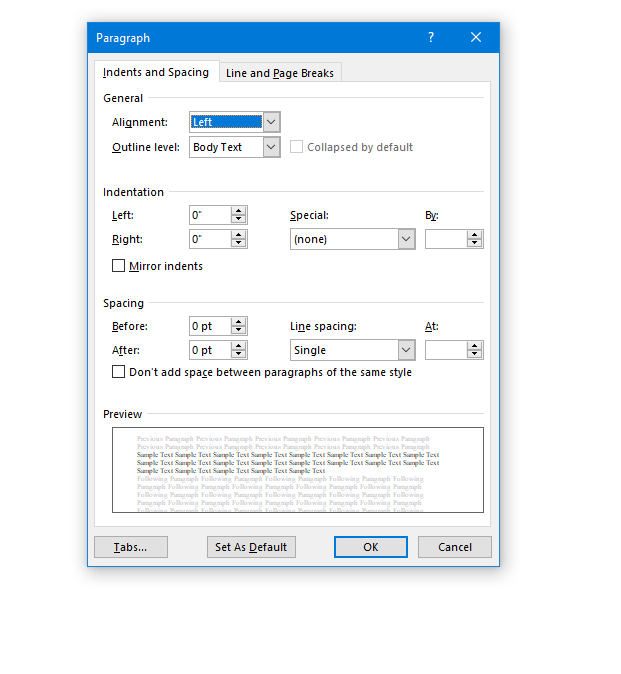
      • Open Paragraph Spacing: Press Alt + O + P.
      • Set Spacing to Single: Press Alt + P and change to single spacing.
      • Set Default for All Documents: Press Alt + D followed by Alt + A and then Enter.

    Customize Document further

    1. Change Font:
      • Select All Text: Press Ctrl + A.
      • Open Font Dialog: Press Ctrl + D.
      • Change Font to Times New Roman: Type “Times New Roman” and set size to 12.
      • Set Default for All Documents: Press Alt + D followed by Alt + A and then Enter.
    2. Create Columns:
      • Open Page Layout: Press Alt + P.
      • Select Columns: Press J for columns.
      • Set Number of Columns: Press Alt + O + C and choose the number of columns.
    3. Change Page Color:
      • Open Page Layout: Press Alt + P.
      • Open Colors: Press PC.
      • Select Color: Use arrow keys to choose a color and press Enter.
    4. Add Border:
      • Open Borders: Press Alt + O + B.

    These commands will help you efficiently navigate and customize documents. See other Setup options 

    windows page setup for defaults
    Essential WORD keyboard commands for windows page setup for defaults

    Other WORD Lessons

    Optimizing Windows 11 Efficiency for Screen Reader with Key Settings and Configurations

    WORD Efficient Text Navigation and Selection

    Basic WORD JAWS commands with Typing Trick

    Rebuild Microsoft Word Template when it is not working well

    Microsoft Word MLA format with Christopher Duffley

    WORD accessible food chain for class using talking software

    Commands to change mouse -access programs fast, basics in Word font & movement

    Excel line plot graph-copy to Word for Math

    Complete an excel graph and copy into Word document with screen reader

    Essential WORD keyboard commands for setting defaults

    Track changes in Word-How teachers make corrections in work

    Track Changes with Commands-inserting comments and editing work

  • Document Formatting Editing Elements: Edit Margins, Tab, Headers, Footers & More

    Document formatting editing elements commands work in ALL versions of WORD.

    Video Lesson to help sighted teachers teaching or just sighted people who want to move faster

    Here is a list of formats mentioned in the video:

    1. Windows key + 5 on my computer: Opens the fifth pinned item on the taskbar (Word in this case).
      • Pin your most used APPS on taskbar for faster document formatting editing elements access.
    2. ALT + V, Z: Opens the zoom option.
    • 2: Zoom to 200%.
    • 7: Zoom to 75%.
    1. ALT: Highlights the menu.
    2. ALT + P: Opens the Page Layout tab.
    • O: Opens orientation options.
    • Arrow keys: Navigate between Portrait and Landscape options and document formatting editing elements within the layout tab.
    • Enter: Select the chosen option.
    1. ALT + P, M: Opens margins options.
    • A: Opens custom margins for better control of document formatting.
    • Tab: Moves around the dialog box.
    • Escape: Closes the dialog box.
    Document formatting editing elements Page elements header
    Document formatting editing elements: Header
    1. ALT + V, H: Opens headers.
    2. CTRL + R: Right-aligns text, a key document formatting function.
    3. ALT + I, U: Inserts auto page numbers.
    4. Down Arrow: Moves to the footer.
    5. Escape: Exits the header or footer.
    6. CTRL + End: Moves to the end of the document.
    7. CTRL + Enter: Inserts a page break.
    8. =rand(): Inserts random text (DOS command).
    9. CTRL + Up Arrow: Moves up one paragraph at a time, assisting in document editing tasks.
    10. ALT + V, Z, 100%: Zooms to 100%.

    These commands offer various ways to navigate, format, and interact with Word documents efficiently. More Document formatting editing elements make these processes smoother and more efficient.

    YouTube Channel of all lessons

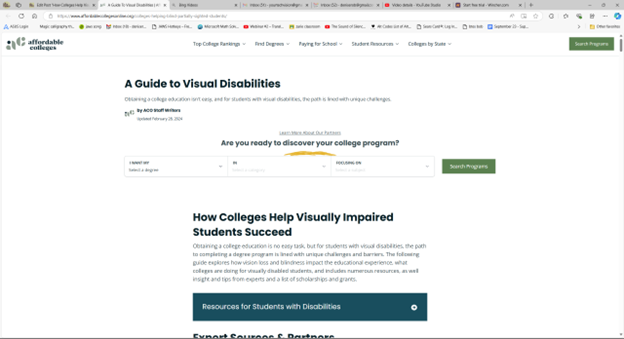
  • How Colleges Help Visually Impaired Students Succeed

    Colleges help visually impaired students succeed by providing various accommodations and resources tailored to their needs. These include assistive technologies like screen readers, braille displays, and magnification software; in addition to hiring Tech Trainers such as TechVision, to teach you when you ask via Vocational Rehabilitation types of Services. Institutions often offer priority registration, allowing students to choose classes that best fit their needs. Additionally, colleges may provide note-taking services, accessible course materials, and extended time for exams. By modifying policies and procedures, colleges create an inclusive environment that supports the academic and personal growth of visually impaired students.

    https://www.affordablecollegesonline.org/colleges-helping-blind-partially-sighted-students/

    Go to: How Colleges Help Visually Impaired Students Succeed and get your resources lined up for success

    Earning a college degree can be challenging, especially for students with visual impairments who face additional barriers. This guide highlights the impact of vision loss on education and explores how colleges support visually impaired students. It provides expert advice, resources, and lists scholarships and grants. Furthermore, it offers practical tips for navigating educational challenges and discusses technological advancements that help students overcome obstacles to succeed in their academic journeys.

    Access Training for College Students-learn those computer skills to access your college classes in real time.

    How colleges help visually impaired students
    How colleges help visually impaired students

    If your child still needs reminders to get up: Set up Outlook Alarm with screen reader

  • Family Tree with Smart Art and Screen Reader

    Using your newest WORD version, Create a family tree in Microsoft Word using (1997-2023) keyboard commands is straightforward and efficient. Most importantly, it is accessible. After you open WORD, press F12 for save as and name it then tab to save as an arrow to 1997-2023 and enter. Then press Alt + N to open the Insert tab, then press M to select SmartArt. In the SmartArt dialog box, (typically the first item, so listen) or use the arrow keys to navigate to the “Hierarchy” category and select a suitable layout for your Family Tree with Smart Art, such as “Organizational Chart.” Press Enter to insert the SmartArt graphic into your document.

    This is the method of creating a Family Tree with Smart Art and screen reader. You can then use the Tab key to move between different elements of the chart and Enter to add new family members. To edit text within the SmartArt, simply press F2 to enter text editing mode. This method allows you to create a detailed and visually appealing family tree using just your keyboard and screen reader.

    When you are looking to do sophisticated work such as Family trees, etc., always do as save as to 97-2023 as that Version was fully accessible and still is IF you remember the commands. Here is a few below Family Tree:

    Family Tree with Smart Art and screen reader

    family tree using smart art
    Family Tree with Smart Art

    Here are the keyboard commands for accessing the Insert menu in Microsoft Word (1997-2023):

    1. Open Insert Menu in WORD:
      • Press Alt + N.
    2. Insert Picture:
      • After pressing Alt + N, press P.
    3. Insert Table:
      • After pressing Alt + N, press T.
    4. Insert Shapes:
      • After pressing Alt + N, press S.
    5. Insert SmartArt:
      • After pressing Alt + N, press M.
    6. Insert Chart:
      • After pressing Alt + N, press C.
    7. Insert Hyperlink:
      • After pressing Alt + N, press I.
    8. Insert Text Box:
      • After pressing Alt + N, press X.
    9. Insert Header:
      • After pressing Alt + N, press H.
    10. Insert Footer:
      • After pressing Alt + N, press O.
    11. Insert Page Number:
      • After pressing Alt + N, press NU.

    Another lesson that works just as well: Venn Diagrams with Screen Reader

    These commands should help you efficiently navigate and use the Insert menu in Word. However, if you are experiencing computer issues, fix it and get it setup correctly for speed.

    Now learn to convert braille file into WORD or learn from hundreds of other video lessons

  • Instant Shapes for Math, etc.-Instamorph

    instamoph moldable plastic
    Instamorph moldable plastic-Mold your Imagination

    Instant shapes for Math using InstaMorph, which is a versatile, reusable thermoplastic that transforms your creative projects. First, you simply heat the InstaMorph beads in hot water until they become moldable. Then, you can shape them with your hands or tools. As it cools, InstaMorph hardens into a strong, durable plastic. This material is perfect for a wide range of applications, including crafting, prototyping, and repairs.

    Next, consider the endless possibilities InstaMorph offers. It is not just for Instant shapes for Math, but you can create custom grips, brackets, or even cosplay accessories. Additionally, if you make a mistake, you can reheat and reshape it, making it incredibly forgiving and easy to use. Moreover, InstaMorph can be painted, machined, and carved, allowing for further customization.

    Furthermore, InstaMorph is non-toxic and safe for all ages, making it an excellent choice for educational projects and family activities. Its lightweight nature ensures that it is easy to handle and manipulate, even for beginners. Finally, by sharing your InstaMorph creations on social media with the hashtag #InstaMorph, you can join a community of makers and gain inspiration from others.

    In conclusion, InstaMorph empowers you to bring your ideas to life with ease and flexibility. Whether you’re a hobbyist, artist, or DIY enthusiast, InstaMorph is the perfect tool to unleash your creativity.

    Incredible Instamorph -watch video, solves those Geometry and other math problems with making instant shapes….of any kind. Think big and do just about anything you need. YouTube video at: Instamorph

  • Creating Accessible Math Graphs and Inequalities with Excel

    Learn how to do inequalities for math class using Excel and Word with a braille display–for a complete assignment that can be emailed to teacher when done. Additionally, we will cover tips on creating accessible math graphs to ensure all students can engage with the material effectively.

    This video Instruction focuses on teaching math problems, specifically inequalities and graphing, using Excel. First, they direct the students to create a template with a number line. The students then insert information using less than and greater than symbols. For instance, to show a less than symbol, they use nine dashes, with each dash representing a unit. Also try Desmos for graphing online.

    Next, the students insert bullets. If they have a numpad, they use Alt+7 for a hollow bullet and Alt+9 for a solid bullet. If not, they manually insert symbols via the insert menu. The students place the bullets on the number line, ensuring they are centered by putting four dashes on each side of the bullet.

    To perfectly center the number, the students use the applications key and select the center alignment option or CTRL + E. After completing their problems, they select their work with Shift+Right Arrow and copy it using CTRL+ C. They then paste it into a Microsoft Word document with Ctrl+N and Ctrl+V.

    Creating Accessible Math Graphs in excel
    Creating Accessible Math Graphs in Excel

    Finally, for creating accessible Math Graphs, the students format their work by navigating through the formatting options with the right arrow key. This process allows blind students to create graphs and inequalities just like their sighted peers. The results are impressive, with perfectly centered number lines and accurately represented inequalities. The more you practice, the closer you become to being an expert in excel.

    Watch YouTube video on Creating Accessible Math Graphs

    Blind students do Math- inequalities with Excel and answer problems in Word

    and extensive lessons on Channel

  • Download books from BARD for Braille and Audio Reading

    Download books from BARD using The NLS BARD website or Phone app, which offers Braille and audio reading materials for the blind and print disabled. Users need a login ID and password to access the site. Eligible users can download books from BARD, magazines, and other materials. The site supports various browsers, including Internet Explorer, Chrome, Safari, and Firefox. If you need help with any instruction, let us know.

    BARD website login page for downloading books
    BARD website login page for downloading books

    BARD Mobile apps are available for iOS, Android, and Fire tablets. These apps allow users to access Braille and talking books on their devices. BARD Express simplifies searching, downloading, and managing audio materials on Windows. Once on computer you can change how you see the books also.

    The website ensures accessibility with tested compatibility for screen readers. Users must agree to a pledge to use the service. The NLS BARD service enhances access to reading materials, promoting literacy and independence for the blind and print disabled.

    Other Useful Sites for Learning More

    Learn Out Loud Reading-Audio books Galore

    Search HathiTrust’s Digital Library

    Project Gutenberg Self-Publishing – eBooks | Read eBooks online | Free eBooks

    Braille Reading Speed Standards

    (1) BARD: Braille and Audio Reading Download – nlsbard.loc.gov. https://nlsbard.loc.gov/login/NLS.

    (2) Welcome to BARD – National Library Service for the Blind and Print …. https://www.loc.gov/nls/how-to-enroll/sign-up-for-bard-and-bard-mobile/welcome-to-bard/.


  • Inclusive Multi-Sensory Learning Tools

    Sensational Books offers Inclusive Multi-Sensory Learning Tools. These tools provide a multi-sensory approach to early learning, focusing on tactile and visual experiences. Their products include books and tools designed for both sighted and visually impaired children. For example, “Sadie Can Count” is a children’s book with large print, Braille text, and fully embossed pictures. This book helps beginning readers, including those with visual impairments, to enjoy reading with their friends and family.

    Inclusive Multi-Sensory Learning- from sensational books
    Inclusive Multi-Sensory Learning- from Sensational Books

    Another notable product is the Sensational BlackBoard, which allows users to create raised-line drawings. This tool is lightweight, portable, and uses standard copy paper and a ballpoint pen. It’s designed to help users feel their drawings as they create them, making it an excellent resource for both new and experienced artists.

    Sensational Books also offers workshops and tactile artwork, promoting sensory integration and early literacy. Their products are suitable for diverse populations, including Montessori students and children with autism. The website provides a comprehensive overview of their offerings, including detailed product descriptions and testimonials from users. Some users need other types of tactile tools also.

    One example is Sensational BlackBoard which offers a fun, fast, easy and inexpensive way to get tactile access to images. Draw your own raised line pictures or you can have photo copy images of text book or research materials quickly traced. More on this site for Inclusive Multi-Sensory Learning Tools. Make sure you incorporate audio reading as a skill to add to braille reading.

    More information and lessons at: TechVision YouTube