Search results for: “WORD”

  • Document Formatting Editing Elements: Edit Margins, Tab, Headers, Footers & More

    Document formatting editing elements commands work in ALL versions of WORD.

    Video Lesson to help sighted teachers teaching or just sighted people who want to move faster

    Here is a list of formats mentioned in the video:

    1. Windows key + 5 on my computer: Opens the fifth pinned item on the taskbar (Word in this case).
      • Pin your most used APPS on taskbar for faster document formatting editing elements access.
    2. ALT + V, Z: Opens the zoom option.
    • 2: Zoom to 200%.
    • 7: Zoom to 75%.
    1. ALT: Highlights the menu.
    2. ALT + P: Opens the Page Layout tab.
    • O: Opens orientation options.
    • Arrow keys: Navigate between Portrait and Landscape options and document formatting editing elements within the layout tab.
    • Enter: Select the chosen option.
    1. ALT + P, M: Opens margins options.
    • A: Opens custom margins for better control of document formatting.
    • Tab: Moves around the dialog box.
    • Escape: Closes the dialog box.
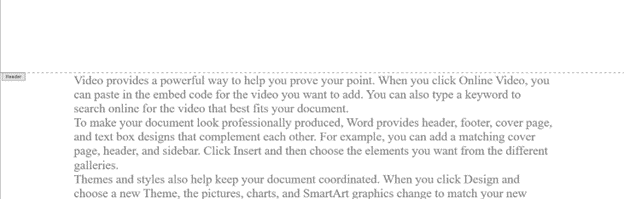
    Document formatting editing elements Page elements header
    Document formatting editing elements: Header
    1. ALT + V, H: Opens headers.
    2. CTRL + R: Right-aligns text, a key document formatting function.
    3. ALT + I, U: Inserts auto page numbers.
    4. Down Arrow: Moves to the footer.
    5. Escape: Exits the header or footer.
    6. CTRL + End: Moves to the end of the document.
    7. CTRL + Enter: Inserts a page break.
    8. =rand(): Inserts random text (DOS command).
    9. CTRL + Up Arrow: Moves up one paragraph at a time, assisting in document editing tasks.
    10. ALT + V, Z, 100%: Zooms to 100%.

    These commands offer various ways to navigate, format, and interact with Word documents efficiently. More Document formatting editing elements make these processes smoother and more efficient.
    YouTube Channel of all lessons

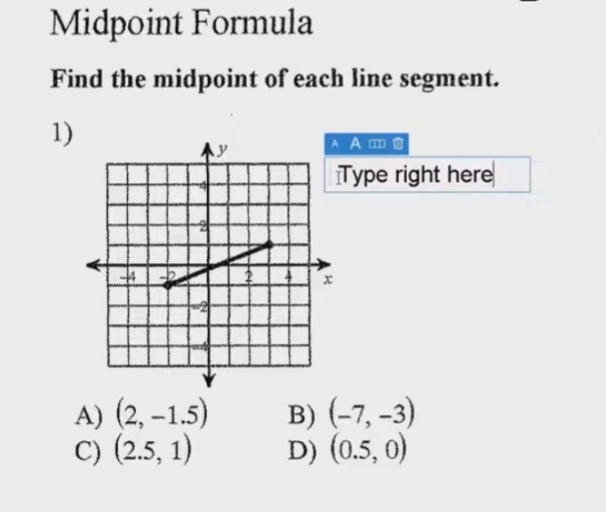
  • Type directly on PDF for Geometry with screen reader

    You can perform all these tasks using current PDF versions, even with inaccessible scanned images. First, demonstrate how to write text directly on scanned PDFs, then save the edited file. Next, show students how to type directly on PDF and email the completed PDF to their teacher for submission. Perfect touch typing is always preferred for ease.

    For low vision users, all math content with voice output offers additional support. Combine this tool with text manipulation in PDFs to make materials more accessible. This approach ensures students can interact with complex materials efficiently, despite any visual challenges.

    Here are some useful keyboard commands for working with PDFs in Adobe Acrobat, focusing on enlarging the screen and typing on the document:

    Type directly on PDF commands

    Enlarge Screen (Zoom In/Out)

    1. Zoom In:
      • Press Ctrl + + (Plus sign) on Windows.
      • Press Cmd + + (Plus sign) on Mac.
    2. Zoom Out:
      • Press Ctrl + - (Minus sign) on Windows.
      • Press Cmd + - (Minus sign) on Mac.
    3. Fit to Screen:
      • Press Ctrl + 0 (Zero) on Windows.
      • Press Cmd + 0 (Zero) on Mac.

    Typing on a PDF

    Typing on PDF
    Type Directly on PDF
    1. Add Text:
      • Select the Text Box Tool by pressing Ctrl + Shift + T on Windows.
      • On Mac, you might need to manually select the tool from the toolbar.
    2. Type in a Form Field:
      • Navigate to the form field using the Tab key.
      • Press Enter to start typing.
    3. Add a Comment:
      • Press Ctrl + 6 to open the comment tool on Windows.
      • Press Cmd + 6 on Mac.
    4. Save Changes:
      • Press Ctrl + S to save the document on Windows.
      • Press Cmd + S on Mac.

    More PDF Lessons:

    Math and taking inaccessible to accessible in WORD

    Type directly on a PDF

    Transcribe Math Images from PDF

    Take Large PDFs and Print to PDF for a few pages

    If you have any computer issues, fix it up yourself and get going on work.

    These commands should help you navigate and edit PDFs more efficiently.

    Video on How to SEE your computer better with Low vision is also very helpful.

  • Creating Excel Math Graphs

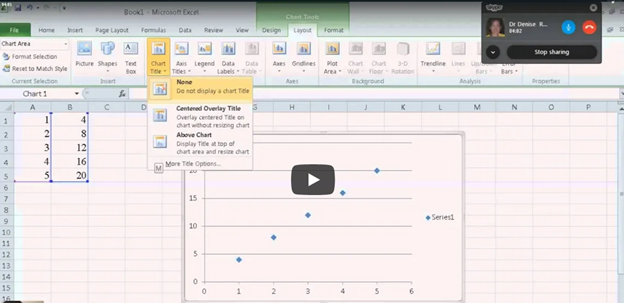
    Creating Excel Math Graphs is easy if you know the keyboard shortcuts with JAWS screen reader or NVDA. Kaylee starts by opening Excel, ready to plot the data using a scatter plot. First, she selects the A and B columns to copy them. Using the keyboard shortcut Ctrl + C, she copies the data. Once Excel is opened, she selects the cells where the data will be pasted, pressing Ctrl + V. Ensuring more rows are selected than needed, Excel warns if too many cells are selected, but Kaylee confirms the paste by selecting “Yes.”

    creating excel math graphs
    Creating Excel Math Graphs

    With the data ready, Kaylee moves to create a scatter plot graph. She presses Alt + N to access the “Insert” tab, navigating carefully to choose the scatter plot. After accidentally selecting the formula tab, she tries again, successfully inserting the scatter plot this time.

    Next, it’s time to add titles to the chart. Kaylee presses Alt + J + L to open the “Chart Layout” options, selecting T to input the chart title. Choosing to place the title above the chart, she moves forward. For the axis titles, she uses Alt + J + A + I to access the “Axis Title” options, adding the horizontal (X) axis title first. She selects W for the primary horizontal axis and types the label. Creating Excel Math Graphs involves repeating the process for the vertical (Y) axis, she selects the “Rotated” option by pressing the down arrow and enters the appropriate title.

    Ready to Submit her Excel Plot Math Graph

    Kaylee removes the chart legend, which is unnecessary for this excel Plot math graph. Pressing Alt + J + L + L, she selects “None” from the legend options. After exiting the title field by pressing Esc, she copies the finished graph with Ctrl + C and pastes it into a Word document using Ctrl + V. The graph is complete and clean for submission.

    If you would like to submit an advanced Quadratic Formula or an inequalities graph, there are many learning options

    More Excel Math Lessons

  • Family Tree with Smart Art and Screen Reader

    Using your newest WORD version, Create a family tree in Microsoft Word using (1997-2023) keyboard commands is straightforward and efficient. Most importantly, it is accessible. After you open WORD, press F12 for save as and name it then tab to save as an arrow to 1997-2023 and enter. Then press Alt + N to open the Insert tab, then press M to select SmartArt. In the SmartArt dialog box, (typically the first item, so listen) or use the arrow keys to navigate to the “Hierarchy” category and select a suitable layout for your Family Tree with Smart Art, such as “Organizational Chart.” Press Enter to insert the SmartArt graphic into your document.

    This is the method of creating a Family Tree with Smart Art and screen reader. You can then use the Tab key to move between different elements of the chart and Enter to add new family members. To edit text within the SmartArt, simply press F2 to enter text editing mode. This method allows you to create a detailed and visually appealing family tree using just your keyboard and screen reader.

    When you are looking to do sophisticated work such as Family trees, etc., always do as save as to 97-2023 as that Version was fully accessible and still is IF you remember the commands. Here is a few below Family Tree:

    Family Tree with Smart Art and screen reader

    family tree using smart art
    Family Tree with Smart Art

    Here are the keyboard commands for accessing the Insert menu in Microsoft Word (1997-2023):

    1. Open Insert Menu in WORD:
      • Press Alt + N.
    2. Insert Picture:
      • After pressing Alt + N, press P.
    3. Insert Table:
      • After pressing Alt + N, press T.
    4. Insert Shapes:
      • After pressing Alt + N, press S.
    5. Insert SmartArt:
      • After pressing Alt + N, press M.
    6. Insert Chart:
      • After pressing Alt + N, press C.
    7. Insert Hyperlink:
      • After pressing Alt + N, press I.
    8. Insert Text Box:
      • After pressing Alt + N, press X.
    9. Insert Header:
      • After pressing Alt + N, press H.
    10. Insert Footer:
      • After pressing Alt + N, press O.
    11. Insert Page Number:
      • After pressing Alt + N, press NU.

    Another lesson that works just as well: Venn Diagrams with Screen Reader

    These commands should help you efficiently navigate and use the Insert menu in Word. However, if you are experiencing computer issues, fix it and get it setup correctly for speed.

    Now learn to convert braille file into WORD or learn from hundreds of other video lessons

  • Instant Shapes for Math, etc.-Instamorph

    instamoph moldable plastic
    Instamorph moldable plastic-Mold your Imagination

    Instant shapes for Math using InstaMorph, which is a versatile, reusable thermoplastic that transforms your creative projects. First, you simply heat the InstaMorph beads in hot water until they become moldable. Then, you can shape them with your hands or tools. As it cools, InstaMorph hardens into a strong, durable plastic. This material is perfect for a wide range of applications, including crafting, prototyping, and repairs.

    Next, consider the endless possibilities InstaMorph offers. It is not just for Instant shapes for Math, but you can create custom grips, brackets, or even cosplay accessories. Additionally, if you make a mistake, you can reheat and reshape it, making it incredibly forgiving and easy to use. Moreover, InstaMorph can be painted, machined, and carved, allowing for further customization.

    Furthermore, InstaMorph is non-toxic and safe for all ages, making it an excellent choice for educational projects and family activities. Its lightweight nature ensures that it is easy to handle and manipulate, even for beginners. Finally, by sharing your InstaMorph creations on social media with the hashtag #InstaMorph, you can join a community of makers and gain inspiration from others.

    In conclusion, InstaMorph empowers you to bring your ideas to life with ease and flexibility. Whether you’re a hobbyist, artist, or DIY enthusiast, InstaMorph is the perfect tool to unleash your creativity.

    Incredible Instamorph -watch video, solves those Geometry and other math problems with making instant shapes….of any kind. Think big and do just about anything you need. YouTube video at: Instamorph

  • Creating Accessible Math Graphs and Inequalities with Excel

    Learn how to do inequalities for math class using Excel and Word with a braille display–for a complete assignment that can be emailed to teacher when done. Additionally, we will cover tips on creating accessible math graphs to ensure all students can engage with the material effectively.

    This video Instruction focuses on teaching math problems, specifically inequalities and graphing, using Excel. First, they direct the students to create a template with a number line. The students then insert information using less than and greater than symbols. For instance, to show a less than symbol, they use nine dashes, with each dash representing a unit. Also try Desmos for graphing online.

    Next, the students insert bullets. If they have a numpad, they use Alt+7 for a hollow bullet and Alt+9 for a solid bullet. If not, they manually insert symbols via the insert menu. The students place the bullets on the number line, ensuring they are centered by putting four dashes on each side of the bullet.

    To perfectly center the number, the students use the applications key and select the center alignment option or CTRL + E. After completing their problems, they select their work with Shift+Right Arrow and copy it using CTRL+ C. They then paste it into a Microsoft Word document with Ctrl+N and Ctrl+V.

    Creating Accessible Math Graphs in excel
    Creating Accessible Math Graphs in Excel

    Finally, for creating accessible Math Graphs, the students format their work by navigating through the formatting options with the right arrow key. This process allows blind students to create graphs and inequalities just like their sighted peers. The results are impressive, with perfectly centered number lines and accurately represented inequalities. The more you practice, the closer you become to being an expert in excel.

    Watch YouTube video on Creating Accessible Math Graphs

    Blind students do Math- inequalities with Excel and answer problems in Word

    and extensive lessons on Channel

  • Download books from BARD for Braille and Audio Reading

    Download books from BARD using The NLS BARD website or Phone app, which offers Braille and audio reading materials for the blind and print disabled. Users need a login ID and password to access the site. Eligible users can download books from BARD, magazines, and other materials. The site supports various browsers, including Internet Explorer, Chrome, Safari, and Firefox. If you need help with any instruction, let us know.

    BARD website login page for downloading books
    BARD website login page for downloading books

    BARD Mobile apps are available for iOS, Android, and Fire tablets. These apps allow users to access Braille and talking books on their devices. BARD Express simplifies searching, downloading, and managing audio materials on Windows. Once on computer you can change how you see the books also.

    The website ensures accessibility with tested compatibility for screen readers. Users must agree to a pledge to use the service. The NLS BARD service enhances access to reading materials, promoting literacy and independence for the blind and print disabled.

    Other Useful Sites for Learning More

    Learn Out Loud Reading-Audio books Galore

    Search HathiTrust’s Digital Library

    Project Gutenberg Self-Publishing – eBooks | Read eBooks online | Free eBooks

    Braille Reading Speed Standards

    (1) BARD: Braille and Audio Reading Download – nlsbard.loc.gov. https://nlsbard.loc.gov/login/NLS.

    (2) Welcome to BARD – National Library Service for the Blind and Print …. https://www.loc.gov/nls/how-to-enroll/sign-up-for-bard-and-bard-mobile/welcome-to-bard/.


  • Tactile Math Learning Tools–Math Window

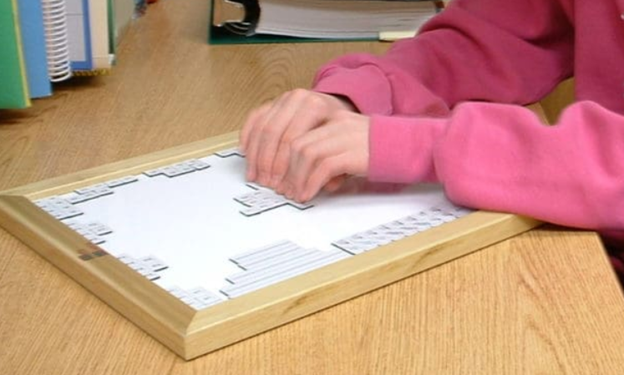
    The Math Window® system is a tactile math learning tool that is an innovative teaching tool for blind and visually impaired students. It uses magnetic tiles with Braille and print. This allows students to interact with math problems using tactile methods. Instructors and students can construct and modify equations by arranging these tiles. The board is portable and fits on a student’s desk. It includes a carrying tote for convenience. Available versions cover basic math, algebra, and geometry. Math Window supports Nemeth and UEB Braille standards.

    The Math Window® system empowers students to engage actively with math. This enables them to learn how to output their math work on a computer using WORD. It offers a hands-on, tactile learning experience. The magnetic board and tile system supports understanding math problems in various disciplines. Students can create equations and move the magnetic tiles to explore concepts. They can easily modify or adjust their work as needed. The system’s adaptability allows instructors to personalize lessons. This enhances students’ independence in solving math problems.

    Tactile Math Learning Tools in Nemeth and UEB Math

    Math Window provides two key Braille formats: Nemeth and UEB. This ensures compatibility with the Braille system used by the student. This flexibility makes it accessible in both educational and real-world settings. With tactile interaction, blind students can “see” math equations’ structure. This method builds confidence and encourages students to delve into STEM subjects.

    The portability of the Math Window system allows ease of use in classrooms and homes. Instructors benefit from a clear, organized way to present math problems. Students can efficiently explore and manipulate the problems. This increases their engagement with the material. Whether working individually or in groups, the Math Window fosters a collaborative learning environment.

    Using tactile math learning tools such as the Math Window, The student 'visualizes' the layout of a math formula by exploring it with their fingers.
    Using tactile math learning tools such as the Math Window, The student ‘visualizes’ the layout of a math formula by exploring it with their fingers.

    Math Window View

    Order products at: Math Window

  • Perfect Brailler for children with little fingers: Mountbatten

    Perfect Brailler for little children: Children often struggle to press the keys on a regular brailler due to their small fingers. That’s why I recommend the Mountbatten brailler.

    I’ve introduced students as young as 3 years old to the Mountbatten brailler. They can braille with perfect finger positioning using this device.

    Mountbatten- Perfect Brailler for Kids
    Mountbatten- Perfect Brailler for Kids

    We want to be careful when letting young children use the regular brailler so they don’t start poor brailling habits, such as using 2 fingers to press one key. This is not only time consuming, but also very slow because it takes so much effort to press the keys. The Mountbatten brailler, however allows for good habits to form while fingers are growing and getting stronger. Starting out correctly, our children will then be successful braillers with an ability to increase their output as they get older, creating a joy in reading what they wrote. This will lead to learning perfect touch typing on a keyboard and using a braille display on a computer. Then onto learning math on the brailler to moving it to the computer

    Perfect Brailler for Kids: Versatile and User-Friendly

    The video on the Math Window® system provides an in-depth look at how this tool benefits blind and visually impaired students. Here are some key details:

    1. Magnetic Tiles: The system uses magnetic tiles that feature both Braille and print. This dual-format approach allows students to read and interact with math problems tactilely.
    2. Portability: The Math Window® board is designed to be portable. It fits easily on a student’s desk and comes with a carrying tote, making it convenient for use in different settings.
    3. Versatility: The system is available in various versions, including basic math, algebra, and geometry. This versatility ensures that it can be used across different levels of math education.
    4. Braille Standards: Math Window® supports both Nemeth and UEB Braille standards. This compatibility ensures that it can be used by students who are familiar with either Braille system.
    5. Hands-On Learning: The tactile nature of the Math Window® system allows students to engage with math problems in a hands-on manner. This method helps in building a deeper understanding of mathematical concepts.
    6. Adaptability: Instructors can easily personalize lessons using the Math Window® system. They can arrange and modify the magnetic tiles to suit each student’s learning pace and needs.
    7. Confidence Building: By allowing students to “see” the structure of math equations through touch, the system helps build their confidence. It encourages them to explore STEM subjects more independently.
    8. Collaborative Environment: The system fosters a collaborative learning environment. Students can work individually or in groups, making it suitable for both classroom and home use.

    The Math Window® system makes an Ideal Brailler for Children with more Math lessons here

    Add keyboarding skills in also as students learn to braille and tactile math tools as learning is all encompassing

    Contact Team Specialists to help you set up a program