Search results for: “platform”

  • Google Drive screen reader navigation with keyboard commands

    Dr. Robinson explains how to navigate the new Google Drive update using a screen reader, focusing on commands that will be essential after the August 1st, 2024 update shortcuts. She begins by demonstrating basic navigation through Google Drive, emphasizing the importance of learning the updated keyboard shortcuts-use FireFox when you have Chrome and Edge Chromium issues with navigation. The point it, same commands but use a different browser when 1 or 2 decide not to work well. Then if you have done that and still issues exist, set up computer to work the best with screen readers.

    To start, Dr. Robinson guides users through accessing the settings menu with “Control + Shift + S,” where updates and new keyboard shortcuts can be found. She highlights the automatic update that will apply the new shortcuts starting August 1st. After closing the settings menu with “Escape,” she demonstrates navigating Google Drive using the “Alt + G” command, followed by “N” to access the navigation region.

    New Google Drive Update

    Dr. Robinson continues by explaining first-letter navigation which presently only works in Firefox but as updates occur Chrome and Edge should start to work again also. List View is where users can jump to items by pressing the first letter of the item’s name. She shows how this method, combined with the updated shortcuts, makes navigation faster and more efficient. For example, to create a new document, she uses “Alt + C” followed by “T,” which quickly opens a new Google Doc and other google items.

    She then discusses how to use the “Alt + A” command to open the context menu, allowing users to perform actions like downloading, sharing, or renaming files. The context menu provides additional options, accessible via hotkeys. Dr. Robinson points out the ease of using these commands once learned, making it simpler to manage files within Google Drive.

    To demonstrate the process, she creates a new presentation with “Alt + C” followed by “P.” After navigating back to her list view with “Alt + G” followed by “I,” she explains how to use the context menu for specific actions. Dr. Robinson concludes by encouraging users to familiarize themselves with these new commands, ensuring a smooth transition.

    Google Drive navigation is more intuitive and accessible for those using screen readers if you use the browser that works . Learn Google Slides navigation with complicated slides to improve navigation and echo also.

    Make Google Accessible

    Making Google Accessible with EDGE: Screen Readers Can’t Read This!
  • Kim Shares How Computer Access Empowered Her to Keep Up with Her Peers in School

    Kim began as a young student with TechVision. Her mother sought help and discovered that we provide real-time instruction using everyday technology essential for future job success. TechVision worked with Kim several days a week, ensuring continuous learning and growth. She used a PC with access technology to access her school platform and all else, including a Computer Enabled access with screen readers and a braille display, to access her world and education. Over time, she transformed from a struggling blind student, reliant on constant para and teacher support, to an independent learner working on her own. This is her story, please listen.

    For Kim, moving from depending on others for her education to becoming independent changed everything. With TechVision’s hands-on, real-time learning, she learned to use screen readers and a braille display, which let her access schoolwork by herself. Instead of always needing help from a para or teacher, Kim could now complete her assignments on her own, just like her classmates. This gave her confidence and made her feel more in control of her education. Being able to work independently helped her stay on track with her peers and prepared her for future success. A Computer Enabled access to change her life.

    Another life changing story from Jordan. TechVision also enabled computer access for her.

    Learn those skills Now.

    Let us know how we can help you: Contact US: TechVisionTraining@yourtechvision.com

  • Project Gutenberg: Free eBooks, Online Reading, and Self‑Publishing Tools

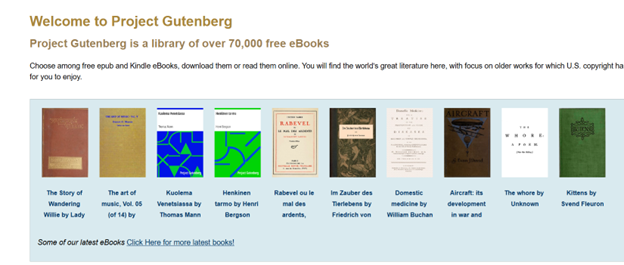
    Project Gutenberg offers Free eBooks Online Access with a vast collection of eBooks, enabling readers to access thousands of titles online for free. The platform focuses on making literature widely accessible, with a special emphasis on works that are in the public domain. Since its inception, Project Gutenberg has grown to include over 60,000 eBooks, covering a wide range of genres and subjects.

    Source: Project Gutenberg Self-Publishing – eBooks | Read eBooks online | Free eBooks

    The process of accessing eBooks on Project Gutenberg is straightforward. Users can browse the catalog by author, title, or subject. The platform also offers various formats, including plain text, HTML, and ePub, ensuring compatibility with different reading devices. Additionally, readers can choose to download eBooks or read them directly online, offering flexibility based on their preferences.

    Free eBooks Online Access & self-publishing

    One of the key features of Project Gutenberg is its self-publishing platform. Authors can publish their works independently, allowing for a diverse array of content beyond traditional publishing channels. This feature fosters a community of writers and readers, contributing to the continuous growth of the library. By offering a space for new and emerging authors, Project Gutenberg supports creative expression and the democratization of literature.

    image of project Gutenberg with images of over 70,000 free ebooks

    Project Gutenberg operates as a volunteer-driven initiative, relying on the contributions of individuals who digitize, proofread, and upload texts. This collaborative effort ensures the preservation and dissemination of literature, benefiting readers worldwide. The platform’s dedication to free access aligns with its mission to promote literacy and education globally.

    Thus, Project Gutenberg serves as a valuable online ebook resource for anyone interested in literature. Its extensive library, coupled with easy accessibility, makes it a go-to platform for readers and writers alike. By offering free eBooks and supporting self-publishing, Project Gutenberg continues to play a significant role in the literary landscape, fostering a love for reading and writing across the globe. More information on all things blind here. More information on Training

    Other Reading Options

    Search HathiTrust’s Digital Library

    Project Gutenberg Self-Publishing – eBooks | Read eBooks online | Free eBooks

    Braille Reading Speed Standards

    Download books from BARD (Braille and Audio Reading Download)

    Learn Out Loud Reading-Audio books Galore

    Learn Out Loud Reading-Audio books Galore

    For Parents: Thought-Provoking Ideas on Raising Children

  • Accessible MathType with LaTeX: Using JAWS and NVDA for Digital Math

    To use MathType and LaTeX with screen readers like JAWS or NVDA, you can easily create and render math formulas directly in Word or Google Docs. Here’s how to get started with MathType in both platforms and some important points for using LaTeX commands.

    MathType in Word:

    1. Download MathType: First, download and install MathType as an add-on for Word. This will allow you to use LaTeX commands within your Word documents.
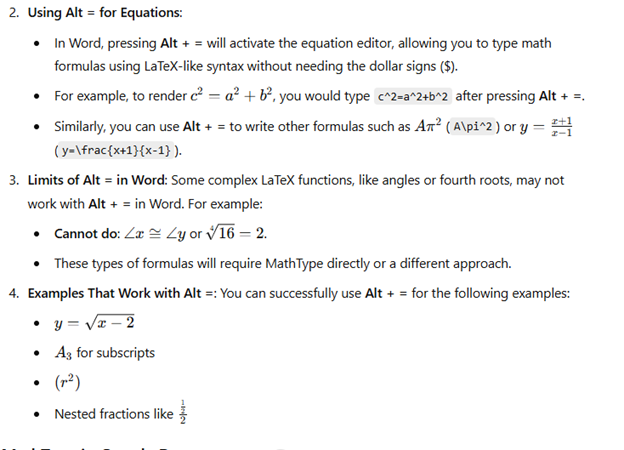
    2. Using Alt = for Equations:
      • In Word, pressing Alt + = will activate the equation editor, allowing you to type math formulas using LaTeX-like syntax without needing the dollar signs ($).
      • For example, to render c2=a2+b2c^2 = a^2 + b^2c2=a2+b2, you would type c^2=a^2+b^2 after pressing Alt + =.
      • Similarly, you can use Alt + = to write other formulas such as Aπ2A\pi^2Aπ2 (A\pi^2) or y=x+1x−1y = \frac{x+1}{x-1}y=x−1x+1​ (y=\frac{x+1}{x-1}).
    3. Limits of Alt = in Word: Some complex LaTeX functions, like angles or fourth roots, may not work with Alt + = in Word. For example:
      • Cannot do: ∠x≅∠y\angle x \cong \angle y∠x≅∠y or 164=2\sqrt[4]{16} = 2416​=2.
      • These types of formulas will require MathType directly or a different approach.
    4. Examples That Work with Alt =: You can successfully use Alt + = for the following examples:
      • y=x−2y = \sqrt{x-2}y=x−2​
      • A3A_3A3​ for subscripts
      • (r2)(r^2)(r2)
      • Nested fractions like 122\frac{\frac{1}{2}}{2}221​​

    Visual Rendering after you press enter in WORD for MathType with screen readers-LaTex

    Latex is typed out and this is the visual rendering of the LaTex from Mathtype
    Latex is typed out and this is the visual rendering of the LaTex from Mathtype

    MathType in Google Docs-though can give challenges based on technology:

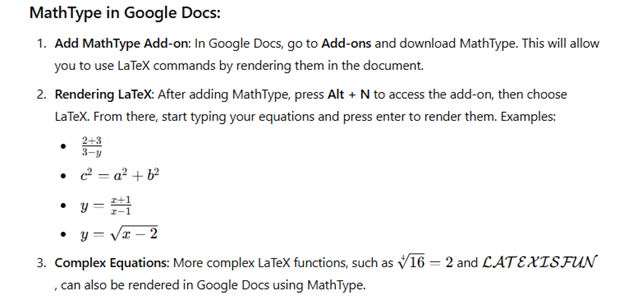
    1. Add MathType Add-on: In Google Docs, go to Add-ons and download MathType. This will allow you to use LaTeX commands by rendering them in the document.
    2. Rendering LaTeX: After adding MathType, press Alt + N to access the add-on, then choose LaTeX. From there, start typing your equations and press enter to render them. Examples:
      • 2+33−y\frac{2+3}{3-y}3−y2+3​
      • c2=a2+b2c^2 = a^2 + b^2c2=a2+b2
      • y=x+1x−1y = \frac{x+1}{x-1}y=x−1x+1​
      • y=x−2y = \sqrt{x-2}y=x−2​
    3. Complex Equations: More complex LaTeX functions, such as 164=2\sqrt[4]{16} = 2416​=2 and LATEXISFUN\mathcal{LATEX IS FUN}LATEXISFUN, can also be rendered in Google Docs using MathType.
    visual rendering of math after translation of LaTex in Docs using mathtype addon
    Visual rendering of math after translation of LaTex in Docs using mathtype addon

    By using Alt + = in Word and MathType in Google Docs (but be aware there may be issues in Docs), you can seamlessly render a variety of math formulas and equations with ease. Screen readers like JAWS and NVDA will effectively read these equations, enhancing accessibility for blind and visually impaired students.

    MathType(LaTex) Alt = in WORD will render formulas to Math see below

    Download MathType for Word and Docs

    Video on: MathType LaTex in Word & Docs made easy with screen reader JAWS or NVDA

    Other MathType with screen readers-LaTex Math Formulas

    $c^2=a^2+b^2$

    1. use alt = in WORD without $ signs

    $A\pi^2$

    2. use alt = in WORD without $ signs

    $y=\frac{x+1}{x-1}$

    3. cannot do with alt =

    $\angle x\cong\angle y$

    $y=\sqrt{x-2}$

    4. use alt = in WORD without $ signs

    $y=\sqrt[3]{8}$

    5. does not work with alt =

    $\sqrt[4]{16}=2$

    6. does not work with alt =

    $A_3$

    7. use alt = in WORD without $ signs

    $(r^2)->$

    8.use alt = in WORD without $ signs

    $\frac{\frac{1}{2}}{2}$

    9. Does not work with alt =

    $\mathcal{LATEX IS FUN }$

    $\mathcal{LATEX}$

    use alt = in WORD without $ signs

    FOR Google Docs: example- go to ADD-on and add Mathtype then render with Alt N to add-on and LaTex and enter on Start

    $$\frac{2+3}{3-y}$$

    $$c^2=a^2+b^2$$

    $$y=\frac{x+1}{x-1}$$

    $$y=\sqrt{x-2}$$

    $$\sqrt[4]{16}=2$$

    $$\frac{\frac{1}{2}}{2}$$

    $$A_3$$

    Cheatsheet for LaTex: http://tug.ctan.org/info/undergradmath/undergradmath.pdf

    More Math Lessons

  • Fixing Jaws typing echo and cursor issues in google classroom by Taylin

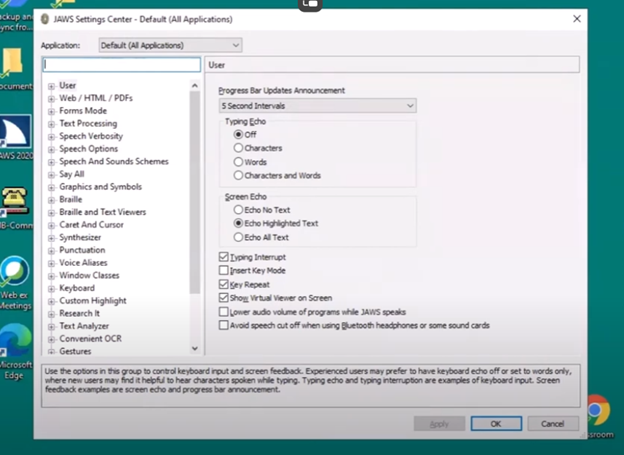
    Miss Taylin and Dr. Robinson addressed two common accessibility issues students face while navigating educational tools with JAWS. First, they resolved the issue of characters not being heard when typed, which prevents users from verifying their input. After adjusting the typing echo settings in JAWS, they enabled the device to read both characters and words aloud, providing better control and feedback during typing. Fixing Jaws typing echo significantly improved user experience. On the fly, you can also insert + 2 to change echo options.

    The second issue involved difficulties navigating through web links in the classroom browser, with JAWS sometimes reporting “no form fields” or “no lists available.” The problem arises when both the virtual and PC cursors are not enabled. Dr. Robinson explained that the virtual cursor is essential for browsing web pages, while the PC cursor helps manage navigation within a page. Miss Taylin accessed the links list and navigated classroom content efficiently by using “Insert + Z” to enable the virtual cursor. She ensured the PC cursor was active with the command “Insert + ;” which improved her browsing experience. Fixing Jaws typing and echo settings along with other settings changes, enhances productivity.

    Jaws settings and set default to permanently make changes to fix Jaws typing echo issues
    Jaws settings and set default to permanently make changes to typing echo

    Dr. Robinson emphasized the need to regularly check both cursor settings whenever JAWS encounters issues. This practice ensures smooth and uninterrupted navigation for users. Additionally, these steps empower students using screen readers to interact more effectively with digital learning platforms. These adjustments create an efficient workflow for students to complete assignments and navigate classroom tools seamlessly. Overall, addressing the issue of fixing Jaws typing echo and other settings ensure that students can fully participate in their learning environment with complete accessibility.

    See other lessons for navigation. For more on fixing Jaws typing echo, explore related resources.

  • Schoology Navigation Skills for Blind Students Using JAWS and NVDA

    Dr. Robinson offers a step-by-step guide on Schoology platform navigation skills with screen readers. She begins by emphasizing the importance of remembering key commands, such as Insert + F5, Insert + F6, and Insert + F7, which allow students to efficiently access most tasks. These commands make navigating to courses and other elements straightforward. For example, pressing Insert + F7 brings up a links list, though first-letter navigation may not always work, requiring users to scroll down manually. Mastering these Schoology platform navigation skills can significantly enhance the user experience.

    Dr. Robinson continues by demonstrating how students can navigate inaccessible or complex areas in Schoology by leveraging JAWS’ built-in features. She highlights that even though certain pages or elements might seem inaccessible at first, students can often find alternative methods to access the information they need. For instance, using the “Insert + Down Arrow” command allows students to listen to the entire page layout. This helps users identify the necessary components, such as graphics or headings, which can be easily navigated with specific JAWS commands like “G” for graphic or “H” for heading, enhancing their Schoology platform navigation skills.

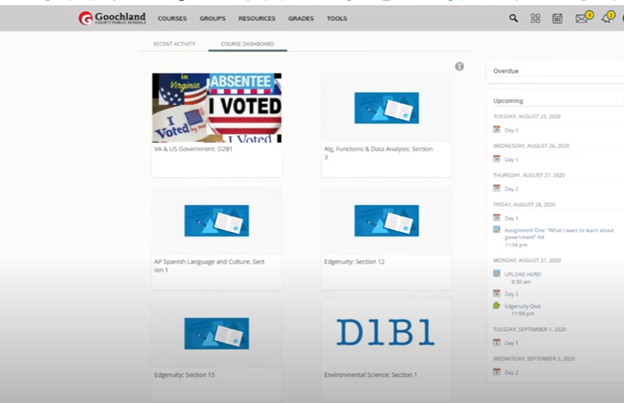
    Schoology Platform Navigation Skills on Home Page

    Schoology platform navigation skills on home Page
    Schoology Home Page

    When students encounter areas that lack clear labeling or seem hidden, Dr. Robinson advises using a combination of Shift + Tab and heading navigation to move through the interface. This method is particularly effective for jumping to main headings or sections that are not immediately visible. Once users locate the desired area, such as the course updates or assignments, they can then employ the “L” key for lists or “I” for individual items, making it easier to pinpoint the exact content they need. These methods help enhance Schoology platform navigation skills for a seamless experience.

    To ensure students stay organized, Dr. Robinson suggests using the “H” command to move between headings and review course details quickly. She emphasizes the importance of practicing these techniques regularly, as they allow students to gain confidence and mastery over Schoology’s navigation. By consistently applying these steps, students can overcome most accessibility challenges, ensuring they have full access to their learning environment and refining their Schoology platform navigation skills.

    Dr. Robinson concludes by encouraging students to explore additional JAWS commands and experiment with different navigation methods to tailor the experience to their needs. Constantly improving Schoology platform navigation skills helps students create a more customized and effective way to navigate their learning platform.

    Other Platform Navigation.

    Go Professional: LinkedIn with Jaws for total access

  • Blind Student Campbell Demonstrates Google Slides Shortcut Commands with a Screen Reader

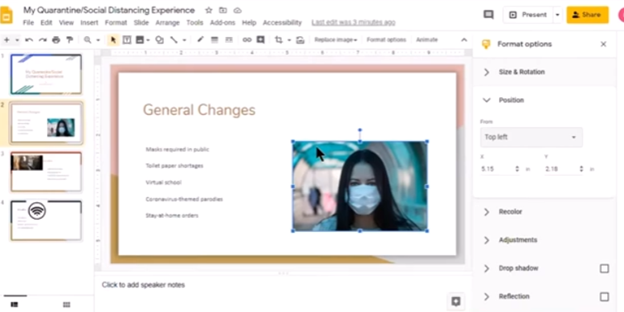
    Campbell demonstrates slides today. She opens a new tab (Ctrl +T) in Google Chrome and types “drive.google.com.” She navigates to her Google Drive and selects the presentation. Campbell prefers using the “Recents” tab to find files quickly. Campbell opens the presentation after discussing different search methods. To make her work more efficient, she uses various Google Slides shortcut commands. PowerPoint offers numerous accessibility and design features that enhance usability, making presentations more inclusive and visually appealing. Dr Robinson emphasizes the importance of picture placement and alt text for accessibility. She reviews the slides, noting that the designs are good but the pictures need adjustment. She guides through the process of fixing picture placement in Google Slides.

    google slide shortcut commands with picture adjusted properly
    Google Slides shortcut commands with picture adjusted properly

    Google Slides Shortcut Commands

    1. Open a new tab in Google Chrome:
      • CommandCtrl + T
      • Action: Opens a new tab.
    2. Navigate to Google Drive:
      • CommandCtrl + L, then type drive.google.com and press Enter
      • Action: Focuses on the address bar, types the URL, and navigates to Google Drive.
    3. Search in Google Drive:
      • CommandCtrl + /
      • Action: Opens the search bar in Google Drive.
    4. Open the “Recents” tab:
      • CommandCtrl + Alt + R
      • Action: Navigates to the “Recents” tab in Google Drive.
    5. Open a selected file:
      • CommandEnter
      • Action: Opens the selected file.
    6. Add alt text to pictures:
      • CommandCtrl + Alt + Y is an essential Google Slides Shortcut Command
      • Action: Opens the alt text dialog for the selected picture.
    7. Move to the canvas for picture placement:
      • CommandCtrl + Alt + Shift + C
      • Action: Moves focus to the canvas for adjusting picture placement.

    Crucial Alt Text= Ctrl + Alt +Y using More Google Shortcuts

    More Google Shortcuts

    Here are some additional useful keyboard shortcuts for Google Slides:

    Navigating Slides

    • Next slide: Right Arrow or Down Arrow
    • Previous slide: Left Arrow or Up Arrow
    • Jump to a specific slide: Ctrl + Shift + F

    Formatting Text

    • Bold: Ctrl + B
    • Italic: Ctrl + I
    • Underline: Ctrl + U
    • Increase font size: Ctrl + Shift + >
    • Decrease font size: Ctrl + Shift + <

    Working with Objects

    • Group objects: Ctrl + G
    • Ungroup objects: Ctrl + Shift + G
    • Duplicate object: Ctrl + D
    • Bring to front: Ctrl + Shift + Up Arrow
    • Send to back: Ctrl + Shift + Down Arrow

    Editing Slides

    • New slide: Ctrl + M
    • Duplicate slide: Ctrl + D
    • Delete slide: Ctrl + Shift + D
    • Move slide up: Ctrl + Up Arrow
    • Move slide down: Ctrl + Down Arrow

    Presenting Slides

    • Start presentation from current slide: Shift + F5
    • Start presentation from beginning: F5
    • Exit presentation mode: Esc

    General Shortcuts

    • Undo: Ctrl + Z
    • Redo: Ctrl + Y
    • Save: Ctrl + S
    • Find: Ctrl + F

    These shortcuts can help streamline your workflow and make navigating and editing your presentations more efficient.

    Creating PPT Sound transitions for all audiences to download slides to PPT

    These commands help streamline the process and ensure accessibility

  • WEB and JAWS Commands to Make the Inaccessible Accessible in Acellus

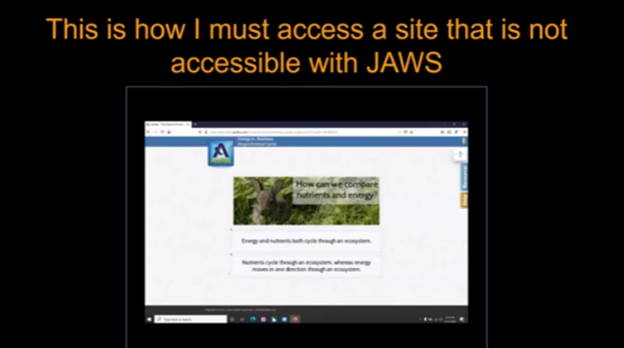
    Eme explains how to navigate and access websites that may not be fully accessible by using keyboard shortcuts or screen reader commands. She provides step-by-step guidance on utilizing tools like JAWS, or NVDA, to work around common barriers such as missing alt text, improperly labeled buttons, and non-navigable menus. Her tips are invaluable for understanding WEB and JAWS Commands to overcome these barriers.

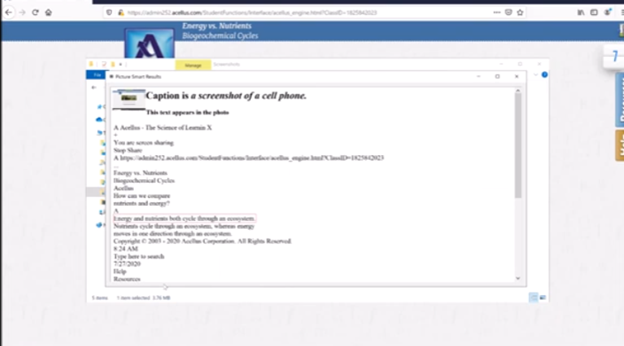
    By using keyboard shortcuts like Insert + F7 for links and if no information then go to the bottom of the page and up arrow to the unlabeled information. She can also “Tab” or ctrl + home and just down arrow to get to the non-labeled items to move between interactive elements. Eme demonstrates how users can gain control over their browsing experience and interact with content effectively, even on sites with poor accessibility practices. JAWS OCR is another command throughout the site to pull up inaccessible items. The most advanced command is using Print Screen or saving website to pull up the page for information, demonstrating the power of these WEB and JAWS Commands.

    Other WEB and JAWS Commands

    Web and Jaws commands using OCR to make the inaccessible accessible
    Web and Jaws Commands using OCR to make the inaccessible accessible

    Here are the commands extracted from the narrative to help with using WEB and JAWS:

    1. Open Links List: Press Insert + F7 to open the links list dialog.
    2. Navigate Links List: Press B to jump to the next button in the links list.
    3. Go to Bottom of Page: Press Ctrl + End to move to the bottom of the page.
    4. Navigate Up: Use the Up Arrow key to move up through the items.
    5. Activate Link: Press Enter to activate the selected link.
    6. Open JAWS OCR: Press JAWS Key + Space, then O for OCR.
    7. Navigate OCR Results: Use the Arrow Keys to navigate through the OCR results.
    8. Move to Heading: Press Shift + H to move to the previous heading.

    These WEB and JAWS Commands will help you navigate the platform more efficiently. But it still takes a lot of work to master WEB and JAWS Commands on inaccessible sites.

  • Accessible Work at School: What Blind Students Need — by Eme

    Emery, a blind ninth-grader at Kalaheo, introduces herself and shares her love for math and technology. She uses a computer with a screen reader and Braille display to access her education. Eme navigates her world with a cane and texts friends using her phone. During the pandemic, her computer became essential for schoolwork. She explains how she uses various tools to access her education, including JAWS screen reader and Braille Display and other access technology. Eme highlights the importance of accessible assignments and demonstrates navigating an online platform despite its challenges. Accessible work at school is critical for her success.

    Emery uses tools like the JAWS screen reader and Braille display connected to her computer to navigate her studies. She emphasizes that accessible assignments are crucial because they allow her to engage with the same content as her peers. When assignments are not accessible, it creates significant barriers to her learning. It is evident that accessible work at school can make a big difference.

    Eme Making Work accessible on an inaccessible site
    Eme Making Work accessible on an inaccessible site

    By ensuring Teachers’ work is accessible, you empower students like Emery to succeed and participate fully in their education. Accessible materials foster a learning environment where all students can be included and thrive. Therefore, focusing on making work accessible at school helps all students.

    She thanks teachers for their commitment to making education accessible for everyone. Providing accessible work at school shows dedication to inclusion and highlights the importance of accessibility.

    Making Work Accessible:

    Complete Advanced Math with LaTex to finish math fast using Mathkicker.AI, JAWS, NVDA and/or display

    Math & AI =Mathkicker.ai convert PDF math or any work into WORD docx.

    Perfect Digital Math at all levels using only audio or tactile Braille or both in Mathkicker.ai

    Math & AI is MathKicker.ai — convert to .docx from clipboard- make inaccessible accessible

    Mathkicker.ai-take an image of math and make it perfect Math in Word Math editor with screen reader

    Mathkicker.AI -change Math PDF to text in WORD Math editor in less than a minute with screen reader

  • Games online for Blind Users

    Games online for Blind Users created by zanosoft.net, are associated with RS Games. This is a platform that provides accessible games for the blind and visually impaired. The RS Games client allows users to play various board, dice, and card games against each other through a central server. The platform supports multiple games and is designed to be accessible, making it easier for visually impaired users to enjoy gaming.

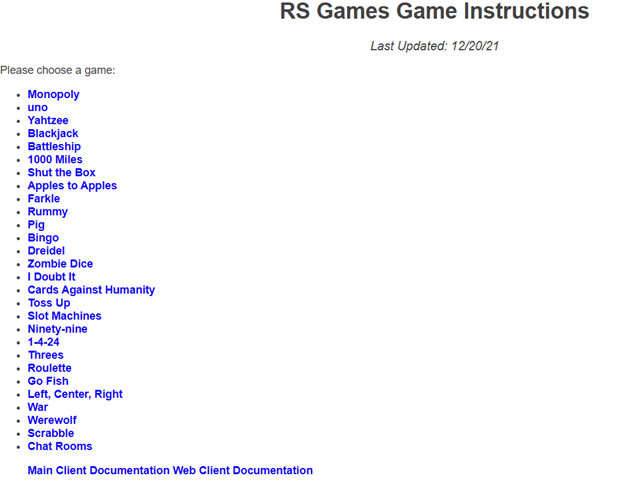
    RS Games for blind users
    RS Games Online for blind users

    RS Games – Over 20 games are currently available including Monopoly, Uno, Blackjack, Yahtzee, Farkle, and Cards Against Humanity. Click here to see a full list of games.