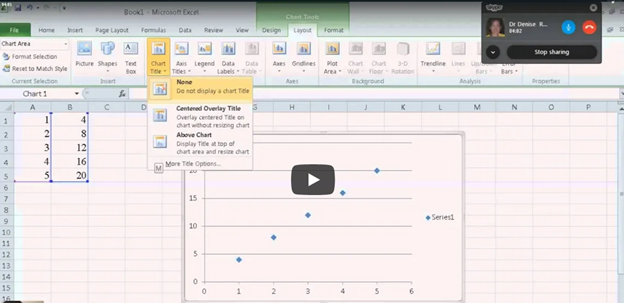
Creating Excel Math Graphs is easy if you know the keyboard shortcuts with JAWS screen reader or NVDA. Kaylee starts by opening Excel, ready to plot the data using a scatter plot. First, she selects the A and B columns to copy them. Using the keyboard shortcut Ctrl + C, she copies the data. Once Excel is opened, she selects the cells where the data will be pasted, pressing Ctrl + V. Ensuring more rows are selected than needed, Excel warns if too many cells are selected, but Kaylee confirms the paste by selecting “Yes.”
Creating Excel Math Graphs
With the data ready, Kaylee moves to create a scatter plot graph. She presses Alt + N to access the “Insert” tab, navigating carefully to choose the scatter plot. After accidentally selecting the formula tab, she tries again, successfully inserting the scatter plot this time.
Next, it’s time to add titles to the chart. Kaylee presses Alt + J + L to open the “Chart Layout” options, selecting T to input the chart title. Choosing to place the title above the chart, she moves forward. For the axis titles, she uses Alt + J + A + I to access the “Axis Title” options, adding the horizontal (X) axis title first. She selects W for the primary horizontal axis and types the label. Creating Excel Math Graphs involves repeating the process for the vertical (Y) axis, she selects the “Rotated” option by pressing the down arrow and enters the appropriate title.
Ready to Submit her Excel Plot Math Graph
Kaylee removes the chart legend, which is unnecessary for this excel Plot math graph. Pressing Alt + J + L + L, she selects “None” from the legend options. After exiting the title field by pressing Esc, she copies the finished graph with Ctrl + C and pastes it into a Word document using Ctrl + V. The graph is complete and clean for submission.
Instant shapes for Math using InstaMorph, which is a versatile, reusable thermoplastic that transforms your creative projects. First, you simply heat the InstaMorph beads in hot water until they become moldable. Then, you can shape them with your hands or tools. As it cools, InstaMorph hardens into a strong, durable plastic. This material is perfect for a wide range of applications, including crafting, prototyping, and repairs.
Next, consider the endless possibilities InstaMorph offers. It is not just for Instant shapes for Math, but you can create custom grips, brackets, or even cosplay accessories. Additionally, if you make a mistake, you can reheat and reshape it, making it incredibly forgiving and easy to use. Moreover, InstaMorph can be painted, machined, and carved, allowing for further customization.
Furthermore, InstaMorph is non-toxic and safe for all ages, making it an excellent choice for educational projects and family activities. Its lightweight nature ensures that it is easy to handle and manipulate, even for beginners. Finally, by sharing your InstaMorph creations on social media with the hashtag #InstaMorph, you can join a community of makers and gain inspiration from others.
In conclusion, InstaMorph empowers you to bring your ideas to life with ease and flexibility. Whether you’re a hobbyist, artist, or DIY enthusiast, InstaMorph is the perfect tool to unleash your creativity.
Learn how to do inequalities for math class using Excel and Word with a braille display–for a complete assignment that can be emailed to teacher when done. Additionally, we will cover tips on creating accessible math graphs to ensure all students can engage with the material effectively.
This video Instruction focuses on teaching math problems, specifically inequalities and graphing, using Excel. First, they direct the students to create a template with a number line. The students then insert information using less than and greater than symbols. For instance, to show a less than symbol, they use nine dashes, with each dash representing a unit. Also try Desmos for graphing online.
Next, the students insert bullets. If they have a numpad, they use Alt+7 for a hollow bullet and Alt+9 for a solid bullet. If not, they manually insert symbols via the insert menu. The students place the bullets on the number line, ensuring they are centered by putting four dashes on each side of the bullet.
To perfectly center the number, the students use the applications key and select the center alignment option or CTRL + E. After completing their problems, they select their work with Shift+Right Arrow and copy it using CTRL+ C. They then paste it into a Microsoft Word document with Ctrl+N and Ctrl+V.
Creating Accessible Math Graphs in Excel
Finally, for creating accessible Math Graphs, the students format their work by navigating through the formatting options with the right arrow key. This process allows blind students to create graphs and inequalities just like their sighted peers. The results are impressive, with perfectly centered number lines and accurately represented inequalities. The more you practice, the closer you become to being an expert in excel.
Watch YouTube video on Creating Accessible Math Graphs
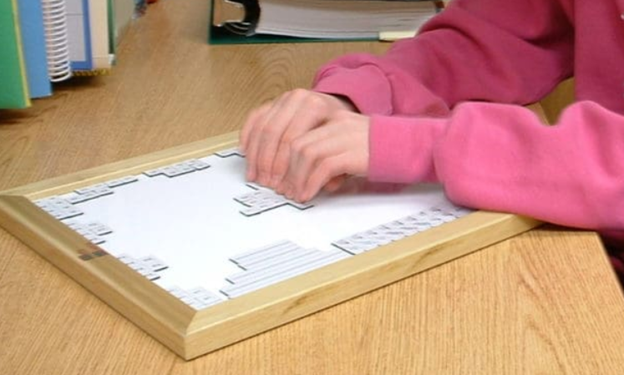
The Math Window® system is a tactile math learning tool that is an innovative teaching tool for blind and visually impaired students. It uses magnetic tiles with Braille and print. This allows students to interact with math problems using tactile methods. Instructors and students can construct and modify equations by arranging these tiles. The board is portable and fits on a student’s desk. It includes a carrying tote for convenience. Available versions cover basic math, algebra, and geometry. Math Window supports Nemeth and UEB Braille standards.
The Math Window® system empowers students to engage actively with math. This enables them to learn how to output their math work on a computer using WORD. It offers a hands-on, tactile learning experience. The magnetic board and tile system supports understanding math problems in various disciplines. Students can create equations and move the magnetic tiles to explore concepts. They can easily modify or adjust their work as needed. The system’s adaptability allows instructors to personalize lessons. This enhances students’ independence in solving math problems.
Math Window provides two key Braille formats: Nemeth and UEB. This ensures compatibility with the Braille system used by the student. This flexibility makes it accessible in both educational and real-world settings. With tactile interaction, blind students can “see” math equations’ structure. This method builds confidence and encourages students to delve into STEM subjects.
The portability of the Math Window system allows ease of use in classrooms and homes. Instructors benefit from a clear, organized way to present math problems. Students can efficiently explore and manipulate the problems. This increases their engagement with the material. Whether working individually or in groups, the Math Window fosters a collaborative learning environment.
Using tactile math learning tools such as the Math Window, The student ‘visualizes’ the layout of a math formula by exploring it with their fingers.
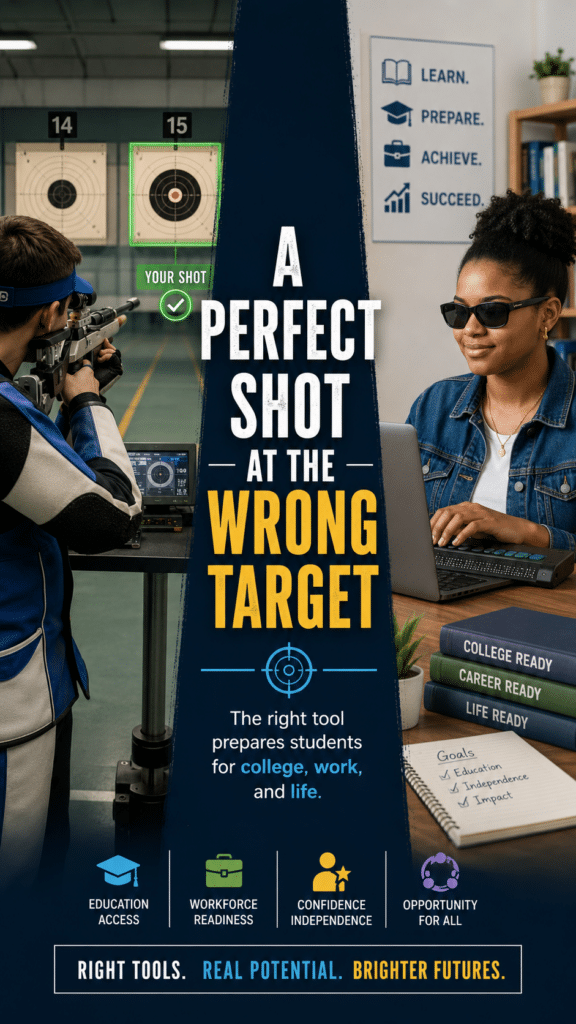
A Perfect Shot at the Wrong Target does not work-aim for the right target=success
Here is your post with the accurate Matt Emmons lesson worked in:
Matt Emmons was one of the best marksmen in the world.
At the 2004 Athens Olympics, he was positioned to win gold. All he needed was one final shot.
He aimed. And fired. He hit a bullseye.
But it was the wrong target.
The shot was perfect, but it did not count.
That mistake cost him the gold medal in that event, but it did not end his story. He kept competing and later won more Olympic medals.
That part matters too.
A perfect shot at the wrong target can cost you greatly, but it does not have to end your future.
That same lesson matters in access technology.
A blind student can become very skilled with a tool, but if that tool does not prepare them for college, employment, documents, math, email, file management, and real-world digital work with peers, they may be aiming at the wrong target.
A tablet or note-taker may support some tasks.
But the world runs on computers and it takes a good decade of instruction from a skilled access tech instructor to teach all the skills needed.
Students need PC skills, screen reader skills, keyboard commands, Word, Google tools, braille displays, file management, and real digital workflows just as their peers.
The goal is not just completing today’s assignment.
The goal is access to college, employment, independence, and a future with options.
A perfect shot only counts when it hits the right target and prepares the student for a stronger future.
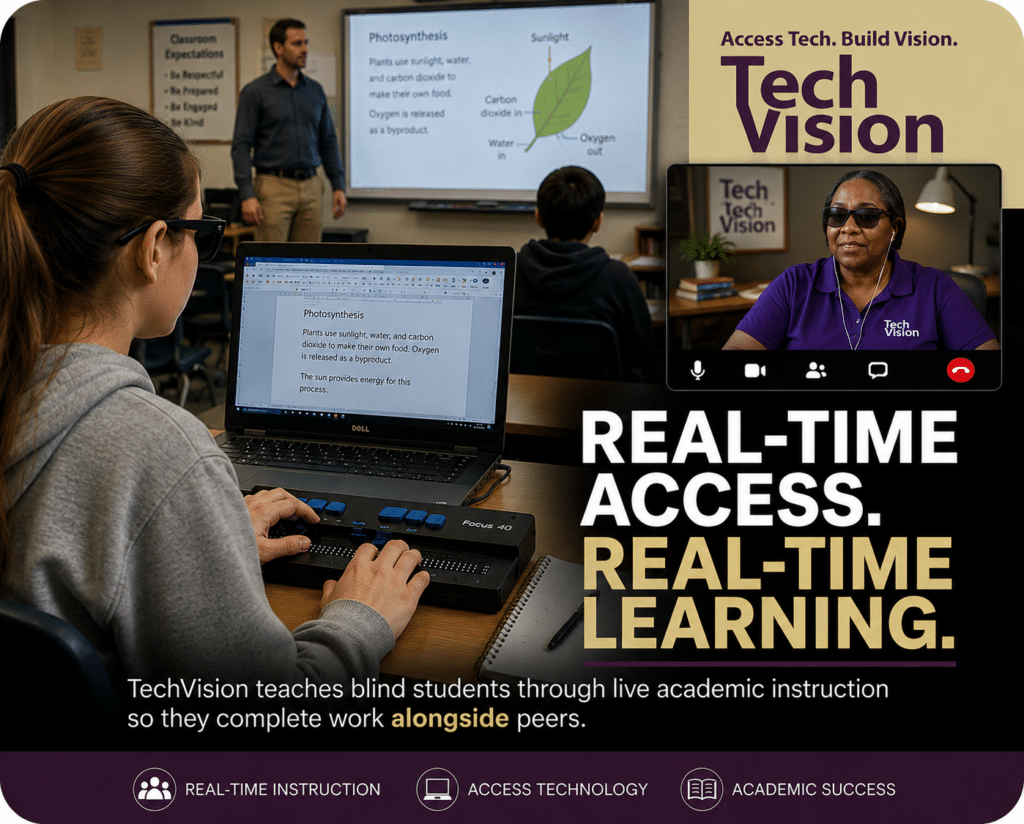
At TechVision, blind and low vision students learn how to access education in real time using the same technology and workflow skills required in school, college, work, and life so they can keep pace with their peers independently and confidently.
When instruction begins as early as 3 years of age, students often develop the foundational technology, braille, and academic access skills necessary to progress alongside peers from the very beginning rather than spending years trying to catch up later. Even students who begin later often make remarkable gains and can frequently close significant skill gaps within 1–2 years through intensive real-time instruction and consistent access to technology instruction.
Our students do not simply learn isolated technology commands. They learn how to actively use assistive technology while completing real academic work alongside their peers.
Through live instruction, students develop:
screen reader proficiency using JAWS, NVDA, Narrator, and VoiceOver
braille display fluency using Focus Braille Displays
accessible math and science skills using Word Math Editor, Braille Math Editor, LaTex and Nemeth Code
Canvas, Google Classroom and Office 365 accessibility and all platforms
tactile graphics and STEM access skills
keyboarding and digital workflow independence
file management and organization skills
independent problem solving using real classroom materials
and so much more
Working closely within schools and families, Access Technology Instruction occurs both during live classroom participation and through dedicated 1-on-1 instructional sessions focused on building independence, long-term success, and the ability to independently complete daily assignments and plan workload responsibilities throughout the school week.
Our team includes both blind and sighted instructors with extensive experience using the same technology students are expected to master. This real-world expertise allows instruction to move beyond theory into practical daily application.
Accessibility is not about completing work later. Access is Inclusion.
TechVision continues teaching blind and low vision students around the world through remote instruction designed to build confidence, independence, and meaningful academic access.
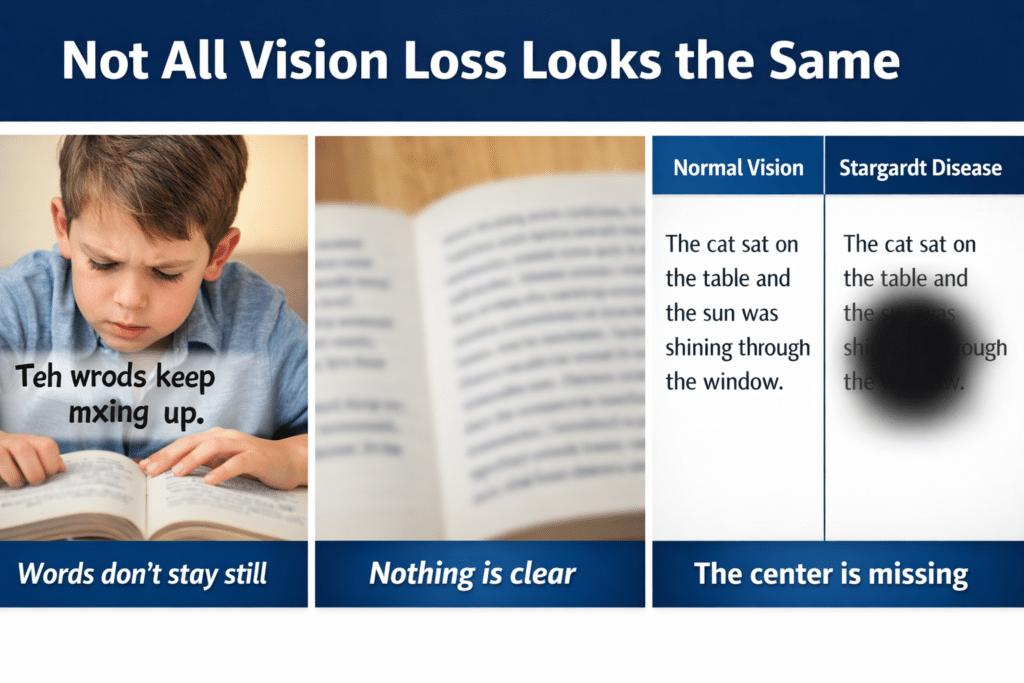
How to Read, Write, and Learn with Low Vision: How vision loss can appear
2.2 Billion People Live With Vision Impairment
Vision loss is one of the most common disabilities on earth, and it’s growing fast. If you work in healthcare, tech, education, or policy, these numbers matter for accessibility, product design, and funding.
Over 51.9 million adults in the U.S. report some level of vision difficulty. About 6–7 million Americans have significant vision loss or blindness. Globally, 2.2 billion people have vision impairment.
But those top-line numbers hide urgent trends. Here’s the breakdown with the latest 2024-2026 data, what’s driving it, and what to do about it.
Tools + Techniques That Build Real Independence
Students and adults with vision challenges do not learn one way. They require the right tools, combined with direct, targeted training.
Success happens when tools match the vision need and instruction builds efficiency
Tools + Training by Vision Need
1. Dyslexia (Processing and Decoding)
Dyslexia affects how the brain processes text. It often overlaps with vision-related challenges.
Tools
Text-to-speech: JAWS, NVDA
Speech-to-text (dictation)
Immersive Reader
Audiobooks: Bookshare, Learning Ally
Training Focus
Pair listening with reading
Build strong keyboarding for writing
Navigate digital text efficiently
Goal Improve comprehension while reducing reading fatigue
2. Blurred or Reduced Vision (Low Vision)
Tools
Magnification: ZoomText, Windows Magnifier
High contrast and color filters
Enlarged text and screen scaling
Screen readers: JAWS, NVDA
Training Focus
Use magnification efficiently without losing place
Strengthen visual tracking
Transition smoothly to audio when needed
Master keyboard navigation
Goal Maximize usable vision while increasing speed and accuracy
3. Central Vision Loss
(Stargardt, macular degeneration)
Tools
Screen reader (primary): JAWS, NVDA
Refreshable braille display
Audio + braille combination
OCR tools for printed content
Training Focus
Full keyboard control
Braille literacy (UEB and Nemeth)
Strong auditory processing
Goal Achieve full independence through non-visual access
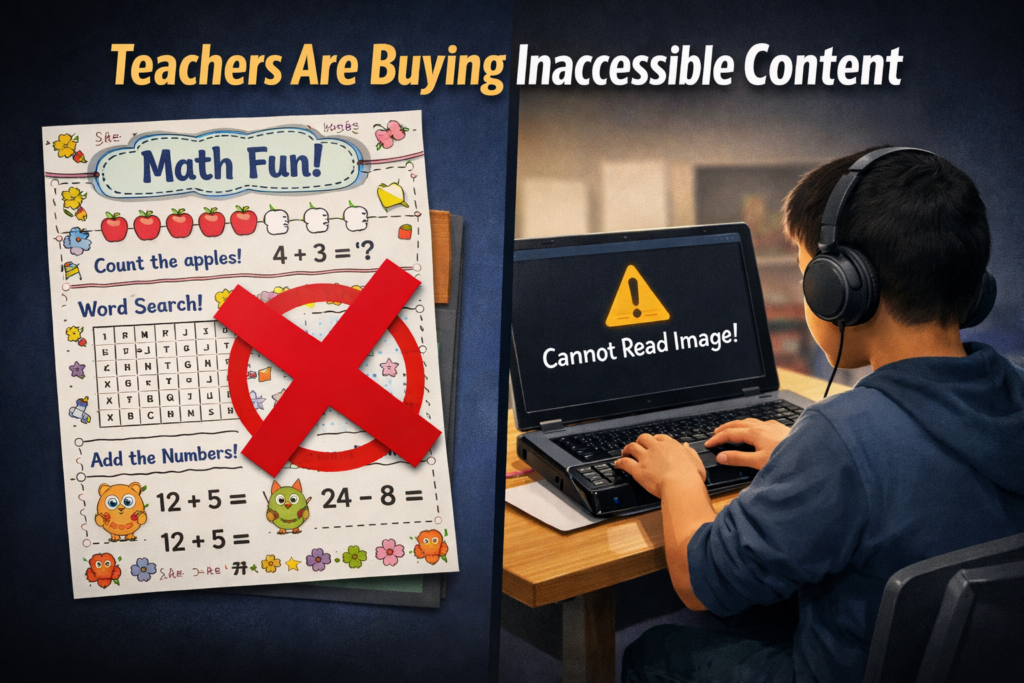
Inaccessible Images of Work teachers are buying from inaccessible platforms
Ban inaccessible purchased materials district-wide to prevent Title II failures
Why Teacher Marketplace Worksheets Are Failing Title II-inaccessible image of work
Why Teacher Marketplace Worksheets Are Failing Title II-No way Math
Teachers rely on many marketplace sites for worksheets and classroom materials. These platforms include printable shops, template libraries, curriculum bundles, early childhood packs, subscription marketplaces, and shared teacher resources. Most of this content looks creative, but it is some of the least accessible digital material in education.
These products often come as scanned pages, image-only PDFs, stylized templates, or graphic-heavy worksheets. Blind and deaf students cannot access any of it, and Title II places full responsibility on schools, not marketplace sellers.
Why Marketplace Worksheets Fail Title II
Most marketplace materials violate WCAG 2.1 AA before the lesson begins. Common barriers include:
Image-only worksheets with no real text
Scanned files that screen readers cannot read
Decorative fonts that block OCR
Graphics replacing questions or math steps
Worksheets without headings or structure
Videos without captions or ASL
Lessons with images that lack alt text
Blind students cannot read these materials. Deaf students cannot access embedded videos or audio instructions. Low-vision students cannot enlarge the content without distortion.
Marketplace content blocks access at the point of instruction, which Title II now prohibits.
Schools Must Stop Using Inaccessible Marketplace Content
Title II holds the school accountable for any material assigned to students. That includes purchased content—no matter where it came from.
Schools must:
Remove inaccessible marketplace materials from student access.
Archive them securely so only the original purchaser can access them.
Stop assigning inaccessible products, even if purchased with personal funds.
Approve only accessible content for future lessons.
If this content stays available to students, the school opens itself to complaints, investigations, and penalties.
The Financial and Legal Risks Are Real
A single inaccessible worksheet can trigger:
OCR complaints
Federal monitoring
Required remediation plans
Staff discipline
Loss of employment for repeated violations
Marketplace sellers face no consequences. Schools and teachers do.
Other Marketplaces Also Cause Problems
This issue extends far beyond one platform. Barriers appear across:
Printable shops
Early childhood curriculum sites
Pinterest-style bundles
Etsy printable sellers
Canva template libraries
Subscription curriculum platforms
Teacher “side job” shops
Commercial worksheet sites
Too Many to State here
If the file is image-based, untagged, or graphic heavy, it likely violates WCAG.
Schools must apply the same standard everywhere: If it is not accessible, it should not be used.
Why Remediation Usually Fails
Teachers often try to “fix” marketplace worksheets. Most cannot be repaired.
Reasons include:
Scanned pages contain no text to tag
OCR destroys the layout
Math is stylized and unreadable
Reading order is broken
Copyright prohibits modification
Rebuilding is often easier than remediation.
What Schools Must Do Now
Schools need a clear, enforceable plan:
Ban inaccessible purchased materials district-wide.
Adopt accessible worksheet templates for all staff.
Train teachers to spot inaccessible formats instantly.
Create accessible master curriculum built from scratch.
Require vendors and marketplaces to meet WCAG 2.1 AA.
Audit all teacher-purchased content before it reaches students.
Work with blind and deaf access specialists who test content daily.
This protects students and reduces legal exposure for teachers and districts.
Why This Matters Most
Blind and deaf students lose learning time every day because marketplace content excludes them. They fall behind before the lesson even begins.
Title II changes that. Schools must choose materials that include everyone, not just those who can see or hear the content.
Closing Note: Access Starts With What Schools Buy
Teachers want to help their students. Most do not realize the materials they purchase create the very barriers Title II now forbids. Schools protect students and staff when they stop buying inaccessible content and build accessible materials from the start.
Fix Digital Accessibility Before Title II Enforcement-No access to work
Schools and colleges face serious gaps in digital access. These gaps harm blind and deaf students the most, and they also affect every learner who needs clear, structured content. Title II now requires full WCAG 2.1 AA compliance. Schools must shift from crisis responses to real systems. The good news is that this work is fixable when they follow a clear plan.
1. Start With an Accessibility Audit: Blind and Deaf Students Face the Sharpest Access Gaps
Every school should begin with a full digital audit. This audit must involve experts who use screen readers and braille displays every day on the platforms used in education. Without these specialists, audits miss the barriers that blind students face. Any image-based video must include described content throughout. Schools can find strong examples and guidance at Described and Captioned Media Program (DCMP).
Schools should also check whether interactive elements, buttons, and menus work with keyboard-only navigation. Many blind students rely on keyboard access, and inaccessible controls often block them before the lesson even begins.
The audit should include websites, LMS content, Google Classroom, PDFs, worksheets, videos, vendor platforms, parent portals, and staff materials. Real blind access testers expose problems that automated tools never find. Audits reveal the true accessibility debt. Schools need this view before anything else.
Most deaf learners use ASL as their primary language. They often need an actual signer on digital content as well as written text. Captions alone rarely provide full access, because captions do not follow ASL structure. Find out full details from DCMP.org also.
Schools should start with embedded text on all visual content first. This step creates a basic access layer while teams prepare for ASL. Once content stabilizes, schools can add ASL signers during development.
Schools must include ASL interpretation on videos, lessons, and major digital materials. An ASL signer keeps the message clear, complete, and culturally accurate.
This work must also be audited by a deaf professional who signs. Without that review, digital content remains incomplete and inaccessible.
2. Fix PDFs and Scanned Worksheets First
Most access failures start with inaccessible PDFs-which are actually images of work. Schools can convert scanned worksheets to readable text, add proper heading structure, insert alt text, tag tables, and ensure text reflows on mobile. These steps give blind students access at the same time as their peers. For easy full access, Just put everything into Microsoft WORD and if you can move a mouse cursor through the content, it will be accessible to a screen reader. make sure you add proper headings throughout.
3. Enforce Accessible Google Docs, Slides, and Assignments
Teachers create inaccessible content daily by pasting images of work into what was accessible if typed out properly in google. Schools should require headings, proper contrast, real alt text, logical reading order, described images, and accessible math. This one shift removes thousands of barriers. Currently Math is only fully accessible in Microsoft WORD using the Math editor. Google does not have all the appropriate tools in place to recreate what OFFICE 365 has already done.
Typically, only images of words appear in products from Google, which makes the content completely inaccessible to blind students. Embedded videos also stay inaccessible for deaf learners, because images never give enough detail or language to explain the lesson. Math remains inaccessible across Google products, and blind students cannot access equations without proper structure.
4. Make All Video Content Accessible
Videos must serve blind and deaf students. Schools should ensure accurate captions, audio descriptions, clear narration, and safe visual design. This protects access and reduces legal risk.
5. Replace Inaccessible Vendor Platforms
Many learning apps and platforms still fail WCAG standards. Schools must request VPATs, require WCAG 2.1 AA, demand remediation timelines, and remove non-compliant tools. Title II holds the school responsible, not the vendor. When schools stop buying inaccessible products, vendors will change their design or leave the market.
6. Train Staff in Real Accessibility Skills
Accessibility training must move beyond awareness. Staff need training in screen reader testing, accessible document workflows, caption skills, alt text guidelines, accessible math support, and LMS accessibility checks. Blind and deaf students rely on technology, not sight or hearing. Staff must understand these tools, so they must receive direct instruction from experts who use these tools daily. These specialists can walk staff through the fine details needed to make content fully accessible quickly and easily (relative to what content they already have).
7. Provide Blind and Deaf Students With Real-Time Access
Access cannot arrive days later. Schools should deliver materials at the same time as sighted peers, provide braille or screen-reader-ready files, use CART or interpreters, and ensure accessible assessments. This reduces OCR complaints and supports equal learning.
8. Build an Accessibility Governance Team
Districts need structure to stay compliant. This team sets policy, provides training, monitors compliance, reviews content, approves vendors, and reports progress. Governance turns accessibility from a reaction into a system.
9. Bring in Specialists When Needed
Most schools lack internal expertise. They can partner with certified blindness professionals, deaf education specialists, accessibility technologists, braille experts, and WCAG consultants. Title II allows districts to use outside experts when staff lack training.
10. Address a Damaging Message Still Circulating in Schools
Many professors and teachers still hear, “Check your materials, but don’t worry about them.” This message shows how long schools have ignored accessibility laws. Title II removes the option to delay. Schools must fix inaccessible content, not simply acknowledge it.
11. The Word “Accommodation” Must Go
The word “accommodation” was not removed from Title II, but the new DOJ rule shifts the focus toward accessibility from the start, especially for digital content.
Schools must stop relying on the word accommodation. The term assumes students start with barriers and then wait for fixes. Blind and deaf students lose time every day when access comes after instruction. They fall behind because the content was inaccessible from the start.
Title II requires full access at the moment instruction begins. Students must receive materials in the same format, at the same time, as their peers. This shift removes delay, reduces frustration, and ends the cycle of constant catch-up. True access begins when schools design content correctly, not when they repair barriers later.
12. Make Accessibility Part of School Culture
Accessibility becomes sustainable when it becomes normal. Schools can add accessibility checks to grading policies, include accessibility in evaluations, require captions, post accessible templates, and adopt accessible curriculum materials. Small habits prevent massive remediation later.
13. Remove and Archive All Inaccessible Content by April 23
Schools must remove inaccessible digital content by April 23. They must secure this content so only the original creator can access it. If old materials stay public, anyone can use them to file an accessibility complaint. This creates immediate legal risk for the educational institutions.
Most schools will find it easier to build fully accessible content from the start. Rebuilding old, image-based, untagged, or uncaptioned materials often takes far more time than creating new accessible versions. Schools protect themselves and their students when they remove inaccessible work, archive it safely, and rebuild content using WCAG 2.1 AA standards now so they can be fully uploaded on April 24, 2026.
Closing Note: Access Protects Everyone
Blind and deaf students face the hardest barriers, yet accessible design lifts all learners. Clear content improves structure, readability, quality, and learning across every classroom. Schools that begin this work now protect their students, their staff, and their programs.
Dates to Follow
What this means for schools and colleges
Larger districts and colleges (≥ 50,000 population)
Deadline: April 24, 2026
Standard: WCAG 2.1 AA
Scope: Websites, web content, mobile apps, PDFs, forms, LMS content, videos, social media, and anything accessed through a browser
Smaller districts and colleges (<50,000 population): April 26, 2027
K–12 isn’t just panicking — they’re in a full‑scale scramble, and for reasons that are even more urgent than higher ed. The DOJ’s Title II rule hits K–12 systems right where they’re already stretched thin: staffing, training, legacy content, and compliance culture.
Here’s the landscape, laid out clearly and grounded in what districts are now realizing.
Why K–12 districts are suddenly alarmed about the Title II WCAG 2.1 rule
1. Districts assumed “accommodations” were enough — now they’re not
For decades, K–12 has relied on:
TVIs to “fix” inaccessible content
Disability services to retrofit materials
Parents to advocate
Students to “make do”
The new rule requires proactive accessibility, not reactive fixes. That’s a seismic shift.
2. K–12 has enormous accessibility debt — bigger than higher ed in some ways
Districts are realizing they must remediate:
Thousands of PDFs
Teacher‑made worksheets
Google Classroom content
LMS modules
Vendor platforms
Parent portals
IEP systems
School websites
Mobile apps
Most of this content was never designed with WCAG in mind.
3. Teachers generate inaccessible content every single day
This is the part that’s scaring administrators.
Every day teachers create:
Google Docs
Slides
Worksheets
Videos
Scanned PDFs
Classroom posts
Almost none of it meets WCAG 2.1 AA. And now it legally must.
4. Districts don’t have accessibility governance
Most K–12 systems lack:
A digital accessibility policy
A compliance officer
A remediation workflow
A content review process
Training for staff
A way to monitor thousands of pages
They’re realizing they need infrastructure, not just training.
5. Vendors are a huge liability
Districts rely on:
Curriculum platforms
Assessment systems
Parent communication apps
Scheduling tools
Payment portals
Transportation apps
Many of these tools are not WCAG 2.1 AA compliant, and the DOJ rule makes the district responsible for the accessibility of third‑party tools.
This is causing real panic.
6. The deadlines are tight for K–12 too
Large districts (50,000+ population) must comply by April 2026. Smaller districts by April 2027.
Given the volume of content and the lack of staff, these timelines feel impossible to many administrators.
7. OCR complaints are already rising
Families are becoming more aware of their rights. Advocacy groups are watching. Blind/low‑vision access issues are among the most common complaints.
Districts know enforcement is coming.
What this means for an accessible world
This rule gives you extraordinary leverage because it legally validates everything people have been advocating for so long:
Real‑time access
Non-visual design
Proper alt text
Accessible math (Nemeth, tactile, digital)
Keyboard‑only navigation
Accessible PDFs
Structured documents
Captioned and described media
Accessible learning platforms
Districts can no longer say: “Just give the student an accommodation.” or “We’ll fix it when needed.”