The Hidden Setting Causing the Problem of Microsoft Edge Switching Accounts
Microsoft Edge includes a feature called Automatic Profile Switching. It’s designed to “help” by choosing the profile it thinks matches the website you’re visiting.
In reality, it often does the opposite—forcing you back into the first account ever used on the device.
To quickly change profiles: Ctrl+Shift+M
How to turn it off
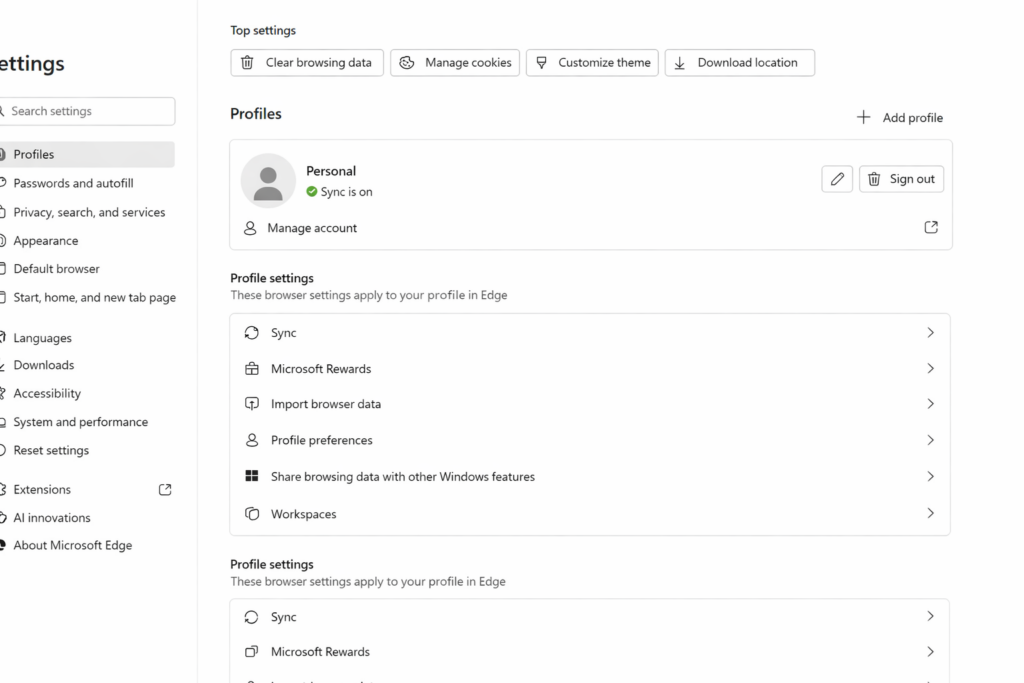
Open Microsoft Edge
Go to Settings
Select Profiles
Click or Tab to profile preferences
Turn OFF: Automatic sign in on Edge and Tab and turn off Allow single sign-on..
Once this is off, Edge will finally stop overriding your login and let you choose the account you actually want.
What If You Want Both Accounts to Share the Same Information?
This is the part that confuses most persons.
Turning off automatic switching stops Edge from forcing the wrong account, but it does not merge or sync data between accounts. Microsoft does not allow two accounts to share:
bookmarks
passwords
OneDrive files
emails
sync history
app licenses
school‑managed content
So the person must decide what they actually want:
Option 1 — Keep the Accounts Separate (Recommended for Most Persons)
This is the cleanest, safest setup.
Do this if the person wants:
A school or work account and a personal account
No mixing of data
No login conflicts
A simple way to choose which account to use
How to set it up:
Create two separate Edge profiles
Turn OFF automatic profile switching
Turn ON sync only for the primary profile they use daily
Keep both profiles visible in the top‑right corner: Ctrl+Shift+M allows for fast switching so tab to other profile and enter
This keeps everything organized and prevents school-work restrictions from spilling into personal life.
Option 2 — Move Data From One Account Into the Other
If the person wants “everything in one place,” they must choose a primary account and manually move what’s movable.
What can be moved:
Bookmarks → export from one profile, import into the other
Passwords → export/import through Edge Password Manager
Files → manually move from OneDrive A to OneDrive B
Emails → forward or export/import
What cannot be merged:
Sync history
School‑managed settings
Microsoft Store purchases
Xbox/Game Pass data
Anything tied to an organizational account
This is more work and not always advisable for persons on school or work‑managed devices.
How to Help a Person Decide
Here’s the exact question to ask:
“Do you want your accounts to stay separate, or do you want everything from your school-work account to move into your personal account?” Typically you do not.
Once they answer, the path is clear.
TechVision Bottom Line
If Edge keeps logging you into the wrong account, it’s not you—it’s the browser. Turn off Automatic Profile Switching, and the problem disappears instantly.
If you use two accounts, keep them separate with two profiles. If you want everything in one place, choose a primary account and migrate what you can.
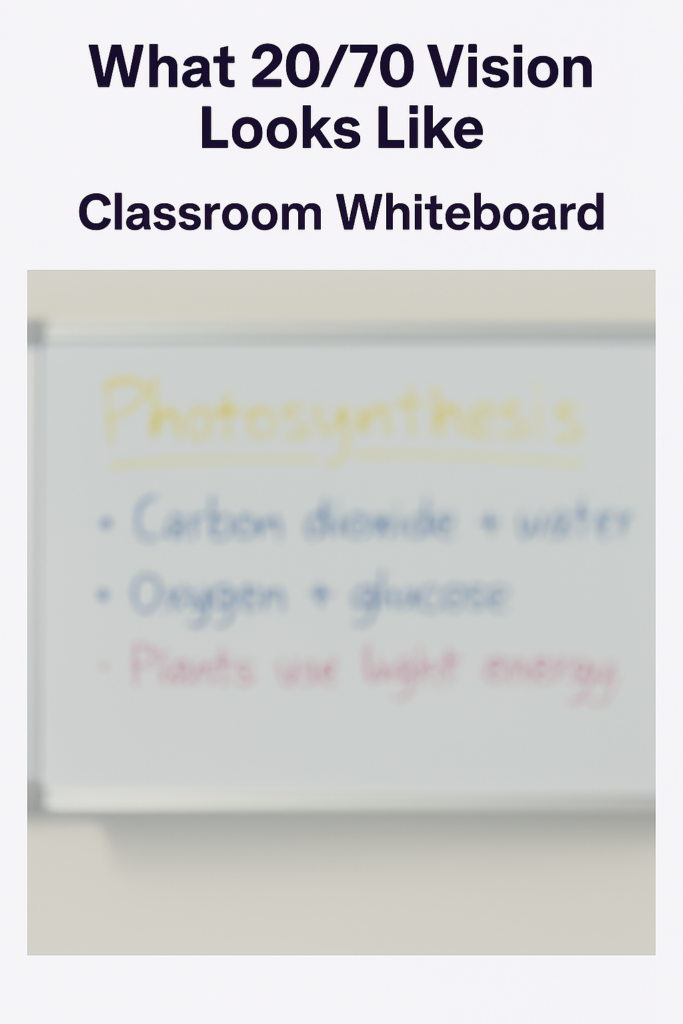
20/70 Vision Looking at whiteboard 20 feet ahead in a room
Overview
Many people wonder, What Does 20/70 Vision Look Like in everyday life? 20/70 vision means a person must stand 20 feet away to see what someone with typical 20/20 vision can see at 70 feet. It represents moderate low vision and often affects reading, recognizing faces, and seeing details at a distance — especially in classrooms, hallways, and outdoor environments.
This page gives you:
A simple explanation
Real‑world examples
Functional impact
Classroom implications
Technology supports
A visual simulation (we’ll add images next)
Simple Definition
20/70 vision is a measurement of visual acuity, describing how clearly a person sees detail.
20 = the testing distance
70 = the distance at which a person with 20/20 vision sees the same detail
So:
If a student with 20/20 vision can read a sign at 70 feet, a student with 20/70 vision must move to 20 feet to see it.
What 20/70 Vision Looks Like in Daily Life
People with 20/70 vision often describe:
Blurry details at a distance
Difficulty reading small print
Needing to move closer to see faces clearly
Trouble with classroom boards or projectors
Missing fine details in worksheets or diagrams
Needing brighter lighting to see comfortably
They can usually navigate independently but may struggle with:
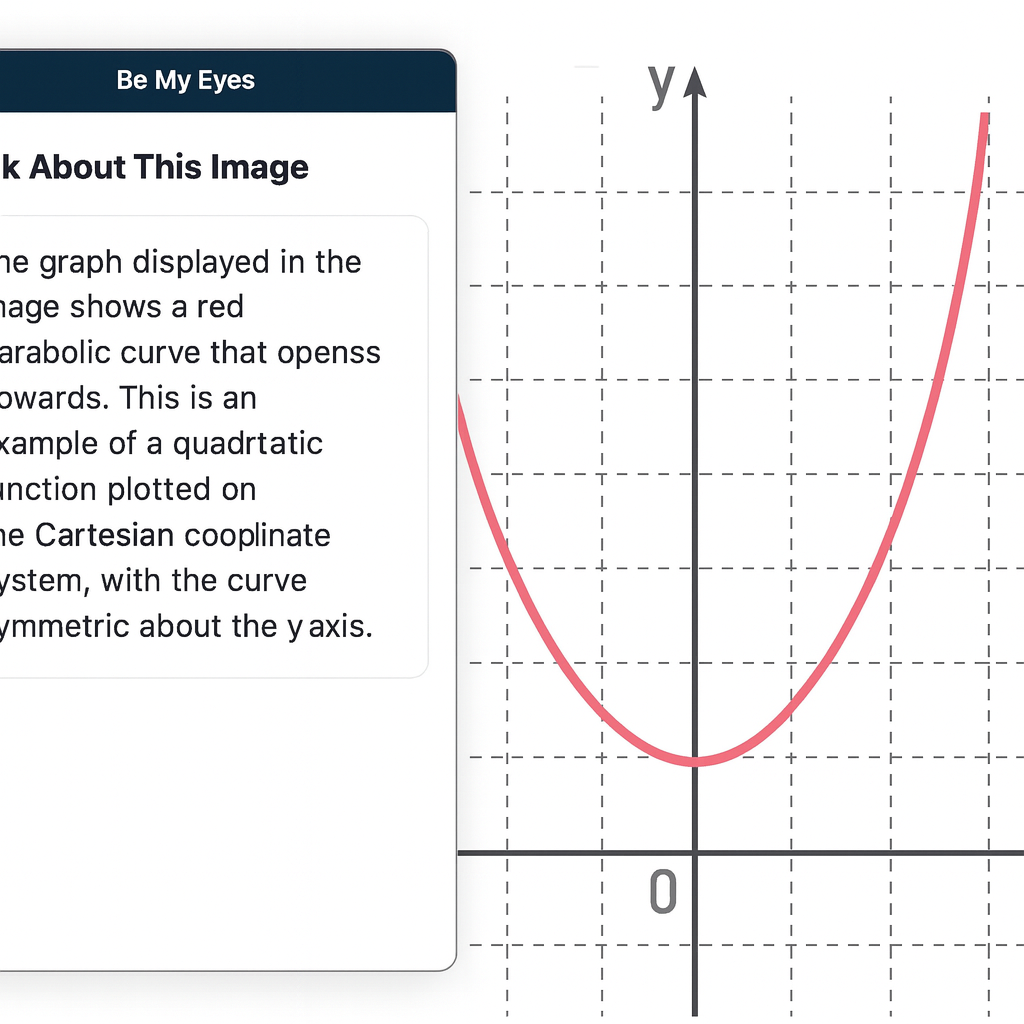
For students who are blind or legally blind, accessing visual information on a computer screen can be one of the biggest barriers to learning unless you have an APP like Be My Eyes on Computer. Whether it’s a graph in science class, a diagram in math, a picture in a digital textbook, or an unlabeled image on a website, visual content often goes unexplained — unless someone is available to describe it.
Be My Eyes now solves this problem directly on your computer.
What Be My Eyes Can Do on a Computer
When installed on a PC or Mac, Be My Eyes can:
Describe graphs, charts, and diagrams
Explain pictures, illustrations, and maps
Identify objects or images in digital textbooks
Summarize visual layouts on websites
Clarify icons, buttons, or menus that are not labeled
Provide context for images that screen readers cannot interpret
This is especially powerful for students who are legally blind and need immediate access to visual information without waiting for a teacher, aide, or parent.
How It Works
Open the Be My Eyes app on your computer.
Take a screenshot or upload the image you want described.
Use the “Ask About This Image” feature.
Type your question — or simply ask:
“What is shown in this graph?”
“Describe the picture on the screen.”
“What does this diagram represent?”
“What is happening in this image?”
The AI will give a clear, detailed description that students can use immediately for classwork, homework, or studying.
Why This Matters for Blind and Low‑Vision Students
Visual content is everywhere in school — especially in math, science, social studies, and digital learning platforms. Without access, students fall behind academically and lose independence.
Be My Eyes gives students the ability to:
Access visual information instantly
Work independently without waiting for help
Understand graphs and diagrams in real time
Participate fully in class assignments
Build confidence and autonomy
For students who are legally blind, this tool is not optional — it is essential.
When to Use Be My Eyes vs. Other Tools
Be My Eyes: For describing images, graphs, diagrams, pictures, and anything visual.
Screen Readers (JAWS/NVDA): For reading text, navigating websites, writing, researching, and completing assignments.
CCTV: Only for viewing pictures or visual diagrams — not for reading.
Together, these tools create a complete access system.
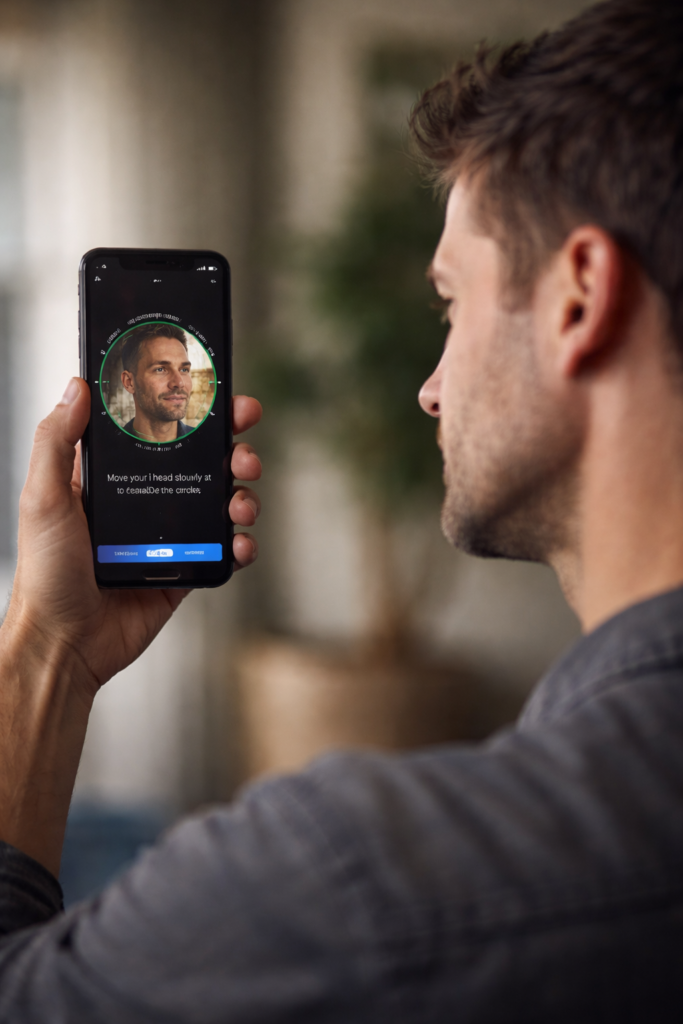
Set Up iPhone Security with VoiceOver using Face ID
Goal
Student independently sets up device security and understands how to authenticate downloads. This lesson will help you Set Up iPhone Security with VoiceOver for a more accessible and safe experience.
PART 1: Set Up a Passcode (Must Be Done First before you can acquire apps)
Face ID and Touch ID require a passcode.
Step 1: Open Settings
Press and hold Side button.
Say:
“Open Settings.”
Step 2: Go to Face ID & Passcode
(Or Touch ID & Passcode on older phones)
• Flick right until you hear: “Face ID & Passcode” • Double-tap.
If it says “Turn Passcode On,” double-tap.
Step 3: Create a Passcode
You will hear:
“Enter a six-digit passcode.”
• Double-tap each number OR • Use braille display if connected
Enter code twice.
Choose a code the student can remember but others cannot guess.
Teach: Do not use birthdays.
Passcode is now active.
PART 2: Set Up Face ID (Newer Phones)
Step 1: In Face ID & Passcode Menu
• Flick right to “Set Up Face ID” • Double-tap.
VoiceOver will guide.
Step 2: Position Face
If by yourself, place phone on your forehead then move straight back
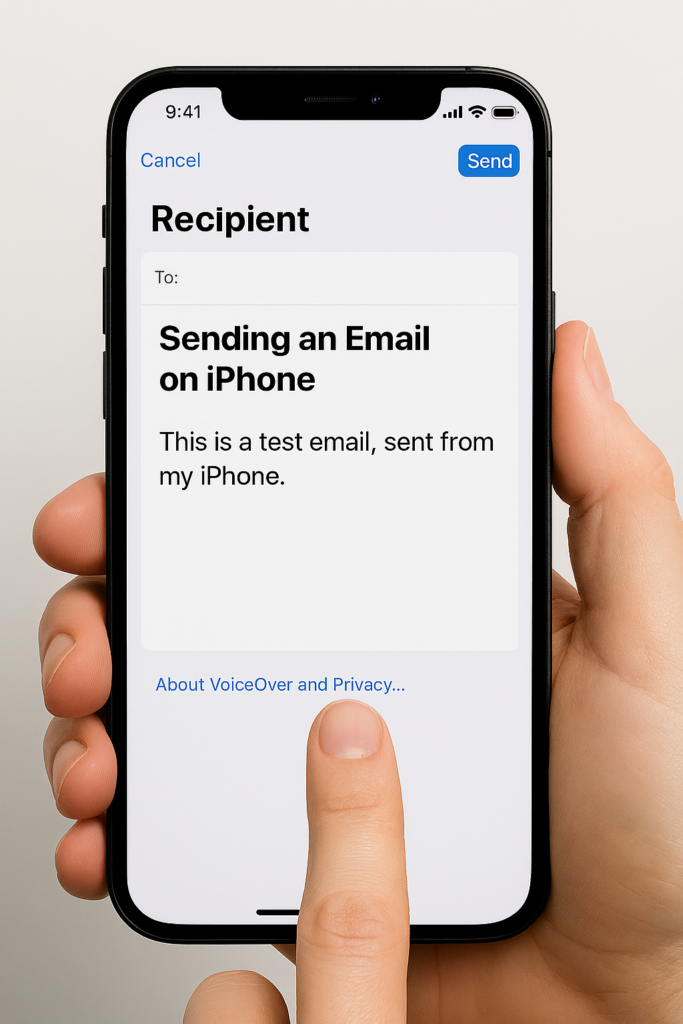
iPhone-Setting Up Email Using Siri & Voice Over-sending a text
Phase 1-Setup Email
Goal
Student independently adds an email account and verifies it works. This guide covers iPhone-Setting Up Email Using Siri & VoiceOver to simplify the process for users who need accessibility support.
Step 1: Open Settings with Siri
Press and hold the Side button. Or Say “Hey Siri” if set up
Say:
“Open Settings.”
VoiceOver will say “Settings.”
Double-tap if needed.
Step 2: Navigate to Mail
• Flick right until you hear “Mail” • Double-tap
Inside Mail:
• Flick right to “Accounts” • Double-tap
Step 3: Add Account
• Flick right to “Add Account” • Double-tap
Choose account type:
iCloud
Google
Outlook
Yahoo
Other
Flick to correct provider. Double-tap.
Step 4: Enter Email Information
You will land in a text field.
To type:
• Double-tap in field • Dictate email address OR • Type using keyboard
Move to next field:
• Flick right
Enter password carefully. VoiceOver will say “Secure text field.”
After entering:
• Flick right to “Next” • Double-tap
Step 5: Verify Mail is Turned On
After account connects:
Make sure “Mail” toggle is ON.
Flick to it. Double-tap if needed.
Then flick right to “Save.” Double-tap.
Email is now active.
Phase 2 – Open and Use Mail
Now the student can begin using Mail.
Activate Siri:
“Open Mail.”
Proceed with:
• Flick right to inbox • Double-tap to open messages • Reply and send
Important Teaching Notes
Teach these concepts early:
✔ Every text field requires a double-tap before typing ✔ Listen fully before moving ✔ Flick slowly and intentionally ✔ Passwords must be entered accurately
If login fails:
• Recheck password • Ensure Wi-Fi is connected • Use Siri to say “Turn Wi-Fi on” if needed
Skill Check
Student should be able to:
Open Settings with Siri
Add an email account
Open Mail
Read one message
Send one reply
You are building digital independence.
Phase 3
Setting Up and Using Email with Siri & VoiceOver
Goal:
Student can open Mail, read messages, and send a simple email independently.
Step 1: Open the Mail App
Activate Siri: Hold the Side button or say:
“Hey Siri, open Mail.”
VoiceOver will announce: “Mail.”
Double-tap if needed.
Step 2: Navigate Inbox
• Flick right to move through emails • VoiceOver reads sender and subject • Double-tap to open
Teach: Listen fully before moving.
Step 3: Read Email
• Flick right to move line by line • Use rotor to change reading level
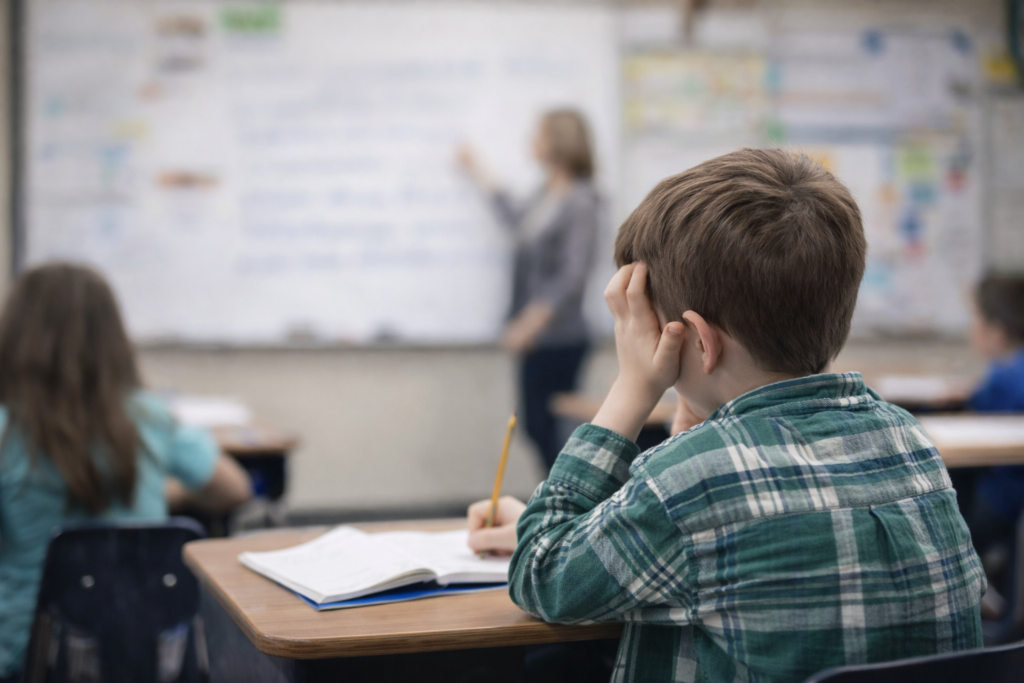
Signs of Low Vision in Children: Cannot see board work
Many children pass school vision screenings but still struggle to see clearly. Screenings check distance blur, not functional vision. Parents and teachers should watch closely for signs of low vision in children, because children may look fine on paper, yet daily tasks reveal hidden challenges. They squint at the board, lose place in text, miss expressions, and tire quickly. These behaviors reflect low vision, not lack of effort.
Many children pass school vision screenings but still struggle to see clearly. Screenings check distance blur, not functional vision. Children may look fine on paper, yet daily tasks reveal hidden challenges. They squint at the board, lose place in text, miss expressions, and tire quickly. These behaviors reflect low vision, not lack of effort.
Short Attention Span Optimized
1. They squint at the board even from the front row
Squinting signals effort, not attitude. The student works harder to sharpen distant detail.
Strategy:Increase contrast, use bold markers, and provide digital access. Squinting means they’re working hard, not misbehaving.
2. They move reading material close to their face
Children may hold books only inches away. They are trying to capture clarity, not misbehaving.
Strategy: Allow close viewing without correction. Offer magnification, larger print, or digital zoom. This is a strategy, not a problem.
3. They lose place or skip lines while reading
Low contrast and visual strain make tracking difficult. This shows visual fatigue, not poor skills.
Strategy: Use line guides, high‑contrast text, and uncluttered layouts. Tracking improves when visual strain decreases. Use immersive reader on laptop in WORD. Teach Screen reader to listen to content versus all visual.
4. They avoid worksheets with dense text
Heavy print strains the eyes. Students may stall, fidget, or rush because the task hurts.
Strategy:Break text into smaller chunks, increase spacing, and reduce clutter. Avoidance is often about discomfort, not motivation. Teach screen reader Access technology.
5. They miss facial expressions and social cues
Low vision reduces detail in faces. Children may misunderstand reactions, jokes, or emotions.
Strategy: Pair spoken cues with visual ones. Teach peers to use clear gestures and verbal confirmation. Low vision makes faces low‑contrast.
6. They trip or bump into objects others avoid easily
Low detail and reduced depth perception affect safe movement. These students need clear pathways.
Strategy: Keep pathways clear, reduce visual clutter, and ensure consistent classroom layouts. This is an access issue, not coordination.
7. They tire long before they complain
Visual fatigue builds fast. A child may appear distracted after lunch simply because their eyes are tired.
Strategy: Build in visual breaks, rotate tasks, and allow alternative formats. Visual fatigue shows up as “inattention.”
8. They improve dramatically with better contrast or lighting
When small changes help instantly, the issue is vision, not motivation.
Strategy:Adjust lighting, reduce glare, and use bold, high‑contrast materials. Quick improvement means the issue is vision, not effort.
Low Vision Issues
A child can pass a screening yet still experience low vision daily. These signs reflect access needs, not ability. With early support and the right tools, children learn confidently and keep pace with peers.
Understanding Vision in Children: What Visual Acuity Really Means
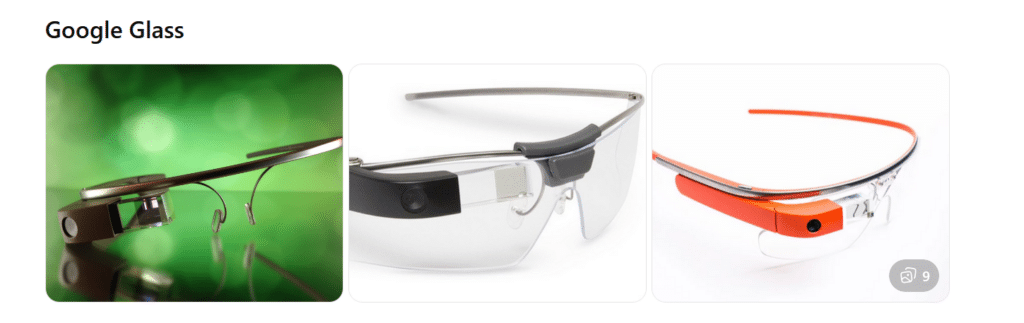
What they are: Lightweight smart glasses with a small display above the right eye. Originally released for consumers, now mostly used in enterprise and medical settings.
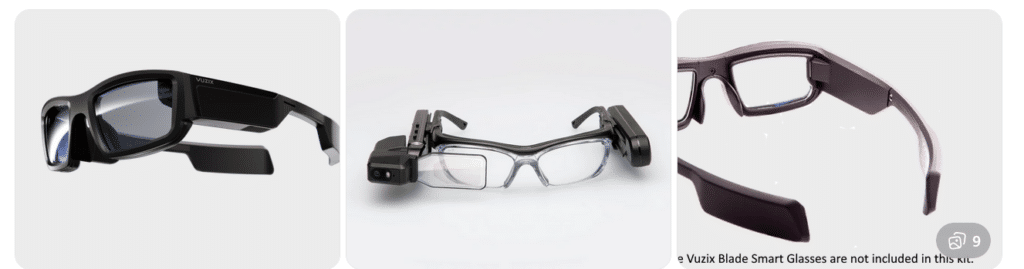
What they are: A family of AR smart glasses built for industrial, medical, and field environments. Models vary in shape and display size.
Key features:
Larger, brighter AR displays
Camera options up to 4K
Rugged designs for work environments
Voice, touch, and head-tracking controls
Works with Android-based apps
Aira and Smart Glasses for Blind Navigation: Modern Tools for Safe, Independent Travel
Whether you’ve been blind for years or you’re just beginning to lose vision, today’s tools offer more options than ever for navigating the world with confidence. Smart glasses and services like Aira give you access to real‑time visual information—indoors, outdoors, at work, on campus, or in everyday life. For some, it’s an exciting next step in expanding independence. For others, it’s a gentle bridge toward accepting support without feeling like they’re giving up who they are. Wherever you are on that journey, these tools can help you move safely, work more efficiently, and stay connected to the world around you.
If you want, I can also craft a shorter version for a carousel cover slide or a more emotional version that speaks directly to the reader.
Helping a Young Adult Losing Vision: When They’re Not Ready for the Cane… Yet
Losing vision as a young adult is complicated. It’s not just about mobility—it’s about identity, pride, and the fear of being seen as “blind” before they’re ready to claim that word for themselves.
Many young adults tell us:
“I don’t want people staring at me.”
“I’m not blind enough for a cane.”
“I can still get by if I try harder.”
“I don’t want to look different.”
These feelings are real. They deserve respect, not pressure.
But they also deserve safety, dignity, and access to the world.
That’s where Aira can become a bridge—not a replacement for cane skills, not a long‑term solution, but a gentle first step toward accepting support.
Why Aira Works for Someone Who Isn’t Ready for the Cane
Aira gives visual information without announcing disability to the world.
For a young adult who is still grieving vision loss, this matters.
Aira lets them:
Move through a college campus without guessing at signs
Navigate stores, offices, or new environments without pretending
Read menus, labels, and screens without asking friends
Travel safely in unfamiliar places
Do their job or schoolwork without feeling exposed
It’s discreet. Very private. It’s on their terms.
And most importantly—it gives them a taste of what independence with support feels like.
That experience often becomes the turning point.
The Emotional Shift: From “I Don’t Want to Look Blind” to “I Deserve to Move Safely”
When a young adult uses Aira, something powerful happens:
They realize they don’t have to choose between:
Looking blind and
Being unsafe
Aira shows them that support doesn’t take away independence—it protects it.
Once they feel the relief of not guessing, not hiding, not pretending… they often become more open to the cane.
Not because someone forced them. But because they finally understand:
Independence isn’t about doing everything alone. It’s about having the right tools at the right time.
Real Examples: A Young Adult Losing Vision Who Wants a Career in Film, Photography, or Other Visual Fields
Let’s say this young adult has 20/200–20/400 vision or worse and dreams of photography, cinematography, or other highly visual careers that require sharp editing and image capture.
They’re talented. They are creative. They’re determined.
But they’re also scared of being seen as “blind.”
Aira can help them:
Frame shots
Check lighting
Review images
Navigate sets
Identify equipment
Move safely in unfamiliar locations
They get to keep their identity as a creator and keep their dignity. They get to keep their dreams alive.
And slowly, gently, they begin to understand:
Blindness doesn’t take away creativity. It just changes the tools.
How We Bring Them Along—Without Shame, Pressure, or Fear
Here’s the message we give young adults:
“You don’t have to be ready for the cane today. But you do deserve to move safely today. Aira can help you do that while you figure out the rest.”
We meet them where they are and honor their feelings. We give them a tool that supports them privately. And we let confidence do the rest.
Because once they feel what safe, supported independence is like… the cane stops looking like a symbol of blindness and starts looking like a symbol of freedom.
Real Example for all users with Airport Navigation and Traveling Using Aira
Airports can be some of the most challenging environments for blind and low‑vision travelers—constant construction, changing layouts, crowded terminals, and signage that’s almost entirely visual. Aira gives travelers real‑time visual support from the moment they step out of the rideshare to the moment they reach their gate. And when paired with Aira’s own smart glasses—designed to look just like the everyday eyewear everyone else is wearing—travelers get discreet, hands‑free access to visual information without standing out or feeling different.
In fact, the only way anyone would know a traveler is blind is if they’re using a cane. You can even call an Aira Agent while the plane is still on the runway so you’re fully set up to step off the aircraft and head confidently to your next gate with live guidance. Agents can help locate check‑in counters, identify the correct security line, read flight boards, navigate terminals, find restrooms or restaurants, and guide travelers through gate changes or last‑minute updates. Whether you’re a seasoned blind traveler or someone newly adjusting to vision loss, Aira adds a layer of confidence and clarity that makes airport travel smoother, safer, and far less stressful.
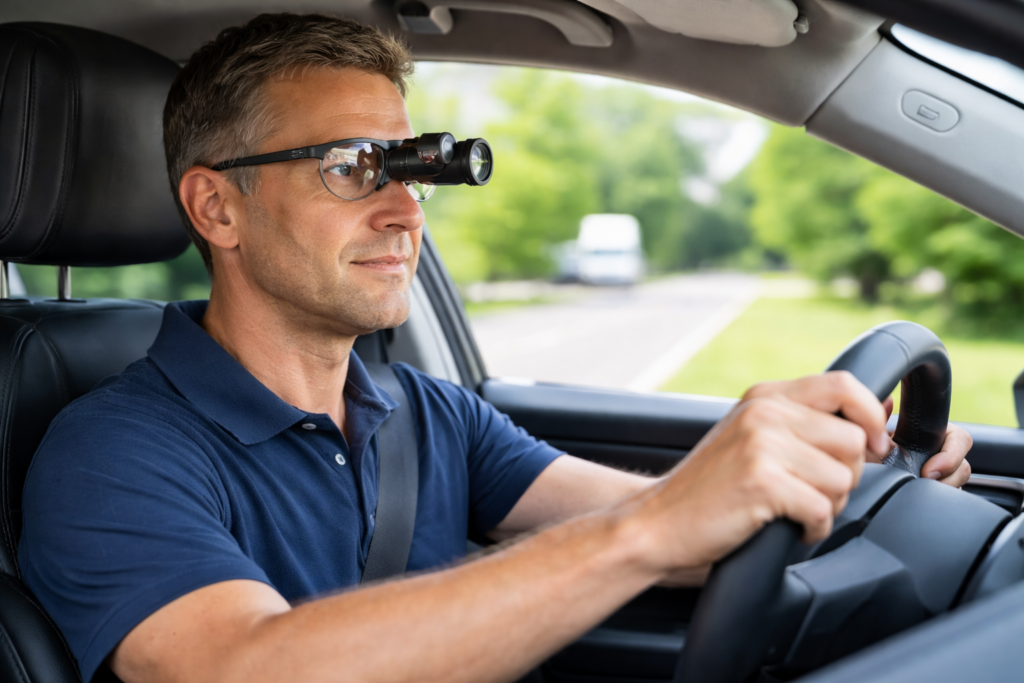
Low Vision Driving Aids: Man driving with Bioptic glasses
Many students with low vision can increase independence through safe and well-designed optical tools. Low Vision Driving Aids such as bioptic telescopes, prism glasses, and adaptive driving technology help students identify road signs, lane markings, and distant objects with greater clarity. These devices do not replace safe driving skills, but they support eligible students who meet vision requirements and receive proper training. Teachers and parents play a central role by learning these options early, guiding students toward evaluations, and helping them build strong visual skills long before driving becomes possible.
Bioptic Telescopic Lenses
Bioptic telescopes are small telescopes mounted on glasses. They magnify distant objects such as road signs and traffic signals. The driver uses normal vision for steering but briefly glances through the telescope for critical details.
How bioptics work: A small telescope at the top of the lenses increases clarity for distant targets.
How drivers use them: Drivers use natural vision for general driving and glance through the telescope to read signs or detect details.
Safety: Research shows bioptic drivers succeed with training. Proper instruction remains essential for safety and confidence.
Adaptive Driving Technology (ADAS)
Many students benefit from modern vehicle safety systems such as:
Lane-keeping assist
Blind-spot detection
Adaptive cruise control
Automatic emergency braking
These systems improve awareness and support safe driving decisions. They do not replace skill, but they strengthen safety for drivers with visual limitations.
Vision Enhancement Devices
Some students use electronic eyewear or enhanced optical devices to support mobility. Tools like eSight improve clarity for reading street names, viewing dashboards, or spotting road markers. These devices help with general visual access rather than driving tasks themselves.
Prism Glasses for Low Vision
What Prism Glasses Do
Prism glasses bend light to move an image into a student’s stronger visual field. They help the student locate print and objects more quickly. They do not change the eye, but they make vision tasks easier and less tiring.
Who Benefits
Prism glasses help students who:
Miss objects on one side
Lose their place when reading
Experience double vision
Have trouble tracking words
Struggle with visual focus
Have CVI or field loss
Prisms reduce searching and help the brain find information faster.
How Prism Glasses Help in School
Prisms can:
Improve tracking
Reduce eye strain
Support board-to-desk copying
Increase reading stamina
Strengthen early print recognition
Teachers often see smoother reading, fewer errors, and better endurance.
Types of Prism Glasses
Students may use:
Reading prisms for near work
Field-shifting prisms to move images into better visual fields
Yoked prisms to shift the entire image
Non-yoked prisms for specific alignment issues
A low vision optometrist chooses the correct type.
Legal and Clinical Requirements
State Laws and Bioptics
Thirty-seven states permit some form of bioptic driving. Each state sets different rules about visual acuity, visual field, telescope power, and required training. Some states allow drivers to meet acuity standards through the bioptic if they reach a level such as 20/40 through the telescope.
DMV -Department of Motor Vehicles- Vision Standards
Most state DMVs require:
Minimum acuity (often 20/40 for unrestricted licenses)
A certain visual field range
Medical reports from a low-vision specialist
Where to Go for Evaluations and Training
Low Vision Optometrists
Families should begin with a low vision optometrist who can:
Test remaining vision
Evaluate driving potential
Determine whether bioptics or prism glasses will help
Prescribe optical devices
Search using IALVS or regional low vision centers.
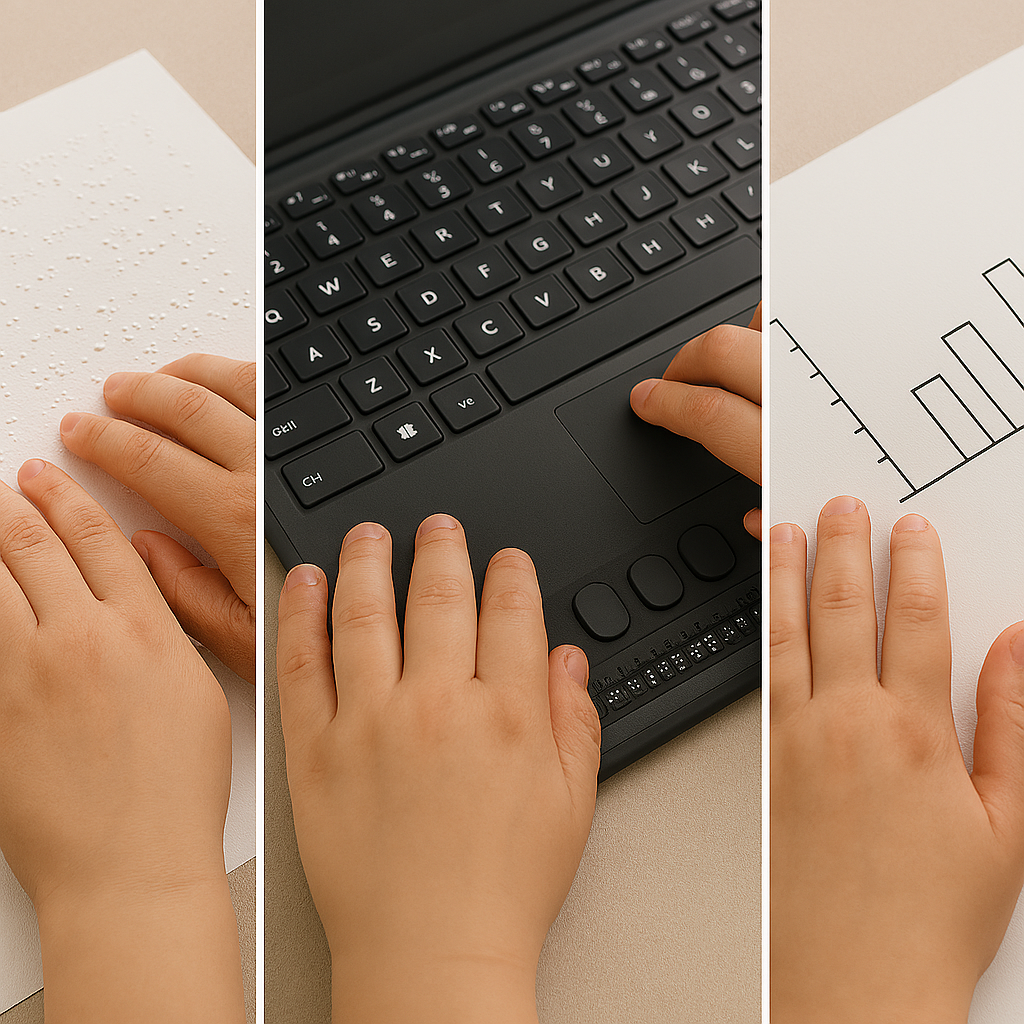
Blind student reading Braille on paper, using a Braille display with a computer, and exploring a tactile graphic
Understanding Linear Learning vs. Spatial Learning
When people ask, “How do blind students learn?” the most important starting point is this:
Blind students learn linearly. Sighted students learn spatially.
This single difference explains why blind learners need different teaching strategies, different tools, and different test accommodations: not because they are less capable, but because they access information through a completely different pathway.
Let’s break down what this means, why it matters, and how it affects everything from classroom instruction to standardized testing.
1. Spatial Learning (Sighted Students)
Sighted students take in information all at once, in a broad visual field. They can:
Glance at a page and see the whole layout
Jump between paragraphs instantly
Scan charts, maps, and diagrams in seconds
Compare two areas of a page without losing their place
Hold visual relationships in mind (left/right, above/below, bigger/smaller)
This is spatial learning — fast, simultaneous, and visually anchored.
2. Linear Learning (Blind Students)
Blind students access information one piece at a time– one character at a time, in a straight line, through:
Screen readers (JAWS, NVDA, VoiceOver)
Braille displays
Audio
Tactile graphics
They cannot “look around” a page or see the question and the paragraph all at the same time, nor skim a diagram. They must:
Move character by character or part by part
Move line by line
Navigate with commands
Build the mental picture sequentially
Hold details in working memory
This is linear learning — accurate, powerful, but fundamentally different from spatial learning.
Braille readers who build fluency up to 400–450 words per minute — and some even higher — can move through text quickly, but they still must slow down when deep comprehension is required. In parallel, trained blind students can listen at speeds well above 400 words per minute. Because audio processing becomes a major access route for academic content, teaching efficient high‑speed listening is an essential skill alongside Braille fluency.
This instruction must begin early if the goal is for the child to maintain pace with sighted peers, as early tactile and access‑skills training prevents the academic delays that occur when these foundations are introduced later. This includes early keyboarding instruction and learning to use a PC computer with screen reader commands, both of which are essential access tools for blind students throughout school and into adulthood. For blind children, it is essential to start developing tactile readiness, tactile discrimination, and early Braille concepts by age 3. These foundational tactile skills support later Braille fluency, spatial understanding through touch, and efficient access to academic materials.
For children with low vision and a progressive eye condition, instruction should begin as soon as the condition is identified — not after vision loss occurs. Early access training ensures the child builds the skills they will rely on later, preventing academic delays and reducing the emotional and cognitive burden of “catching up” after vision decreases.
Early instruction in tactile skills, Braille readiness, and high‑speed listening lays the groundwork for the advanced literacy and access skills blind students need throughout school and into adulthood.
3. Why This Matters in Real Learning Situations
A. Refer‑Back (Test) Questions
Many work but especially standardized tests require students to:
Read a question
Refer back to a paragraph
Return to the question
Choose the correct answer
Sighted students do this in seconds because the question and paragraph are both visible at once.
Blind students must:
Stop reading
Navigate backward through headings or lines
Find the correct paragraph
Reread it
Navigate forward again
Try to remember both the question and the paragraph
This is not a reading‑comprehension task — it becomes a navigation and memory task.
Why it’s inaccessible
Screen readers present content linearly, not spatially.
Blind students lose the visual proximity sighted students rely on.
Cognitive load doubles because they must juggle navigation + content.
They lose significant time through no fault of their own.
Appropriate accommodation
On the student’s IEP (Individualized Education Program), include a sighted human reader as an accommodation. This restores equal access by allowing the student to:
Braille students has fingers on a braille display if test is electronic or on hard copy braille then
Asks reader for the referenced paragraph
Answers immediately based on knowledge, not navigation
This is not an advantage — it is equivalent access.
B. Image‑Based Test Questions
Charts, diagrams, maps, graphs, and labeled pictures are inherently spatial.
Sighted students can instantly see:
Layout
Labels
Patterns
Relationships
Direction
Relative size
Blind students cannot access any of this unless the description is complete — using methods appropriate for blind learners, since most tests are created by sighted people using sighted terms rather than blind terms — and, most importantly, unless they have been explicitly taught how to “read” and interpret graphs through tactile and auditory methods. This is also where a sighted human reader becomes essential, someone who knows the student and can relay information using blind‑appropriate terminology and concepts.
Why inadequate alt text fails
Alt text like:
“A chart”
“A diagram of a cell”
“A map of the U.S.”
…provides none of the information needed to answer questions.
Screen readers cannot “see” the image. They only read the text provided. If the description is incomplete, the student receives incomplete information — and cannot answer accurately.
Appropriate accommodation
A trained sighted describer, with tactile graphics when appropriate, can:
Describe the full spatial layout as student moves their hands across the graphic
Identify labels and relationships
Provide the structure needed to understand the image
Support the student without giving away answers
This ensures the blind test taker has access to the same information sighted peers see.
4. What Teachers and Parents Need to Know
Blind students are fully capable of mastering the same academic content — when the information is delivered in a way they can access.
To support linear learners:
Present information in clear, sequential linear order
Avoid “look at the chart above” without providing a full description
Use headings, structure, and consistent formatting
Provide tactile graphics for spatial concepts
Teach screen reader navigation explicitly
Allow extra time for tasks that require back‑and‑forth reference
Use human readers or describers when needed
These are not “extras.” They are equity.
5. Why This Matters for Every Classroom and Every Test
When educators understand the difference between linear and spatial learning, everything becomes clearer:
Why blind students need more time
Why they need tactile graphics
Why they need structured digital materials
Why refer‑back questions are inaccessible
Why image‑based items require human description
Why blind students may appear “slower” when they are actually processing more steps
Blind students are not struggling with content — they are navigating a world built for spatial learners.
6. Final Thought
Blind students learn differently, not less. Their learning is sequential, structured, and deeply conceptual. When we remove the visual barriers, their abilities shine.