Search results for: “WORD”

  • Switch Focus Braille Display Modes Quickly

    Dr. Robinson explains the three toggles to Switch Focus Braille Modes quickly on your Braille display. One toggle puts you into Braille mode for all Braille tasks. Another toggle switches to computer braille which inputs direct Nemeth code for math. The third toggle is for computer in and contracted out for either Nemeth or UEB math.

    Access Jaws settings to set up Focus Braille Mode Options

    First, press Insert + 6 to check your settings. Type “braille m” and down arrow to “Braille mode.” You can access options one by one with arrow keys or press F6 to jump to structured then Alt+T to jump to output. Press down arrow to UEB Grade 2 then tab to input and c to computer braille first to uncheck the box that says “Show current word in computer Braille”. Shift tab back up to input and choose UEB for both input and output. You can have other options also but this is what used here.

    Tab through back to For structured Braille mode, check “Active cursor follows Braille cursor” and “Braille cursor follows active cursor.” These settings help beginners, especially when working with sighted personnel learning Braille to following along visually for instructor. Always have a certified Braille instructor (TVI) to teach reading and writing Braille correctly.

    Always press Alt + A to apply settings before exiting. However, if you do not like the extra information at the start of your display, shift tab back to search in settings and type status and enter. Down arrow to status and F6 and down to right (to place status on the right of display) and down to none and apply that and close. When you first turn on your Braille display, the status characters may be confusing to young learners. Additional Braille Display Lessons here.

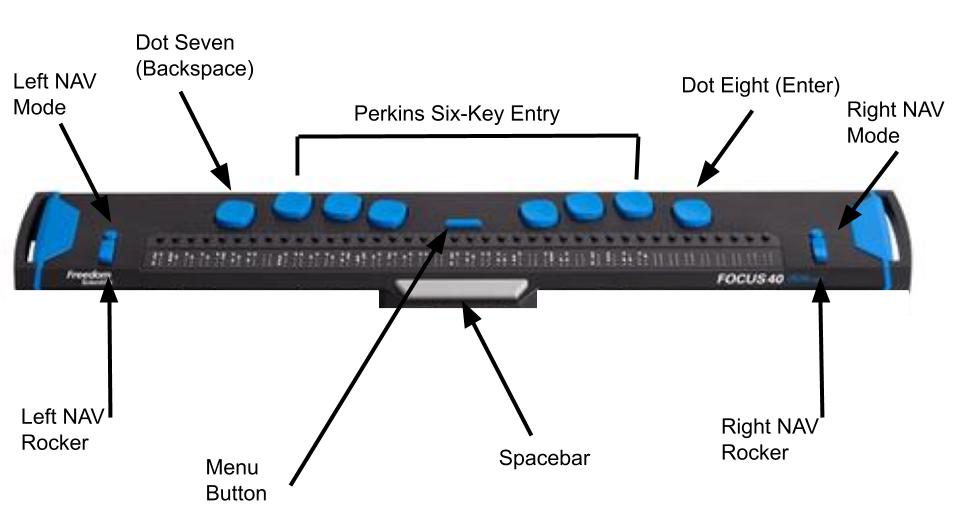
    Focus Braille Display Image with Button options
    switch Focus display modes quickly on display
    Switch Focus Braille display modes quickly on display

    For advanced users, status dots help in tables and other navigation. Beginners should start with “none.” Press Alt + A to apply changes, then enter to close. The Braille display functions like a Braille writer. Keys 1 2 3 are on the left, and keys 4 5 6 are on the right with space in between the left and right side. The left pinky key is backspace, which changes to dot 7, and the right pinky is enter or dot 8 in combination with other keys.

    More Videos Lessons

  • Mission and Purpose

    Mission and Purpose of TechVision using braille display, keyboard and iPhone for who we are and what we do
    Picture of braille display, keyboard and iPhone for who we are and what we do

    Our Mission

    TechVision’s mission and purpose is to empower blind and visually impaired students through personalized, real‑time instruction in assistive technology, braille, STEM, and essential academic skills. Led by Dr. Denise M. Robinson, our specialists teach the tools and strategies students need to access information, build independence, and compete equally with their sighted peers.

    What We Do

    TechVision provides 1:1 remote instruction for learners of all ages. Our team teaches:

    What others use only through access methods such as but not limited to:

    AI‑supported learning strategies
    This direct, individualized approach transforms how blind and low‑vision students learn, work, and navigate the world, staying true to our mission and purpose.

    Screen readers

    Braille displays

    Computers and mobile devices

    Word processing and productivity tools

    All academic classes and especially: Math, STEM, Nemeth, and all literacy

    Why Our Work Matters

    TechVision also trains school personnel — including transcribers, Teachers of the Blind, Teachers and support staff — to ensure students receive consistent, accessible materials. We partner with districts, families, and private organizations to create inclusive environments where blind and visually impaired individuals can thrive, fulfilling our mission and purpose.

    Designed Instruction for Every Learner

    We teach learners of all ages. Every student receives customized instruction based on their goals, strengths, and needs. Whether developing early childhood skills, mastering advanced mathematics, learning to use a braille display, preparing for college and employment, or adapting to vision loss later in life, our instruction meets each learner exactly where they are. Many of our students go on to pursue STEM fields, including Applied Mathematics at top universities.

    Free Learning on YouTube Channel and YourTechvision.com

    The TechVision YouTube channel, created by Dr. Denise M. Robinson and her Team, offers hundreds of free, accessible video lessons. These lessons focus on empowering individuals who are blind or visually impaired through technology education. The channel covers a wide range of topics, making it useful for students, educators, and parents.

    Each video provides hands-on, step-by-step tutorials for using assistive technology. Viewers can learn to use screen readers, magnification tools, and braille displays. The lessons also include detailed instructions on using programs like Microsoft Office and Google applications. This practical approach helps users apply technology to real-world tasks.

    Contact Us

    We are here to help you succeed.

    Let us know how we can help you: Contact US: TechVisionTraining@yourtechvision.com

  • Make an Electronic Signature — Then Insert It into a Document

    You can quickly create an electronic signature using keyboard commands on various platforms. In Microsoft Word or Adobe Acrobat, type, draw, or insert a signature image. Keyboard shortcuts simplify the process, making it easy to add signatures to digital documents. This guide provides step-by-step instructions on typing, drawing, or inserting a signature using shortcuts. You can apply this method across all versions of Word for creating electronic signatures efficiently and effectively.

    To create an electronic signature using keyboard commands, follow these steps:

    Make Electronic Signatures in WORD and Adobe

    1. In Microsoft Word:
    • Open a blank document. Press Alt + N, then P to insert a picture if you’re using a scanned image of your signature.
      • This means, hand write out a signature and scan it into computer and save as your signature. Then insert that into your documents and use any where to make an electronic signature process smoother
      • Use a mouse to crop out JUST the signature, application key when you are on the image and save as picture and name it the word signature after your name
    • For typed signatures, press Ctrl + Shift + K to enter text in a signature-like font (if available), then press Ctrl + B to bold the text if needed.
    • To save the signature, press Alt + F, then A to save as a PDF or document.
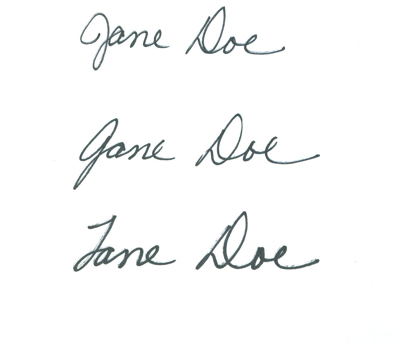
    Practice making an electronic signature using the name 'Jane Doe
    Practice making an electronic signature using the name ‘Jane Doe
    1. In Adobe Acrobat:
    • Open a PDF and press F6 to navigate the newest Adobe or Alt + T for the tools menu. Navigate with F6 or the arrow keys to “Fill & Sign” and press Enter. Follow prompts to either type, draw, or insert an image of your signature.

    Any issues in WORD, then just rebuild it

    Other access Lessons on YOUTUBE

  • Excel Histogram with Keyboard Commands

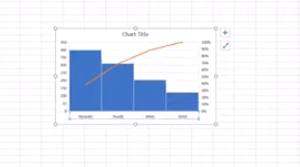
    Creating a histogram in Excel using keyboard commands makes data analysis quick and efficient. First, select your data with Shift + Arrow Keys. Then, insert the chart using Alt + N, followed by H to choose a histogram. This process allows you to visualize data distributions without a mouse, making it both accessible and streamlined. By using these simple commands, you can create effective histograms in just a few steps.

    To create a graph in Excel using keyboard commands:

    1. Select Data: Highlight the data using Shift + Arrow Keys.
    2. Insert Chart: Press Alt + N to open the Insert tab.
    3. Open Histogram Option: Press H to select the Histogram option from the Charts menu.
    4. Choose Histogram: Use Arrow Keys to navigate and press Enter to insert the histogram.

    Now you have a histogram using just the keyboard.

    Excel Histogram with keyboard commands
    Excel Histogram with keyboard commands

    When you finish, you can move data into DESMOS and emboss the graph

    Solving inequalities

    Create Histogram

    Excel Trendline with Scatter Plot

    Other Excel Lessons that you can do in Sheets

    Flashcard Study in Sheets

    Increase your Technology knowledge via more lessons

  • Excel Quadratic Trendline with Scatter Plot Graph Including Equation Using JAWS

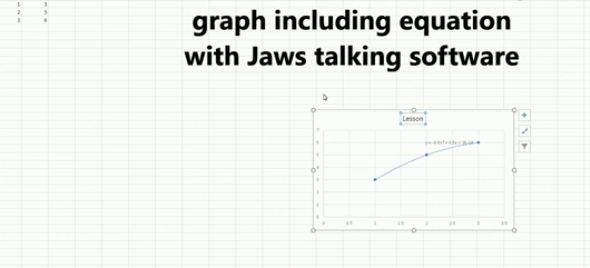
    A quadratic trendline with a scatter plot shows the relationship between two sets of data that form a curved pattern. Instead of a straight line, it fits a U-shaped or upside-down U-shaped curve, helping to see trends when data increases or decreases at different rates. Using an Excel Quadratic Trendline with scatter plot makes it useful for predicting changes that don’t happen in a straight line, like acceleration or deceleration. The equation on the graph helps explain this relationship and can be used for future predictions.

    Using keyboard commands in Excel, combined with JAWS screen reader, makes it possible to create a quadratic trendline on a scatter plot while also displaying the equation. This process is essential for visually impaired users who need accessible methods to perform complex data analysis. By using commands like Alt + N + S to insert the scatter plot and Alt + J + F to add the quadratic trendline and display the equation, you can efficiently work with Excel’s graphing tools while maintaining full accessibility with JAWS.

    Excel Quadratic Trendline with scatter plot Keyboard commands

    Excel Quadratic Trendline with scatter plot
    Excel Quadratic Trendline with scatter plot

    Here are the keyboard commands to add a quadratic trendline with a scatter plot and display the equation in Excel using JAWS:

    1. Create Scatter Plot:
    • Select data with Shift + Arrow Keys.
    • Press Alt + N, then S to insert a scatter plot.
    1. Add Quadratic Trendline:
    • Select the graph with Arrow Keys.
    • Press Alt + J + F, then A for chart options.
    • Press T to add a trendline, then press Q for polynomial (quadratic).
    1. Show Equation:
    • Press Alt + J + F, then T to show the trendline equation on the chart.

    These steps work seamlessly with JAWS for accessible chart creation. Learn more Excel graphing

    Solving inequalities

    Create Histogram

    Excel Trendline with Scatter Plot

    Other Excel Lessons that you can do in Sheets

    Flashcard Study

    Other Tech Lessons for more skills

  • Save a Google Doc as Plain Text Using Keyboard Commands

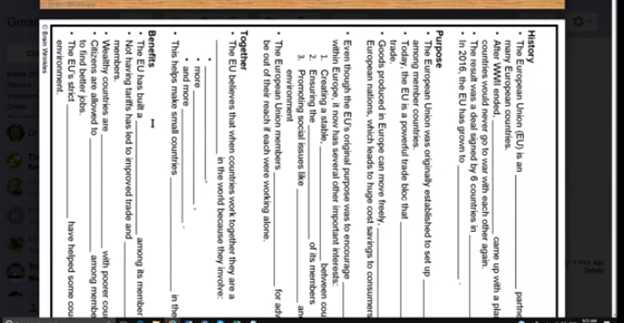
    Google offers several tools to make inaccessible images of work accessible through translation and text extraction. Google Translate includes an image translation feature, where users can upload an image and the tool will detect and translate the text within it into another language. Additionally, Google Drive and Google Docs use Optical Character Recognition (OCR) to convert images, like scanned PDFs, into editable text. This makes visual content, such as images with embedded text, accessible for screen readers, helping blind or low vision users engage with the content more easily. Using Google Docs as plain text can further streamline this process.

    Here’s how to save a Google Doc as plain text using keyboard commands:

    1. Open your document.
    2. Press Alt + Shift + F to open the “File” menu. (Many times you can just use Alt+F)
    3. Press Down Arrow to navigate to Download.
    4. Press Right Arrow to expand the options, then press Down Arrow to select Plain Text (.txt).
    5. Press Enter to download the document as a plain text file.
    6. Open the .txt file, select with CTRL + A, Copy it with CTRL+C and paste into WORD with CTRL+ V

    These steps will extract text then download the document with no formatting, leaving only the raw text. Then transfer it into WORD for easy reading

    Google Doc as Plain Text Using Keyboard due to doc being side ways image
    Google Doc as Plain Text Using Keyboard due to doc being side ways image

    More Tech Lessons here and more on adapting work

  • Office 365 Online Access with Screen Reader

    Office 365 online is fully accessible with screen readers, enhancing the user experience for visually impaired users. Through straightforward keyboard shortcuts, users can navigate and manage their documents efficiently. The interface supports major screen readers like JAWS, NVDA, and VoiceOver, ensuring users can access emails, calendars, and all Office apps without a mouse. This integration empowers users to perform complex tasks seamlessly, from editing documents to collaborating in real time, ensuring a barrier-free environment for all users.

    Here are some other formatting shortcuts for Office 365 that can enhance your productivity:

    1. Align Text:
    • CTRL + L: Align text left.
    • CTRL + R: Align text right.
    • CTRL + E: Center align text.
    • CTRL + J: Justify text alignment.
    1. Text Formatting:
    • CTRL + Shift + >: Increase font size.
    • CTRL + Shift + <: Decrease font size.
    • CTRL + U: Underline text.
    • CTRL + Shift + W: Underline words but not spaces.
    1. Paragraph Formatting:
    • CTRL + M: Increase indent.
    • CTRL + Shift + M: Decrease indent.
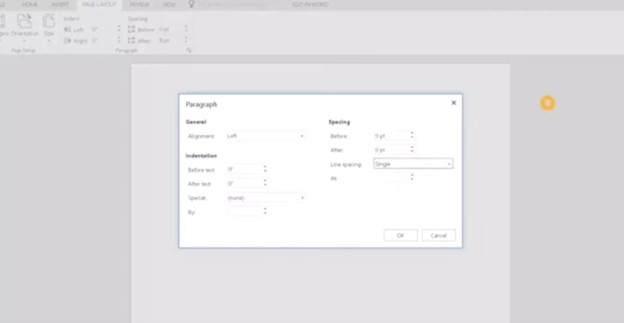
    • CTRL + 1: Set single-line spacing.
    • CTRL + 2: Set double-line spacing.
    • CTRL + 5: Set 1.5-line spacing.
    1. Insert Elements:
    • ALT + N, P: Insert a picture.
    • ALT + N, T: Insert a table.
    office 365 online access
    office 365 online access

    These shortcuts are integral for quick editing and formatting within Office 365 online access for applications, streamlining the process of document creation and modification.

    In Office 365 applications like Word, you can quickly apply or change text styles using the Styles pane. The shortcut to open the Styles pane is ALT + CTRL + Shift + S. This allows you to apply predefined styles to your text efficiently. Additionally, you can use CTRL + Shift + S to open the Apply Styles dialog box, where you can type and apply a style name directly to the selected text. These shortcuts help streamline formatting and ensure consistent document styling.

    Other Online Office 365 online access commands

    Here are some essential commands for using Office 365 online efficiently:

    1. Save: Ctrl + S
    2. Undo: Ctrl + Z
    3. Redo: Ctrl + Y
    4. Open: Ctrl + O
    5. Print: Ctrl + P
    6. Copy: Ctrl + C
    7. Paste: Ctrl + V
    8. Cut: Ctrl + X
    9. Bold: Ctrl + B
    10. Italic: Ctrl + I
    11. Underline: Ctrl + U
    12. Insert Hyperlink: Ctrl + K
    13. Refresh the Document: F5
    14. Find: Ctrl + F
    15. Replace: Ctrl + H

    These shortcuts are fundamental for navigating and managing documents in Office 365 online, making your workflow quicker and more efficient.

    Here are more helpful tips for using Office 365 effectively:

    1. Quick Access Toolbar Customization:
    • Customize your Quick Access Toolbar by adding frequently used commands. Right-click any command in the ribbon and select “Add to Quick Access Toolbar.”
    1. Use “Tell Me” Feature:
    • Use the “Tell Me” feature (light bulb icon or ALT + Q) in the ribbon to quickly find features or help with commands you’re unsure about.
    1. Keyboard Shortcut Customization:
    • Customize keyboard shortcuts through the Word Options dialog to tailor your workflow preferences.
    1. Use Version History:
    • Use Version History to view and restore previous versions of your documents, especially useful in collaborative settings.
    1. Collaborate in Real-Time:
    • Use the collaboration tools in Word, Excel, and PowerPoint to work with others in real-time, seeing changes as they happen.

    These tips can help you navigate Office 365 more efficiently and make the most out of its extensive features and more lessons here.

  • Learn Out Loud Reading – Audio Books Galore

    LearnOutLoud.com offers a comprehensive resource for audio and video learning materials, perfect for those looking to learn out loud reading strategies. The site provides a wide range of educational content, including audiobooks, podcasts, and video courses. Users can explore topics such as self-development, history, and business. The platform makes learning accessible and convenient with high-quality content. You can access the materials anytime, anywhere. Therefore, if you’re looking to learn out loud, this platform is an excellent choice.

    Learn out Loud Reading
    Learn out Loud Reading

    Navigating LearnOutLoud.com is straightforward. Here’s a step-by-step guide to help you get started:

    Homepage: The homepage displays featured content like popular audiobooks, podcasts, and video courses.

    Search Bar: Type keywords in the search bar to find specific content.

    Categories: Browse categories like Self Development, History, and Business by clicking the “Browse” menu.

    Featured Content: Click on featured content, new releases, or top-rated materials to explore further.

    User Account: Create an account to save favorites, make playlists, and track progress.

    Audio and Video Players: Use the built-in player to play, pause, and skip content.

    Reviews and Ratings: Read user reviews and ratings to decide on content.

    Newsletter and Blog: Subscribe to the newsletter or read the blog for updates and tips.

    More Digital book management options from Calibre

    Tell us how we can help you: Contact US: TechVisionTraining@yourtechvision.com

  • How to Adapt Work for Blind or Low Vision Students — Many Options

    The most modern way as of 2024 to adapt work for blind or low vision students is using programs like MathKicker.ai, WORD Immersive Reader and Google Docs, follow these steps to ensure full accessibility for both English, Math and other content:

    1. Use MathKicker.ai for Math Content:
      • Upload or paste math equations into MathKicker.ai. This tool converts complex math problems into formats accessible for screen readers like JAWS or NVDA.
      • Once converted, paste the accessible math text into Google Docs or other word processing platforms for students to use with their screen readers.
    2. Convert Images to Descriptive Text in Google Docs:
      • When images contain important information, use Google Docs’ built-in alt text feature. Right-click the image, select “Alt text,” and enter a detailed description of the image, focusing on its relevance to the content.
      • For math-specific images (e.g., graphs, equations), describe the visual elements and provide the corresponding math in text form or, if needed, through MathKicker.ai to ensure clarity for students using auditory or Braille output.

    How to Adapt Work and Why

    3. Leverage Google Docs Collaboration Features:

    • Share Google Docs with students, allowing them to access the document using their preferred screen reader.
    • Enable real-time collaboration by ensuring that students can work in the document with peers or teachers, making the experience inclusive.

    4. Use Heading and Structure Tools:

    • Make sure to structure documents with proper headings and styles in Google Docs to aid screen readers in navigating the document efficiently.

    By combining MathKicker.ai for math accessibility and using Google Docs to convert visual content into descriptive text, blind or low vision students can access both English and math content effectively.

    There are many ways to adapt work for inclusion. Inaccessible work creates barriers—choose the right tools, because together we achieve more than apart.

     Here are a few ways to do just that.

    Adapting work using Jaws OCR-how to tell if work is image or text in PDF

    The fastest way to adapt inaccessible PDF with graphics when you run out of time

    How to adapt work for low vision–continue on with skills

    Adapt work for Low Vision using shapes for Math or Chemistry

    How to adapt work for blind/low vision students

    Access Technology for Low Vision-See your computer screen better

    Tricks for students to adapt last minute work fast –right in class

    How to adapt More work in general

    Let us know how we can help you!

  • How to SEE Your Computer Better with Low Vision

    How to SEE Your Computer Better with Low Vision

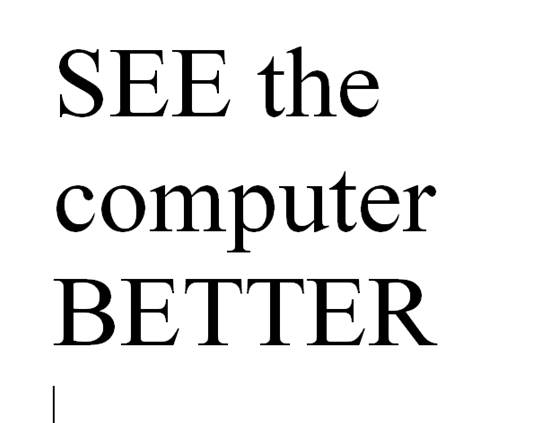
    The population of individuals with low vision exceeds that of those who are blind. It is expanding quickly as the population ages and experiences vision decline. A variety of lessons teach you how to download large cursors, enhance contrast, and enlarge text in Word. These skills also help you read with more ease. You’ll also learn how to magnify text and graphics on the Internet using different methods. Additionally, instructions on setting up low vision devices for students in classrooms who need to see the board are provided. These lessons are designed to improve your ability to see everything on your computer. The fact that these videos predate screen capture technology is irrelevant, as the skills are applicable to all versions of Windows.

    Skills to Enlarge Text as you need on any computer

     SEE your computer better, for users with low vision, using keyboard commands in Microsoft Word can significantly enhance visibility and ease of use. Here are some useful shortcuts:

    1. Zoom In/Out:
      • Zoom In: Press Alt + W, then Q, and use the Tab key to navigate to the zoom value you want.
      • Zoom Out: Use the same steps as above but adjust the zoom value accordingly.
    2. Adjust Font Size:
      • Increase Font Size: Press Ctrl + ].
      • Decrease Font Size: Press Ctrl + [.
    3. Magnifier:
      • Turn on Magnifier: Press Windows + + (Plus sign).
      • Zoom In: Press Windows + + (Plus sign).
      • Zoom Out: Press Windows + - (Minus sign).
      • Exit Magnifier: Press Windows + Esc.
    4. Change Font:
      • Open Font Dialog Box: Press Ctrl + D to open the Font dialog box where you can adjust font size, style, and other attributes.
    5. High Contrast Mode:
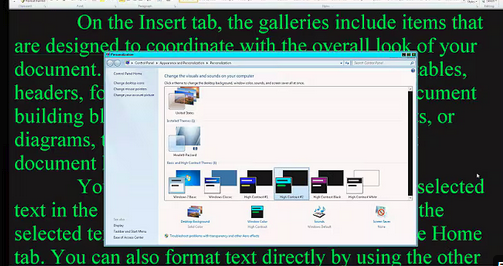
      • Toggle High Contrast Mode: Press Left Alt + Left Shift + Print Screen.

    Other Low Vision Skills to increase “Seeing” Ability

    This Video demonstrates other skills to decrease blue light and damage to your eyes while using your computer

    These shortcuts can help you SEE your computer better and make text more readable and improve overall accessibility in Word12.

    Add screen readers to get the audio feedback you need as vision decreases

    See the computer better with high contrast
    See your computer better with high contrast

    Other Vision impairment Information