Search results for: “WORD”

  • Training For The Blind & Vision Impaired

    Real-Time Access Through Technology

    Remote Instruction Through Access Technology — Complete Real Work in Real Time for all ages. Our program specializes in providing Training For The Blind to ensure that every individual can succeed and work independently.

    Remote Instruction with access Technology
    Training For The Blind & Vision Impaired-Remote Instruction via access Technology

    Empowering Blind & Visually Impaired Students Through Technology and Direct Instruction-Access Technology that Gives you Vision

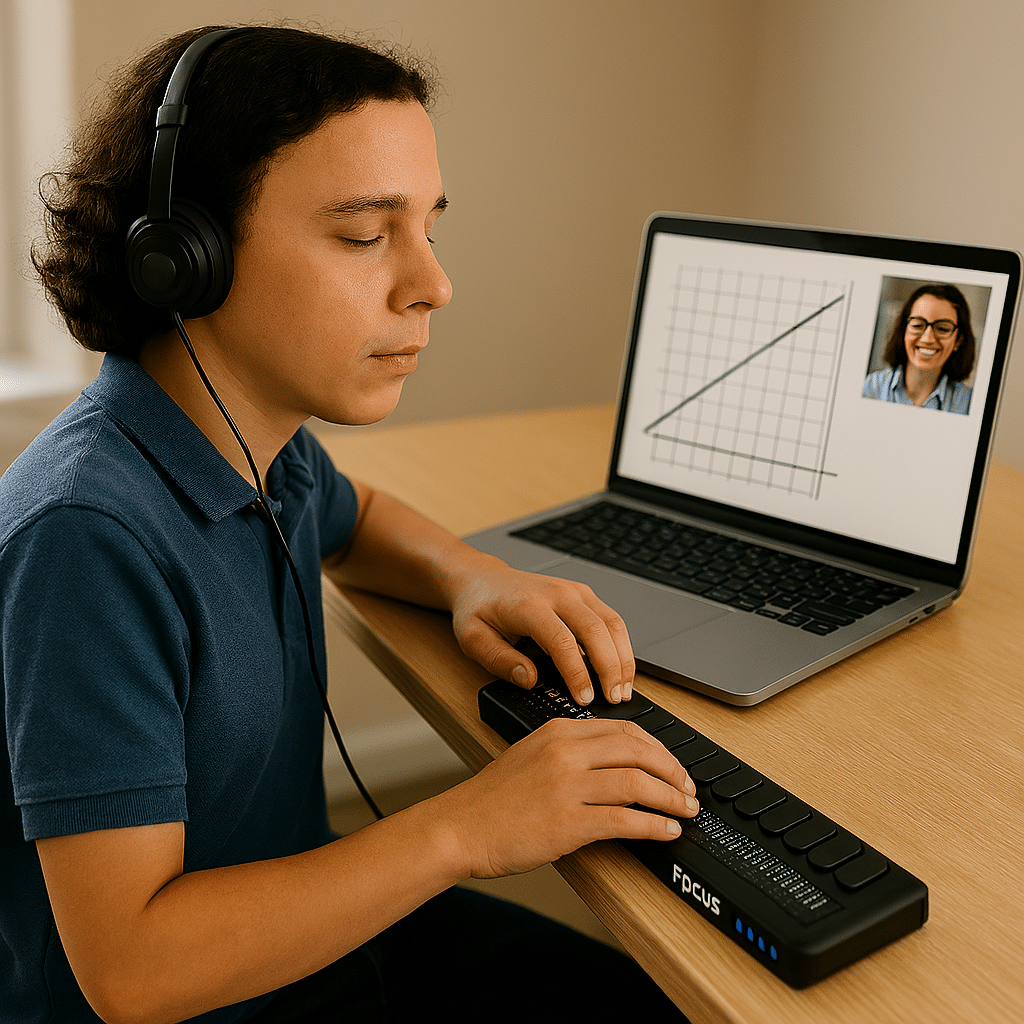
    Offering Personalized 1:1 remote instruction in technology, Braille, Nemeth, and essential blind skills — for students of all ages, anywhere in the world, enhances their educational access. These services ensure all can access educational opportunities effectively.

    Founded in 2007 by Dr. Denise M. Robinson, a global leader in remote instruction for blind and low-vision education, TechVision brings together a nationally recognized team of blind education specialists, access technology experts, transcribers, and certified braille instructors. The team delivers expert training in access technology, braille, braille math code, screen readers, and comprehensive academic accessibility. Through real-time, individualized instruction, TechVision equips blind learners of all ages to participate equally, work independently, and succeed across educational and professional environments.

    What We Do: Educational Access

    We Provide:

    • Support for families, schools, transition programs, and vocational rehabilitation with the goal of improving access to education.
    • 1:1 specialized instruction in technology, Braille, Nemeth, and all academic access through use of a computer.
    • Training for school teams — Teachers of the Blind & Visually Impaired, transcribers, paras, and School staff
    • Technology setup & independence training using screen readers, braille displays, and computers

    The TechVision Difference

    TechVision, LLC transforms lives through personalized, real‑time remote instruction.
    Our team equips blind and visually impaired students and clients with the technology skills they need to compete equally with their sighted peers — in school, work, and life. We collaborate with families, districts, and agencies worldwide to ensure every learner has educational access and independence.

    Why Educational Access Matters

     With cutting‑edge tools — computers, screen readers, braille displays, and smartphones — our students learn to access information, navigate their world, and build independence. TechVision empowers learners to step into education and employment with the same opportunities as their sighted peers.

    Who We Serve

    • College students needing support for educational access
    • Young adults
    • Adults returning to work
    • Anyone needing access to their world

    Real 1:1 TechVision Instruction

    Students learning to create graphs, write documents, code, and navigate technology independently. Doing Everything their peers are doing.

    Contact us

    Contact US: TechVisionTraining@yourtechvision.com

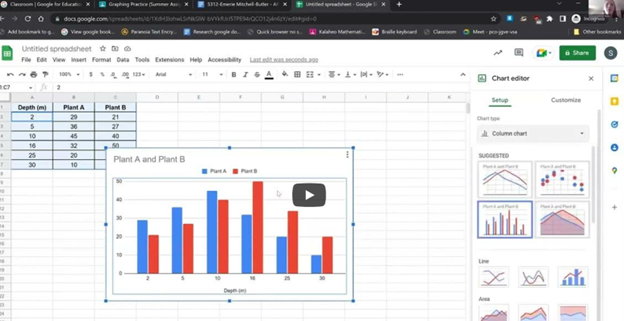
    you can see student in top right corner of screen using TechVision 1:1 remote instruction while she is working on creating graphs in sheets
    Empowering Blind & Visually Impaired Students Through Technology and Direct Instruction: she is working on creating graphs in sheets

    Tips & Tricks on learning Word and Braille Math Editor with UEB math, FOCUS Braille display and screen reader

  • Office 365 Online Access with Screen Reader

    Office 365 online is fully accessible with screen readers, enhancing the user experience for visually impaired users. Through straightforward keyboard shortcuts, users can navigate and manage their documents efficiently. The interface supports major screen readers like JAWS, NVDA, and VoiceOver, ensuring users can access emails, calendars, and all Office apps without a mouse. This integration empowers users to perform complex tasks seamlessly, from editing documents to collaborating in real time, ensuring a barrier-free environment for all users.

    Here are some other formatting shortcuts for Office 365 that can enhance your productivity:

    1. Align Text:
    • CTRL + L: Align text left.
    • CTRL + R: Align text right.
    • CTRL + E: Center align text.
    • CTRL + J: Justify text alignment.
    1. Text Formatting:
    • CTRL + Shift + >: Increase font size.
    • CTRL + Shift + <: Decrease font size.
    • CTRL + U: Underline text.
    • CTRL + Shift + W: Underline words but not spaces.
    1. Paragraph Formatting:
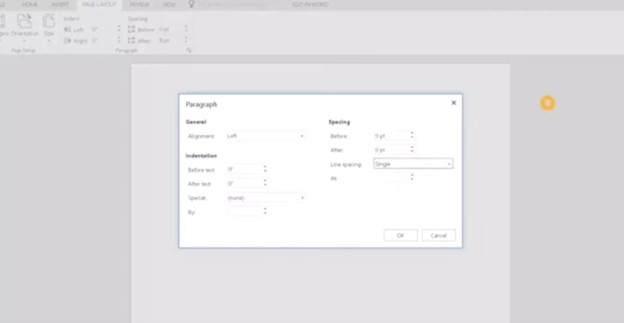
    • CTRL + M: Increase indent.
    • CTRL + Shift + M: Decrease indent.
    • CTRL + 1: Set single-line spacing.
    • CTRL + 2: Set double-line spacing.
    • CTRL + 5: Set 1.5-line spacing.
    1. Insert Elements:
    • ALT + N, P: Insert a picture.
    • ALT + N, T: Insert a table.
    office 365 online access
    office 365 online access

    These shortcuts are integral for quick editing and formatting within Office 365 online access for applications, streamlining the process of document creation and modification.

    In Office 365 applications like Word, you can quickly apply or change text styles using the Styles pane. The shortcut to open the Styles pane is ALT + CTRL + Shift + S. This allows you to apply predefined styles to your text efficiently. Additionally, you can use CTRL + Shift + S to open the Apply Styles dialog box, where you can type and apply a style name directly to the selected text. These shortcuts help streamline formatting and ensure consistent document styling.

    Other Online Office 365 online access commands

    Here are some essential commands for using Office 365 online efficiently:

    1. Save: Ctrl + S
    2. Undo: Ctrl + Z
    3. Redo: Ctrl + Y
    4. Open: Ctrl + O
    5. Print: Ctrl + P
    6. Copy: Ctrl + C
    7. Paste: Ctrl + V
    8. Cut: Ctrl + X
    9. Bold: Ctrl + B
    10. Italic: Ctrl + I
    11. Underline: Ctrl + U
    12. Insert Hyperlink: Ctrl + K
    13. Refresh the Document: F5
    14. Find: Ctrl + F
    15. Replace: Ctrl + H

    These shortcuts are fundamental for navigating and managing documents in Office 365 online, making your workflow quicker and more efficient.

    Here are more helpful tips for using Office 365 effectively:

    1. Quick Access Toolbar Customization:
    • Customize your Quick Access Toolbar by adding frequently used commands. Right-click any command in the ribbon and select “Add to Quick Access Toolbar.”
    1. Use “Tell Me” Feature:
    • Use the “Tell Me” feature (light bulb icon or ALT + Q) in the ribbon to quickly find features or help with commands you’re unsure about.
    1. Keyboard Shortcut Customization:
    • Customize keyboard shortcuts through the Word Options dialog to tailor your workflow preferences.
    1. Use Version History:
    • Use Version History to view and restore previous versions of your documents, especially useful in collaborative settings.
    1. Collaborate in Real-Time:
    • Use the collaboration tools in Word, Excel, and PowerPoint to work with others in real-time, seeing changes as they happen.

    These tips can help you navigate Office 365 more efficiently and make the most out of its extensive features and more lessons here.

  • Learn Out Loud Reading – Audio Books Galore

    LearnOutLoud.com offers a comprehensive resource for audio and video learning materials, perfect for those looking to learn out loud reading strategies. The site provides a wide range of educational content, including audiobooks, podcasts, and video courses. Users can explore topics such as self-development, history, and business. The platform makes learning accessible and convenient with high-quality content. You can access the materials anytime, anywhere. Therefore, if you’re looking to learn out loud, this platform is an excellent choice.

    Learn out Loud Reading
    Learn out Loud Reading

    Navigating LearnOutLoud.com is straightforward. Here’s a step-by-step guide to help you get started:

    Homepage: The homepage displays featured content like popular audiobooks, podcasts, and video courses.

    Search Bar: Type keywords in the search bar to find specific content.

    Categories: Browse categories like Self Development, History, and Business by clicking the “Browse” menu.

    Featured Content: Click on featured content, new releases, or top-rated materials to explore further.

    User Account: Create an account to save favorites, make playlists, and track progress.

    Audio and Video Players: Use the built-in player to play, pause, and skip content.

    Reviews and Ratings: Read user reviews and ratings to decide on content.

    Newsletter and Blog: Subscribe to the newsletter or read the blog for updates and tips.

    More Digital book management options from Calibre

    Tell us how we can help you: Contact US: TechVisionTraining@yourtechvision.com

  • How to Adapt Work for Blind or Low Vision Students — Many Options

    The most modern way as of 2024 to adapt work for blind or low vision students is using programs like MathKicker.ai, WORD Immersive Reader and Google Docs, follow these steps to ensure full accessibility for both English, Math and other content:

    1. Use MathKicker.ai for Math Content:
      • Upload or paste math equations into MathKicker.ai. This tool converts complex math problems into formats accessible for screen readers like JAWS or NVDA.
      • Once converted, paste the accessible math text into Google Docs or other word processing platforms for students to use with their screen readers.
    2. Convert Images to Descriptive Text in Google Docs:
      • When images contain important information, use Google Docs’ built-in alt text feature. Right-click the image, select “Alt text,” and enter a detailed description of the image, focusing on its relevance to the content.
      • For math-specific images (e.g., graphs, equations), describe the visual elements and provide the corresponding math in text form or, if needed, through MathKicker.ai to ensure clarity for students using auditory or Braille output.

    How to Adapt Work and Why

    3. Leverage Google Docs Collaboration Features:

    • Share Google Docs with students, allowing them to access the document using their preferred screen reader.
    • Enable real-time collaboration by ensuring that students can work in the document with peers or teachers, making the experience inclusive.

    4. Use Heading and Structure Tools:

    • Make sure to structure documents with proper headings and styles in Google Docs to aid screen readers in navigating the document efficiently.

    By combining MathKicker.ai for math accessibility and using Google Docs to convert visual content into descriptive text, blind or low vision students can access both English and math content effectively.

    There are many ways to adapt work for inclusion. Inaccessible work creates barriers—choose the right tools, because together we achieve more than apart.

     Here are a few ways to do just that.

    Adapting work using Jaws OCR-how to tell if work is image or text in PDF

    The fastest way to adapt inaccessible PDF with graphics when you run out of time

    How to adapt work for low vision–continue on with skills

    Adapt work for Low Vision using shapes for Math or Chemistry

    How to adapt work for blind/low vision students

    Access Technology for Low Vision-See your computer screen better

    Tricks for students to adapt last minute work fast –right in class

    How to adapt More work in general

    Let us know how we can help you!

  • How to SEE Your Computer Better with Low Vision

    How to SEE Your Computer Better with Low Vision

    The population of individuals with low vision exceeds that of those who are blind. It is expanding quickly as the population ages and experiences vision decline. A variety of lessons teach you how to download large cursors, enhance contrast, and enlarge text in Word. These skills also help you read with more ease. You’ll also learn how to magnify text and graphics on the Internet using different methods. Additionally, instructions on setting up low vision devices for students in classrooms who need to see the board are provided. These lessons are designed to improve your ability to see everything on your computer. The fact that these videos predate screen capture technology is irrelevant, as the skills are applicable to all versions of Windows.

    Skills to Enlarge Text as you need on any computer

     SEE your computer better, for users with low vision, using keyboard commands in Microsoft Word can significantly enhance visibility and ease of use. Here are some useful shortcuts:

    1. Zoom In/Out:
      • Zoom In: Press Alt + W, then Q, and use the Tab key to navigate to the zoom value you want.
      • Zoom Out: Use the same steps as above but adjust the zoom value accordingly.
    2. Adjust Font Size:
      • Increase Font Size: Press Ctrl + ].
      • Decrease Font Size: Press Ctrl + [.
    3. Magnifier:
      • Turn on Magnifier: Press Windows + + (Plus sign).
      • Zoom In: Press Windows + + (Plus sign).
      • Zoom Out: Press Windows + - (Minus sign).
      • Exit Magnifier: Press Windows + Esc.
    4. Change Font:
      • Open Font Dialog Box: Press Ctrl + D to open the Font dialog box where you can adjust font size, style, and other attributes.
    5. High Contrast Mode:
      • Toggle High Contrast Mode: Press Left Alt + Left Shift + Print Screen.

    Other Low Vision Skills to increase “Seeing” Ability

    This Video demonstrates other skills to decrease blue light and damage to your eyes while using your computer

    These shortcuts can help you SEE your computer better and make text more readable and improve overall accessibility in Word12.

    Add screen readers to get the audio feedback you need as vision decreases

    See the computer better with high contrast
    See your computer better with high contrast

    Other Vision impairment Information


  • Document Formatting Editing Elements: Edit Margins, Tab, Headers, Footers & More

    Document formatting editing elements commands work in ALL versions of WORD.

    Video Lesson to help sighted teachers teaching or just sighted people who want to move faster

    Here is a list of formats mentioned in the video:

    1. Windows key + 5 on my computer: Opens the fifth pinned item on the taskbar (Word in this case).
      • Pin your most used APPS on taskbar for faster document formatting editing elements access.
    2. ALT + V, Z: Opens the zoom option.
    • 2: Zoom to 200%.
    • 7: Zoom to 75%.
    1. ALT: Highlights the menu.
    2. ALT + P: Opens the Page Layout tab.
    • O: Opens orientation options.
    • Arrow keys: Navigate between Portrait and Landscape options and document formatting editing elements within the layout tab.
    • Enter: Select the chosen option.
    1. ALT + P, M: Opens margins options.
    • A: Opens custom margins for better control of document formatting.
    • Tab: Moves around the dialog box.
    • Escape: Closes the dialog box.
    Document formatting editing elements Page elements header
    Document formatting editing elements: Header
    1. ALT + V, H: Opens headers.
    2. CTRL + R: Right-aligns text, a key document formatting function.
    3. ALT + I, U: Inserts auto page numbers.
    4. Down Arrow: Moves to the footer.
    5. Escape: Exits the header or footer.
    6. CTRL + End: Moves to the end of the document.
    7. CTRL + Enter: Inserts a page break.
    8. =rand(): Inserts random text (DOS command).
    9. CTRL + Up Arrow: Moves up one paragraph at a time, assisting in document editing tasks.
    10. ALT + V, Z, 100%: Zooms to 100%.

    These commands offer various ways to navigate, format, and interact with Word documents efficiently. More Document formatting editing elements make these processes smoother and more efficient.

    YouTube Channel of all lessons

  • Type directly on PDF for Geometry with screen reader

    You can perform all these tasks using current PDF versions, even with inaccessible scanned images. First, demonstrate how to write text directly on scanned PDFs, then save the edited file. Next, show students how to type directly on PDF and email the completed PDF to their teacher for submission. Perfect touch typing is always preferred for ease.

    For low vision users, all math content with voice output offers additional support. Combine this tool with text manipulation in PDFs to make materials more accessible. This approach ensures students can interact with complex materials efficiently, despite any visual challenges.

    Here are some useful keyboard commands for working with PDFs in Adobe Acrobat, focusing on enlarging the screen and typing on the document:

    Type directly on PDF commands

    Enlarge Screen (Zoom In/Out)

    1. Zoom In:
      • Press Ctrl + + (Plus sign) on Windows.
      • Press Cmd + + (Plus sign) on Mac.
    2. Zoom Out:
      • Press Ctrl + - (Minus sign) on Windows.
      • Press Cmd + - (Minus sign) on Mac.
    3. Fit to Screen:
      • Press Ctrl + 0 (Zero) on Windows.
      • Press Cmd + 0 (Zero) on Mac.

    Typing on a PDF

    Typing on PDF
    Type Directly on PDF
    1. Add Text:
      • Select the Text Box Tool by pressing Ctrl + Shift + T on Windows.
      • On Mac, you might need to manually select the tool from the toolbar.
    2. Type in a Form Field:
      • Navigate to the form field using the Tab key.
      • Press Enter to start typing.
    3. Add a Comment:
      • Press Ctrl + 6 to open the comment tool on Windows.
      • Press Cmd + 6 on Mac.
    4. Save Changes:
      • Press Ctrl + S to save the document on Windows.
      • Press Cmd + S on Mac.

    More PDF Lessons:

    Math and taking inaccessible to accessible in WORD

    Type directly on a PDF

    Transcribe Math Images from PDF

    Take Large PDFs and Print to PDF for a few pages

    If you have any computer issues, fix it up yourself and get going on work.

    These commands should help you navigate and edit PDFs more efficiently.

    Video on How to SEE your computer better with Low vision is also very helpful.

  • Creating Excel Math Graphs

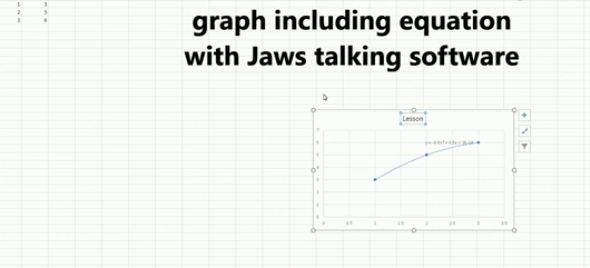
    Creating Excel Math Graphs is easy if you know the keyboard shortcuts with JAWS screen reader or NVDA. Kaylee starts by opening Excel, ready to plot the data using a scatter plot. First, she selects the A and B columns to copy them. Using the keyboard shortcut Ctrl + C, she copies the data. Once Excel is opened, she selects the cells where the data will be pasted, pressing Ctrl + V. Ensuring more rows are selected than needed, Excel warns if too many cells are selected, but Kaylee confirms the paste by selecting “Yes.”

    creating excel math graphs
    Creating Excel Math Graphs

    With the data ready, Kaylee moves to create a scatter plot graph. She presses Alt + N to access the “Insert” tab, navigating carefully to choose the scatter plot. After accidentally selecting the formula tab, she tries again, successfully inserting the scatter plot this time.

    Next, it’s time to add titles to the chart. Kaylee presses Alt + J + L to open the “Chart Layout” options, selecting T to input the chart title. Choosing to place the title above the chart, she moves forward. For the axis titles, she uses Alt + J + A + I to access the “Axis Title” options, adding the horizontal (X) axis title first. She selects W for the primary horizontal axis and types the label. Creating Excel Math Graphs involves repeating the process for the vertical (Y) axis, she selects the “Rotated” option by pressing the down arrow and enters the appropriate title.

    Ready to Submit her Excel Plot Math Graph

    Kaylee removes the chart legend, which is unnecessary for this excel Plot math graph. Pressing Alt + J + L + L, she selects “None” from the legend options. After exiting the title field by pressing Esc, she copies the finished graph with Ctrl + C and pastes it into a Word document using Ctrl + V. The graph is complete and clean for submission.

    If you would like to submit an advanced Quadratic Formula or an inequalities graph, there are many learning options

    More Excel Math Lessons

  • Family Tree with Smart Art and Screen Reader

    Using your newest WORD version, Create a family tree in Microsoft Word using (1997-2023) keyboard commands is straightforward and efficient. Most importantly, it is accessible. After you open WORD, press F12 for save as and name it then tab to save as an arrow to 1997-2023 and enter. Then press Alt + N to open the Insert tab, then press M to select SmartArt. In the SmartArt dialog box, (typically the first item, so listen) or use the arrow keys to navigate to the “Hierarchy” category and select a suitable layout for your Family Tree with Smart Art, such as “Organizational Chart.” Press Enter to insert the SmartArt graphic into your document.

    This is the method of creating a Family Tree with Smart Art and screen reader. You can then use the Tab key to move between different elements of the chart and Enter to add new family members. To edit text within the SmartArt, simply press F2 to enter text editing mode. This method allows you to create a detailed and visually appealing family tree using just your keyboard and screen reader.

    When you are looking to do sophisticated work such as Family trees, etc., always do as save as to 97-2023 as that Version was fully accessible and still is IF you remember the commands. Here is a few below Family Tree:

    Family Tree with Smart Art and screen reader

    family tree using smart art
    Family Tree with Smart Art

    Here are the keyboard commands for accessing the Insert menu in Microsoft Word (1997-2023):

    1. Open Insert Menu in WORD:
      • Press Alt + N.
    2. Insert Picture:
      • After pressing Alt + N, press P.
    3. Insert Table:
      • After pressing Alt + N, press T.
    4. Insert Shapes:
      • After pressing Alt + N, press S.
    5. Insert SmartArt:
      • After pressing Alt + N, press M.
    6. Insert Chart:
      • After pressing Alt + N, press C.
    7. Insert Hyperlink:
      • After pressing Alt + N, press I.
    8. Insert Text Box:
      • After pressing Alt + N, press X.
    9. Insert Header:
      • After pressing Alt + N, press H.
    10. Insert Footer:
      • After pressing Alt + N, press O.
    11. Insert Page Number:
      • After pressing Alt + N, press NU.

    Another lesson that works just as well: Venn Diagrams with Screen Reader

    These commands should help you efficiently navigate and use the Insert menu in Word. However, if you are experiencing computer issues, fix it and get it setup correctly for speed.

    Now learn to convert braille file into WORD or learn from hundreds of other video lessons

  • Instant Shapes for Math, etc.-Instamorph

    instamoph moldable plastic
    Instamorph moldable plastic-Mold your Imagination

    Instant shapes for Math using InstaMorph, which is a versatile, reusable thermoplastic that transforms your creative projects. First, you simply heat the InstaMorph beads in hot water until they become moldable. Then, you can shape them with your hands or tools. As it cools, InstaMorph hardens into a strong, durable plastic. This material is perfect for a wide range of applications, including crafting, prototyping, and repairs.

    Next, consider the endless possibilities InstaMorph offers. It is not just for Instant shapes for Math, but you can create custom grips, brackets, or even cosplay accessories. Additionally, if you make a mistake, you can reheat and reshape it, making it incredibly forgiving and easy to use. Moreover, InstaMorph can be painted, machined, and carved, allowing for further customization.

    Furthermore, InstaMorph is non-toxic and safe for all ages, making it an excellent choice for educational projects and family activities. Its lightweight nature ensures that it is easy to handle and manipulate, even for beginners. Finally, by sharing your InstaMorph creations on social media with the hashtag #InstaMorph, you can join a community of makers and gain inspiration from others.

    In conclusion, InstaMorph empowers you to bring your ideas to life with ease and flexibility. Whether you’re a hobbyist, artist, or DIY enthusiast, InstaMorph is the perfect tool to unleash your creativity.

    Incredible Instamorph -watch video, solves those Geometry and other math problems with making instant shapes….of any kind. Think big and do just about anything you need. YouTube video at: Instamorph