Search results for: “windows 11”

  • Standard Gmail, sending emails fast and all else with Jaws -screen reader and keyboard commands

    To optimize your Gmail experience with JAWS, it’s important to first set up keyboard shortcuts in Gmail’s settings. This initial step ensures that you can navigate and perform actions quickly using JAWS. If you notice your computer is not working well, then we highly suggest optimizing it for Windows with screen readers. Here is a parent setting it up with a trainer if you would like more direction.

    Start by opening Gmail in your web browser. Once inside, press the letter “G” followed by “S” to go directly to the settings. Next, use the “Tab” key to navigate through the settings menu until you reach the “See all settings” option. Press “Enter” to access the full settings menu.

    In the settings menu, continue pressing “Tab” until you reach the “Keyboard shortcuts” section. Here, you’ll find an option to turn on keyboard shortcuts. Press the spacebar to enable this feature. Enabling keyboard shortcuts is crucial as it allows you to execute commands more efficiently, which is particularly beneficial when using JAWS.
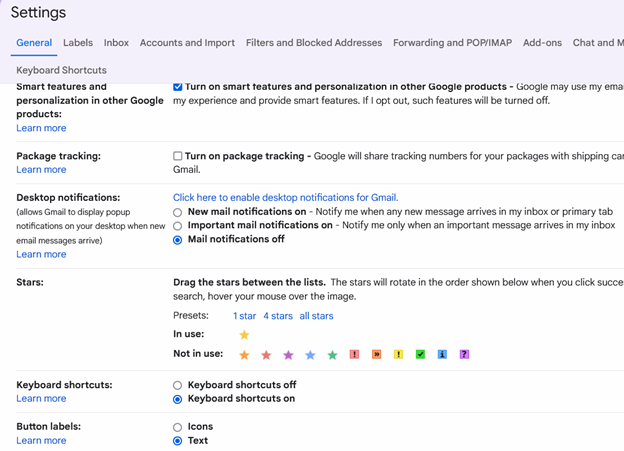
     settings in gmail showing keyboard shortcuts on

    After turning on keyboard shortcuts, press “Tab” to navigate to the “Save Changes” button and press “Enter.” This action ensures that your settings are saved, and keyboard shortcuts are now active in Gmail.

    With keyboard shortcuts enabled, you can now easily compose, send, and manage emails using JAWS. For example, press “C” to open the compose window, where you can start drafting an email. Use the “Tab” key to move between the “To,” “Subject,” and “Body” fields, and use JAWS commands to review your text as you type.

    Finally, once your email is ready, press “Tab” to reach the “Send” button and press “Enter.” JAWS will confirm that your email has been sent. With keyboard shortcuts active, you can also quickly navigate through your inbox, search for emails, and perform other tasks, making your Gmail experience much more efficient.

    In conclusion for most crucial item, is setting up keyboard shortcuts in Gmail which is the first essential step to using JAWS effectively. This setup ensures that you can send emails quickly and navigate Gmail seamlessly, enhancing productivity for blind and low vision users. For addition information see TechVision YouTube channel. While you advance your tech, include your Braille reading speed skills.
  • AI to describe images, pictures, or what you want with Jaws keyboard commands by Lucas

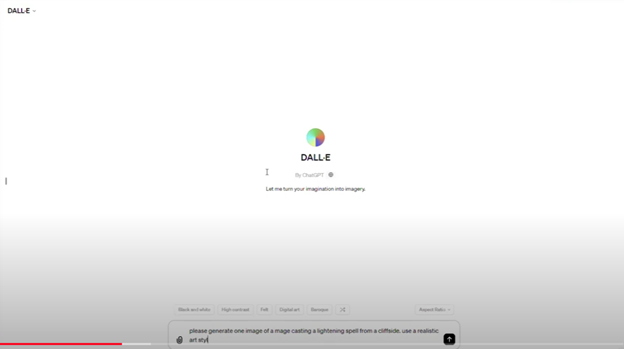
    Lucas, a blind individual, demonstrates JAWS Commands using AI Descriptions and how to effectively use ChatGPT with DALL-E to generate and describe images. Starting with ChatGPT, Lucas opens the platform, which places him directly in the edit box. To navigate out, he presses the “up arrow” key. He then maximizes the screen with “Windows + up arrow,” enhancing readability for JAWS.

    Next, Lucas demonstrates how to locate the DALL-E AI Description image generator by accessing the links list using Jaws Commands with “Caps Lock + F7.” He navigates to the search box using the “E” key and types “DALL-E” in all capitals, with the period included. After pressing “Enter,” he tabs through the search results until he finds the relevant link, then presses “Enter” again to open it.

    AI to make the InaccessibleAccessible

    Once inside the image generator, Lucas describes the process of inputting a prompt. He emphasizes the importance of being specific, including details about the setting, characters, and art style. For instance, he generates an image of a wizard casting a spell on a cliff-side in a realistic art style. By pressing “Enter,” the image generation process begins, typically producing two images by default. He demonstrates how to make the inaccessible-accessible.

    To download an image, Lucas uses “Shift + B” to find the “Show Image” button, followed by pressing “Enter” and then down arrow to the “Download Image” button. He encounters a warning about the dialog not being focused, while the download proceeds. Remember to Email your beautiful creations to someone also.

    Dall-E platform image

    For image descriptions, Lucas follows a similar process to find the “Image Description Assistant” link. After inputting his request and attaching the image file, he waits for the description to generate. To review the description, Lucas uses “Shift + G” to jump to the top of the graphic, then down arrows to read it. This methodical approach allows Lucas to create detailed images and receive comprehensive descriptions efficiently.

    AI has transformed how screen reader users access their world, MathKicker.AI is a powerful MATH app that allows top level Math work. Do not let Low Vision issues or legal blindness stop you from accelerating in school.

    Continue to learn how to make images such as Math into Text.

    Be My Eyes for Computer: Describe Images, Graphs, and Screens Instantly

  • Transcribe math images into text in WORD math editor with mathkicker and transcriber tricks

    Dr. Robinson guides transcribers through the process of math image conversion for accessibility, specifically focusing on converting math images into accessible Word documents using MathKicker.AI. She begins by highlighting that transcribers will easily recognize an image when it turns blue upon clicking it when opened in PDFs. These images, often blurry due to repeated copying by teachers, require careful description for students who cannot feel the number lines. Dr. Robinson emphasizes the importance of adjusting the level of detail based on the student’s age and familiarity with number lines during the math image conversion access process.

    To begin the process to learn how to convert math images into accessible Word documents for students with accessibility needs, Dr. Robinson gives step-by-step video instruction using “Windows + Shift + S” to capture the image and then select “Convert Image to Doc” using the clipboard in Mathkicker.AI. This method is particularly useful for large documents. Once converted, the image opens in Word, where it is important to enable editing with F6. She advises saving the document with a simple name, like “Line Work,” and placing it in the downloads folder from Mathkicker.AI.

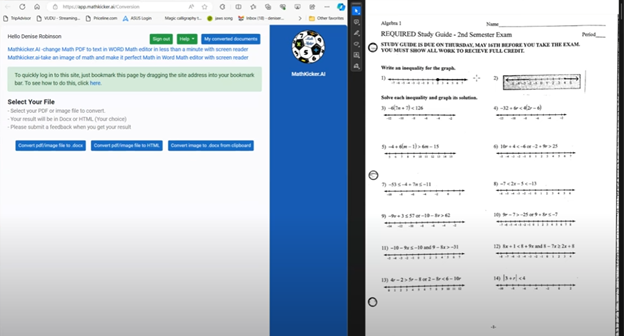
    Dr. Robinson demonstrates how to work side-by-side with the original image and the converted document. By adjusting the zoom to 200%, transcribers can compare the math accurately. She notes that sometimes images may contain extra elements, like a punched hole, which the software might misinterpret. These should be corrected during math image conversion for access.

    mathkicker on left side of screen and image of math on right for transcribe to acquire Word text

    Accuracy for Math image conversion access

    For further accuracy, Dr. Robinson recommends using alternative text (alt text) for the graphic line. This helps students and sighted individuals, such as teachers or parents, understand the content. She explains that leaving the graphic in the document with added alt text is beneficial. A user can add the braille Math editor into use in WORD also for more options or even using EXCEL.

    Moving to more complex math for math image conversion access, she instructs on using the Desmos graphing calculator. Students can use “Alt + Print Screen” to capture and paste graphs into the Word document. Describing shaded areas or specific graph features is crucial for clarity. Finally, Dr. Robinson shows how Math Kicker efficiently converts math into text, creating clean, accessible documents. This method, combining math image conversion access and alt text descriptions, significantly speeds up the transcription process while ensuring students receive accurate, accessible math content. Dr. Robinson concludes by encouraging transcribers to reach out with any further questions. At times, you need to adjust Margins, etc.

    When you are ready progress to advanced Math and more ways to convert inaccessible PDF math into actual text in WORD.

    Be My Eyes for Computer: Describe Images, Graphs, and Screens Instantly

  • Google Drive screen reader navigation with keyboard commands

    Dr. Robinson explains how to navigate the new Google Drive update using a screen reader, focusing on commands that will be essential after the August 1st, 2024 update shortcuts. She begins by demonstrating basic navigation through Google Drive, emphasizing the importance of learning the updated keyboard shortcuts-use FireFox when you have Chrome and Edge Chromium issues with navigation. The point it, same commands but use a different browser when 1 or 2 decide not to work well. Then if you have done that and still issues exist, set up computer to work the best with screen readers.

    To start, Dr. Robinson guides users through accessing the settings menu with “Control + Shift + S,” where updates and new keyboard shortcuts can be found. She highlights the automatic update that will apply the new shortcuts starting August 1st. After closing the settings menu with “Escape,” she demonstrates navigating Google Drive using the “Alt + G” command, followed by “N” to access the navigation region.

    New Google Drive Update

    Dr. Robinson continues by explaining first-letter navigation which presently only works in Firefox but as updates occur Chrome and Edge should start to work again also. List View is where users can jump to items by pressing the first letter of the item’s name. She shows how this method, combined with the updated shortcuts, makes navigation faster and more efficient. For example, to create a new document, she uses “Alt + C” followed by “T,” which quickly opens a new Google Doc and other google items.

    She then discusses how to use the “Alt + A” command to open the context menu, allowing users to perform actions like downloading, sharing, or renaming files. The context menu provides additional options, accessible via hotkeys. Dr. Robinson points out the ease of using these commands once learned, making it simpler to manage files within Google Drive.

    To demonstrate the process, she creates a new presentation with “Alt + C” followed by “P.” After navigating back to her list view with “Alt + G” followed by “I,” she explains how to use the context menu for specific actions. Dr. Robinson concludes by encouraging users to familiarize themselves with these new commands, ensuring a smooth transition.

    Google Drive navigation is more intuitive and accessible for those using screen readers if you use the browser that works . Learn Google Slides navigation with complicated slides to improve navigation and echo also.

    Make Google Accessible

    Making Google Accessible with EDGE: Screen Readers Can’t Read This!

  • UEB Math with JAWS in Word: Using Unicode, LaTeX, and Braille for Easy to Advanced Math

    Dr. Robinson introduces the latest Vispero update for JAWS, focusing on reading UEB math. To get started, she demonstrates how to configure JAWS settings for optimal performance with UEB math. She begins by pressing “Insert + 6” to access the JAWS settings. Then use “Control + Shift + D” to set the default profile.

    Setup MathCat for UEB Math with Jaws

    Dr. Robinson guides users through setting up Braille mode via Default profile by typing it in the edit box. She types “Braille Mode” in the search box, and F6 to access different settings. She uses “F6” to navigate to the desired options, then “Alt + F” to select language profiles. To access MathCat option via alt D to details then tab to Nemeth and change to MathCat then OK.

    Dr. Robinson explains how to select the correct Braille code, such as UEB math with JAWS or Nemeth code. She walks through the process of applying these settings and closing the settings dialog.

    Once set up, Dr. Robinson demonstrates how to solve math problems using JAWS in Word. Dr Robinson explains the process of entering equations using “Alt + Equals” to open the math editor. She highlights how to type out equations, like “X squared plus 3 equals 11.” Then how to navigate through the math content using keyboard commands.

    She also explains complex math using UEB Math with Jaws, such as using square roots and other mathematical symbols, by using Unicode and LaTeX commands. Dr. Robinson shows the equation tools in Word by pressing “Alt + J” E to equation menu. Then explains how to convert equations between professional and linear formats using “Alt + JE + C.”

    Throughout the tutorial, Dr. Robinson ensures users understand the commands necessary for navigating and editing math content effectively. She also provides troubleshooting tips, such as using the Math Viewer with insert space + = . This gives more detailed navigation of hearing each symbol, particularly useful for more complex equations.

    Dr. Robinson concludes by encouraging users to explore more advanced math problems and settings. This ensures that they can confidently use JAWS for UEB math in various applications. If you experience computer issues in general, set it up to work the most efficiently with screen readers.

    Other Math Lessons:

    Transcribe Math Images

    Quadratic Math

    STEM with Embossing

    Perfect Digital Math

    JAWS and MathCat

  • Transcribing Math Images into Perfect Word Math Editor Equations Using MathKicker.ai and Expert Transcriber Techniques

    Dr. Robinson demonstrates how transcribers can efficiently convert math images into text using accessible Word documents and MathKicker.AI. She begins by showing how to identify an image containing a math problem. Note, that it turns blue when clicked and often appears blurry for a hint of inaccessible. To convert the image, she uses the “Windows + Shift + S” command to capture the image, then pastes it into MathKicker using “Alt + V.” After converting the image, she opens the document in Word.

    Dr. Robinson advises transcribers to compare the original image with the converted text to ensure accuracy. She recommends using “F12” to save the document and “Alt + D” to choose the save location. For side-by-side comparison, she suggests using “Alt + Space” and “R” to restore and resize the windows.

    For Transcribers to convert math images into text

    To describe number lines or graphs, transcribers should write out the details, such as the range and direction of the line. Dr. Robinson also shows how to add alt text to images by right-clicking and selecting “View Alt Text.” This feature is particularly useful for visually impaired students who rely on screen readers.

    For inequalities and other math problems, Dr. Robinson explains how to use Desmos, a graphing calculator tool. She demonstrates how to type equations into Desmos and capture the graph using “Alt + Print Screen.” The captured graph can then be pasted into the Word document, and additional descriptions should be provided for clarity.

    Finally, Dr. Robinson emphasizes the importance of proofreading and adjusting the text to ensure it accurately represents the math content. She encourages transcribers to use MathKicker for quick and accurate transcriptions, highlighting its ability to create accessible math documents efficiently.

    Other Math Lessons:

    Transcribe Math Images

    Quadratic Math

    STEM with Embossing

    Perfect Digital Math

    JAWS and MathCat

    Unicode with UEB Math

    UEB Math with Jaws

    UEB LaTex math with Jaws

    Braille Math in WORD Editor-Multi-line

    Split Braille for Buffer Mode

    Braille Blaster

    Desmos Lessons:

    Desmos 3D graphing

    for Geometry in Desmos

    for STEM and Embossing in Desmos

    Desmos and inserting graphs into Math Work in WORD

    Creating shaded Parabolas in Desmos

    Games with Desmos with Drag and Drop

    Drag n Drop in Macmillan Learning

    Creating Geometry Table

  • Accessible Venn Diagrams with a Screen Reader: How Blind Students Navigate and Understand Overlapping Sets

    Accessible Venn Diagrams with a Screen Reader: How Blind Students Navigate and Understand Overlapping Sets

    Using Venn diagrams with screen readers involves strategic design and specific keyboard commands to ensure accessibility. Each set in the diagram must have clear, descriptive labels to guide screen reader users effectively. These labels help users understand the content without needing visual cues. Alt text plays a crucial role by summarizing the Venn diagram’s purpose, the sets involved, and their intersections. This concise description enables screen reader users to grasp the diagram’s structure and intent.

    Keyboard navigation is essential for screen reader users to interact with Venn diagrams. The Tab key allows users to move through interactive elements like text boxes or linked descriptions associated with the diagram. Arrow keys are useful for navigating within tables or text boxes that describe the diagram’s content. This functionality ensures that users can access all relevant information without relying on visual input.

    Screen Reader Venn Diagram Commands

    Screen reader software, like JAWS or NVDA, includes commands that facilitate navigation. In JAWS, the Ctrl+H command lets users jump between headings, making it easier to navigate through complex content. NVDA users can use the Ctrl+Alt+Arrow keys to move between headings or landmarks within a webpage or document. These commands are vital for quickly accessing different parts of the content related to the Venn diagram.

    Incorporating structured content enhances the usability of Venn diagrams for screen reader users. Headings, bullet points, and numbered lists help break down complex information into manageable sections. This structure allows users to follow the logical flow of information without confusion. So, Screen reader users can also navigate through tables that complement the Venn diagram. Tables list elements within each set and describe intersections, making the relationships between sets clear. JAWS users can move horizontally between cells using Ctrl+Alt+Right/Left Arrow keys, and vertically with Ctrl+Alt+Up/Down Arrow keys.

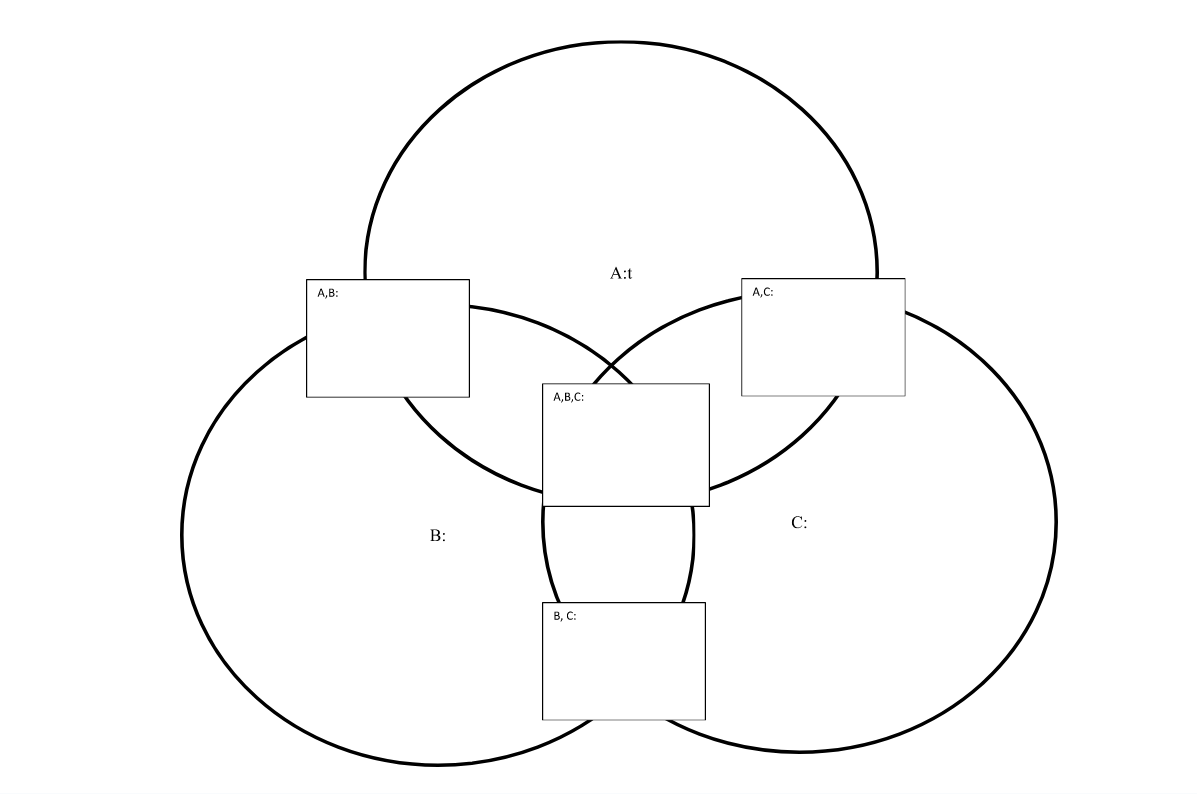
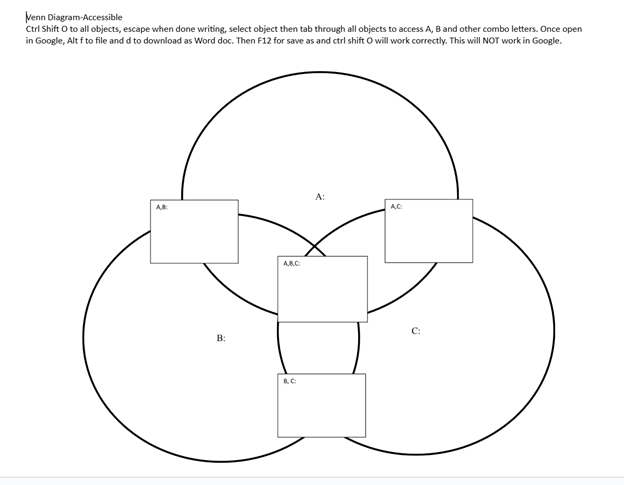
    image of a 3 ringed screen reader Venn Diagram to add information from a download link

    Careful Planning

    Creating accessible Venn diagrams for screen reader users requires careful planning. By using descriptive text, alt text, structured content, and keyboard commands, educators and content creators can ensure that all users, including those who rely on screen readers, can effectively interact with and understand Venn diagrams. These strategies are essential for making complex visual information accessible to everyone. More Video Lessons here

    Create your Venn Diagram via WORD and shapes, applications key to move to back or forward then use these commands to access: Venn Diagram-Accessible

    Ctrl Shift O to all objects, escape when done writing, select object then tab through all objects to access A, B and other combo letters. Once open in Google, Alt f to file and d to download as Word doc. Then F12 for save as and Ctrl Shift O will work correctly. This will NOT work in Google.

    When done, have student emboss off a copy to feel what it is like and if you are having computer issues, tweak it to work better with screen reader.

    Another lesson that occurs in school: Family Tree with Smart Art and screen reader

    Math Lessons

    Transcribe Math Images

    Quadratic Math

    STEM with Embossing

    Perfect Digital Math

    JAWS and MathCat

    Unicode with UEB Math

    UEB Math with Jaws

    UEB LaTex math with Jaws

    Braille Math in WORD Editor-Multi-line

    Split Braille for Buffer Mode

    Braille Blaster

    Desmos Lessons:

    Desmos 3D graphing

    for Geometry in Desmos

    for STEM and Embossing in Desmos

    Desmos and inserting graphs into Math Work in WORD

    Creating shaded Parabolas in Desmos

    Games with Desmos with Drag and Drop

    Drag n Drop in Macmillan Learning

    Creating Geometry Table

  • Remapping Keyboard Keys with SharpKeys While Avoiding JAWS and NVDA Screen Reader Conflicts

    Dr. Robinson demonstrates how to remap a key on a keyboard using SharpKeys, which is especially useful for laptops that lack an Applications key. She explains that many screen readers require an Applications key, but not all laptops include one. By remapping an unused key, such as a backslash or the 2nd alt key, students can easily create an Applications key for their screen reader.

    Remap keys on keyboard with sharp keys and screen reader commands

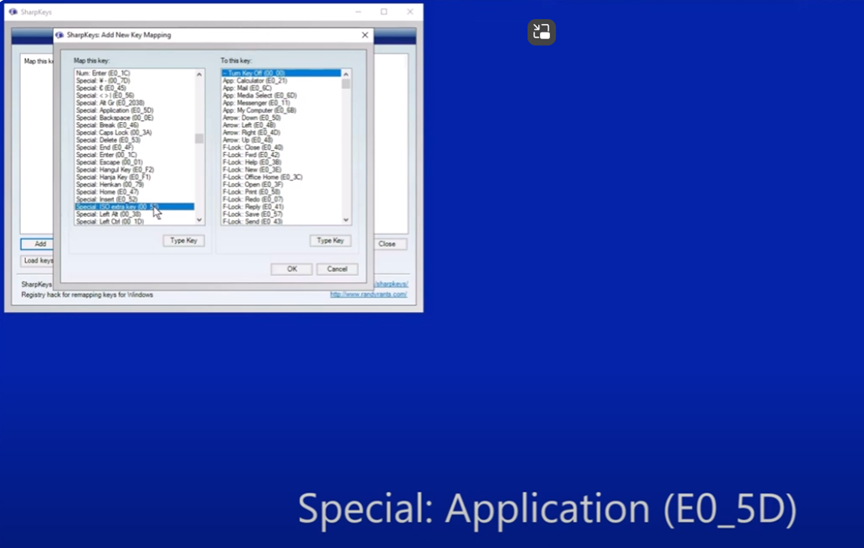
    She begins by opening SharpKeys via the Start menu and typing “SharpKeys” into the search bar. Once opened, she navigates the menu with Tab and presses Alt + A to add a new key mapping. To identify the key to remap, she presses Alt + K and hits the backslash key. It’s a straightforward way to remap keys on keyboard devices.

    The software recognizes the backslash as ISO Extra Key 0_56, making it easy to remap. Dr. Robinson then scrolls through the list using Down Arrow to find Special: Application E0_5D. After selecting it with Spacebar, she confirms the key mapping by pressing Enter.

    image of sharpkeys and select on the left side pane what you want to change it to on right side pane

    To test the remapped key, she presses Windows + T to open the taskbar. She then uses the newly remapped key to access the Applications menu. Though the key is still labeled as backslash, it functions correctly as an Applications key. This technique to remap keys on keyboard setups helps users customize their experience.

    Dr. Robinson emphasizes that this method allows blind users to easily remap keys without assistance. The entire process is accessible, making it useful for students relying on screen readers. The remapped Applications key provides full functionality, offering standard Applications key options. Remapping keys on keyboard devices can significantly improve accessibility for all users.

    Dr. Robinson ensures that students can remap keys using SharpKeys independently, without needing assistance from a sighted person. She highlights that this process is accessible for blind users and fully supports screen readers.

    After confirming the remapping, Dr. Robinson explains how this tool provides flexibility for students using different laptops. By remapping a nonessential key, they can create a functional Applications key, essential for many screen reader commands.

    She encourages students to experiment with remapping other keys if needed. This flexibility allows users to personalize their keyboards to fit their preferences. More Screen Reader Lessons here

  • Select Noncontiguous folders and files in File Explorer

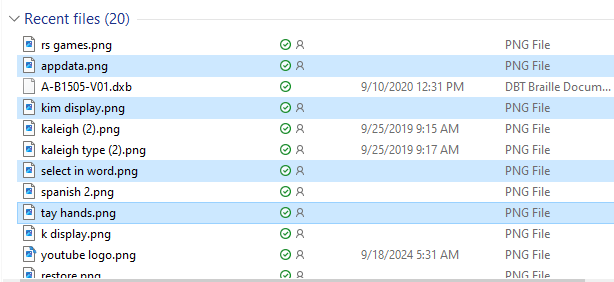
    In this video, Nate Kile will show how to select noncontiguous folders and files efficiently. This method will allow you to select as you need them.

    To select noncontiguous folders and files in File Explorer using keyboard shortcuts, follow these steps:

    1. Open File Explorer:
      • Press Windows + E to open File Explorer.
    2. Navigate to the Desired Folder:
      • Use the arrow keys to navigate to the folder containing the files or folders you want to select.
    3. Select the First Item:
      • Use the arrow keys to highlight the first file or folder you want to select.
      • Press Space to select it.
    4. Select Additional Non-Contiguous Items:
      • Hold down the Ctrl key.
      • Use the arrow keys to navigate to the next file or folder you want to select.
      • Press Space to select each additional item while still holding down the Ctrl key.
    5. Complete Your Selection:
      • Release the Ctrl key once you have selected all the desired files or folders.
    Select noncontiguous files and folders
    Select noncontiguous files and folders

    This method allows you to pick and choose individual files or folders that are not next to each other, giving you more flexibility in your selection.

    Our Mission and Purpose will take you where you want and need to go. Let us know how we can help you with noncontiguous folders and files. Contact US: TechVisionTraining@yourtechvision.com

  • Sighted Parents Set Up a Computer with a TechVision Trainer

    When sighted parents’ setup computer for their young child, they learn the commands and how to follow through with lessons after the TechVision Team completes working with their child.

    When sighted parents learn alongside their blind child, especially in the context of setting up and using a computer, it offers numerous benefits:

    1. Enhanced Understanding and Support: Parents gain a deeper understanding of the assistive technologies their child uses, such as screen readers and braille displays. This knowledge enables them to provide better support and guidance during practice and troubleshooting.
    2. Consistency in Learning: By learning the commands and techniques themselves, parents can ensure that the child receives consistent instruction and reinforcement of skills. This continuity is crucial for the child’s confidence and proficiency.
    3. Empowerment and Independence: Parents who are knowledgeable about the technology can empower their child to explore and use the computer independently. This fosters a sense of autonomy and self-reliance in the child.
    4. Improved Communication: Understanding the technology allows parents to communicate more effectively with their child about their learning experiences and challenges. This can strengthen the parent-child relationship and create a more supportive learning environment.
    5. Advocacy and Collaboration: Informed parents are better equipped to advocate for their child’s needs in educational settings and collaborate with teachers and specialists to ensure appropriate accommodations and resources are provided.
    6. Shared Learning Experience: Learning together can be a bonding experience, making the process enjoyable and less isolating for the child. It also demonstrates to the child that their parents are invested in their education and success.

    Here are some general essential keyboard commands to set up and navigate the JAWS screen reader:

    Starting and Basic Navigation

    1. Start JAWS:
      • Press Ctrl + Alt + J or if pinned to taskbar Windows 3 on this computer
    2. Activate PC Cursor:
      • Press Numpad +.
    3. Activate JAWS Cursor:
      • Press Numpad -.
    4. Silence Current Speech Output:
      • Press Ctrl.

    Help Sighted Parents Setup Navigating Web Pages

    1. List Links:
      • Press Insert + F7.
    2. List Headings:
      • Press Insert + F6.
    3. List Form Fields:
      • Press Insert + F5.
    4. Next Heading:
      • Press H.
    5. Next Link:
      • Press Tab.
    6. Previous Link:
      • Press Shift + Tab.

    Reading Text

    1. Read Next Line:
      • Press Down Arrow.
    2. Read Previous Line:
      • Press Up Arrow.
    3. Read Current Line:
      • Press Insert + Up Arrow.
    4. Read Next Word:
      • Press Insert + Right Arrow.
    5. Read Previous Word:
      • Press Insert + Left Arrow.

    Forms and Tables

    1. Enter Forms Mode:
      • Press Enter.
    2. Exit Forms Mode:
      • Press Numpad +.
    3. Navigate Table Cells:
      • Press Ctrl + Alt + Arrow Keys.

    Sighted Parents Setup computer successfully and if your child is Visually Impaired use this setup to SEE computer better

    and all lessons you need on YouTube