Versatile Model Magic Clay- and other types of modeling items, instantly make anything to enable blind students understand concepts. This product is great for Math, letters, geography, science, everything!
Versitile Model Magic clay is a malleable, non-toxic modeling compound by Crayola. It is lightweight, clean, and resilient, making it ideal for various educational and creative projects. The compound doesn’t crumble or cling to surfaces, and it can be attached to materials like plastic, wood, and cardboard. After drying for 24 hours, it becomes paintable. Model Magic is available in multiple colors and can be used to create a wide range of objects and shapes. Combine this with instruction in subject matter and you will have a child that understands more concepts
Model Magic – make anything
Example Projects for Versatile Model Magic Clay
Math Models: Create 3D shapes like cubes, spheres, and pyramids to help students visualize and understand geometry.
Science Models: Build a model of the solar system or a plant cell to make science lessons more engaging.
Art Creations: Sculpt animals, characters, or abstract shapes to explore creativity and artistic expression.
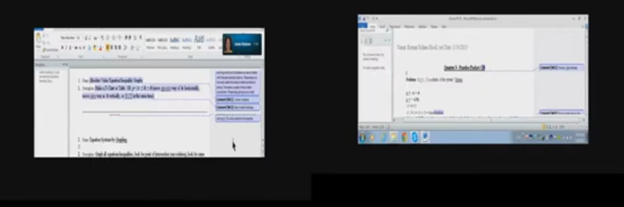
Track changes in Word for a 9th grade. This student was only using a brailler to braille out all work….a very slow process to get it transcribed, then to the teacher, then back to the student. Now, in 2 months the student has moved to completing all work on a computer, emailing to teacher, teacher corrects and sends back.
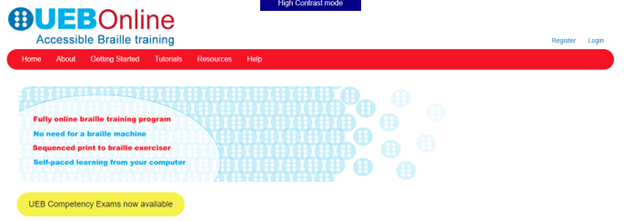
Welcome to the UEB Online website, administered by the NextSense Institute. This website offers online training programs and competency exams in braille literacy and mathematics using the Unified English Braille (UEB) code.
The purpose of the UEB Online website is to provide systematic instruction and accreditation in UEB for people worldwide who are teaching and promoting braille for persons with blindness, low vision, and deafblindness.
Target Audience
The UEB Online training programs and competency exams are suitable for anyone who wants to learn and teach braille. This includes educators, families, allied health professionals, and administrators and decision makers who promote the use of braille as a medium for information access and communication.
Website Accessibility Options
Accessible, inclusive digital technologies enable equitable information access for all through UEB Online.
Visual access mode: For people with sufficient sight to access regular sized print-based information on the website,
High contrast mode: For people with low vision who wish to adjust the font size, background colour or text color,
Non-Visual access mode: For people who wish to use a screen reader for accessing website information.
UEB Online is a training program for sighted people to learn Unified English Braille (UEB). Many countries have adopted Unified English Braille, replacing standard English braille. This program is the first online UEB training tool. The program is suitable for classroom and specialist teachers, parents, teacher aides and other professionals supporting children and adults with vision impairment.
I am presently taking this online class. I like to get the jump on knowledge so I can teach my students along the way to keep updated with braille in general. This class is excellent, self-paced…on either a Mac or PC…learning the new (2016) UEB Braille code. I highly recommend this great and easy way to learn. When you finish, get the certification you need….and it is free!
Sensational Books offers Inclusive Multi-Sensory Learning Tools. These tools provide a multi-sensory approach to early learning, focusing on tactile and visual experiences. Their products include books and tools designed for both sighted and visually impaired children. For example, “Sadie Can Count” is a children’s book with large print, Braille text, and fully embossed pictures. This book helps beginning readers, including those with visual impairments, to enjoy reading with their friends and family.
Inclusive Multi-Sensory Learning- from Sensational Books
Sensational Books also offers workshops and tactile artwork, promoting sensory integration and early literacy. Their products are suitable for diverse populations, including Montessori students and children with autism. The website provides a comprehensive overview of their offerings, including detailed product descriptions and testimonials from users. Some users need other types of tactile tools also.
One example is Sensational BlackBoard which offers a fun, fast, easy and inexpensive way to get tactile access to images. Draw your own raised line pictures or you can have photo copy images of text book or research materials quickly traced. More on this site for Inclusive Multi-Sensory Learning Tools. Make sure you incorporate audio reading as a skill to add to braille reading.
More information and lessons at: TechVision YouTube
Perfect Brailler for little children: Children often struggle to press the keys on a regular brailler due to their small fingers. That’s why I recommend the Mountbatten brailler.
I’ve introduced students as young as 3 years old to the Mountbatten brailler. They can braille with perfect finger positioning using this device.
Mountbatten- Perfect Brailler for Kids
We want to be careful when letting young children use the regular brailler so they don’t start poor brailling habits, such as using 2 fingers to press one key. This is not only time consuming, but also very slow because it takes so much effort to press the keys. The Mountbatten brailler, however allows for good habits to form while fingers are growing and getting stronger. Starting out correctly, our children will then be successful braillers with an ability to increase their output as they get older, creating a joy in reading what they wrote. This will lead to learning perfect touch typing on a keyboard and using a braille display on a computer. Then onto learning math on the brailler to moving it to the computer
Perfect Brailler for Kids: Versatile and User-Friendly
The video on the Math Window® system provides an in-depth look at how this tool benefits blind and visually impaired students. Here are some key details:
Magnetic Tiles: The system uses magnetic tiles that feature both Braille and print. This dual-format approach allows students to read and interact with math problems tactilely.
Portability: The Math Window® board is designed to be portable. It fits easily on a student’s desk and comes with a carrying tote, making it convenient for use in different settings.
Versatility: The system is available in various versions, including basic math, algebra, and geometry. This versatility ensures that it can be used across different levels of math education.
Braille Standards: Math Window® supports both Nemeth and UEB Braille standards. This compatibility ensures that it can be used by students who are familiar with either Braille system.
Hands-On Learning: The tactile nature of the Math Window® system allows students to engage with math problems in a hands-on manner. This method helps in building a deeper understanding of mathematical concepts.
Adaptability: Instructors can easily personalize lessons using the Math Window® system. They can arrange and modify the magnetic tiles to suit each student’s learning pace and needs.
Confidence Building: By allowing students to “see” the structure of math equations through touch, the system helps build their confidence. It encourages them to explore STEM subjects more independently.
Collaborative Environment: The system fosters a collaborative learning environment. Students can work individually or in groups, making it suitable for both classroom and home use.
The Math Window® system makes an Ideal Brailler for Children with more Math lessons here
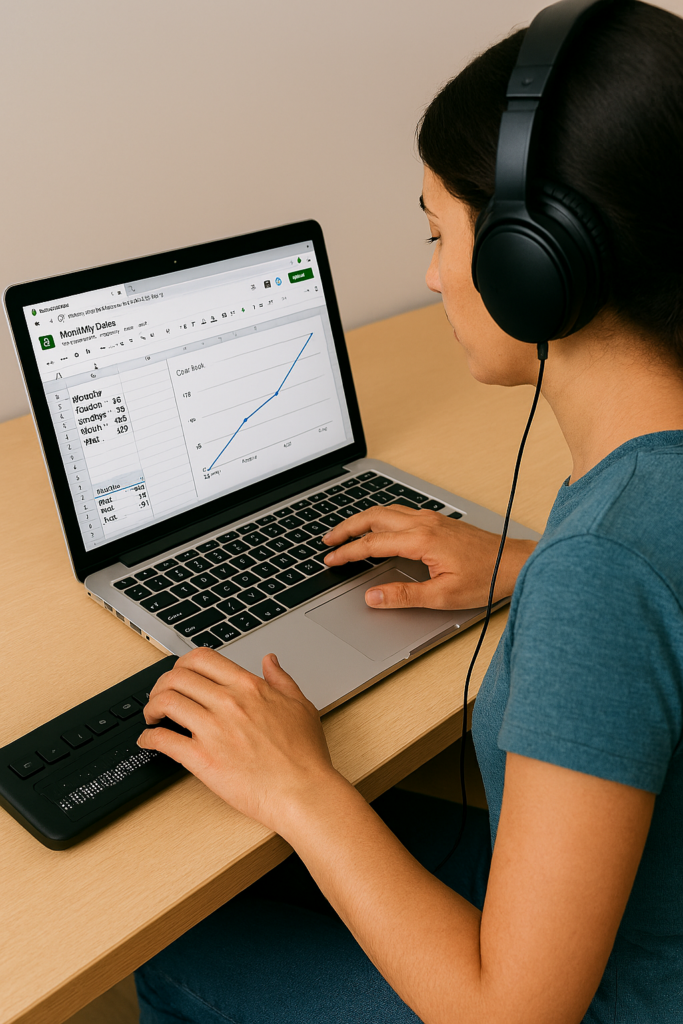
Students demonstrate their skills by completing assignments in real time, often on video. Whether creating a line graph in Google Sheets or submitting digital work the same day, these lessons show how access technology enables immediate, independent participation.
Customized Instruction
Every lesson is tailored to the student. This targeted approach builds independence, accuracy, and confidence. We also support educators, parents, and teams so everyone involved has the knowledge needed to ensure equal access.
Female creating a Google sheets line graph with screen reader and Braille Display
Flexible, Remote Training
TechVision provides instruction from anywhere in the world. Students schedule lessons at times that work for them, learn at their own pace, and gain mastery through hands‑on practice. This remote model removes geographic barriers and expands opportunities for all learners.
Expert Guidance
Led by Dr. Denise M. Robinson, TechVision Specialists bring deep expertise in assistive technology and academic subjects—including math, STEM, and literacy. Many team members are blind themselves, offering relatable, real‑world insight and encouragement.
Practical Skills for Daily Life
Lessons focus on real applications: writing emails, navigating the web, creating documents, completing assignments, and using technology across all subjects. Students learn not just the tools, but how to apply them independently in everyday situations.
Building Independence and Confidence
By mastering access technology, students gain autonomy, problem‑solving skills, and the ability to keep up with peers. Parents, educators, and employers benefit from improved communication, participation, and equal access in both learning and work environments.
Empowering Blind and Visually Impaired Students Globally
Under the leadership of Dr. Denise M. Robinson, the TechVision Team equips blind and visually impaired students—and the educators who serve them—with the technology skills needed to thrive in school, work, and life. Our team integrates computers, screen readers, braille displays, mobile devices, and AI into daily instruction, ensuring equal access to academics and independence.
Access Training to laptop and braille display with Screen reader
Personalized Instruction
Every learner is unique. TechVision provides customized, 1:1 instruction for students, clients, and educators. We teach the exact tech skills needed to access information, complete tasks efficiently, and compete equally with sighted peers—whether mastering keyboard commands, transcribing work, or navigating digital platforms.
Equal Access in Action
Equal access is foundational to our mission at TechVision. We believe every learner, regardless of visual impairment, deserves the ability to participate fully in school, work, and life. Our video lessons and real‑world demonstrations show exactly how students use technology to complete their work independently. These resources equip both students and educators with the practical skills needed to thrive in any environment and ensure that equal access is not just a goal, but a daily reality.
Global Reach and Collaboration
TechVision serves learners worldwide through remote instruction and digital resources. We collaborate with families, school districts, businesses, private organizations, and vocational programs to expand educational and employment opportunities.
TechVision also provides high‑quality transcription in electronic format for immediate access, ensuring students receive the materials they need without delay. We train school personnel when possible, and when districts are unable to take on this work, our team continues providing all transcription to maintain accuracy, consistency, and equal access for every learner.
Technology & AI for Independence
We teach students and clients to confidently use:
screen readers
braille displays
mobile devices
AI‑powered learning tools
voice and image recognition
accessible navigation and productivity apps
and so much more
These tools build independence, problem‑solving skills, and real‑world readiness. AI enhances learning by adapting to individual needs, converting print to accessible formats, supporting navigation, and assisting with daily tasks.
Early Instruction & Long‑Term Success
Starting early with proper academics—ideally at age 3—keeps students on pace with their sighted peers. TechVision teaches braille, technology, and digital output from the beginning, enabling students to complete and submit work just like everyone else. As students grow, they learn to make inaccessible tasks accessible, upload assignments, and use advanced tools for math, science, and daily life. These skills open doors to employment, independence, and lifelong success.
Community Engagement & Ongoing Support
We work closely with parents, teachers, schools and communities to build strong support systems. Our personalized training empowers everyone involved and creates a community of confident learners and educators. Together, we remove barriers and expand possibilities for every student.
Our Commitment
TechVision is transforming access education. Through innovative technology, tailored instruction, and a deep commitment to equal access, we ensure every learner’s journey is marked by growth, independence, and success. We remain dedicated to providing top‑quality education to visually impaired learners and educators worldwide.