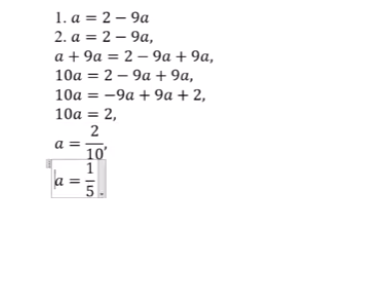
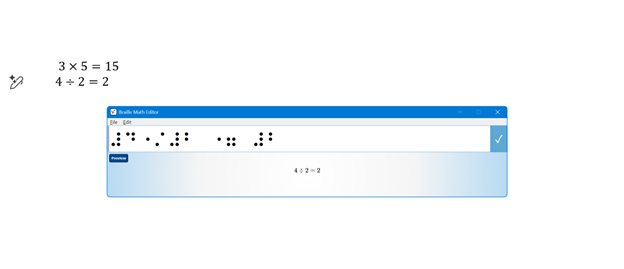
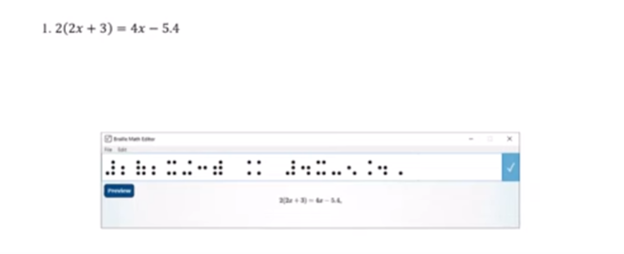
Dr. Robinson demonstrates how to complete multi-level math in WORD using Braille Math Editor with JAWS. She used an algebra problem as an example. She explains that this method applies to several types of math problems. First, she highlights how transcriptionists or students can prepare algebra equations using the Alt + Equals command to insert math symbols directly in Word. Once the equation is ready, the blind student can easily solve it using a Focus 40 Braille display.
Dr. Robinson shows how students can work within the Braille Math Editor. By pressing Insert + Space followed by Shift + Equals, the editor opens, and the math problem appears ready for solving. She mentions that students can choose between Nemeth code or Computer Braille, depending on their preference. Both modes allow for precise calculations and input, enabling them to complete multi-level math problems efficiently across multiple levels.
As the student works through the problem, they can use Braille commands like 4-5-6 Space to navigate to the end of the problem and add a dot 6 for separating steps with commas. This method keeps the equation organized, allowing the student to solve the problem in multiple lines, just as their sighted peers would. By checking the Braille display frequently, students ensure accuracy while solving multi-level math equations and maintaining neatness.
Finalizing and Reviewing Work to complete multi-level math
Once the math is complete, the student hits Enter to insert the solution into Microsoft Word. Dr. Robinson uses Ctrl + L to align the text to the left after confirming correct spacing and formatting. She resolves errors, such as unnecessary commas or misalignments, by reviewing each line. Editing line by line ensures the final product is both clean and accurate. The process concludes with a perfectly formatted, multi-level math solution, efficiently done using the Braille Math Editor, thus completing the task effectively.
This setup provides blind students with the tools to complete complex multi-level math work just like their peers, ensuring accessibility and ease in academic settings. More math lessons here.
JAWS UEB MATHS/Nemeth Settings-Word and Braille Math Editor
If you’ve ever struggled to get JAWS to read math correctly on your computer, this walk-through will make your life much easier. In this video, I demonstrate how to set JAWS for either UEB Maths or Nemeth math using the JAWS UEB/Nemeth Settings, then show you how to create accessible math using Word’s Math Editor and the Braille Math Editor. Whether you’re a TVI (Teacher of the Blind), a student, or an AT (Access Technology) specialist, these steps will help you produce clear, accurate, and accessible math every time.
WORD MATH EDITOR Setup
1. Open the Math Editor
Alt + =
2. Open the Equation Tools tab
Alt + J, E
3. Open Math Options (Settings)
T, 1 (This opens the Math Options dialog.)
4. Set Alignment to Left Inside the Math Options dialog:
Alt + J → moves to Justification
L → Left alignment
Alt + D → Set as Default
Tab, Tab → to OK
Enter
When asked to save as default, choose Yes (This saves the settings to the Normal template.)
5. Check Conversion (if math looks wrong)
While inside a math zone:
Alt + =
Alt + J, E
C → Convert
Make sure it is set to Professional
WORD MATH EDITOR — Command Sequence (JAWS + Keyboard)
Open the Math Editor
Press Alt + = This inserts a new math zone and opens the Word Math Editor.
Move in and out of the math zone
Right Arrow → move into the math zone
Right Arrow again → move through elements
Left Arrow → move backward
Esc → exit the math zone and return to normal text
Insert common structures
Fraction → Ctrl + /
Exponent → Ctrl + Shift + =
Subscript → Ctrl + =
Square root → type \sqrt then press Space
Matrix → type \matrix then press Space
Parentheses → type ( then ) (Word auto‑sizes them)
Learning how to teach or learn Nemeth math using assistive technology can seem challenging, but with the right tools and approach, it becomes manageable and effective. Whether you’re a parent helping your child, an educator supporting students, or an independent learner, using a Focus 40 Braille Display and JAWS screen reader provides an accessible way to master Nemeth code. In this guide, I will walk you through setting up your technology and using the Braille Math Editor to confidently teach and learn math concepts from basic arithmetic to advanced algebra. Let’s simplify the process and enhance your skills.
Setup Nemeth with JAWS
Start by setting JAWS to the proper Nemeth settings. Access the JAWS Settings Center with Insert + 6 then Control+Shift+D to set default: type “Braille m” in the search box. Navigate to “Braille Mode” and make sure you hear “Structured” mode, ensuring that both the active cursor and Braille cursor follow each other. This will allow you to track what the student is doing on their display.
Alt + F to language profiles, and alt + D to details. Once open Alt + M to math options and up arrow to Nemeth if it is not selected. This will ensure that math expressions are correctly read and displayed in Nemeth Braille. Enter to close, Alt + A to apply and enter to close.
Teach or learn Nemeth JAWS, braille display and BME
Using the Braille Math Editor is key to teaching and learning math effectively. Type out equations like “1+2=3” or more complex algebraic expressions, and feel the Braille output directly on your Braille display. Correct mistakes quickly using the Braille display and JAWS auditory feedback, making it easy to follow along. Use the Braille Viewer to see it visually and compare with the Braille Display by opening JAWS context menu, go to Utilities and Braille Viewer to turn it on.
This step-by-step approach works for basic arithmetic to complex math such as algebra, Trigonometry, calculus and beyond. Both the Braille Math Editor and Word Math Editor can help you visualize and interact with Nemeth code to easily learn it and/or teach others. Practice consistently to improve your tactile reading skills and build confidence in math.
By following this guide, you’ll gain the tools to teach and learn Nemeth math efficiently, whether for yourself or for your students.
Dr. Robinson demonstrates how to solve multi-line algebra problems using the Braille Math Editor (BME) in JAWS with a braille display. She explains that this method is effective for any multi-line mathematics problem, where isolating variables like x is essential. To start, Dr. Robinson reviews the equation by moving through the text using the up arrow key. She listens to the equation read aloud by JAWS and then enters the Braille Math Editor in Word. This setup is key for mastering Braille Math in Word.
Specific Braille Commands to solve Multi-Line Algebra Problems
Dr. Robinson uses specific braille commands to navigate and edit the math content. She mentions that the transcriber typically uses Alt + Equals to ensure the math is perfectly formatted for the student. She also highlights the importance of using a braille display in Word to solve Braille Math problems. It allows users to follow the dots more easily compared to relying solely on auditory cues from JAWS, enhancing the experience of doing Algebra in Braille Math in Word.
Input commas to separate lines
As she progresses, Dr. Robinson inputs commas between steps to maintain clarity in the solution process. This practice enables her to review the steps effectively on the braille display. She demonstrates how to correct mistakes quickly using the arrow or router keys. Dr. Robinson explains the importance of using fraction marks and how specific commands help navigate fractions within BME in Word. Such details are part of mastering Braille Math in Word.
Toward the end, Dr. Robinson checks her work by moving up and down the lines in the document. She quickly identifies a mistake, corrects it, and emphasizes how easy it is to make corrections with this setup. Dr. Robinson advises students considering a math career to invest in a braille display with at least 40 cells. For the best experience, she recommends choosing a display with 80 cells, especially when working on Braille Math in Word.
In conclusion, Dr. Robinson effectively shows how to use the Braille Math Editor and JAWS to solve multi-line algebra problems. This method provides a clear and accessible way for blind students to engage in complex math tasks. It ensures both accuracy and efficiency in their work, showing the importance of mastering Braille Math in Word. Here is another student completing Math in the Braille Math Editor, then to advanced math in WORD to UEB Math.
Computer Local Admin access is Crucial at all education levels. Dr. Robinson, an Assistive Technology and IT specialist, sets up, maintains, and controls all the computers used in TechVision programs while TechVision Team continues teaching students to manage their own technology. She emphasizes the importance of blind students having local admin access on their school computers so they can make necessary updates and changes to their laptops as needed.
Firstly, she highlights that anti-virus software like Kaspersky or Sophos often interferes with screen readers. Instead, Dr. Robinson recommends using Malwarebytes with Microsoft Defender, as it provides strong protection without disrupting screen reader functionality. Having Computer Local Admin access ensures students can implement these software changes.
Dr. Robinson also explains the need for screen readers such as JAWS. Schools often filter out essential websites and programs like Freedom Scientific, which students require for their studies. With local admin access, students can update their screen readers and related software, which is necessary to keep their devices running smoothly. These updates are crucial and happen every few months. Computer Local Admin access allows students to manage these updates efficiently.
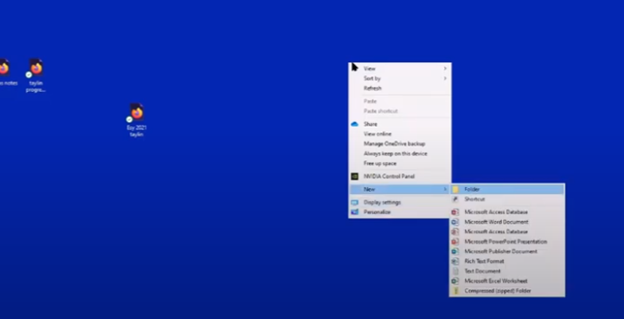
In addition, students must manage their desktops efficiently. They need to pin important programs, such as JAWS, to the taskbar for quick access and adjust their settings without assistance. Pinning their school sites to the desktop make quick access to any site. Through the context menu, students can navigate and personalize their desktop to meet their needs.
Computer Local Admin access to Applications Key on desktop to access anything on the computer
The run dialog box is another essential tool with CTRL+R. Students need to clear temporary files, which can slow down screen readers. Since screen readers are memory-intensive, removing these files improves both the computer’s speed and network performance. Computer Local Admin access is required for these maintenance tasks.
Dr. Robinson further emphasizes the importance of Office 365, especially for math tasks. Using the math editor, students can create and solve equations that read seamlessly on a braille display. This access is crucial for academic success, particularly in STEM subjects.
Lastly, Dr. Robinson stresses the necessity of file explorer -Windows+E and Bluetooth settings. Without a mouse, blind students rely on file explorer to organize their files. Bluetooth access is also essential for reconnecting braille displays and other devices.
In summary, Dr. Robinson believes local admin rights are essential for blind students to manage their technology independently, keep their devices updated, and fully engage in their education. This allows them full access for a lifetime. The TechVision Team ensures students learn essential skills to manage and update their devices independently, preparing them for a lifetime of technological adaptation. As technology evolves, these skills are crucial. Computer Local Admin access is vital for securing and maintaining employment so they know the updates needed, in an increasingly digital world.
JEFFERSON COUNTY, Tenn. As school resumed, a Jefferson County student waited weeks for an important textbook to arrive from out of state. This doesn’t seem like a big deal, except it’s a calculus book for Math for blind students and it’s written in Braille. Campbell Rutherford is a home school student in Jefferson County.
She started homeschooling with a teacher for the visually impaired because math for blind students was no longer available in the local school district. Campbell was born blind and has been reading braille since she was 3 years old. “I rely completely on braille and screen readers to access the printed word,” she said. Campbell, accustomed to reading Braille, competes in state Braille reading competitions yearly and has even reached nationals. So naturally, she’d like to be able to read her textbooks in Braille.
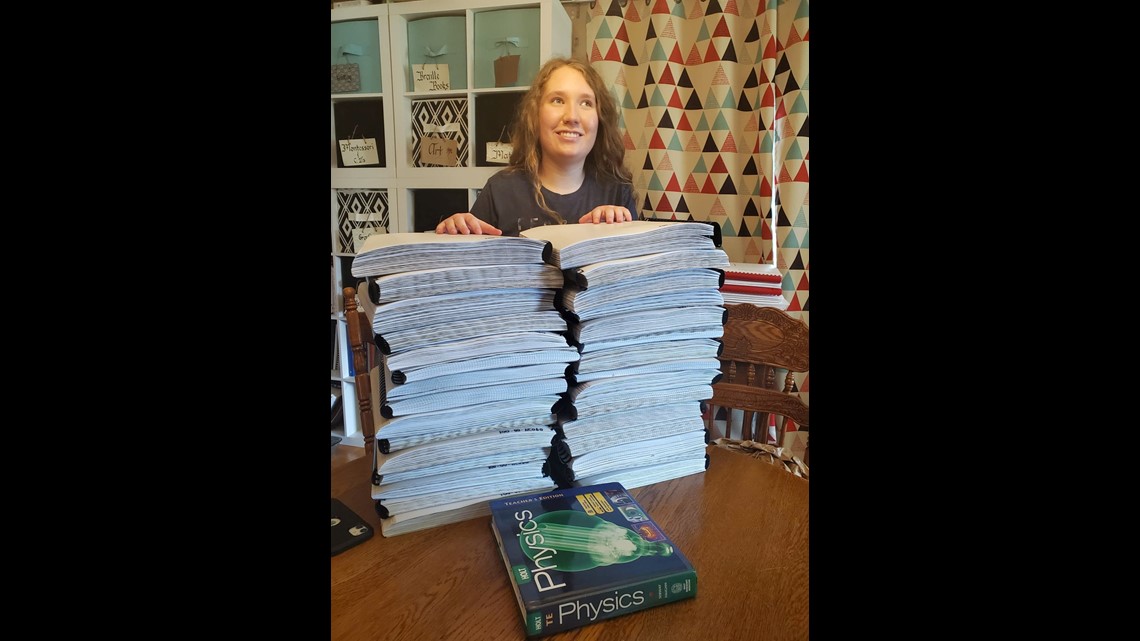
Because each page has to be embossed with the Braille indentations, Campbell’s textbooks are huge. Here’s her AP physics book. All these binders are one book for Math for blind students, containing everything in the print book next to it, just in Braille.
Credit: Liza Rutherford: Campbell Rutherford stands with her AP Physics book in Braille of 25 volumes of 11 x11.5 size, next to the book in print of 2 inches thick.
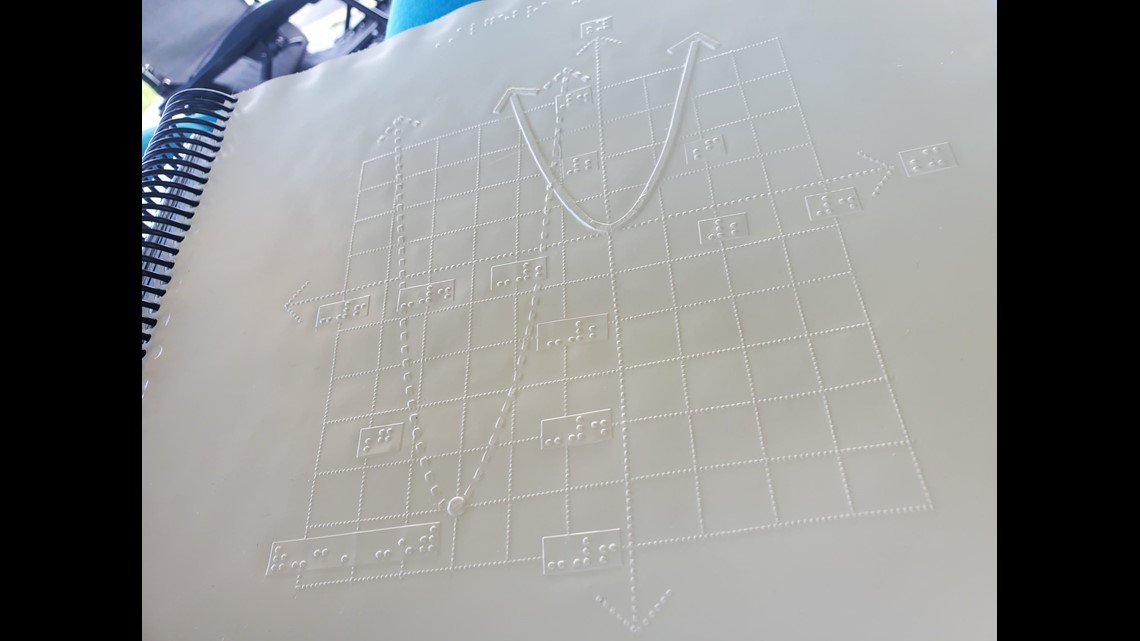
“I used to have to borrow a truck to go get her books,” said her mom, Liza Rutherford. Braille books are larger because the text must be big enough for readers to feel with their fingertips. A standard physics book may have four graphs on one page, but in Braille, each graph requires its own page. The National Braille Press reported about 12 percent of blind school-age students can read Braille, limiting access to advanced textbooks.
NO AP Math Books
There were no Braille AP calculus books in the state of Tennessee. The Rutherford’s worked with the Tennessee School for the Blind to find this 20-year-old edition from Maryland. Campbell said schools often discourage visually impaired students from taking challenging courses. “I have friends that, when they’re struggling with Math, they’ve been told, ‘it’s okay that blind people aren’t good at math typically,’” said Campbell.
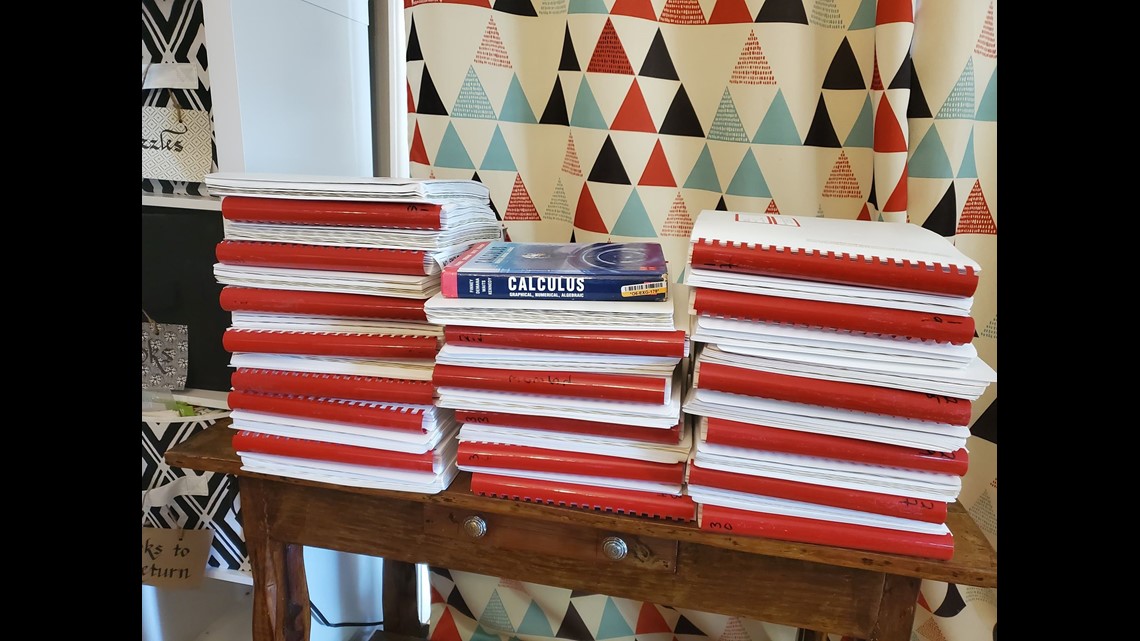
Credit: Liza Rutherford-Campbell Rutherford’s calculus book in Braille of 32 volumes of 11 x11.5 size, by to the book in print of 2 inches thick..
Campbell plans to major in math in college and go into epidemiology. She said it’s those low expectations that hinder her and others the most, not her lack of vision. “We even had an administrator at one point come to me and say, ‘does Campbell really need a high school diploma for her adult life?’” said her mom Liza Rutherford. “That’s probably the one that’s infuriated me the most over the years,” said Campbell.
Lack of Advanced Placement (AP) Math for blind students Books
The National Federation for the Blind reported only 31.6 percent of blind individuals hold a high school diploma or GED. The Rutherford’s believe a shortage of teachers for the visually impaired adds to this problem.
Credit: Liza Rutherford: A mathematical graph transcribed in Braille.
They are hopeful that as technology spreads, more blind students will have the educational access they need. “There are other ways of doing things besides the sighted way or the able way,” said Campbell. Campbell connected with a blind math professor from Connecticut who assists her with any course-related questions. She took AP physics and AP calculus with a proctor who will describe the graphs and record her multiple-choice answers.