Search results for: “TechVisionTraining@yourtechvision.com”

  • WORD Efficient Text Navigation and Selection

    In this lesson, you will learn Efficient Text Navigation and Selection in WORD. You will also learn how to effectively select words and sentences and navigate through a page using talking software. The tutorial provides step-by-step instructions, ensuring that users can confidently move around the page and make precise selections. By mastering these skills, you will enhance your efficiency and accuracy when using assistive technology, making your digital interactions smoother and more productive. This lesson is particularly beneficial for individuals who rely on screen readers and other accessibility tools.

    Useful keyboard commands for WORD Efficient Text Navigation and selecting text in Microsoft Word: Or Office 365 online access with Screen Reader

    Selecting Text

    • Select a word: Double-click the word or use Ctrl + Shift + Right Arrow to select the next word.
    • Select a sentence: Hold Ctrl and click anywhere in the sentence.
    • Select a line: Move the cursor to the start of the line and press Shift + Down Arrow.
    • Select a paragraph: Triple-click within the paragraph or use Ctrl + Shift + Down Arrow.
    • Select from cursor to end of line: Press Shift + End.
    • Select from cursor to beginning of line: Press Shift + Home.
    • Select all text: Press Ctrl + A.
    essential navigation in word
    Essential Navigation in Word

    Navigating the Document for efficient text navigation

    • Move one word at a time: Use Ctrl + Left/Right Arrow.
    • Move one paragraph at a time: Use Ctrl + Up/Down Arrow.
    • Move to the beginning of the line: Press Home.
    • Move to the end of the line: Press End.
    • Move to the beginning of the document: Press Ctrl + Home.
    • Move to the end of the document: Press Ctrl + End.

    These commands can help you efficiently manage and edit your documents in Word

    Having accessible Work is that the ability to complete it with peers or be behind everyone.

    Let us know how we can help you: Contact US: TechVisionTraining@yourtechvision.com
  • Blind 2nd Grader Types 50 WPM

    In 2002, Tasha, a 10th-grade student who moved from Ukraine, lost her sight quickly. She had never used a computer before. Jaws in English and Russian gave her the ability to learn English quickly. She switched back and forth in languages as needed. After learning to touch type, within 2 months is independent in the classroom due to her PC computer skills. Since laptop computers were not an option, desktop computers were wheeled on a cart from class to class for use. This is a case where a student learns keyboarding fast despite challenges.

    In just two weeks, she learned to navigate a computer using screen reader software, unlocking newfound independence. Tasha rapidly mastered touch typing and easily switching between Word documents and the internet, demonstrating her impressive progress. A student learns keyboarding fast if given the right tools and support. Her journey is a powerful example of how technology can transform lives. Screen readers on PC computers provide crucial tools for independence, even in the face of significant challenges.

    Tasha typing on keyboard learning English from Russian Jaws as Student Learns keyboarding FAST
    Tasha typing on keyboard learning English from Russian Jaws

    Most students who lose sight rapidly have a significant or devastating health condition. Being in and out of hospitals for the brain tumor that took her vision, keeping up with work was far easier completing it on a computer. Today, students receive work digitally and can comfortably recuperate at home or hospital AND keep up with learning. When a student learns keyboarding fast, it makes managing their studies much easier.

    Tasha and Denise Robinson together decades after her education in high school--great friends
    Tasha and Dr. Robinson together decades after her education in high school–Great Friends

    Discover more about how you can achieve similar freedom at www.yourtechvision.com. The key is ensuring that every student learns keyboarding fast to enhance their independence.

    If you need Power Training, let us know. Contact US: TechVisionTraining@yourtechvision.com

  • Rebuild the Microsoft Word Template When It Is Not Working Well

    You want to Rebuild Microsoft Word Template when you close WORD and it starts to ask: There are changes to the Normal Template, “Do you want to save the normal template?” You always want to say “NO” because if you do not it will start opening with the last work you did in it. If you want WORD to STOP asking that question or fix your goof, here is how to rebuild that Normal Template

    Commands to rebuild Word template when it gets messed up and constantly asks if you want to save it. Other Lessons to fix Tech

    Rebuild Microsoft Word Template with RUN
    Rebuild Microsoft Word Template with RUN
    1. Open the Run Dialog Box:
      • Press Windows + R.
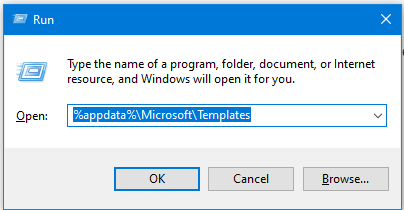
      • Type %appdata%\Microsoft\Templates and press Enter.
    2. Delete the Normal Template:
      • In the opened folder, find normal.dotm (or the equivalent for your Office version).
      • Select it and press Delete.
    3. Reopen Word:
      • This action will rebuild the normal template automatically.
    4. Reconfigure Your Settings:
      • Fonts:
        • Press Ctrl + D to open the Font dialog box.
        • Set your desired font (e.g., Times New Roman, 12 pt).
        • Press Alt + D to set as default for all documents.
      • Paragraph Spacing:
        • Press Alt + O, then P to open the Paragraph dialog box.
        • Adjust spacing settings (e.g., single spacing).
        • Press Alt + D to set as default for all documents.

    This process ensures your Word template is reset and configured to your preferences. Here are some more fixes you can do

    Other WORD Lessons

    Optimizing Windows 11 Efficiency for Screen Reader with Key Settings and Configurations

    WORD Efficient Text Navigation and Selection

    Basic WORD JAWS commands with Typing Trick

    Rebuild Microsoft Word Template when it is not working well

    Microsoft Word MLA format with Christopher Duffley

    WORD accessible food chain for class using talking software

    Commands to change mouse -access programs fast, basics in Word font & movement

    Excel line plot graph-copy to Word for Math

    Complete an excel graph and copy into Word document with screen reader

    Essential WORD keyboard commands for setting defaults

    Track changes in Word-How teachers make corrections in work

    Track Changes with Commands-inserting comments and editing work

    Let us know how we can help you: Contact US: TechVisionTraining@yourtechvision.com
  • Select Noncontiguous folders and files in File Explorer

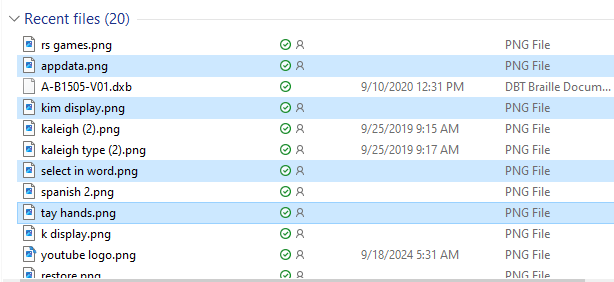
    In this video, Nate Kile will show how to select noncontiguous folders and files efficiently. This method will allow you to select as you need them.

    To select noncontiguous folders and files in File Explorer using keyboard shortcuts, follow these steps:

    1. Open File Explorer:
      • Press Windows + E to open File Explorer.
    2. Navigate to the Desired Folder:
      • Use the arrow keys to navigate to the folder containing the files or folders you want to select.
    3. Select the First Item:
      • Use the arrow keys to highlight the first file or folder you want to select.
      • Press Space to select it.
    4. Select Additional Non-Contiguous Items:
      • Hold down the Ctrl key.
      • Use the arrow keys to navigate to the next file or folder you want to select.
      • Press Space to select each additional item while still holding down the Ctrl key.
    5. Complete Your Selection:
      • Release the Ctrl key once you have selected all the desired files or folders.
    Select noncontiguous files and folders
    Select noncontiguous files and folders

    This method allows you to pick and choose individual files or folders that are not next to each other, giving you more flexibility in your selection.

    Our Mission and Purpose will take you where you want and need to go. Let us know how we can help you with noncontiguous folders and files. Contact US: TechVisionTraining@yourtechvision.com
  • Navigate Schoology with Jaws via Kim

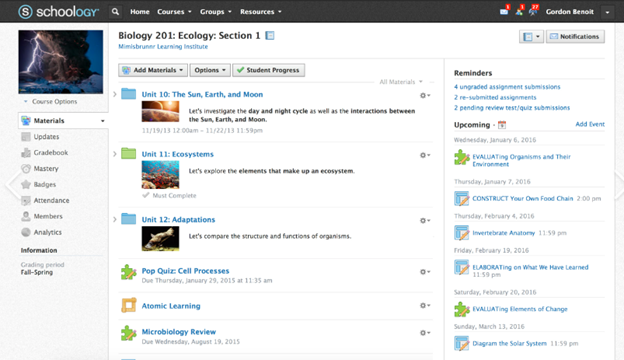
    To Navigate Schoology with Jaws is easy using these useful keyboard commands for navigation. When you’re using a screen reader like JAWS or NVDA it is very accessible. Kim demonstrates her skills, showing how to navigate schoology with efficiency. She shares with others how this training has allowed her to access her education.

    Schoology Navigation Skills Video-General Commands to help navigate Schoology

    1. Navigate to Courses:
      • Press Insert + F7 to bring up the links list.
      • Use the arrow keys to navigate to the desired course and press Enter.
    2. Access Course Materials:
      • Press H to navigate through headings until you reach the course materials section.
      • Use the arrow keys to select the material you want to access.
    3. Navigate to Assignments:
      • Press Insert + F6 to bring up the headings list.
      • Use the arrow keys to find and select the “Assignments” heading.
    4. Access Notifications:
      • Press Insert + F5 to bring up the form fields list.
      • Navigate to the notifications section and press Enter.
    5. Navigate to Discussions:
      • Press H to move through headings until you reach the “Discussions” section.
      • Use the arrow keys to select and enter a discussion.
    6. General Navigation:
      • Use Tab and Shift + Tab to move forward and backward through interactive elements.
      • Press G to navigate to graphics and L to navigate to lists.
    7. One Trick to remember is when a PDF viewer of work opens, the download in WORD link is at the very bottom. Use your links list or ctrl end and up arrow to find it.

    More Schoology Lessons to help Navigate Schoology with Jaws

    Navigate schoology with JAWS
    Navigate schoology with JAWS

    Let us know how we can help you: Contact US: TechVisionTraining@yourtechvision.com
  • Jordan on Learning Computers for the Blind

    Jordan talks about the important aspects of why blind students need to learn a computer. She discusses the benefits of computers for the blind also. She touches on necessary skills and how this will advance them in their dreams and goals in life.

    Jordan on learning Computer for the blind talks about its importance along with a screen reader and display. These are crucial for blind people for several reasons:

    1. Access to Information: Screen readers and braille displays provide blind children with access to digital information, enabling them to read, write, and navigate the internet independently. This access is essential for academic success and staying informed1.
    2. Literacy and Education: Braille literacy is fundamental for developing reading and writing skills. Using a braille display helps children practice and improve their braille proficiency, which is vital for their overall literacy and educational development2.

    Independence on Computers for the Blind

    1. Independence and Confidence: Mastering these technologies fosters independence, allowing children to complete tasks on their own without relying on others. This independence boosts their confidence and self-esteem3. Computers for the blind provide this type of access and more.
    2. Equal Opportunities: Proficiency in assistive technologies ensures that blind children have equal opportunities in education and future employment.  It levels the playing field, allowing them to compete with their sighted peers.
    3. Enhanced Communication: Screen readers and braille displays facilitate better communication by enabling children to use email, social media, and other digital platforms. This connectivity is crucial for social interaction and building relationships1.
    4. Adaptability to Technology: Early exposure to assistive technologies prepares children for future advancements. As technology evolves, being comfortable with these tools will help them adapt to new devices and software more easily3.

    By learning to use a computer screen reader and braille display, blind children gain essential skills that support their academic, social, and personal growth, paving the way for a more inclusive and empowered future.

    Let us know how we can help you: Contact US: TechVisionTraining@yourtechvision.com
  • Raveena Fixes Computer Issues, Display Problems, and Uploads Perky Duck Program

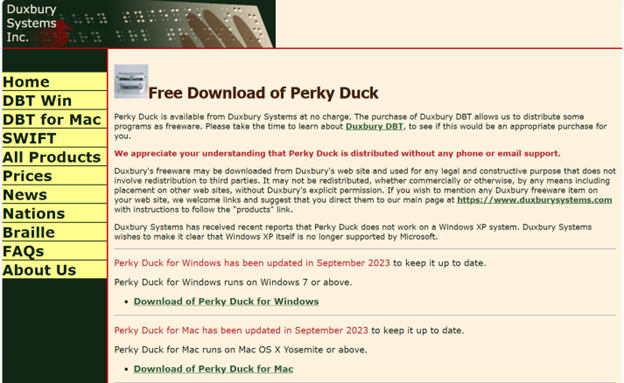
    Raveena shows how to fix basic computer and screen problems and then explains how to install the Perky Duck braille program. She starts by helping users solve common computer or display issues with easy steps. After that, Raveena Fixes Computer Issues by walking through downloading and setting up the Perky Duck program, which helps create and translate braille. Her simple instructions make it easier for students and teachers to use the program and keep their devices running smoothly.

    To upload a file in the Perky Duck braille transcription program, you can follow these steps using keyboard commands. Raveena Fixes Computer Issues by providing clear steps to follow:

    1. Open Perky Duck:
      • Press Windows Key, type “Perky Duck”, and press Enter to open the program.
    2. Open File Dialog:
      • Press Alt + F to open the File menu.
      • Press O to select “Open”.
    3. Navigate to Your File:
      • Use the arrow keys to navigate through your directories.
      • Press Enter to open folders.
      • Once you find your file, press Enter to upload it.
    Perky Duck free braille translator
    Perky Duck free braille translator

    These commands should help you efficiently upload a file in Perky Duck. If you need more detailed instructions or have any other questions, feel free to ask! That’s how Raveena Fixes Computer Issues efficiently. Other ways to fix your computer

    Let us know how we cn help you: Contact US: TechVisionTraining@yourtechvision.com
  • JAWS Cursors: Enhancing Navigation and Control for Blind Users by Finn

    JAWS screen reader offers a variety of cursors that allow blind users to navigate and interact with different types of content more effectively. Each cursor has its specific role, enabling users to access information, move between elements, and interact with applications in various ways. Understanding how to use these cursors—such as the PC cursor, JAWS cursor, Virtual PC cursor, and more—can greatly enhance navigation, making it easier to explore screens, web pages, and documents. Mastering these tools provides more independence and control over the user experience, ensuring smoother and more efficient interactions with digital environments.

    JAWS screen reader provides several cursors to help blind users navigate and interact with content effectively. Each cursor serves a different purpose, and knowing how to use them can improve navigation. Here’s an overview of how to use the different JAWS cursors:

    All Those JAWS Cursors: Enhancing Navigation

    1. PC Cursor

    • Purpose: This is the default cursor and follows the system focus.
    • How to Use: Use the keyboard to navigate the screen as a sighted user would, moving between menus, forms, or buttons. This cursor interacts directly with the application.

    2. JAWS Cursor

    • Purpose: It simulates mouse movement and allows you to navigate the screen freely without being tied to the system focus.
    • How to Use: Use the number pad to move the JAWS cursor. The “5” key on the number pad reads the item under the cursor. Use this cursor to explore screen elements or access parts of the screen that may not be reachable with the PC cursor.

    3. Virtual PC Cursor

    • Purpose: Primarily used in web browsers and documents to read content as if it were in a virtual document.
    • How to Use: Navigate with standard keyboard commands, such as arrow keys, or use quick navigation keys (like “H” for heading or “F” for form fields). The Virtual PC Cursor treats the content as a text-based document, allowing easy access to web and document elements.

    4. Invisible Cursor

    • Purpose: Works similarly to the JAWS cursor but remains invisible. It’s useful when you don’t want to disturb the system focus.
    • How to Use: Move this cursor with the number pad keys without affecting other cursors, such as the PC cursor. This is often helpful for reading content while leaving the active focus elsewhere.

    5. Touch Cursor

    • Purpose: Designed for touch screens, it allows for navigating and interacting with touch gestures.
    • How to Use: Utilize touch gestures on a touch screen to control JAWS. This is ideal for tablets or laptops with touch screens, making the experience more interactive.

    6. Routing and Review Cursor

    • Purpose: Used for reviewing content on a braille display and routing the cursor to specific points.
    • How to Use: On a braille display, you can move the review cursor to read through text or route the PC cursor to a specific point by pressing routing buttons on the display.

    By mastering these cursors, a JAWS user can efficiently navigate various environments, whether it’s desktop applications, web pages, or documents, enhancing both productivity and accessibility. Using proper touch-typing methods on keyboard allows great freedom and ease.

    Let us know how we can help you: Contact US: TechVisionTraining@yourtechvision.com
  • MLA and APA Format Paper Writing — Tech Tip

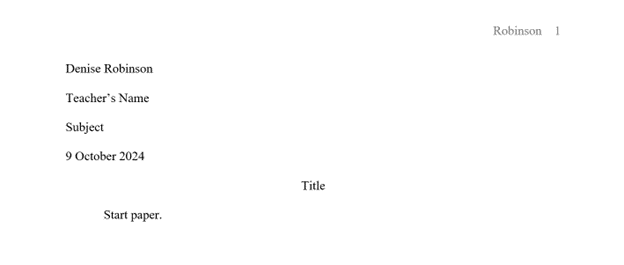
    Formatting an APA format paper writing style using keyboard commands is an efficient way to create a properly structured document without relying on a mouse. By using shortcuts within programs like Microsoft Word, you can quickly adjust key elements such as margins, fonts, line spacing, and indentation. This guide outlines the essential steps, including setting up the title page, organizing headings, and formatting the references page. By mastering these keyboard commands, you can streamline the process of formatting your APA paper and ensure it meets academic standards.

    To format an APA paper using keyboard commands, you can use several standard shortcuts within word processors like Microsoft Word. Follow these tips to make APA format paper writing easier:

    1. Setup the Document in APA format paper writing style

    • Margins: The default margins in Word are typically 1 inch, but you can check by pressing Alt + P, then M, and selecting “Normal”.
    • Font and Size: Use Ctrl + D to open the Font dialog box. Set the font to Times New Roman and the size to 12. Both settings are essential in APA format paper writing.
    • Line Spacing: To set double spacing, press Ctrl + 2.
    • Indentation: For the first line of each paragraph, press Ctrl + T to create a hanging indent. To undo this and create a regular first-line indent, press Ctrl + Shift + T and then Tab to indent the first line.
    APA format of paper
    APA format of paper

    2. Title Page

    • Running Head: Press Alt + N to go to the “Insert” tab, then H for “Header”, and Ctrl + R to right-align the text. Type “Running head: YOUR TITLE” (in caps) on the first page. On other pages, just type the title without “Running head”.
    • Title: Press Ctrl + E to center the title. Capitalize each major word in the title.
    • Author and Institution: Press Ctrl + E again to center your name and institution. Press Enter between lines. Proper formatting of this section is crucial for APA format paper writing.

    3. Main Body

    • Heading Levels:
      • Level 1: Centered, bold. Use Ctrl + E to center and Ctrl + B to bold.
      • Level 2: Left-aligned, bold. Use Ctrl + L to left-align and Ctrl + B to bold.
      • Level 3: Left-aligned, bold, and italicized. Use Ctrl + L, Ctrl + B, and Ctrl + I.
      • Level 4: Indented, bold, ending with a period. Use Ctrl + T for hanging indent, Ctrl + B, and type your text.
      • Level 5: Indented, italicized, ending with a period. Use Ctrl + T, Ctrl + I, and type your text.

    4. References Page

    • Hanging Indent: Select the references text and press Ctrl + T to apply a hanging indent, following APA format paper conventions.
    • Title: Center the title “References” using Ctrl + E.

    5. Page Numbers

    • Insert page numbers by pressing Alt + N, then N, and selecting “Page Number”. Place the number in the top right by pressing Ctrl + R.

    This approach covers the essential formatting elements for an APA paper using keyboard shortcuts. Let me know if you need specific details on any step for better APA format paper writing! Find MLA Word Format here.

    Other Tech Tip Lessons

    How to Properly Format a Paper

    Teach how to set up computer

    Google dictation

    Apply latest update

    APA-MLA tech tip

    Select Noncontiguous folders

    Braille Display to do work in WORD

    Math for all ages

    Let us know how we can help you: Contact US: TechVisionTraining@yourtechvision.com
  • Google Dictation Using Speech — Tech Tip for the Day

    Google Dictation, also known as “Voice Typing,” enables users to write and edit text using their voice instead of a keyboard. By using simple voice commands, you can dictate text, add punctuation, and format documents hands-free, making the process faster and more accessible. Additionally, with a few keyboard shortcuts, you can easily start or stop dictation and manage the flow of your work. For a more comprehensive experience, mastering Google Dictation using Speech can be a game changer. This guide outlines essential keyboard shortcuts and voice commands to help you navigate and edit documents more efficiently using Google Dictate.

    Google Docs Dictation, also known as “Voice Typing,” allows users to dictate text using voice commands instead of typing. Here are the keyboard commands for using Google Dictate:

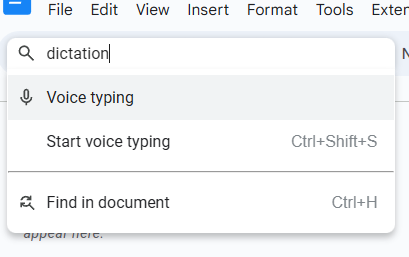
    Google doc Dictation mode
    Google Dictation using Speech in Docs

    1. Start Voice Typing

    • Windows & Chromebook: Press Ctrl + Shift + S. Also, under Tools Menu
    • Mac: Press Cmd + Shift + S. This command opens the Voice Typing tool in Google Docs.

    2. Pause/Resume Dictation

    • Once Voice Typing is active, click the microphone icon to pause or resume dictation. There is no direct keyboard shortcut for pausing or resuming dictation, but you can toggle it by pressing Ctrl + Shift + S (or Cmd + Shift + S on Mac) again.
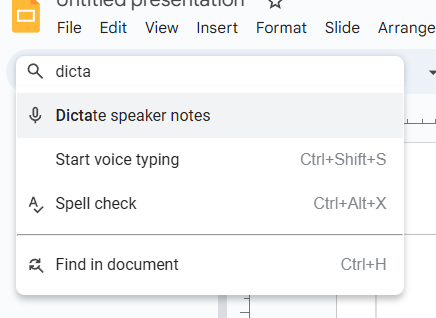
    Google Slide dictation mode
    Google Slide Dictation mode

    3. Voice Commands for Editing (While Dictating):

    • New line: Say “New line” to move to the next line.
    • New paragraph: Say “New paragraph” to start a new paragraph.
    • Select text: Say “Select [word/phrase]” to highlight specific text.
    • Delete text: Say “Delete” or “Backspace” to remove the selected text or go back one character.
    • Bold text: Say “Bold” to bold the selected text.
    • Italicize text: Say “Italicize” to italicize the selected text.
    • Underline text: Say “Underline” to underline the selected text.
    • Go to the end of the document: Say “Go to end of document” to move the cursor to the end.
    • Go to the beginning of the document: Say “Go to beginning of document” to move the cursor to the start.

    4. Punctuation Commands

    • Period: Say “Period” to insert a period.
    • Comma: Say “Comma” to insert a comma.
    • Question mark: Say “Question mark” to add a question mark.
    • Exclamation mark: Say “Exclamation point” to add an exclamation mark.
    • Colon: Say “Colon” to add a colon.
    • Semicolon: Say “Semicolon” to insert a semicolon.

    5. Editing Commands (While Typing or Dictating)

    • Undo: Say “Undo” to undo your last action.
    • Redo: Say “Redo” to redo the last undone action.
    • Copy: Say “Copy” to copy selected text.
    • Paste: Say “Paste” to paste the copied text.

    These commands allow you to efficiently dictate and edit documents using Google Voice Typing, streamlining the process for those who prefer hands-free typing.

    More on YouTube

    Let us know how we can help you: Contact US: TechVisionTraining@yourtechvision.com