Search results for: “windows 11”

  • How to SEE Your Computer Better with Low Vision

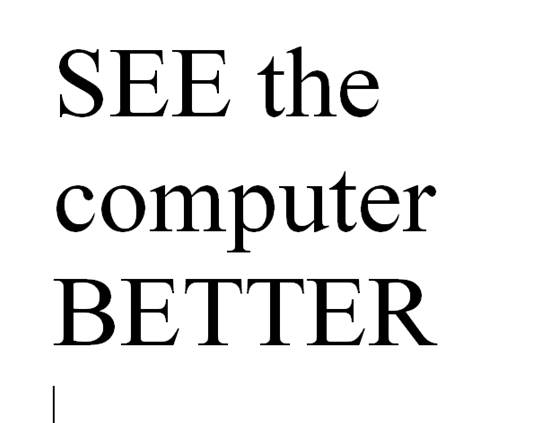
    How to SEE Your Computer Better with Low Vision

    The population of individuals with low vision exceeds that of those who are blind. It is expanding quickly as the population ages and experiences vision decline. A variety of lessons teach you how to download large cursors, enhance contrast, and enlarge text in Word. These skills also help you read with more ease. You’ll also learn how to magnify text and graphics on the Internet using different methods. Additionally, instructions on setting up low vision devices for students in classrooms who need to see the board are provided. These lessons are designed to improve your ability to see everything on your computer. The fact that these videos predate screen capture technology is irrelevant, as the skills are applicable to all versions of Windows.

    Skills to Enlarge Text as you need on any computer

     SEE your computer better, for users with low vision, using keyboard commands in Microsoft Word can significantly enhance visibility and ease of use. Here are some useful shortcuts:

    1. Zoom In/Out:
      • Zoom In: Press Alt + W, then Q, and use the Tab key to navigate to the zoom value you want.
      • Zoom Out: Use the same steps as above but adjust the zoom value accordingly.
    2. Adjust Font Size:
      • Increase Font Size: Press Ctrl + ].
      • Decrease Font Size: Press Ctrl + [.
    3. Magnifier:
      • Turn on Magnifier: Press Windows + + (Plus sign).
      • Zoom In: Press Windows + + (Plus sign).
      • Zoom Out: Press Windows + - (Minus sign).
      • Exit Magnifier: Press Windows + Esc.
    4. Change Font:
      • Open Font Dialog Box: Press Ctrl + D to open the Font dialog box where you can adjust font size, style, and other attributes.
    5. High Contrast Mode:
      • Toggle High Contrast Mode: Press Left Alt + Left Shift + Print Screen.

    Other Low Vision Skills to increase “Seeing” Ability

    This Video demonstrates other skills to decrease blue light and damage to your eyes while using your computer

    These shortcuts can help you SEE your computer better and make text more readable and improve overall accessibility in Word12.

    Add screen readers to get the audio feedback you need as vision decreases
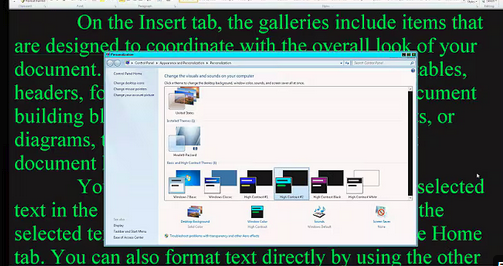
    See the computer better with high contrast
    See your computer better with high contrast

    Other Vision impairment Information


  • Type directly on PDF for Geometry with screen reader

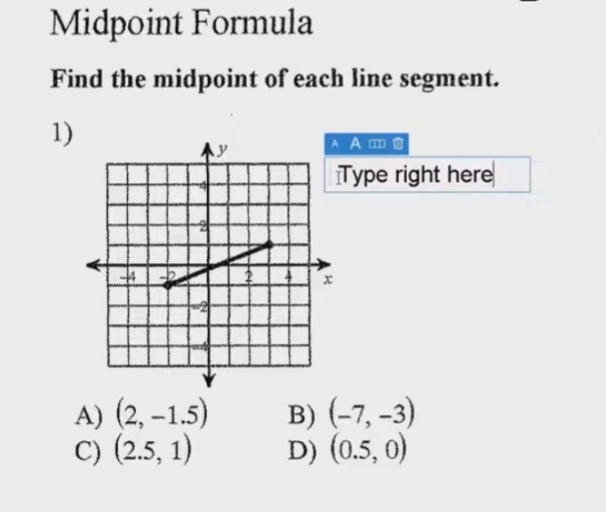
    You can perform all these tasks using current PDF versions, even with inaccessible scanned images. First, demonstrate how to write text directly on scanned PDFs, then save the edited file. Next, show students how to type directly on PDF and email the completed PDF to their teacher for submission. Perfect touch typing is always preferred for ease.

    For low vision users, all math content with voice output offers additional support. Combine this tool with text manipulation in PDFs to make materials more accessible. This approach ensures students can interact with complex materials efficiently, despite any visual challenges.

    Here are some useful keyboard commands for working with PDFs in Adobe Acrobat, focusing on enlarging the screen and typing on the document:

    Type directly on PDF commands

    Enlarge Screen (Zoom In/Out)

    1. Zoom In:
      • Press Ctrl + + (Plus sign) on Windows.
      • Press Cmd + + (Plus sign) on Mac.
    2. Zoom Out:
      • Press Ctrl + - (Minus sign) on Windows.
      • Press Cmd + - (Minus sign) on Mac.
    3. Fit to Screen:
      • Press Ctrl + 0 (Zero) on Windows.
      • Press Cmd + 0 (Zero) on Mac.

    Typing on a PDF

    Typing on PDF
    Type Directly on PDF
    1. Add Text:
      • Select the Text Box Tool by pressing Ctrl + Shift + T on Windows.
      • On Mac, you might need to manually select the tool from the toolbar.
    2. Type in a Form Field:
      • Navigate to the form field using the Tab key.
      • Press Enter to start typing.
    3. Add a Comment:
      • Press Ctrl + 6 to open the comment tool on Windows.
      • Press Cmd + 6 on Mac.
    4. Save Changes:
      • Press Ctrl + S to save the document on Windows.
      • Press Cmd + S on Mac.

    More PDF Lessons:

    Math and taking inaccessible to accessible in WORD

    Type directly on a PDF

    Transcribe Math Images from PDF

    Take Large PDFs and Print to PDF for a few pages

    If you have any computer issues, fix it up yourself and get going on work.

    These commands should help you navigate and edit PDFs more efficiently.

    Video on How to SEE your computer better with Low vision is also very helpful.

  • Set up Outlook Alarm with Screen Reader

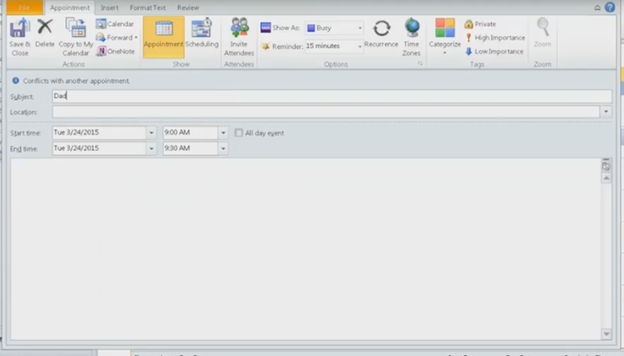
    Set up Outlook alarm with screen reader

    Set up Outlook Alarm
    Scheduling an Outlook Alarm

    To set up an alarm in Outlook with JAWS, press Ctrl + 2 to switch to Calendar view. Next, press Ctrl + N to create a new appointment. JAWS announces each field as you navigate through the form. Enter the subject, then press Tab to move to the location field. Continue pressing Tab to set the start and end times. To adjust the date, use Alt + Down Arrow to access the date picker.

    Press Alt + H to open the appointment tab, then A to set the reminder. Use arrow keys to select the desired reminder time, then press Enter to confirm. Finally, press Ctrl + S to save the appointment. At the scheduled time, JAWS will announce your reminder.

    If you discover your computer is not working well, check your Setups on windows and if you are low vision, here are setup options also for better viewing.

    More Outlook Lessons

  • Finding mouse cursor FAST-low Vision tricks

    If you have a vision challenge, here are great tricks to Finding mouse cursor FAST and easily.  

    This skill works on EVERY version of Windows.

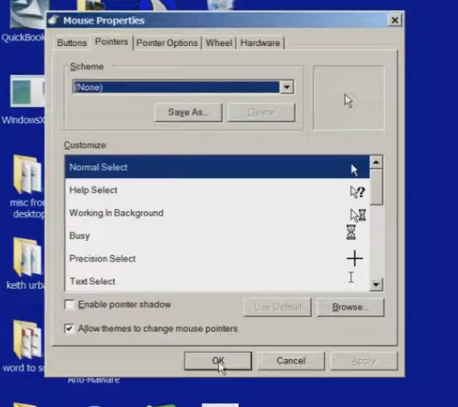
    Find the mouse cursor using a large cursor
    Find the mouse cursor using a large cursor, using CTRL key and other tricks

    Another insightful lesson from TechVision in finding mouse cursor fast. In this video they demonstrate how to easily locate the mouse pointer when it’s too small or lost on the screen. These steps will enhance visibility and ensure the mouse is always within visual reach.

    To begin, press the Start key. On Windows 10 or later, simply start typing “mouse,” then select the result by pressing Enter to open the mouse settings. If settings opens first then tab to additional mouse settings.

    Once inside, use Ctrl + Tab to navigate to the properties section. From here, the user is presented with various pointer schemes. They can choose “Magnified” for an enlarged pointer, or opt for “Extra Large” or “Inverted,” depending on preference. For users with high contrast settings, an inverted large white pointer is particularly effective. In this instance, they recommend selecting the “Magnified System Scheme.”

    Now for the key trick: Ctrl + Tab to pointer options. At the bottom is an option labeled “Show location of pointer so the CTRL key is pressed you see it surrounded in circles. Or to enable this, use Alt + S or manually tab down to it. Once selected, press Alt + A to apply the changes, and then close the settings window.

    With this feature enabled, pressing the Ctrl key will cause a large white ring to appear around the mouse pointer, allowing users to quickly find it, even if it’s far off on the screen.

    This technique is particularly beneficial for individuals with low vision but can be useful for anyone who occasionally loses track of the mouse pointer. This simple yet effective tip ensures that the mouse pointer is always visible and easy to locate. Watch the full video for all those little tricks to make it easier to see your computer. In addition to seeing your computer better in general and other mouse access options.

    Find more low vision tricks here and this lesson will show you adjustments to your computer to slow down Blue Light Damage to your eyes while using your computer.

    Other Vision impairment Information


  • Search HathiTrust’s Digital Library

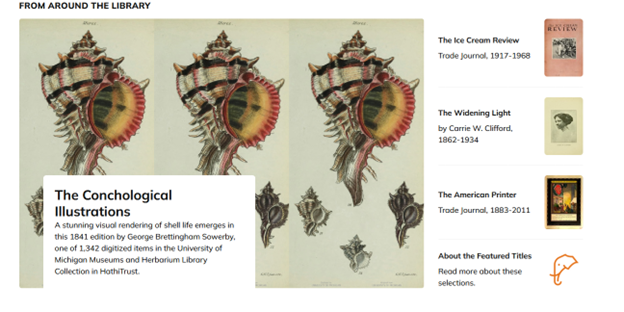
    Search HathiTrust’s Digital Library who is part of a partnership of academic & research institutions, offering a collection of millions of titles digitized from libraries around the world.

    Find your book to read today: Sign up and sign in HathiTrust Digital Library

    search Hathitrust digital library
    Hathitrust digital library

    HathiTrust is a digital library that preserves and provides access to over 18 million digitized books and documents. It empowers scholarly research by offering transparency and fostering curiosity through vast collections, including rare and special items. Users can explore materials digitized from libraries worldwide, access technical reports, government documents, and unique collections, and participate in HathiTrust’s mission to safeguard knowledge. The platform emphasizes accessibility and innovation, supporting academic research and discovery. Gutenberg and BARD are also other sites that offer free books

    Learn Out Loud Reading-Audio books Galore is another option

    Search HathiTrust’s Digital Library for more details and also TechVision for more books.

  • Family Tree with Smart Art and Screen Reader

    Using your newest WORD version, Create a family tree in Microsoft Word using (1997-2023) keyboard commands is straightforward and efficient. Most importantly, it is accessible. After you open WORD, press F12 for save as and name it then tab to save as an arrow to 1997-2023 and enter. Then press Alt + N to open the Insert tab, then press M to select SmartArt. In the SmartArt dialog box, (typically the first item, so listen) or use the arrow keys to navigate to the “Hierarchy” category and select a suitable layout for your Family Tree with Smart Art, such as “Organizational Chart.” Press Enter to insert the SmartArt graphic into your document.

    This is the method of creating a Family Tree with Smart Art and screen reader. You can then use the Tab key to move between different elements of the chart and Enter to add new family members. To edit text within the SmartArt, simply press F2 to enter text editing mode. This method allows you to create a detailed and visually appealing family tree using just your keyboard and screen reader.

    When you are looking to do sophisticated work such as Family trees, etc., always do as save as to 97-2023 as that Version was fully accessible and still is IF you remember the commands. Here is a few below Family Tree:

    Family Tree with Smart Art and screen reader

    family tree using smart art
    Family Tree with Smart Art

    Here are the keyboard commands for accessing the Insert menu in Microsoft Word (1997-2023):

    1. Open Insert Menu in WORD:
      • Press Alt + N.
    2. Insert Picture:
      • After pressing Alt + N, press P.
    3. Insert Table:
      • After pressing Alt + N, press T.
    4. Insert Shapes:
      • After pressing Alt + N, press S.
    5. Insert SmartArt:
      • After pressing Alt + N, press M.
    6. Insert Chart:
      • After pressing Alt + N, press C.
    7. Insert Hyperlink:
      • After pressing Alt + N, press I.
    8. Insert Text Box:
      • After pressing Alt + N, press X.
    9. Insert Header:
      • After pressing Alt + N, press H.
    10. Insert Footer:
      • After pressing Alt + N, press O.
    11. Insert Page Number:
      • After pressing Alt + N, press NU.

    Another lesson that works just as well: Venn Diagrams with Screen Reader

    These commands should help you efficiently navigate and use the Insert menu in Word. However, if you are experiencing computer issues, fix it and get it setup correctly for speed.

    Now learn to convert braille file into WORD or learn from hundreds of other video lessons

  • Braille Reading Speed Standards

    So many people ask, “How fast should my child be reading?” When discussing Braille Reading Speed Standards, it’s essential to remember that blind children are just as intelligent as sighted children so standard reading speed should be used for all children. Braille Reading Fast.

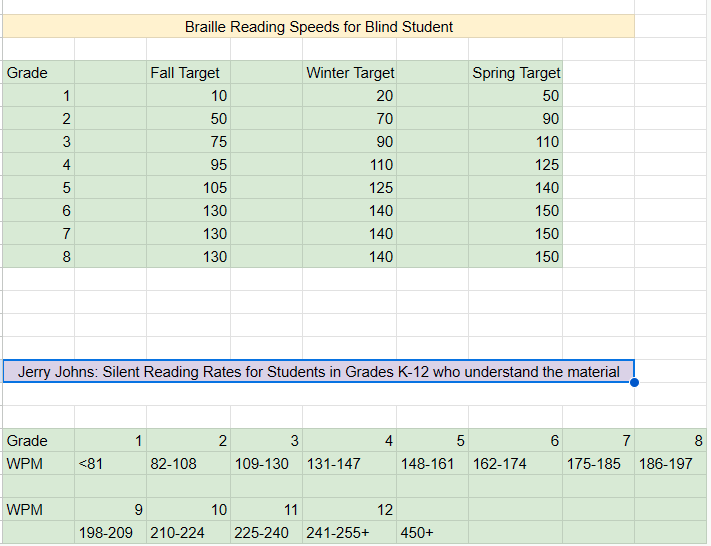
    The Jerry Johns Basic Reading Inventory is a widely used tool for assessing reading speeds and comprehension levels in students. It helps educators determine a student’s instructional, independent, and frustration reading levels. This is done by evaluating their speed, accuracy, and comprehension. This inventory is particularly useful for identifying students’ reading capabilities and tailoring instruction to meet their needs. By measuring reading speeds, educators can see how students process text and find areas where they need more help to improve fluency and comprehension.

    Here are the national standards as presented by Jerry Johns, a leading reading specialist in the country. 

    Braille Reading Speeds for Blind Student 
             
    Grade Fall Target Winter Target Spring Target  
    1 10 20 50  
    2 50 70 90  
    3 75 90 110  
    4 95 110 125  
    5 105 125 140  
    6 130 140 150  
    7 130 140 150  
    8 130 140 150  


    Jerry Johns: Silent Reading Rates for Students in Grades K-12 who understand the material 
      
             
    Grade12345678
    WPM<8182-108109-130131-147148-161162-174175-185186-197
             
    WPM9101112    
     198-209210-224225-240241-255+450+   
    Braille Reading Standards Chart

    Use the SAME Braille Reading Speed Standards

    For another extensive list of information on Braille standards go to California Reading Standards

    The TechVision Team use these same standards for all blind and low vision students. To name just a couple, Batya reads both Hebrew and English Braille and Dani excels to the top of her class also. If you set high standards then children will meet those standards. We have taken on beginner students and told them how fast they would be reading braille in a couple months, even in middle and high school. Just remember the older you start the longer it will take for them to gain speed.  At the end of the 2 months, as their fingers would fly across the page reading braille, as they were timed with a fast speed, We would ask, “So did you really think you would be able to read that fast?” They would reply, “Of course, because you told me I would be able to.”

    So, tell them, they can, and they will. Our Mission and Purpose is to have students (especially with similar intelligence) at the highest levels they can be with hard work and instruction to get them there as their peers.

    Get to the Highest Levels

    Tricks to use
    Time them every week (sometime everyday), so they see their progress
    Have them reread the same material to get flow and fluency
    Have them braille the material first using contractions, then read what they wrote

    braille reading speed chart
    Visual braille reading speed chart as above accessible version

    Make sure you add in Computer skills with Perfect touch typing to truly allow students to be at the highest levels of learning.

  • Free eBooks | Project Gutenberg

    Free eBooks | Project Gutenberg and self-publishing site has a mobile website,  where you can download many classic books free of charge. If you love reading, you should definitely explore the Free eBooks available on Project Gutenberg.

    Free eBooks project Gutenberg
    Free eBooks | Project Gutenberg

    No fee or registration! Everything from Project Gutenberg is gratis, libre, and completely without cost to readers. If you find Project Gutenberg useful, please consider a small donation to help Project Gutenberg digitize more books, maintain its online presence, and improve Project Gutenberg programs and offerings. Other ways to help include digitizing, proofreading and formatting, or reporting errors.

    Project Gutenberg</strong>, a platform offering >free eBooks. You can download or read online thousands of digitized books, focusing on older works with expired U.S. copyrights. The site emphasizes that no special apps are needed, and all eBooks are completely free. Additionally, Project Gutenberg encourages donations and volunteer contributions to help digitize and proofread more books. BARD is similar but more options are always better when it comes to reading.

    Where to find other eBooks. You can also explore Free eBooks at Project Gutenberg for a variety of options. Many classic Free eBooks from Project Gutenberg are available for download. Don’t miss out on your Free eBooks.

    Reading Options

    Search HathiTrust’s Digital Library

    Project Gutenberg Self-Publishing – eBooks | Read eBooks online | Free eBooks

    Braille Reading Speed Standards

    Download books from BARD (Braille and Audio Reading Download)

    Learn Out Loud Reading-Audio books Galore

    For Parents: Thought-Provoking Ideas on Raising Children

  • Access

    Empowering Equal Access Through Technology Training

    TechVision teaches blind and visually impaired students—and the educators who support them—how to use access technology with confidence. Through yourtechvision.com and our YouTube Channel, we provide practical, real‑world lessons on screen readers, braille displays, mobile devices, and the tools students need to participate fully in school, work, and life.

    Real‑Time Learning

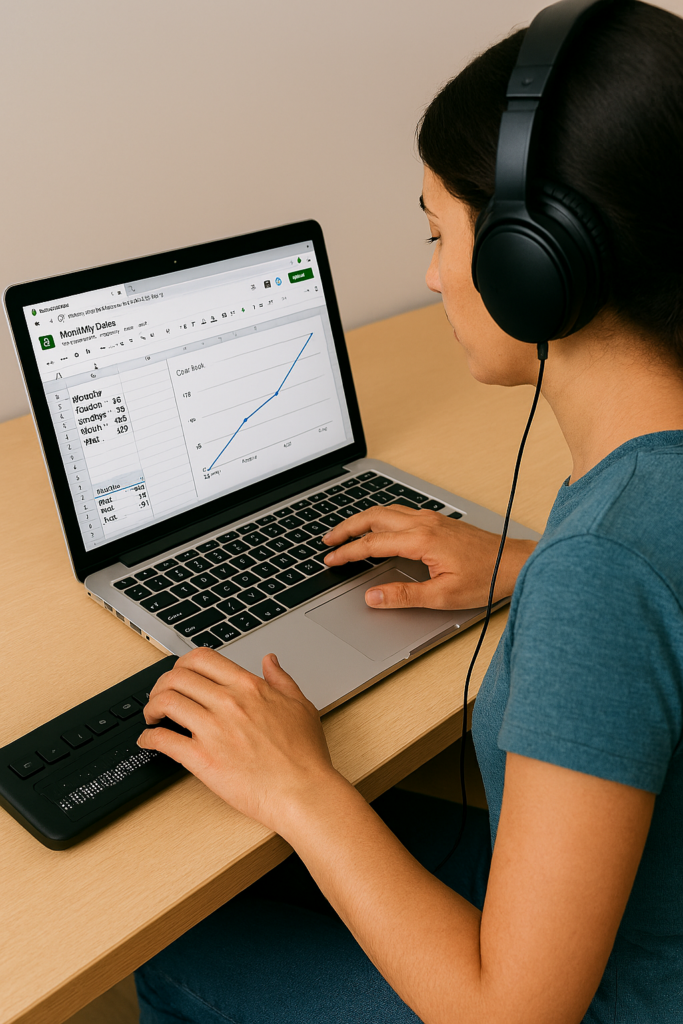
    Students demonstrate their skills by completing assignments in real time, often on video. Whether creating a line graph in Google Sheets or submitting digital work the same day, these lessons show how access technology enables immediate, independent participation.

    Customized Instruction

    Every lesson is tailored to the student. This targeted approach builds independence, accuracy, and confidence. We also support educators, parents, and teams so everyone involved has the knowledge needed to ensure equal access.

    Female creating a Google sheets line graph with Jaws and Braille Display
    Female creating a Google sheets line graph with screen reader and Braille Display

    Flexible, Remote Training

    TechVision provides instruction from anywhere in the world. Students schedule lessons at times that work for them, learn at their own pace, and gain mastery through hands‑on practice. This remote model removes geographic barriers and expands opportunities for all learners.

    Expert Guidance

    Led by Dr. Denise M. Robinson, TechVision Specialists bring deep expertise in assistive technology and academic subjects—including math, STEM, and literacy. Many team members are blind themselves, offering relatable, real‑world insight and encouragement.

    Practical Skills for Daily Life

    Lessons focus on real applications: writing emails, navigating the web, creating documents, completing assignments, and using technology across all subjects. Students learn not just the tools, but how to apply them independently in everyday situations.

    Building Independence and Confidence

    By mastering access technology, students gain autonomy, problem‑solving skills, and the ability to keep up with peers. Parents, educators, and employers benefit from improved communication, participation, and equal access in both learning and work environments.

    Go to All Tech Lessons & Stories

    Let us know how we can help you: Contact US: TechVisionTraining@yourtechvision.com