Search results for: “low vision”

  • How Do Blind Students Learn?

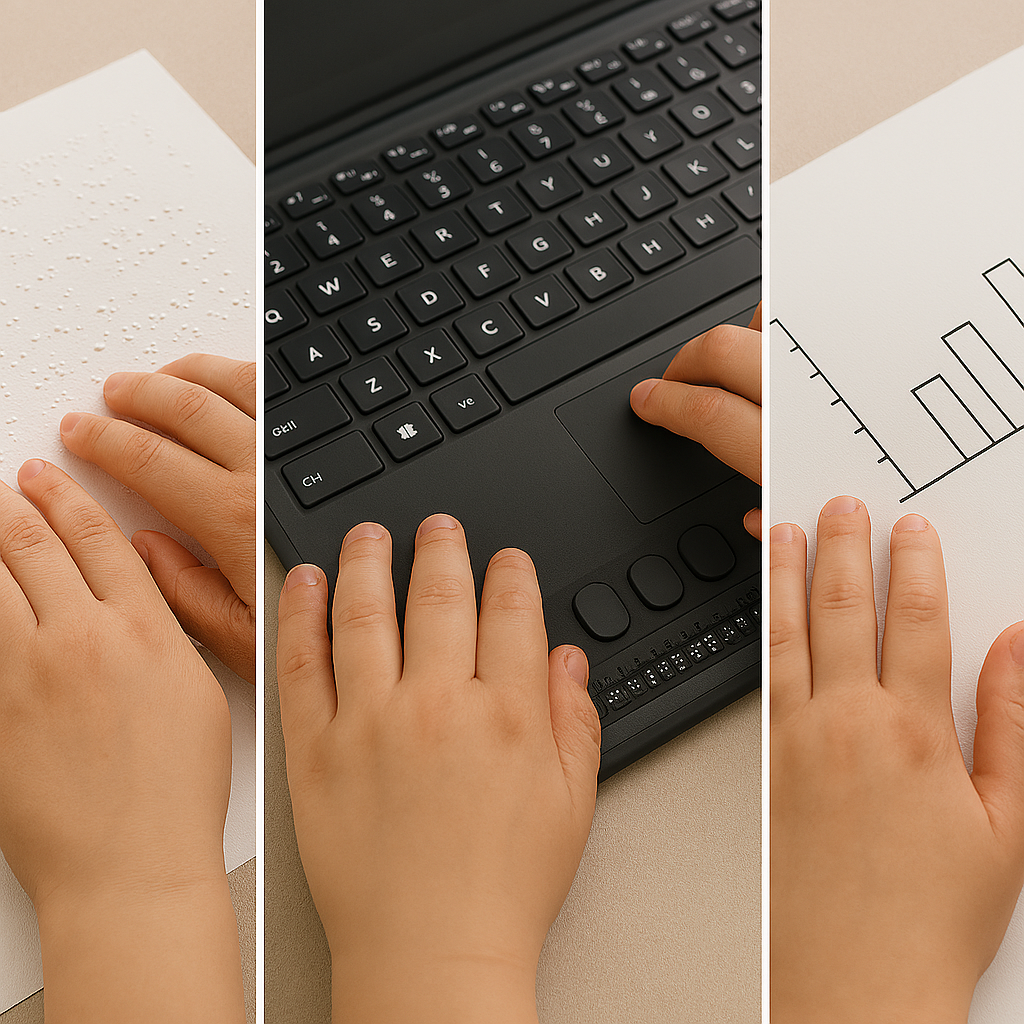
    Blind student reading Braille on paper, using a Braille display with a computer, and exploring a tactile graphic
    Blind student reading Braille on paper, using a Braille display with a computer, and exploring a tactile graphic

    Understanding Linear Learning vs. Spatial Learning

    When people ask, “How do blind students learn?” the most important starting point is this:

    Blind students learn linearly. Sighted students learn spatially.

    This single difference explains why blind learners need different teaching strategies, different tools, and different test accommodations: not because they are less capable, but because they access information through a completely different pathway.

    Let’s break down what this means, why it matters, and how it affects everything from classroom instruction to standardized testing.


    1. Spatial Learning (Sighted Students)

    Sighted students take in information all at once, in a broad visual field. They can:

    • Glance at a page and see the whole layout
    • Jump between paragraphs instantly
    • Scan charts, maps, and diagrams in seconds
    • Compare two areas of a page without losing their place
    • Hold visual relationships in mind (left/right, above/below, bigger/smaller)

    This is spatial learning — fast, simultaneous, and visually anchored.


    2. Linear Learning (Blind Students)

    Blind students access information one piece at a time– one character at a time, in a straight line, through:

    • Screen readers (JAWS, NVDA, VoiceOver)
    • Braille displays
    • Audio
    • Tactile graphics

    They cannot “look around” a page or see the question and the paragraph all at the same time, nor skim a diagram. They must:

    • Move character by character or part by part
    • Move line by line
    • Navigate with commands
    • Build the mental picture sequentially
    • Hold details in working memory

    This is linear learning — accurate, powerful, but fundamentally different from spatial learning.

    Braille readers who build fluency up to 400–450 words per minute — and some even higher — can move through text quickly, but they still must slow down when deep comprehension is required. In parallel, trained blind students can listen at speeds well above 400 words per minute. Because audio processing becomes a major access route for academic content, teaching efficient high‑speed listening is an essential skill alongside Braille fluency.

    This instruction must begin early if the goal is for the child to maintain pace with sighted peers, as early tactile and access‑skills training prevents the academic delays that occur when these foundations are introduced later. This includes early keyboarding instruction and learning to use a PC computer with screen reader commands, both of which are essential access tools for blind students throughout school and into adulthood.
    For blind children, it is essential to start developing tactile readiness, tactile discrimination, and early Braille concepts by age 3. These foundational tactile skills support later Braille fluency, spatial understanding through touch, and efficient access to academic materials.

    For children with low vision and a progressive eye condition, instruction should begin as soon as the condition is identified — not after vision loss occurs. Early access training ensures the child builds the skills they will rely on later, preventing academic delays and reducing the emotional and cognitive burden of “catching up” after vision decreases.

    Early instruction in tactile skills, Braille readiness, and high‑speed listening lays the groundwork for the advanced literacy and access skills blind students need throughout school and into adulthood.


    3. Why This Matters in Real Learning Situations

    A. Refer‑Back (Test) Questions

    Many work but especially standardized tests require students to:

    1. Read a question
    2. Refer back to a paragraph
    3. Return to the question
    4. Choose the correct answer

    Sighted students do this in seconds because the question and paragraph are both visible at once.

    Blind students must:

    • Stop reading
    • Navigate backward through headings or lines
    • Find the correct paragraph
    • Reread it
    • Navigate forward again
    • Try to remember both the question and the paragraph

    This is not a reading‑comprehension task — it becomes a navigation and memory task.

    Why it’s inaccessible

    • Screen readers present content linearly, not spatially.
    • Blind students lose the visual proximity sighted students rely on.
    • Cognitive load doubles because they must juggle navigation + content.
    • They lose significant time through no fault of their own.

    Appropriate accommodation

    On the student’s IEP (Individualized Education Program), include a sighted human reader as an accommodation. This restores equal access by allowing the student to:

    • Braille students has fingers on a braille display if test is electronic or on hard copy braille then
    • Asks reader for the referenced paragraph
    • Answers immediately based on knowledge, not navigation

    This is not an advantage — it is equivalent access.


    B. Image‑Based Test Questions

    Charts, diagrams, maps, graphs, and labeled pictures are inherently spatial.

    Sighted students can instantly see:

    • Layout
    • Labels
    • Patterns
    • Relationships
    • Direction
    • Relative size

    Blind students cannot access any of this unless the description is complete — using methods appropriate for blind learners, since most tests are created by sighted people using sighted terms rather than blind terms — and, most importantly, unless they have been explicitly taught how to “read” and interpret graphs through tactile and auditory methods. This is also where a sighted human reader becomes essential, someone who knows the student and can relay information using blind‑appropriate terminology and concepts.

    Why inadequate alt text fails

    Alt text like:

    • “A chart”
    • “A diagram of a cell”
    • “A map of the U.S.”

    …provides none of the information needed to answer questions.

    Screen readers cannot “see” the image. They only read the text provided. If the description is incomplete, the student receives incomplete information — and cannot answer accurately.

    Appropriate accommodation

    A trained sighted describer, with tactile graphics when appropriate, can:

    • Describe the full spatial layout as student moves their hands across the graphic
    • Identify labels and relationships
    • Provide the structure needed to understand the image
    • Support the student without giving away answers

    This ensures the blind test taker has access to the same information sighted peers see.


    4. What Teachers and Parents Need to Know

    Blind students are fully capable of mastering the same academic content — when the information is delivered in a way they can access.

    To support linear learners:

    • Present information in clear, sequential linear order
    • Avoid “look at the chart above” without providing a full description
    • Use headings, structure, and consistent formatting
    • Provide tactile graphics for spatial concepts
    • Teach screen reader navigation explicitly
    • Allow extra time for tasks that require back‑and‑forth reference
    • Use human readers or describers when needed

    These are not “extras.” They are equity.


    5. Why This Matters for Every Classroom and Every Test

    When educators understand the difference between linear and spatial learning, everything becomes clearer:

    • Why blind students need more time
    • Why they need tactile graphics
    • Why they need structured digital materials
    • Why refer‑back questions are inaccessible
    • Why image‑based items require human description
    • Why blind students may appear “slower” when they are actually processing more steps

    Blind students are not struggling with content — they are navigating a world built for spatial learners.


    6. Final Thought

    Blind students learn differently, not less.
    Their learning is sequential, structured, and deeply conceptual.
    When we remove the visual barriers, their abilities shine.
  • Stories

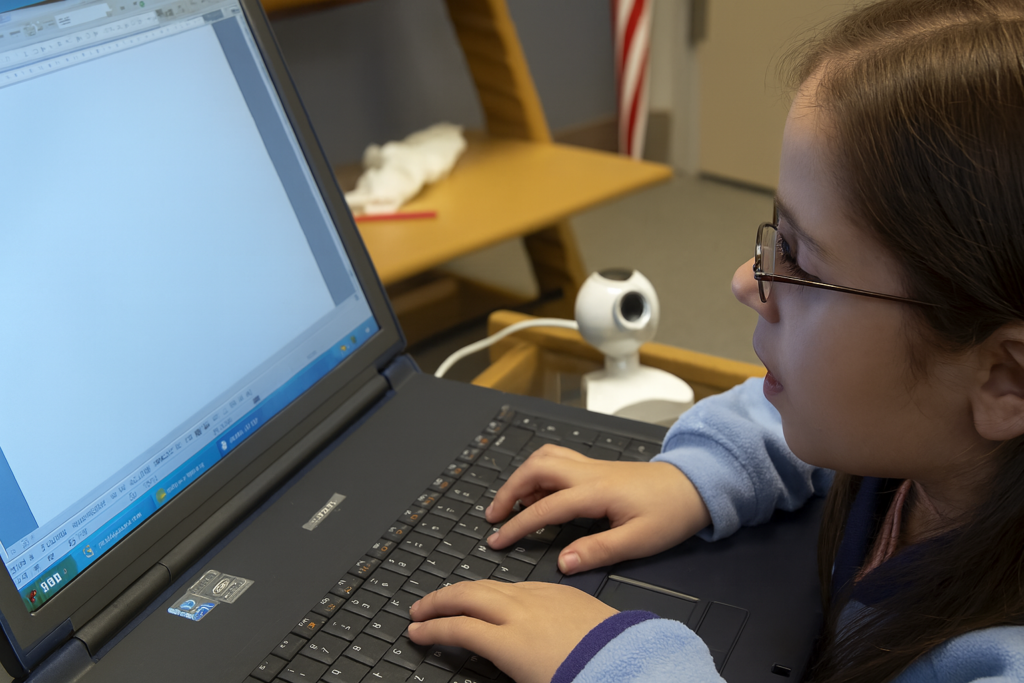
    Second grade Student typing 50 wpm
    Second-grade student typing 50 wpm, highlighted in our stories of independence

    These stories highlight families who choose hope and push forward through adversity. Each student learns new skills and begins to believe in real possibility. They gain confidence as access technology opens learning in clear, practical steps. With strong instruction, they grow in independence and work beside sighted peers. They meet deadlines, follow routines, and finish assignments on equal timetables. Their progress shows that blindness never blocks success when training stays steady and purposeful.

    Early instruction at age three builds strong kindergarten readiness and prevents the long catch-up students face when training begins later. During play, children gain essential blind skills while sighted peers gain visual skills. Remote instruction then brings teachers into workplaces, classrooms, and homes with ease. This support continues after school and on weekends to start or complete major projects.

    Visit our Access Tech Page and how Training occurs along with our YouTube Channel, to discover where these powerful skills were learned. Ask questions at: TechVisionTraining@yourtechvision.com

    Stories of Life

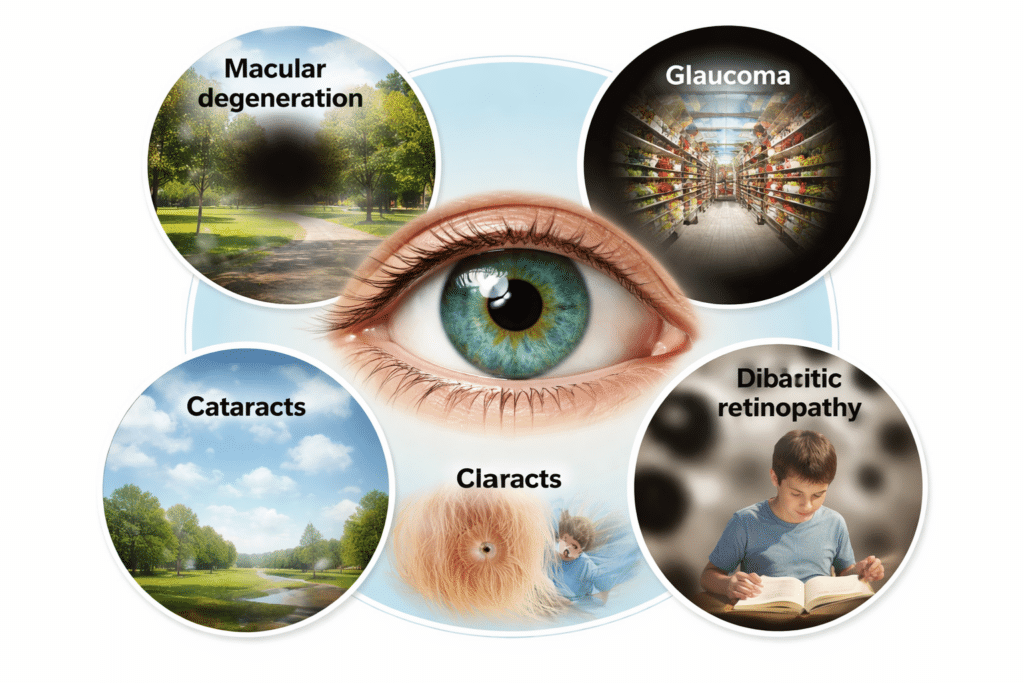
  • How Different Eye Conditions Affect the Way People See

    A central blue-green human eye is surrounded by four circular images showing how different eye conditions affect vision: macular degeneration with a dark central blur, glaucoma with tunnel vision, cataracts with overall cloudiness, and diabetic retinopathy with floating dark spots.
    How Different Eye Conditions Affect the Way People See: A central blue-green human eye is surrounded by four circular images showing how different eye conditions affect vision: macular degeneration with a dark central blur, glaucoma with tunnel vision, cataracts with overall cloudiness, and diabetic retinopathy with floating dark spots.

    Key Statistics on Blindness and Vision Loss

    Overall Vision Loss

    • More than 12 million Americans live with blindness or significant vision impairment, and it’s important to understand how different eye conditions affect the way people see, as each one can have unique effects on vision.
    • Globally, 2.2 billion people have vision impairment or blindness.

    Age-Related Increase

    Vision loss rises sharply with age because the risk of major eye diseases grows over time.

    • After age 40, one in eight adults develops a vision-threatening eye condition.
    • After age 65, the rate of blindness and low vision increases four-fold.
    • Adults over 75 experience the highest rates of blindness in the population.
    • Nearly half of all blindness occurs in people over 70.

    Leading Causes of Vision Loss as We Age

    How Different Eye Conditions Affect the Way People See as These Conditions Become More Common with Age

    1. Cataracts
      • Affects 24 million Americans over 40.
      • By age 80, more than half of adults develop cataracts.
    2. Glaucoma
      • Over 3 million Americans have glaucoma.
      • Risk doubles every 10 years after age 40.
    3. Age-Related Macular Degeneration (AMD)
      • Leading cause of blindness in older adults.
      • Affects 11 million Americans, expected to reach 22 million by 2050.
    4. Diabetic Retinopathy
      • Affects one in three adults with diabetes.
      • Risk increases with both age and length of diabetes.

    Why Eye Conditions Worsen With Age

    Here are the major age-related changes:

    • The lens becomes cloudy, causing blurred or dim vision.
    • The retina loses cells, reducing clarity and contrast sensitivity.
    • The optic nerve can suffer pressure-related damage.
    • Blood vessels weaken, especially with diabetes and hypertension.

    Impact on Daily Life

    • Older adults with low vision face three times the fall risk.
    • Vision loss increases depression risk by up to 25 percent.
    • Two-thirds of adults in assisted-living communities have untreated vision issues.

    Hopeful Note

    Most age-related eye diseases are treatable or manageable with early detection. Screen reader technology, braille displays, and accessible tools also help older adults stay independent.


    How Different Eye Conditions Affect What We See

    Most people assume vision loss is like “blurry vision” — but every eye condition affects sight in a completely different way. Understanding these differences helps teachers, families, and coworkers support students and adults with confidence and empathy.

    This guide breaks down the most common eye conditions and gives you a simple, accurate explanation of how the world looks through their eyes.


    1. Cataracts

    Cataracts-blurry and gets blurrier as cataracts thicken

    What it is: Clouding of the eye’s natural lens.
    You See:

    • Vision appears foggy, milky, or like looking through dirty glass
    • Colors look faded
    • Light glare is intense (especially headlights at night)

    What helps: Even lighting; high contrast; reducing glare. sun glasses help stop glare of cataracts. Removal is important to regain full vision.


    2. Macular Degeneration (AMD)

    macular degeneration is central vision is black

    What it is: Damage to the macula, the part of the retina responsible for central vision.
    You See:

    • A dark or blurry spot in the center
    • Faces and print disappear
    • Side vision stays clear

    What helps: Large print, audio access, magnification, and teaching scanning strategies. Teaching to focus on the outside of vision. Prism glasses the will help bring vision to the center again


    3. Stargardt Disease

    missing central vision-the youth version of macular degeneration

    What it is: A juvenile form of macular degeneration.
    You see:

    • Central blind spots
    • Difficulty recognizing faces
    • Trouble reading standard print
    • Good peripheral vision

    What helps: High‑contrast materials, audio, and flexible access to digital text. Prism glasses


    4. Glaucoma

    What it is: Damage to the optic nerve, often from high eye pressure.
    You see:

    • Loss of peripheral (side) vision and central vision
    • “Tunnel vision” in later stages
    • Difficulty navigating crowded spaces

    What helps: Clear pathways, orientation & mobility support, and strong lighting. Treatment is so essentially crucial to slow or stop progression of disease


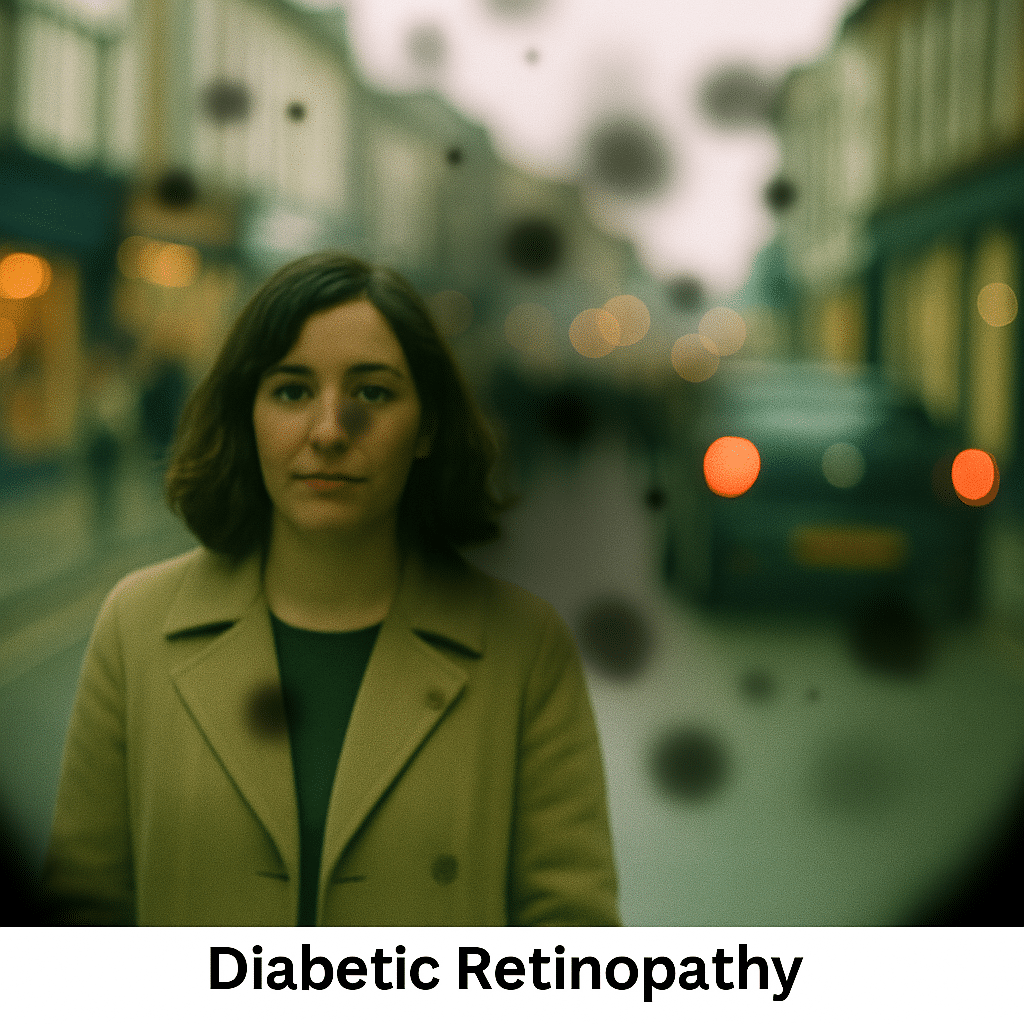
    5. Diabetic Retinopathy

    What it is: Damage to retinal blood vessels from diabetes.
    You see:

    • Floaters (dark spots that move) and grow larger
    • Patchy or fluctuating vision
    • Blurry or distorted areas
    • Vision may change day‑to‑day

    What helps: Flexible accommodations, audio tools, and predictable layouts.

    Keep blood sugar between 80–150 mg/dL, and maintain an A1C below 7.0. These levels help prevent the widespread damage diabetes can cause throughout the body. Diabetes damages the body’s small blood vessels first, so the eyes, kidneys, feet, and fingers often show problems early. When blood flow weakens, nerves and tissues become painful and begin to die.


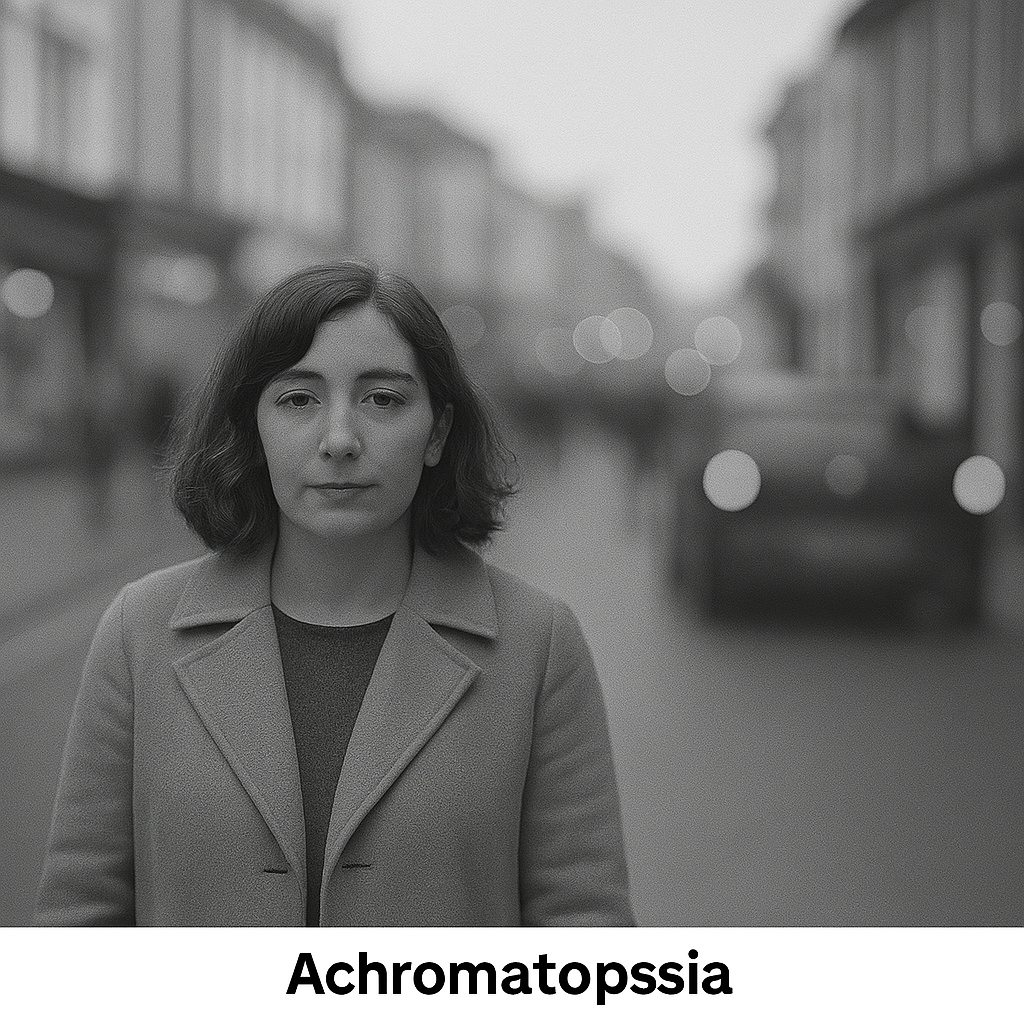
    6. Achromatopsia (Total Color Blindness)

    What it is: A rare condition affecting cones in the retina.
    You see:

    • The world appears in shades of gray
    • Extreme light sensitivity
    • Reduced clarity

    What helps: Low‑vision sunglasses, tinted filters, wearing a hat outside and dimmed environments.


    7. Corneal Diseases

    What it is: Damage or irregularity of the cornea.
    You see:

    • Vision appears distorted, wavy, blurred edges or double
    • Glare and halos around lights
    • Difficulty with fine detail

    What helps: Contrast, reduced glare, and alternative access to print.


    Why This Matters


    Understanding how people see with different eye conditions reveals why global vision loss continues to rise.
    There are hundreds of known eye conditions, from common refractive issues to rare disorders that slowly damage sight.
    The World Health Organization notes at least fifteen major conditions that affect vision, with many others harming eye health silently.
    More than thirty-three million people are blind from preventable causes today.
    Over one billion people live with treatable or preventable vision loss but lack access to essential care.

    There are hundreds of recognized eye conditions globally, ranging from common refractive errors to rare genetic disorders. The World Health Organization highlights at least 15 major conditions that impact vision, but many more affect eye health without causing vision loss.

    Understanding Vision in Children: What Visual Acuity Really Means

      Signs of Low Vision in Children Even when they Pass Screening

      What 20/40 Vision Means and Why “Almost Normal” Still Matters

      20/70 Vision Explained: What It Really Means and How It Affects Daily Life

      What does 20/100 vision look like?

      20/200 Vision Explained: What Everyone Gets Wrong About “Legal Blindness”

      What Does 20/400 Vision Look Like?

      What does 20/800 vision look like?

      When Vision Problems Look Like Misbehavior: What Parents and Teachers Miss

  • Screen Readers Can’t Read This!

    Fix Google Slides and other work Fast with AI

    What Screen Readers Can’t See: A Wake-Up Call for Educators

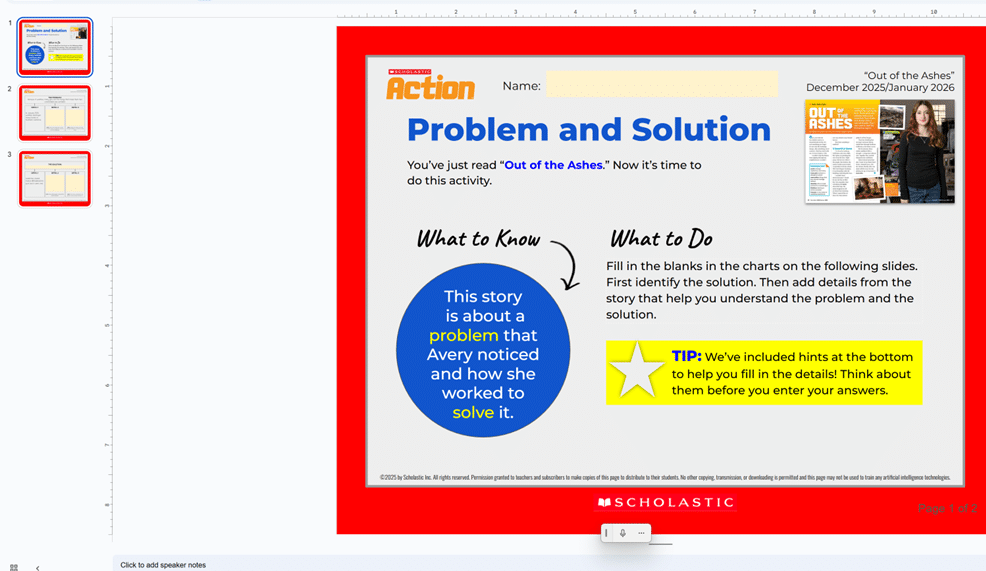
    Many teachers rely on tools like Snip & Clip or download entire packets of image-based worksheets. But it’s important to understand that most resources on popular teacher websites—especially those behind paywalls—are completely inaccessible to blind and low vision students. These materials are often just images or scanned PDFs. Consequently, screen readers can’t read this type of content at all.

    This video demonstrates how these inaccessible formats appear to a screen reader user. It shows how nothing reads, nothing speaks, and the content remains out of reach.

    It also shows how older students who have been taught tech skills for years, transcribers or teachers, can quickly make the material accessible. This is especially helpful for a screen reader user who is not yet able to do it independently.

    google slide image of work-all inaccessible to a screen reader user
    Google slide image of work-all inaccessible to a screen reader user

    Watch Video to show you all the steps: Screen Readers Can’t Read This! Fix Google Slides and other work Fast with AI

    Commands to know: Use EDGE and its built in AI with -CTRL+Shift+period, so the AI can see the pages you are on. (Do not do banking of any kind without using a private window and a non-AI browser.)

    Watch the video to get all the steps down. It can change your life to the inaccessible world. Alternatively, transcribers and teachers can do it for you until you learn the skills well yourself.

    Other School Platforms that are inaccessible can be resolved with this solution also now

    Other Options to Make Work accessible

    Math & AI = Mathify.ai convert PDF math or any work into WORD docx. to make inaccessible to accessible

    Difference between inaccessible and accessible website content

    Changing inaccessible to accessible text using Google Docs

    Be My Eyes for Computer: Describe Images, Graphs, and Screens Instantly

  • Professional Development for Teachers

    FOR the Blind-VI, Transcribers, etc. learning to your needs

    Professional development for teachers and other personnel is generally designed for the broader teaching community. However, teachers of the blind and visually impaired can request specialized instruction on these days. TechVision offers tailored learning experiences for teaching and learning with screen readers, braille displays, and other access technology. With TechVision, educators can acquire the specific skills   needed to help their students learn and access education. This Professional Development for Teachers allows their students to be on the same level as their peers over time. It also helps teachers develop tech competencies for the year. Specialized professional development helps to guide and ensure that all students, regardless of their visual abilities, can compete on an equal footing with their sighted peers.

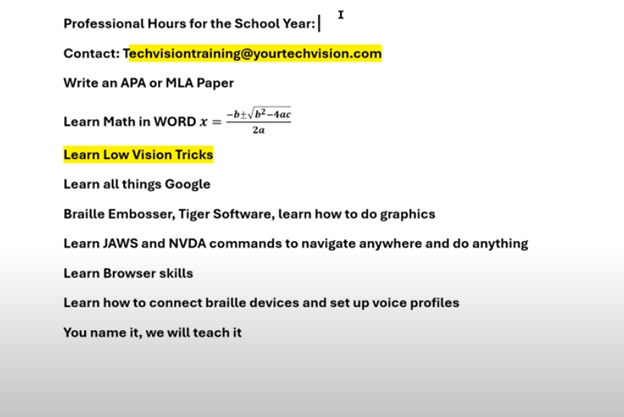
    It’s that time of year when everyone signs up for professional hours. You can join the Regular Pack, but if you need something specific for teachers of the blind, TechVision offers specialized instruction. Learn how to teach students and develop your own skills, including transcriber skills. Professional Development for Teachers often includes learning how to deal with specialized educational needs. Contact TechVision Training to learn like our students who use screen readers.

    Learn math, low vision tricks, and screen reader commands. Learn all things Google, braille embossers, and Tiger software. Master JAWS or NVDA commands, browser skills, and voice profiles. We teach everything, from box and whiskers in Excel or Google to formatting APA and MLA papers in Google Docs or Word. Learn PowerPoint or Google Slides, making them accessible and visually appealing. We offer professional development throughout the year, including one-on-one or group sessions. This ensures that during big professional development days, you are already well-prepared for exactly what you need to learn. TechVision provides another avenue to learn the skills necessary to teach your students effectively with Professional Development for Teachers. Let us know if we can help: TechVisiontraining@yourtechvision.com. In the meantime, improve the speed of your computer.

    Professional hours list and you add what you need
    Professional hours list and you add what you need

    Professional Development Opportunities for Teachers and More

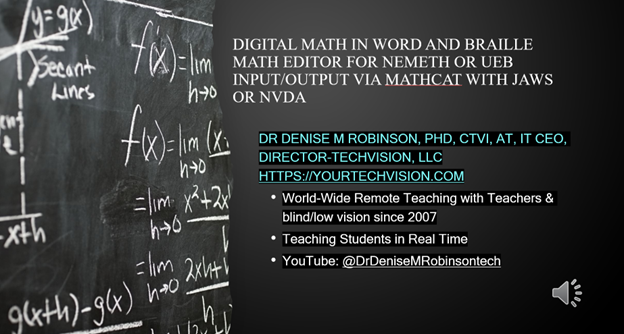
    Digital Math in WORD and Braille Math Editor for Nemeth or UEB Input/Output via MathCat with JAWS or NVDA

    Teach or Learn UEB Math with JAWS and Braille Display

    UEB Math Lessons Galore with AI

    Desmos Graphing Calculator

    Creating Geometry Tables in Desmos from WORK

    Geometry in DESMOS graphing Calculator with screen reader

    STEM: Desmos with JAWS and Embossing

    Use Desmos graphing calculator to emboss graphs & insert Graphs into Math Work for teacher

    3D graphing calculator with screen reader commands in Desmos

    Desmos graphing calculator with shaded Parabolas, screen reader, braille display and embosser

    Drag and Drop with Desmos using graphing games with JAWS

    Desmos Graphing Calculator: Creating and Exporting Graphs

  • Nemeth or UEB via MathCat: Math Access in WORD and Braille Math Editor with JAWS or NVDA

    Dr. Denise M. Robinson, PhD, CTVI, AT, and CEO of TechVision, LLC, leads worldwide remote teaching for blind and low vision students. Her YouTube channel, @DrDeniseMRobinsontech and this website, showcases making digital math accessible with MathCat with JAWS, or NVDA. This video provides 8 different ways to complete digital math with several options using the Braille Math Editor in WORD for UEB or Nemeth math, highlighting the advantages of Nemeth or UEB via MathCat. Links with full video lessons from this video follow. She also demonstrates reading math on a Braille display and creating or making complex formulas accessible. AI tools like MathKicker.AI enhance efficiency. The series includes geometry and graphing with Desmos. Dr. Robinson emphasizes that digital access is crucial for competitive education and inclusion with peers. Learn how to teach or Learn UEB Math Code.

    Nemeth or UEB via MathCat: 8 videos on Math Access in WORD and Braille Math Editor with JAWS or NVDA

    Video Lessons from this Post:

    Optimizing Windows 11 Efficiency for Screen Reader with Key Settings and Configurations

    UEB (or Nemeth) Math with Braille Math Editor -You can read 2 lines of math on a Braille Display using Nemeth or UEB via MathCat

    Making Inaccessible Accessible WITH Quadratic Math Formulas

    Matrices in WORD with NVDA or Jaws-LaTex or Braille on Display

    Life IS a competition and Digital access is key with Instruction

    Life is a competition, and digital access is essential. It levels the playing field, enabling equal opportunities for everyone. Digital tools enhance skills and productivity. They open doors to education and employment. Having a qualified access technology instructor is crucial for teaching students Nemeth and UEB math codes to access everything their peers do. Embracing technology is vital for success and inclusion in today’s world.

    MathKicker. AI for Matrices with NVDA or JAWS
    -Speed in completing Work

    Geometry and Graphing in Desmos

    Geometry-” Drawing” shapes in Desmos

    Digital Math in WORD and Braille Math Editor for Nemeth or UEB Input/Output via MathCat with JAWS or NVDA with pictures of a calculus problem
    Digital Math in WORD and Braille Math Editor for Nemeth or UEB Input/Output via MathCat with JAWS or NVDA with a picture of a calculus problem

    Other Digital access Math Lesson

    Digital Math with UEB, NVDA completing Matrices in WORD

    UEB Math with NVDA in WORD using unicode-LaTex or Braille 

    UEB Math Lessons Galore with AI

  • Optimizing Windows 11 Efficiency for Screen Reader with Key Settings and Configurations

    Optimizing Windows 11 Efficiency for Screen Reader with Key Settings and Configurations takes an hour most often 2 or so to complete. Longer if you are new to screen reader and how Windows 11 works. It is different than other OS systems so give yourself grace as you learn all there is to know about this system. As you move through your keyboard and discover you would like a particular key somewhere, like the applications key, you can remap a key to create that yourself. AND, you MUST have Local Admin on School Computers.

    How to setup Computer for Optimizing Windows 11 Efficiency

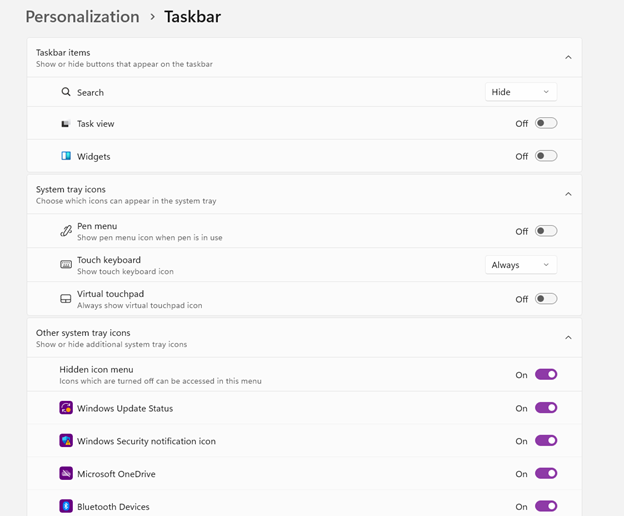
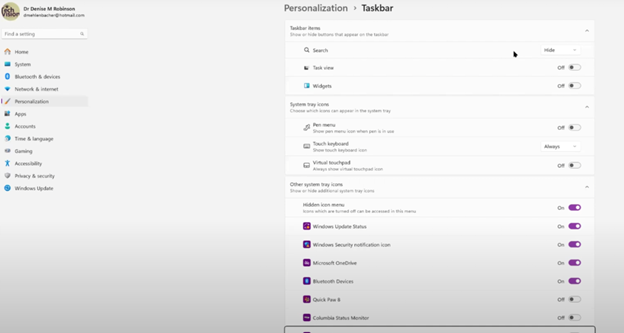
    • Change Taskbar Settings
    • Update Computer every day
    • Go to task manager and disable anything you do not need at start up
    • Go to Power Options and change from Sleep to Shut Down when you press Shut down button
      • take off sleep options in general unless you are advanced user
      • Keep in mind that your screen reader cannot reset or the RAM clear if you computer is in sleep mode or hibernate mode
    • Go to Addition Mouse setting and select the “snap to” mouse option and CTRL option
    • Turn off Touch pad- if you do not your palm will touch the mouse pad and auto activate items or move your cursor on your computer. This equals huge frustration to a screen reader user.
    • Windows T and clear that taskbar–this is million dollar real-estate to access programs fast
    • Setup WORD
    • Go to control panel and setup Sound card options
    • Windows and adjust other sound options using sndvol.exe
    • Setup Gmail and Drive and learn new commands
    • Setup Outlook
    Optimizing Windows 11 Efficiency with Taskbar setting
    Taskbar setting for Windows 11 setup

    Efficiency for Screen Readers and other Setup Skills

    Setup or adjust Screen readers and Braille Display for Optimizing Windows 11 Efficiency

    Proper Set up Windows 11 to work with screen readers and braille displays is crucial for visually impaired users. This configuration ensures smooth interaction with the system, giving users full access to information and applications such as Gmail for optimizing access..

    1. Accessibility and Independence

    Configuring Windows 11 for screen readers like JAWS, NVDA, or Narrator, and integrating braille displays, provides full independence. Without proper setup, tasks such as reading documents, browsing, or using software become challenging. A well-configured system ensures all functions are accessible.

    2. Productivity and Efficiency

    Screen readers and braille displays let users interact quickly with the system. Setting up Windows 11 for compatibility speeds up responses to commands. It also ensures smoother transitions between applications, making multitasking more efficient. Proper configuration prevents lag or software conflicts, which increases productivity in school and work settings.

    3. Customization for Personalized Needs

    Each user has different needs. Windows 11 allows users to customize screen reader settings (e.g., speech rate, verbosity, and key commands) and braille displays (e.g., output type and formatting). These adjustments create a personalized experience, improving comfort and reducing frustration.

    4. Enhanced Braille Support

    Windows 11 offers enhanced braille support when paired with leading screen readers. Proper setup lets users access seamless braille input and output for text and math. It also allows advanced navigation of documents. Correct braille display configuration ensures accurate reading and editing of both simple text and more complex content.

    5. Compatibility with Updates

    As Windows 11 updates, keeping screen readers and braille displays integrated is essential. A well-maintained setup ensures new features or security updates don’t disrupt accessibility tools. This is vital for maintaining ongoing access such as the new Google Commands for navigation.

    Key Setup Steps for Optimizing Windows 11 for Accessibility:

    • Ensure Compatibility: Install the latest versions of screen readers and braille display drivers compatible with Windows 11.
    • Enable and Configure Narrator: Windows 11 includes Narrator, which can be set up for basic tasks if needed.
    • Customize Keyboard Shortcuts: Set up shortcuts for easier navigation and quicker interaction.
    • Adjust Accessibility Settings: Go to “Accessibility” in the Settings app to adjust visual and audio cues like contrast and text size.
    • Test with Braille Displays: Pair and calibrate braille displays for reading and input in UEB or Nemeth, depending on preferences.

    With proper set up, Windows 11 for screen readers and braille displays furthers accessibility. This setup enhances independence, productivity, and ease of use in the digital world.

    If you have low vision challenges, this lesson is for you and setting up computer is essential with commands to change mouse

    Learn Proper Touch Typing skills with these great commands you are learning to optimize Windows 11 efficiency.

    Add PDF Lessons:

    Math and taking inaccessible to accessible in WORD

    Type directly on a PDF

    Transcribe Math Images from PDF

    Take Large PDFs and Print to PDF for a few pages

    Platform Knowledge for Access

    Schoology with Jaws

    Schoology Navigation

    Canvas platform-Keep in mind, a platform can to totally accessible but totally INACCESSIBLE work can be placed on it.

    Acellus Platform

    Zoology with RedShelf Platform

    Let us know how we can help you: Contact US: TechVisionTraining@yourtechvision.com

  • Setup Windows 11 settings to work best & most efficient with screen readers part 2

    Windows 11 screen reader setup-Part 2

    In this video of Windows 11 screen reader setup part 2, Dr. Denise Robinson walks you through how to enable proper settings to make Windows 11 work better with screen readers like JAWS, NVDA, and Narrator pt 1 and this is part 2. She suggests using more than one screen reader—ideally two or three—to cover all your needs. If you need to remap a key to say, acquire an applications key, you can do that yourself.

    Dr. Robinson starts by showing how to set up JAWS with windows 11. She explains how to find and use the JAWS context menu by pinning it to the taskbar. To access it, use Windows + T and the right arrow key. She also advises switching JAWS to laptop mode, even if you’re on a desktop, to use both desktop and laptop commands. This makes JAWS more flexible.

    Next, Dr. Robinson talks about setting up voice profiles. She recommends creating different profiles for different tasks, like using a slower speed for reading and a faster speed for navigating. This helps make the screen reader more effective.

    The video also explains how to set up a Braille display. Dr. Robinson guides you on choosing and configuring the right Braille display. She also mentions the early adopter program, where you can enable MathCAT for advanced math work, ensuring it works well with JAWS in Microsoft Word.

    Adjusting Microsoft Word and Email Settings

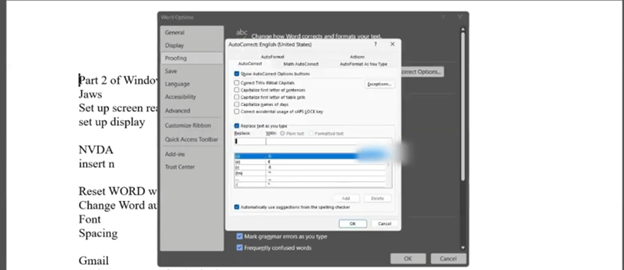
    Word Settings to change option

    Dr. Robinson then moves on to Microsoft Word settings. She explains how to adjust autocorrect features to prevent automatic changes that might confuse the screen reader, especially in math. By disabling certain autocorrect options, you can make sure the screen reader reads everything accurately.

    Finally, Dr. Robinson shows how to set up Gmail with keyboard shortcuts and integrate it with Outlook. She gives clear steps on enabling IMAP and adjusting security settings. This setup allows you to manage your email smoothly using screen readers.

    This video is part two of a series on Windows 11 setup for efficacy for screen readers and all encompassing setup. By following these steps, you can make your computer easier and faster to navigate.

    Low Vision skills on Mouse Settings if you are Low Vision

    and walking through setup of computer as parent or guardian

  • How to Set up Windows 11 Computer to work the best and most efficiently with screen readers- 1 of 2

    How to set up a Windows 11 computer for optimal screen reader performance is crucial for blind and low vision users. First, ensure that your computer meets the necessary system requirements. A powerful processor and sufficient RAM are essential for smooth operation. Additionally, installing the latest updates for Windows 11 is important. These updates include crucial security patches and performance improvements. If you find you need to remap a key to say, acquire an applications key on your keyboard, you can do that yourself.

    Next, customize the display settings to enhance visibility. Adjusting the screen resolution and scaling ensures that text and icons are easier to read. Moreover, enabling high contrast mode can make the interface more accessible. This setting increases the contrast between background and text, making it easier to distinguish elements on the screen.

    changing taskbar in settings

    In addition, configuring keyboard shortcuts can significantly improve efficiency. Windows 11 offers a variety of shortcuts for navigating the system. Customizing these shortcuts allows for quicker access to frequently used features. Furthermore, consider enabling the on-screen keyboard for easier input.

    How to setup Windows 11 for screen readers such as JAWS, NVDA, and Narrator are essential tools for blind users. Ensure that your chosen screen reader is installed and updated. It’s also important to adjust the screen reader settings to match your preferences. For instance, modifying the speech rate and verbosity can make navigation more comfortable. See second video on proper setup of windows11 settings.

    Enhance Experience with AI

    Moreover, installing and configuring additional assistive software can enhance your experience. Programs like MathKicker.AI and MathCat in WORD improve accessibility for mathematical content. These tools integrate seamlessly with screen readers, providing a more inclusive environment.

    Lastly, securing your computer is vital. Enable strong passwords and two-factor authentication to protect your data. Regularly updating your antivirus software will also safeguard your system from potential threats.

    Thus, setting up a Windows 11 computer for screen reader users involves careful configuration. By following these steps, users can achieve the best performance and efficiency. This ensures a more accessible and productive computing experience.

  • Mastering Digital UEB Math & Braille Math Editor in WORD with JAWS UEB Mode

    Creating and editing math content using the Digital UEB Math & Braille Math Editor in Word with JAWS UEB Mode is a powerful tool for blind and low vision users. First, ensure that JAWS is properly installed and set to UEB (Unified English Braille) mode. This setup is crucial for accurate Braille input and output when working with mathematical content. Proper Set up of WORD is also essential.

    Next, open Microsoft Word and access the Math Editor. This built-in tool allows users to create complex equations and math symbols directly within a Word document. Additionally, the integration with JAWS in UEB mode ensures that the content is accessible through Braille displays or auditory feedback.

    UEB math in Word looking just as a sighted person would type it out

    Moreover, MathCat, a key component in this setup, enhances compatibility between Word’s Math Editor and JAWS. It allows users to seamlessly transition between editing in UEB and accessing the content through JAWS. This integration provides a smooth experience, whether reading equations line by line or navigating through complex math expressions.

    Mastering Digital UEB Math Transition

    Transitioning to digital math tools like this one offers significant advantages. Blind and low vision users can now work on math assignments in real-time, alongside their sighted peers. Furthermore, the ability to edit and review mathematical content directly in Word makes this tool invaluable in educational and professional settings. With the necessary instruction, anyone can complete math in WORD.

    For those new to this tool, this website & our YouTube video tutorials are available. These videos provide step-by-step guidance on setting up and using the Digital UEB Math & Braille Math Editor. They demonstrate how to navigate through Word with JAWS in UEB mode, making the learning process straightforward.

    In conclusion, the Digital UEB Math & Braille Math Editor in Word with JAWS UEB Mode is a game-changing tool. It empowers users to create, edit, and access math content efficiently, ensuring full participation in math-intensive activities.

    More Math Lessons:

    More Digital Math with UEB with Jaws

    Digital Math with UEB and NVDA

    UEB Math and Braille and Word Math editor

    Advanced Math with Matrices

    Accessible UEB Training