
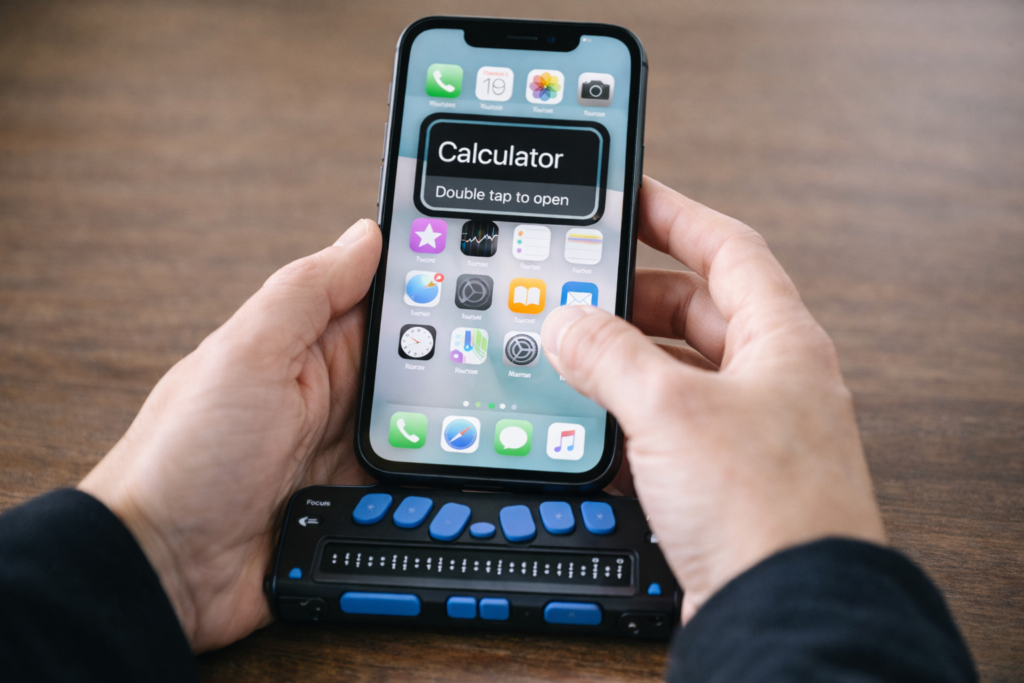
The iPhone is the most powerful accessibility tool available to blind and low‑vision students today. With the right skills, it becomes a map, a magnifier, a reader, a communication device, a travel tool, and a pathway to independence.
This guide gives students, parents, teachers, and O&M instructors everything needed to build real-world iPhone skills from basic Siri commands and VoiceOver gestures to advanced navigation and daily-living tools. Use it as a curriculum, a quick reference, or a step-by-step learning path.
A TechVision Core Resource
The iPhone gives blind and low-vision students real independence. With the right skills, it becomes a map, a reader, a magnifier, a travel tool, and a partner for daily life. This guide helps students, parents, and teachers build strong iPhone skills one clear step at a time.
Lessons- follow these steps
1. Getting Started
The guide begins with simple setup steps that build confidence fast.
Accessibility Shortcut–You can press home button at any time and just say: “Siri open Accessibility” or wherever you need to go for what you need to do
Where to find it:
Settings → Accessibility → Accessibility Shortcut
Students turn features on and off with a quick triple-click.
Key tasks:
- Set VoiceOver, Zoom, or Magnifier
- Set up Siri for hands-free support
- Add emergency contacts
- Customize Control Center
- Organize the Home Screen
Core Access Features
- VoiceOver
- Zoom
- Magnifier
- Display and text adjustments
First Skills to Teach
- Turn VoiceOver on or off
- Learn basic gestures
- Use Siri for fast tasks
- Adjust speech rate
- Open and close apps
2. VoiceOver Skills
Students grow from simple gestures to full digital literacy.
Beginner
Where to find it:
Settings → Accessibility → VoiceOver
- Explore the screen
- Activate items
- Use basic Rotor options
- Start typing with VoiceOver
Intermediate
- Edit text
- Use the App Switcher
- Navigate long pages
- Move by headings or links
- Use dictation
Advanced
Where to find it:
Settings → Accessibility → VoiceOver → Activities / Braille / Rotor Actions
- Customize the Rotor
- Use Activity profiles
- Use Braille Screen Input
- Work in complex apps
3. Navigation & O&M with iPhone
Orientation Tools
- Look Around-outside navigation
- Compass
- Landmarks
- Spatial audio
- Seeing AI
- Clew-inside navigation
Where to find them: Maps and Compass apps
Dropping Pins
- Drop a pin with VoiceOver:
Maps → Current Location → Rotor → Drop Pin - Drop a pin with Siri: “Drop a pin.”
- Label and save locations
- Add Favorites
- Create walking routes
Real-World Travel Skills
- Walking directions
- Bus stop navigation
- Checking surroundings
- Soundscape-style apps
- Safe campus routines
Safety Tools
Where to find them:
Settings → Emergency SOS, Find My, Messages
- Emergency SOS
- Location sharing
- Device tracking
- Safe communication practices
4. Apps for Daily Living
Vision Support Apps
Where to find them: App Store
- Seeing AI
- Be My Eyes
- Envision
- Magnifier
Productivity Tools
- Reminders
- Calendar
- Notes
- Shortcuts
- Timer and alarms
School & Work
- Files
- Safari
- Reading apps
- Document scanning
5. Low Vision Tools & Strategies
Visual Settings
Where to find them:
Settings → Accessibility → Display & Text Size
- Contrast
- Bold text
- Reduce transparency
- Color filters
- Invert colors
Magnification Tools
Where to find them:
Settings → Accessibility → Zoom
Control Center → Magnifier
- Zoom
- Magnifier
- Camera zoom
- Flashlight for clarity
Reduce Fatigue
- When to switch from Zoom to VoiceOver
- When audio improves endurance
- How stands and holders help
6. Parent Guide
Parents help skills grow through simple routines.
Focus areas:
- What to teach at each age
- How to practice safely
- How to reduce frustration
- When to add new apps
- How to build daily habits
Where to find key tools:
Settings → Screen Time, Settings → Emergency SOS
7. Teacher Guide
Teachers integrate iPhone skills into daily instruction.
Teach VoiceOver
- Skill progression
- Gesture modeling
- Rotor instruction
- Text-editing practice
Then Navigation
- Classroom → hallway → campus
- Pinning school locations
- Safe movement routines
Teach Organization
Where to find it:
Press and hold any app → Edit Home Screen
- Folder creation
- Notifications
- Calendar and reminders
Assessment
- Define mastery
- Measure progress
- Write goals and objectives
8. Learning Paths
Beginner Path
- Activate Accessibility Shortcut
- Learn basic gestures
- Practice the Rotor
- Use Siri for quick tasks
- Drop a first pin
Intermediate Path
- Edit text
- Navigate long pages
- Use Maps
- Use Seeing AI
- Organize the Home Screen
Advanced Path
- Braille Screen Input
- Custom Rotor
- Advanced Maps skills
- Shortcuts automation
- Real-world travel practice
9. Lesson Index
This section lists all iPhone lessons.
Each item includes:
- A clear title
- A short description
- A consistent layout
This turns the page into a complete curriculum hub.
10. What to Learn Next
- Advanced VoiceOver
- Tech-supported O&M
- JAWS and PC access
- Accessible STEM tools
- Low-vision strategies
iPhone Lessons
- iPhone: Set Up Face ID, Touch ID, and Passcode with VoiceOver
- iPhone-Setting Up Email Using Siri & VoiceOver
- Using VoiceOver to Learn What You Can Do in an App
- iPhone Setup: Turning On Siri and VoiceOver
- Aira Navigation: How Blind Travelers Navigate Safely and Independently
- Blind Users Retrace Indoor Routes with Clew
- Indoor Navigation for Blind Users: Using Seeing AI with iPhone
- Look Around APP: Outdoor iPhone Navigation for Blind People: 7 & 8
- Indoor Navigation for Blind People with Seeing AI App 9
- Teach the Compass and Route Memory for Indoor Orientation 5 & 6
- Drop a Pin with iPhone- Google Maps