
Indoor Navigation for Blind Travelers Using iPhone Apps
Using Siri • VoiceOver • Compass • Seeing AI • O&M Skills: 3 & 4 of 9 Lessons
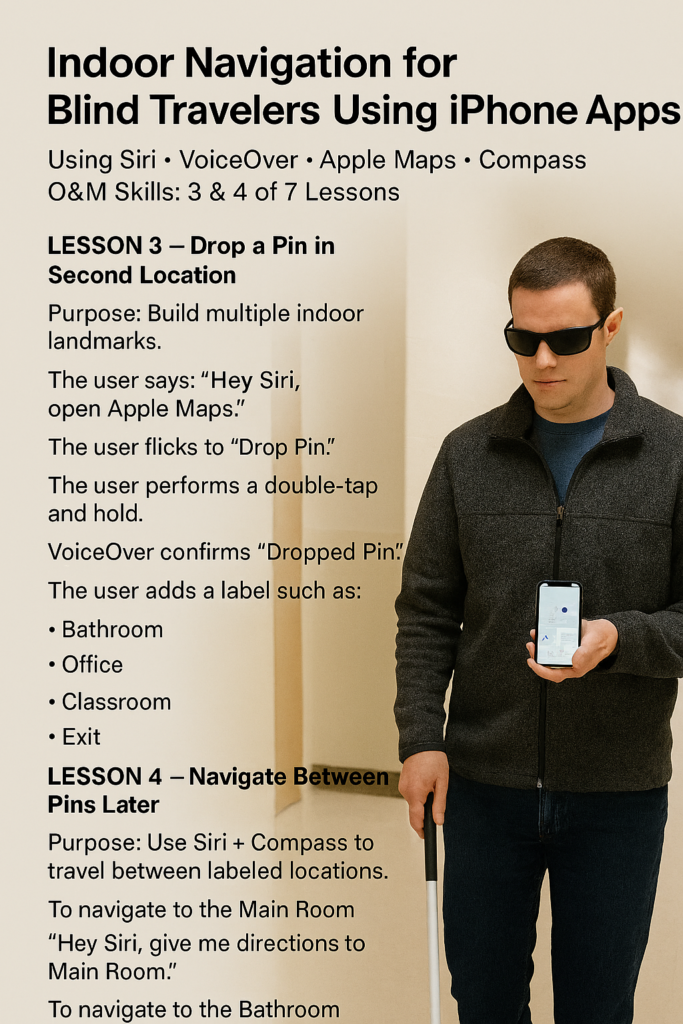
Use Seeing AI and Landmarks to Navigate Inside Buildings
Navigating indoors with an iPhone becomes a powerful skill when blind travelers learn to use Seeing AI, environmental landmarks, and directional awareness. This lesson builds on foundational mobility techniques by teaching students to identify key locations—such as bathrooms, offices, and exits—using visual recognition, text reading, and object identification. Students then use VoiceOver cues, Compass alignment, and consistent routes to move confidently between locations. With these tools, unfamiliar indoor spaces become structured, predictable, and navigable.
LESSON — Identify Key Locations Using Seeing AI (Bathroom, Office, Exit)
Purpose: Build reliable indoor landmarks using real-world identification instead of map-based pins.
The user says:
“Open Seeing AI.”
Then selects modes such as:
- Short Text
- Document
- Product
- Scene
The user scans the environment to identify:
- Signs (Bathroom, Exit, Room Numbers)
- Doorways and landmarks
- Printed materials
VoiceOver reads detected text and descriptions.ment and hallway cues, which assists anyone aiming to use Dropped Pins for indoor building navigation.
The user pairs this information with physical landmarks such as:
- Wall direction
- Door placement
- Hallway turns
Navigate Between Locations Using Siri, Compass, and Landmarks
Purpose: Use consistent routes and directional cues to travel between identified locations.
To return to the Main Room:
“Hey Siri, open Compass.”
The user aligns direction based on known orientation.
To locate the Bathroom or Exit:
The user uses:
- Previously identified landmarks
- Hallway structure
- Door counts and turns
VoiceOver supports with:
- Heading direction
- Orientation feedback
The student follows consistent routes, reinforcing spatial understanding and independence.
Using Seeing AI on iPhone
What Seeing AI is
Seeing AI is a free app from Microsoft that uses your iPhone camera to:
- Read text aloud
- Identify objects and scenes
- Recognize products and barcodes
- Describe environments
It turns visual information into speech feedback in real time
Why it matters for blind users
Seeing AI supports:
- Independent reading
- Indoor navigation support
- Identifying locations and objects
- Understanding surroundings quickly
It is a support tool, not a replacement for O&M skills
Main features (channels) and how to use them
1. Short Text (fast reading)
Use for:
- Signs
- Door labels
- Room numbers
How:
- Open Seeing AI
- Swipe to Short Text
- Point camera toward text
It reads instantly as soon as text is detected
2. Document (longer reading)
Use for:
- Papers
- Handouts
How:
- Swipe to Document
- Hold phone above page
- Listen for guidance:
- “Move left”
- “Move right”
- Double tap to capture
Reads full document clearly
3. Scene (environment awareness)
Use for:
- Understanding a room
- Locating objects
- Getting general layout
How:
- Swipe to Scene
- Point camera around slowly
Example output:
- “Hallway with doors”
- “Table and chairs”
4. Product (barcode scanning)
Use for:
- Food items
- Products
- Bottles
How:
- Swipe to Product
- Move camera slowly
- Listen for beep when barcode is found
Reads product name
5. People (optional)
Use for:
- Detecting faces
- Estimating distance
How to use Seeing AI for indoor navigation
Step 1: Identify locations
Use:
- Short Text → read signs
- Scene → understand layout
Example:
- “Bathroom” sign
- “Room 204”
Step 2: Build mental map
Combine:
- What you hear from Seeing AI
- O&M skills:
- hallway direction
- turns
- landmarks
Step 3: Move with direction
Use:
- Compass
- Consistent routes
- Landmark recall
Seeing AI helps identify
You move using orientation + memory
Important limitations
- Does NOT give turn-by-turn indoor navigation
- Requires:
- good lighting
- steady hand
- Can misread complex environments
It supports navigation—it does NOT replace it
Best teaching strategy
Teach students to:
- Scan → Identify → Confirm
- Pair app feedback with physical landmarks
- Repeat routes until consistent
Quick commands (VoiceOver users)
- Swipe left/right → change channels
- Double tap → capture (Document)
- Two-finger scrub → go back
Bottom line
Seeing AI helps users:
👉 Read
👉 Identify
👉 Understand
But independence comes from:
Combining it with O&M + directional awareness
iPhone Lessons
- Complete iPhone Access Guide for Blind and Low Vision
- Drop Pins and Navigate with Maps: iPhone and VoiceOver Skills for the Blind
- iPhone: Set Up Face ID, Touch ID, and Passcode with VoiceOver
- iPhone-Setting Up Email Using Siri & VoiceOver
- Using VoiceOver to Learn What You Can Do in an App
- iPhone Setup: Turning On Siri and VoiceOver
- Aira Glasses Navigation: How Blind Travelers Navigate Safely and Independently
- Blind Users Retrace Indoor Routes with Clew
- Indoor Navigation for Blind Users: Using Seeing AI with iPhone
- Look Around APP: Outdoor iPhone Navigation for Blind People: 7 & 8
- Navigate: Drop a Pin and Save Routes with Siri and VoiceOver
- Navigate Indoors with more Compass directions