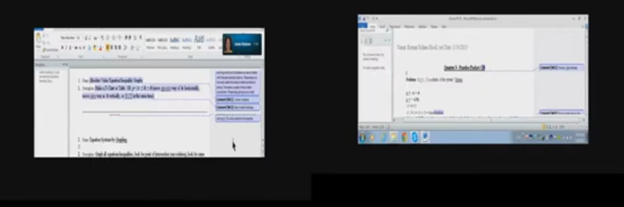
Track changes in Word for a 9th grade. This student was only using a brailler to braille out all work….a very slow process to get it transcribed, then to the teacher, then back to the student. Now, in 2 months the student has moved to completing all work on a computer, emailing to teacher, teacher corrects and sends back.
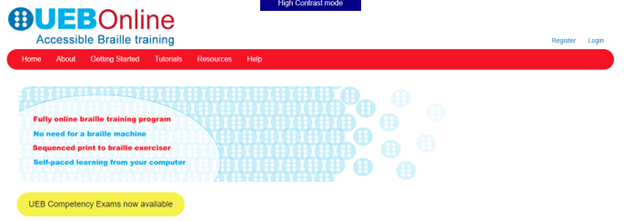
Welcome to the UEB Online website, administered by the NextSense Institute. This website offers online training programs and competency exams in braille literacy and mathematics using the Unified English Braille (UEB) code.
The purpose of the UEB Online website is to provide systematic instruction and accreditation in UEB for people worldwide who are teaching and promoting braille for persons with blindness, low vision, and deafblindness.
Target Audience
The UEB Online training programs and competency exams are suitable for anyone who wants to learn and teach braille. This includes educators, families, allied health professionals, and administrators and decision makers who promote the use of braille as a medium for information access and communication.
Website Accessibility Options
Accessible, inclusive digital technologies enable equitable information access for all through UEB Online.
Visual access mode: For people with sufficient sight to access regular sized print-based information on the website,
High contrast mode: For people with low vision who wish to adjust the font size, background colour or text color,
Non-Visual access mode: For people who wish to use a screen reader for accessing website information.
UEB Online is a training program for sighted people to learn Unified English Braille (UEB). Many countries have adopted Unified English Braille, replacing standard English braille. This program is the first online UEB training tool. The program is suitable for classroom and specialist teachers, parents, teacher aides and other professionals supporting children and adults with vision impairment.
I am presently taking this online class. I like to get the jump on knowledge so I can teach my students along the way to keep updated with braille in general. This class is excellent, self-paced…on either a Mac or PC…learning the new (2016) UEB Braille code. I highly recommend this great and easy way to learn. When you finish, get the certification you need….and it is free!
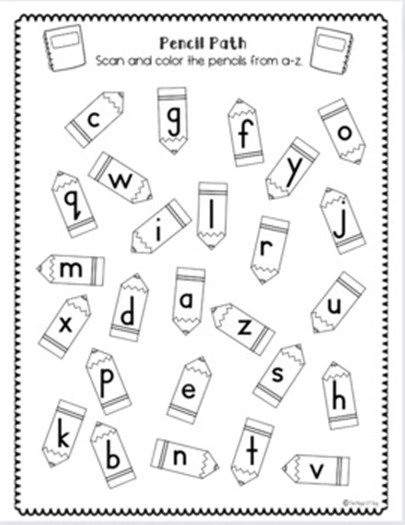
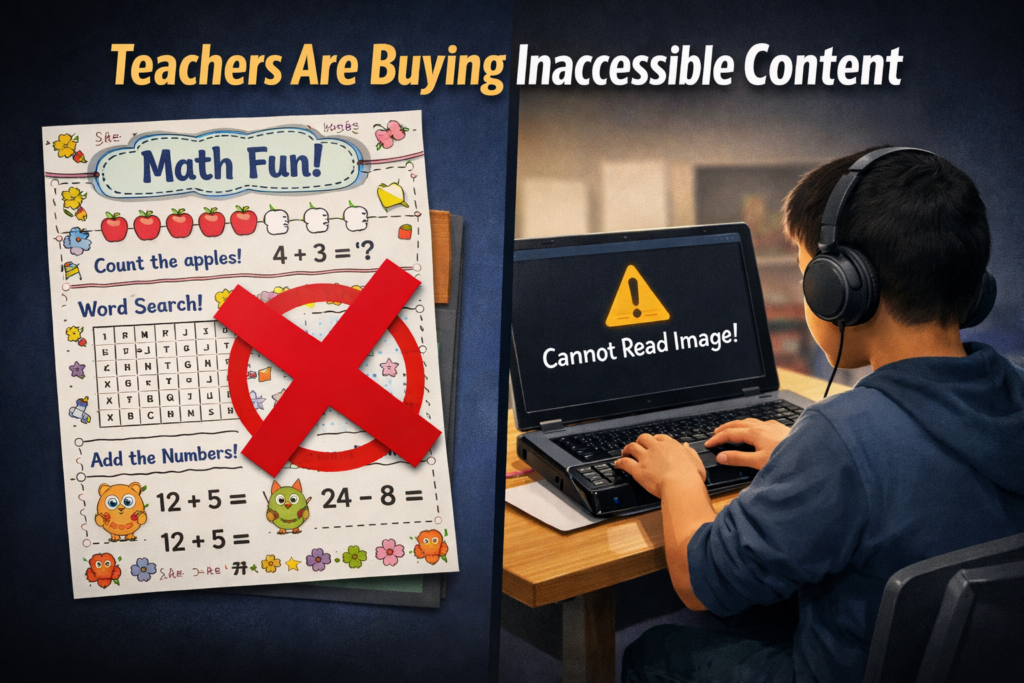
Inaccessible Images of Work teachers are buying from inaccessible platforms
Ban inaccessible purchased materials district-wide to prevent Title II failures
Why Teacher Marketplace Worksheets Are Failing Title II-inaccessible image of work
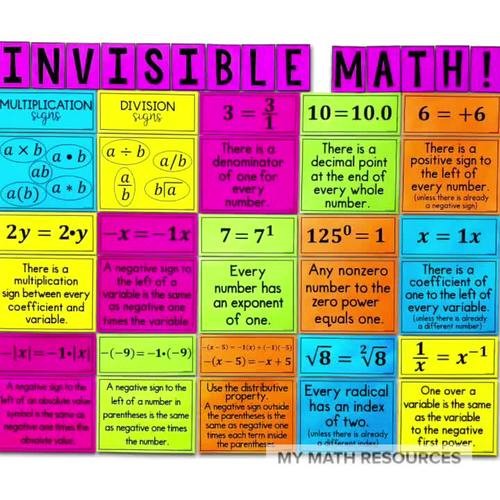
Why Teacher Marketplace Worksheets Are Failing Title II-No way Math
Teachers rely on many marketplace sites for worksheets and classroom materials. These platforms include printable shops, template libraries, curriculum bundles, early childhood packs, subscription marketplaces, and shared teacher resources. Most of this content looks creative, but it is some of the least accessible digital material in education.
These products often come as scanned pages, image-only PDFs, stylized templates, or graphic-heavy worksheets. Blind and deaf students cannot access any of it, and Title II places full responsibility on schools, not marketplace sellers.
Why Marketplace Worksheets Fail Title II
Most marketplace materials violate WCAG 2.1 AA before the lesson begins. Common barriers include:
Image-only worksheets with no real text
Scanned files that screen readers cannot read
Decorative fonts that block OCR
Graphics replacing questions or math steps
Worksheets without headings or structure
Videos without captions or ASL
Lessons with images that lack alt text
Blind students cannot read these materials. Deaf students cannot access embedded videos or audio instructions. Low-vision students cannot enlarge the content without distortion.
Marketplace content blocks access at the point of instruction, which Title II now prohibits.
Schools Must Stop Using Inaccessible Marketplace Content
Title II holds the school accountable for any material assigned to students. That includes purchased content—no matter where it came from.
Schools must:
Remove inaccessible marketplace materials from student access.
Archive them securely so only the original purchaser can access them.
Stop assigning inaccessible products, even if purchased with personal funds.
Approve only accessible content for future lessons.
If this content stays available to students, the school opens itself to complaints, investigations, and penalties.
The Financial and Legal Risks Are Real
A single inaccessible worksheet can trigger:
OCR complaints
Federal monitoring
Required remediation plans
Staff discipline
Loss of employment for repeated violations
Marketplace sellers face no consequences. Schools and teachers do.
Other Marketplaces Also Cause Problems
This issue extends far beyond one platform. Barriers appear across:
Printable shops
Early childhood curriculum sites
Pinterest-style bundles
Etsy printable sellers
Canva template libraries
Subscription curriculum platforms
Teacher “side job” shops
Commercial worksheet sites
Too Many to State here
If the file is image-based, untagged, or graphic heavy, it likely violates WCAG.
Schools must apply the same standard everywhere: If it is not accessible, it should not be used.
Why Remediation Usually Fails
Teachers often try to “fix” marketplace worksheets. Most cannot be repaired.
Reasons include:
Scanned pages contain no text to tag
OCR destroys the layout
Math is stylized and unreadable
Reading order is broken
Copyright prohibits modification
Rebuilding is often easier than remediation.
What Schools Must Do Now
Schools need a clear, enforceable plan:
Ban inaccessible purchased materials district-wide.
Adopt accessible worksheet templates for all staff.
Train teachers to spot inaccessible formats instantly.
Create accessible master curriculum built from scratch.
Require vendors and marketplaces to meet WCAG 2.1 AA.
Audit all teacher-purchased content before it reaches students.
Work with blind and deaf access specialists who test content daily.
This protects students and reduces legal exposure for teachers and districts.
Why This Matters Most
Blind and deaf students lose learning time every day because marketplace content excludes them. They fall behind before the lesson even begins.
Title II changes that. Schools must choose materials that include everyone, not just those who can see or hear the content.
Closing Note: Access Starts With What Schools Buy
Teachers want to help their students. Most do not realize the materials they purchase create the very barriers Title II now forbids. Schools protect students and staff when they stop buying inaccessible content and build accessible materials from the start.
Fix Digital Accessibility Before Title II Enforcement-No access to work
Schools and colleges face serious gaps in digital access. These gaps harm blind and deaf students the most, and they also affect every learner who needs clear, structured content. Title II now requires full WCAG 2.1 AA compliance. Schools must shift from crisis responses to real systems. The good news is that this work is fixable when they follow a clear plan.
1. Start With an Accessibility Audit: Blind and Deaf Students Face the Sharpest Access Gaps
Every school should begin with a full digital audit. This audit must involve experts who use screen readers and braille displays every day on the platforms used in education. Without these specialists, audits miss the barriers that blind students face. Any image-based video must include described content throughout. Schools can find strong examples and guidance at Described and Captioned Media Program (DCMP).
Schools should also check whether interactive elements, buttons, and menus work with keyboard-only navigation. Many blind students rely on keyboard access, and inaccessible controls often block them before the lesson even begins.
The audit should include websites, LMS content, Google Classroom, PDFs, worksheets, videos, vendor platforms, parent portals, and staff materials. Real blind access testers expose problems that automated tools never find. Audits reveal the true accessibility debt. Schools need this view before anything else.
Most deaf learners use ASL as their primary language. They often need an actual signer on digital content as well as written text. Captions alone rarely provide full access, because captions do not follow ASL structure. Find out full details from DCMP.org also.
Schools should start with embedded text on all visual content first. This step creates a basic access layer while teams prepare for ASL. Once content stabilizes, schools can add ASL signers during development.
Schools must include ASL interpretation on videos, lessons, and major digital materials. An ASL signer keeps the message clear, complete, and culturally accurate.
This work must also be audited by a deaf professional who signs. Without that review, digital content remains incomplete and inaccessible.
2. Fix PDFs and Scanned Worksheets First
Most access failures start with inaccessible PDFs-which are actually images of work. Schools can convert scanned worksheets to readable text, add proper heading structure, insert alt text, tag tables, and ensure text reflows on mobile. These steps give blind students access at the same time as their peers. For easy full access, Just put everything into Microsoft WORD and if you can move a mouse cursor through the content, it will be accessible to a screen reader. make sure you add proper headings throughout.
3. Enforce Accessible Google Docs, Slides, and Assignments
Teachers create inaccessible content daily by pasting images of work into what was accessible if typed out properly in google. Schools should require headings, proper contrast, real alt text, logical reading order, described images, and accessible math. This one shift removes thousands of barriers. Currently Math is only fully accessible in Microsoft WORD using the Math editor. Google does not have all the appropriate tools in place to recreate what OFFICE 365 has already done.
Typically, only images of words appear in products from Google, which makes the content completely inaccessible to blind students. Embedded videos also stay inaccessible for deaf learners, because images never give enough detail or language to explain the lesson. Math remains inaccessible across Google products, and blind students cannot access equations without proper structure.
4. Make All Video Content Accessible
Videos must serve blind and deaf students. Schools should ensure accurate captions, audio descriptions, clear narration, and safe visual design. This protects access and reduces legal risk.
5. Replace Inaccessible Vendor Platforms
Many learning apps and platforms still fail WCAG standards. Schools must request VPATs, require WCAG 2.1 AA, demand remediation timelines, and remove non-compliant tools. Title II holds the school responsible, not the vendor. When schools stop buying inaccessible products, vendors will change their design or leave the market.
6. Train Staff in Real Accessibility Skills
Accessibility training must move beyond awareness. Staff need training in screen reader testing, accessible document workflows, caption skills, alt text guidelines, accessible math support, and LMS accessibility checks. Blind and deaf students rely on technology, not sight or hearing. Staff must understand these tools, so they must receive direct instruction from experts who use these tools daily. These specialists can walk staff through the fine details needed to make content fully accessible quickly and easily (relative to what content they already have).
7. Provide Blind and Deaf Students With Real-Time Access
Access cannot arrive days later. Schools should deliver materials at the same time as sighted peers, provide braille or screen-reader-ready files, use CART or interpreters, and ensure accessible assessments. This reduces OCR complaints and supports equal learning.
8. Build an Accessibility Governance Team
Districts need structure to stay compliant. This team sets policy, provides training, monitors compliance, reviews content, approves vendors, and reports progress. Governance turns accessibility from a reaction into a system.
9. Bring in Specialists When Needed
Most schools lack internal expertise. They can partner with certified blindness professionals, deaf education specialists, accessibility technologists, braille experts, and WCAG consultants. Title II allows districts to use outside experts when staff lack training.
10. Address a Damaging Message Still Circulating in Schools
Many professors and teachers still hear, “Check your materials, but don’t worry about them.” This message shows how long schools have ignored accessibility laws. Title II removes the option to delay. Schools must fix inaccessible content, not simply acknowledge it.
11. The Word “Accommodation” Must Go
The word “accommodation” was not removed from Title II, but the new DOJ rule shifts the focus toward accessibility from the start, especially for digital content.
Schools must stop relying on the word accommodation. The term assumes students start with barriers and then wait for fixes. Blind and deaf students lose time every day when access comes after instruction. They fall behind because the content was inaccessible from the start.
Title II requires full access at the moment instruction begins. Students must receive materials in the same format, at the same time, as their peers. This shift removes delay, reduces frustration, and ends the cycle of constant catch-up. True access begins when schools design content correctly, not when they repair barriers later.
12. Make Accessibility Part of School Culture
Accessibility becomes sustainable when it becomes normal. Schools can add accessibility checks to grading policies, include accessibility in evaluations, require captions, post accessible templates, and adopt accessible curriculum materials. Small habits prevent massive remediation later.
13. Remove and Archive All Inaccessible Content by April 23
Schools must remove inaccessible digital content by April 23. They must secure this content so only the original creator can access it. If old materials stay public, anyone can use them to file an accessibility complaint. This creates immediate legal risk for the educational institutions.
Most schools will find it easier to build fully accessible content from the start. Rebuilding old, image-based, untagged, or uncaptioned materials often takes far more time than creating new accessible versions. Schools protect themselves and their students when they remove inaccessible work, archive it safely, and rebuild content using WCAG 2.1 AA standards now so they can be fully uploaded on April 24, 2026.
Closing Note: Access Protects Everyone
Blind and deaf students face the hardest barriers, yet accessible design lifts all learners. Clear content improves structure, readability, quality, and learning across every classroom. Schools that begin this work now protect their students, their staff, and their programs.
Dates to Follow
What this means for schools and colleges
Larger districts and colleges (≥ 50,000 population)
Deadline: April 24, 2026
Standard: WCAG 2.1 AA
Scope: Websites, web content, mobile apps, PDFs, forms, LMS content, videos, social media, and anything accessed through a browser
Smaller districts and colleges (<50,000 population): April 26, 2027
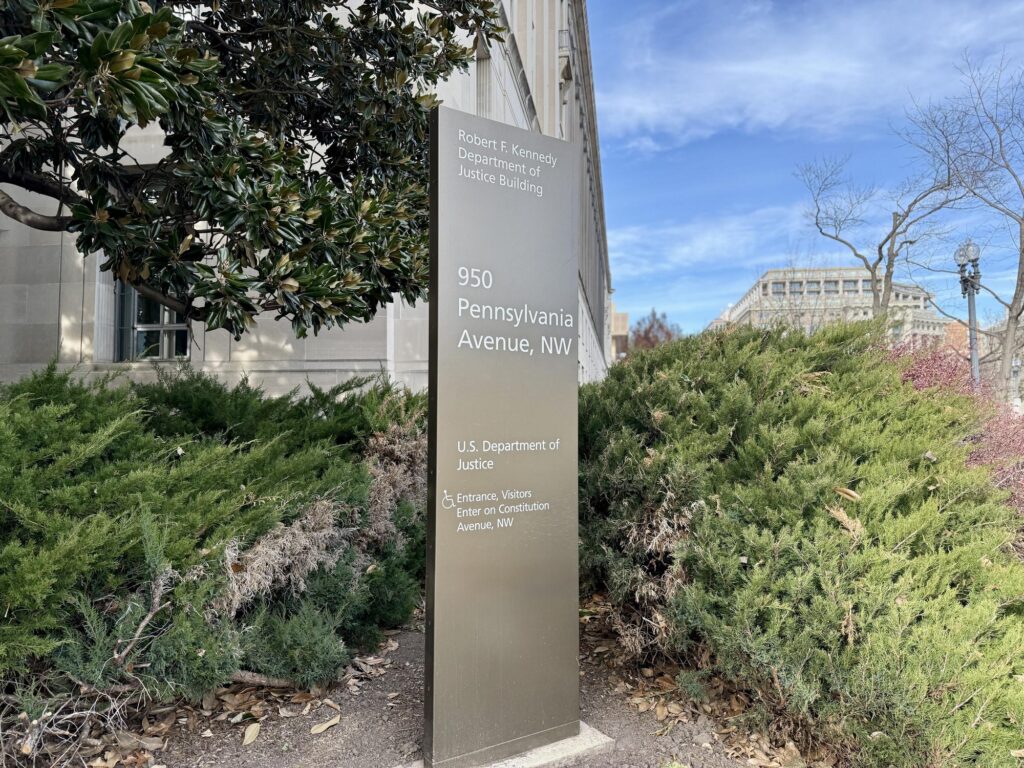
Who Pushed the New Title II Accessibility Rule Through? DOJ building and marker
The rule was created, written, and finalized by the U.S. Department of Justice (DOJ).
Specifically, it came from the Civil Rights Division, which is responsible for enforcing the Americans with Disabilities Act (ADA).
The DOJ explains that it followed the full federal rule-making process — drafting, public comment, revisions, and final publication in the Federal Register on April 24, 2024.
How Did It Get Through?
The rule went through the formal federal regulatory process:
1. DOJ drafted the rule
The Civil Rights Division identified widespread digital barriers in state and local government services — including schools — and drafted a rule to address them.
2. Public comment period
Thousands of disability advocates, parents, educators, and organizations submitted comments urging the DOJ to adopt WCAG 2.1 AA.
3. DOJ revised the rule
They incorporated feedback, clarified requirements, and finalized the technical standard.
4. Final rule published
The rule was officially published in the Federal Register on April 24, 2024.
Once published, it became binding law.
Why Now?
The DOJ gave several reasons in its fact sheet:
1. Government services have moved online
Schools, colleges, and agencies now rely heavily on websites, apps, portals, and digital documents. When these are inaccessible, people with disabilities are excluded from essential services.
2. Digital barriers were widespread and harmful
The DOJ cited examples like blind users being unable to access images without alt text, inaccessible forms, and barriers to participating in school and civic activities.
3. The ADA had no technical standard
For 30+ years, the ADA required access but never named a specific digital standard. This rule finally closes that gap.
4. Pressure from states and lawsuits
States like Colorado had already passed strict digital accessibility laws, and courts were increasingly using WCAG as the de facto standard. The DOJ needed a unified national standard.
So Who Is the Person Behind It All?
There is no single individual publicly credited as “the architect” of the rule — because federal regulations are created by teams, not one person.
But the driving force is:
The U.S. Department of Justice Civil Rights Division
They are the ones who:
Identified the problem
Drafted the rule
Collected public comments
Finalized the WCAG 2.1 AA requirement
Published the rule in the Federal Register
This is the same division responsible for ADA enforcement nationwide.
If you want to name the entity behind the change, it is:
The DOJ Civil Rights Division — the federal body responsible for protecting the rights of people with disabilities.
They pushed it. And wrote it. They finalized it. And enforce it.
And they did it because inaccessible digital content was excluding millions of Americans from essential public services — including education.
“The U.S. Department of Justice Civil Rights Division is the force behind this new rule. They created it to ensure that every child with a disability can finally access their education in real time.”
Penalties for Noncompliance With DOJ- Judge states compliance
There are penalties, and they are serious for those educational systems that do not take this law seriously. Most people still don’t understand what they look like in real practice. This applies to K–12 schools, colleges, universities, and all state and local government entities. The DOJ didn’t just set new rules — it created enforceable consequences. Because WCAG 2.1 AA is now the legal standard, districts and colleges can no longer claim “we didn’t know” or “we’re working on it.” Here is what non-compliance triggers.
1. Federal Investigations (OCR or DOJ)
If a parent, student, or advocate files a complaint, the Office for Civil Rights (OCR) or the Department of Justice (DOJ) can open a formal investigation.
These investigations can require the school to:
Turn over digital content
Provide accessibility audits
Provide staff training records
Provide procurement contracts
Provide evidence of accessibility testing
Provide timelines for remediation
Investigations can last months or years — and they are public record.
2. Legally Binding Resolution Agreements
Most investigations end with a Resolution Agreement, which is legally enforceable.
These agreements typically require the school to:
Fix inaccessible websites and apps
Remediate thousands of PDFs
Train all staff
Hire accessibility experts
Conduct annual audits
Report progress to OCR or DOJ for years
These agreements are not optional. They are monitored and enforced.
3. Loss of Federal Funding (Including IDEA & Title I)
This is the penalty that gets districts’ attention.
If a school or college refuses to comply with a Resolution Agreement, OCR can recommend termination of federal financial assistance, including:
IDEA funding
Title I funding
Title II funding
Pell Grants
Federal student aid
Research grants
This is extremely rare — because schools comply once their funding is threatened — but it is absolutely within the law.
4. DOJ Civil Enforcement Actions
The DOJ can file a civil action in federal court.
This can result in:
Court orders
Mandated remediation
Mandatory training
Court‑appointed monitors
Strict timelines
Public reporting requirements
These cases are expensive, public, and reputation‑damaging.
5. Monetary Penalties (Civil Penalties & Damages)
While Title II itself does not impose “fines,” the DOJ can seek:
Civil penalties
Compensatory damages for individuals harmed
Attorney’s fees
Costs of compliance
Colleges are especially vulnerable here because inaccessible digital systems can directly impact:
Admissions
Financial aid
Course registration
Housing
Online learning
6. Private Lawsuits
Individuals can file lawsuits under:
ADA Title II
Section 504 of the Rehabilitation Act
These lawsuits can result in:
Damages
Attorney’s fees
Court‑ordered remediation
Colleges have already faced many of these cases — and the new rule strengthens the legal basis for them.
7. Public Accountability & Reputational Damage
When a school or college is found non‑compliant, the findings are:
Public
Searchable
Often covered by the media
Shared by disability advocacy groups
This affects:
Enrollment
Community trust
Accreditation reviews
State oversight
The Bottom Line
Schools and colleges cannot ignore this rule. The penalties are real, enforceable, and already being used in digital accessibility cases.
But here’s the hopeful part — and the message you can deliver to parents:
**For the first time, blind, low‑vision and all students have a federal rule with teeth.
Districts, schools and colleges must comply. And if they don’t, families have powerful enforcement tools.**
This is the strongest legal protection our students have ever had.
The new Title II rule applies directly to all state and local government entities — which includes public K–12 schools, public colleges, and public universities.
Private schools are not automatically covered under Title II. But that does not mean they are exempt from accessibility requirements.
Here’s the real picture
1. Private Schools Are Covered Under ADA Title III (Not Title II)
Private schools — including:
Private K–12 schools
Private colleges
Private universities
Religious schools (with some exceptions)
are covered under ADA Title III, which prohibits discrimination by “places of public accommodation.”
Education is explicitly listed as a public accommodation.
This means private schools must still provide equal access, including digital access.
2. Title III Does Not Name WCAG 2.1 AA — But Courts and DOJ Use It Anyway
Even though Title III doesn’t name a specific standard, the DOJ and federal courts have repeatedly used WCAG as the benchmark for accessibility.
And now that the DOJ has formally adopted WCAG 2.1 AA for public entities, it becomes the default expectation for private schools too.
In practice:
If a private school’s website, LMS, or digital content is inaccessible, they can still be found in violation of the ADA.
3. Private Schools Can Still Face:
DOJ investigations
OCR complaints (if they receive federal funds)
Lawsuits under ADA Title III
Section 504 complaints (if they receive federal funds)
Court‑ordered remediation
Damages and attorney’s fees
Private schools are sued for digital inaccessibility every year, and the new Title II rule strengthens the legal argument families can use.
4. Private Schools That Receive Federal Funding Must Follow Section 504
If a private school receives any federal funding — even a single program — they must comply with Section 504 of the Rehabilitation Act, which requires:
Equal access
Non‑discrimination
Accessible digital content
This includes:
Private schools with lunch programs
Private schools receiving IDEA funds
Private colleges receiving federal student aid
Private schools receiving grants
Section 504 is powerful — and enforceable.
5. Private Schools Are Already Feeling Pressure to Match Public School Standards
Here’s the part families will care about:
Private schools cannot fall behind public schools.
If public schools must meet WCAG 2.1 AA:
Parents will expect the same from private schools
Students will demand equal access
Lawsuits will reference the new rule
Vendors will shift to WCAG 2.1 AA
Accreditation bodies will begin asking questions
Private schools that ignore accessibility will lose:
Students
Reputation
Competitive standing
6. What This Means for Families in Private Schools
Your child has the right to:
Accessible digital content
Accessible websites
Accessible apps
Accessible videos
Accessible documents
Accessible learning platforms
Equal participation
Real‑time access
Even in a private school.
And now, with the new Title II rule setting a national standard, families have more leverage than ever to demand accessibility.
7. What This Means for Private School Teachers and Administrators
Private schools must now:
Train staff in accessible digital design
Ensure LMS platforms are accessible
Fix inaccessible PDFs and documents
Caption and describe videos
Ensure apps and websites work with assistive technology
Provide accessible materials in real time
Even though Title II doesn’t apply directly, the expectations and legal pressure absolutely do.
Bottom Line: Private Schools Are Not Exempt From Accessibility
They may not fall under Title II, but they are still bound by:
ADA Title III- https://www.accessibility.works/blog/higher-ed-ada-compliance-requirements-road-map/
Section 504 (if federally funded)
Civil rights laws
Court precedent
DOJ enforcement
Parent advocacy
Market pressure
And now that WCAG 2.1 AA is the national standard for public education, private schools will be expected — and pushed — to meet it too.
K–12 isn’t just panicking — they’re in a full‑scale scramble, and for reasons that are even more urgent than higher ed. The DOJ’s Title II rule hits K–12 systems right where they’re already stretched thin: staffing, training, legacy content, and compliance culture.
Here’s the landscape, laid out clearly and grounded in what districts are now realizing.
Why K–12 districts are suddenly alarmed about the Title II WCAG 2.1 rule
1. Districts assumed “accommodations” were enough — now they’re not
For decades, K–12 has relied on:
TVIs to “fix” inaccessible content
Disability services to retrofit materials
Parents to advocate
Students to “make do”
The new rule requires proactive accessibility, not reactive fixes. That’s a seismic shift.
2. K–12 has enormous accessibility debt — bigger than higher ed in some ways
Districts are realizing they must remediate:
Thousands of PDFs
Teacher‑made worksheets
Google Classroom content
LMS modules
Vendor platforms
Parent portals
IEP systems
School websites
Mobile apps
Most of this content was never designed with WCAG in mind.
3. Teachers generate inaccessible content every single day
This is the part that’s scaring administrators.
Every day teachers create:
Google Docs
Slides
Worksheets
Videos
Scanned PDFs
Classroom posts
Almost none of it meets WCAG 2.1 AA. And now it legally must.
4. Districts don’t have accessibility governance
Most K–12 systems lack:
A digital accessibility policy
A compliance officer
A remediation workflow
A content review process
Training for staff
A way to monitor thousands of pages
They’re realizing they need infrastructure, not just training.
5. Vendors are a huge liability
Districts rely on:
Curriculum platforms
Assessment systems
Parent communication apps
Scheduling tools
Payment portals
Transportation apps
Many of these tools are not WCAG 2.1 AA compliant, and the DOJ rule makes the district responsible for the accessibility of third‑party tools.
This is causing real panic.
6. The deadlines are tight for K–12 too
Large districts (50,000+ population) must comply by April 2026. Smaller districts by April 2027.
Given the volume of content and the lack of staff, these timelines feel impossible to many administrators.
7. OCR complaints are already rising
Families are becoming more aware of their rights. Advocacy groups are watching. Blind/low‑vision access issues are among the most common complaints.
Districts know enforcement is coming.
What this means for an accessible world
This rule gives you extraordinary leverage because it legally validates everything people have been advocating for so long:
Real‑time access
Non-visual design
Proper alt text
Accessible math (Nemeth, tactile, digital)
Keyboard‑only navigation
Accessible PDFs
Structured documents
Captioned and described media
Accessible learning platforms
Districts can no longer say: “Just give the student an accommodation.” or “We’ll fix it when needed.”
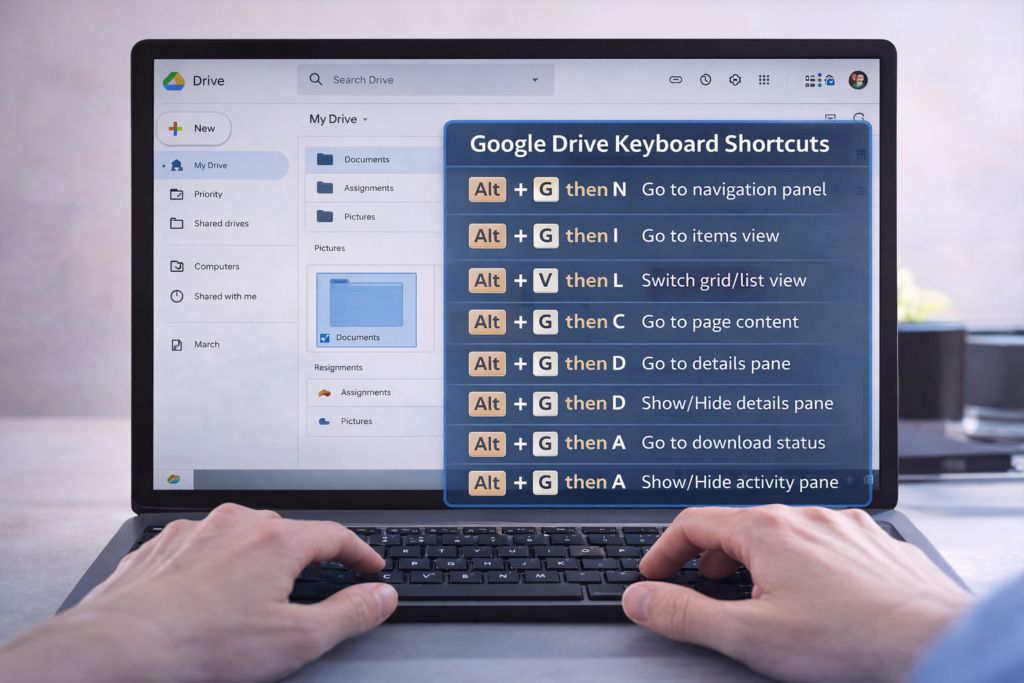
Google Drive Keyboard shortcuts become much easier — and faster — when you know the right screen reader keyboard commands. In this TechVision tutorial, I walk you through how JAWS and NVDA users can move through folders, open files, switch views, and manage Drive content without ever touching a mouse.
These skills build confidence, speed, and independence for blind and low‑vision users, students learning digital literacy, and anyone who prefers keyboard‑based navigation. You’ll learn how to open menus, jump between items, select files, search your Drive, and access settings with predictable, repeatable commands.
Whether you’re organizing schoolwork, managing shared folders, or teaching students how to work in the cloud, these shortcuts make Google Drive more accessible and efficient for everyone.
TechVision: Empowering real‑life tech skills with clarity, accessibility, and confidence.
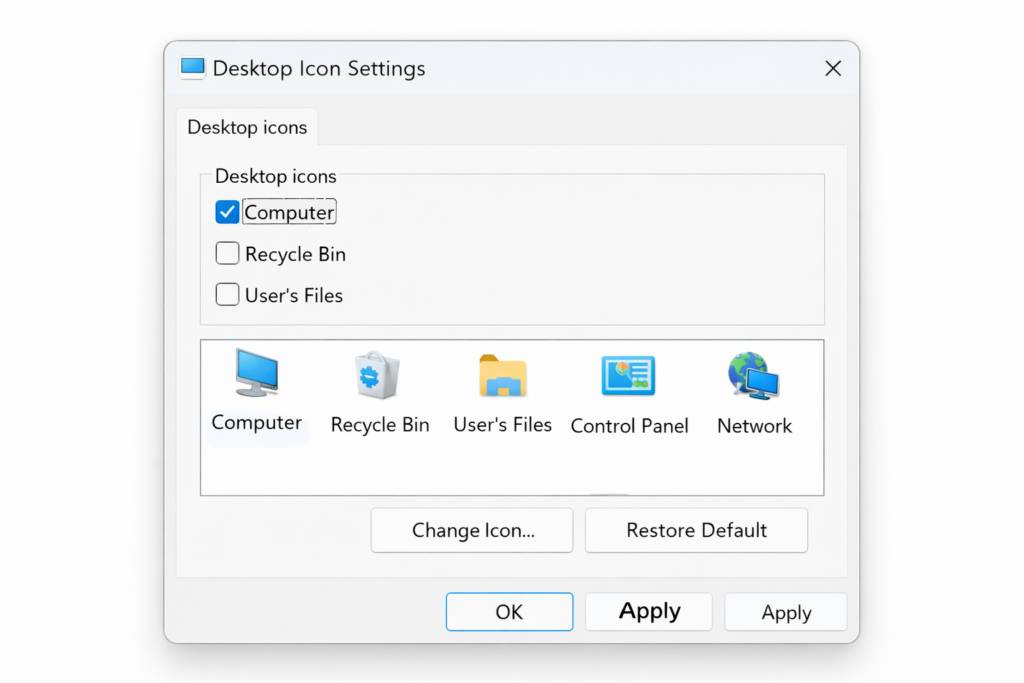
Struggling to find your drives or open File Explorer quickly? Adding the This PC icon to your desktop is one of the fastest ways to navigate Windows — especially for beginners, blind/low‑vision users, and anyone building confidence with their computer.
In this quick TechVision tutorial, I show you how to turn on desktop icons, place This PC right where you need it, and get instant access to your drives, folders, and storage. A simple change that makes a big difference in independence and efficiency.
Whether you’re teaching students, supporting a family member, or learning for yourself, this step gives you a clean, predictable starting point every time you sit down at the computer.
TechVision: Building real‑life tech skills with clarity, confidence, and accessibility at the center.