
Goal
Student independently sets up device security and understands how to authenticate downloads. This lesson will help you Set Up iPhone Security with VoiceOver for a more accessible and safe experience.
PART 1: Set Up a Passcode (Must Be Done First before you can acquire apps)
Face ID and Touch ID require a passcode.
Step 1: Open Settings
Press and hold Side button.
Say:
“Open Settings.”
Step 2: Go to Face ID & Passcode
(Or Touch ID & Passcode on older phones)
• Flick right until you hear:
“Face ID & Passcode”
• Double-tap.
If it says “Turn Passcode On,” double-tap.
Step 3: Create a Passcode
You will hear:
“Enter a six-digit passcode.”
• Double-tap each number
OR
• Use braille display if connected
Enter code twice.
Choose a code the student can remember but others cannot guess.
Teach:
Do not use birthdays.
Passcode is now active.
PART 2: Set Up Face ID (Newer Phones)
Step 1: In Face ID & Passcode Menu
• Flick right to “Set Up Face ID”
• Double-tap.
VoiceOver will guide.
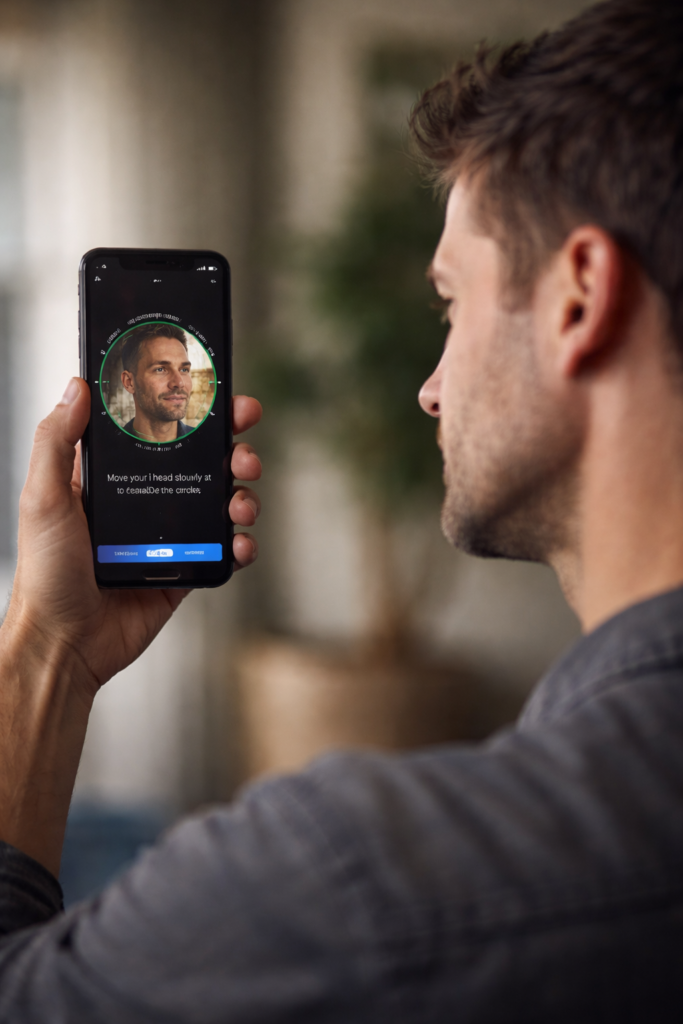
Step 2: Position Face
If by yourself, place phone on your forehead then move straight back
Hold phone at arm’s length.
VoiceOver says:
“Move iPhone lower/higher.”
Follow instructions.
Rotate head slowly in circle.
Complete two scans.
Face ID is now enabled.
Step 3: Turn On for App Store
Still inside Face ID settings:
Ensure toggles are ON for:
• iPhone Unlock
• App Store
• Password AutoFill
Double-tap to toggle if needed.
PART 3: Set Up Touch ID (Older Phones)
Step 1: Go to Touch ID & Passcode
• Double-tap “Add a Fingerprint.”
Step 2: Place Finger on Home Button
Lift and rest repeatedly.
VoiceOver will say:
“Adjust your grip.”
Continue until complete.
Step 3: Enable for App Store
Ensure toggle for:
“iTunes & App Store”
is ON.
PART 4: How Authentication Works During Downloads
When downloading an app:
If Face ID is enabled:
• Double-click Side button
• Look at phone
VoiceOver says:
“Face ID successful.”
If Touch ID:
• Rest registered finger on Home button
If Passcode:
• Enter six-digit code
Download begins.
Practice Drill
Have student:
- Lock phone
- Unlock with Face ID or Touch ID
- Open App Store
- Attempt free app download
- Complete authentication
Repeat until smooth.
Teaching Notes
Teach this clearly:
Authentication = Protection.
It protects:
• Money
• Private data
• Email
• Contacts
Students must understand it is a safety tool.
Other iPhone navigation lessons:
- iPhone: Set Up Face ID, Touch ID, and Passcode with VoiceOver
- iPhone-Setting Up Email Using Siri & VoiceOver
- Using VoiceOver to Learn What You Can Do in an App
- iPhone Setup: Turning On Siri and VoiceOver
- Aira Navigation: How Blind Travelers Navigate Safely and Independently
- Blind Users Retrace Indoor Routes with Clew
- Indoor Navigation for Blind Users: Using Seeing AI with iPhone
- Look Around APP: Outdoor iPhone Navigation for Blind People: 7 & 8
- Indoor Navigation for Blind People with Seeing AI App 9
- Teach the Compass and Route Memory for Indoor Orientation 5 & 6
- Drop Pins and Navigate with Maps: iPhone and VoiceOver Skills for the Blind