
Blind Travelers Drop a Pin and Save Routes Using Siri, VoiceOver, Apple Maps, and Compass
Person uses iPhone navigation tools to walk safely and independently.
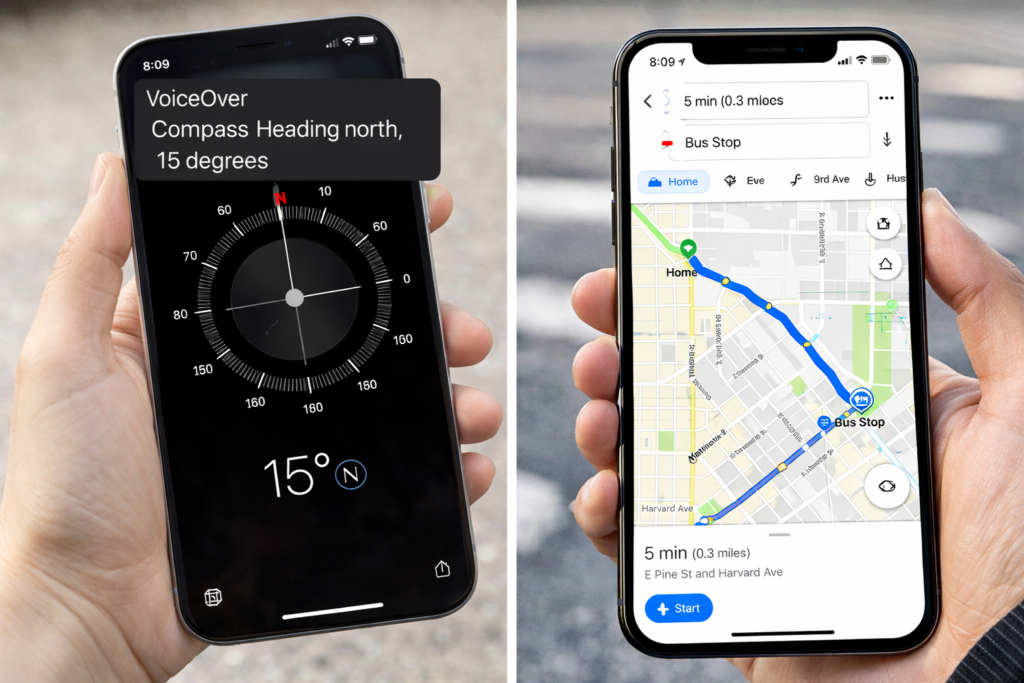
Students and adults need reliable ways to travel from a drop-off or pick-up point to their destination. This skill matters at home, school, work, and in the community. This resource, called Navigate: Drop a Pin and Save Routes, teaches travelers how to drop a pin, save routes, and use Siri, VoiceOver, Apple Maps, Google Maps, and the Compass app to move with confidence. It was created for students, yet anyone building independent travel skills will find it helpful.
A. Dropping a Pin at Home
1. Open Maps
Say: “Hey Siri, open Apple Maps.”
2. Drop your home pin
- VoiceOver says “Current Location.”
- Flick right to “Drop Pin.”
- Double-tap.
- Flick to “Add Label.”
- Double-tap.
- Say: “Home.”
- Activate “Done.”
Now Siri always knows your home.
B. Dropping a Pin at School
Person does this at the front door or the main room.
1. Open Maps
Say: “Hey Siri, open Apple Maps.”
2. Drop your school pin
- Flick to “Drop Pin.”
- Double-tap.
- Flick to “Add Label.”
- Say: “School.”
- Activate “Done.”
C. Dropping a Pin at Your Pick-Up Van Location
Do this standing exactly where she waits each day.
1. Say:
“Hey Siri, open Apple Maps.”
2. Drop the pin
- Flick to “Drop Pin.”
- Double-tap.
3. Label it
- Flick to “Add Label.”
- Say: “Pick-Up Van.”
- Activate “Done.”
Now she can find her van every day.
D. Navigating to Saved Pins
Go from Home to School
Say:
“Siri, give me walking directions to School.”
Go from School to Pick-Up Van
Say:
“Siri, give me walking directions to Pick-Up Van.”
Go from Pick-Up Van to School Door
Say:
“Siri, walking directions to School.”
Go from School to Home
Say:
“Siri, give me walking directions to Home.”
Siri will speak the direction and distance.
Person follows the heading using Compass and hallway cues.
E. Using the Compass
1. Open Compass
Say: “Hey Siri, open Compass.”
2. Listen to headings
VoiceOver speaks numbers.
3. Basics
North = 0
East = 90
South = 180
West = 270
4. Staying straight
When Siri says “Head west,” Person turns until Compass says “270.”
Compass keeps her on track indoors and outside.
F. Using Look Around
Look Around works outside the building.
It helps Person understand the campus layout.
1. Open Look Around
Say: “Open Apple Maps.”
Search for “Colonial Heights Middle School.”
Flick to Look Around.
Double-tap.
VoiceOver describes:
- Doors
- Parking
- Roads
- Campus layout
This helps her know where she is before entering the school.
G. Daily Routine for Person
Morning
- Say: “Siri, directions to School.”
- Use Compass to hold the heading.
- Follow the route to the door.
Afternoon
- Say: “Siri, directions to Pick-Up Van.” or Bus or spot you need to get to
- Follow hall cues and Compass.
- Arrive at the van spot.
Evening
- When dropped off- Say: “Siri, directions to Home.”
- Walk with confidence.
H. Notes for Parents and Instructors
- Siri uses the pins Person labels.
- Pins stay saved unless she deletes them.
- She can use them every day with one command.
- She should practice the routes with support first.
- Please encourage her to use Siri daily for consistency.
Blind Travelers Drop a Pin and Save Routes Using Siri, VoiceOver, Apple Maps, and Compass