
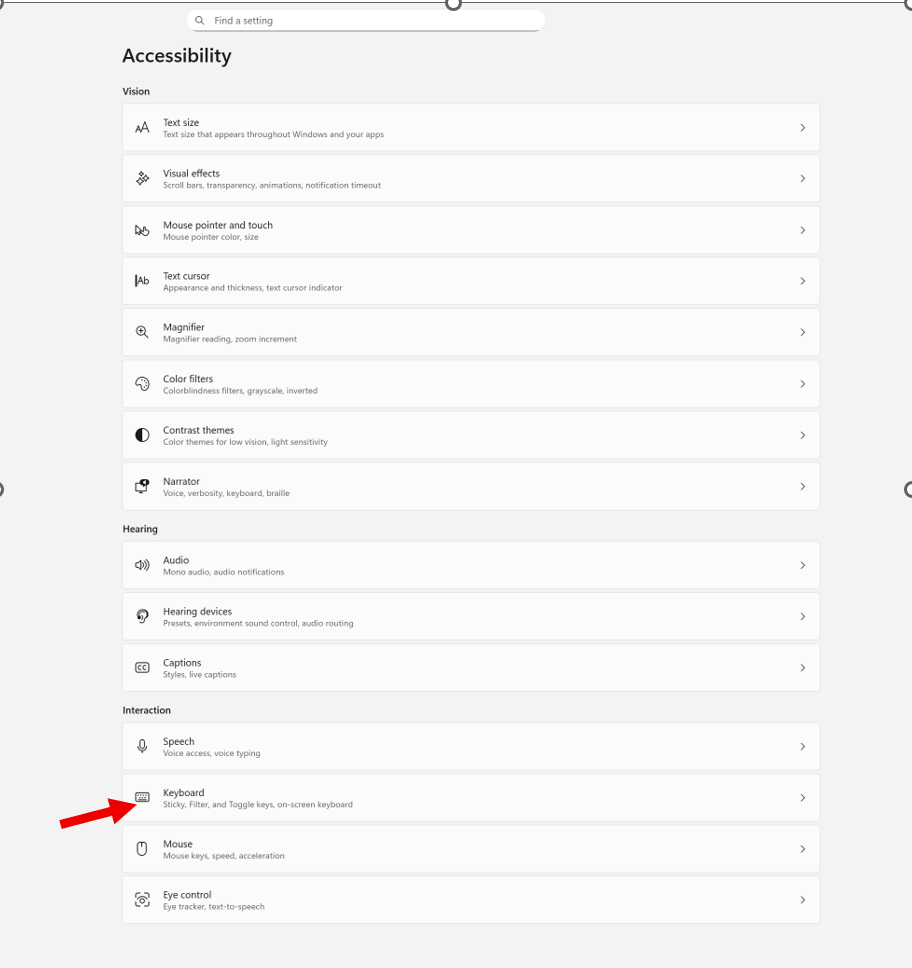
Windows + I to settings and find Accessibility on the far left column and open then open keyboard. If you want to stop annoying ding sounds on Windows, the following steps will help you do that.
If your computer keeps chiming, dinging, or beeping at the worst possible moments, or when you press a particular key, you can silence or customize every system sound in just a few steps.
If you like to follow a video through the steps, this will help: Stop Annoying Ding Sounds on Windows Fix Filter Keys & Toggle Keys
In this video, you’ll learn:
- How to check whether Filter Keys or Toggle Keys are turned on
- How to turn them off if you don’t need them
- How to adjust them properly if you do use them
- How to prevent Windows from enabling them by mistake
- How to silence or customize the sounds they make
Commands & Navigation Steps
Open Windows Accessibility Settings (Keyboard Section)
- Windows + I → opens Settings
- down arrow to Accessibility, press Enter, then tab down to Keyboard
- or press windows (start menu) or using keyboard type Accessibility in the search box
Check all these Features
Turn Sticky Keys, Filter Keys, or Toggle Keys On/Off
- Tab to the setting you want
- Press Space bar to toggle it on or off
Hear What Toggle Keys Sounds Like
- Turn on Toggle Keys → Windows plays a beep when pressing Caps Lock, Num Lock, or Scroll Lock
- Turn it off again → sound stops immediately
Notification Preferences for Accessibility Keys
Windows will play a sound when:
- Sticky Keys is turned on
- Filter Keys is turned on
- Toggle Keys is turned on
This helps you know when you’ve activated something by accident.
On‑Screen Keyboard (for mouse users or one‑handed typing)
- Turn on On‑screen keyboard in the Keyboard settings
- Click keys with your mouse if typing is difficult
Underline Access Keys
- Turn on Underline access keys
- This shows keyboard shortcuts even when you’re not holding Alt
Print Screen Behavior (Updated in Windows 11)
- While you are here adjust Print Screen
- Arrow to Print Screen and enter → opens the Snipping Tool options at the top of the screen
- Screen reader users:
- Tab through options
- Go to the last one
- Press Spacebar, then Down Arrow to choose screenshot type-then you have options
When you cannot do something: Take a Screenshot & Send It to your help person
- Take screenshot- which literally is copy
- Press Ctrl + V to paste into an email
- Send to your tech instructor or support person
Whether you’re troubleshooting your own device or helping someone else, this quick fix will bring instant peace and quiet — and give you full control over your keyboard behavior.