
Best Computer PC Specs buying Guide for 2025 and beyond: RAM, CPU, SSD, graphics card, gaming and more explained
If you’re planning to buy a computer now, pause before diving into the best PC specs. Keep in mind that dealers often clear out older models during holiday sales. To make sure you know exactly what you’re getting, skip down to the section on ‘Older and Newer Naming’ of laptops.
Specs You Need and PC Details Explained
- Memory (RAM):
64 GB DDR5 (4800–5600 MHz, dual channel, expandable to 128 GB on some models). Continue for more detailed advice, for Best Computer Specs Guide. - Storage (SSD):
2 TB PCIe Gen 4 NVMe SSD (blazing fast read/write speeds, optional dual SSDs up to 4–8 TB total) - Graphics (GPU):
NVIDIA GeForce RTX 5090 Laptop GPU (16–24 GB GDDR7 VRAM)
or workstation option: NVIDIA RTX 6000 Ada (48 GB VRAM) - Display:
14‑inch UHD (3840 × 2160) Mini‑LED, 120 Hz refresh rate, HDR support
or 14- 16‑inch OLED, 240 Hz for gaming/creative workloads
Reduce Eye Strain with a High Resolution Curved Screen
- Ultra HD / 4K: 3840 × 2160 pixels
- 8K UHD: 7680 × 4320 pixels
- Highest Resolutions Available (2025)
- 8K UHD (7680 × 4320):
- Currently the highest mainstream resolution for TVs and monitors.
- It is Extremely sharp, but requires powerful GPUs and large screens to notice the difference.
Best Curved Monitors (2025)
| Brand | Best Model | Size / Resolution | Use Case | Key Strengths |
|---|---|---|---|---|
| Samsung | Odyssey OLED G9 | 49″ Dual QHD (5120×1440) | Gaming / Immersion | 240 Hz refresh, deep 1000R curve, HDR OLED |
| Dell / Alienware | Alienware AW3425DW | 34″ QD‑OLED (3440×1440) | Gaming / Esports | Fast response, vivid colors, G‑Sync Ultimate |
| Dell UltraSharp | U4025QW | 40″ 5K2K (5120×2160) | Productivity / Multitasking | Huge workspace, USB‑C hub, color accuracy |
| LG | UltraGear 45GR75DC | 45″ WQHD (3440×1440) | Gaming / Creative | OLED panel, 240 Hz, immersive ultrawide |
| HP | E45c G5 | 45″ Dual QHD (5120×1440) | Productivity / Office | Replaces dual monitors, ergonomic design |
| Gigabyte | G27FC | 27″ Full HD (1920×1080) | Budget Gaming / Entry Level | Affordable, decent curve, FreeSync support |
Quick Recommendations
- For Gaming Immersion: Samsung Odyssey OLED G9 or Alienware AW3425DW.
- For Productivity/Work: Dell UltraSharp U4025QW or HP E45c G5.
- For Budget Buyers: Gigabyte G27FC.
- For Hybrid Use (Gaming + Creative): LG UltraGear 45GR75DC.
Other items you need for laptop and more USBs for a desktop
- Ports & Connectivity:
- 2 × Thunderbolt 4 / USB‑C
- 3 × USB‑A 3.2
- HDMI 2.1
- Ethernet RJ‑45
- Wi‑Fi 7 + Bluetooth 5.4
- Keyboard:
QWERTY keyboard, with Applications/Menu key - Around 4 pounds ≈ 1.81 kilograms.
How to Find Your Computer Specs (Windows 11, December 2025)
1: Using System Settings
- Press Windows key + E to open File Explorer.
- Press Shift + Tab to move focus to the Navigation Pane.
- Arrow down to This PC (usually near the bottom).
- Right‑click on This PC and choose Properties (or press Enter).
- A window will open showing basic system information, including:
- Device name
- Processor (CPU)
- Installed RAM
- System type (32‑bit or 64‑bit)
- Windows edition and version
2: Using Settings → About
- Press Windows key + I to open Settings.
- Navigate to System.
- Scroll down and select About.
- Under Device specifications, you’ll see:
- Processor (CPU)
- Installed RAM
- Device ID
- Product ID
- System type
- Under Windows specifications, you’ll see:
- Edition (e.g., Windows 11 Pro)
- Version and build number
3: Advanced Specs (Optional)
For deeper details like graphics card, storage, and drivers:
- Press Windows key + R, type
dxdiag, and press Enter. - This opens the DirectX Diagnostic Tool, showing CPU, RAM, GPU, and driver versions.
Summary
- Basic specs (CPU, RAM, Windows version) → System → About or This PC → Properties.
- Detailed specs (graphics card, drivers) → dxdiag.
- These steps work with keyboard navigation and are accessible for screen reader users.
Find information in MSINFO32
- MSINFO32 is the command that opens the System Information utility in Windows.
- It provides a comprehensive overview of your computer’s hardware, software, and system components.
- Unlike the simple “About” page, MSINFO32 gives deep technical details useful for troubleshooting, upgrades, or support.
How to Open MSINFO32
- Press Windows key + R to open the Run dialog.
- Type
msinfo32and press Enter. - The System Information window will appear.
What You’ll See in MSINFO32
- System Summary (default view):
- OS name and version
- System manufacturer and model
- Processor type and speed
- Installed RAM
- BIOS version/date
- Boot mode (UEFI or Legacy)
- Hardware Resources:
- IRQs, DMA, I/O ports, memory addresses
- Useful for diagnosing hardware conflicts
- Components:
- Display (graphics card details)
- Storage (drives, controllers)
- Network (adapters, protocols)
- Input devices
- Software Environment:
- Loaded drivers
- Running tasks
- Services
- Environment variables
Why It’s Useful
- Troubleshooting: Quickly check BIOS version, drivers, and hardware conflicts.
- Upgrades: Confirm RAM slots, CPU type, and expansion options.
- Support: Export system info to share with IT or tech support.
Memory Details
These values describe how your computer uses RAM (physical memory) and virtual memory:
- Installed Physical Memory (RAM): 64.0 GB
The total amount of RAM physically installed in your system. - Total Physical Memory: 63.8 GB
The usable portion of your installed RAM. A small amount is reserved for system hardware. - Available Physical Memory: 56.2 GB
The amount of RAM currently free and available for use by applications and the system. - Total Virtual Memory: 67.8 GB
This includes physical RAM plus page file space. Virtual memory allows your system to use disk space as extra memory when RAM is full. - Available Virtual Memory: 58.9 GB
The portion of virtual memory that’s currently unused and available. - Page File Space: 4.00 GB
The size of the page file (a reserved portion of your hard drive used as virtual memory).
Go to Programs and features and make sure you have all your security and power to run programs so do a find command for “run” and look for your .nets.
What .NET Does for a Computer—let’s just say it IS REALLY IMPORTANT
- Runs Applications:it is software framework/platform
.NET provides the Common Language Runtime (CLR), which acts like a virtual machine. It takes code written in languages like C#, F#, or VB.NET and makes sure it runs correctly on your computer. - Manages Resources:
The CLR handles memory management, security, thread management, and error handling. This means programs don’t have to reinvent these functions — they rely on .NET to do it safely. - Provides Libraries:
The Framework Class Library (FCL) is a huge collection of pre‑built code for everyday tasks:- Reading/writing files
- Connecting to databases
- Networking and internet communication
- User interface controls
- Math, cryptography, and more
- Supports Multiple Languages:
Developers can write programs in C#, F#, VB.NET, and others. .NET makes them interoperable, so code written in one language can work with another. - Cross‑Platform Evolution:
Go get those important computer items at: Ninite.com
Beat Graphics card for computers using screen readers or other access technologies: NVIDIA
GRAPHICs card RUN that screen reader–get a good one GAMING computers will get you the specs you need for a screen reader or just regular use
NVIDIA RTX cards dominate the high‑end market with unmatched ray tracing, AI features (DLSS, CUDA, Omniverse), and raw compute power.–the BEST for screen readers and older students–middle school up
- AMD Radeon RX cards offer better value for money, strong rasterization performance, and more efficient power use, especially at 1440p and 4K gaming.
The applications key– is KEY of importance-the funny looking horseshoe on a gaming computer or square with lines in it on general computers–it is a right click of a mouse or 1 press of a key.


Basic specifications for a laptop: gaming computer will have the speed and video card needed for performance
Processor (CPU): some use the words i5, i7, i9 but the new words are Ultra 5,7 or 9 on machines–i9 is compared to ultra 9 and so on like this
Intel Naming Shift
Older naming convention (up to 13th Gen): so if you have this then know it is an older model and during holidays, this is what companies are selling cheaply to get rid of–so just be aware–
- Intel Core i3, i5, i7, i9
- Example: Intel Core i7‑12700H
- New naming convention (14th Gen and newer):
- Intel Core Ultra 5, Ultra 7, Ultra 9
- Example: Intel Core Ultra 9 185H
- The “Ultra” branding emphasizes AI acceleration and new architecture (Meteor Lake, Lunar Lake).
How They Compare
- Core i5 → Core Ultra 5
- Core i7 → Core Ultra 7
- Core i9 → Core Ultra 9
Intel Core Ultra 9 285HX (24 cores, up to 5.5 GHz turbo)
or AMD Ryzen 9 7945HX (16 cores, up to 5.4 GHz turbo)
- Graphics (GPU):
NVIDIA GeForce RTX 5090 Laptop GPU (16–24 GB GDDR7 VRAM)
or AMD Radeon RX 7900M (16 GB GDDR6 VRAM) - Memory (RAM):
64 GB DDR5 (4800–5600 MHz, dual channel, expandable to 128 GB on some models) - Storage (SSD):
1 TB PCIe Gen 4 NVMe SSD (with option for dual SSDs up to 4 TB total) - Display:
17.3‑inch UHD (3840 × 2160) Mini‑LED, 120 Hz refresh rate, HDR support
or 16‑inch OLED, 240 Hz for gaming/creative work
Favorite computers for running software such as JAWS, NVDA and other blind ware–You must have HIGH RAM and speed
Top Favorite: ASUS
ASUS Laptop Weights–based on student–
ZenBook Series (ultralight)
New ZenBook A14: as low as 2.18 lbs (0.99 kg)
VivoBook Series (mid‑range everyday use series)
ROG Gaming Series (heavy duty)
Zephyrus G14: ~3.53 lbs (1.6 kg)
Strix G15: ~5.07 lbs (2.3 kg)
Pic of ASUS-ROG-heavier with numpad

Surface Pro-top Favorite
Microsoft Surface Pro Weights–lightest and most powerful of laptops
- Surface Pro 3–7: ~1.7 lbs (0.77 kg)
- Surface Pro 8–10: ~1.94–1.96 lbs (0.88–0.89 kg)
- Surface Pro 11 (latest): ~1.96 lbs (0.89 kg)
- Surface Pro X (ARM model): ~1.7 lbs (0.77 kg)
comparing true laptop form factors, ASUS ultrabooks and Surface Laptop models are closer in weight, while Surface Pro remains the lightest option in the 2‑in‑1 category.

Different versions and do not suggest this collapsible one for students, that flips up–just too easy to flip down

Get Surface Pro with a true laptop lid that opens easily

HP computers
Be careful as most do not come with applications key any more–yes you can use Insert F10 but … takes 2 keys to implement a keystroked of right click
HP EliteBook 645 G10 includes a dedicated Applications/Menu key on its keyboard layout.
Build your computer: EliteBook 645 G10 is a lightweight, secure, and efficient business laptop with AMD Ryzen 7000 series power
Processor Options:
- AMD Ryzen 5 7530U: 6 cores / 12 threads, up to 4.5 GHz-elementary and middle school
- AMD Ryzen 7 7730U: 8 cores / 16 threads, up to 4.5 GHz-high school
- These are efficient 7nm chips with solid multitasking and productivity performance.
- Graphics:
- Integrated AMD Radeon RX Vega 6 GPU
- Suitable for office work, media playback, and light graphics tasks
- Not designed for gaming or heavy 3D rendering.–but that is fine as that is not why you buy it
- Memory:
- Configurable up to 64 GB DDR4 RAM
- Dual SO-DIMM slots, user-upgradable.
- Storage:
- PCIe SSD options, typically up to 1 TB
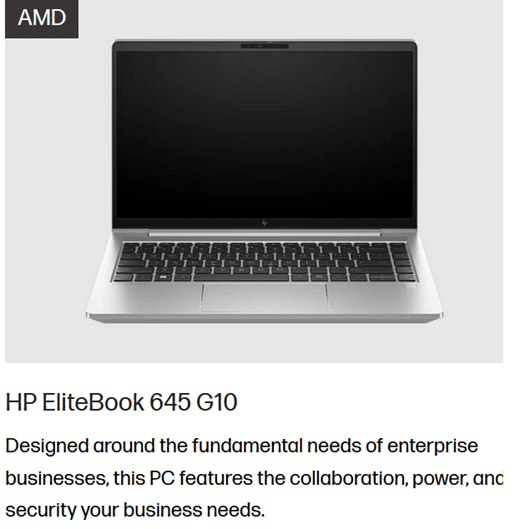
HP HP EliteBook 870 G11 (17‑inch) -4.1 lbs–keep in mind you want a laptop carry case for laptops

High‑Performance PC Laptop Models
- HP ZBook Fury 16 G11 – workstation powerhouse for engineering, CAD, and 3D rendering
- MSI Raider 18 HX AI – top‑tier gaming laptop with desktop‑class GPU
- ASUS ROG Strix G18 / Zephyrus G16 – high‑end gaming and creator laptops
Best Computer Specs Guide with how to place bump dots- to create muscle memory in fast typing skills
Do NOT overdo bump dots on keyboard to find position for touch typing-then student start counting dots to get to keys–create muscle memory which means you want to have them repeat typing skills–explanation below dot placements.
Place bump dots on keys: 5 and 0 on num row above qwerty keys-backspace is already large
Place dots on F4, F12–if all the keys run together then either F8 or F9. My F keys are broken up in panels from F1 to F4 and F5 to F8 and F9 to F12 so I do not need any bump dots–a gaming keyboard is divided up for speed of access so no bump dots needed
Many computers share the arrow keys with home, end pg up and pg down–only put a bump dot on up arrow to quickly move hand to the right while left hand holds down the FN key and right hand to do the pg up and so forth
Remember, the keyboard already has built in bump dots on f and j so do not place any more bump dots on keys
Dell is not my top choice of a computer but is a fine machine with specs you can get with:
Processors: Intel Core Ultra 7/9 or AMD Ryzen 9 HX — powerful x86 chips for heavy workloads.
Serviceability: Easier to upgrade storage, RAM, and wireless adapters
Memory: Configurable up to 64–128 GB DDR5 RAM, far beyond Surface’s 16–32 GB.
Storage: Options up to 2–8 TB PCIe NVMe SSDs.
Graphics: Dedicated NVIDIA RTX GPUs (e.g., RTX 5090 or workstation Ada cards).
Displays: Larger 16–18″ screens, often 2.5K or 4K OLED, high refresh rates.
Ports: Rich I/O (USB‑A, USB‑C/Thunderbolt, HDMI, Ethernet, SD card).
Weight: Heavier (≈4 lbs / 1.8 kg), but more versatile for gaming, AI, or workstation tasks.
What I Use on a Daily Basis-I work very long hours
So I do have a Ultra HD / 4K: 3840 × 2160 pixels and it has changed my life with no more headaches from long hours at my screen and always have night light on-if you do not know about this feature, press your windows key and type night and night light will generate–decrease the brightness to more muted colors and it takes out more blue light which reduces eye strain. But the 4k does that by itself, then the night light takes away brightness–I am very light sensitive so light in general causes my eyes pain which gives headaches (I no longer have that issue with the 4k.). I use my screen reader often–hence the needed power in general.
My PC Computer Specs Explained
CLX computers are made by CLX Gaming, which is a division of Cybertron International Inc., a long‑standing U.S. system integrator based in Wichita, Kansas and an incredible company to work with for any product they sell.
About CLX
- Founded: January 29, 2016, as a brand under Cybertron International.
- Focus: Custom gaming PCs, workstations, and desktops tailored for gamers, content creators, and professionals.
- Specialty:
- Fully customizable builds (CPU, GPU, RAM, cooling, case design).
- Award‑winning custom paint and chassis designs.
- Product families named after Egyptian mythology (Ra, Set, Scarab, Horus, Osiris, Anubis).
- Support: Free lifetime technical support, up to 3 years parts warranty, and lifetime labor coverage.
Why CLX Stands Out and why I picked it–I could build exactly what I wanted and needed and their service support is exceptional in the industry as if or when you call, you get a person who knows anything you ask.
- Customization: You can configure nearly every component, from Intel/AMD CPUs to NVIDIA/AMD GPUs.
- Performance: Builds range from mid‑tier gaming rigs to extreme workstations with 64–128 GB RAM and multi‑GPU setups.
- Design: Known for bold, artistic case designs and RGB lighting.
- Reliability: As part of Cybertron International (established in 1997), CLX benefits from decades of PC integration experience.
- Takeaway
- CLX computers are custom‑built in the USA by CLX Gaming (Cybertron International), offering high‑performance, highly customizable systems for gamers and professionals who want both power and personalization.
The CLX is the Best machine I have every owned and then I go portable with my Surface Pro which is also exceptional for power and portability
More Help for you on computers:
Speed up and Fix a SLOW Computer
Restore System & fix PC issues
Optimizing Windows 11 Efficiency for Screen Reader with Key Settings and Configurations