
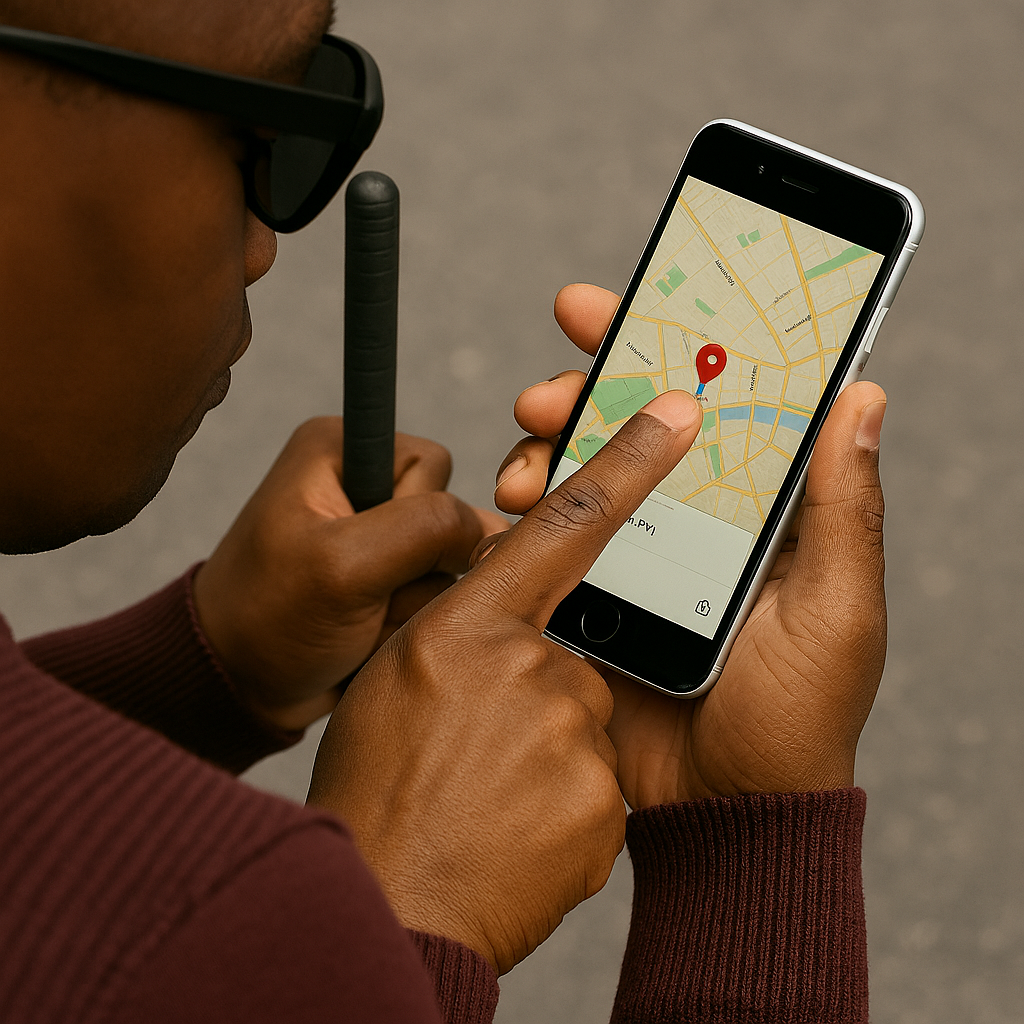
Goal:
- Mark and label the location
- Walk to the bus stop or another destination
- Drop a second pin
- Create a reusable walking route
- Reuse that same route when returning home
VoiceOver + Siri Navigation Workflow: Drop Pins, Mark Locations, Save Routes, Reuse Them
PART 1 — Drop a Pin at Home (Using Siri or VoiceOver)
Option A: Using Siri
- Say: “Hey Siri, drop a pin.”
- Siri will place a pin at your exact GPS location.
- Say: “Hey Siri, mark my location as Home.”
- This saves it permanently in Maps.
Option B: Using VoiceOver
- Open Maps.
- Touch the screen until you hear “Current Location.”
- One‑finger double‑tap to select it.
- Swipe right until you hear “More” or “Actions available.”
- Use the Actions Rotor → choose “Drop Pin.”
- Double‑tap to confirm.
- Swipe to “Add to Favorites” → double‑tap.
- Type or dictate: “Home.”
PART 2 — Walk to the Bus Stop and Drop a Pin There
- Walk to the bus stop.
- Once standing at the exact spot, say:
“Hey Siri, drop a pin.” - Or use the VoiceOver method again:
- Current Location → Actions Rotor → Drop Pin.
- Add it to Favorites and label it “Bus Stop.”
PART 3 — Create a Walking Route Between Home and Bus Stop
From Home to Bus Stop
- Open Maps.
- In Favorites, choose “Bus Stop.”
- Swipe to “Directions.”
- Choose “Walking.”
- Double‑tap “Go.”
- Maps now has a reusable route from Home → Bus Stop.
Save the Route
Apple Maps doesn’t have a “Save Route” button, but you can save it by:
- Keeping Home and Bus Stop in Favorites
- Maps will always generate the same walking route between two saved points
- You can also add both to a Guide (optional)
PART 4 — Reuse the Route When Returning Home After Getting Off the Bus
When you get off the bus:
Option A: Siri
Say:
“Hey Siri, give me walking directions to Home.”
Option B: VoiceOver
- Open Maps.
- Go to Favorites.
- Select Home.
- Swipe to Directions → choose Walking → Go.
This automatically recreates the same route you used earlier.
Easy Summary Script
Here’s a simple version you can teach directly:
- At home: “Hey Siri, drop a pin. Mark this as Home.”
- Walk to bus stop: “Hey Siri, drop a pin. Mark this as Bus Stop.”
- To go to the bus stop: Open Maps → Favorites → Bus Stop → Directions → Walking → Go.
- To go home after the bus: “Hey Siri, walking directions to Home.”
Other iPhone Lessons
- iPhone: Set Up Face ID, Touch ID, and Passcode with VoiceOver
- iPhone-Setting Up Email Using Siri & VoiceOver
- Using VoiceOver to Learn What You Can Do in an App
- iPhone Setup: Turning On Siri and VoiceOver
- Aira Navigation: How Blind Travelers Navigate Safely and Independently
- Blind Users Retrace Indoor Routes with Clew
- Indoor Navigation for Blind Users: Using Seeing AI with iPhone
- Look Around APP: Outdoor iPhone Navigation for Blind People: 7 & 8
- Indoor Navigation for Blind People with Seeing AI App 9
- Teach the Compass and Route Memory for Indoor Orientation 5 & 6