
Lesson:
Objective
Learners will understand how to use VoiceOver’s built‑in help features — including the four‑finger double‑tap — to explore gestures, discover available actions, and learn what options exist inside any app.
1. What the Four‑Finger Double‑Tap Does
VoiceOver Help Mode
A four‑finger double‑tap turns VoiceOver Help on or off.
When Help Mode is ON:
- VoiceOver explains every gesture you perform
- Nothing on the screen activates
- It is a safe space to practice
- You can explore without fear of opening apps or changing settings
To exit Help Mode, simply four‑finger double‑tap again.
This gesture does not give information about the app itself — it teaches VoiceOver gestures.
2. How to Learn What You Can Do in an App
VoiceOver offers several ways to discover menus, actions, and options inside any app.
A. Explore by Touch
- Gently lay finger on screen and Move your finger around the screen-top left to right and down
- VoiceOver announces buttons, tabs, menus, and controls
- This helps you build a mental map of the app layout
Example:
“Home, tab, 1 of 4.”
“Settings, button.”
“More Options, button.”
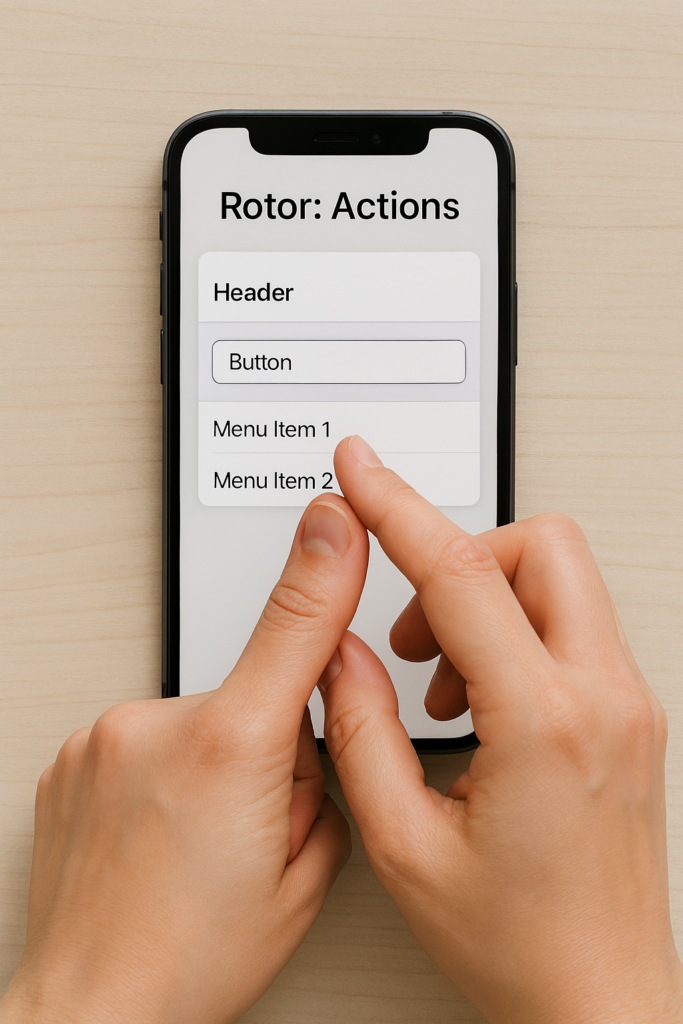
B. Use the Rotor to Find Hidden Actions
The Rotor is a powerful tool for discovering what’s possible.
To use it:
- Place two fingers on the screen with 1 hand to “turn knob”; or some find it easier with pointer finger from each hand mimicking a circle
- Twist like turning a dial
- Stop when you hear Actions, More Options, or similar choices
- Swipe up or down to explore available actions
Common rotor actions include:
- “More Info”
- “Details”
- “Menu”
- “Help”
- “Show Options”
- “Edit”
- “Delete”
- “Open Settings”
This is often where apps hide extra features.
You can add features in Settings just ask Siri to “open Accessibility and flick to Voice Over and when you open-pay attention to every detail her then open rotor settings”
C. Turn On VoiceOver Hints
Hints tell the learner what they can do on each item.
To enable:
Settings → Accessibility → VoiceOver → Hints
When hints are on, VoiceOver may say:
- “Double‑tap to activate.”
- “Swipe up or down to adjust.”
- “Double‑tap and hold to open menu.”
Hints help learners understand available actions without guessing.
D. Look for App‑Specific Help or Menus
Many apps include:
- A Help button
- A Menu or More tab
- A Settings area
VoiceOver will announce these when the learner explores the screen.
3. Practice Activity Steps
Have the learner:
1 — Enter Help Mode
- Perform a four‑finger double‑tap
- Try gestures: flicks, taps, rotor turns
- Listen to VoiceOver explain each one
2 — Explore an App
- Touch around the screen to hear what’s available
- Find tabs, buttons, and menus
3 — Use the Rotor
- Turn the rotor to Actions
- Swipe up/down to hear what actions are available
4 — Turn on Hints
- Listen for instructions VoiceOver provides
4. Key Takeaways
- Four‑finger double‑tap = VoiceOver Help Mode, not app information
- To learn what you can do in an app, use:
- Explore by Touch
- Rotor → Actions
- VoiceOver Hints
- App menus and help sections
Other iPhone Lessons
- iPhone: Set Up Face ID, Touch ID, and Passcode with VoiceOver
- iPhone-Setting Up Email Using Siri & VoiceOver
- Using VoiceOver to Learn What You Can Do in an App
- iPhone Setup: Turning On Siri and VoiceOver
- Aira Navigation: How Blind Travelers Navigate Safely and Independently
- Blind Users Retrace Indoor Routes with Clew
- Indoor Navigation for Blind Users: Using Seeing AI with iPhone
- Look Around APP: Outdoor iPhone Navigation for Blind People: 7 & 8
- Indoor Navigation for Blind People with Seeing AI App 9
- Teach the Compass and Route Memory for Indoor Orientation 5 & 6
- Drop Pins and Navigate with Maps: iPhone and VoiceOver Skills for the Blind