
Indoor Navigation for Blind Travelers Using iPhone Apps
Using Siri • VoiceOver • Apple Maps • Compass • O&M Skills: 3 & 4 of 9 Lessons
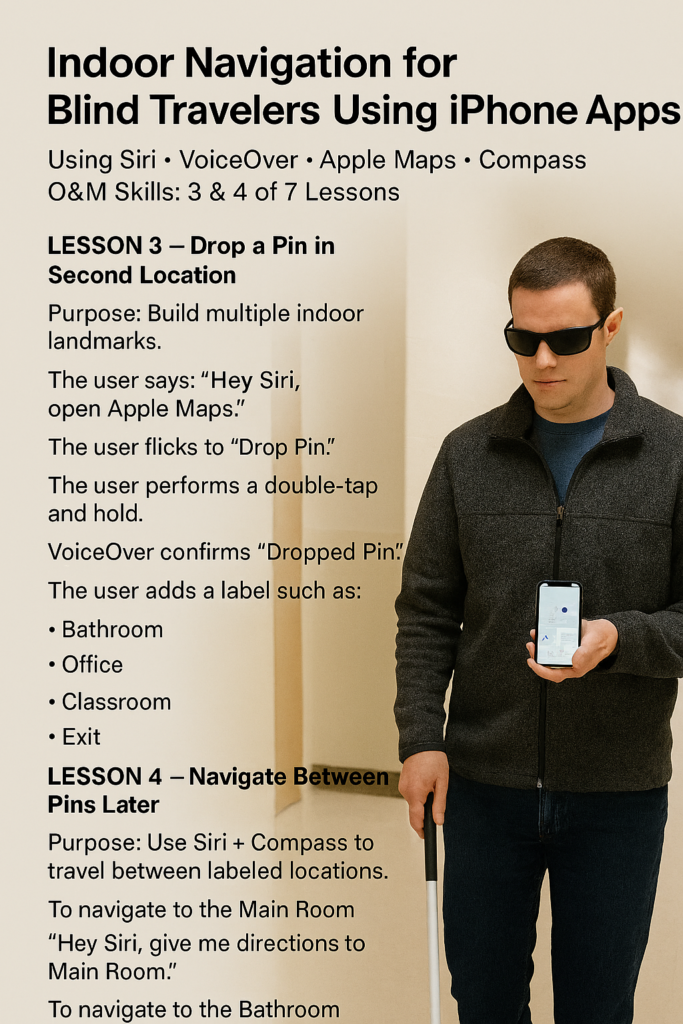
Navigating indoors with an iPhone becomes a powerful skill when blind travelers learn to drop pins, label key locations, and use Siri and Compass to move confidently between them. This lesson builds on foundational mobility techniques by teaching how to use Dropped Pins to Navigate Inside Building environments and create multiple indoor landmarks—like bathrooms, offices, and exits—and then use VoiceOver cues and heading information to walk straight toward each one. With just a few voice commands and a steady hand, students can transform unfamiliar hallways into mapped, navigable spaces using Apple Maps, Siri, and Compass.
LESSON 3 — Drop a Pin in a Second Location (Bathroom, Office, Exit)
Purpose: Build multiple indoor landmarks. You can also use Dropped Pins to navigate inside building for greater accuracy when locating these landmarks.
- The user says: “Hey Siri, open Apple Maps.”
- The user flicks to “Drop Pin.”
- The user performs a double-tap and hold which makes using Dropped Pins to navigate inside building possible for these specific spots.
- VoiceOver confirms “Dropped Pin.”
- The user adds a label such as:
- Bathroom
- Office
- Classroom
- Exit
LESSON 4 — Navigate Between Pins Later
Purpose: Use Siri + Compass to travel between labeled locations. Using Dropped Pins, you can navigate inside a building easily by using them to guide you to just the right location.
To navigate to the Main Room
“Hey Siri, give me directions to Main Room.”
To navigate to the Bathroom
“Hey Siri, give me directions to Bathroom.”
VoiceOver reads:
- Distance
- Heading
- Approach cues
Student follows Compass alignment and hallway cues, which assists anyone aiming to use Dropped Pins for indoor building navigation.