
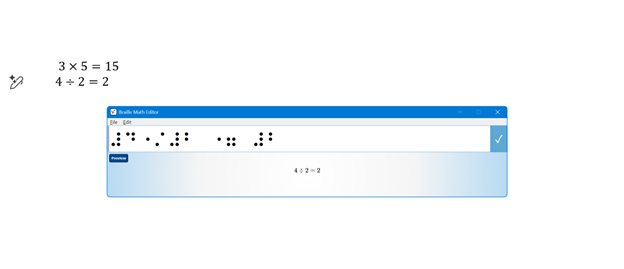
If you’ve ever struggled to get JAWS to read math correctly on your computer, this walk-through will make your life much easier. In this video, I demonstrate how to set JAWS for either UEB Maths or Nemeth math using the JAWS UEB/Nemeth Settings, then show you how to create accessible math using Word’s Math Editor and the Braille Math Editor. Whether you’re a TVI (Teacher of the Blind), a student, or an AT (Access Technology) specialist, these steps will help you produce clear, accurate, and accessible math every time.
WORD MATH EDITOR Setup
1. Open the Math Editor
- Alt + =
2. Open the Equation Tools tab
- Alt + J, E
3. Open Math Options (Settings)
- T, 1
(This opens the Math Options dialog.)
4. Set Alignment to Left
Inside the Math Options dialog:
- Alt + J → moves to Justification
- L → Left alignment
- Alt + D → Set as Default
- Tab, Tab → to OK
- Enter
- When asked to save as default, choose Yes
(This saves the settings to the Normal template.)
5. Check Conversion (if math looks wrong)
While inside a math zone:
- Alt + =
- Alt + J, E
- C → Convert
- Make sure it is set to Professional
WORD MATH EDITOR — Command Sequence (JAWS + Keyboard)
Open the Math Editor
- Press Alt + =
This inserts a new math zone and opens the Word Math Editor.
Move in and out of the math zone
- Right Arrow → move into the math zone
- Right Arrow again → move through elements
- Left Arrow → move backward
- Esc → exit the math zone and return to normal text
Insert common structures
- Fraction → Ctrl + /
- Exponent → Ctrl + Shift + =
- Subscript → Ctrl + =
- Square root → type \sqrt then press Space
- Matrix → type \matrix then press Space
- Parentheses → type ( then ) (Word auto‑sizes them)
Insert math symbols using LaTeX shortcuts
- \pi + Space → π
- \alpha + Space → α
- \neq + Space → ≠
- \le + Space → ≤
- \ge + Space → ≥
- \div for divide
- \times for times
- \sqrt for square root
(Word’s Math Editor accepts most LaTeX commands-check out list in link.)
Navigate inside structures
- Right Arrow → move to next placeholder
- Left Arrow → move back
- Ctrl + Right Arrow → jump out of a structure
- Ctrl + Left Arrow → jump into previous structure
- To read the braille the easiest–OPEN BME
BRAILLE MATH EDITOR (BME) — Command Sequence (JAWS + Keyboard)
Open the Braille Math Editor
- Press Alt + Shift + =
(This opens the BME window for UEB contracted math input.)
Choose UEB or Nemeth
Inside BME:
- Press Alt + M → opens Math Code menu
- Press U → UEB Math
- Press N → Nemeth Math
(You can teach students to confirm the code before typing.)
Enter math using braille input
- Type using six‑key entry on the braille display or keyboard
- Use Space to confirm symbols
- Use Backspace to correct braille cells
Navigate inside the math expression
- Left Arrow → move left
- Right Arrow → move right
- Ctrl + Left Arrow → jump to previous element
- Ctrl + Right Arrow → jump to next element
Insert common structures
- Fraction → dots 3‑4 then 3‑4 (opening and closing fraction indicators)
- Superscript → dot 5
- Subscript → dot 2
- Square root → dots 1‑2‑3‑5
- Parentheses → dots 1‑2‑6 and 3‑5‑6
(These follow UEB math rules; Nemeth uses different indicators.)
Send math back to Word
- Press Alt + S → Save and return to Word
- The math appears in the document as a fully formatted math object
Exit without saving
- Press Alt + F4
- Choose No if you don’t want to insert the math