
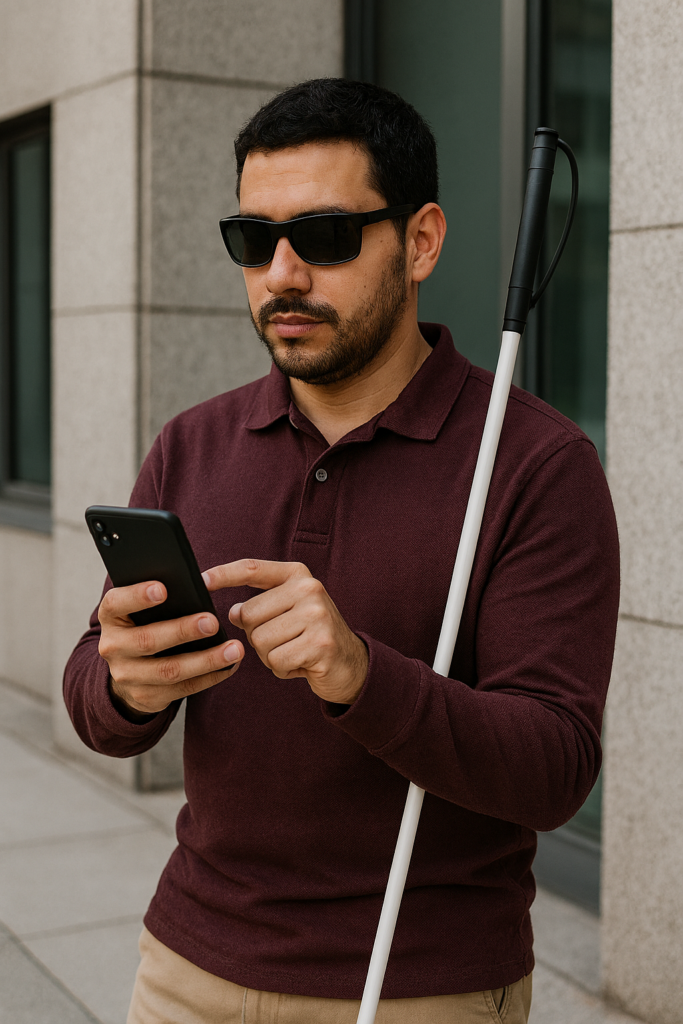
Share Your Location Using Siri and VoiceOver
Blind people can stay safer and more independent by learning how to share their location quickly using Siri and VoiceOver. If you want to know how blind people drop a pin to share location, the iPhone offers simple tools that allow blind users to contact trusted people, send their exact location, and request help with only a few commands. These steps explain how to set up location sharing, how to flick and navigate with VoiceOver, and how to share your location anytime support is needed.
Step 1: Add a Trusted Contact
A trusted contact can be a parent, partner, caregiver, or friend.
Open Contacts
Say, “Hey Siri, open Contacts.”
Add the contact
- Touch the middle of the screen to find the list.
- Flick right until VoiceOver says “Add Contact.”
- Double-tap to open it.
- Enter the person’s name.
- Flick right to the phone number field.
- Double-tap and enter the number.
- Flick right until you hear “Done.”
- Double-tap to save.
This contact becomes the person you can share your location with anytime.
Step 2: How Blind People Drop a Pin to Share and Turn On ‘Share My Location’
Location sharing must be activated before Siri can send your location.
Open Settings
Say, “Hey Siri, open Settings.”
Open your Apple ID
- Touch the top of the screen.
- VoiceOver speaks the user’s name.
- Double-tap.
Open Find My
- Flick right slowly until you hear “Find My.”
- Double-tap to open it.
Enable location sharing
- Flick right until you hear “Share My Location.”
- Double-tap to turn it on.
Your iPhone can now send your live location when requested.
Step 3: How blind people Share Location With a Trusted Person Permanently
Open Messages
Say, “Hey Siri, open Messages.”
Open the trusted person’s conversation
- Touch the center of the screen.
- Flick right until you hear their name.
- Double-tap.
Open contact details
- Touch the upper right corner.
- Flick right until VoiceOver says “Info” or “Details.”
- Double-tap.
Share permanently
- Flick right until you hear “Share My Location.”
- Double-tap.
- Flick right to “Share Indefinitely.”
- Double-tap.
Your trusted person now sees your location anytime you choose to share it.
Step 4: How Blind People Drop a Pin to Share Your Location Quickly Using Siri
This is the fastest and safest method.
Say:
“Hey Siri, share my location with Mom.”
(or the name of your trusted contact)
Siri sends your exact GPS location through Messages.
VoiceOver confirms the action.
This works indoors and outdoors.
Step 5: Share Your Location Manually in Messages
Open Messages
Say, “Open Messages.”
Send location
- Open the trusted person’s conversation.
- Flick right until you hear “Send My Current Location.”
- Double-tap.
- VoiceOver confirms the message.
This is helpful when you prefer not to dictate aloud.
Step 6: When Blind People Should Share Their Location
Location sharing helps when you:
- Feel lost
- Feel unsafe
- Need help quickly
- Need a ride
- Experience a sudden change in plans
- Want a trusted person to monitor your travel safely
This step protects blind travelers and supports independence in public places.
Step 7: A Simple Safety Script to Teach
Blind users can use this script anytime they need help:
- Stop walking.
- Hold your phone securely.
- Face a quiet direction.
- Say, “Hey Siri, share my location with Mom.”
- Wait for VoiceOver to confirm.
- Stay where you are until help arrives.
This gives blind travelers control during stressful or uncertain situations.
Why This Skill Matter
Location sharing supports blind people in daily travel.
It strengthens communication and confidence.
– helps families and caregivers respond quickly in emergencies.
It enhances safety without reducing independence.
– empowers blind users to manage real-world travel with greater security.
Video Lessons on all blind skills at YouTube