Search results for: “word options”

  • Learn Out Loud Reading – Audio Books Galore

    LearnOutLoud.com offers a comprehensive resource for audio and video learning materials, perfect for those looking to learn out loud reading strategies. The site provides a wide range of educational content, including audiobooks, podcasts, and video courses. Users can explore topics such as self-development, history, and business. The platform makes learning accessible and convenient with high-quality content. You can access the materials anytime, anywhere. Therefore, if you’re looking to learn out loud, this platform is an excellent choice.

    Learn out Loud Reading
    Learn out Loud Reading

    Navigating LearnOutLoud.com is straightforward. Here’s a step-by-step guide to help you get started:

    Homepage: The homepage displays featured content like popular audiobooks, podcasts, and video courses.

    Search Bar: Type keywords in the search bar to find specific content.

    Categories: Browse categories like Self Development, History, and Business by clicking the “Browse” menu.

    Featured Content: Click on featured content, new releases, or top-rated materials to explore further.

    User Account: Create an account to save favorites, make playlists, and track progress.

    Audio and Video Players: Use the built-in player to play, pause, and skip content.

    Reviews and Ratings: Read user reviews and ratings to decide on content.

    Newsletter and Blog: Subscribe to the newsletter or read the blog for updates and tips.

    More Digital book management options from Calibre

    Tell us how we can help you: Contact US: TechVisionTraining@yourtechvision.com
  • Document Formatting Editing Elements: Edit Margins, Tab, Headers, Footers & More

    Document formatting editing elements commands work in ALL versions of WORD.

    Video Lesson to help sighted teachers teaching or just sighted people who want to move faster

    Here is a list of formats mentioned in the video:

    1. Windows key + 5 on my computer: Opens the fifth pinned item on the taskbar (Word in this case).
      • Pin your most used APPS on taskbar for faster document formatting editing elements access.
    2. ALT + V, Z: Opens the zoom option.
    • 2: Zoom to 200%.
    • 7: Zoom to 75%.
    1. ALT: Highlights the menu.
    2. ALT + P: Opens the Page Layout tab.
    • O: Opens orientation options.
    • Arrow keys: Navigate between Portrait and Landscape options and document formatting editing elements within the layout tab.
    • Enter: Select the chosen option.
    1. ALT + P, M: Opens margins options.
    • A: Opens custom margins for better control of document formatting.
    • Tab: Moves around the dialog box.
    • Escape: Closes the dialog box.
    Document formatting editing elements Page elements header
    Document formatting editing elements: Header
    1. ALT + V, H: Opens headers.
    2. CTRL + R: Right-aligns text, a key document formatting function.
    3. ALT + I, U: Inserts auto page numbers.
    4. Down Arrow: Moves to the footer.
    5. Escape: Exits the header or footer.
    6. CTRL + End: Moves to the end of the document.
    7. CTRL + Enter: Inserts a page break.
    8. =rand(): Inserts random text (DOS command).
    9. CTRL + Up Arrow: Moves up one paragraph at a time, assisting in document editing tasks.
    10. ALT + V, Z, 100%: Zooms to 100%.

    These commands offer various ways to navigate, format, and interact with Word documents efficiently. More Document formatting editing elements make these processes smoother and more efficient.

    YouTube Channel of all lessons

  • Creating Excel Math Graphs

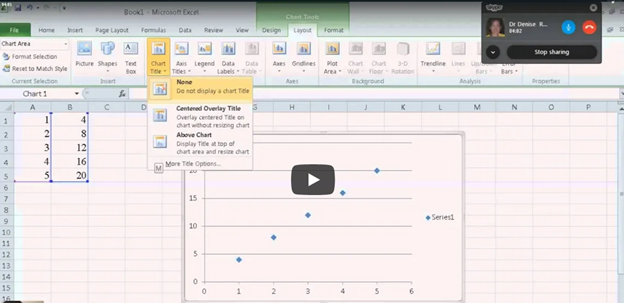
    Creating Excel Math Graphs is easy if you know the keyboard shortcuts with JAWS screen reader or NVDA. Kaylee starts by opening Excel, ready to plot the data using a scatter plot. First, she selects the A and B columns to copy them. Using the keyboard shortcut Ctrl + C, she copies the data. Once Excel is opened, she selects the cells where the data will be pasted, pressing Ctrl + V. Ensuring more rows are selected than needed, Excel warns if too many cells are selected, but Kaylee confirms the paste by selecting “Yes.”

    creating excel math graphs
    Creating Excel Math Graphs

    With the data ready, Kaylee moves to create a scatter plot graph. She presses Alt + N to access the “Insert” tab, navigating carefully to choose the scatter plot. After accidentally selecting the formula tab, she tries again, successfully inserting the scatter plot this time.

    Next, it’s time to add titles to the chart. Kaylee presses Alt + J + L to open the “Chart Layout” options, selecting T to input the chart title. Choosing to place the title above the chart, she moves forward. For the axis titles, she uses Alt + J + A + I to access the “Axis Title” options, adding the horizontal (X) axis title first. She selects W for the primary horizontal axis and types the label. Creating Excel Math Graphs involves repeating the process for the vertical (Y) axis, she selects the “Rotated” option by pressing the down arrow and enters the appropriate title.

    Ready to Submit her Excel Plot Math Graph

    Kaylee removes the chart legend, which is unnecessary for this excel Plot math graph. Pressing Alt + J + L + L, she selects “None” from the legend options. After exiting the title field by pressing Esc, she copies the finished graph with Ctrl + C and pastes it into a Word document using Ctrl + V. The graph is complete and clean for submission.

    If you would like to submit an advanced Quadratic Formula or an inequalities graph, there are many learning options

    More Excel Math Lessons

  • Creating Accessible Math Graphs and Inequalities with Excel

    Learn how to do inequalities for math class using Excel and Word with a braille display–for a complete assignment that can be emailed to teacher when done. Additionally, we will cover tips on creating accessible math graphs to ensure all students can engage with the material effectively.

    This video Instruction focuses on teaching math problems, specifically inequalities and graphing, using Excel. First, they direct the students to create a template with a number line. The students then insert information using less than and greater than symbols. For instance, to show a less than symbol, they use nine dashes, with each dash representing a unit. Also try Desmos for graphing online.

    Next, the students insert bullets. If they have a numpad, they use Alt+7 for a hollow bullet and Alt+9 for a solid bullet. If not, they manually insert symbols via the insert menu. The students place the bullets on the number line, ensuring they are centered by putting four dashes on each side of the bullet.

    To perfectly center the number, the students use the applications key and select the center alignment option or CTRL + E. After completing their problems, they select their work with Shift+Right Arrow and copy it using CTRL+ C. They then paste it into a Microsoft Word document with Ctrl+N and Ctrl+V.

    Creating Accessible Math Graphs in excel
    Creating Accessible Math Graphs in Excel

    Finally, for creating accessible Math Graphs, the students format their work by navigating through the formatting options with the right arrow key. This process allows blind students to create graphs and inequalities just like their sighted peers. The results are impressive, with perfectly centered number lines and accurately represented inequalities. The more you practice, the closer you become to being an expert in excel.

    Watch YouTube video on Creating Accessible Math Graphs

    Blind students do Math- inequalities with Excel and answer problems in Word

    and extensive lessons on Channel