Search results for: “math”

  • Perfect Digital Math at all levels using only audio or tactile Braille or both in Mathkicker.ai

    Dr. Robinson demonstrates how to use MathKicker.AI to complete various types of math with NVDA and UEB math. She begins by accessing a math problem in HTML format through a browser. Using outdated software, including NVDA on Windows 10, she shows how even older technology can effectively handle advanced math tasks.

    First, Dr. Robinson opens a math problem in Firefox, which currently translates math perfectly. She presses “Control + P” to print the page as a PDF, saving it to her downloads folder. Next, she switches to Chrome using “Windows + 3” and opens Math Kicker.AI, a tool designed for converting math problems. She uses the “Alt + C” command to start the conversion process.

    She navigates through MathKicker’s options using the applications key and selects UEB math code with NVDA commands. After selecting the PDF file, she waits for two chimes, indicating the conversion is complete. To begin solving the problem, she turns off the virtual cursor, moves to the problem area, and uses the “F2” key to break down the equation into individual components.

    She demonstrates how to solve the problem step by step, using commands like “Alt + B” to apply operations to both sides of the equation. She also uses “Control + R” to replace specific elements in the equation, simplifying the problem as she goes. After completing the math problem, she presses “F9” to review the LaTeX code, reinforcing her understanding of the math.

    Dr. Robinson explains how these steps ensure that even visually impaired students can solve advanced math problems with outdated technology. She emphasizes that Math Kicker.AI, combined with NVDA, allows for accurate UEB math transcription, making it accessible to a global audience. She concludes by encouraging viewers to use these methods to handle any type of math problem effectively. More NVDA and UEB Math videos here.
    Other Math Lessons

    Transcribe Math Images

    Quadratic Math

    STEM with Embossing

  • UEB Math with NVDA in WORD using unicode-LaTex or Braille -easy to advanced math

    Mathcat UEB in WORD
    Mathcat UEB in WORD

    Dr. Robinson demonstrates how to complete UEB math in Microsoft Word using NVDA and MathCAT in this video. She begins by showing how to download MathCAT, an essential add-on for NVDA. To do this, she presses “Insert + N” to open the NVDA menu, navigates to “Preferences,” then “Tools,” and selects the “Add-ons Store.” From there, she types “MathCAT” to find it and install it.

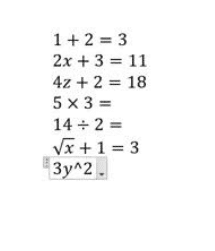
    After installing MathCAT, Dr. Robinson begins demonstrating basic math commands in Word. She starts by pressing “Alt + Equals” to insert an equation, then types a simple addition problem, such as “1 + 2 = 3.” She checks the Braille viewer to confirm that the equation displays correctly in UEB math. Using the arrow keys, she navigates through the equation, ensuring each character is correctly interpreted.

    Next, she demonstrates more complex equations. For example, she types “2x + 3 = 11” and highlights how NVDA reads the equation character by character. She emphasizes the importance of using arrow keys to review the entire equation, especially for those who rely solely on auditory feedback.

    LaTex and more Advanced MathCat NVDA in WORD Options

    Dr. Robinson also shows how to input advanced math symbols like the times sign and division symbol using backslash commands, such as “\times” and “\div.” She explains how these symbols are visually represented and confirms their accuracy in the Braille viewer.

    To demonstrate radicals, she uses the “\sqrt” command to insert a square root symbol, followed by an expression like “\sqrt{x+1} = 3.” She guides users through the process of checking and navigating through the equation using the arrow keys.

    Finally, Dr. Robinson addresses potential issues with inserting equations, such as when “Alt + Equals” doesn’t work correctly. She advises using “Alt + N” and navigating through the ribbon to insert equations manually if needed.

    This tutorial provides a guide for performing UEB math in Word using NVDA, ensuring accurate and accessible math solutions for users with visual impairments.

  • Quadratic Formulas with UEB Math or Nemeth and/or display with JAWS audio & MathCat

    Dr. Robinson provides a detailed guide on completing a quadratic formula in Microsoft Word using UEB math and JAWS screen reader. She breaks down each step, ensuring users can follow along and understand how to effectively utilize the powerful math editor in Word with JAWS.

    Dr. Robinson begins the tutorial by explaining how to setup JAWS, for UEB math. She guides users through configuring JAWS settings to ensure correct output in the math editor. For additional help with settings, users can refer to a previous video.

    After the setup, Dr. Robinson demonstrates how to open the math editor in Word using “Alt + Equals.” This command opens the editor, allowing users to start inputting equations. She explains that users will enter the quadratic formula character by character, ensuring they follow along slowly.

    To illustrate, Dr. Robinson uses the example A = 1, B = -8, and C = 7. She guides users in entering this formula into the editor, stressing the importance of accuracy and correct use of parentheses. Parentheses are crucial for ensuring the editor interprets the formula correctly, especially with complex expressions.

    Navigate Equation Editor in WORD

    Next, she shows how to navigate Word’s ribbon using “Alt + J” to access the equation tools. Once there, users can select the quadratic formula from the options. Dr. Robinson encourages users to explore other built-in equations in Word, as they can simplify creating complex mathematical expressions.

    While inputting the quadratic formula, Dr. Robinson demonstrates how to use “Alt + J + C” to convert the formula from linear to professional format. This conversion makes the equation visually appealing and easy to read, which is important when sharing or printing the document.

    Throughout the tutorial, Dr. Robinson emphasizes showing every step of the equation-solving process. She explains how to break down the quadratic formula into components using the math editor, making each step clear and easy to follow. This approach helps users understand the logic behind solving quadratic equations and reinforces the importance of accuracy.

    Troubleshoot common Issues

    Finally, Dr. Robinson offers tips on troubleshooting common issues for UEB math and JAWS, like automatic capitalization in Word. She shows how to adjust autocorrect settings to prevent unwanted changes in mathematical expressions, ensuring equations remain correct and properly formatted.

    By the end of the tutorial, users understand how to complete a quadratic formula in Word using UEB math and JAWS. Dr. Robinson’s clear instructions and focus on accuracy make this an essential resource for improving skills in assistive technology for math tasks. Users can continue learning in creating graphs in excel.

    Other Math Lessons:

    Transcribe Math Images

    Quadratic Math

    STEM with Embossing

    Perfect Digital Math

  • Accessible Quadratic Math in MathKicker.ai Using JAWS or NVDA with Auditory and Braille Output

    MathKicker.ai with Screen Reader

    In this video, Dr. Robinson begins by demonstrating how to use MathKicker.ai with screen readers like JAWS or NVDA. She focuses on solving quadratic equations. First, she shows how to handle graphics that are not accessible to screen readers. By using the “Applications” key and selecting “Copy Image,” users can paste the image into MathKicker using “Alt + V.” The system converts the image into readable math, confirmed by two chimes.

    Dr. Robinson then guides users to navigate and manipulate the quadratic equation in MathKicker.ai with screen reader. She demonstrates how to move constants to the other side of the equation using “Control + Right Arrow.” Next, she explains the process of completing the square by taking half the coefficient of x, squaring it, and applying it to both sides with “Alt + B” and entering the value.

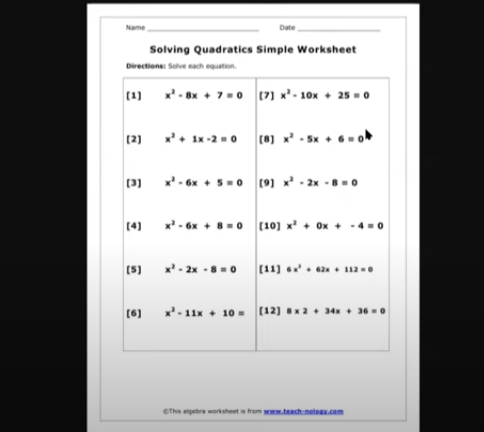
    poor PDF image of math that mathkicker translates into perfect math in WORD

    She continues by rewriting the equation as a perfect square, using “Control + R” to replace terms in MathKicker.ai with screen reader. She shows how to take the square root of both sides with “Alt + B” and using “R” for radical. The process involves replacing the square root with the exact values, ensuring each step is clear and accurate.

    Throughout the MathKicker.ai with screen reader tutorial, Dr. Robinson emphasizes using keyboard commands to navigate and solve the equation. She also highlights how users can submit their work to their teachers directly from MathKicker by using the “Applications” key and selecting “Submit Work to My Teacher.” See more lessons on Mathkicker.AI with Jaws or NVDA.

  • UEB Math with JAWS in Word: Using Unicode, LaTeX, and Braille for Easy to Advanced Math

    Dr. Robinson introduces the latest Vispero update for JAWS, focusing on reading UEB math. To get started, she demonstrates how to configure JAWS settings for optimal performance with UEB math. She begins by pressing “Insert + 6” to access the JAWS settings. Then use “Control + Shift + D” to set the default profile.

    Setup MathCat for UEB Math with Jaws

    Dr. Robinson guides users through setting up Braille mode via Default profile by typing it in the edit box. She types “Braille Mode” in the search box, and F6 to access different settings. She uses “F6” to navigate to the desired options, then “Alt + F” to select language profiles. To access MathCat option via alt D to details then tab to Nemeth and change to MathCat then OK.

    Dr. Robinson explains how to select the correct Braille code, such as UEB math with JAWS or Nemeth code. She walks through the process of applying these settings and closing the settings dialog.

    Once set up, Dr. Robinson demonstrates how to solve math problems using JAWS in Word. Dr Robinson explains the process of entering equations using “Alt + Equals” to open the math editor. She highlights how to type out equations, like “X squared plus 3 equals 11.” Then how to navigate through the math content using keyboard commands.

    She also explains complex math using UEB Math with Jaws, such as using square roots and other mathematical symbols, by using Unicode and LaTeX commands. Dr. Robinson shows the equation tools in Word by pressing “Alt + J” E to equation menu. Then explains how to convert equations between professional and linear formats using “Alt + JE + C.”

    Throughout the tutorial, Dr. Robinson ensures users understand the commands necessary for navigating and editing math content effectively. She also provides troubleshooting tips, such as using the Math Viewer with insert space + = . This gives more detailed navigation of hearing each symbol, particularly useful for more complex equations.

    Dr. Robinson concludes by encouraging users to explore more advanced math problems and settings. This ensures that they can confidently use JAWS for UEB math in various applications. If you experience computer issues in general, set it up to work the most efficiently with screen readers.

    Other Math Lessons:

    Transcribe Math Images

    Quadratic Math

    STEM with Embossing

    Perfect Digital Math

    JAWS and MathCat

  • Transcribing Math Images into Perfect Word Math Editor Equations Using MathKicker.ai and Expert Transcriber Techniques

    Dr. Robinson demonstrates how transcribers can efficiently convert math images into text using accessible Word documents and MathKicker.AI. She begins by showing how to identify an image containing a math problem. Note, that it turns blue when clicked and often appears blurry for a hint of inaccessible. To convert the image, she uses the “Windows + Shift + S” command to capture the image, then pastes it into MathKicker using “Alt + V.” After converting the image, she opens the document in Word.

    Dr. Robinson advises transcribers to compare the original image with the converted text to ensure accuracy. She recommends using “F12” to save the document and “Alt + D” to choose the save location. For side-by-side comparison, she suggests using “Alt + Space” and “R” to restore and resize the windows.

    For Transcribers to convert math images into text

    To describe number lines or graphs, transcribers should write out the details, such as the range and direction of the line. Dr. Robinson also shows how to add alt text to images by right-clicking and selecting “View Alt Text.” This feature is particularly useful for visually impaired students who rely on screen readers.

    For inequalities and other math problems, Dr. Robinson explains how to use Desmos, a graphing calculator tool. She demonstrates how to type equations into Desmos and capture the graph using “Alt + Print Screen.” The captured graph can then be pasted into the Word document, and additional descriptions should be provided for clarity.

    Finally, Dr. Robinson emphasizes the importance of proofreading and adjusting the text to ensure it accurately represents the math content. She encourages transcribers to use MathKicker for quick and accurate transcriptions, highlighting its ability to create accessible math documents efficiently.

    Other Math Lessons:

    Transcribe Math Images

    Quadratic Math

    STEM with Embossing

    Perfect Digital Math

    JAWS and MathCat

    Unicode with UEB Math

    UEB Math with Jaws

    UEB LaTex math with Jaws

    Braille Math in WORD Editor-Multi-line

    Split Braille for Buffer Mode

    Braille Blaster

    Desmos Lessons:

    Desmos 3D graphing

    for Geometry in Desmos

    for STEM and Embossing in Desmos

    Desmos and inserting graphs into Math Work in WORD

    Creating shaded Parabolas in Desmos

    Games with Desmos with Drag and Drop

    Drag n Drop in Macmillan Learning

    Creating Geometry Table

  • Hayes Learns Proper Word Setup for Accessible Math Using a Brailliant Braille Display

    Student Hayes has issues completing math in WORD as her label number do not read. Dr. Robinson demonstrates how to resolve issues with auto-numbering in Word. She first identifies that automatic numbering is causing issues for the student using dot 2 and space in the Brailliant Braille display, especially when numbers appear incorrectly on the Braille display. To address this, she instructs to press “Alt + F” to open the File menu, followed by “T” for options, then “P” for proofing, and finally “Alt + A” to access AutoCorrect options.

    She guides users through unchecking five specific boxes that affect text formatting, ensuring the correct settings are applied. Dr. Robinson emphasizes the importance of turning off automatic numbered lists, which often causes unexpected changes in documents.

    After confirming the settings, she instructs on how to apply these changes by pressing “Enter” to save them. This step ensures the document is correctly formatted and ready for the student to use in MathKicker.AI.

    Braille Viewer to accurately solve math problems

    Next, Dr. Robinson advises turning on the Braille viewer. Using the Jaws context menu and U, to navigate to the utilities to access the Braille viewer. Braille viewer allows the teacher to view the math problems correctly on student screen in Braille. While student uses fingers to read display.

    Then Dr. Robinson explains how to use the Math Viewer by pressing “Insert + Space + Equals.” This enables the student to navigate through the math content character by character. This command helps ensure accuracy in reading and solving math problems, especially when using Braille displays.

    Finally, she explains how to open the Braille Math Editor now that auto numbering issues are resolved. Eventually, she will learn how to use split braille on her display. Student can braille equations in Nemeth code, and ensure that each step of the problem is correct to accurately solve math problems. Dr. Robinson highlights how the Math Editor will not accept incomplete or incorrect inputs. The student cannot close the editor without fixing errors. This method reinforces correct equation formatting. It ensures students accurately solve math problems using auditory and Braille math tools.

    Other Math Lessons

    Other Math Lessons:

    Transcribe Math Images

    Quadratic Math

    STEM with Embossing

    Perfect Digital Math

    JAWS and MathCat

    Unicode with UEB Math

    UEB Math with Jaws

    UEB LaTex math with Jaws

    Braille Math in WORD Editor-Multi-line

    Split Braille for Buffer Mode

    Braille Blaster

    More Desmos Lessons:

    Desmos 3D graphing

    for Geometry in Desmos

    for STEM and Embossing in Desmos

    Desmos and inserting graphs into Math Work in WORD

    Creating shaded Parabolas in Desmos

    Games with Desmos with Drag and Drop

    Drag n Drop in Macmillan Learning

    Creating Geometry Table

    Venn Diagram

    Solving inequalities

    Create Histogram

    Excel Trend line with Scatter Plot

    Other Excel Lessons that you can do in Sheets

    Flashcard Study

    Here is a younger student using the Braille Math Editor also.

  • Math & AI: Using MathKicker to Convert PDF Math into Accessible Word Documents

    Dr. Robinson introduces Mathify, now called Mathkicker.AI, an AI program designed to convert inaccessible math content into accessible formats. This tool is especially beneficial for the blind community, providing a solution for one of the most challenging aspects of accessible education: converting math from inaccessible formats into usable, accessible ones.

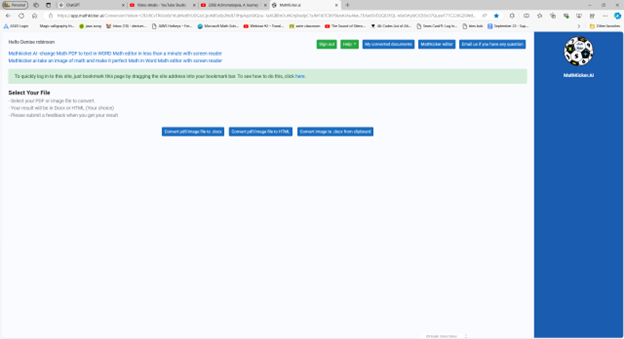
    In this tutorial, Dr. Robinson demonstrates how to use Mathify to convert a PDF image file into a DOCX file. She focuses on a table of math, one of the most problematic types of files to translate. Dr. Robinson opens the file, which prompts a save and loads in a private window. This process is typically faster in a standard window.

    mathkicker options for converting inaccessible items to accessible into WORD

    As the document loads, Mathkicker.AI effectively transforms the original images of X and Y tables into accessible tables. These tables allow students to later convert them into graphs, giving them the ability to independently create and emboss their graphs. Dr. Robinson scrolls through the document, highlighting the images now converted into accurate math tables. Small squares around each equation make them easily identifiable.

    She explains that students can use the “Alt + Equals” command in Word’s math editor to navigate to the last cell in the table and type out their equations. This feature highlights how Mathify translates PDFs into accessible, editable text. The original PDF is titled “Equivalent Ratios Practice Number One.” It converts successfully into clear and accessible text.

    Now a New Mathkicker Editor

    Dr. Robinson emphasizes that Mathkicker AI continues to improve with user feedback. She notes her preference for left alignment and how the program adapts to these preferences. Despite being a new tool, Mathkicker excels at handling math and other content, making it a versatile resource. Dr. Robinson encourages viewers to use Mathkicker and look forward to more tutorials, as the program has continued to evolve and improve utilizing a Mathkicker editor now.

  • Braille Math in Word with JAWS: Using a Braille Display to Easily Navigate Multi‑Line Math Problems

    Dr. Robinson demonstrates how to solve multi-line algebra problems using the Braille Math Editor (BME) in JAWS with a braille display. She explains that this method is effective for any multi-line mathematics problem, where isolating variables like x is essential. To start, Dr. Robinson reviews the equation by moving through the text using the up arrow key. She listens to the equation read aloud by JAWS and then enters the Braille Math Editor in Word. This setup is key for mastering Braille Math in Word.

    Specific Braille Commands to solve Multi-Line Algebra Problems

    Dr. Robinson uses specific braille commands to navigate and edit the math content. She mentions that the transcriber typically uses Alt + Equals to ensure the math is perfectly formatted for the student. She also highlights the importance of using a braille display in Word to solve Braille Math problems. It allows users to follow the dots more easily compared to relying solely on auditory cues from JAWS, enhancing the experience of doing Algebra in Braille Math in Word.

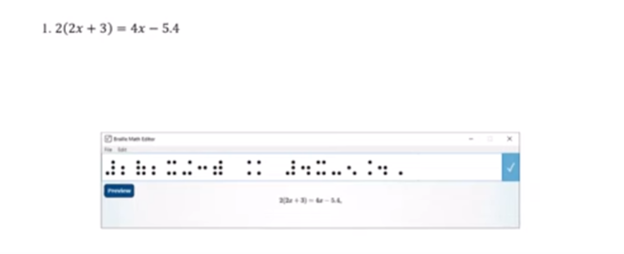
    BME in word with print in WORD and braille in virtual BME viewer as student brailles out math

    Input commas to separate lines

    As she progresses, Dr. Robinson inputs commas between steps to maintain clarity in the solution process. This practice enables her to review the steps effectively on the braille display. She demonstrates how to correct mistakes quickly using the arrow or router keys. Dr. Robinson explains the importance of using fraction marks and how specific commands help navigate fractions within BME in Word. Such details are part of mastering Braille Math in Word.

    Toward the end, Dr. Robinson checks her work by moving up and down the lines in the document. She quickly identifies a mistake, corrects it, and emphasizes how easy it is to make corrections with this setup. Dr. Robinson advises students considering a math career to invest in a braille display with at least 40 cells. For the best experience, she recommends choosing a display with 80 cells, especially when working on Braille Math in Word.

    In conclusion, Dr. Robinson effectively shows how to use the Braille Math Editor and JAWS to solve multi-line algebra problems. This method provides a clear and accessible way for blind students to engage in complex math tasks. It ensures both accuracy and efficiency in their work, showing the importance of mastering Braille Math in Word. Here is another student completing Math in the Braille Math Editor, then to advanced math in WORD to UEB Math.

    Other Math Lessons:

    Transcribe Math Images

    Quadratic Math

    STEM with Embossing

    Perfect Digital Math

    JAWS and MathCat

    Unicode with UEB Math

    UEB Math with Jaws

    UEB LaTex math with Jaws

    Desmos Lessons:

    Desmos 3D graphing

    for Geometry in Desmos

    for STEM and Embossing in Desmos

    Desmos and inserting graphs into Math Work in WORD

    Creating shaded Parabolas in Desmos

    Games with Desmos with Drag and Drop

    Drag n Drop in Macmillan Learning

    Creating Geometry Table

    More Video Lessons

  • Completing Multi‑Level Math in Word Using the Braille Math Editor (BME)


    Dr. Robinson demonstrates how to complete multi-level math in WORD using Braille Math Editor with JAWS. She used an algebra problem as an example. She explains that this method applies to several types of math problems. First, she highlights how transcriptionists or students can prepare algebra equations using the Alt + Equals command to insert math symbols directly in Word. Once the equation is ready, the blind student can easily solve it using a Focus 40 Braille display.

    Navigating the Math Content

    Dr. Robinson shows how students can work within the Braille Math Editor. By pressing Insert + Space followed by Shift + Equals, the editor opens, and the math problem appears ready for solving. She mentions that students can choose between Nemeth code or Computer Braille, depending on their preference. Both modes allow for precise calculations and input, enabling them to complete multi-level math problems efficiently across multiple levels.

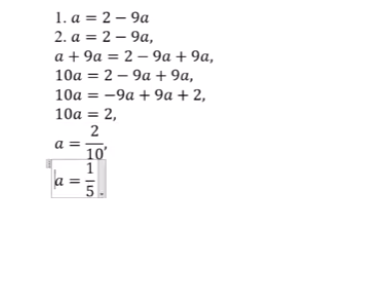
    complete multi-level math using BME in WORD image of math

    As the student works through the problem, they can use Braille commands like 4-5-6 Space to navigate to the end of the problem and add a dot 6 for separating steps with commas. This method keeps the equation organized, allowing the student to solve the problem in multiple lines, just as their sighted peers would. By checking the Braille display frequently, students ensure accuracy while solving multi-level math equations and maintaining neatness.

    Finalizing and Reviewing Work to complete multi-level math

    Once the math is complete, the student hits Enter to insert the solution into Microsoft Word. Dr. Robinson uses Ctrl + L to align the text to the left after confirming correct spacing and formatting. She resolves errors, such as unnecessary commas or misalignments, by reviewing each line. Editing line by line ensures the final product is both clean and accurate. The process concludes with a perfectly formatted, multi-level math solution, efficiently done using the Braille Math Editor, thus completing the task effectively.

    This setup provides blind students with the tools to complete complex multi-level math work just like their peers, ensuring accessibility and ease in academic settings. More math lessons here.