
The Hidden Setting Causing the Problem of Microsoft Edge Switching Accounts
Microsoft Edge includes a feature called Automatic Profile Switching.
It’s designed to “help” by choosing the profile it thinks matches the website you’re visiting.
In reality, it often does the opposite—forcing you back into the first account ever used on the device.
To quickly change profiles: Ctrl+Shift+M
How to turn it off
- Open Microsoft Edge
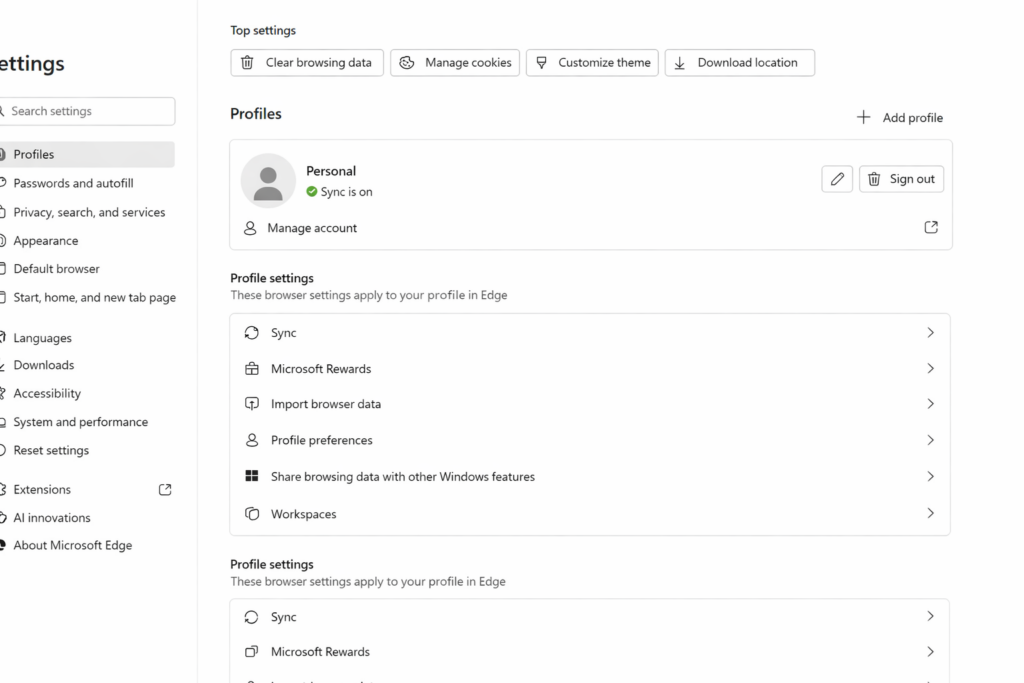
- Go to Settings
- Select Profiles
- Click or Tab to profile preferences
- Turn OFF:
Automatic sign in on Edge and Tab and turn off Allow single sign-on..
Once this is off, Edge will finally stop overriding your login and let you choose the account you actually want.
What If You Want Both Accounts to Share the Same Information?
This is the part that confuses most persons.
Turning off automatic switching stops Edge from forcing the wrong account, but it does not merge or sync data between accounts. Microsoft does not allow two accounts to share:
- bookmarks
- passwords
- OneDrive files
- emails
- sync history
- app licenses
- school‑managed content
So the person must decide what they actually want:
Option 1 — Keep the Accounts Separate (Recommended for Most Persons)
This is the cleanest, safest setup.
Do this if the person wants:
- A school or work account and a personal account
- No mixing of data
- No login conflicts
- A simple way to choose which account to use
How to set it up:
- Create two separate Edge profiles
- Turn OFF automatic profile switching
- Turn ON sync only for the primary profile they use daily
- Keep both profiles visible in the top‑right corner: Ctrl+Shift+M allows for fast switching so tab to other profile and enter
This keeps everything organized and prevents school-work restrictions from spilling into personal life.
Option 2 — Move Data From One Account Into the Other
If the person wants “everything in one place,” they must choose a primary account and manually move what’s movable.
What can be moved:
- Bookmarks → export from one profile, import into the other
- Passwords → export/import through Edge Password Manager
- Files → manually move from OneDrive A to OneDrive B
- Emails → forward or export/import
What cannot be merged:
- Sync history
- School‑managed settings
- Microsoft Store purchases
- Xbox/Game Pass data
- Anything tied to an organizational account
This is more work and not always advisable for persons on school or work‑managed devices.
How to Help a Person Decide
Here’s the exact question to ask:
“Do you want your accounts to stay separate, or do you want everything from your school-work account to move into your personal account?” Typically you do not.
Once they answer, the path is clear.
TechVision Bottom Line
If Edge keeps logging you into the wrong account, it’s not you—it’s the browser.
Turn off Automatic Profile Switching, and the problem disappears instantly.
If you use two accounts, keep them separate with two profiles.
If you want everything in one place, choose a primary account and migrate what you can.
Clear. Simple. Fixed.