Search results for: “low vision”

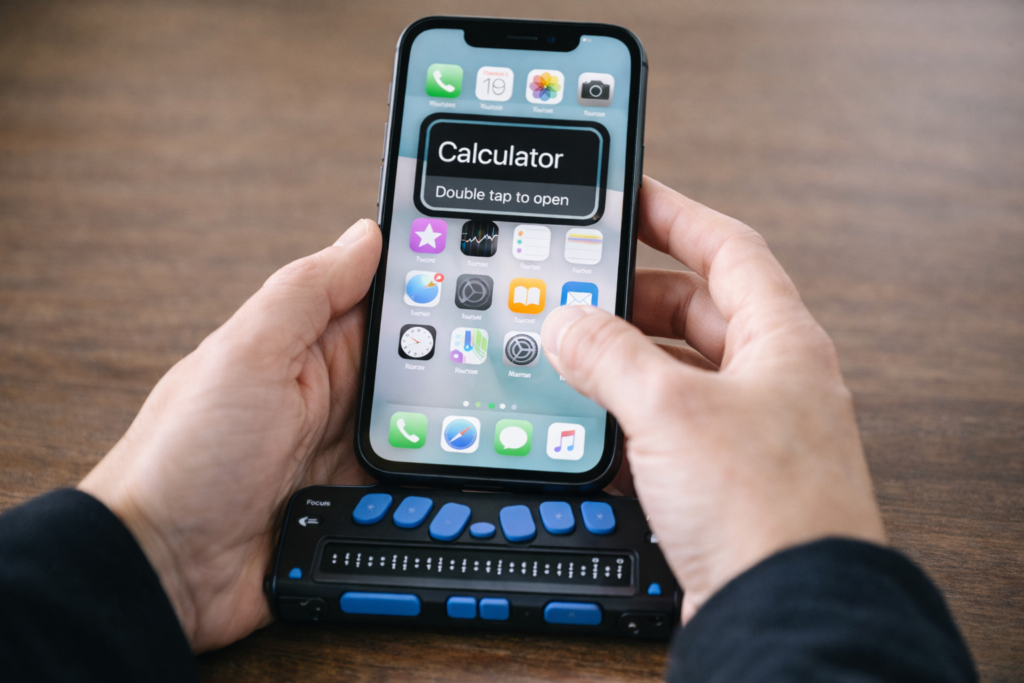
  • Complete iPhone Access Guide for Blind and Low Vision

    Complete iphone guide
    Complete iPhone Access Guide

    The iPhone is the most powerful accessibility tool available to blind and low‑vision students today. With the right skills, it becomes a map, a magnifier, a reader, a communication device, a travel tool, and a pathway to independence.

    This guide gives students, parents, teachers, and O&M instructors everything needed to build real-world iPhone skills from basic Siri commands and VoiceOver gestures to advanced navigation and daily-living tools. Use it as a curriculum, a quick reference, or a step-by-step learning path.

    A TechVision Core Resource

    The iPhone gives blind and low-vision students real independence. With the right skills, it becomes a map, a reader, a magnifier, a travel tool, and a partner for daily life. This guide helps students, parents, and teachers build strong iPhone skills one clear step at a time.


    Lessons- follow these steps


    1. Getting Started

    The guide begins with simple setup steps that build confidence fast.

    Accessibility ShortcutYou can press home button at any time and just say: “Siri open Accessibility” or wherever you need to go for what you need to do

    Where to find it:
    Settings → Accessibility → Accessibility Shortcut
    Students turn features on and off with a quick triple-click.

    Key tasks:

    • Set VoiceOver, Zoom, or Magnifier
    • Set up Siri for hands-free support
    • Add emergency contacts
    • Customize Control Center
    • Organize the Home Screen

    Core Access Features

    • VoiceOver
    • Zoom
    • Magnifier
    • Display and text adjustments

    First Skills to Teach

    • Turn VoiceOver on or off
    • Learn basic gestures
    • Use Siri for fast tasks
    • Adjust speech rate
    • Open and close apps

    2. VoiceOver Skills

    Students grow from simple gestures to full digital literacy.

    Beginner

    Where to find it:
    Settings → Accessibility → VoiceOver

    • Explore the screen
    • Activate items
    • Use basic Rotor options
    • Start typing with VoiceOver

    Intermediate

    • Edit text
    • Use the App Switcher
    • Navigate long pages
    • Move by headings or links
    • Use dictation

    Advanced

    Where to find it:
    Settings → Accessibility → VoiceOver → Activities / Braille / Rotor Actions

    • Customize the Rotor
    • Use Activity profiles
    • Use Braille Screen Input
    • Work in complex apps

    3. Navigation & O&M with iPhone

    Orientation Tools

    • Look Around-outside navigation
    • Compass
    • Landmarks
    • Spatial audio
    • Seeing AI
    • Clew-inside navigation
      Where to find them: Maps and Compass apps

    Dropping Pins

    • Drop a pin with VoiceOver:
      Maps → Current Location → Rotor → Drop Pin
    • Drop a pin with Siri: “Drop a pin.”
    • Label and save locations
    • Add Favorites
    • Create walking routes

    Real-World Travel Skills

    • Walking directions
    • Bus stop navigation
    • Checking surroundings
    • Soundscape-style apps
    • Safe campus routines

    Safety Tools

    Where to find them:
    Settings → Emergency SOS, Find My, Messages

    • Emergency SOS
    • Location sharing
    • Device tracking
    • Safe communication practices

    4. Apps for Daily Living

    Vision Support Apps

    Where to find them: App Store

    • Seeing AI
    • Be My Eyes
    • Envision
    • Magnifier

    Productivity Tools

    • Reminders
    • Calendar
    • Notes
    • Shortcuts
    • Timer and alarms

    School & Work

    • Files
    • Email
    • Safari
    • Reading apps
    • Document scanning

    5. Low Vision Tools & Strategies

    Visual Settings

    Where to find them:
    Settings → Accessibility → Display & Text Size

    • Contrast
    • Bold text
    • Reduce transparency
    • Color filters
    • Invert colors

    Magnification Tools

    Where to find them:
    Settings → Accessibility → Zoom
    Control Center → Magnifier

    • Zoom
    • Magnifier
    • Camera zoom
    • Flashlight for clarity

    Reduce Fatigue

    • When to switch from Zoom to VoiceOver
    • When audio improves endurance
    • How stands and holders help

    6. Parent Guide

    Parents help skills grow through simple routines.

    Focus areas:

    • What to teach at each age
    • How to practice safely
    • How to reduce frustration
    • When to add new apps
    • How to build daily habits

    Where to find key tools:
    Settings → Screen Time, Settings → Emergency SOS


    7. Teacher Guide

    Teachers integrate iPhone skills into daily instruction.

    Teach VoiceOver

    • Skill progression
    • Gesture modeling
    • Rotor instruction
    • Text-editing practice

    Then Navigation

    • Classroom → hallway → campus
    • Pinning school locations
    • Safe movement routines

    Teach Organization

    Where to find it:
    Press and hold any app → Edit Home Screen

    • Folder creation
    • Notifications
    • Calendar and reminders

    Assessment

    • Define mastery
    • Measure progress
    • Write goals and objectives

    8. Learning Paths

    Beginner Path

    1. Activate Accessibility Shortcut
    2. Learn basic gestures
    3. Practice the Rotor
    4. Use Siri for quick tasks
    5. Drop a first pin

    Intermediate Path

    1. Edit text
    2. Navigate long pages
    3. Use Maps
    4. Use Seeing AI
    5. Organize the Home Screen

    Advanced Path

    1. Braille Screen Input
    2. Custom Rotor
    3. Advanced Maps skills
    4. Shortcuts automation
    5. Real-world travel practice

    9. Lesson Index

    This section lists all iPhone lessons.
    Each item includes:

    • A clear title
    • A short description
    • A consistent layout

    This turns the page into a complete curriculum hub.


    10. What to Learn Next

    • Advanced VoiceOver
    • Tech-supported O&M
    • JAWS and PC access
    • Accessible STEM tools
    • Low-vision strategies

    iPhone Lessons

  • Signs of Low Vision in Children Even when they Pass Screening

    Signs of Low Vision in Children: Cannot see board work
    Signs of Low Vision in Children: Cannot see board work

    Many children pass school vision screenings but still struggle to see clearly. Screenings check distance blur, not functional vision. Parents and teachers should watch closely for signs of low vision in children, because children may look fine on paper, yet daily tasks reveal hidden challenges. They squint at the board, lose place in text, miss expressions, and tire quickly. These behaviors reflect low vision, not lack of effort.


    Many children pass school vision screenings but still struggle to see clearly. Screenings check distance blur, not functional vision. Children may look fine on paper, yet daily tasks reveal hidden challenges. They squint at the board, lose place in text, miss expressions, and tire quickly. These behaviors reflect low vision, not lack of effort.


    Short Attention Span Optimized

    1. They squint at the board even from the front row

    Squinting signals effort, not attitude. The student works harder to sharpen distant detail.

    Strategy: Increase contrast, use bold markers, and provide digital access. Squinting means they’re working hard, not misbehaving.

    2. They move reading material close to their face

    Children may hold books only inches away. They are trying to capture clarity, not misbehaving.

    Strategy: Allow close viewing without correction. Offer magnification, larger print, or digital zoom. This is a strategy, not a problem.

    3. They lose place or skip lines while reading

    Low contrast and visual strain make tracking difficult. This shows visual fatigue, not poor skills.

    Strategy: Use line guides, high‑contrast text, and uncluttered layouts. Tracking improves when visual strain decreases. Use immersive reader on laptop in WORD. Teach Screen reader to listen to content versus all visual.

    4. They avoid worksheets with dense text

    Heavy print strains the eyes. Students may stall, fidget, or rush because the task hurts.

    Strategy: Break text into smaller chunks, increase spacing, and reduce clutter. Avoidance is often about discomfort, not motivation. Teach screen reader Access technology.

    5. They miss facial expressions and social cues

    Low vision reduces detail in faces. Children may misunderstand reactions, jokes, or emotions.

    Strategy: Pair spoken cues with visual ones. Teach peers to use clear gestures and verbal confirmation. Low vision makes faces low‑contrast.

    6. They trip or bump into objects others avoid easily

    Low detail and reduced depth perception affect safe movement. These students need clear pathways.

    Strategy: Keep pathways clear, reduce visual clutter, and ensure consistent classroom layouts. This is an access issue, not coordination.

    7. They tire long before they complain

    Visual fatigue builds fast. A child may appear distracted after lunch simply because their eyes are tired.

    Strategy: Build in visual breaks, rotate tasks, and allow alternative formats. Visual fatigue shows up as “inattention.”

    8. They improve dramatically with better contrast or lighting

    When small changes help instantly, the issue is vision, not motivation.

    Strategy: Adjust lighting, reduce glare, and use bold, high‑contrast materials. Quick improvement means the issue is vision, not effort.


    Low Vision Issues

    A child can pass a screening yet still experience low vision daily. These signs reflect access needs, not ability. With early support and the right tools, children learn confidently and keep pace with peers.

    Understanding Vision in Children: What Visual Acuity Really Means

      Signs of Low Vision in Children Even when they Pass Screening

      What 20/40 Vision Means and Why “Almost Normal” Still Matters

      20/70 Vision Explained: What It Really Means and How It Affects Daily Life

      What does 20/100 vision look like?

      20/200 Vision Explained: What Everyone Gets Wrong About “Legal Blindness”

      What Does 20/400 Vision Look Like?

      What does 20/800 vision look like?

      When Vision Problems Look Like Misbehavior: What Parents and Teachers Miss

    What Does Legally Blind Look Like?

  • Low Vision Driving Aids: Bioptics,Prism Glasses, Adaptive Devices, and Safe Driving Options Explained

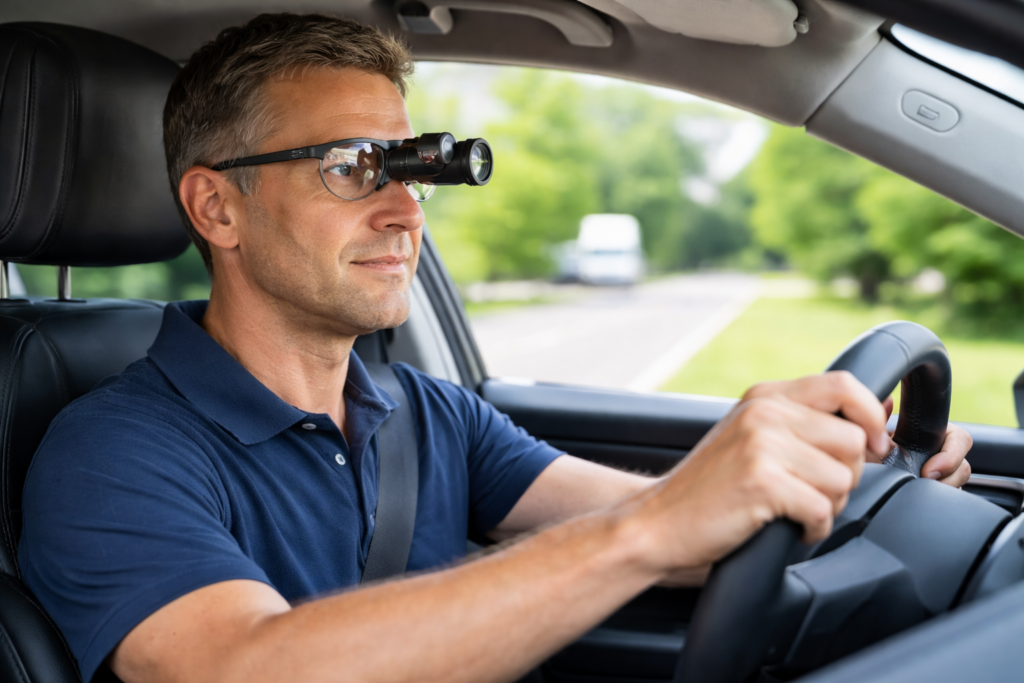
    Many driving with Low Vision aid Biopitic glasses
    Low Vision Driving Aids: Man driving with Bioptic glasses

    Many students with low vision can increase independence through safe and well-designed optical tools. Low Vision Driving Aids such as bioptic telescopes, prism glasses, and adaptive driving technology help students identify road signs, lane markings, and distant objects with greater clarity. These devices do not replace safe driving skills, but they support eligible students who meet vision requirements and receive proper training. Teachers and parents play a central role by learning these options early, guiding students toward evaluations, and helping them build strong visual skills long before driving becomes possible.


    Bioptic Telescopic Lenses

    Bioptic telescopes are small telescopes mounted on glasses. They magnify distant objects such as road signs and traffic signals. The driver uses normal vision for steering but briefly glances through the telescope for critical details.

    How bioptics work:
    A small telescope at the top of the lenses increases clarity for distant targets.

    How drivers use them:
    Drivers use natural vision for general driving and glance through the telescope to read signs or detect details.

    Safety:
    Research shows bioptic drivers succeed with training. Proper instruction remains essential for safety and confidence.


    Adaptive Driving Technology (ADAS)

    Many students benefit from modern vehicle safety systems such as:

    • Lane-keeping assist
    • Blind-spot detection
    • Adaptive cruise control
    • Automatic emergency braking

    These systems improve awareness and support safe driving decisions. They do not replace skill, but they strengthen safety for drivers with visual limitations.


    Vision Enhancement Devices

    Some students use electronic eyewear or enhanced optical devices to support mobility. Tools like eSight improve clarity for reading street names, viewing dashboards, or spotting road markers. These devices help with general visual access rather than driving tasks themselves.


    Prism Glasses for Low Vision

    What Prism Glasses Do

    Prism glasses bend light to move an image into a student’s stronger visual field. They help the student locate print and objects more quickly. They do not change the eye, but they make vision tasks easier and less tiring.

    Who Benefits

    Prism glasses help students who:

    • Miss objects on one side
    • Lose their place when reading
    • Experience double vision
    • Have trouble tracking words
    • Struggle with visual focus
    • Have CVI or field loss

    Prisms reduce searching and help the brain find information faster.

    How Prism Glasses Help in School

    Prisms can:

    • Improve tracking
    • Reduce eye strain
    • Support board-to-desk copying
    • Increase reading stamina
    • Strengthen early print recognition

    Teachers often see smoother reading, fewer errors, and better endurance.

    Types of Prism Glasses

    Students may use:

    • Reading prisms for near work
    • Field-shifting prisms to move images into better visual fields
    • Yoked prisms to shift the entire image
    • Non-yoked prisms for specific alignment issues

    A low vision optometrist chooses the correct type.


    Legal and Clinical Requirements

    State Laws and Bioptics

    Thirty-seven states permit some form of bioptic driving. Each state sets different rules about visual acuity, visual field, telescope power, and required training. Some states allow drivers to meet acuity standards through the bioptic if they reach a level such as 20/40 through the telescope.

    DMV -Department of Motor Vehicles- Vision Standards

    Most state DMVs require:

    • Minimum acuity (often 20/40 for unrestricted licenses)
    • A certain visual field range
    • Medical reports from a low-vision specialist

    Where to Go for Evaluations and Training

    Low Vision Optometrists

    Families should begin with a low vision optometrist who can:

    • Test remaining vision
    • Evaluate driving potential
    • Determine whether bioptics or prism glasses will help
    • Prescribe optical devices

    Search using IALVS or regional low vision centers.

    Certified Driving Rehabilitation Specialists (CDRS)

    If bioptics are appropriate, a CDRS provides:

    • Behind-the-wheel training
    • Scanning and hazard-detection practice
    • Safe bioptic use techniques
    • Pre-licensure assessments

    This step is required in many states.

    DMV Vision Evaluation Services

    Families should contact the DMV to:

    • Review state vision rules
    • Obtain medical vision forms
    • Schedule low-vision driving tests
    • Determine if bioptic training is necessary

    How Families and Schools Should Start

    1. Schedule a low-vision evaluation with a trained optometrist.
    2. Discuss bioptics, prism glasses, and vision enhancement devices.
    3. Ask about training with a Certified Driving Rehabilitation Specialist.
    4. Review state DMV laws for low vision and bioptic drivers.
    5. Build visual efficiency long before students reach driving age.

  • Low Vision Computer Tricks

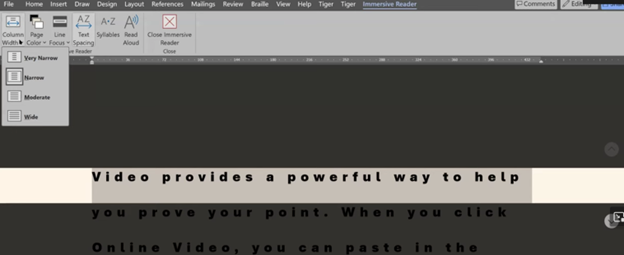
    Low-vision users enhance visibility and accessibility using tech tricks for screen scaling, mouse visibility, and reading tools. Immersive Reader in Microsoft Word, accessible from the View tab, adjusts text spacing, column width, and background color. UsersThese Low Vision Computer Tricks improve readability by customizing these settings to suit their visual needs efficiently. In Microsoft Edge, Immersive Reader activates on supported pages to simplify reading and navigation. These tools combine to provide low-vision users with a personalized, accessible digital experience.

    Dr. Robinson teaches strategies to enhance accessibility using low-visionLow toolsVision Computer Tricks in Microsoft Word, Edge, and system settings. First, she demonstrates how to adjust display settings for optimized visibility using the Windows key. By typing “display,” users can access scaling options, which enlarge screen content for better readability. Additionally, increasing mouse pointer size and inverting its color improves navigation while reducing eye strain.

    Next, in Microsoft Word, Dr. Robinson highlights Immersive Reader, available in the View tab, to enhance readability and adjust text settings. For instance, users can change font styles and sizes with Ctrl+A and Ctrl+Shift+> or Ctrl+Shift+< for better clarity. These Low Vision Computer Tricks include changing font styles and sizes with Ctrl+A and Ctrl+Shift+> or Ctrl+Shift+< for better clarity. Furthermore, the Line Focus feature reduces clutter by focusing on one or a few lines, aiding users with dyslexia. Moreover, Read Aloud, activated with Alt+Ctrl+Space, provides text-to-speech support with adjustable speed and voice options.

    In Edge, pressing F9 activates Immersive Reader, which simplifies web pages by removing clutter for a cleaner reading experience. Users can also customize text preferences or enable Read Aloud for auditory assistance. These Low Vision Computer Tricks also include customizing text preferences or enabling Read Aloud for auditory assistance. Notably, Dr. Robinson recommends Edge for its built-in accessibility commands, though Chrome and Firefox offer similar tools.

    Immersive reader for low vision
    Immersive reader for low vision

    Finally, she emphasizes using Night Light mode to reduce blue light exposure and protect long-term eye health. These tools, combined with her strategies, empower low-vision users to navigate technology effectively.

    Include in your learning with Finding the Mouse Cursor FAST and How to SEE your computer better with Low Vision

  • Blue Light Low Vision Tech Tricks

    Decrease Eye Strain and See Your Computer More Easily

    Blue light emitted from computer screens can be harmful to your eyes over time, contributing to digital eye strain, disrupted sleep patterns, and even long-term vision damage. For those with low vision, the strain caused by blue light can make using a computer even more challenging. In this post, I will guide you through simple adjustments to your computer settings that will not only help reduce blue light exposure but also make your screen and browser easier to view, enhancing your overall comfort and visual experience with Blue Light Low Vision Tech Tricks.

    Blue light from electronic devices can cause a number of issues, including: 

    • Eye strain

    Blue light from screens can reduce contrast, leading to eye strain, dry eyes, and fatigue. 

    • Retinal damage

    Long-term exposure to blue light can damage retinal cells, which can lead to vision problems like age-related macular degeneration. 

    • Sleep disruption

    Exposure to blue light before bed can affect the body’s production of melatonin, which can disrupt sleep patterns. 

    • Other health issues

    Research suggests that exposure to blue light may contribute to cancer, diabetes, heart disease, and obesity. 

    Blue light gone for easy reading with low vision
    Blue light gone for easy reading with low vision Tech Tricks in a Browser

     Report on Blue Light Eye Damage

    To protect your eyes from blue light, you can: 

    • Limit screen time and take frequent breaks 
    • Use blue light-blocking glasses or filters on your devices 
    • Adjust your display settings 
    • Follow the 20/20/20 rule: every 20 minutes, focus on an object about 20 feet away for at least 20 seconds 
    • Get regular eye exams 

    Constant exposure to blue light over time could damage retinal cells and cause vision problems such as age-related macular degeneration. It can also contribute to cataracts, eye cancer and growths on the clear covering over the white part of the eye.

    Change the setup of your computer and save your VISION!

    Other Low Vision Lessons

    Finding mouse cursor FAST-low Vision tricks

    Proper Touch-Typing Methods-save your back

    Other Vision impairment Information


    These lessons and anything you need can be added to your School’s Professional Development Days.

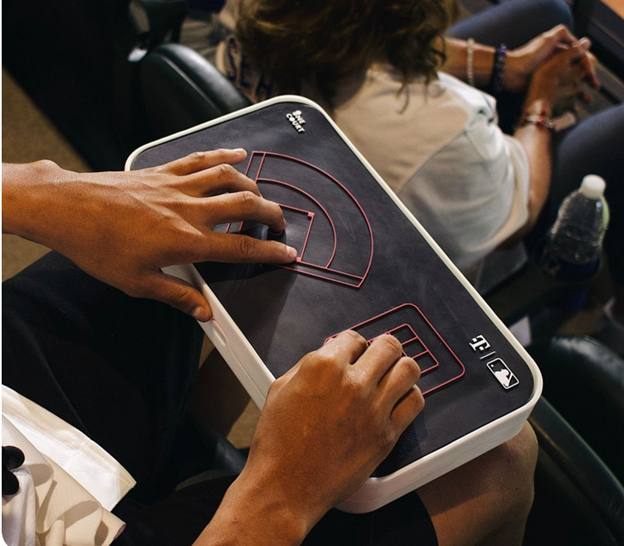
  • Sports for blind low vision people using Haptics www.onecourt.io to view live sports with your hands

    Sports for blind low vision people using Haptics www.onecourt.io to view live sports with your hands

    Jared Mace, from One Court Technologies Incorporated, works to enhance accessibility in sports for blind people. The Seattle-based startup develops innovative technology that translates live sports gameplay into vibrations. This allows visually impaired individuals to experience the game through touch. Today, Jared demonstrates this technology with Gina, a blind woman eager to participate in the action.

    The demonstration starts with Jared running a play on his laptop. Meanwhile, Gina experiences the game through vibrations at the 20-yard line. The vibrations begin on her thumb and move to her left thumb, perfectly matching the gameplay. This technology introduces a new level of accuracy and excitement to sports for blind people, enabling them to engage in the game in unprecedented ways.

    As the play progresses, Gina feels the vibrations shift to her left index finger, signaling a change in direction. The vibrations intensify, mimicking the game’s rising tension. Gina expresses her excitement, noting how this technology allows blind individuals to fully participate in sports. They can now discuss the game with friends and enjoy the experience just like sighted fans.

    Touch Down in Many Ways

    The play ends with a touchdown, marked by a strong vibration, and Gina celebrates the moment, fully immersed in the action. She then quickly wants to “see” the baseball game using another tactile overlay on the device. This device is not just about following the game; it’s about inclusion and participation. It makes sports for blind people a shared experience with their sighted peers.

    baseball overlay vibrations as game plays on TV or in a stadium

    Jared highlights that this technology revolutionizes how blind people experience sports. It breaks down barriers and creates new opportunities for engagement. The ability to feel the game in real-time through vibrations represents a significant advancement in making live sports accessible and enjoyable for everyone, especially those with visual impairments. There are online games also for people to play on computers when an actual one is NOT in play, but if you want to learn yourself, here is one young man giving basketball a try.

    Take your love of sports and being very active and going to the Olympics

  • Desmos Graphing Calculator Solution for Blind and Low Vision

    In this Video lesson, Dr. Denise Robinson demonstrates the Desmos calculator, an online tool used in schools for graphing solution for even Geometry. She highlights its fun and accessible nature, noting that while she can’t cover all its features in 1 video, she will guide through the basics of using the Desmos.

    First, she instructs users to press Control + O for 1 option for a new graph. Using JAWS screen reader. But any screen reader will work. After pressing Control + O, users hit Enter to create a new blank graph. They can navigate through options using the down arrow also for many other types of graphs. Dr. Robinson then guides users to type in formulas to create parabolas and lines, making use of various functionalities in the Desmos Graphing Calculator Solution.

    Visual Calculator and PC Calculator for Desmos Graphing Calculator Solution

    A keyboard appears at the bottom of the screen, which is manageable for low vision children. For low vision children, she recommends using Control + Plus to zoom in, allowing them to adjust the size as needed. Control + Zero returns the display to normal size. Blind students will use the PC built in calculator for full access, ensuring the best use of the Desmos Graphing Calculator Solution.

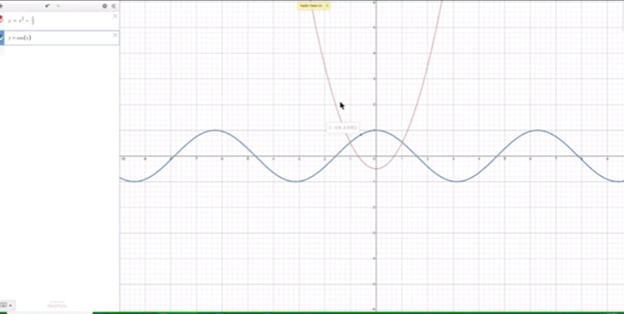
    Desmos graphing solutions- picture of parabola and formulas
    Desmos Calculator Graphing Solutions- picture of parabola and formulas

    Next, Dr. Robinson explains how to open the field dialogues or share or export to emboss a graph by pressing Insert + F5. She mentions Desmos works well in Chrome, Edge and sometimes in Firefox based on updates. She advises users to label their graph. Insert + F5 also assists in many other JAWS screen reader functionalities, enhancing the use of the Desmos Graphing Calculator Solution.

    Dr. Robinson then demonstrates typing formulas, such as X superscript 2 minus 1/2. She shows how the graph forms visually and explains using Shift + 6 for superscript. Users can listen to the graph’s details by using H and the arrow keys, with the right arrow moving right and the left arrow moving left, providing detailed information about the graph’s points. Desmos Keyboard Shortcuts and other Math Lessons further elaborate on how to effectively use the Desmos Graphing Calculator Solution.

    Find more with Desmos:

    Desmos 3D graphing

    for Geometry in Desmos

    for STEM and Embossing in Desmos

    Desmos and inserting graphs into Math Work in WORD

    Creating shaded Parabolas in Desmos

    Games with Desmos with Drag and Drop

  • How to Adapt Work for Blind or Low Vision Students — Many Options

    The most modern way as of 2024 to adapt work for blind or low vision students is using programs like MathKicker.ai, WORD Immersive Reader and Google Docs, follow these steps to ensure full accessibility for both English, Math and other content:

    1. Use MathKicker.ai for Math Content:
      • Upload or paste math equations into MathKicker.ai. This tool converts complex math problems into formats accessible for screen readers like JAWS or NVDA.
      • Once converted, paste the accessible math text into Google Docs or other word processing platforms for students to use with their screen readers.
    2. Convert Images to Descriptive Text in Google Docs:
      • When images contain important information, use Google Docs’ built-in alt text feature. Right-click the image, select “Alt text,” and enter a detailed description of the image, focusing on its relevance to the content.
      • For math-specific images (e.g., graphs, equations), describe the visual elements and provide the corresponding math in text form or, if needed, through MathKicker.ai to ensure clarity for students using auditory or Braille output.

    How to Adapt Work and Why

    3. Leverage Google Docs Collaboration Features:

    • Share Google Docs with students, allowing them to access the document using their preferred screen reader.
    • Enable real-time collaboration by ensuring that students can work in the document with peers or teachers, making the experience inclusive.

    4. Use Heading and Structure Tools:

    • Make sure to structure documents with proper headings and styles in Google Docs to aid screen readers in navigating the document efficiently.

    By combining MathKicker.ai for math accessibility and using Google Docs to convert visual content into descriptive text, blind or low vision students can access both English and math content effectively.

    There are many ways to adapt work for inclusion. Inaccessible work creates barriers—choose the right tools, because together we achieve more than apart.

     Here are a few ways to do just that.

    Adapting work using Jaws OCR-how to tell if work is image or text in PDF

    The fastest way to adapt inaccessible PDF with graphics when you run out of time

    How to adapt work for low vision–continue on with skills

    Adapt work for Low Vision using shapes for Math or Chemistry

    How to adapt work for blind/low vision students

    Access Technology for Low Vision-See your computer screen better

    Tricks for students to adapt last minute work fast –right in class

    How to adapt More work in general

    Let us know how we can help you!

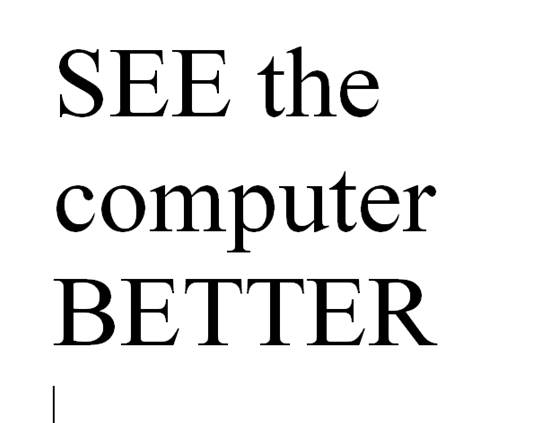
  • How to SEE Your Computer Better with Low Vision

    How to SEE Your Computer Better with Low Vision

    The population of individuals with low vision exceeds that of those who are blind. It is expanding quickly as the population ages and experiences vision decline. A variety of lessons teach you how to download large cursors, enhance contrast, and enlarge text in Word. These skills also help you read with more ease. You’ll also learn how to magnify text and graphics on the Internet using different methods. Additionally, instructions on setting up low vision devices for students in classrooms who need to see the board are provided. These lessons are designed to improve your ability to see everything on your computer. The fact that these videos predate screen capture technology is irrelevant, as the skills are applicable to all versions of Windows.

    Skills to Enlarge Text as you need on any computer

     SEE your computer better, for users with low vision, using keyboard commands in Microsoft Word can significantly enhance visibility and ease of use. Here are some useful shortcuts:

    1. Zoom In/Out:
      • Zoom In: Press Alt + W, then Q, and use the Tab key to navigate to the zoom value you want.
      • Zoom Out: Use the same steps as above but adjust the zoom value accordingly.
    2. Adjust Font Size:
      • Increase Font Size: Press Ctrl + ].
      • Decrease Font Size: Press Ctrl + [.
    3. Magnifier:
      • Turn on Magnifier: Press Windows + + (Plus sign).
      • Zoom In: Press Windows + + (Plus sign).
      • Zoom Out: Press Windows + - (Minus sign).
      • Exit Magnifier: Press Windows + Esc.
    4. Change Font:
      • Open Font Dialog Box: Press Ctrl + D to open the Font dialog box where you can adjust font size, style, and other attributes.
    5. High Contrast Mode:
      • Toggle High Contrast Mode: Press Left Alt + Left Shift + Print Screen.

    Other Low Vision Skills to increase “Seeing” Ability

    This Video demonstrates other skills to decrease blue light and damage to your eyes while using your computer

    These shortcuts can help you SEE your computer better and make text more readable and improve overall accessibility in Word12.

    Add screen readers to get the audio feedback you need as vision decreases

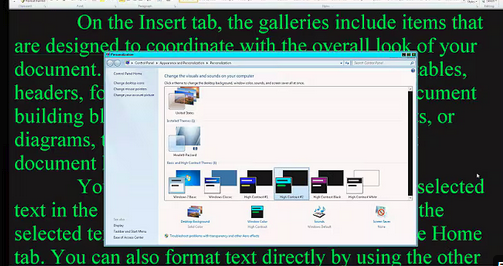
    See the computer better with high contrast
    See your computer better with high contrast

    Other Vision impairment Information


  • Finding mouse cursor FAST-low Vision tricks

    If you have a vision challenge, here are great tricks to Finding mouse cursor FAST and easily.  

    This skill works on EVERY version of Windows.

    Find the mouse cursor using a large cursor
    Find the mouse cursor using a large cursor, using CTRL key and other tricks

    Another insightful lesson from TechVision in finding mouse cursor fast. In this video they demonstrate how to easily locate the mouse pointer when it’s too small or lost on the screen. These steps will enhance visibility and ensure the mouse is always within visual reach.

    To begin, press the Start key. On Windows 10 or later, simply start typing “mouse,” then select the result by pressing Enter to open the mouse settings. If settings opens first then tab to additional mouse settings.

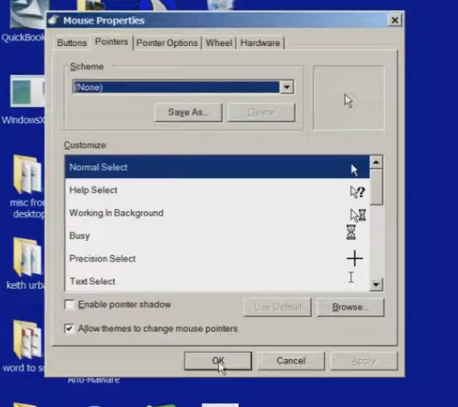
    Once inside, use Ctrl + Tab to navigate to the properties section. From here, the user is presented with various pointer schemes. They can choose “Magnified” for an enlarged pointer, or opt for “Extra Large” or “Inverted,” depending on preference. For users with high contrast settings, an inverted large white pointer is particularly effective. In this instance, they recommend selecting the “Magnified System Scheme.”

    Now for the key trick: Ctrl + Tab to pointer options. At the bottom is an option labeled “Show location of pointer so the CTRL key is pressed you see it surrounded in circles. Or to enable this, use Alt + S or manually tab down to it. Once selected, press Alt + A to apply the changes, and then close the settings window.

    With this feature enabled, pressing the Ctrl key will cause a large white ring to appear around the mouse pointer, allowing users to quickly find it, even if it’s far off on the screen.

    This technique is particularly beneficial for individuals with low vision but can be useful for anyone who occasionally loses track of the mouse pointer. This simple yet effective tip ensures that the mouse pointer is always visible and easy to locate. Watch the full video for all those little tricks to make it easier to see your computer. In addition to seeing your computer better in general and other mouse access options.

    Find more low vision tricks here and this lesson will show you adjustments to your computer to slow down Blue Light Damage to your eyes while using your computer.

    Other Vision impairment Information